how to add a song to google slides


Elevate your presentations with the magic of music! Learn how to add a song to Google Slides.
Music has the power to enhance your Google Slides presentations, setting the tone and engaging your audience. Whether you want to include background music or an audio clip, this guide will take you through the steps to seamlessly add a song to your Google Slides presentation.
Elevate your presentations and make them more captivating with the magic of music!
Steps: How to Add a Song to Google Slides
- Open Your Google Slides Presentation:
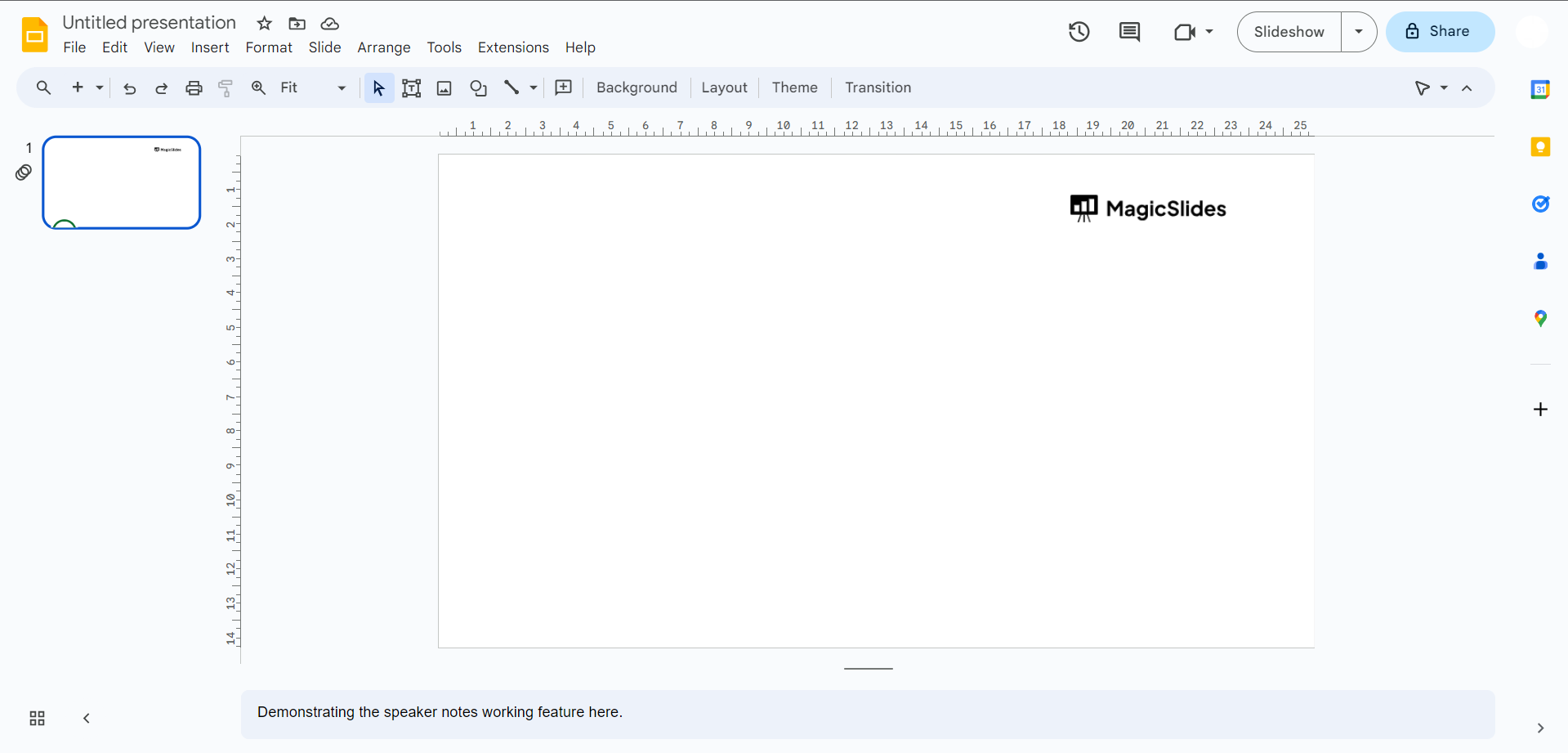
homepage of your google slides - Begin by opening the Google Slides presentation where you want to add a song. Ensure you're in the edit mode.
- Navigate to the Slide:
- Go to the slide where you want the music to begin. This could be the first slide for background music or a specific slide where you want an audio clip.
- Access the "Insert" Menu:
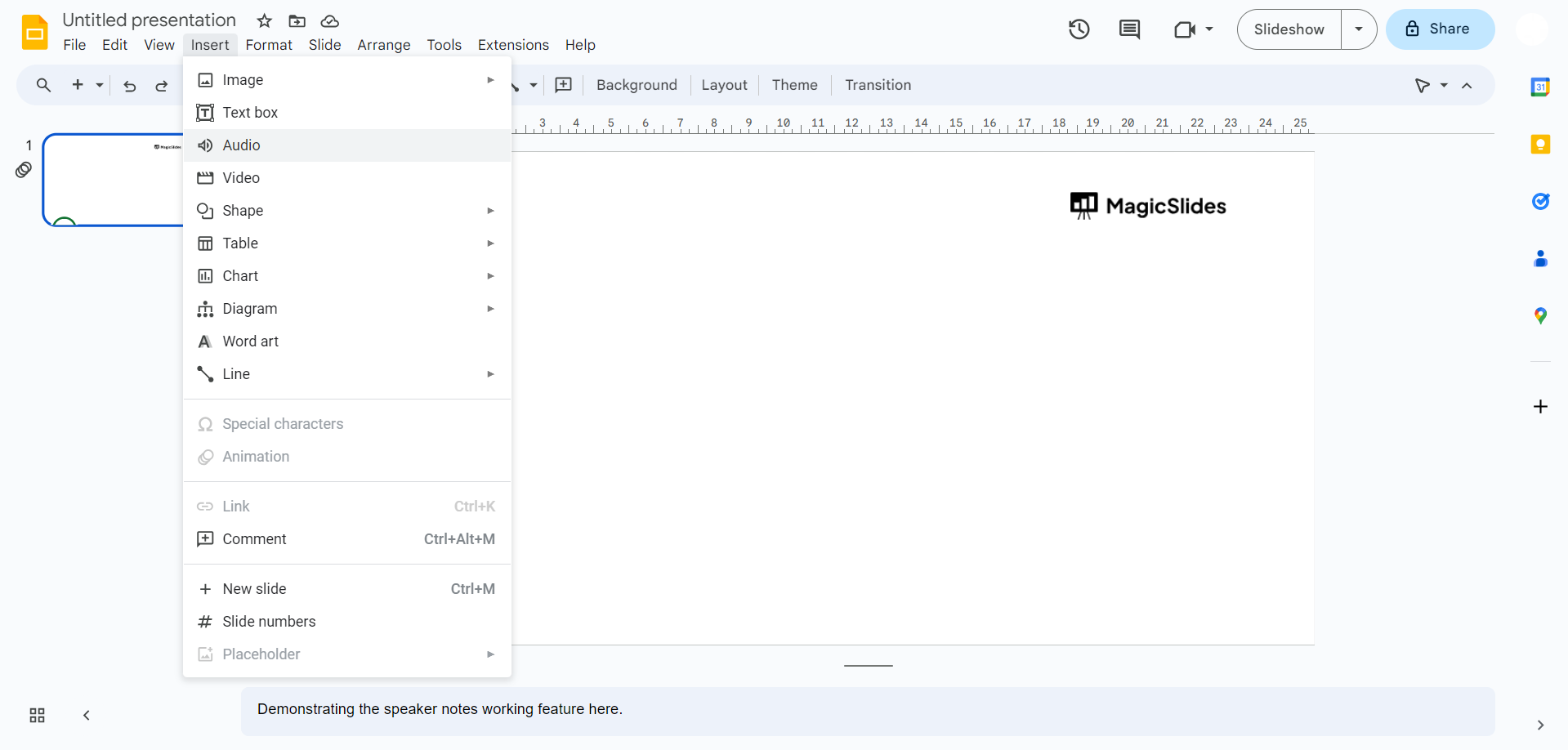
choose the third option from drop down audio - Click on the "Insert" option in the top menu bar. A dropdown menu will appear with various options.
- Choose "Audio":
- From the "Insert" menu, select "Audio." A submenu will appear with two options: "Audio on My PC" and "Google Drive."
- Select the Audio Source:
- If your audio file is on your computer, choose "Audio on My PC." If the audio is stored in your Google Drive, select "Google Drive."
- Upload or Select the Audio File:
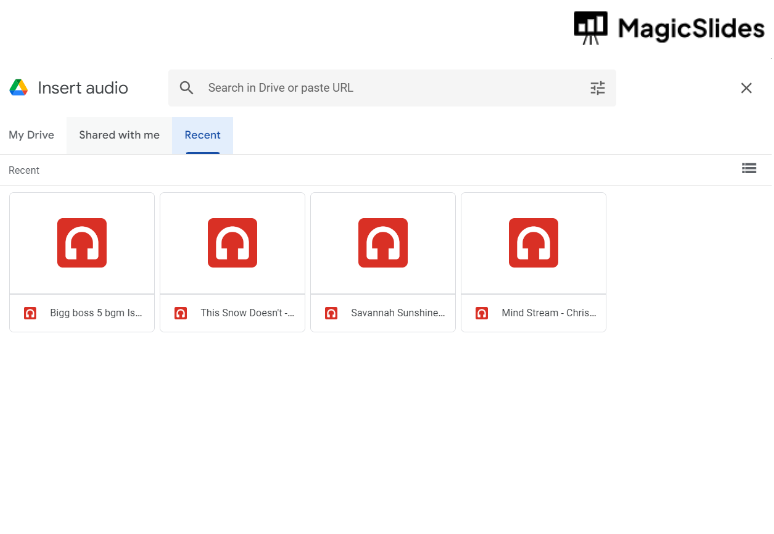
you can choose the folder source where your audio/song file will be! - If you chose "Audio on My PC," a file explorer window will appear. Locate and select the audio file you want to add. If you chose "Google Drive," a window will display your Google Drive files. Select the audio file from there.
- Insert the Audio:
- After selecting the audio file, click the "Insert" button. The audio file will be added to your slide.
- Position and Resize the Audio Icon (optional):
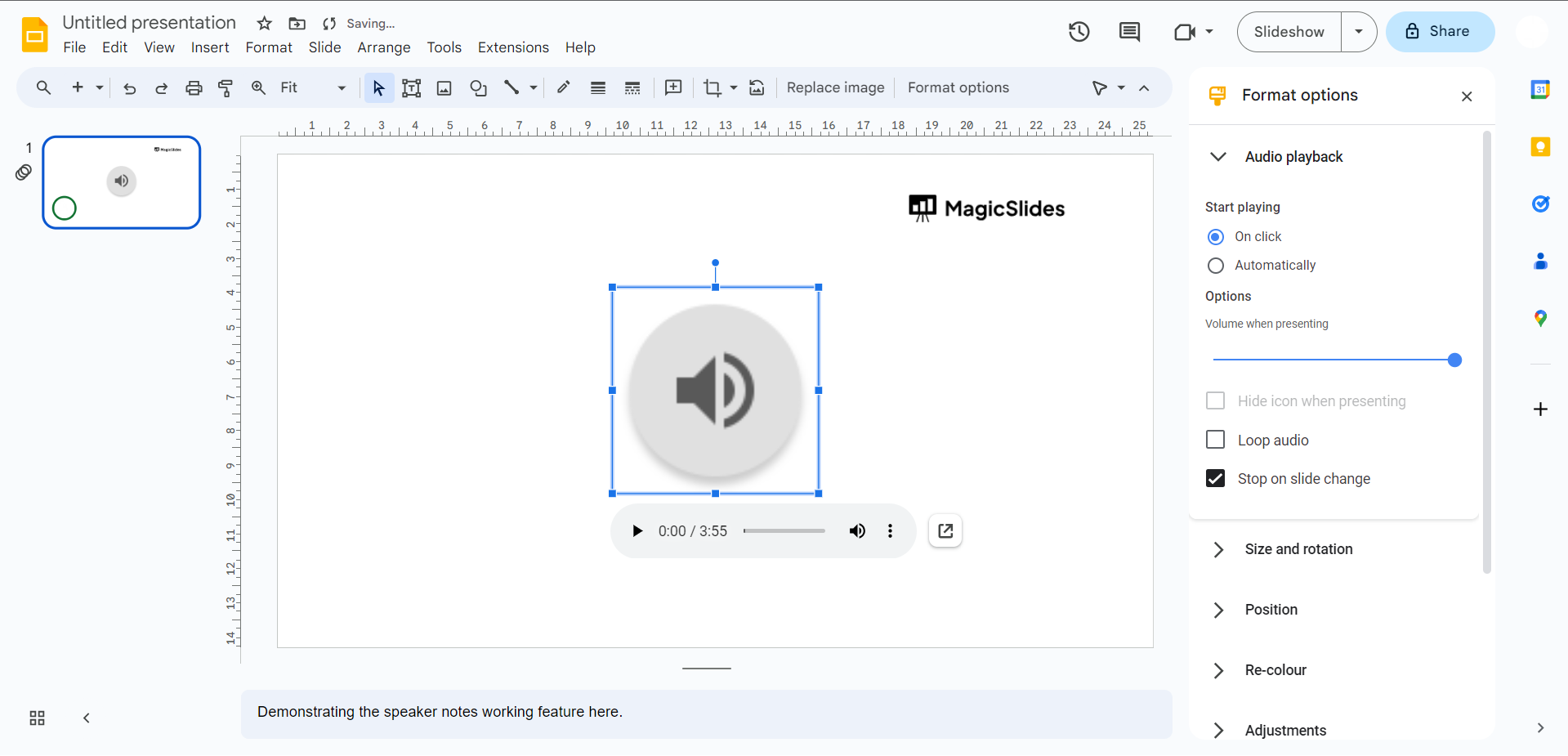
choose appropriate place on where the icon should be & adjust the size of your song icon - You'll see an audio icon on your slide. You can click and drag this icon to reposition it on the slide. To resize it, click on the corner and drag it in or out.
- Set Playback Options:
- Click on the audio icon, and a toolbar will appear at the top. Click on the "Format options" button (paintbrush icon) to set playback options. Here, you can choose whether the audio plays automatically, on click, or in the background.
- Preview the Slide with Audio:
- To preview how the audio works, click the "Present" button at the top right corner of your Google Slides. Navigate to the slide where you added the audio and test it.
- Save and Share Your Presentation:
- Ensure you save your presentation, and when you're ready to share it, make sure to share it with the audio file intact. This is usually done by sharing a link to your presentation.
Conclusion:
Adding a song to your Google Slides presentation can significantly enhance your audience's experience. Whether you're using background music to set the mood or including an audio clip for specific content, this feature adds depth and engagement to your slides.
Follow these steps to seamlessly incorporate music into your presentations and leave a lasting impression on your viewers.
Frequently Asked Questions:
- Can I add any audio file format to Google Slides?
- Google Slides supports a variety of audio file formats, including MP3, WAV, and OGG.
- How do I ensure the audio file plays smoothly in my presentation?
- Optimize your audio file by keeping it reasonably short and compressing it to reduce file size. This helps ensure smooth playback.
- Can I adjust the volume of the added audio in Google Slides?
- Google Slides doesn't offer volume control for embedded audio. You may need to edit the audio file externally to adjust its volume.
- Do I need an internet connection for the audio to play in a presentation?
- If you've set the audio to play automatically, an internet connection is required to load the audio file. If it's set to play on click, you can play it offline.
- Can I use copyrighted music in my Google Slides presentations?
- Using copyrighted music without permission may violate copyright laws. Consider using royalty-free or licensed music to avoid legal issues.


