How to Add a Timer to MS PowerPoint (3 Simple Ways)


Learn how to insert timer in PowerPoint step by step. Explore the most reliable methods to add timer in PowerPoint, and make your presentations engaging.
How to Insert Timer in PowerPoint – Easy 2025 Tutorial
Incorporating a timer into your PowerPoint presentations can help you manage time effectively during speeches, workshops, or training sessions.
Whether you want to keep track of speaking intervals, set time limits for activities, or create countdowns for breaks, adding a timer can enhance engagement and maintain audience attention.
In this guide, we'll explore how to seamlessly insert a timer into your PowerPoint slides.
Why Add a Timer in PowerPoint?
Adding a timer poses many benefits, and here are some of them:
- Great for presentations with strict time limits.
- Perfect for quizzes or interactive games.
- Timers make transitions smooth and visually appealing.
- Timers build anticipation and focus in an audience.
Not only these, but there are more benefits of inserting a timer or a countdown in PowerPoint. If you are wondering how to do so, then next, I’ll explain to you the same simply and clearly.
How to Add a Timer to MS PowerPoint?
Method 1. Adding Time Using Add-in
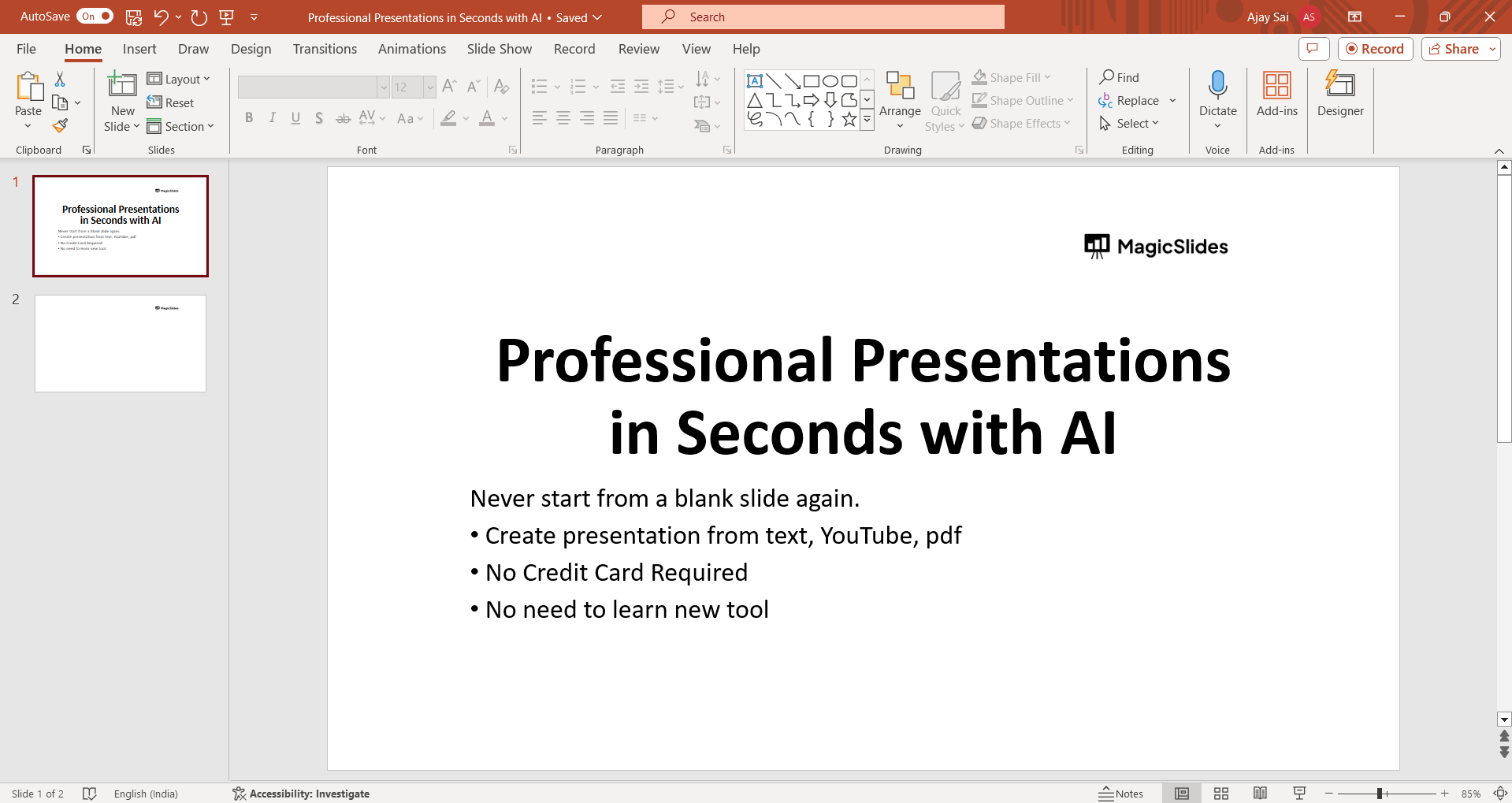
Step 1: Open PowerPoint
Launch Microsoft PowerPoint on your computer to begin the process of adding a timer to your PowerPoint Presentation.
Step 2: Insert a New Slide
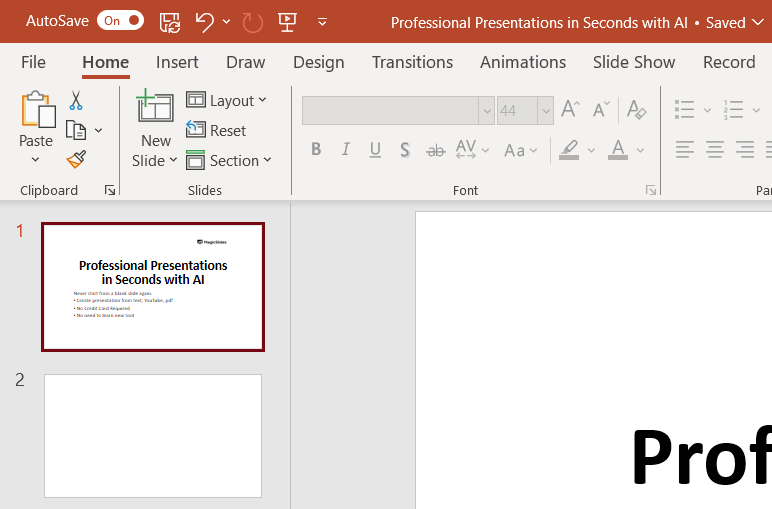
Create a new slide in your PowerPoint presentation where you want to add the timer.
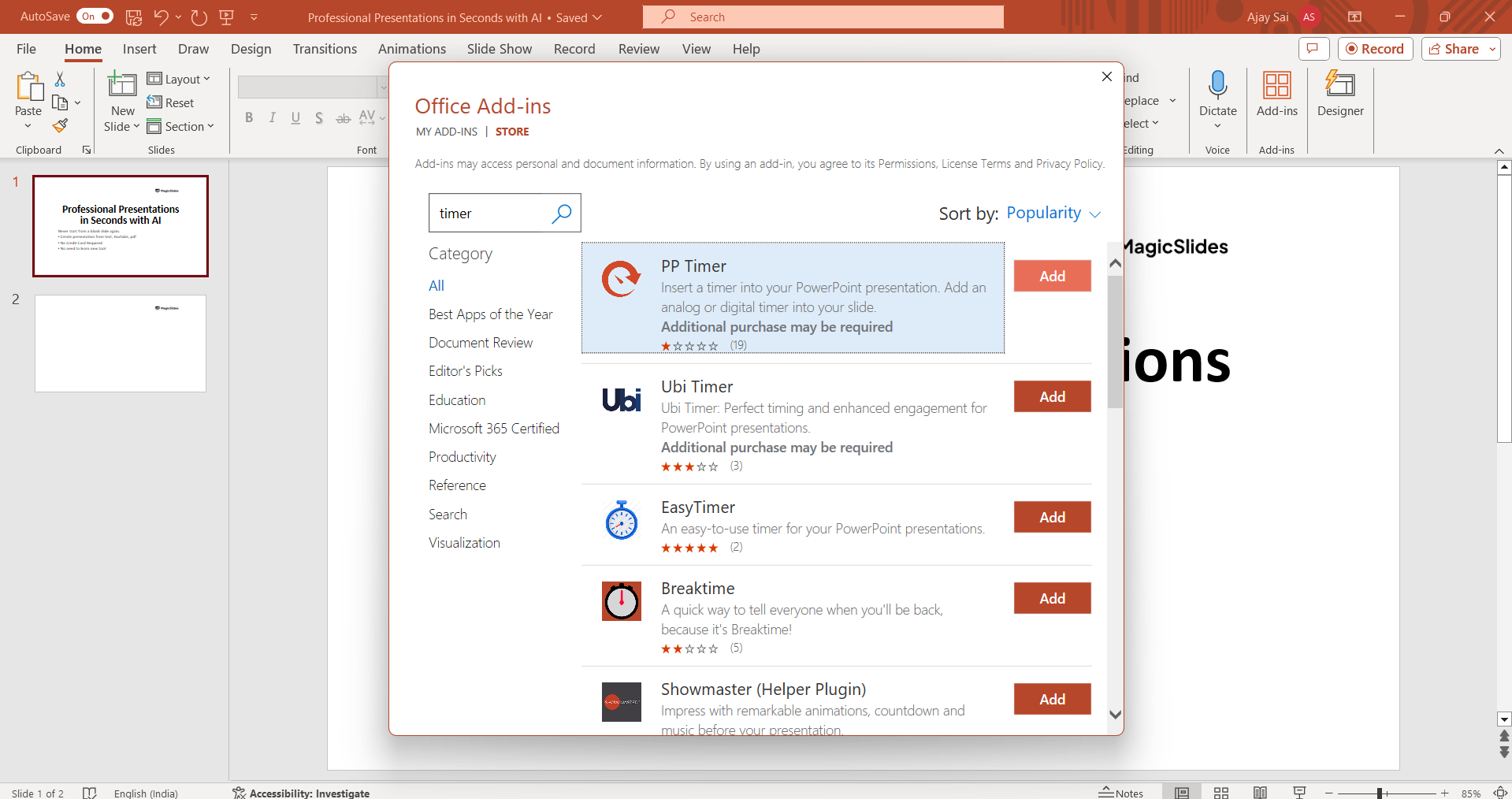
Step 3: Access Add-Ins
In the PowerPoint toolbar, click on the "Insert" tab at the top of the screen.
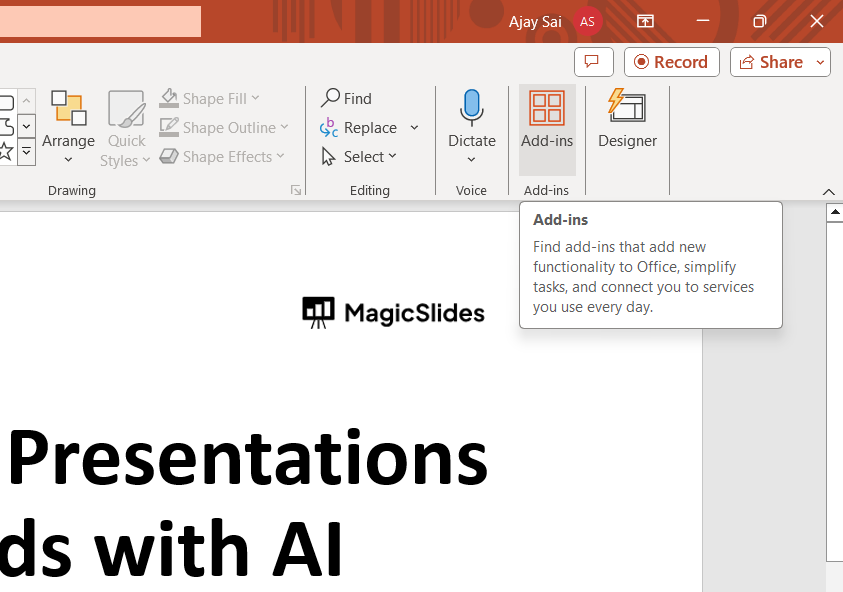
Look for the "Add-Ins" or "Insert Add-In" option and click on it, or you can directly access from Home > add-ins to the right-most corner as shown in the above figure.
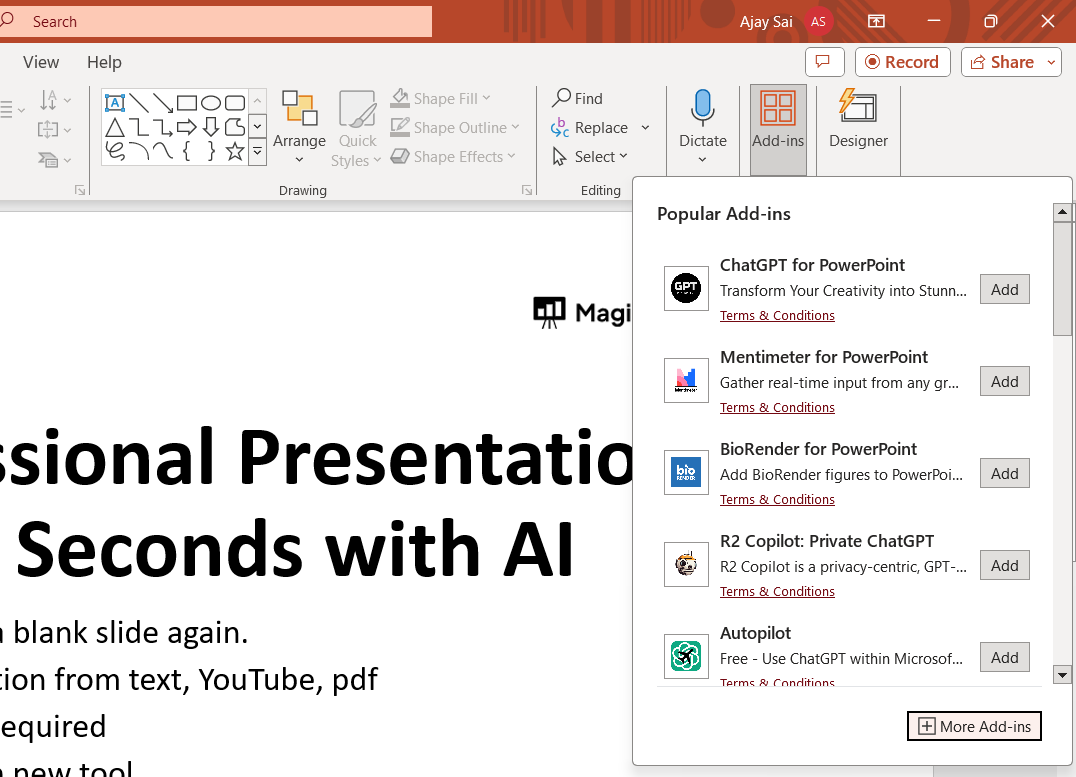
Step 4: Choose the Timer Add-In
Select the timer add-in you installed earlier from the list of available add-ins.
Step 5: Customize the Timer
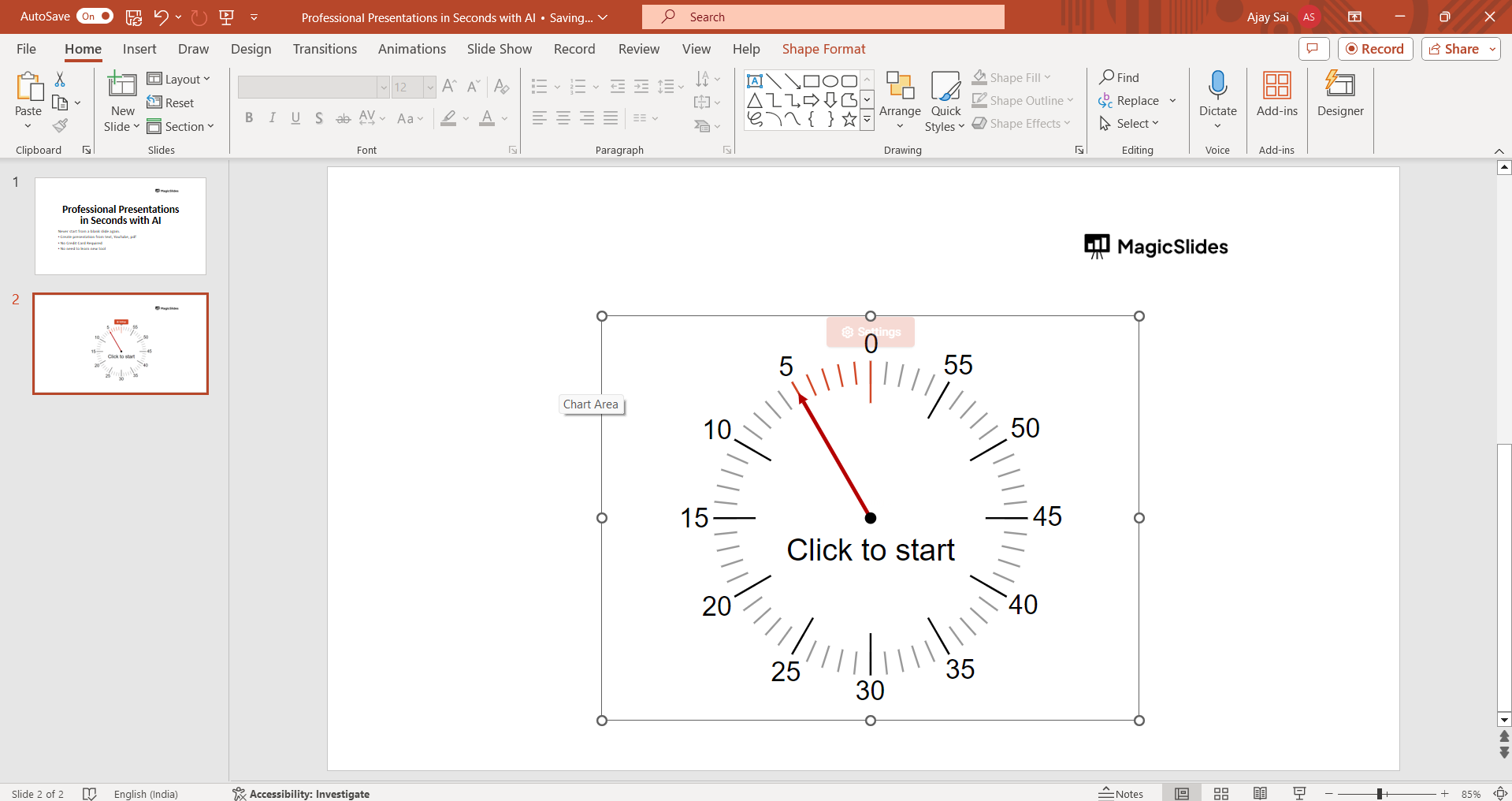
Once the timer add-in is inserted into your slide, customize it according to your preferences. Adjust the duration, format, and style of the timer to suit your presentation.
Step 6: Test the Timer
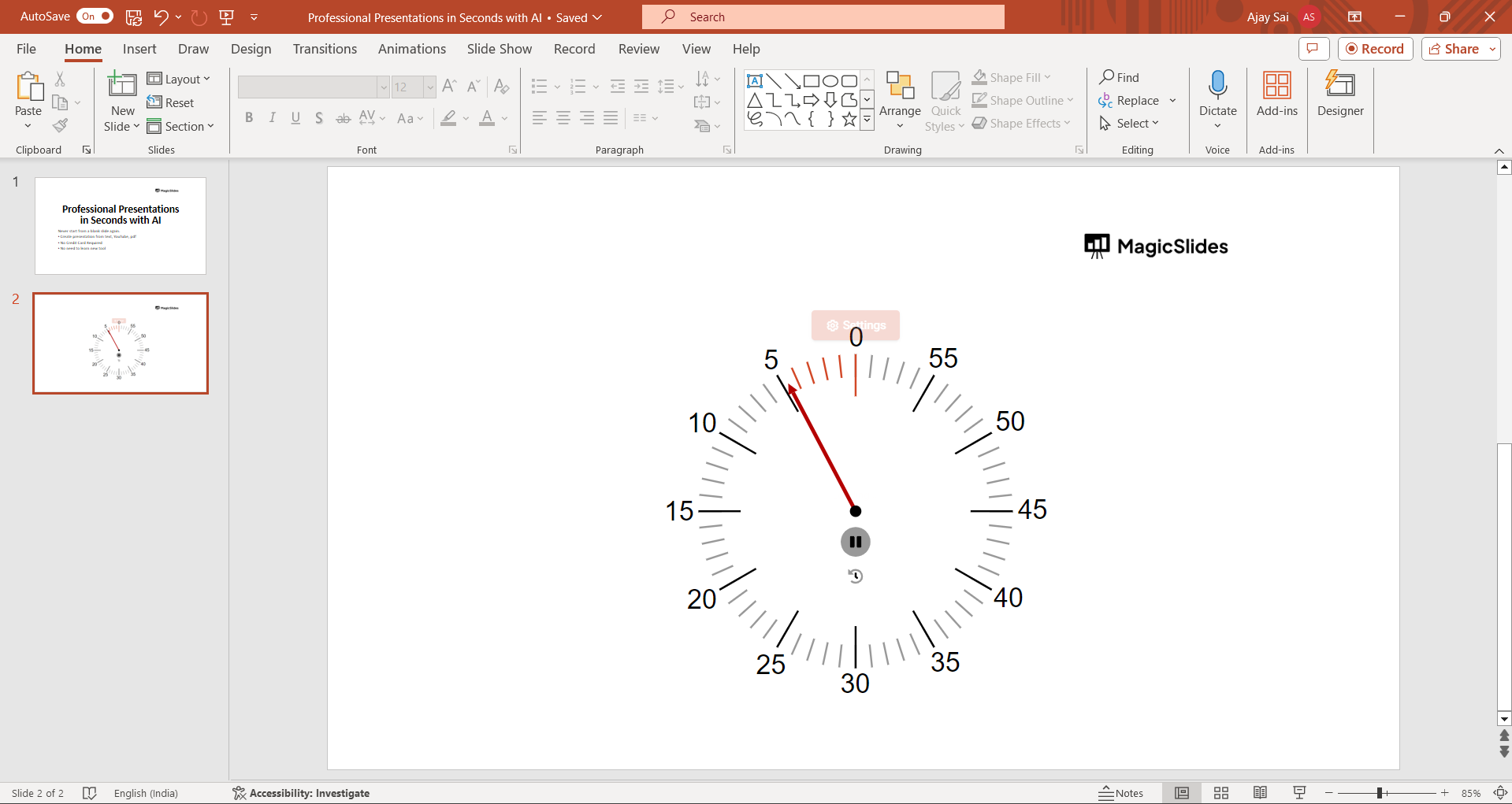
Run a slideshow in PowerPoint to test the functionality of the timer. Ensure that the timer operates smoothly and accurately tracks time.
#Method 2. Using Animation
This is my go-to method because it doesn’t require any add-ins or external tools. For the same:
- Open the PowerPoint presentation.
- Go to the slide to add the timer.
- Click on Insert > Text Box and type a number like 10 for a 10-second timer.
- Adjust the font size and position the text box where you want the timer to appear.
Now, add the animation:
- Select the text box.
- Go to the Animations tab.
- Click Add Animation > Appear.
- Now, open the Animation Pane.
Afterwards, set the countdown. This is the crucial step, so follow the steps wisely:
- Duplicate the text box multiple times, changing each number like 10, 9, 8, 7, ….
- Stack them directly on top of each other so they overlap perfectly.
- In the Animation Pane, arrange them in reverse order from 10 to 1.
- Set each animation to start After Previous and set Delay = 1 second or your preferred interval.
When you play the slideshow, the numbers will count down automatically, just like a real timer.
#Method 3. Using a Circle Animation
Sometimes I prefer a more visual timer, which is why I opt for a circle animation. To do so, follow the steps below:
- Go to Insert > Shapes > Oval.
- Hold Shift while drawing to create a circle.
- Set the Shape Fill and Outline as desired.
- Now, add animation:
- Select the circle.
- Go to Animations > Add Animation > Wheel.
- In the Timing options, set the Duration to match the length of your timer (for example, 10 seconds).
You can also insert a text box that says Time’s up! or shows the countdown number next to the animated circle for clarity.
#Method 4. Embed a Video Timer
Another simple method is embedding a countdown video, which looks more professional. For the same, you can find free timer videos on YouTube or other third-party sites. Just search for a 30-second timer, or one according to your needs. Afterwards:
- Insert the video
- Go to Insert > Video > Online Video or Video on My PC if downloaded.
- Paste the video link or browse the file.
- Resize it to fit your slide design.
- Set Video Options
- Under Playback, set it to Start Automatically.
- Trim the video if you only want a specific duration.
Create PowerPoint Slides with Timer Automatically
Sometimes, I don’t have time to design everything from scratch or manually set up animations for timers. That’s time I considered an automated solution, i.e., MagicSlides AI PPT Maker that helps me create professional presentations in minutes.

With this, I can generate an entire PowerPoint deck from just a short prompt or topic. It automatically designs the slides and formats the content, which minimises the manual workload.
Once the slides are generated, I can easily insert a timer using PowerPoint’s built-in features or the methods I mentioned earlier.
Why I Like Using MagicSlides?→
- Quick slide creation: Just enter a topic, and it builds structured, ready-to-edit slides instantly.
- Customizable designs: I can choose from various themes and layouts that match my presentation style.
- Time-efficient: Ideal when I need to prepare a timed presentation or meeting on short notice.
- Integrates smoothly with PowerPoint: The slides open directly in PowerPoint, so adding animations or a countdown timer is seamless.
If you frequently create presentations with timers for training sessions, quizzes, or business meetings, MagicSlides AI can make the process much faster and easier.
Adding a Timer to Multiple Slides→
Now, you have learned how to insert a timer in PowerPoint. But what if you need to add the timer to multiple slides? The answer is given below:
- Add the timer to your Slide Master by going to View > Slide Master.
- That way, the timer will appear on every slide in that layout.
Author’s Verdict
Adding a timer in PowerPoint is easier than it seems once you know your options. It improves both audience engagement and maintains smooth control during a presentation. That’s why, in today’s discussion, I shared how to insert timer in PowerPoint effectively.
It is recommended to opt for the specified automated solution (Method 5) to create an engaging PPT.
People Also Ask→
Q1. Can I create a 5-minute countdown in PowerPoint?
Yes. You can use the animation method or embed a video timer for a 5-minute countdown.
Q2. Can the timer automatically move to the next slide?
Yes. Use the “After” timing in Slide Transitions to move to the next slide once your timer animation ends.
Q3. Can I insert a stopwatch instead of a countdown?
Yes. Some add-ins support both countdown and count-up timers. You can find these in the Office Add-ins Store.


