Incorporating Multimedia Elements Without Distracting


Learn how to design presentations for hybrid audiences effectively. Discover key strategies, best practices, and AI-powered tools like MagicSlides for seamless presentations.
Multimedia can take a presentation from boring to engaging—but only if used right. The wrong images, videos, or animations can turn a well-structured talk into a distracting mess. So how do you strike the right balance? How do you use multimedia to enhance your presentation without pulling attention away from your message?
Let’s break it down.
Why Use Multimedia in Presentations?
When done well, multimedia helps:
- Keep your audience engaged – A mix of visuals and sound makes content more dynamic.
- Simplify complex ideas – Charts, infographics, and short videos explain things better than text-heavy slides.
- Make content more memorable – A relevant image or video sticks in people’s minds better than bullet points.
- Add emotion and storytelling – A well-placed visual or sound effect can create a stronger connection with your audience.
But there’s a fine line between engaging and overwhelming. The key is intentional use of multimedia—every image, video, or sound should serve a clear purpose.
How to Use Multimedia Without Distracting
1. Make Sure Every Multimedia Element Serves a Purpose
Before adding any visual or audio element, ask yourself:
- Does this clarify a point?
- Does it reinforce key information?
- Will it keep people engaged without pulling focus from the main message?
If the answer is no, leave it out. Every image, video, or sound effect should work for your presentation—not against it.
Good examples:
- A short animated graph to highlight trends in data.
- A customer testimonial video in a sales pitch.
- A before-and-after image in a case study.
Bad examples:
- A long, unrelated stock video playing in the background.
- Over-the-top sound effects after every bullet point.
- Random clip-art that adds no value to your slide.
2. Keep Videos Short and Focused
Videos are powerful but risky. A five-minute explainer video might make sense for YouTube but will kill momentum in a live presentation.
Best practices for using videos in slides:
- Keep them under 90 seconds (unless absolutely necessary).
- Trim out fluff—get to the point fast.
- Use captions to keep content accessible.
If your video is longer, summarize key points in your own words instead.
3. Use High-Quality Images (But Keep Them Simple)
Blurry, pixelated, or low-quality visuals make a presentation look sloppy. Always go for high-resolution images—but avoid cluttered, overly detailed graphics that compete for attention.
Smart image use:
- Clean, relevant visuals that support your point.
- Custom illustrations or high-quality stock photos.
- Consistent style across all slides.
What to avoid:
- Images with too much text (defeats the purpose of a visual).
- Distracting backgrounds that make text hard to read.
- Overusing memes (fun, but can feel unprofessional).
4. Keep Animations and Transitions Subtle
Animations and slide transitions can add polish—but too much movement can be annoying.
Best practices:
- Stick to simple fades or slides (no spinning text or bouncing images).
- Keep animations consistent across slides.
- Avoid distracting movement that slows down your message.
The goal? Smooth, professional flow—not an over-the-top PowerPoint circus.
How to Create Presentation Slides Faster with MagicSlides
Instead of spending hours tweaking slides, use MagicSlides to generate clean, multimedia-friendly presentations in minutes.
How It Works:
- Visit MagicSlides.app.
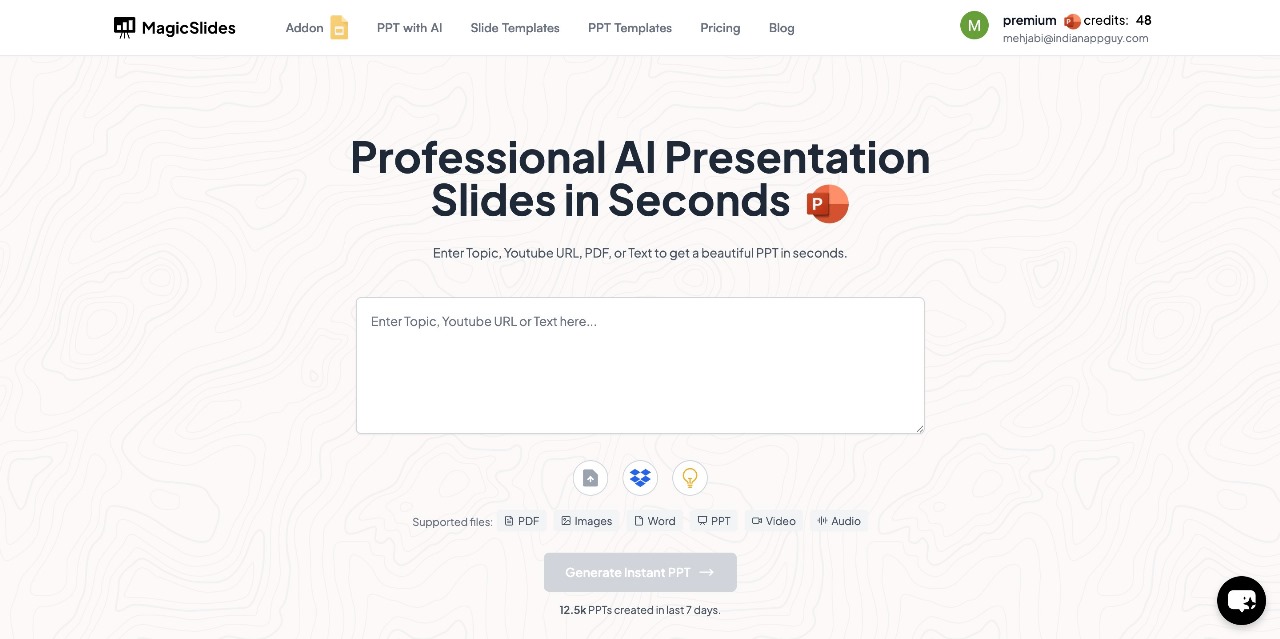
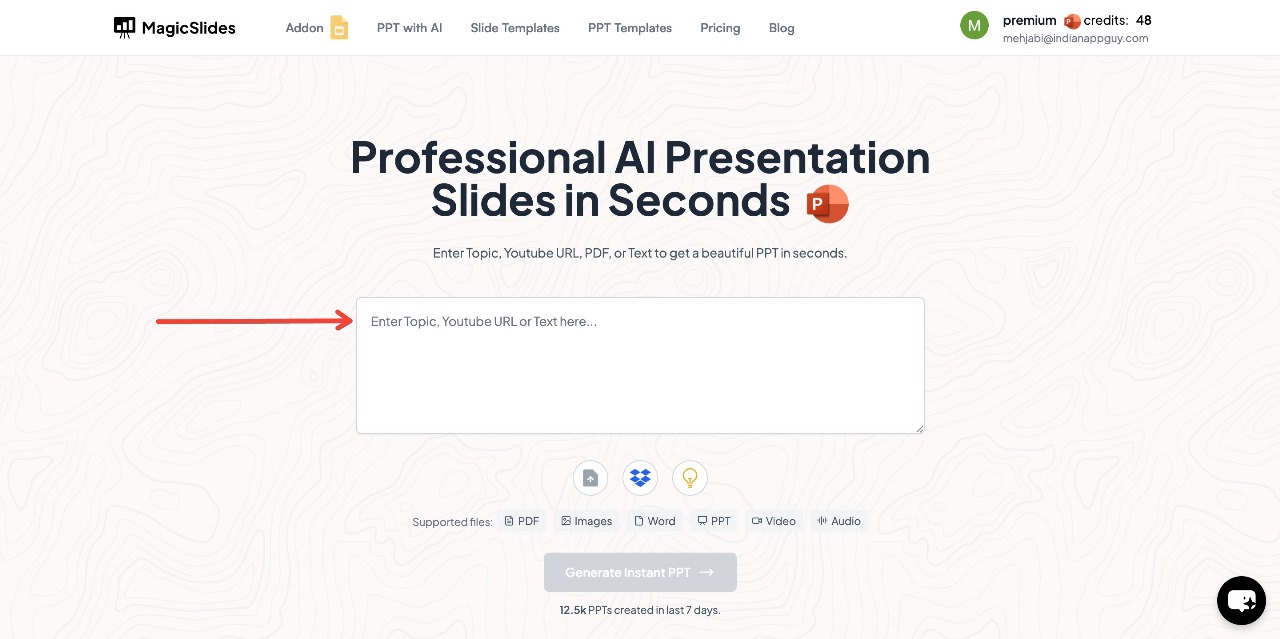
- Enter your topic in the provided space.
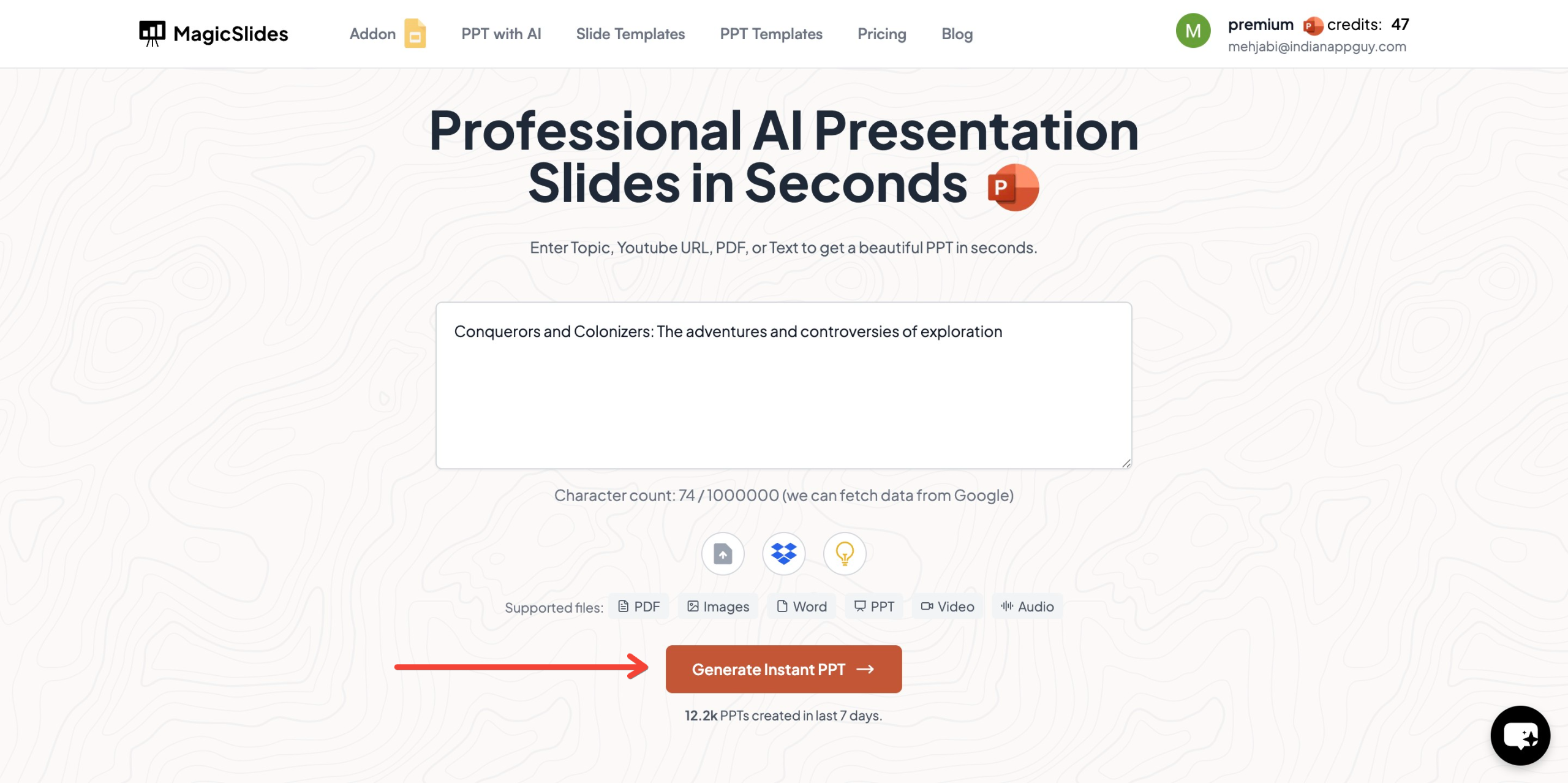
- Click "Generate Instant PPT" to start the process.
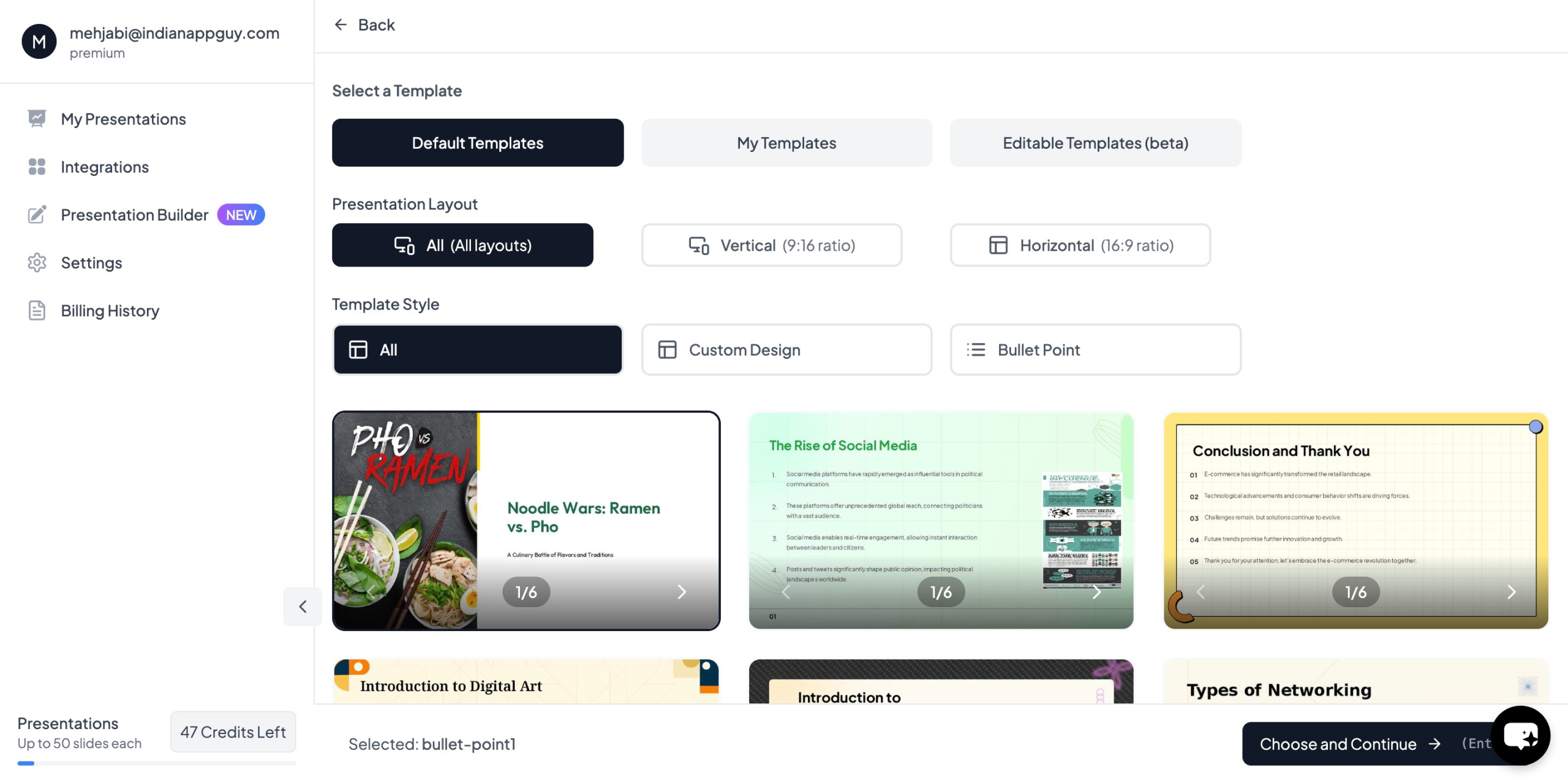
- Choose your template and the number of slides as prompted.
- Fill in the required details, then click "Generate Instant PPT".
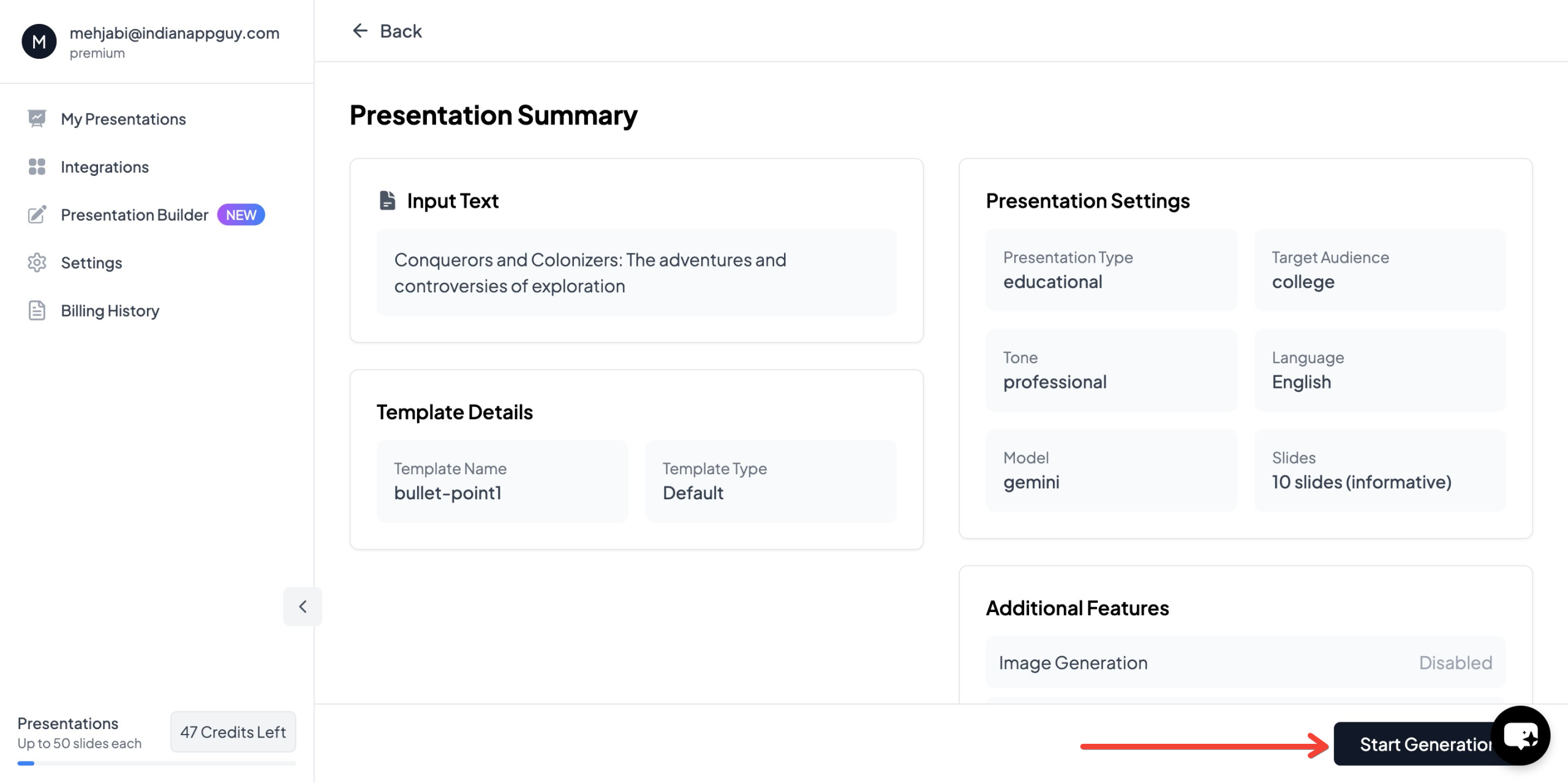
- Your professionally designed presentation will be ready in seconds!

With AI-powered slide generation, you get structured, visually appealing presentations without spending hours on design.
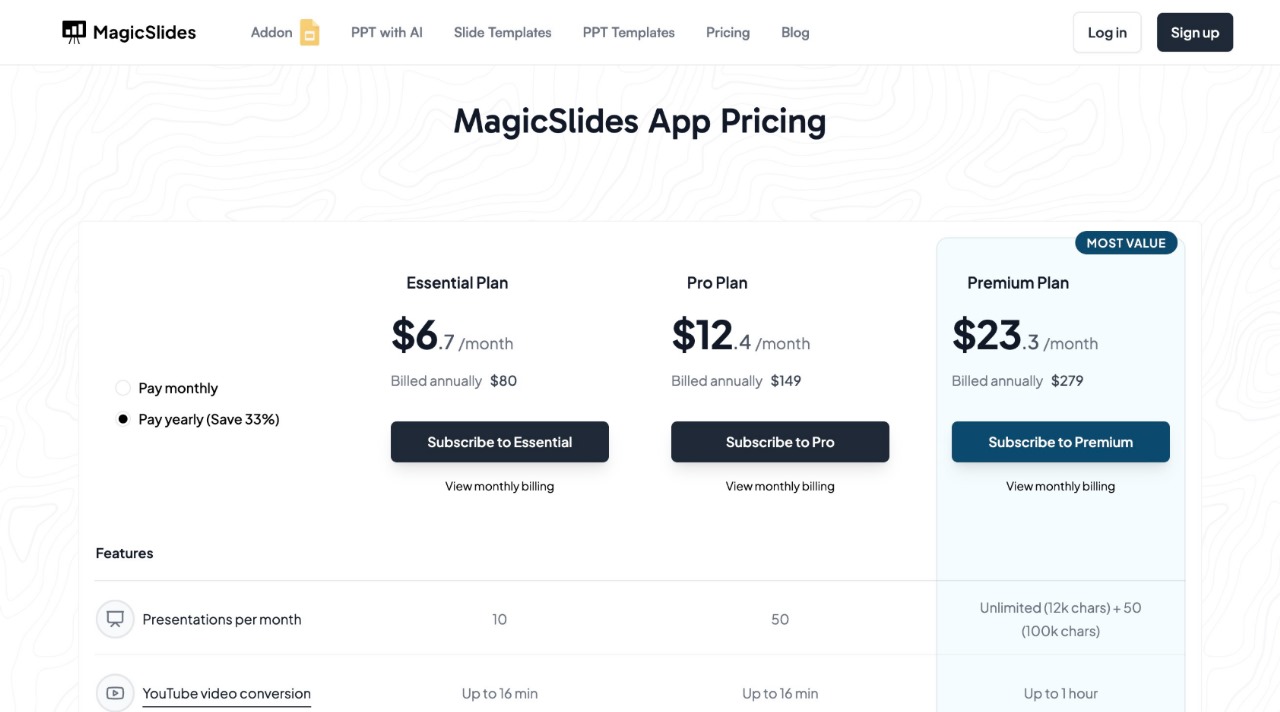
MagicSlides Pricing & Features
MagicSlides offers plans based on different presentation needs:
Why Use MagicSlides?
- Saves time – No need to manually design slides
- AI-powered – Generates content based on your topic
- Customizable – Choose templates and layouts that fit your style
- Integrations – Works with Google Slides, Figma, Zapier, and more
If you want to create high-quality presentations in minutes, give MagicSlides a try.
Final Thoughts
Multimedia can make your presentation more engaging—but only if used with purpose. Keep it simple, keep it relevant, and don’t let visuals or sound take away from your message.
- Only use images, videos, and audio when they add value
- Keep videos short and to the point
- Avoid excessive animations and transitions
- Use AI tools like MagicSlides to save time and create polished, professional slides
Want to build your next presentation faster? Try MagicSlides at MagicSlides.app.


