How to Create Slides for Instagram Carousels in Minutes with AI


Learn how to create engaging slides for Instagram carousels using AI. Generate professional carousel posts in minutes with MagicSlides – no design skills needed.
Instagram carousels are one of the best formats for sharing value-packed content. Whether you’re posting tips, tutorials, or storytelling visuals, well-designed slides for Instagram carousels can drive higher engagement, more shares, and better saves than a single post ever could.
Creating them manually used to take me hours. But now, using the right tools, I can generate a full carousel in minutes, without hiring a designer or opening complex design software. In this post, I’ll share exactly how I create high-performing slides for Instagram carousels using AI and how you can do it too.
Why Use Instagram Carousels?
If you’re trying to grow on Instagram, you already know how important carousels are. They work because they encourage people to swipe, and with each swipe, you’re increasing engagement time and improving your content’s chances of being boosted by the algorithm.
Here’s why I use slides for Instagram carousels regularly:
- Swipe-worthy structure keeps people engaged
- More room for value (up to 10 slides)
- Educational storytelling works well in visual format
- Saves and shares are much higher compared to regular posts
But while they’re powerful, building carousels from scratch can be time-consuming, especially if you’re not a designer.
What Makes a Great Instagram Carousel Slide?
Over time, I’ve figured out what works and what doesn’t. Effective slides for Instagram carousels usually follow this format:
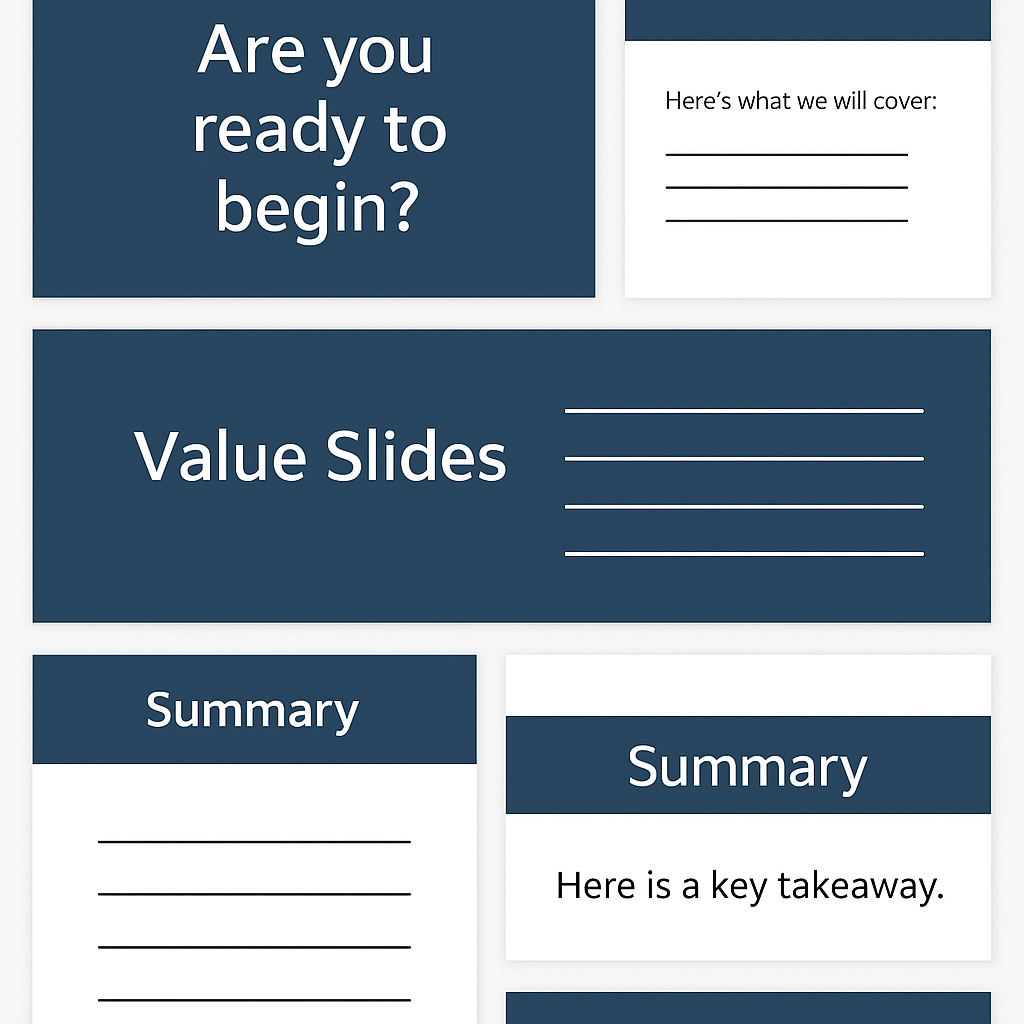
- Hook Slide – A bold question or statement that grabs attention
- Context Slide – Brief intro or explanation of what’s coming
- Value Slides – 5–7 slides that deliver tips, facts, or steps
- Summary Slide – Wrap up with a key takeaway
- CTA Slide – Invite readers to like, share, comment, or follow
Each slide should be visually clean, text-light, and easy to understand in a split second.
My Secret Weapon: MagicSlides
What used to take hours now takes minutes, thanks to MagicSlides.app.
I started using MagicSlides to create traditional presentations. But recently, I discovered how effective it is for generating carousel slides for Instagram. Whether I’m building a post about AI tips, content strategy, or small business advice, I use MagicSlides to structure the content instantly.
How to Use MagicSlides to Create Slides for Instagram Carousels
Here’s the exact process I follow to create professional-looking carousels using MagicSlides:
Step 1: Visit MagicSlides.app
Go to the website.

Step 2: Enter Your Content or Topic
You’ll see a text box where you can input your content. You can either:
- Paste a full caption or blog post, or
- Just enter a short topic like:
“
 ”
”
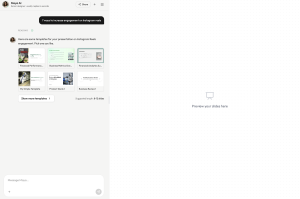
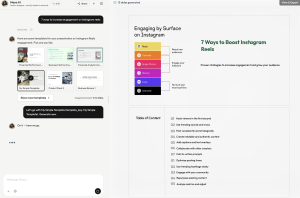
MagicSlides will then break it down into clean, structured slides, perfect for a carousel layout.
Step 3: Click “Generate”
Just click the Generate button. In seconds, MagicSlides will return a multi-slide draft that’s optimized for presentation, but works just as well for Instagram carousels.
Step 4: Export and Customize
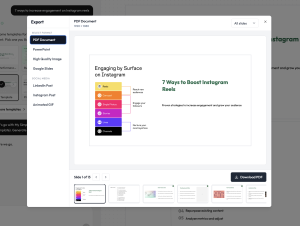
Download the slides as a PowerPoint or PDF. You can then import them into a design tool like Canva or Figma to adjust the layout, add branding, or export as square images for Instagram.
How I Format the Slides for Instagram
Even though MagicSlides is built for general slide creation, the output works great with a few simple tweaks:
- Change slide size to 1080x1080px or 1080x1350px. For this, I go to the AI chat feature and chat with their AI bot to get these changes done.
- Use bold headlines and large fonts
- Keep 20–30 words per slide maximum
- Add a consistent color scheme
- Include your Instagram handle on the last slide
After
You can do this in any design tool, and it only takes a few minutes after MagicSlides gives you the core content.
Best Topics for Instagram Carousels
If you’re not sure what kind of slides to create, here are some top-performing themes I use:
- “5 Mistakes to Avoid in [Your Topic]”
- “A Beginner’s Guide to [Skill]”
- “Before and After: How I Improved [Result]”
- “Do This, Not That” format
- “X Tools That Save Me Time Every Week”
Once I pick a topic, I just type it into MagicSlides, and it gives me the outline and slide content instantly.
Final Thoughts
Creating scroll-stopping slides for Instagram carousels doesn’t have to take hours. With the right format and tools, you can create informative, beautiful, and high-converting carousels quickly, even without a background in design.
I use MagicSlides because it helps me focus on content and storytelling instead of wasting time formatting slides manually. Whether you’re a coach, creator, or brand, this workflow makes content creation faster and more effective.
Next time you’re stuck staring at a blank Instagram post, just head to MagicSlides.app and start with your idea. You’ll have swipe-ready content in minutes.


