How to Auto Present Google Slides: A Comprehensive Guide


Learn how to set up auto presentations in Google Slides with step-by-step instructions, tips, and methods for seamless delivery.
Google Slides is a powerful tool for creating presentations, and one of its handy features is the ability to set up auto-presentation.
This feature is especially useful for kiosk displays, exhibitions, or self-running presentations at events.
In this blog post, we will guide you through the process of auto presenting Google Slides, covering detailed instructions, useful tips, and scenarios where auto presentation can be beneficial.
Why Use Auto Present in Google Slides?
Auto presenting your Google Slides offers several advantages:
- Seamless Experience: Automated presentations allow for a smooth, uninterrupted flow of information.
- Convenience: Ideal for trade shows, exhibitions, or waiting areas where you want to display information without needing to manage it actively.
- Focus on Content: Freeing yourself from manual controls lets you concentrate on your audience's reactions and interactions.
How to Set Up Auto Present in Google Slides
Method 1: Using the Presentation Settings
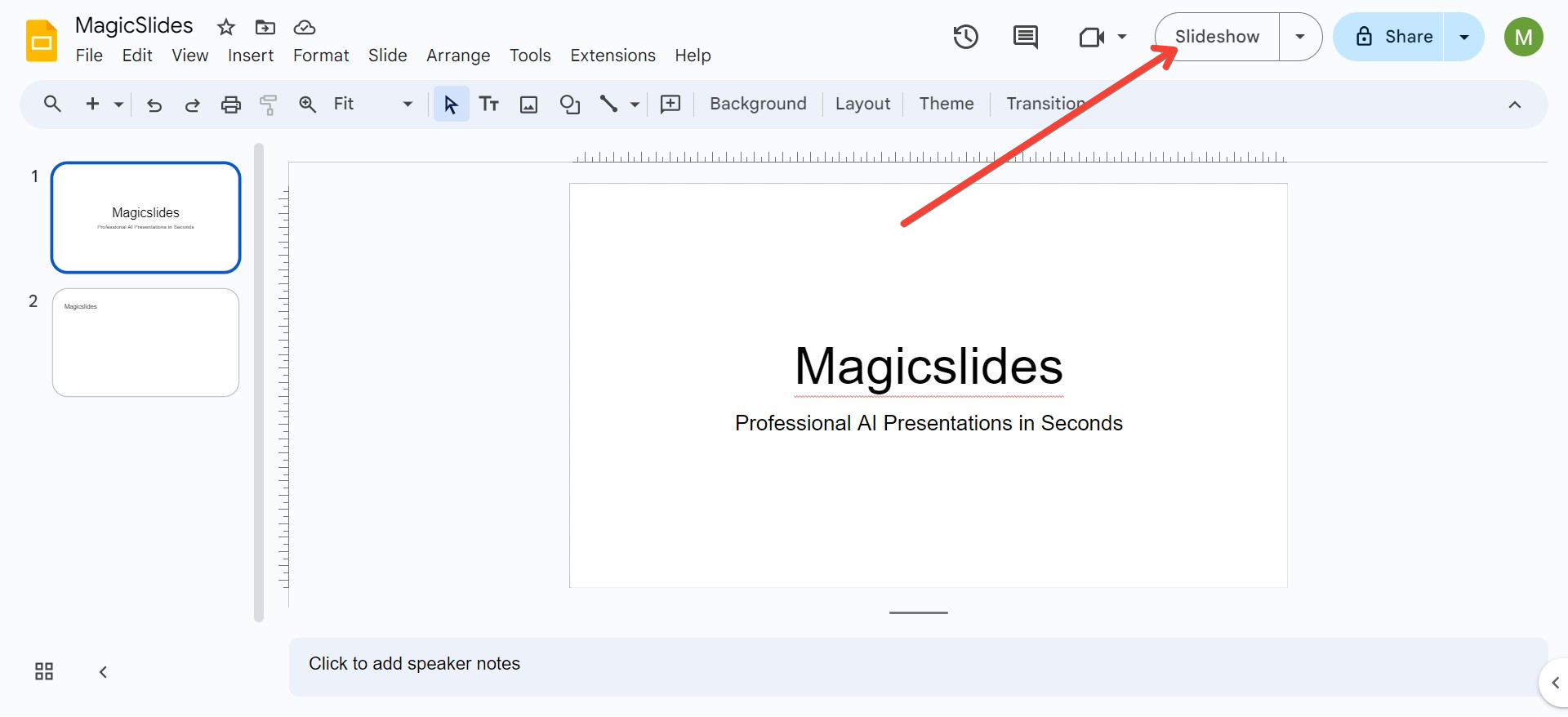
Step-by-Step Instructions:
- Open Google Slides:
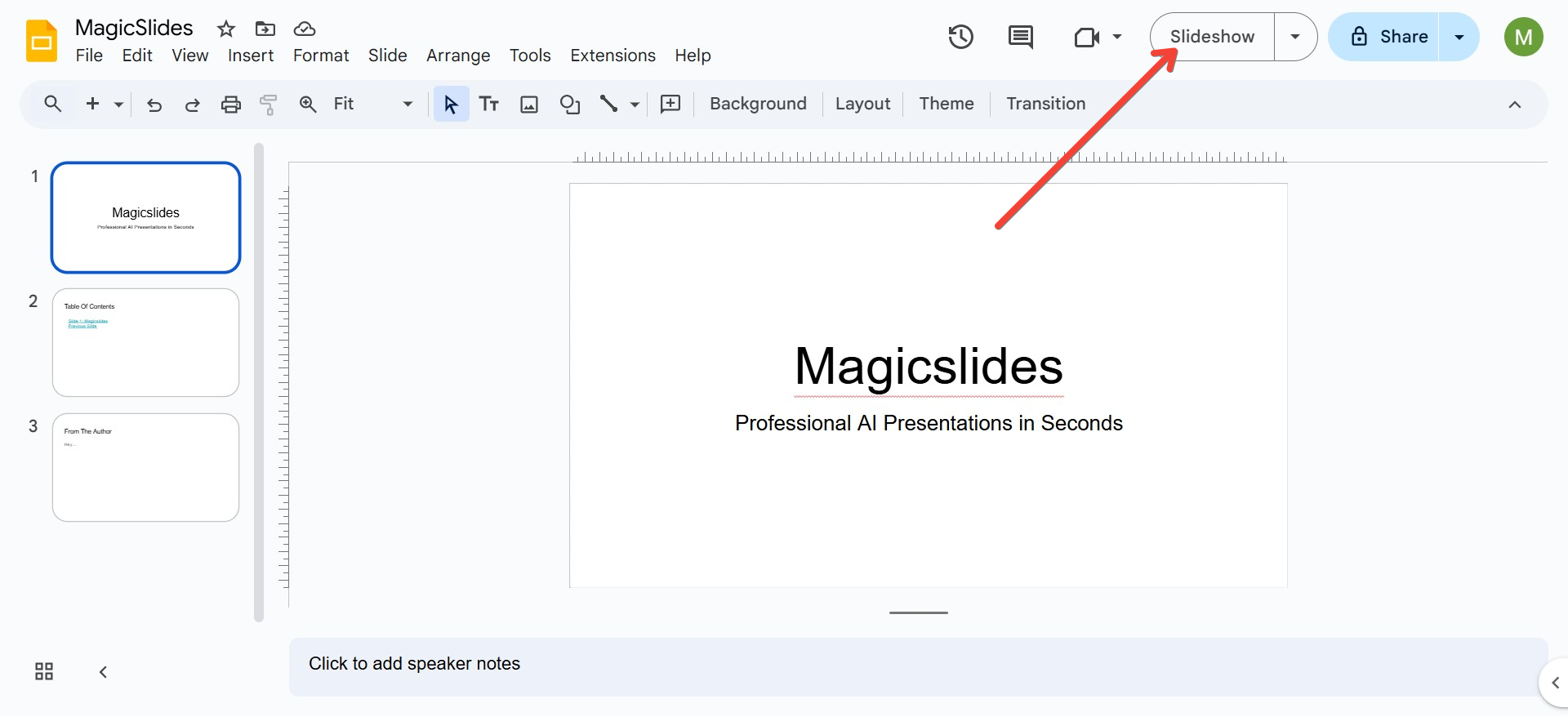
- Navigate to Google Slides and open the presentation you want to auto present.
- Access Presentation Mode:
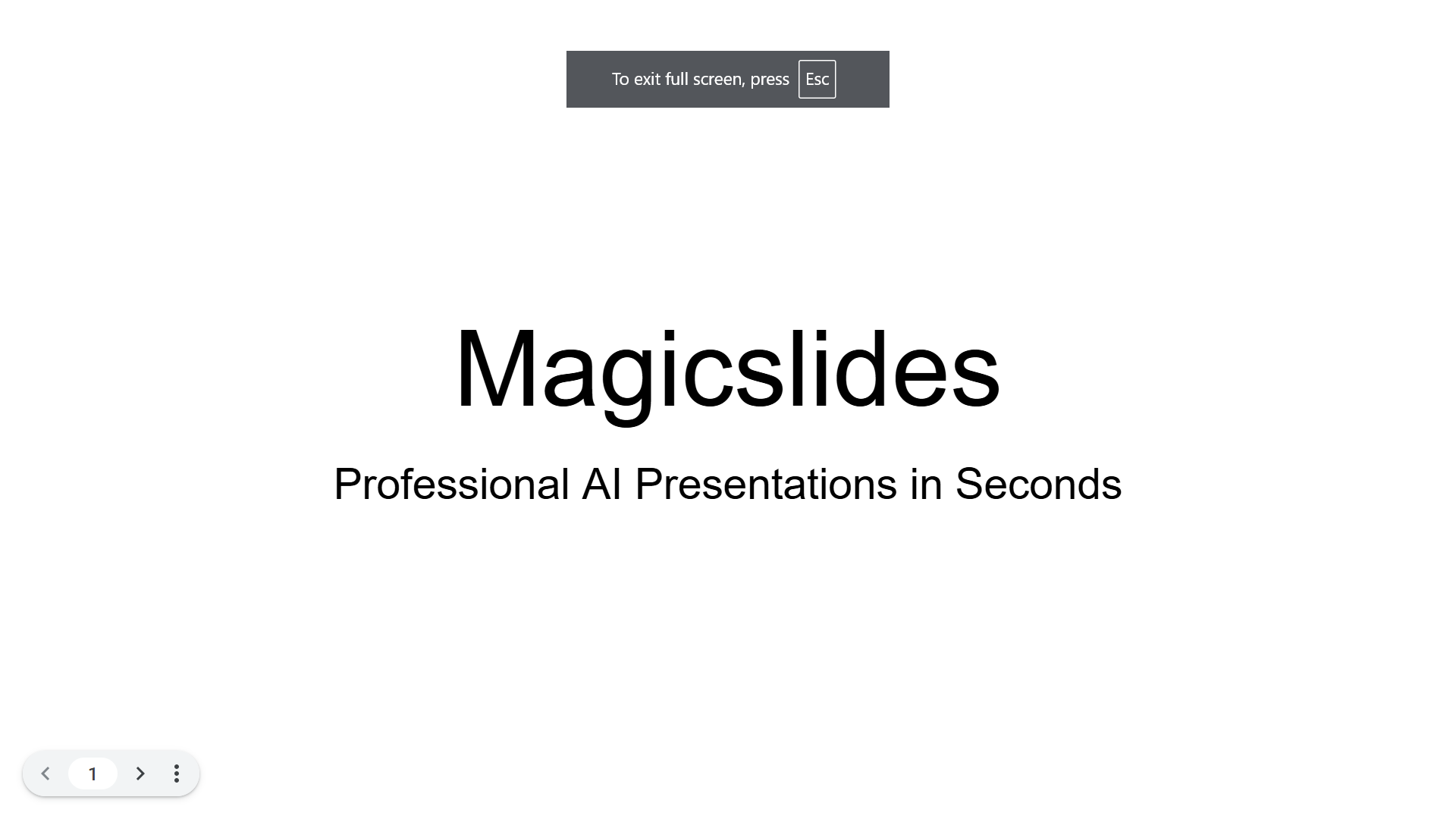
- Click on the "Slideshow" button located at the top right corner of the screen. This will switch your presentation to full-screen mode.
- Set Auto-Advance Timing:
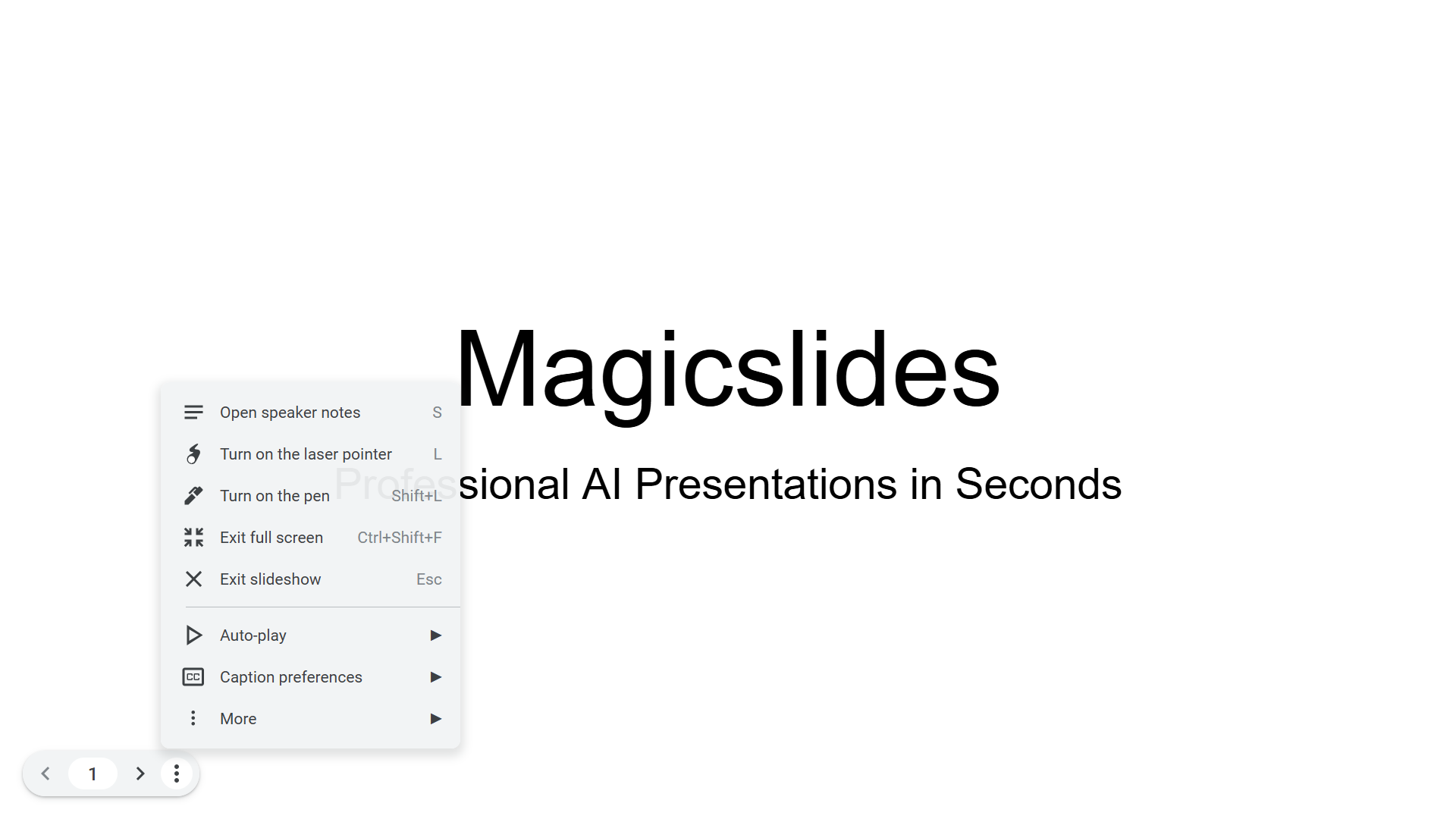
- While in presentation mode, move your mouse to the bottom left corner. A menu will appear.
- Click on the three dots (More options).
- Select "Auto-advance" from the dropdown menu.
- Choose Time Intervals:
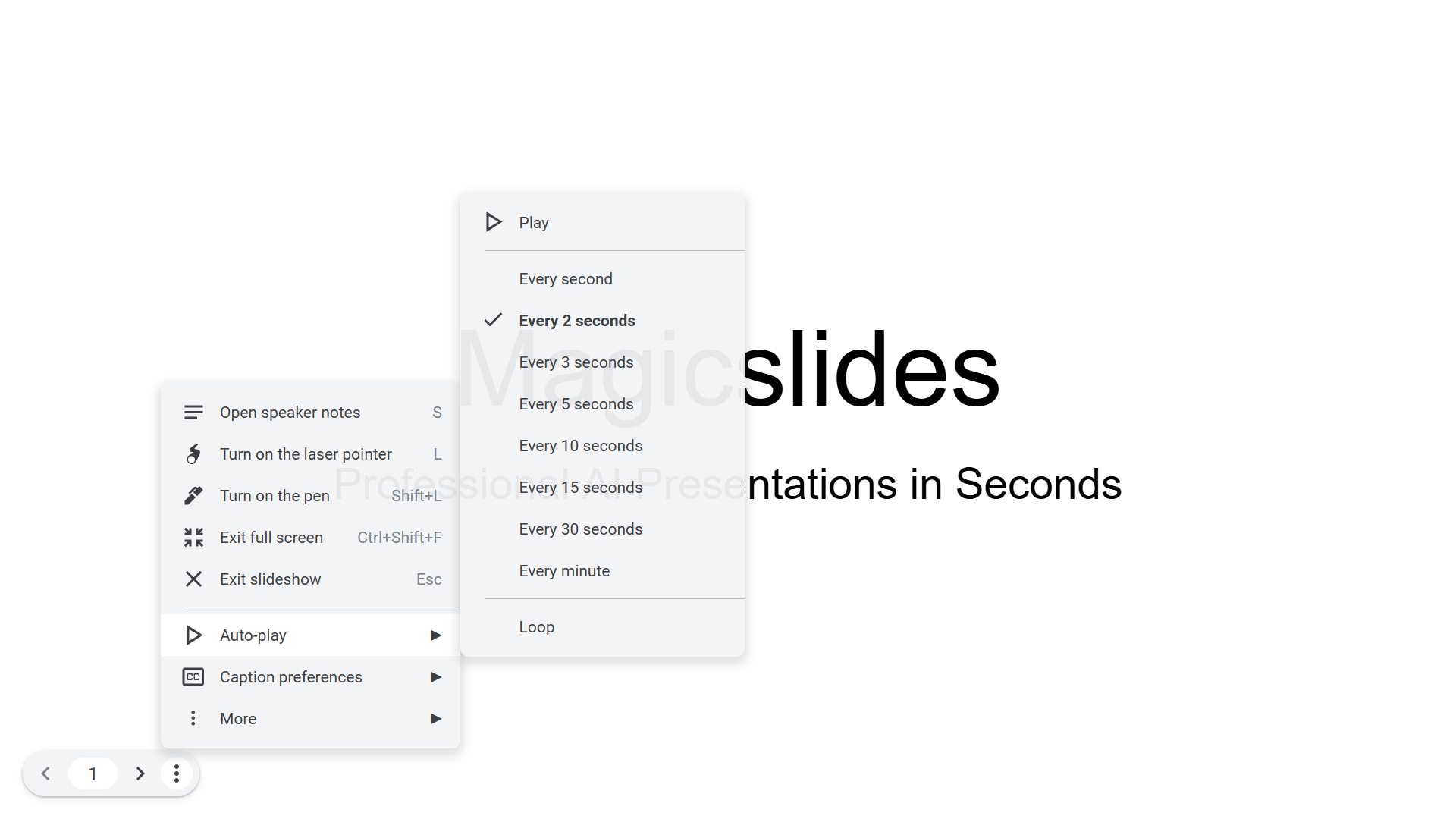
- You will see options for time intervals, such as 5 seconds, 10 seconds, etc. Choose the interval that fits your presentation style. The selected timing will determine how long each slide is displayed before automatically advancing to the next one.
- Start Auto Presenting:
- After selecting your preferred timing, your slides will begin auto advancing based on your settings.
Tips for a Successful Auto Presentation
- Practice Timing: Run through your presentation a few times to ensure the timing between slides allows viewers to absorb the content adequately.
- Use Engaging Visuals: Since you won’t be there to explain every point, make sure your slides contain clear and engaging visuals to convey your message effectively.
- Test the Setup: Before the actual event or display, test your auto presentation setup to ensure everything works smoothly.
- Provide a Manual Option: In cases where you want to give viewers a chance to control the pace, consider providing a way for them to pause the presentation or skip to specific slides.
Conclusion
Auto presenting in Google Slides is a fantastic feature that enhances the delivery of presentations in various settings, from kiosks to virtual meetings.
Whether you use built-in features, explore add-ons, or combine Google Slides with Google Meet, you can create a seamless and engaging experience for your audience.
By following the steps outlined in this guide and implementing the tips provided, you’ll be well-equipped to set up effective auto presentations that captivate your viewers.
If you have any questions or would like to share your experiences with auto presenting in Google Slides, feel free to leave a comment! Happy presenting!


