How to Create an Infographic That Clearly Communicates Your Message


Learn how to plan, design and share infographics that make your message clear and engaging with practical steps and visual tips.
Infographics are powerful tools for simplifying complex information and making it more visually appealing and easy to understand. Whether for marketing, education, or internal communication, a well-designed infographic can boost engagement and retention. This guide will walk you through the process of creating an infographic that clearly communicates your message, along with steps to use MagicSlides.app for AI-powered infographic creation.
Why Use an Infographic?
Infographics combine text, visuals, and data to create a compelling story. They help:
- Make information easier to understand
- Increase audience engagement
- Improve knowledge retention
- Boost shareability on social media
- Strengthen branding and communication
Steps to Create an Effective Infographic
1. Define Your Goal
Before designing an infographic, clarify its purpose. Ask yourself:
- What message do you want to convey?
- Who is your target audience?
- What action do you want readers to take?
Understanding your goal ensures that your infographic is clear, concise, and effective.
2. Gather Data and Key Information
An infographic is only as strong as its data. Use reliable sources such as:
- Industry reports
- Research papers
- Surveys
- Government websites
- Internal analytics
Make sure to summarize data in a way that highlights key insights without overwhelming the viewer.
3. Choose the Right Type of Infographic
Different types of infographics serve different purposes:
- Statistical: Presents data-driven insights with charts and graphs.
- Timeline: Illustrates events over time.
- Process: Shows step-by-step workflows.
- Comparison: Highlights differences between two subjects.
- Informational: Educates the audience about a specific topic.
Select a format that best conveys your message.
4. Create a Wireframe or Layout
Plan your infographic’s structure before designing it. Break it into sections:
- Headline: A catchy, clear title.
- Subheadings: Organize information into readable chunks.
- Visuals: Icons, illustrations, or images that support the content.
- Data Representation: Graphs, charts, or diagrams for numerical data.
- Call-to-Action: A next step for the viewer (e.g., visit a website, download a report, share on social media).
5. Design Your Infographic
Use a balanced mix of visuals, colors, and fonts. Keep these principles in mind:
- Color: Stick to a complementary color scheme.
- Typography: Use easy-to-read fonts with a clear hierarchy.
- Spacing: Ensure white space for readability.
- Icons and Graphics: Use visuals that enhance understanding, not distract.
6. Use MagicSlides.app to Generate Your Infographic Instantly
MagicSlides.app simplifies the infographic creation process by leveraging AI. Here’s how you can use it:
Steps to Generate an Infographic with MagicSlides.app
- Visit MagicSlides.app
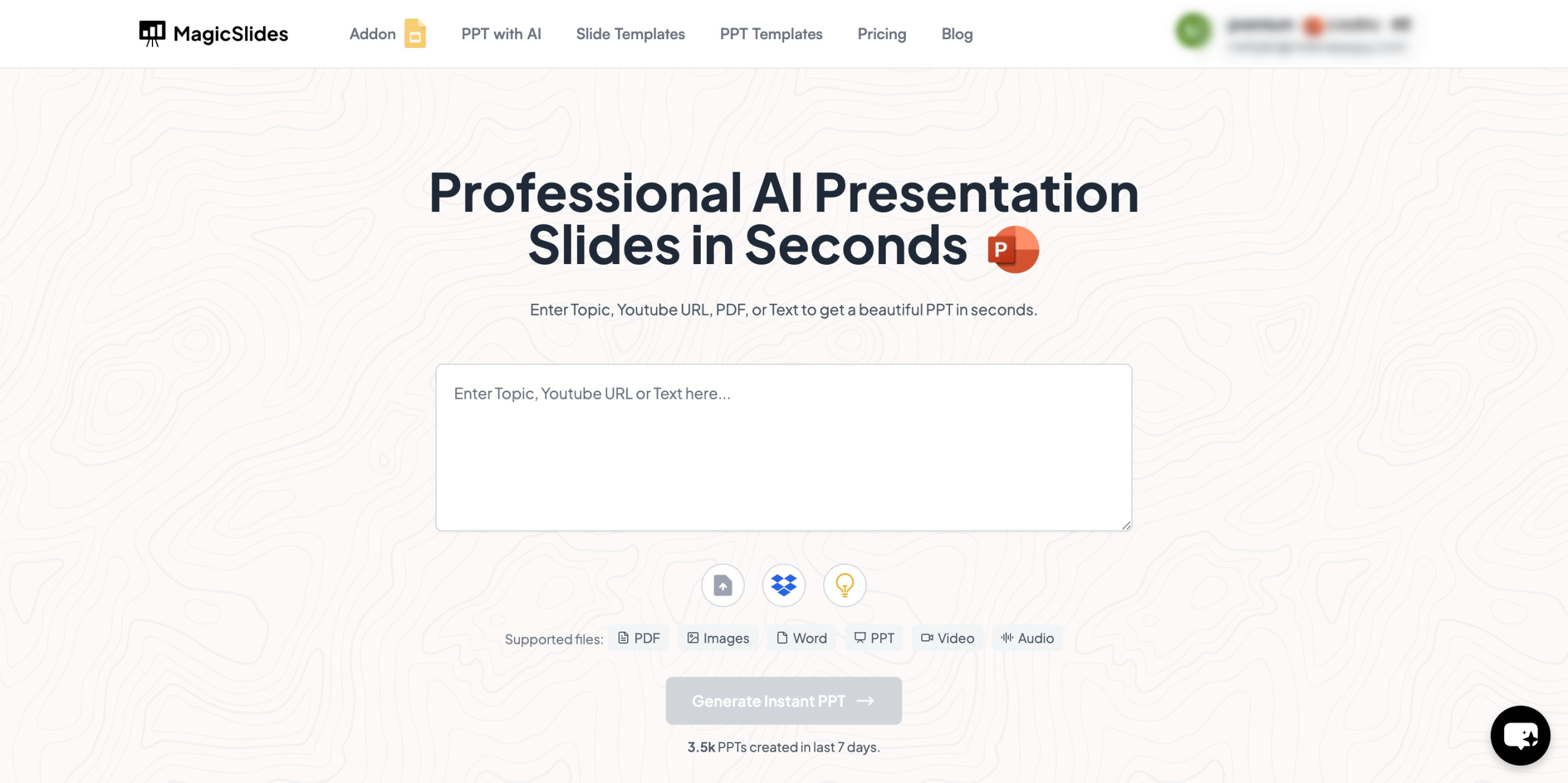
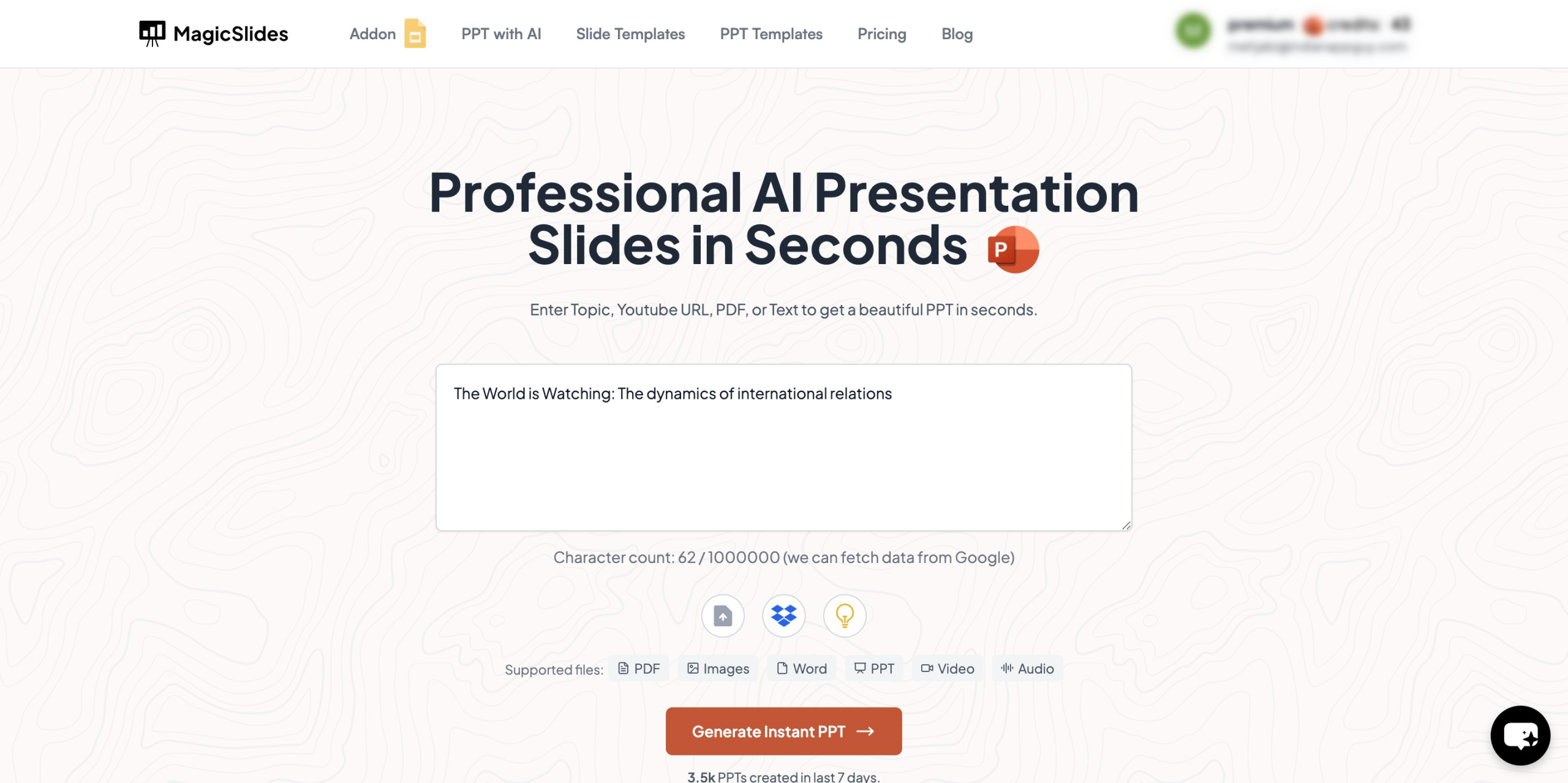
- Enter your topic in the provided space.
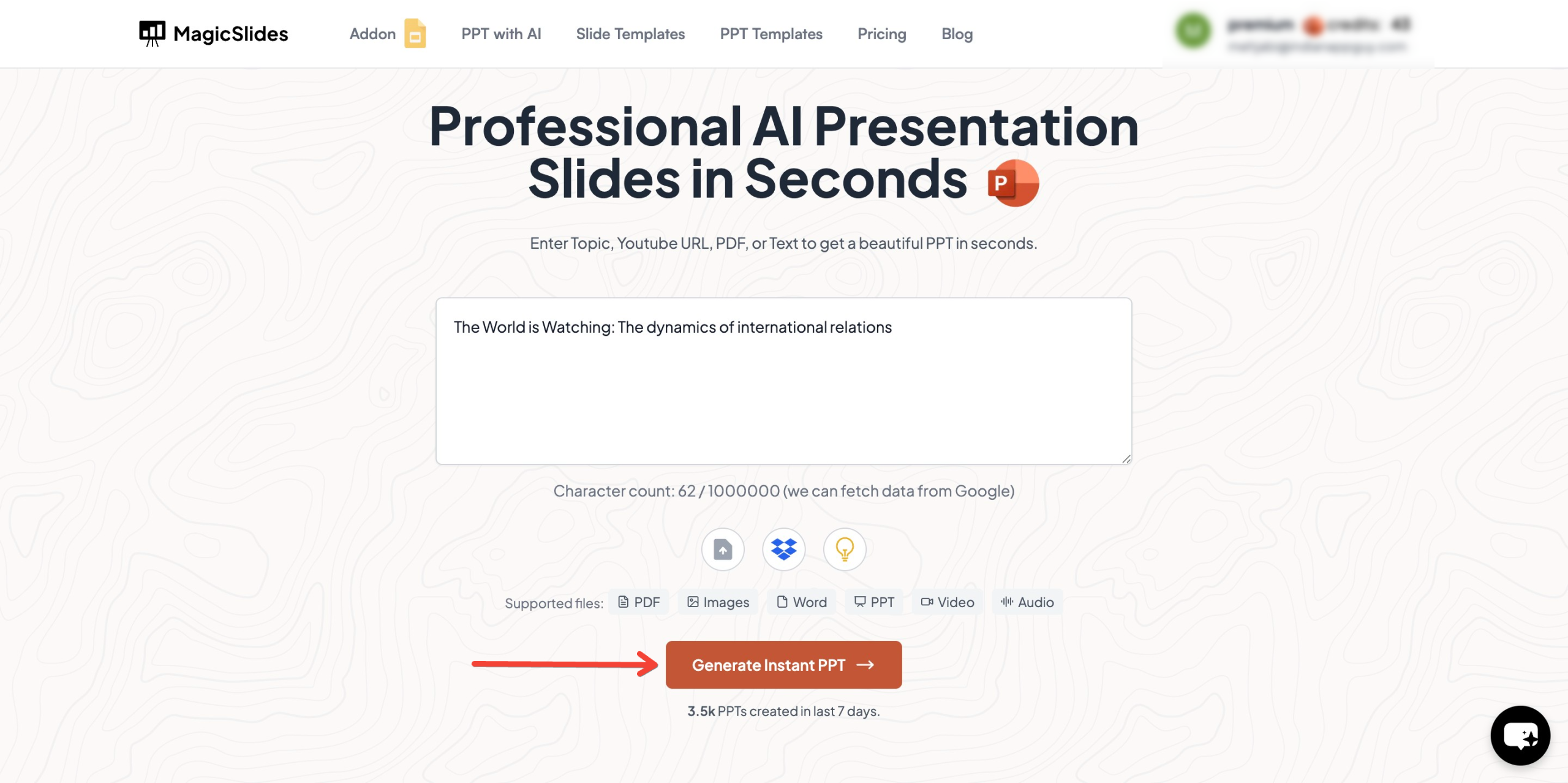
- Click on "Generate Instant PPT" to create an AI-powered presentation.
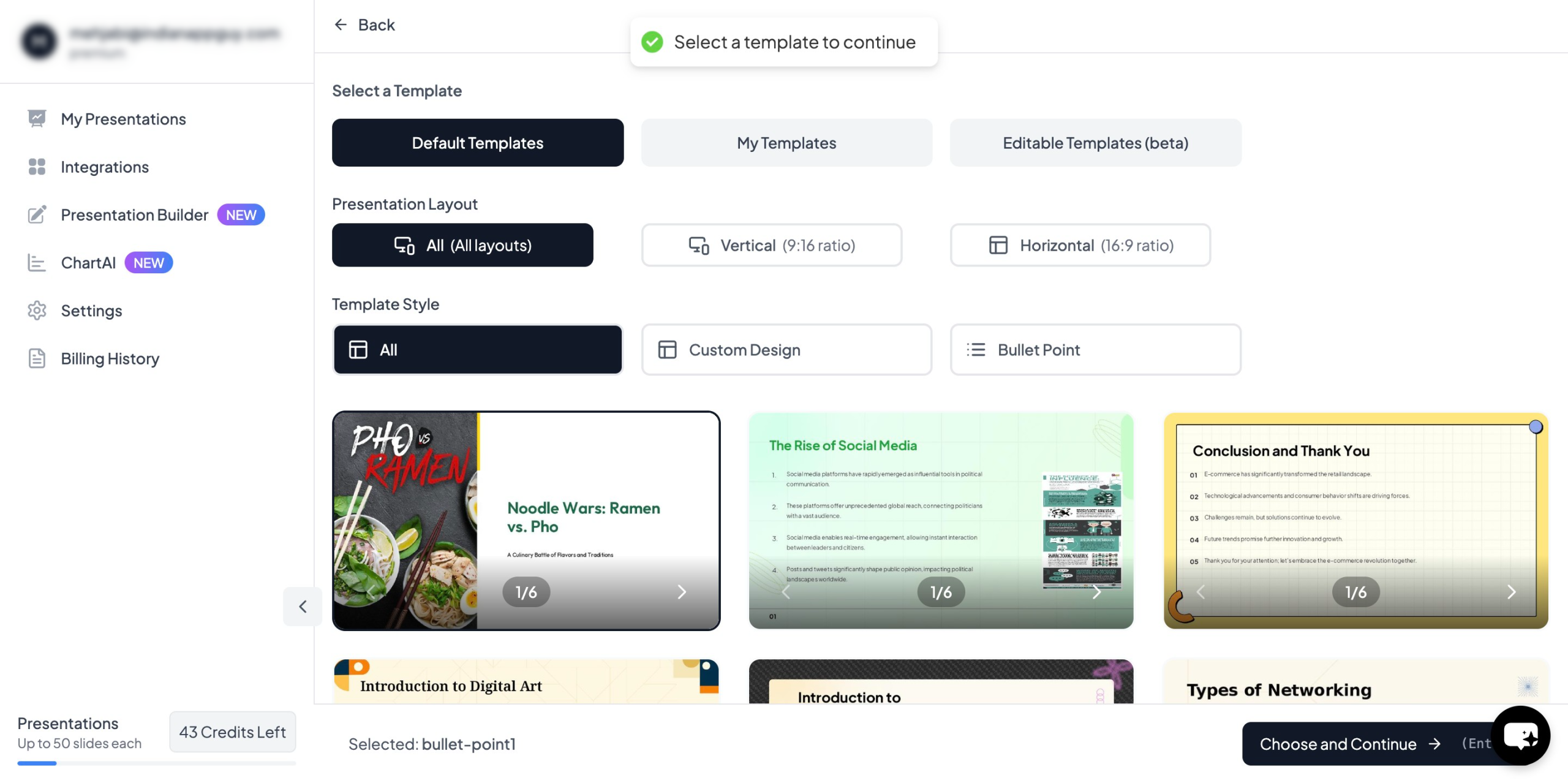
- Choose your template and select the number of slides as prompted.
- Fill in the required details, such as key points and data inputs.
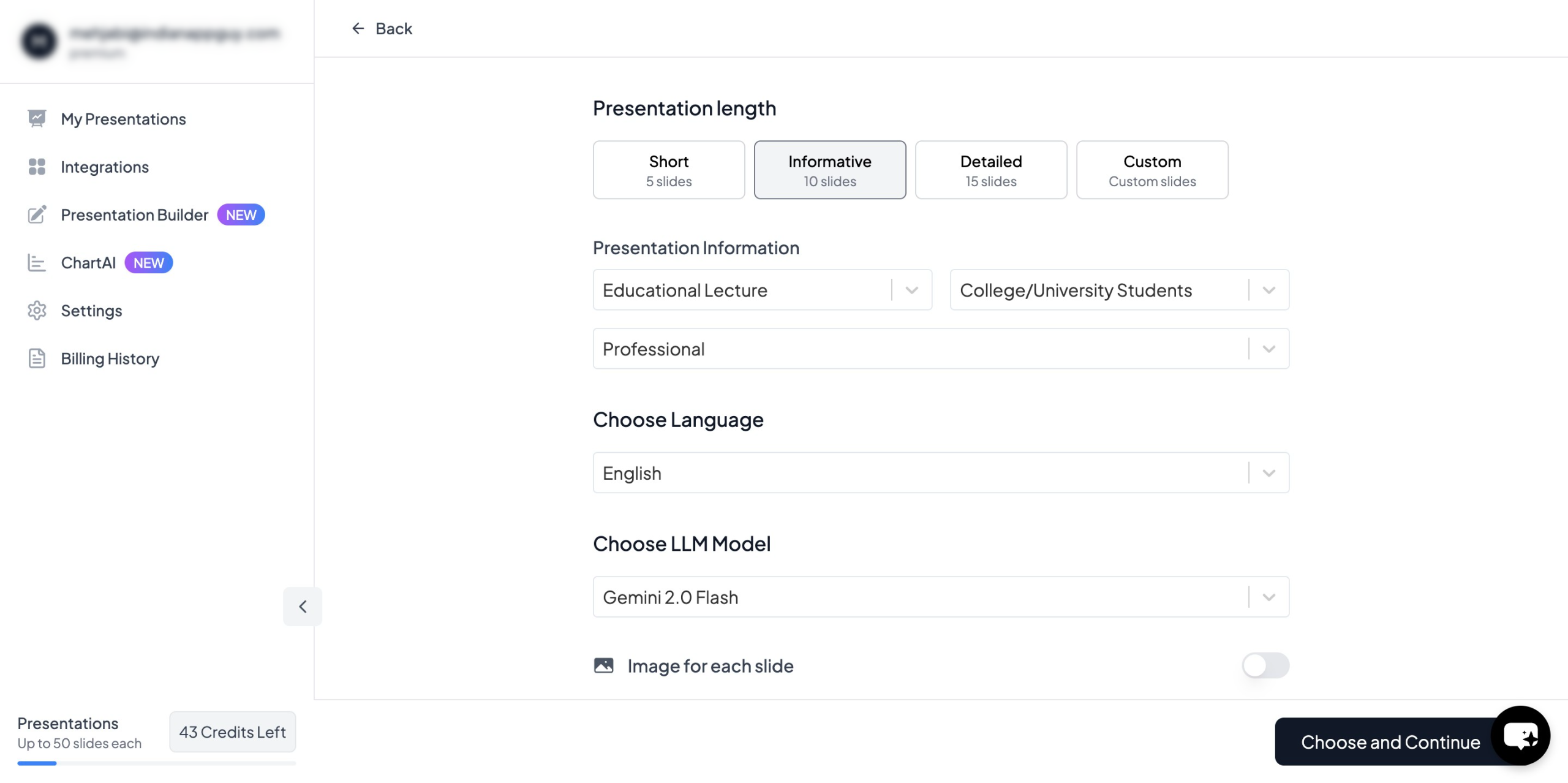
- Click on "Generate Instant PPT", and your presentation will be automatically created.
7. Review and Optimize
Before finalizing your infographic, review it:
- Check for clarity and coherence.
- Ensure all data is accurate and up-to-date.
- Make sure visuals align with the message.
- Get feedback from peers or colleagues.
8. Share and Promote
Once your infographic is ready, distribute it through various channels:
- Social media (LinkedIn, Instagram, Twitter, Facebook)
- Email newsletters
- Blogs and websites
- Print materials (flyers, brochures)
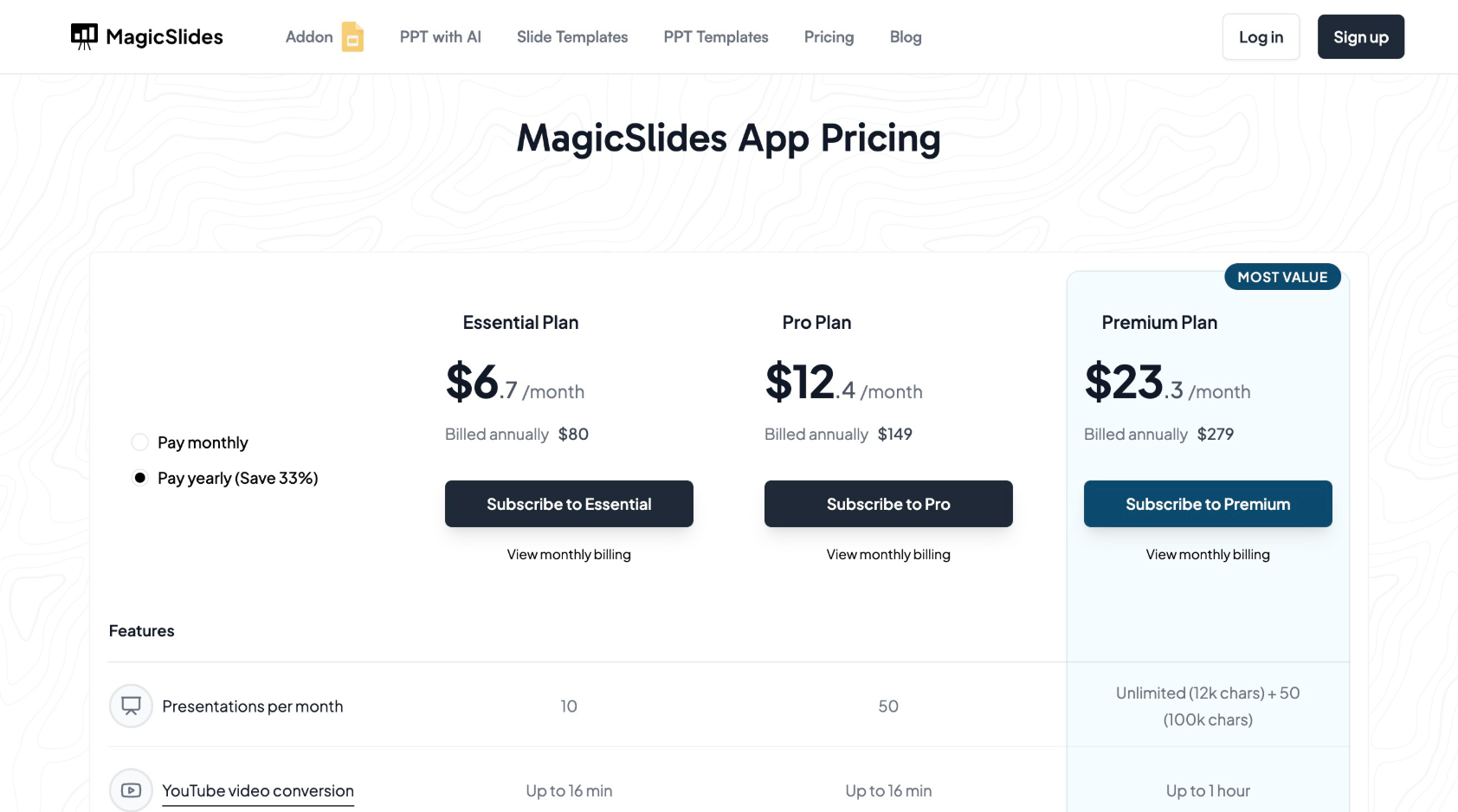
MagicSlides App Pricing
MagicSlides.app offers various pricing plans based on your needs:
| Plan | Price (Billed Annually) | Features |
|---|---|---|
| Essential | $6.7/month ($80/year) | 10 presentations/month, 5-page PDF conversion, up to 10 slides, Google & Wikipedia data, video-to-PPT (10 videos, 16 min each) |
| Pro | $12.4/month ($149/year) | 50 presentations/month, AI images, up to 15 slides, YouTube video conversion (16 min), 20 video-to-PPT conversions, AskPPT chat |
| Premium | Contact for pricing | Unlimited presentations, 50 long-form slides, YouTube video conversion (1 hour), 40 video-to-PPT conversions, multi-language support |
If you need to create frequent infographics, MagicSlides' Pro plan provides the best value with advanced features and more slide options.
Conclusion
Creating an infographic that clearly communicates your message requires a strategic approach, strong visuals, and a structured layout. Using MagicSlides.app can help streamline the process, allowing you to generate professional presentations with ease. Whether you need an infographic for business, education, or marketing, following these steps will help you craft a compelling and visually appealing design that effectively delivers your message.


