How to animate google slides


Dive into dynamic presentations! Learn the art of adding animations to your Google Slides effortlessly and engagingly.
Are you here to learn how to animate Google Slides? If yes, this guide is for you. In this step-by-step guide, we'll provide you with the method to easily integrate animations into your Google Slides presentations, providing you with the keys to creating engaging and impactful content.
When you animate Google Slides, you’re adding movement to elements inside a slide, like text, images, charts, or shapes. Instead of everything appearing at once, animations let you control when and how things show up.
For example, you might have a title fade in, followed by bullet points appearing one by one. This is a basic but powerful presentation animation technique that improves clarity and keeps your audience focused.
Let’s focus on how to animate Google Slides properly, which helps you turn static slides into a guided experience. It supports visual storytelling, helps highlight key points, and prevents your audience from feeling overwhelmed by too much information at once.
How Animate Google Slides Improves Your Presentations?
Most presentations fail not because of bad content, but because of poor delivery. When everything appears at once, your audience doesn’t know where to look. This is where learning how to animate Google Slides makes a real difference.
Animations help you control the flow of information. Instead of dumping all content on a slide, you reveal it step by step. This keeps your audience engaged and makes your message easier to follow.
Another benefit is focus. When you animate text or images, you guide attention exactly where you want it. This is especially useful in data-heavy or instructional slides.
How to Animate Google Slides?
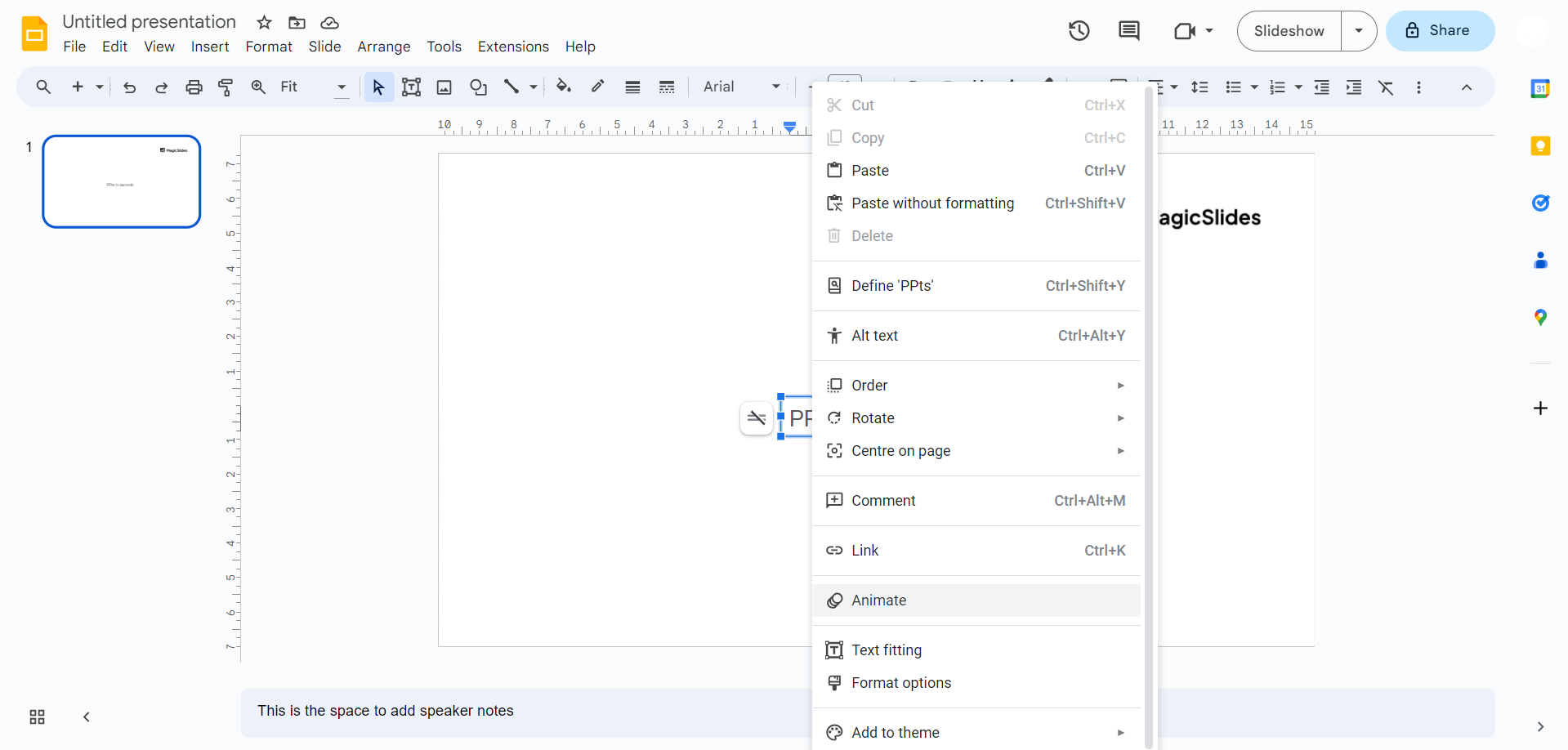
Step 1. Begin by right-clicking on the object you wish to animate. In the menu that appears, select "Animate" to activate the Motion pane.
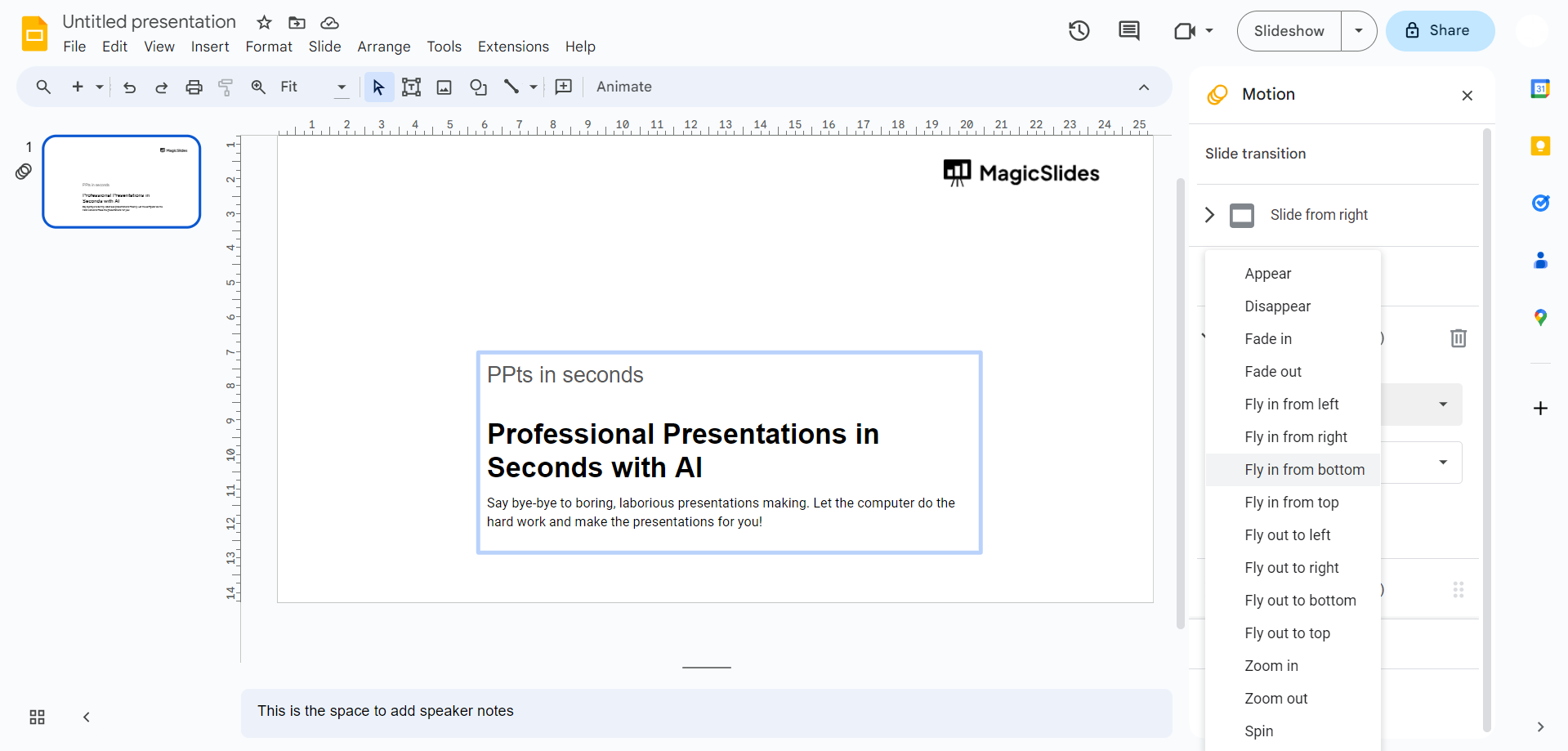
Step 2. Once the Motion pane is open, notice the default animation added to the selected object. Select into the drop-down menu to choose from a variety of animation options available.
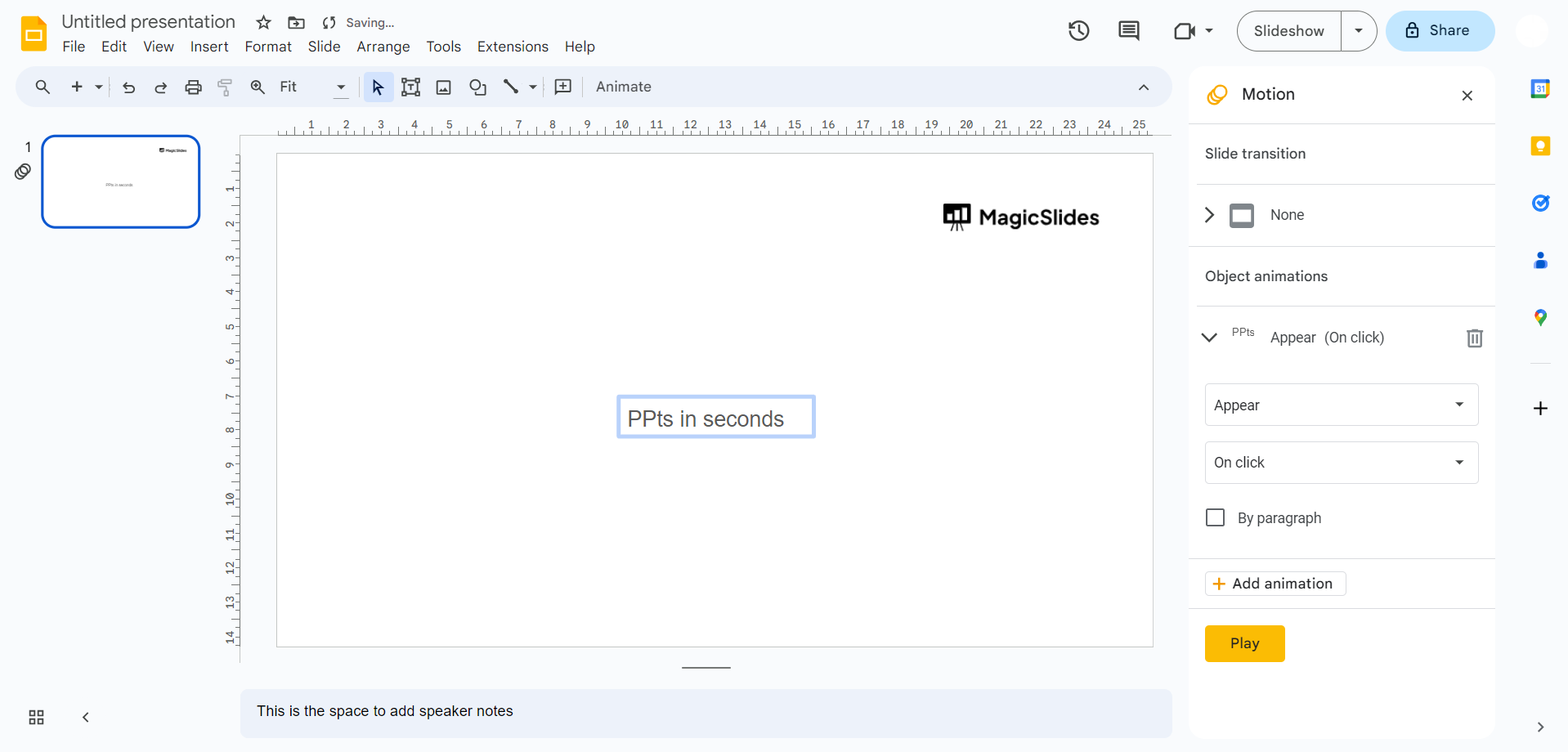
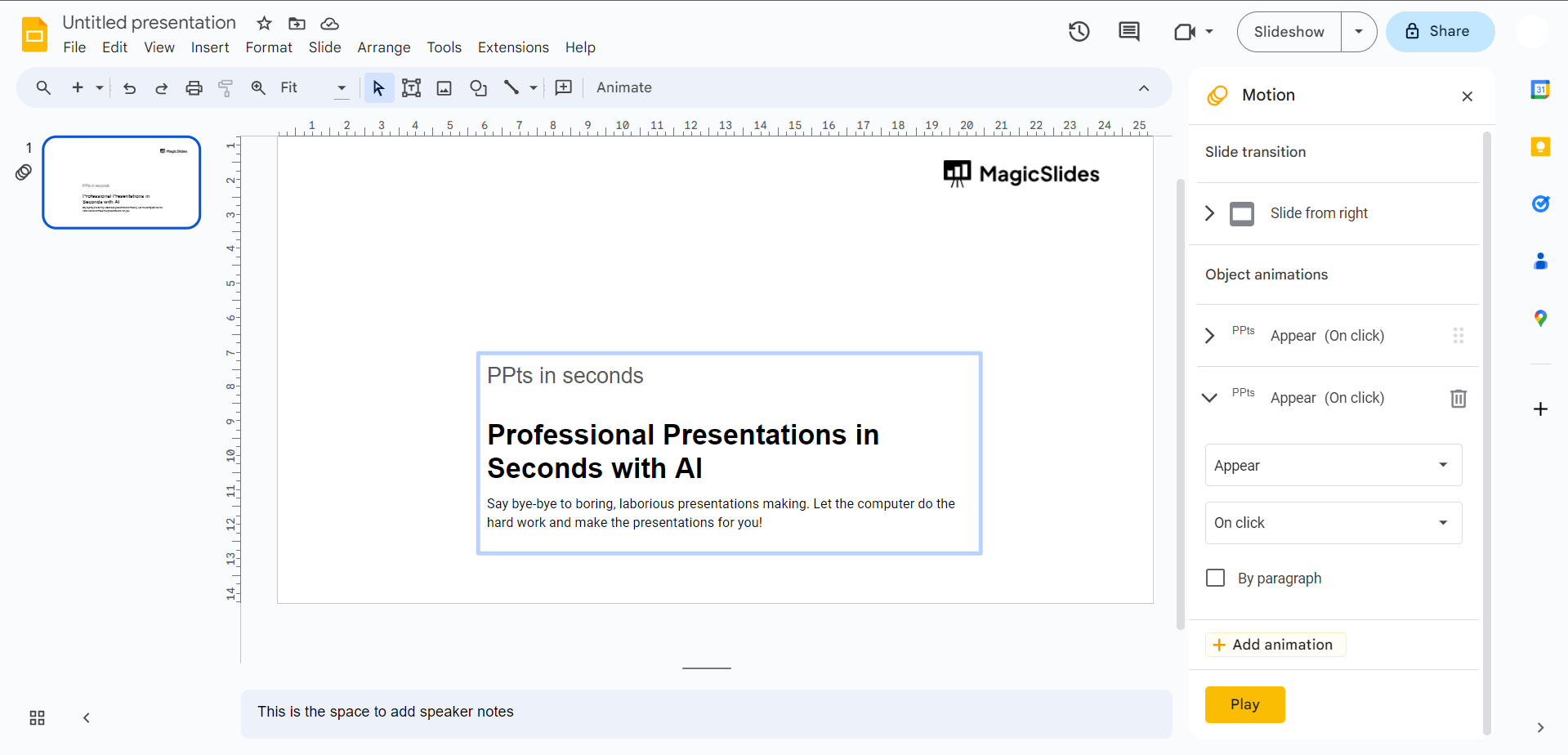
Step 3. If you want to enhance your presentation with multiple animations, click on "Add animation" in the Motion pane. This allows you to layer different effects onto a single object.
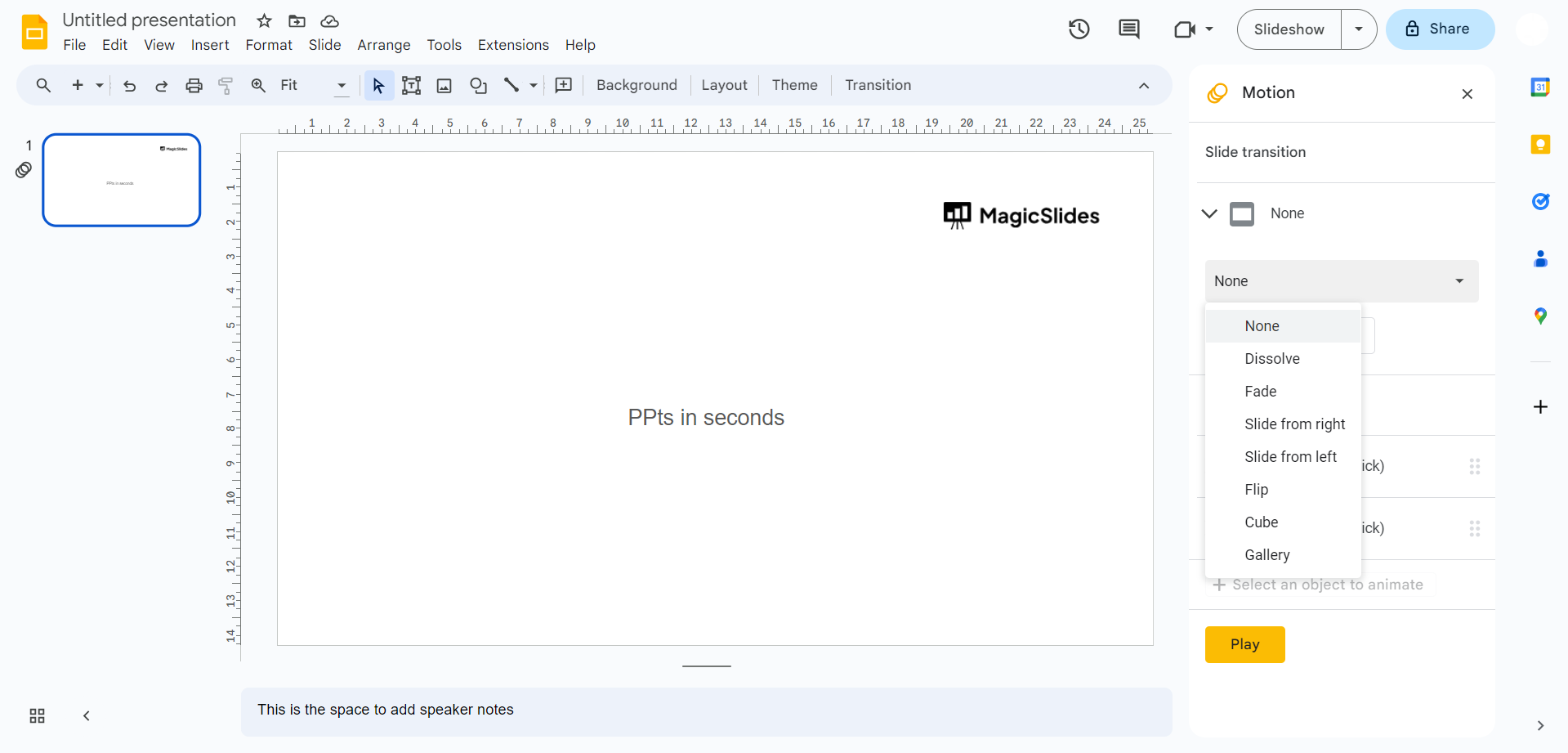
Step 4. Tailor the start times of your animations to achieve a seamless flow. Adjust when each animation initiates, ensuring a smooth transition between effects.
Step 5. If your object is a text box or a placeholder, take advantage of the "By paragraph" checkbox. This feature lets you decide whether the animation applies to the entire box or each paragraph individually.
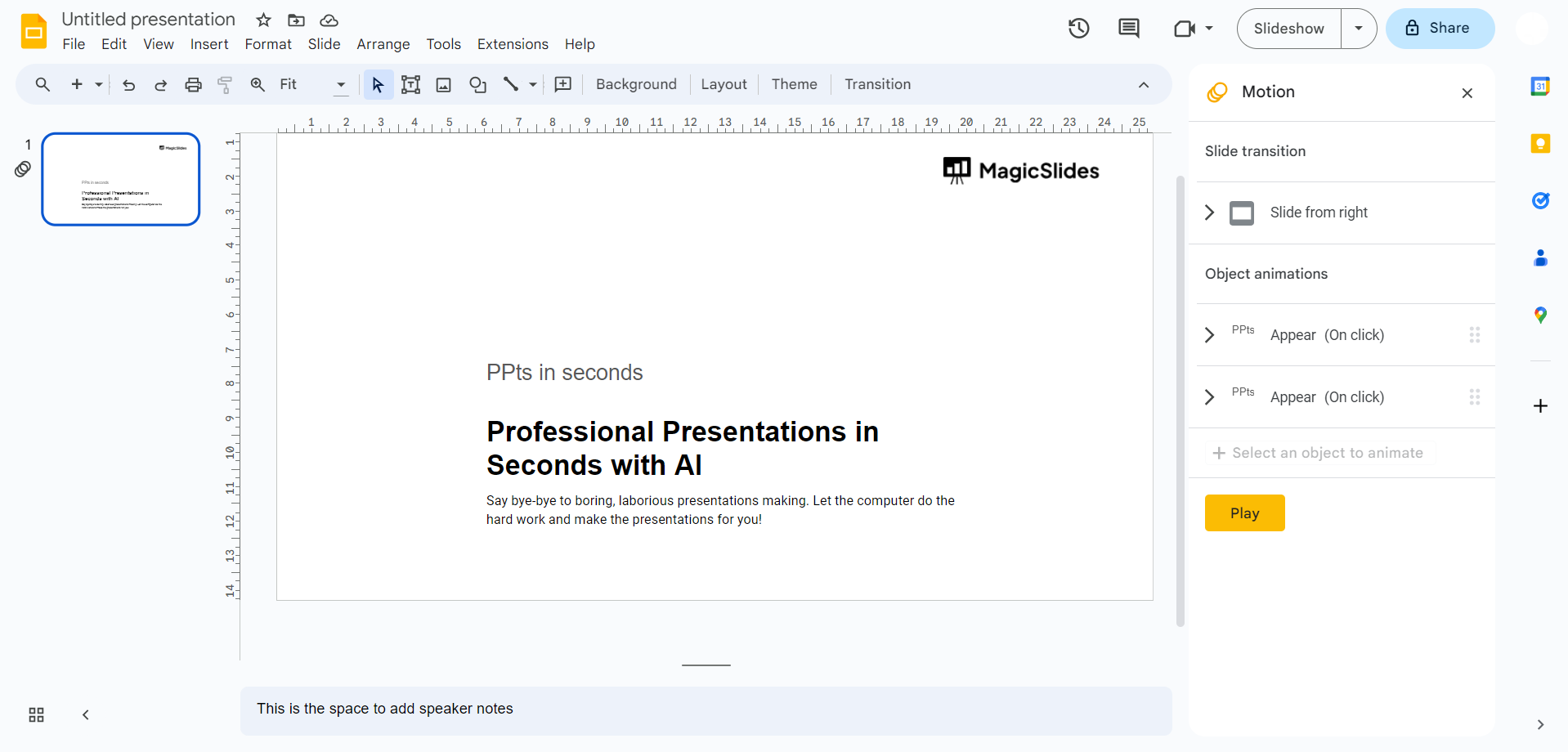
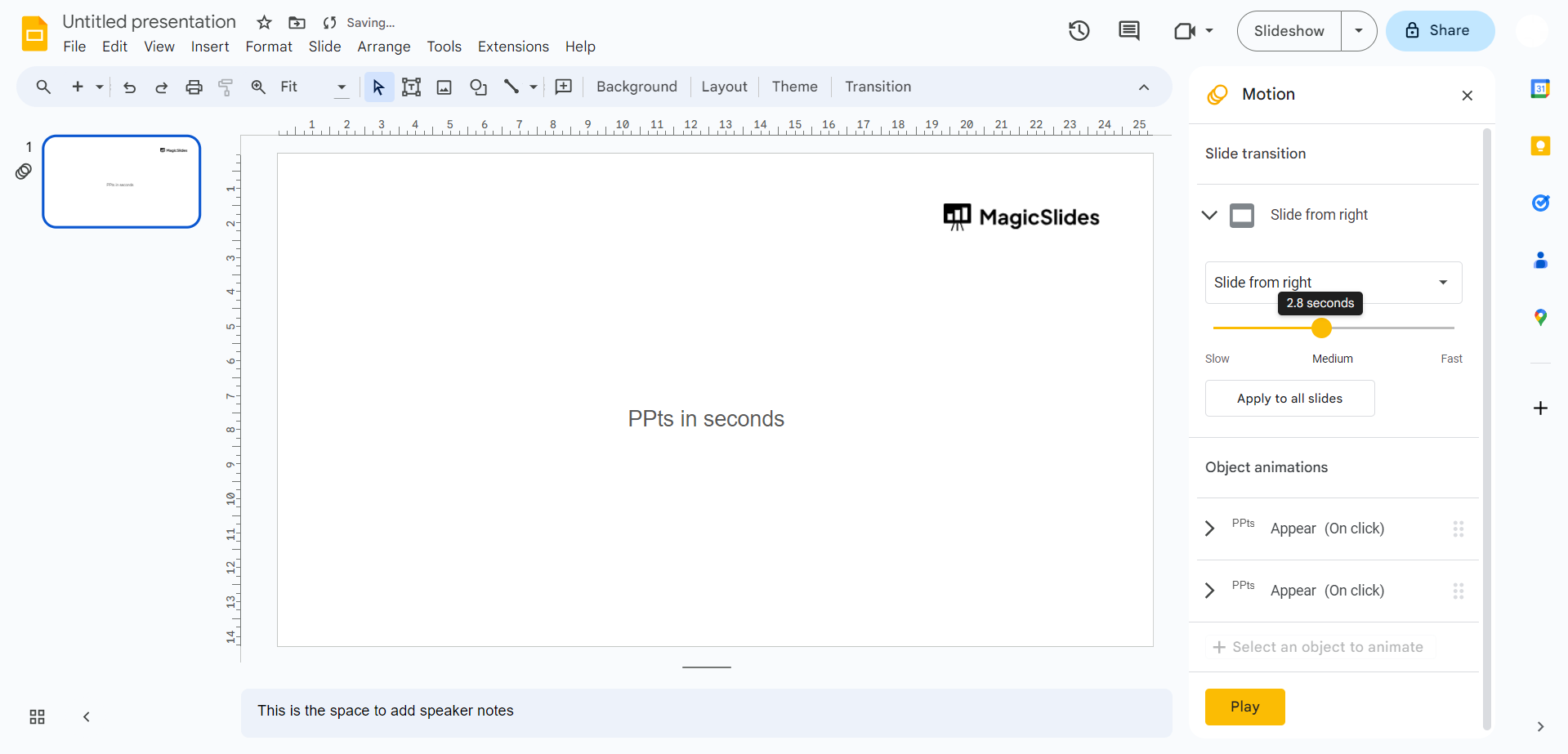
Step 6. Drag the animation speed slider to refine the pace of your animations. This ensures that your presentation unfolds at a rhythm that captivates your audience. After adding the speed, you can choose where to have the click appearance.
Step 7. Optimize the viewing experience by configuring the start options. Set your effects to play automatically after the previous one, eliminating the need for manual clicks during the slideshow. After adding one animation you can choose to add multiple animations by clicking on the “+ add animation” button.
Learn More with Video Tutorial
For a comprehensive understanding, watch the accompanying video tutorial. Gain insights into advanced techniques and unleash the full potential of animations in Google Slides.
Step 8. Before finalizing your presentation, preview the animations to ensure they align with your vision. Make any necessary adjustments to guarantee a polished and engaging delivery.
Best Google Slides Animation Effects You Should Use
Not all animation effects are created equal. Some make your presentation look polished, while others can feel distracting if overused.
When you make a Google Slides presentation or animate it, it majorly helps to understand the three main types of effects.
- Entrance animations are the most commonly used. These include Fade in and Fly in. They introduce elements onto the slide and are ideal for titles, bullet points, and images.
- Exit animations remove elements from the slide. These include Fade out or Fly out. They’re useful when you want to replace content without switching slides.
- Emphasis animations like Zoom or Spin add attention to an object already on the slide. These should be used carefully, as they can easily become distracting.
If you’re unsure which Google Slides animation effects to choose, stick with simple ones. Subtle animations feel more professional and help maintain focus on your message rather than the motion itself.
Best AI Tool to Animate Google Slides Faster
Manually adding animations can take time, especially for larger presentations. This is where AI tools can help.
MagicSlides top AI presentation tool allows you to generate complete presentations with structured layouts and basic animations already applied. Instead of building everything from scratch, you start with a ready-made design.
This can be useful if you need to animate Google Slides presentations quickly for work, meetings, or classes.
The main advantage is speed. You can focus more on your content while the tool handles formatting and initial design.
However, it’s still important to review and adjust animations manually. AI can assist, but your input ensures the presentation matches your message.
Using a combination of automation and manual control is often the most efficient approach.
Conclusion:
Whether you're imparting knowledge in a classroom, pitching ideas in a boardroom, or simply sharing stories with friends, the judicious use of animations can transform your slides into a compelling visual journey. So, go ahead, experiment, and let your creativity shine as you craft presentations that not only inform but also captivate. Here's to bringing your ideas to life in the most dynamic and engaging way possible!
Frequently Asked Questions:
Q: Why should I bother adding animations to my Google Slides presentations?
Adding animations injects life into your slides, captivating your audience and enhancing the overall visual appeal.
Q: Are animations in Google Slides difficult to implement?
Not at all! With a simple right-click and a few selections, you can effortlessly incorporate captivating animations.
Q: Can animations go beyond just visual appeal and contribute to effective communication?
Absolutely. Well-timed animations aid in conveying information cohesively, making your presentations more engaging and memorable.


