Best Fonts for PPT: Top PowerPoint Fonts for Readability & Engagement


Best fonts for PPT: Explore the best fonts for PowerPoint that improve readability and help you create impactful presentations effortlessly. Read now!
Best Fonts for PPT: Top PowerPoint Fonts for Readability & Engagement
Choosing the best fonts for PPT is a crucial decision as it directly impacts how your audience understands and engages with your presentation. Even if you have knowledge about how to make PPT attractive, you still lose its impact because the font is hard to read or looks unprofessional.
Selecting the best font for PowerPoint helps you communicate clearly and confidently. For the same, I’m sharing the top fonts for presentation, along with expert tips to make slides look readable and professional.
Before we discuss them, it’s important to understand why font selection plays such a critical role in presentation.
Why Choosing the Best Fonts for PPT Matters?
Fonts in a presentation directly impact your slide message. The best fonts for PowerPoint improve readability and make your slides look professional without distracting from the content. Moreover, it helps in:
- Ensure audience engagement throughout the presentation.
- Ensure readability, especially when presenting in front of a wider audience.
- Clear text shows professionalism and credibility.
- Avoiding misinterpretation of data or key points
In short, the right font removes friction between your content and your audience. When you use professional and clean fonts for PPT, you don’t have to worry that your audience can read or understand your slides. That’s why, instead of experimenting randomly, stick to expert-recommended fonts, which I’ll share next.
Best Fonts for PowerPoint
You’ll agree on one thing: not every font works well on slides. That’s why I stick to a set of fonts that consistently perform well in almost all types of presentations, without readability issues. Here’re those:
#1. Calibri (Default)
Calibri is the default PowerPoint font and the best font for PPT for a reason, as it delivers a modern look without affecting readability. Its balanced spacing makes it easy to read on screens of all sizes. It works seamlessly for both headings and body text, which helps maintain consistency across slides. Since it’s widely supported across devices and versions of PowerPoint, there are no formatting issues.
Overall, “Calibiri” is easy to read on screens and works well for both headings and body text, which is perfect for:
- Business presentations
- Reports
- Corporate decks
#2. Arial
Arial is one of the most reliable fonts for PowerPoint when you want simplicity and clarity without any distractions. Its clean and straightforward design makes it highly readable, even from a distance. Since it’s a universally available font, you also don’t have to worry about compatibility or formatting issues when sharing your PPT.
I know the “Arial” font is not very fancy, but for professional presentations or persuasive presentation topics, this works best.
#3. Helvetica
Helvetica is a go-to choice when you want your presentation to look modern and highly professional. Known for its sleek and neutral design, it keeps the focus entirely on your content without adding unnecessary visuals. However, since it may not be available on all systems by default, it’s important to ensure compatibility before finalising your presentation.
#4. Verdana
Verdana font is used for on-screen readability, which makes it a strong choice for PowerPoint presentations. Its wider letter spacing and large character size ensure that text remains clear even when viewed from a distance or on lower-resolution screens.
#5. Montserrat
Montserrat is a popular modern font that adds a clean and stylish touch to PowerPoint presentations. It works especially well for headings and titles where you want to grab attention without compromising readability.
#6. Roboto
Roboto is a versatile and highly readable font that works well across different types of PowerPoint presentations. It adapts well to both headings and body text, which helps maintain a consistent look throughout your slides. Since it’s widely used and well-supported, you can rely on Roboto for smooth presentation performance without formatting issues.
#7. Georgia
Georgia is a classic serif font that brings a touch of elegance and readability to PowerPoint presentations. It is specifically used for screen use, which makes it clear and easy to read even at smaller sizes.
Best Font for PowerPoint Headings vs Body Text
Choosing the best fonts for PPT is all about using the right combination for headings and body text. When both are chosen wisely, your slides look structured and professional.
For headings, you should use fonts that are bold and attention-grabbing, such as Montserrat, Helvetica, or Arial. Headings should be slightly larger without decoration, so that the audience can easily read what you have written.
For body text, readability is the top priority. For the same reason, fonts like Calibri, Verdana, or Roboto are ideal because they are easy to read, even when your slides contain more text. These fonts maintain clarity across different screen sizes and ensure your audience can comfortably read the content.
Avoid using too many different fonts in one presentation, as it can make your slides look inconsistent and distracting. I suggest in a single PPT, two fonts work best, one for headings and another for content, points, or subheadings.
Font Size Guidelines to Use
As per my past experiences, readability is the key to a high-impact presentation, so always follow these size rules:
- Title: 32-44 pt
- Headings: 24-32 pt
- Body text: 18-24 pt
This ensures consistency and professionalism. Follow this rule, so that your audience easily reads what you have written in your presentation.
Fonts to Avoid in PPT
Not all fonts work well in presentations, especially in professional ones. So, avoid:
- Comic Sans
- Times New Roman
- Script fonts
- Decorative fonts
Even if they look stylish, they reduce clarity, which is the opposite of what a presentation needs. So, avoid them if you want your audience engagement.
How to Choose the Best Fonts for PowerPoint?
Here’s the simple checklist to follow whenever you’re choosing fonts for a presentation:
- Is it readable from a distance?
- Is it available on all systems?
- Does it look clean on screens?
If a font passes these, you can consider it among the best fonts for PPT.
Struggling to Choose the Best Fonts for PPT? Here’s What to Do Instead
If you’ve ever spent 30-40 minutes just switching between fonts like Calibri, Montserrat, and Roboto, trying to figure out what actually looks good on slides. Don’t worry, I can also resolve this issue.
The real problem isn’t just picking the best font for PowerPoint. It’s making sure everything works together and is consistent across all slides.
Honestly, that’s where most presentations look wasted and inconsistent.
So instead of overthinking every design decision, I’ve started using an AI-based presentation workflow that handles the structure and font pairing automatically, i.e. MagicSlides AI Presentation Maker.
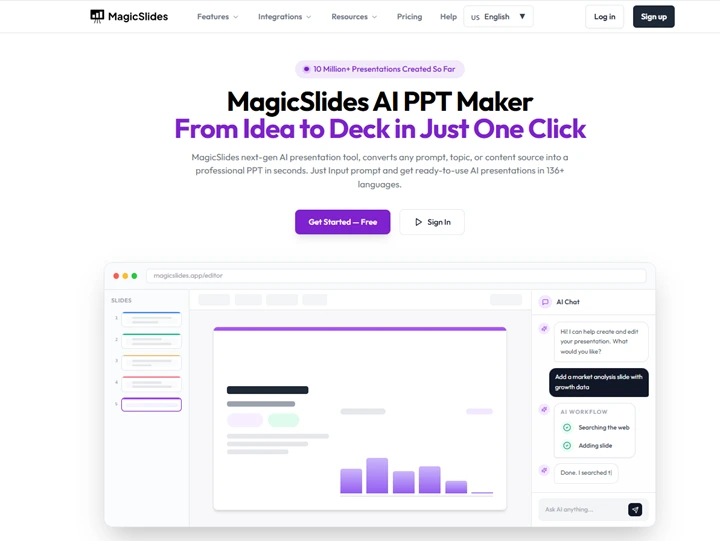
What did I find in this solution?
- It applies presentation-friendly fonts that improve readability
- Headings, subheadings, and body text are already visually balanced
- Don’t have to manually test multiple font combinations
- The slides look polished and consistent from the start
- Don’t need to do anything manually, just a prompt or pasting text is enough to tell the solution what you need to add or remove
Not only this, but there are several benefits offered by this solution, which you can try for free now. With this, you can convert URL, video, images, topics, Excel, and text to PPT.
Best Practices to Use for Better PPT Typography
Even the complete knowledge of presentation making, following a PPT checklist, makes a huge difference:
- Use contrast (dark text on light background)
- Avoid ALL CAPS in long sentences
- Maintain consistent spacing
- Use bold instead of multiple fonts
- Keep slides minimal (use points instead of paras)
These small things help you to make the presentation the best and professional.
Best Fonts for PPT
Here’s the recap, what we’ve learned today:
- Best overall = Calibri
- Professional = Helvetica
- Readability = Verdana
- Modern look = Montserrat
- Safe choice = Arial
Author’s Verdict
Choosing the best font for PowerPoint is all about clarity and professionalism. If you stick to readable fonts and follow basic formatting rules, your presentation will instantly look more polished and engaging.
People Also Ask
1. What is the best font for PPT presentations?
Calibri, Arial, and Helvetica are the best due to their readability and professional look.
2. Which font size is best for PowerPoint?
It is recommended:
- Titles: 32-44 pt
- Body text: 18-24 pt
3. Can I use custom fonts in PowerPoint?
Yes, but avoid them unless you embed fonts, because they may not display correctly on other systems.
4. How many fonts should I use in a PPT?
Use no more than 2 fonts to keep slides clean and consistent.
5. What are the best fonts for PowerPoint presentations in 2026?
The most reliable options remain:
- Calibri
- Helvetica
- Montserrat
- Roboto
- Verdana


