How to Insert Bitmoji into Google Slides? Complete Guide


Learn how to insert Bitmoji into Google Slides using Chrome extension, mobile, and image upload methods. Easy guide with tips and AI presentation tools.
Bitmoji has become a fun and engaging way to personalize digital content. People love adding Bitmoji characters because they make slides feel more human, relatable, and visually appealing. Bitmoji is a cartoon entertainment application that can make a cartoon avatar look totally customized, as it has complete hair, eyes, nose, and expressions. This helps in understanding the content mentioned in the slides. Teachers use them to make lessons interactive, professionals use them to add personality to presentations, and students enjoy using them to express ideas creatively.
However, many users face a common challenge “Google Slides does not have a built-in Bitmoji button”. Because of this inserting Bitmoji into slides requires using a few simple workarounds.
The good news is that there are several reliable ways to add Bitmoji to your Google Slides presentation. Let us know how to insert Bitmoji into Google slides easily in just a few steps.
In this detailed guide, we will walk through all the possible manual methods to add Bitmoji to Google Slides, along with a professional AI-powered method that can make presentations even faster and more engaging.
For having a Bitmoji avatar, first create an account and make your avatar in Bitmoji. It is very easy and simple. This will hardly take a few minutes to create Bitmoji. Once it is ready you can add it anywhere including Google slides as well.
What all Needed to Add Bitmoji into Google Slides?
- A Bitmoji account- Make your Bitmoji account through application. It allows users to make one bitmoji for free.
- Google Chrome Browser- This is the best setup that works well with Chrome.
- Google Slides- Open and create a presentation you’d like to use.
now , follow the steps mentioned below:
Method 1 – Insert Bitmoji Using the Chrome Bitmoji Extension
One of the easiest and most popular ways to add Bitmoji into Google Slides is by using the Bitmoji Chrome extension. This method works best if you are using Google Chrome on a laptop or desktop.
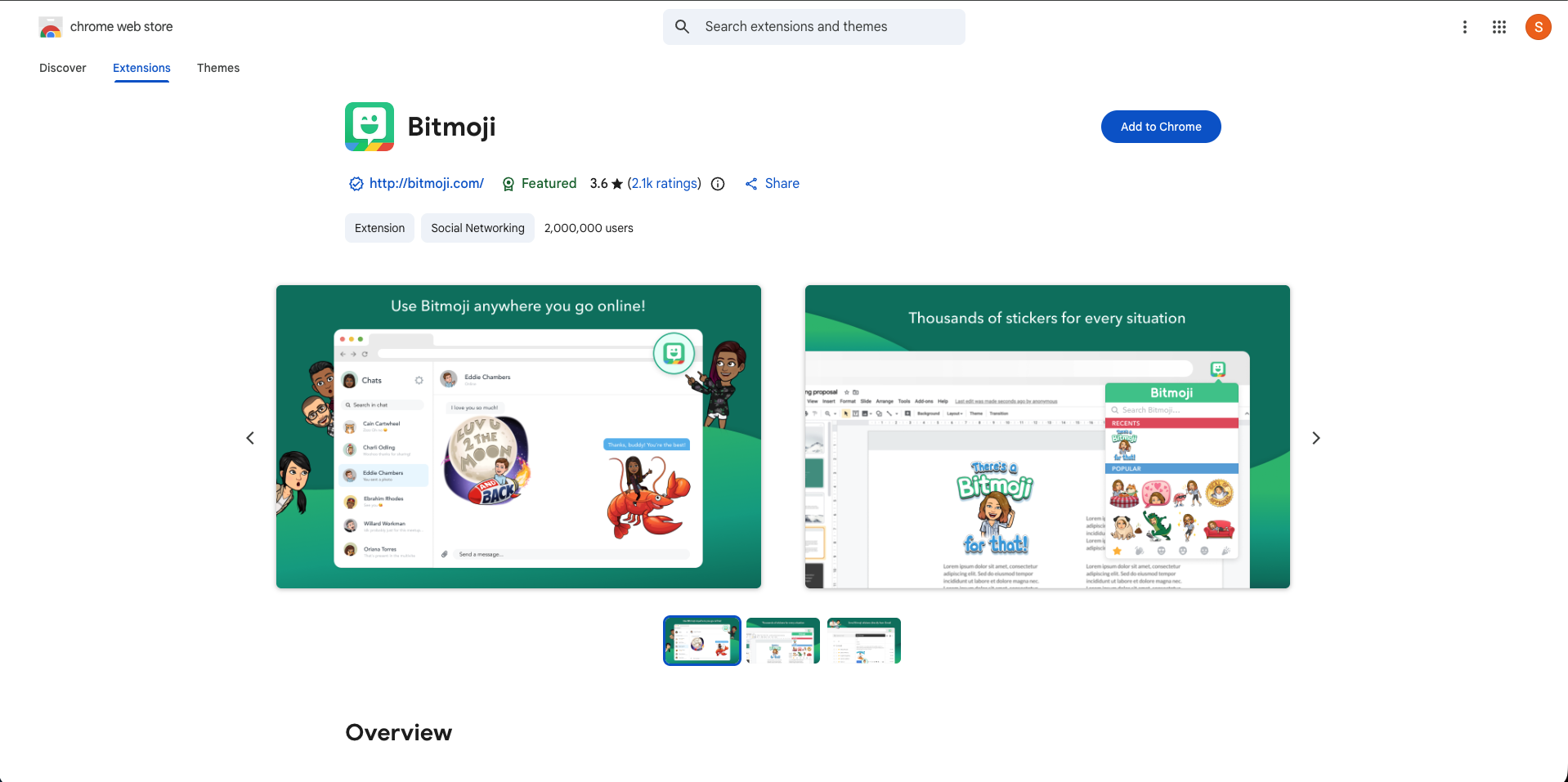
Step 1. Open Google Chrome and go to the Chrome Web Store. Search for the Bitmoji extension and click the Add to Chrome button. Once installed, the Bitmoji icon will appear in your browser toolbar.
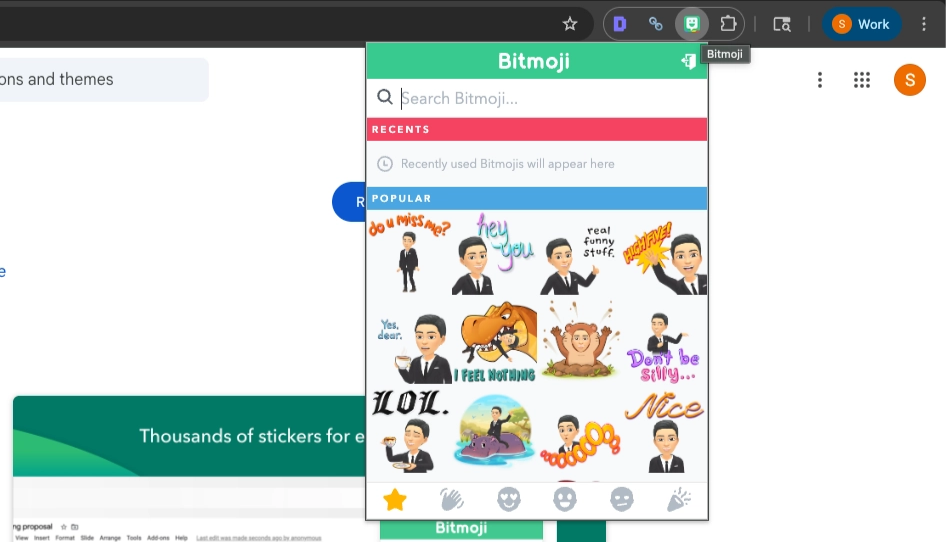
Step 2. Click the Bitmoji icon in your browser toolbar. Sign in using your Snapchat account or Bitmoji account. Once logged in, you will see your full Bitmoji library.
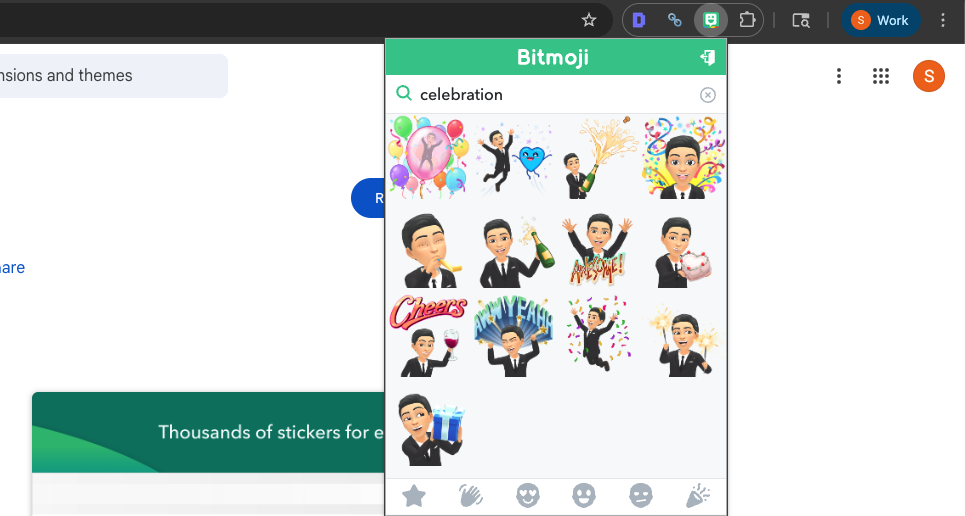
Step 3. Use the search bar within the extension to find the specific Bitmoji you want. For example, you can search for:
- hello
- thumbs up
- teaching
- celebration
You will see many Bitmoji options appear instantly.
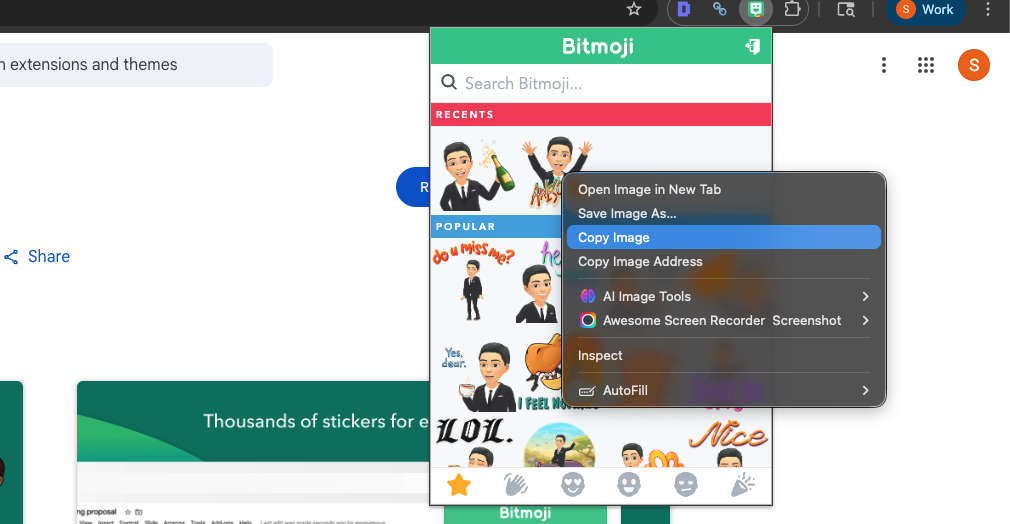
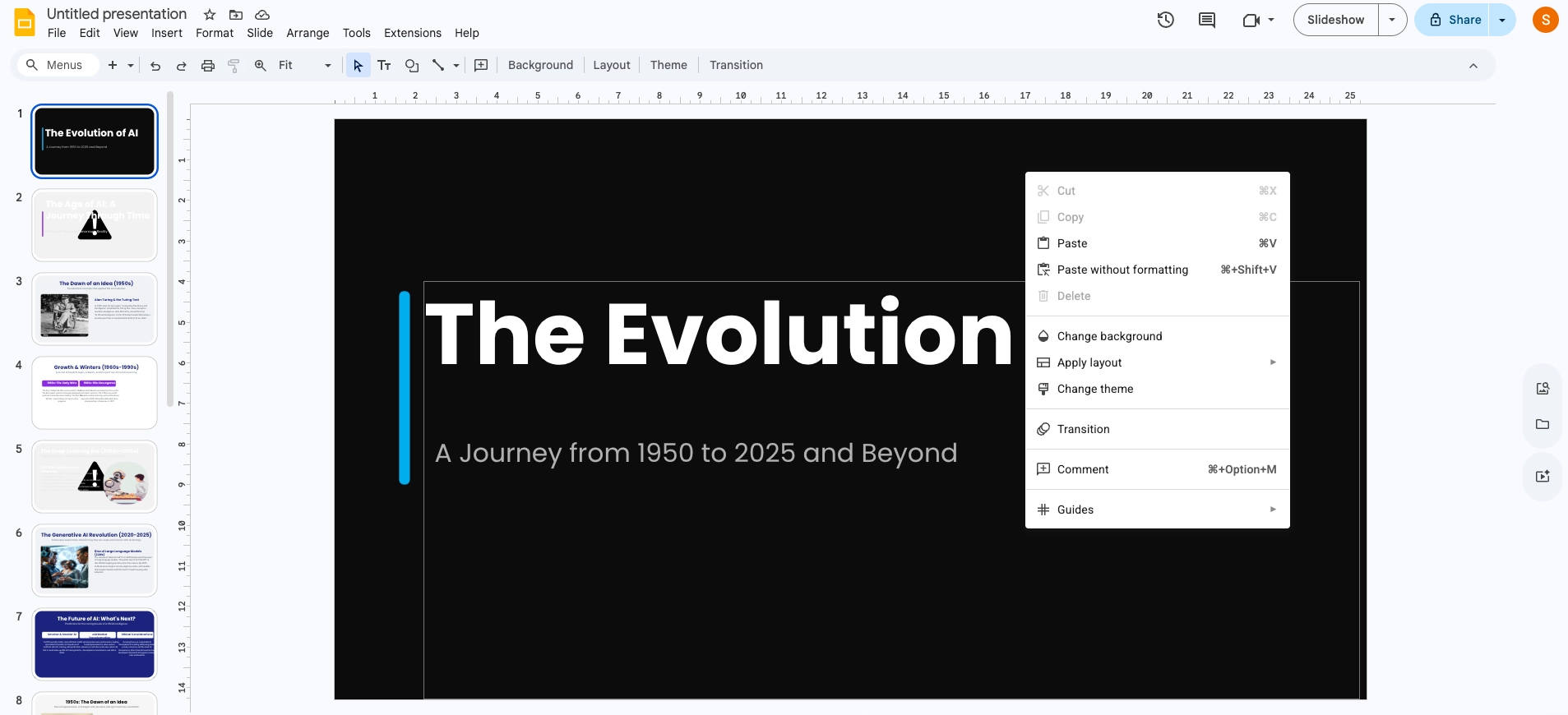
Step 4. Right-click on the Bitmoji image you want to use and select Copy Image.
Step 5. Open your Google Slides presentation and go to the slide where you want the Bitmoji to appear. Right-click on the slide and select Paste, or use Ctrl + V on your keyboard. Your Bitmoji will instantly appear on the slide.
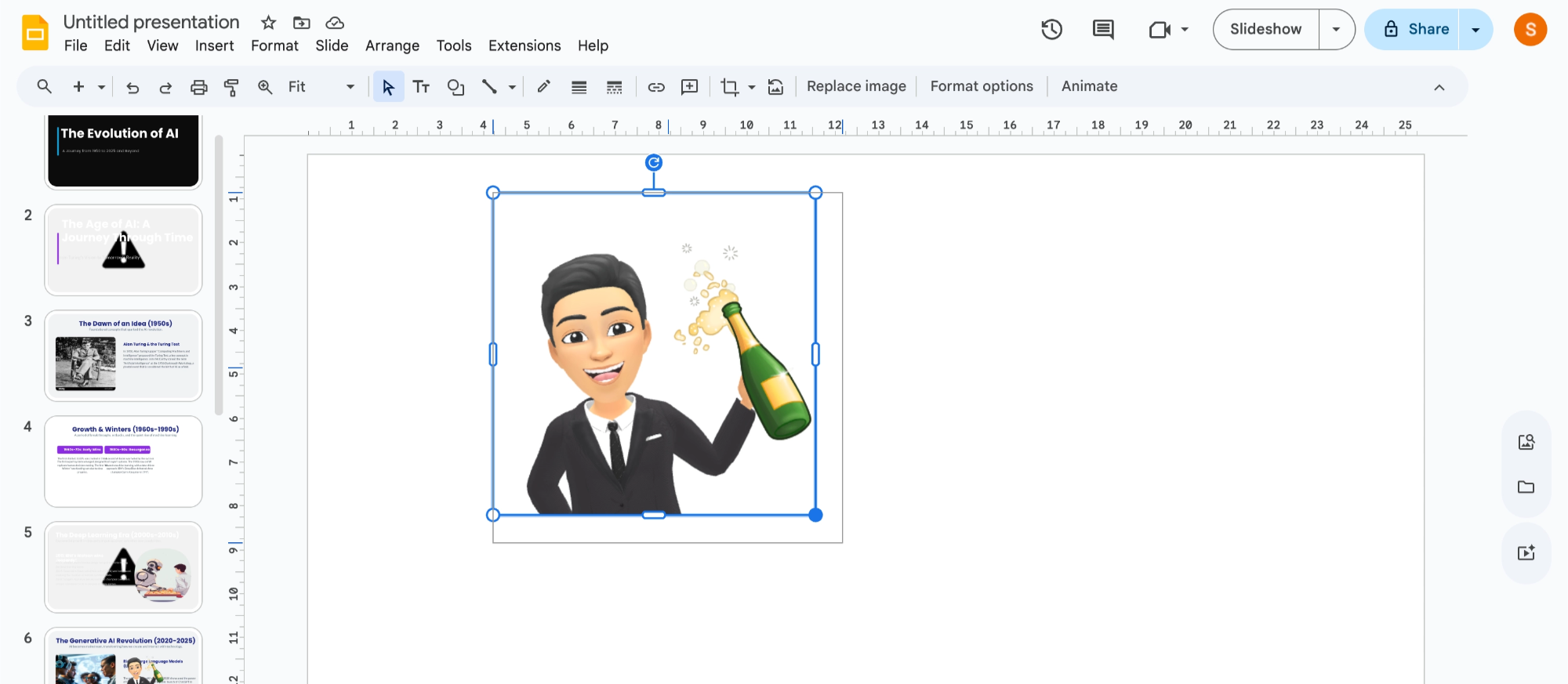
Step 6. You can now drag the corners of the image to resize it. Move it anywhere on the slide to match your layout or design.
This method is quick and works very well for most users.
Method 2- Insert Bitmoji by Dragging from the Extension
Another easy variation of the Chrome extension method is simply dragging the image.
Step 1. Click the Bitmoji icon in your Chrome toolbar.
Step 2. Type a keyword in the search bar to find a matching Bitmoji.
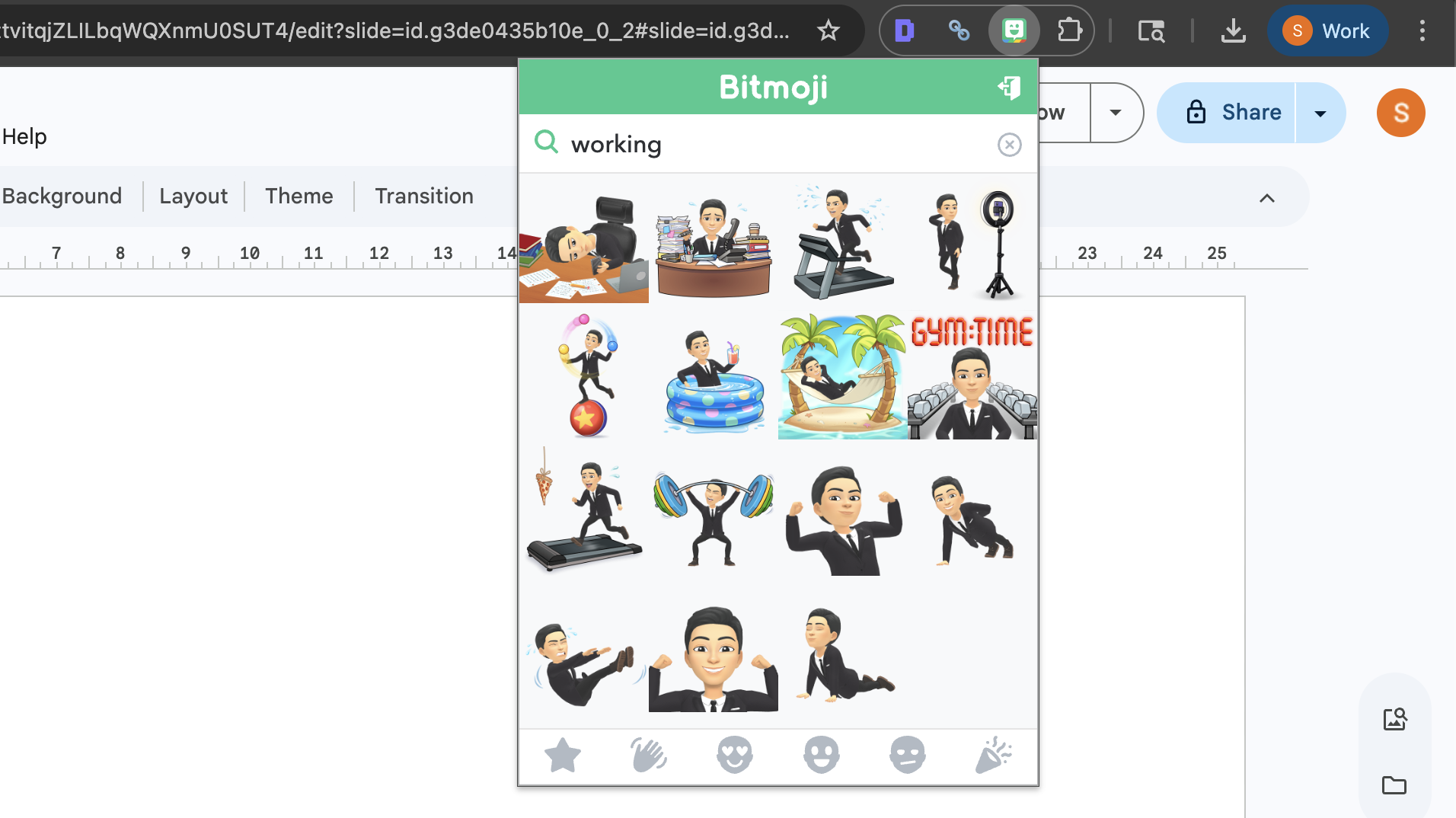
Step 3. Instead of copying it, click and drag the Bitmoji image directly onto your Google Slides presentation.
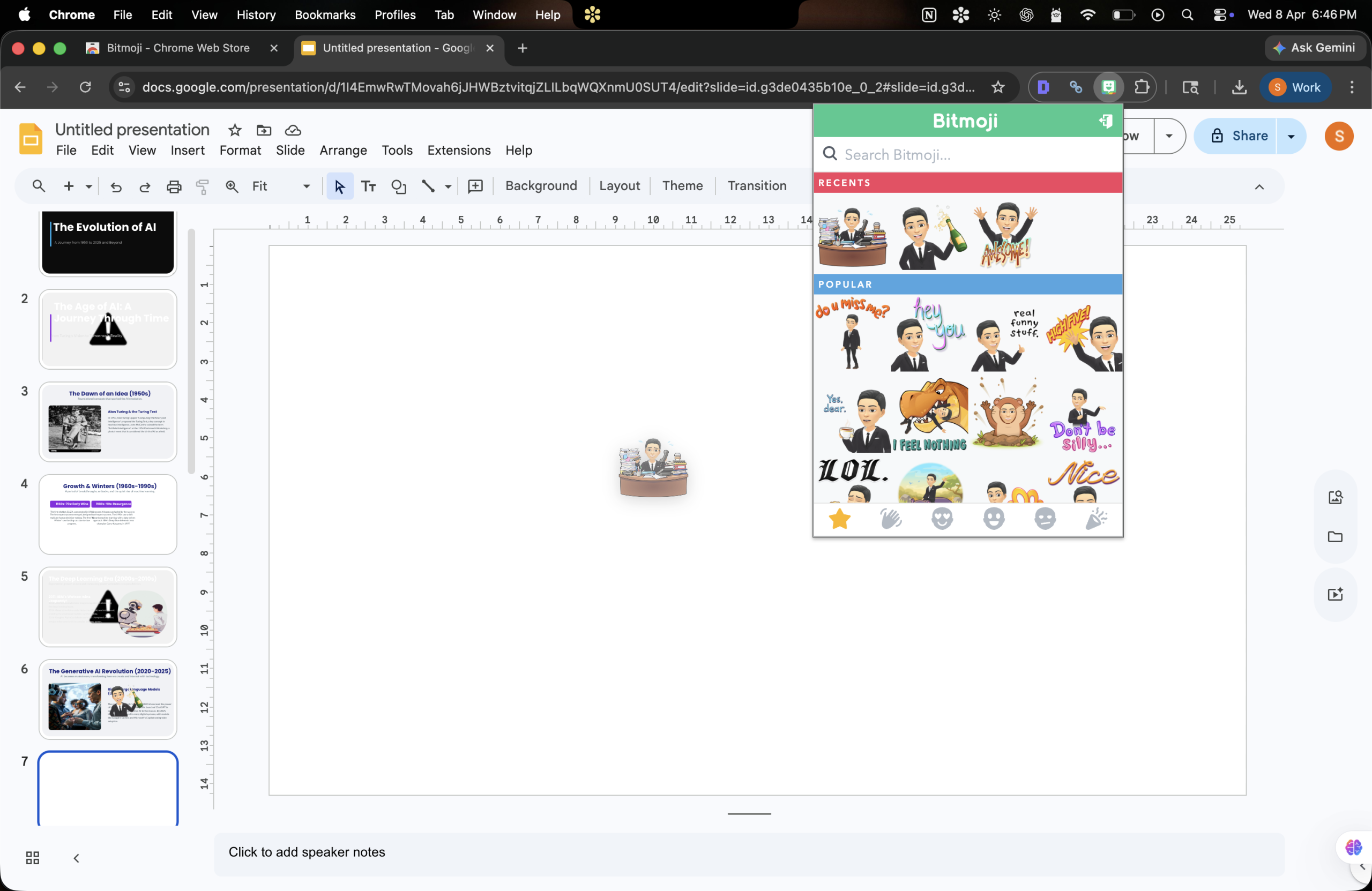
Step 4. Release your mouse where you want the Bitmoji to appear.
This method saves a few seconds and feels very natural when creating slides.
Method 3- Save Bitmoji as an Image and Upload to Google Slides
If you prefer downloading images first, you can also save your Bitmoji as an image file and then upload it into Google Slides.
Step 1. Use the Bitmoji extension or visit the Bitmoji website.
Step 2. Search for the Bitmoji you want to use.
Step 3. Right-click on the Bitmoji image and select Save Image As. Choose a location on your computer where the image will be stored.
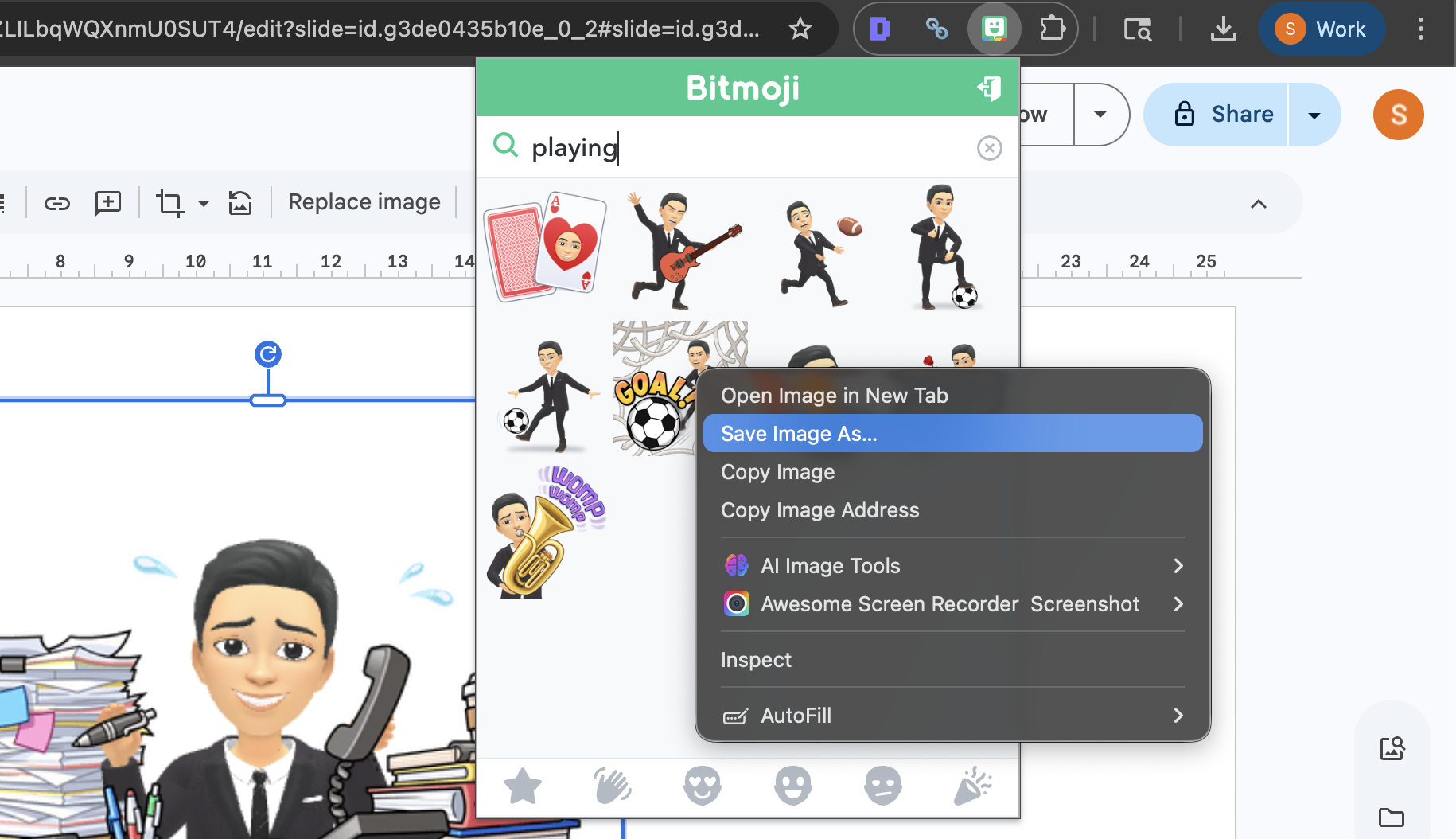
Step 4. Go to your Google Slides file and select the slide where the Bitmoji should appear.
Step 5. Click Insert in the top menu, then select Image >>Upload from the computer.
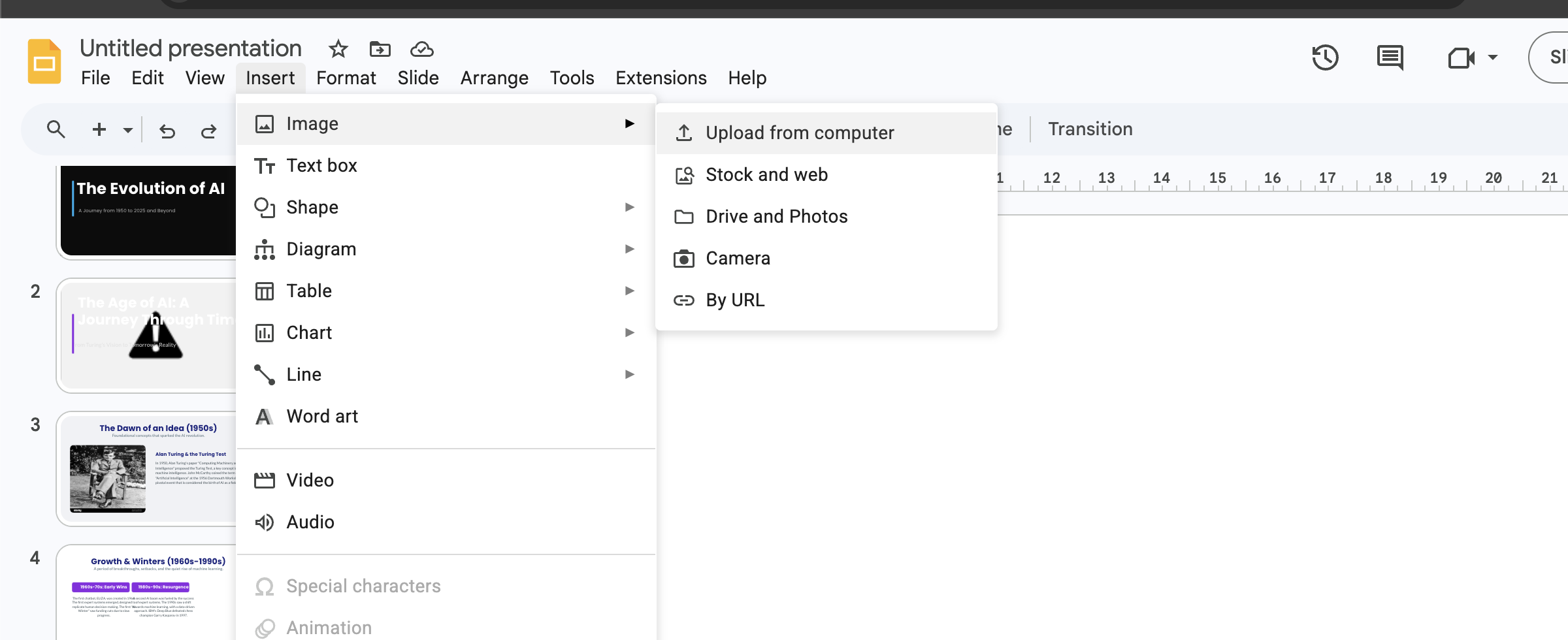
Step 6. Locate the downloaded image on your computer and click Open.
Your Bitmoji will now appear in your presentation.
This method is useful when you want to reuse the same Bitmoji in multiple presentations.
Method 4- Insert Bitmoji Using Google Images
Another workaround is using Google Images to download Bitmoji images.
Step 1. Go to Google and click on the Images tab.
Step 2. Search using keywords like:
- Bitmoji hello
- Bitmoji teacher
- Bitmoji thumbs up
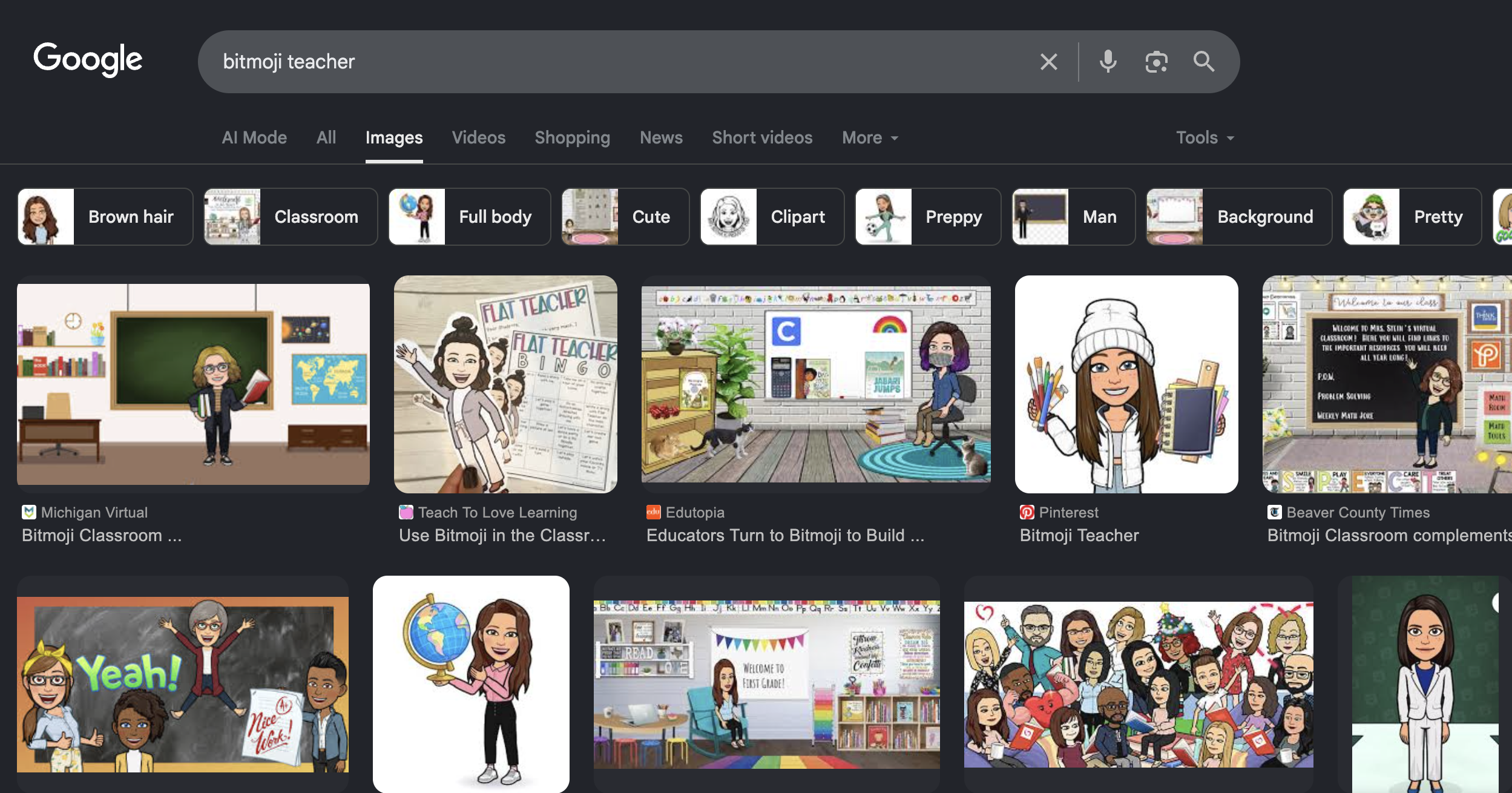
Step 3. Click on the image and download it to your computer.
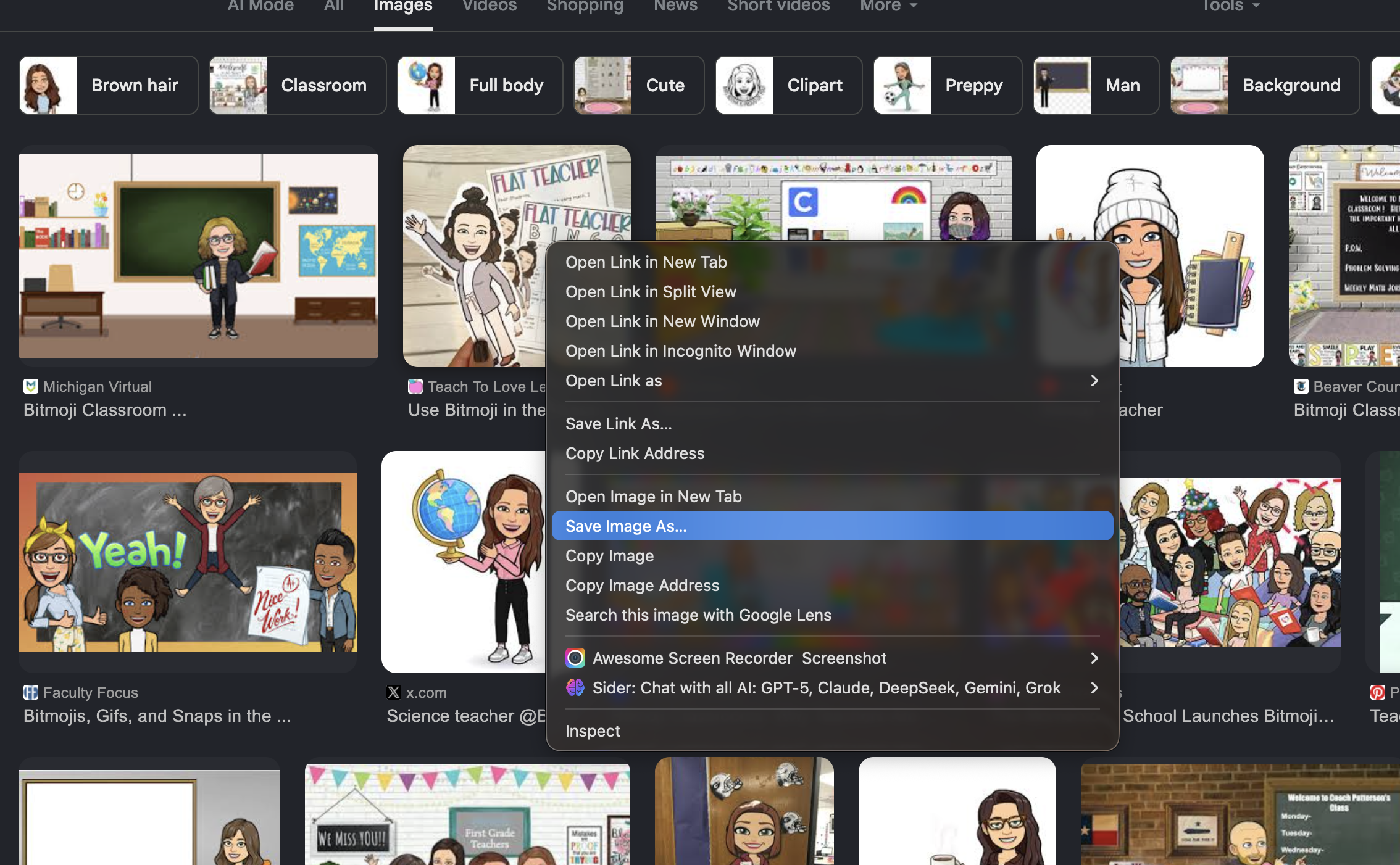
Step 4. Open your presentation and go to Insert >> Image >>Upload from computer.
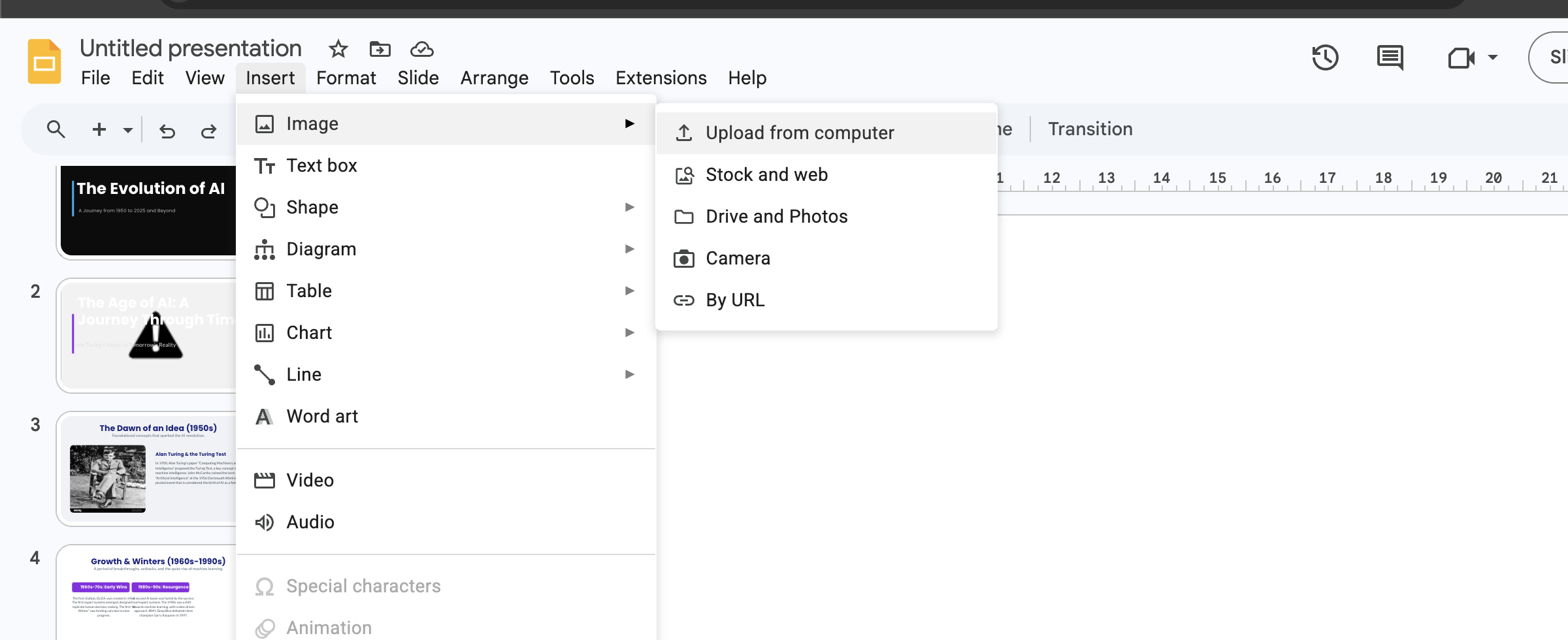
Step 5. Resize and position the Bitmoji to match your slide design.
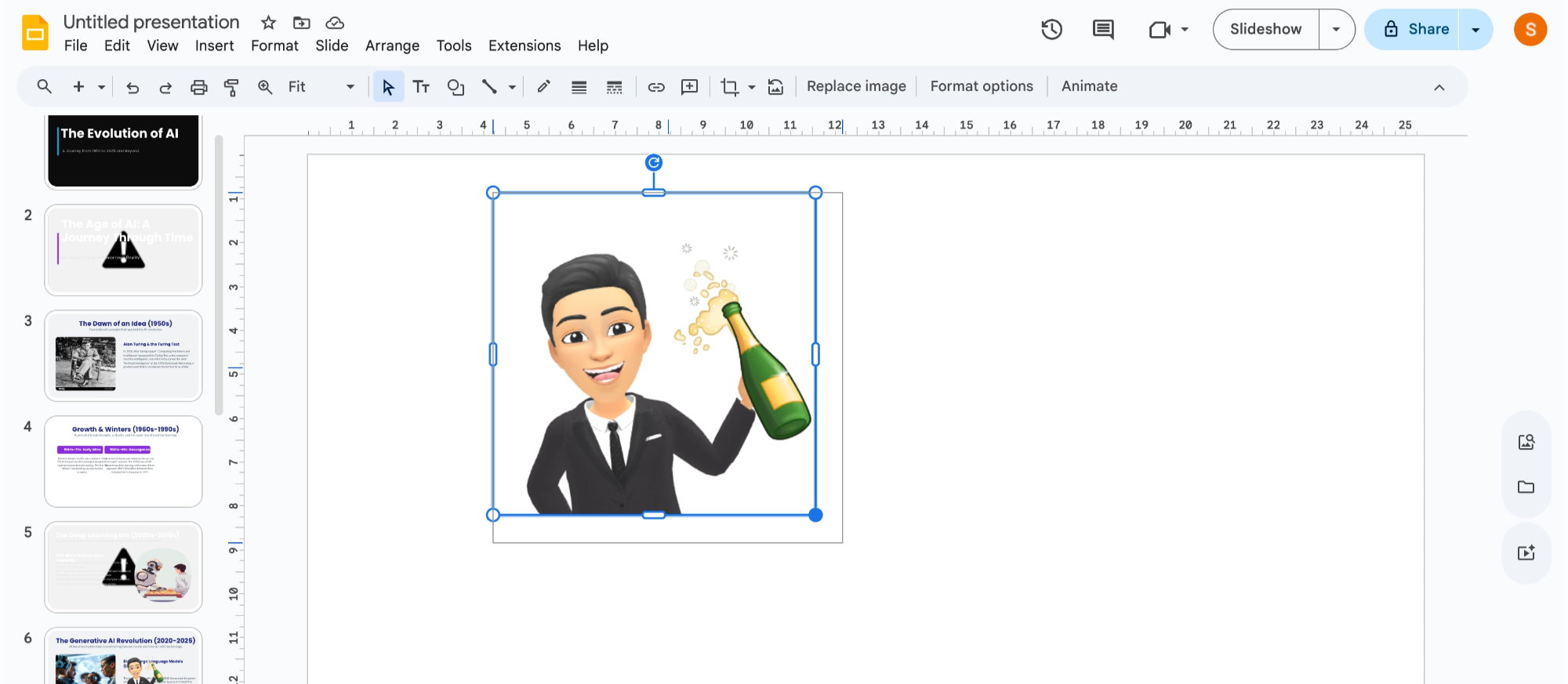
While this method works, it may not always match your personal Bitmoji avatar, which is why many users prefer the Chrome extension method.
Method 5- Insert Bitmoji Using Your Phone
If you are creating slides on your mobile device, you can still add Bitmoji easily.
Step 1. Launch the Bitmoji app on your smartphone and choose a Bitmoji
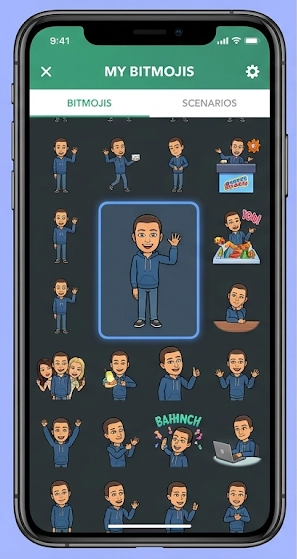
Step 2. Tap the Bitmoji and save it to your phone’s gallery and simply upload the image to Google Slides.
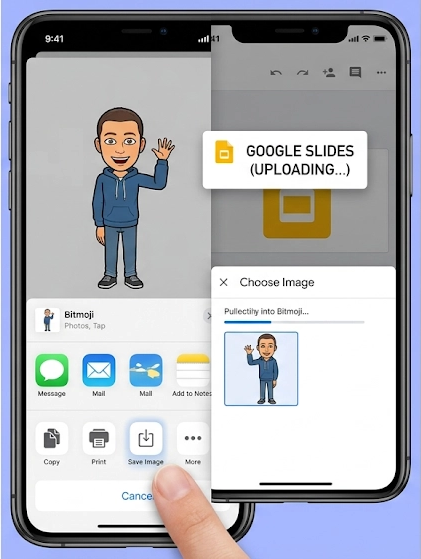
Step 3. Tap the + icon, choose Image, and select the saved Bitmoji from your gallery.
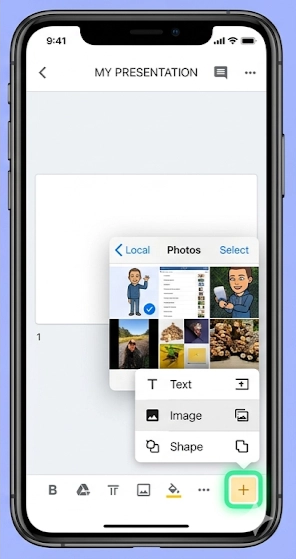
This method works great when working from tablets or mobile devices.
Tips for Using Bitmoji Effectively in Google Slides
Simply adding Bitmoji is easy, but using them effectively can make your slides much better.
Here are some helpful tips:
- Use Bitmoji for storytelling
- Place Bitmoji in slides to represent emotions or actions during a presentation.
- Avoid overcrowding slides
- Too many Bitmoji can make slides look cluttered.
- Match Bitmoji with slide content
- Use relevant Bitmoji expressions that match the message of the slide.
- Use consistent placement
- Keeping Bitmoji in similar positions across slides improves design consistency.
- These small adjustments can make your presentation look more polished and professional.
Insert Bitmoji into Google Slides for Better Presentations with Advanced Way
While inserting Bitmoji manually works well, creating an entire presentation from scratch can still take a lot of time. This is where AI presentation tools can help.
One of the most powerful tools available today is MagicSlides AI, which helps users generate professional presentations quickly.
It transforms simple text, documents, or topics into fully designed slides in seconds.
Step 1. Go to the website and install the software add-on for Google Slides.
Step 2. Open a new or existing Google Slides presentation.
Step 3. Now open the extension from the add-ons menu and type the topic or content you want to convert into a presentation.
Step 4. The solution will automatically create structured slides with titles, content, and layouts.
Step 6. Once the slides are generated, you can easily add images, Bitmoji characters, and design elements to personalize them.
It can significantly reduce the time required to create presentations while maintaining professional quality. Moreover, it can provide you the export and download options.
Common Problems When Adding Bitmoji to Google Slides
Some users experience small issues when trying to add Bitmoji. Here are quick fixes.
- Make sure the extension is installed and pinned to your Chrome toolbar.
- Try dragging the image instead of copying and pasting.
- Download the image before inserting it instead of copying.
- Too many large images can slow down presentations, so compress images if needed.
Most of these problems are easy to solve once you know the correct steps.
Final Thoughts
Adding Bitmoji to Google Slides is a great way to make presentations more engaging, expressive, and visually appealing. Even though Google Slides does not provide a built-in Bitmoji feature, there are several easy workarounds that allow you to insert your Bitmoji in just a few minutes.
The Chrome extension method remains the easiest option for most users, while downloading and uploading images works well for presentations that require reusable assets. Mobile users can also add Bitmoji easily through the Bitmoji app and Google Slides mobile application.
If you want to take your presentations to the next level, combining Bitmoji with an AI-powered presentation tool like MagicSlides can help you create professional slides faster and more efficiently.
With the methods explained in this guide, you now have everything you need to successfully add Bitmoji to Google Slides and create presentations that are both informative and fun.
Frequently Asked Questions:
Q1: Can I use Bitmoji in Google Slides for professional presentations?
Absolutely! Bitmoji offers a versatile range, allowing you to choose expressions suitable for professional contexts.
Q2: Is a Bitmoji account necessary, and can I log in with Snapchat?
Yes, a Bitmoji account is needed. You can log in using a Bitmoji account or your Snapchat credentials.
Q3: Can I customize the size and appearance of my Bitmoji in slides?
Yes, after adding Bitmoji to a slide, you can resize, crop, and customize it to your preference.
Q4: Can I use Bitmoji on existing presentations or only on new ones?
You can incorporate Bitmoji into both existing and new presentations, adding a personal touch to any project.


