How to Highlight Duplicates in Google Sheets: A Comprehensive Guide


Learn how to highlight duplicates in Google Sheets using conditional formatting with this easy step-by-step guide for beginners and professionals.
Google Sheets is a powerful tool for data organization and analysis. One common task when working with data is identifying duplicate entries. Duplicate data can lead to inaccurate reports, misinformed decisions, and cluttered spreadsheets. In this blog post, we will explore how to highlight duplicates in Google Sheets, the benefits of doing so, and some tips to effectively manage your data.
Why Highlight Duplicates?
Before diving into the how-to, it’s essential to understand why identifying duplicates is crucial:
- Data Accuracy: Duplicates can skew your results and lead to erroneous conclusions. Highlighting them helps ensure data integrity.
- Improved Analysis: By quickly spotting duplicates, you can analyze trends and patterns more effectively.
- Better Organization: Highlighting duplicates helps maintain a clean and organized spreadsheet, making it easier for others to understand your data.
Method 1: Highlight Duplicates in Google Sheets Using Conditional Formatting
One of the easiest ways to highlight duplicates in Google Sheets is through Conditional Formatting. Here’s a step-by-step guide:
Step 1. Open Your Google Sheets Document: Start by opening the spreadsheet where you want to highlight duplicates.
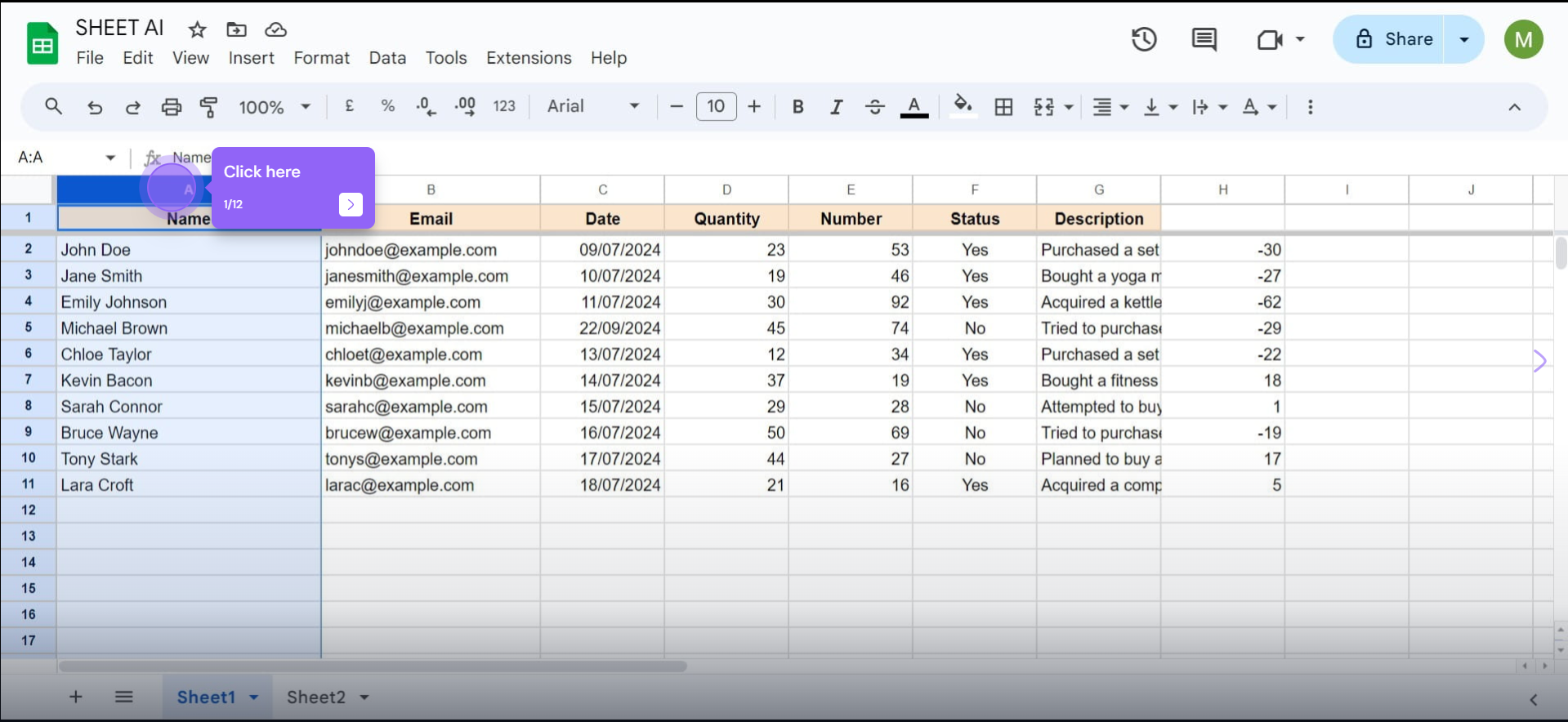
Step 2. Select the Range: Click and drag to select the range of cells where you want to check for duplicates. You can select a single column or multiple columns.
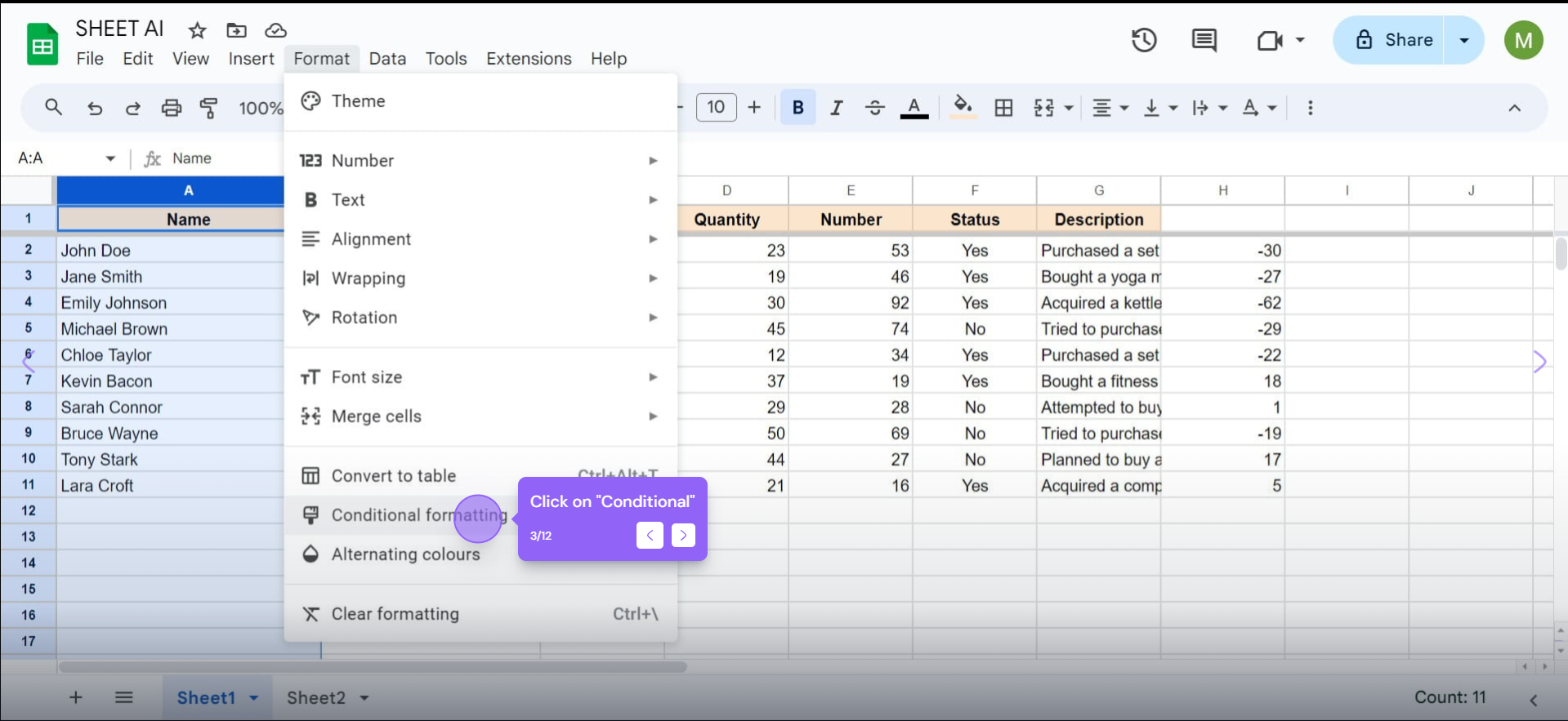
Step 3. Access Conditional Formatting:
-
- Go to the menu and click on Format.
- Select Conditional formatting from the dropdown menu.
Step 4. Set Up Conditional Formatting Rules:
-
-
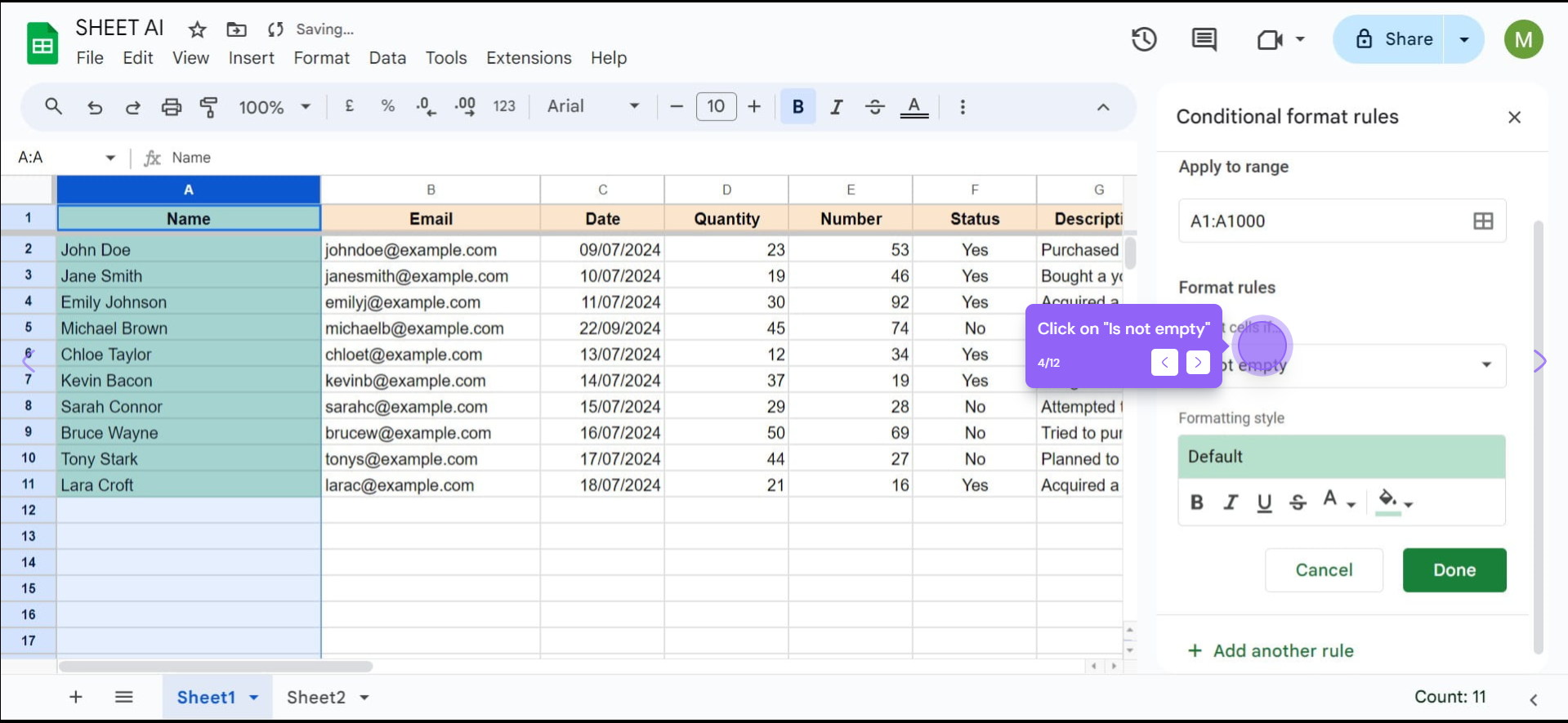
- In the Conditional format rules pane on the right, ensure the range is correct. If not, adjust it.
- Under the Format cells if dropdown, select Custom formula is.
-
Step 5. Enter the Duplicate Formula:
-
-
-
- To find duplicates in the selected range, enter the following formula (assuming your data starts in cell A1):
scss Copy code =COUNTIF(A:A, A1) > 1 - This formula checks if the count of the current cell in the entire column is greater than one.
- To find duplicates in the selected range, enter the following formula (assuming your data starts in cell A1):
-
-
Step 6. Choose Formatting Style:
-
-
-
-
- Below the formula, you will see options to customize the formatting. You can change the text color, fill color, or add a border to highlight duplicates.
-
-
-
Step 7. Apply the Rule:
-
- Click on Done to apply the rule. You will see duplicates in the selected range highlighted according to your chosen format.
Step 8. Review Your Data: Scroll through your data to see all highlighted duplicates, making it easier to spot them at a glance.
Method 2: Highlight Duplicates in Google Sheets Using the UNIQUE Function
If you want to see a list of unique values without duplicates, you can use the UNIQUE function. Here’s how:
- Select a New Cell: Click on a blank cell where you want to display the unique list.
- Enter the UNIQUE Formula: Type the following formula:
scss Copy code =UNIQUE(A:A)- Replace
A:Awith the range of your data.
- Replace
- Press Enter: This will generate a list of unique entries from your specified range, effectively filtering out duplicates.
Method 3: Highlight Duplicates in Google Sheets Using the FILTER Function for Detailed Analysis
For more advanced users, the FILTER function can help identify duplicates while also showing associated data. Here’s how:
- Select a New Cell: Click on a blank cell where you want to display the filtered list.
- Enter the FILTER Formula: Use the following formula:
less Copy code =FILTER(A:A, COUNTIF(A:A, A:A) > 1)- This formula will filter out and display all entries that appear more than once in the specified range.
- Press Enter: You will see a dynamic list of duplicates, which updates as you modify your data.
Tips for Managing Duplicates in Google Sheets
- Regular Checks: Make it a habit to regularly check for duplicates, especially when importing data from external sources.
- Data Validation: Use Google Sheets’ data validation feature to prevent duplicates from being entered in the first place.
- Create a Backup: Before making significant changes or deletions, create a backup of your spreadsheet to avoid losing important data.
- Use Comments: If you need to discuss duplicates with colleagues, use the comment feature to provide context about the duplicates directly in the spreadsheet.
- Data Cleanup: Utilize Google Sheets’ add-ons for advanced data cleanup options. Tools like Remove Duplicates can automate the process of cleaning up your data.
Also read: How To Add Charts in Google Sheets?
Conclusion
Highlighting duplicates in Google Sheets is a straightforward yet essential skill for anyone working with data. Whether you choose to use Conditional Formatting, the UNIQUE function, or advanced filtering techniques, understanding how to manage duplicates will enhance your data analysis and reporting capabilities.
By following the steps outlined in this guide, you can ensure your data remains clean, accurate, and ready for effective decision-making. With practice, you will become proficient in identifying and managing duplicates, ultimately leading to better data management and analysis in your Google Sheets.


