How to add morph Transition in PowerPoint


Elevate your presentations with the captivating Morph transition in PowerPoint transforming static slides into dynamic narratives.
Adding a "Morph" transition in PowerPoint allows you to create smooth animations between slides.
This transition is particularly effective for moving and morphing objects from one slide to the next, creating a visually pleasing effect. Here's a step-by-step guide:
How to Add a Morph Transition in PowerPoint:
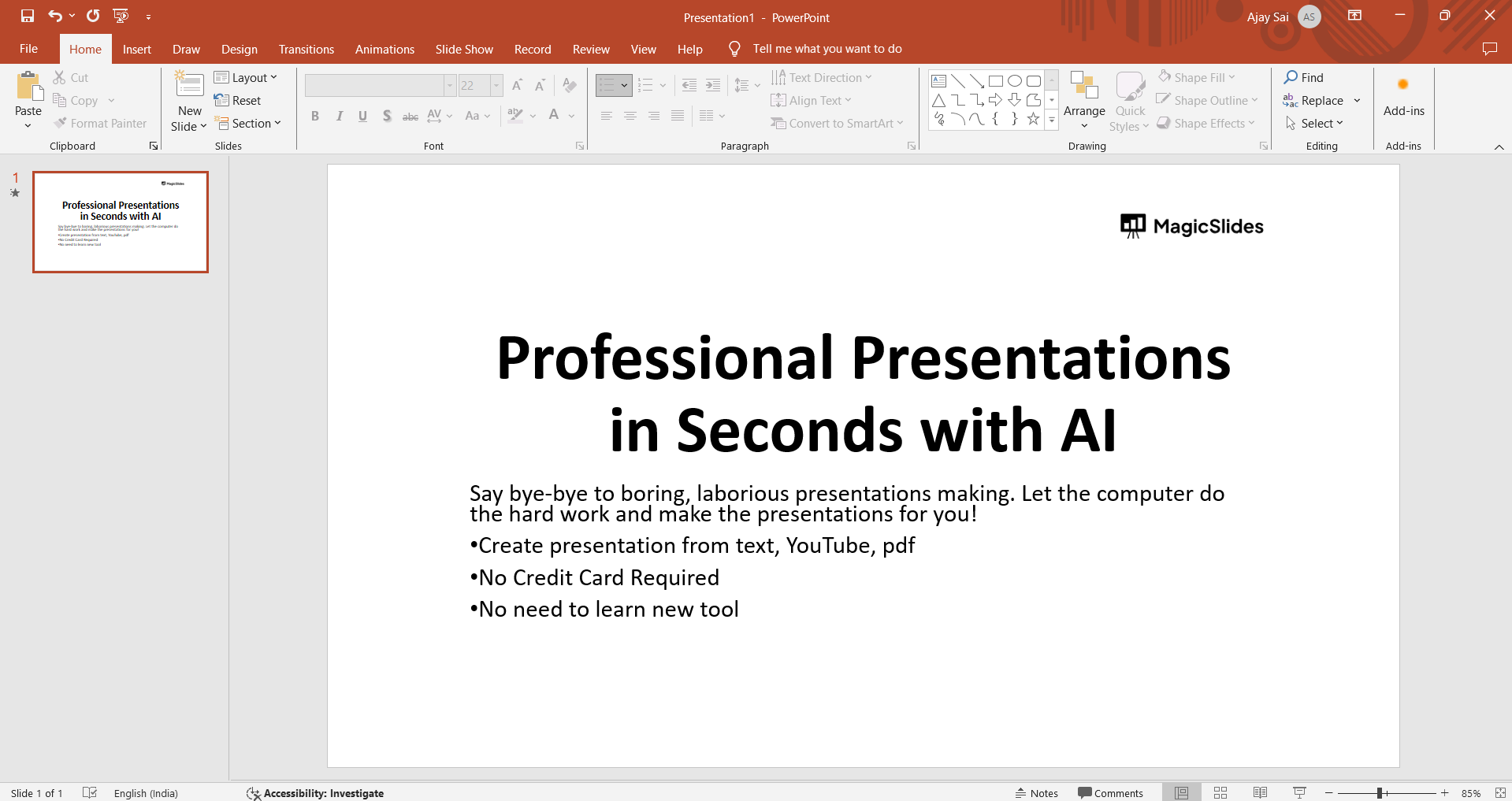
Open your PowerPoint application:
Launch PowerPoint and open the presentation where you want to add the Morph transition.
Navigate to the Slide Sorter View:
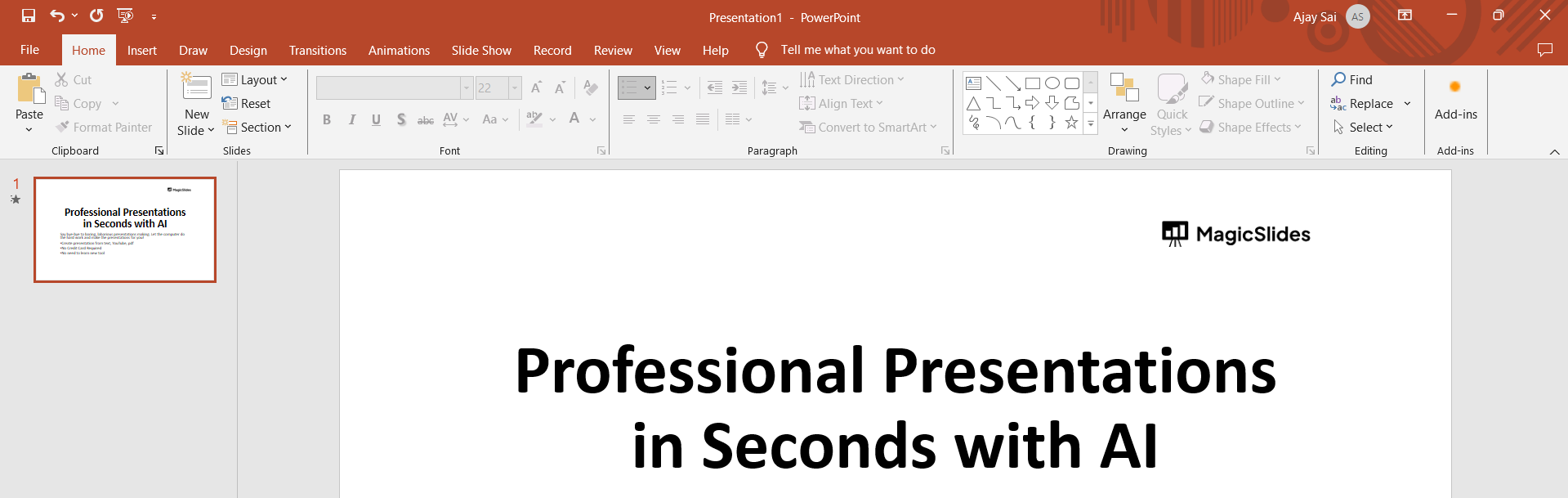
Click on the "View" tab in the PowerPoint ribbon. Select "Slide Sorter" to view all slides in a grid.
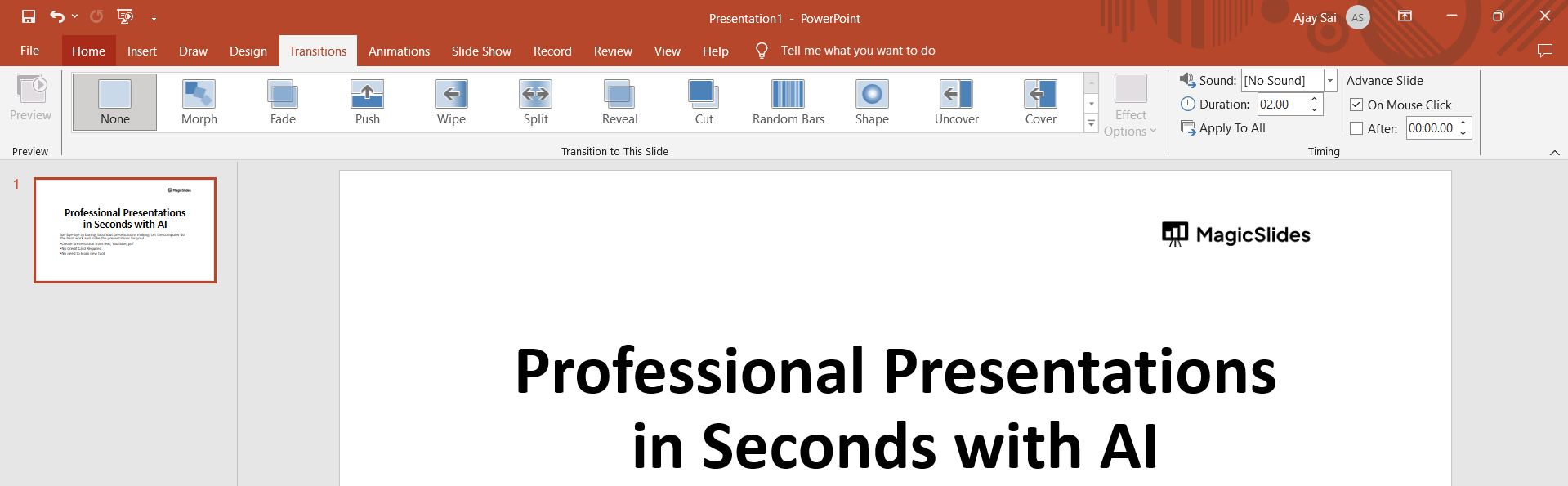
Go to the Transitions Tab:
Click on the "Transitions" tab in the PowerPoint ribbon.
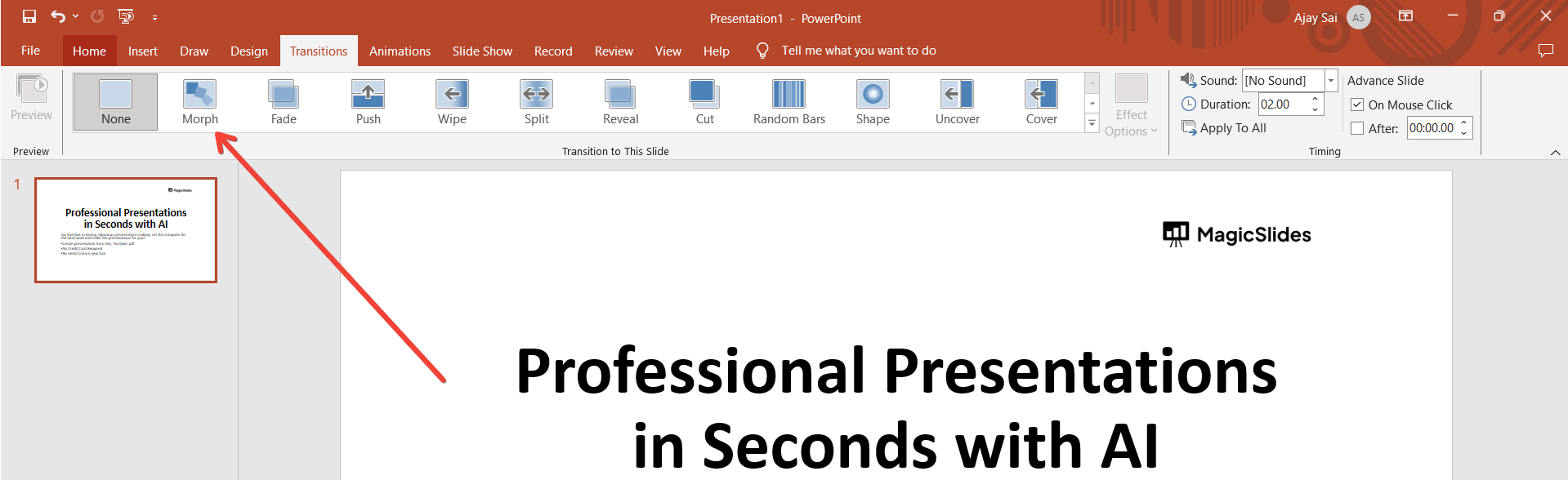
Choose Morph Transition:
In the Transitions tab, find and select "Morph" from the transition options.
Preview the Transition:
To preview the Morph transition, click the "Slide Show" button or press F5. This will show you how the objects smoothly transition between the two slides.
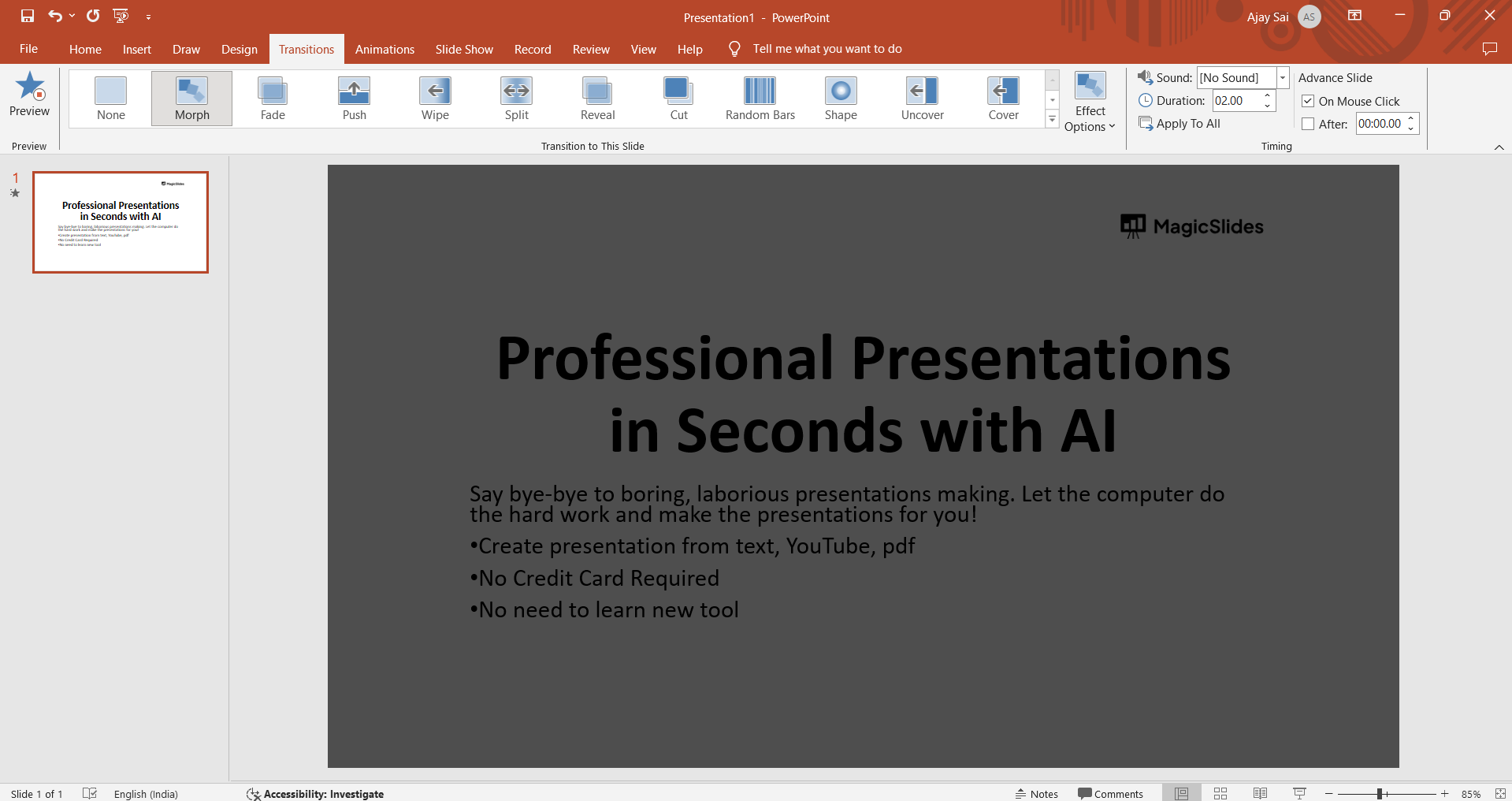
Adjust Timing and Options (Optional):
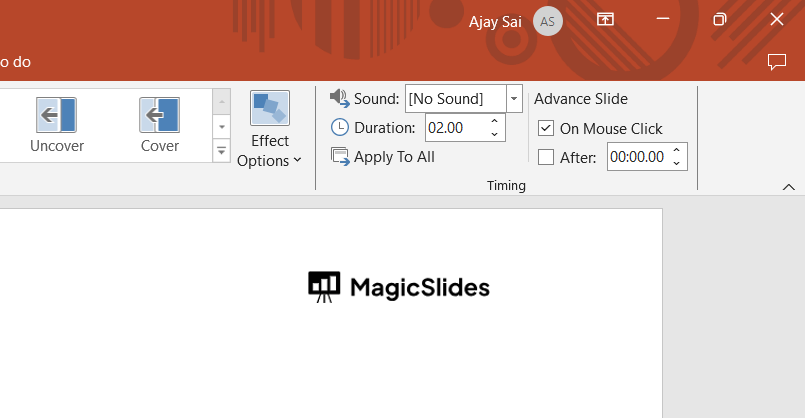
In the Transitions tab, you can adjust the duration and other options for the Morph transition to suit your preference.
Apply Morph to Other Slides (Optional):
If you want the same transition on other slides, you can select those slides and choose the Morph transition as well.
Tired of maing presentations? what if we tell you you can make presentation with just a prompt, convert YouTube videos to PPTs, convert website content to PPTs? Yes! checkout magicslides.app that does all and enjoy the free credits to make presentations in seconds.
Save Your Presentation:
Ensure to save your presentation to keep the Morph transition settings.
Conclusion:
The Morph transition is available in Microsoft 365, PowerPoint 2019, PowerPoint 2016, and PowerPoint for the web.
If you're using an older version, you might not have access to this feature.
By following these steps, you can seamlessly incorporate the Morph transition into your PowerPoint presentation, enhancing the visual appeal and creating a more engaging experience for your audience.
Learn to create language learning materials by converting YT videos to PowerPoint Presentations.
Frequently Asked Questions:
Can I use the Morph transition in all versions of PowerPoint?
The Morph transition is available in Microsoft 365, PowerPoint 2019, and PowerPoint 2016.
Does the Morph transition work for text and images equally well?
Yes, Morph smoothly animates changes in position, size, and formatting for both text and images.
Can I control the speed of the Morph transition between slides?
Yes, you can adjust the duration in the Transitions tab to control the speed of Morph.


