How to Convert PPT to Google Slides (3 Easy Methods + AI Tool)


Learn how to convert PPT to Google Slides using 3 simple methods. Preserve formatting, fix common conversion issues, and explore an AI-powered solution for faster results.
PowerPoint presentations are everywhere for sharing ideas, training teams, pitching business plans, or presenting in academic work. For decades, Microsoft PowerPoint has been the default tool for creating slides. However, due to the rise of cloud collaboration, users are now preferring to use and download Google Slides. This is so because it allows easy sharing, editing, and real-time collaboration.
Converting a PowerPoint presentation to Google Slides is quick and requires only a few clicks. Whether you want to collaborate online, edit presentations in the cloud, or share files more easily, Google Slides makes the transition simple.
Let’s explore everything step by step.
Benefits of Converting PowerPoint to Google Slides
Gradually, users are shifting from Microsoft PowerPoint to Google Slides, and it’s not just a popular trend. The real reason is how well Google Slides meets the needs of modern teams. This allows users to access their presentations from almost any device. This makes it super easy to work from anywhere, whether in the office, at home, or travelling.
Sharing the slides with colleagues is simple; multiple users can edit the PPT at the same time. You don’t need to worry about sending updated files back and forth. No need to constantly save or manage different versions because you’re getting everything saved automatically in the cloud. Moreover, you don’t need any software installations or any additional licenses for this, which makes it super accessible.
Why did I shift? So, these are the cases that forced me to convert my PPT files to Google Slides:
- Collaborate with others in real time.
- Google Slides auto-saves changes, so there’s no risk of losing data.
- Easier to share files via links rather than attachments.
- Works smoothly across devices using just a browser.
Maybe one of these reasons applies to you as well. So without wasting any time, let me show you the solutions in the next section.
How to Convert PPT to Google Slides Step by Step
Converting Microsoft PPT to Google Slides is not a straightforward task, as there is no direct migration option provided by these services. I tested several ways to convert PowerPoint presentations to Google Slides and found these three methods to be the quickest and most reliable.
Method 1. Open the PPT File in Google Slides
This is a free and simple solution. In this, you have to upload and open the Microsoft PPT file directly within Google Slides. Here are the detailed steps to do so:
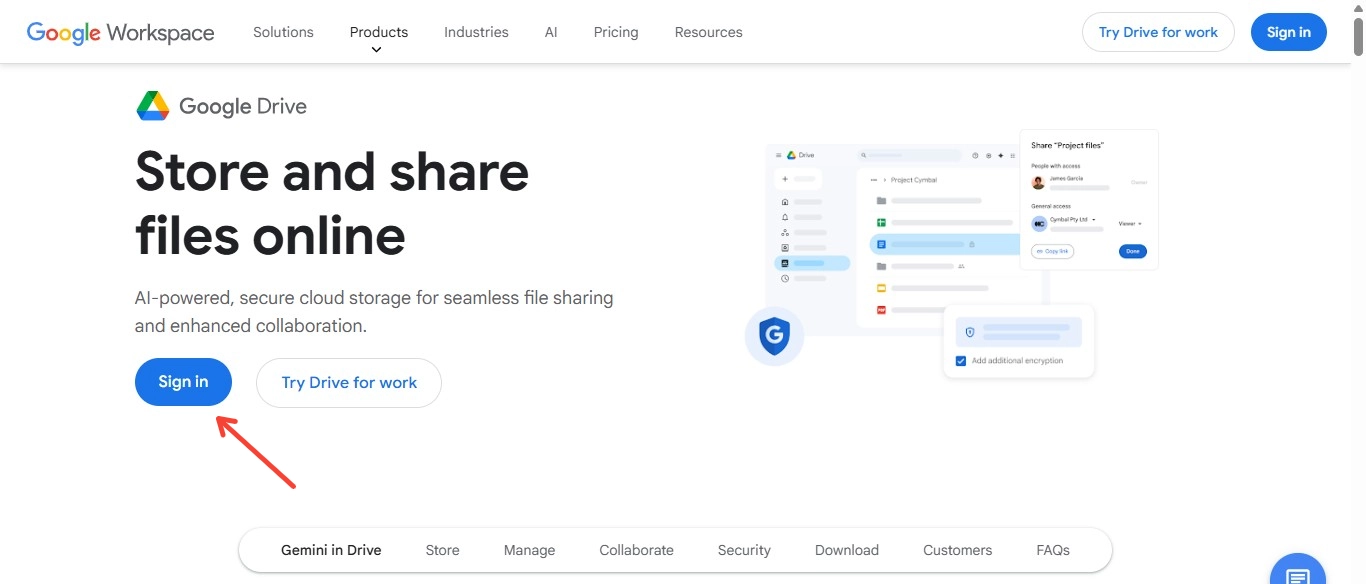
Step 1. Open Google Drive and sign in to your Google account.
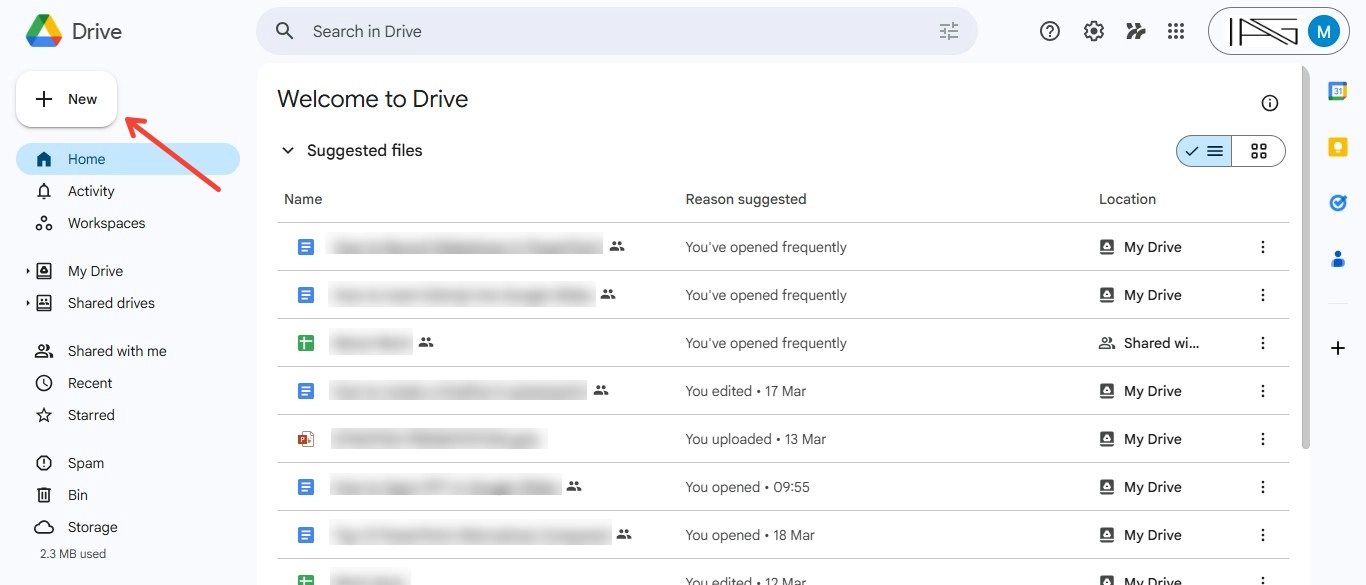
Step 2. Then click the New button in the top left corner and select New → File Upload and browse your computer.
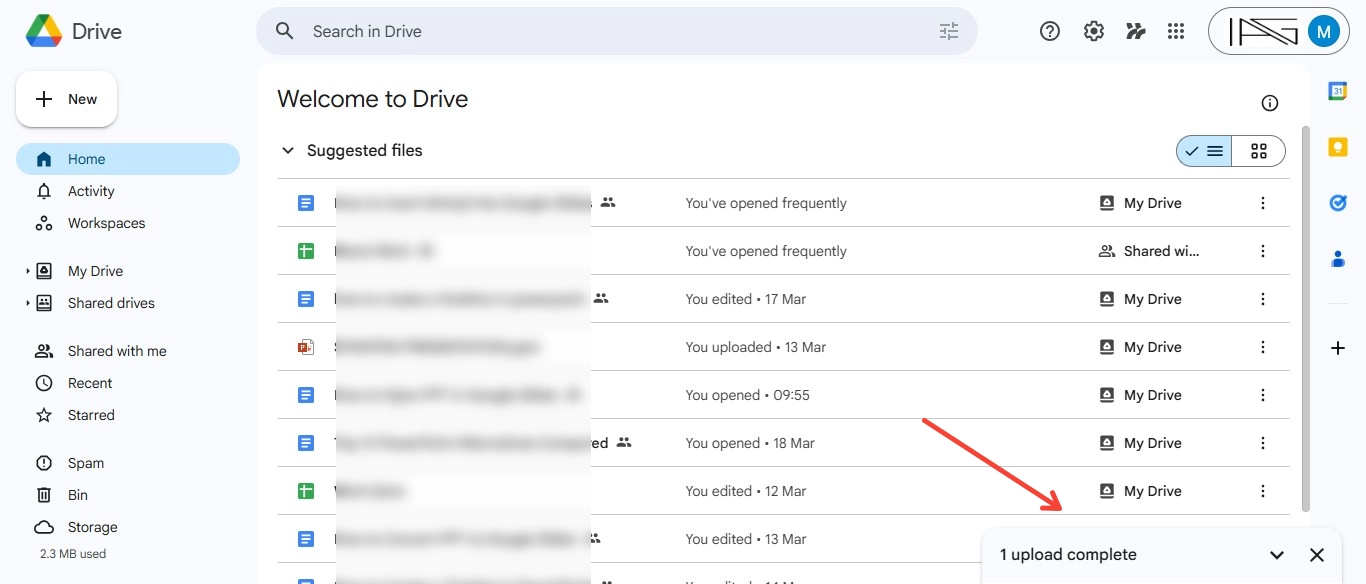
Step 3. Choose the .ppt or .pptx file you want to convert. Wait for the upload. The file will be uploaded to your Google Drive. The upload speed depends on your internet connection and file size.
Step 4. Once uploaded, double-click the PowerPoint file. Google Drive will open it in preview mode. Then, convert to Google Slides and at the top of the screen, click File.
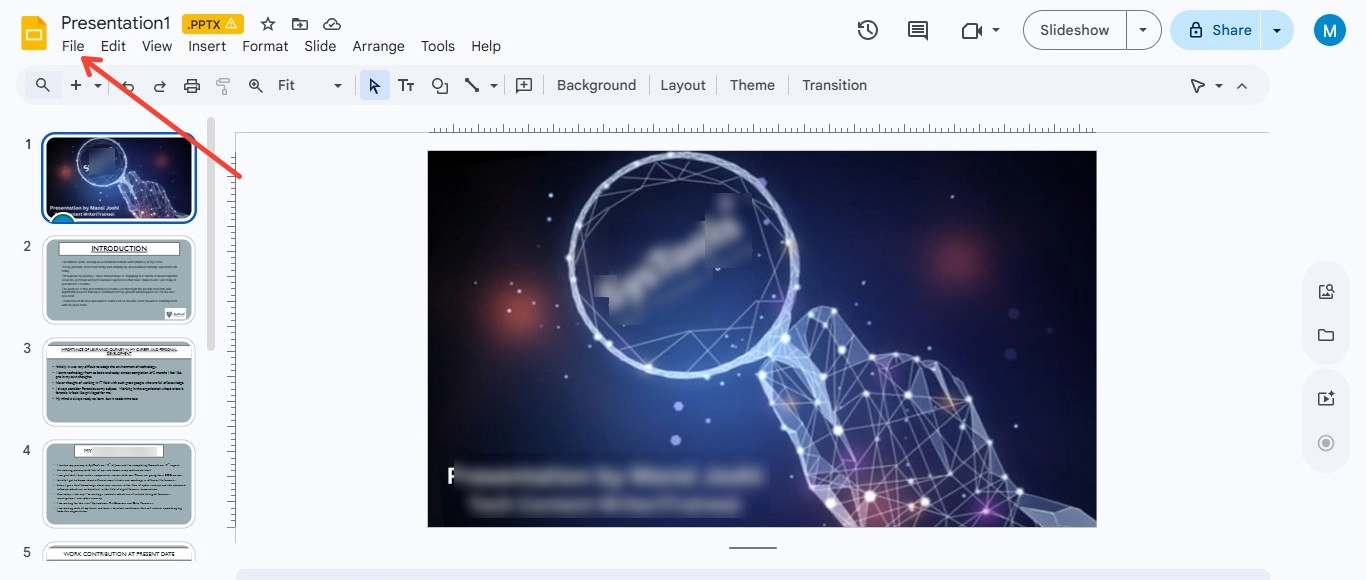
Step 5. Now select Save as Google Slides. Google will create a new version of the presentation in Google Slides format.
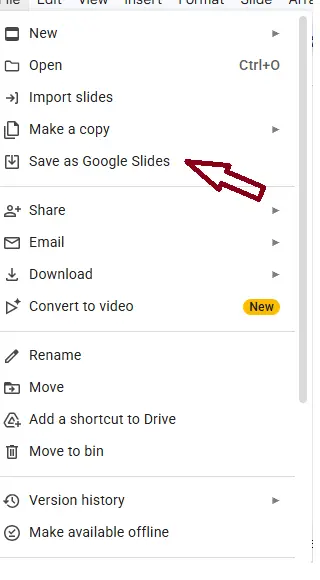
Step 6. Your presentation is now fully editable in Google Slides.
Google Slides automatically converts the file. You can then edit it like any other Slides presentation. Google Slides preserves most layouts, images, and text formatting. However, unsupported fonts, SmartArt, transitions, and advanced animations may require manual adjustments after conversion.
Also read: How to use AI to generate images?
Method 2. Drag and Drop the PPT Directly into Google Slides
If you have no more than 2-3 PPT files, then dragging and dropping those slides directly within Google Slides is the quickest trick. For the same, follow the steps:
Step 1. Open a blank or existing Google Slides file.
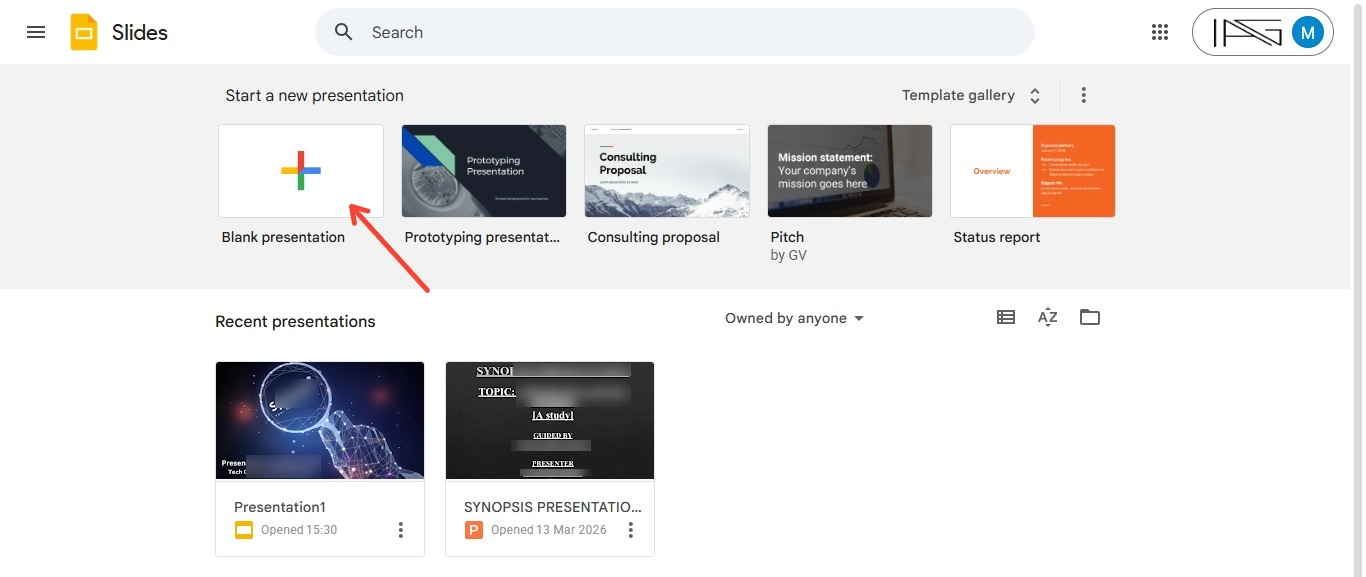
Step 2. Drag the PPT file from your computer and drop it into the Slides window.
Step 3. Wait for Google Slides to process the uploaded file. Once the import is complete, all slides will appear in your presentation.
Step 4. Google Slides will import all slides automatically.
See, this is the most straightforward and takes only a few seconds (depending on your network connection).
Method 3. Upload File to New Google Slides Presentation
If you want more control over which slides are imported, this method is ideal.
Instead of converting the entire presentation, you can select specific slides.
Let’s discuss the brief steps of this method now:
Step 1. Visit Google Slides (slides.google.com).
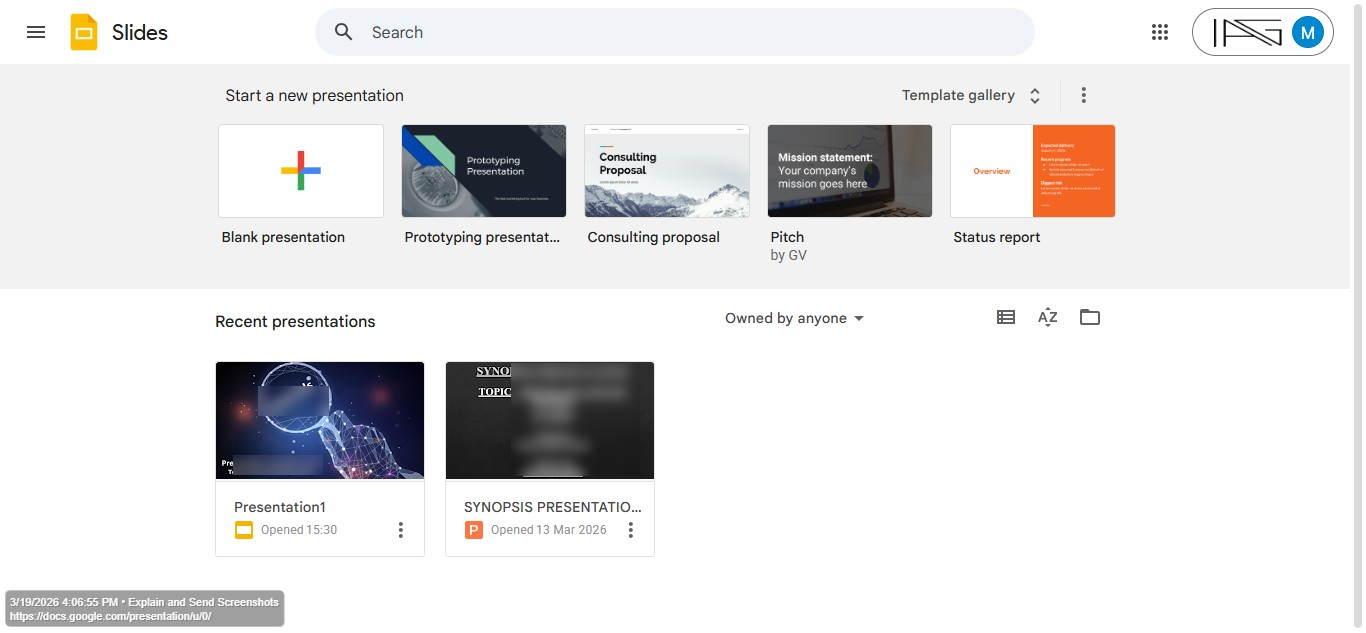
Step 2. Create a Blank Presentation and open the Import option.
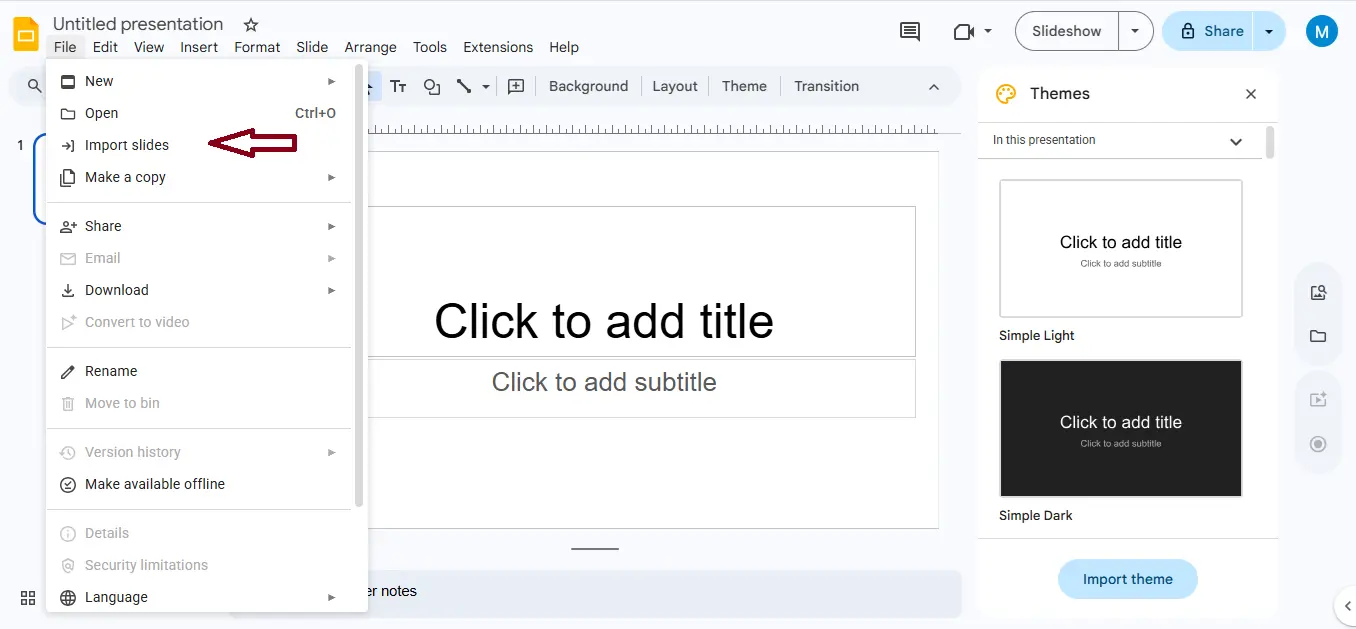
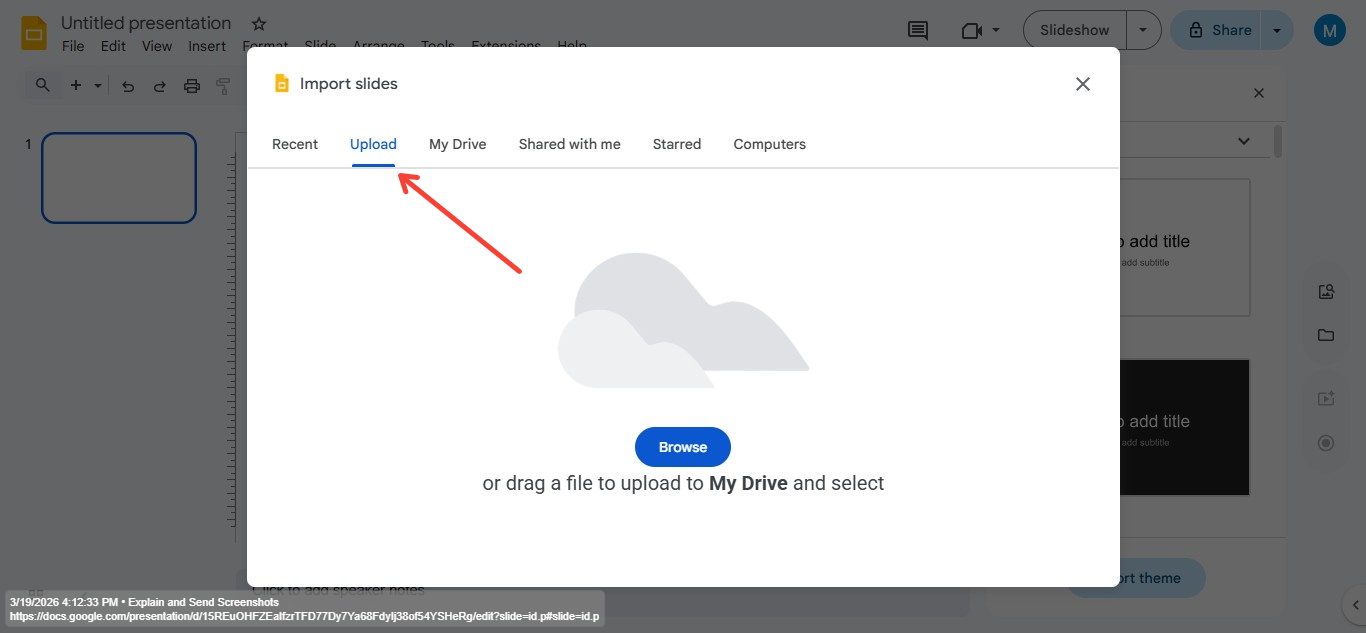
Step 3. Choose the Upload tab and select your PowerPoint file.
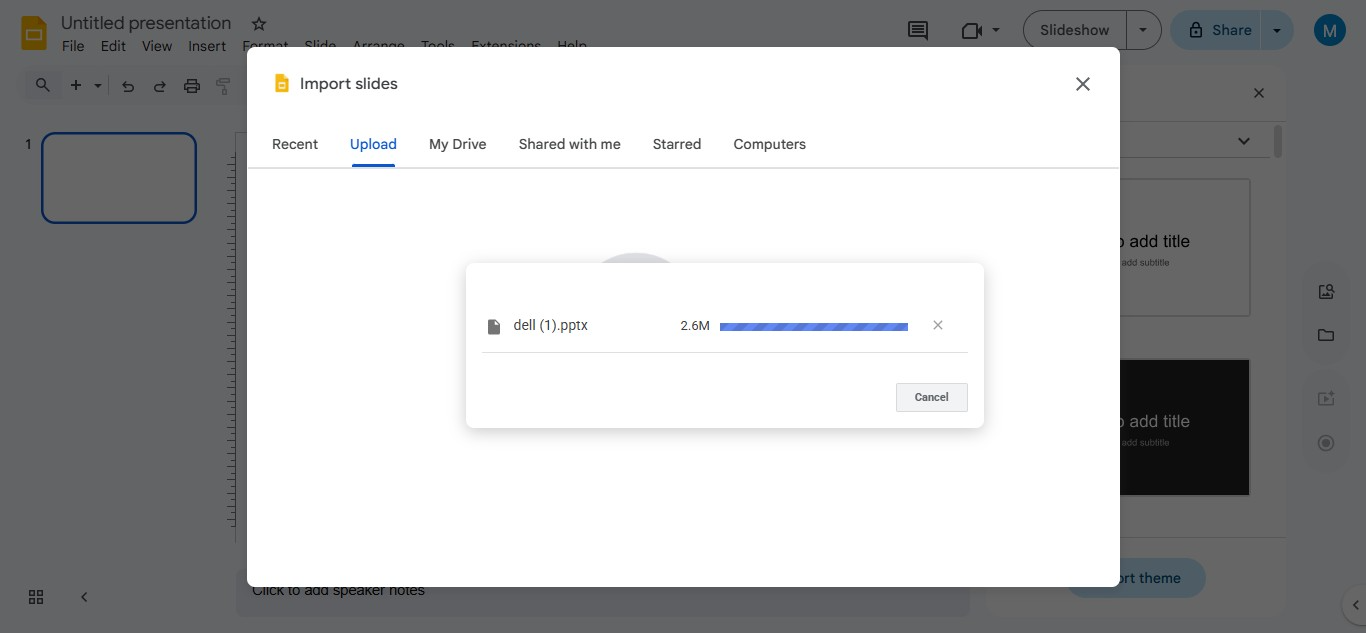
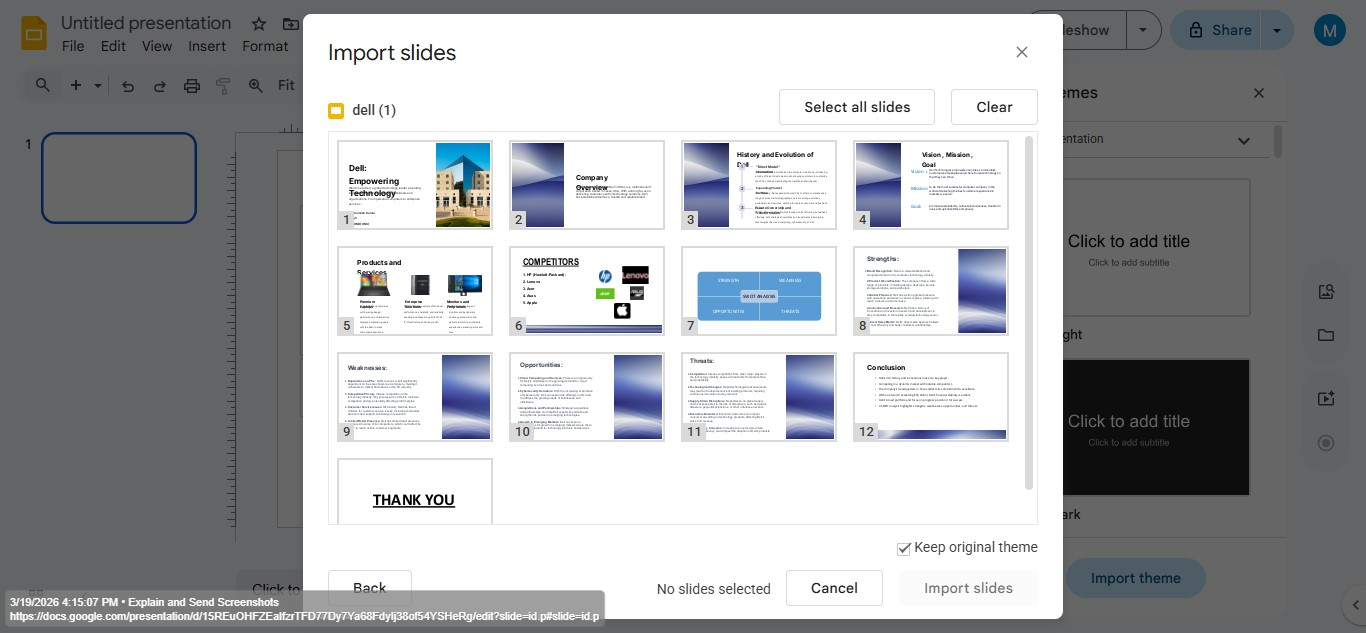
Step 4. Google Slides will display all slides from the PowerPoint. You can import all slides, or import only selected slides.
Step 5. Your selected slides will appear inside the new Google Slides presentation.
Common Formatting Issues After Conversion
Google Slides does an excellent job converting PowerPoint files, but sometimes small formatting differences appear.
So, here are a few things you may notice before following the manual methods:
- Font Changes- If the original PowerPoint uses fonts not supported by Google Slides, the system may substitute them.
- Animation Differences- PowerPoint animations may not translate perfectly.
- Layout Adjustments- Slide layouts might shift slightly.
- Embedded Media- Videos or audio files sometimes require re-insertion
While testing PowerPoint (.pptx) presentations with images, charts, and animations, I noticed that Google Slides preserved layouts and images well, but custom fonts, SmartArt, and complex animations still required manual adjustments.
How to Convert PPT to Google Slides Directly Using AI?
In this case, I opted for an automated solution, which effectively maintains the structure, fonts, videos, text, audio, etc. I’m talking about AI Presentation Maker. This solution helps me create slides by entering a topic or a detailed prompt, and I can then open it in Google Slides while maintaining the hierarchy of the original PPT.

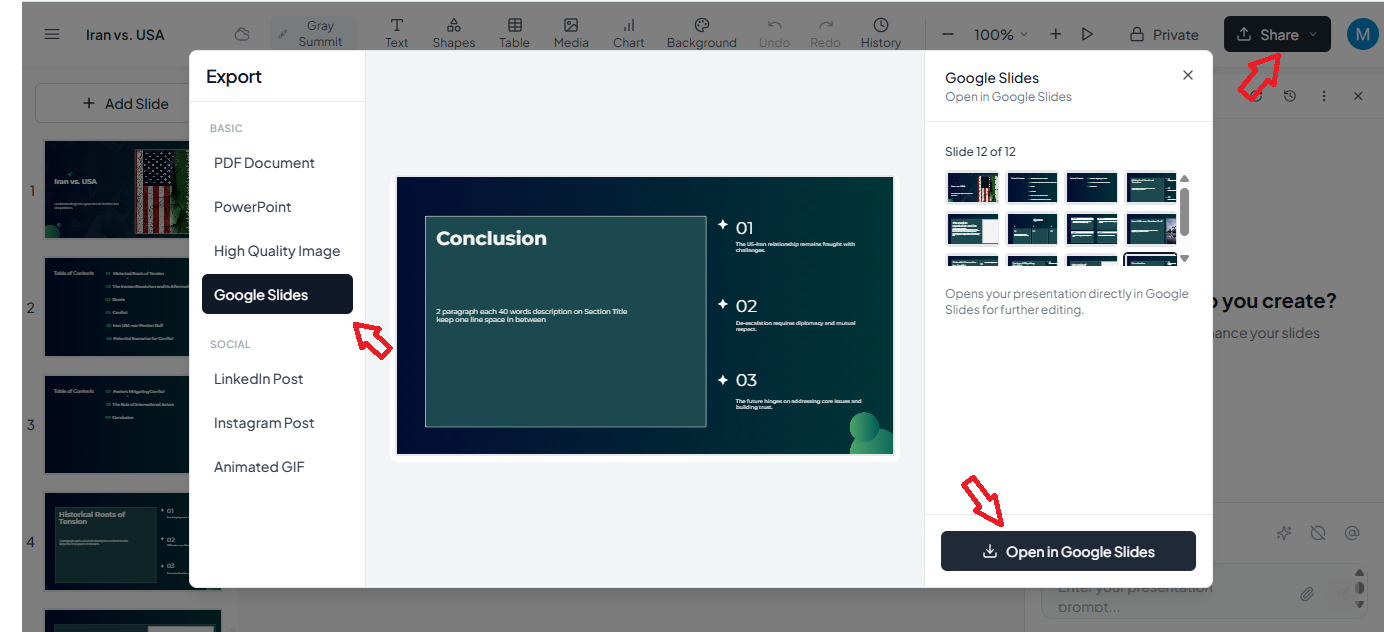
After completing all the editing as per the requirements, opt for export options. In the export options, tap on Share and select Google Slides as an export option.
To try this, you don’t have to pay anything. This means you can test its performance at no cost. So, if you regularly create PPTs, then opt for this solution, as it can automate most of the tasks. Moreover, it allows you to open the generated slides directly in Microsoft PowerPoint, Google Slides, and other supported platforms.
How to Download Back as a PPT?
If you need to convert Google Slides into PPT, then:
- Open the Google Slides file.
- Click File > Download > Microsoft PowerPoint (.pptx).
Now, within a few seconds, your PPT will be downloaded to your computer.
Conclusion
Converting PPT to Google Slides is something users frequently ask for to simplify collaboration and sharing. Google Slides is highly reliable for cloud-based work, and the methods I’ve shared will help you in a quick and hassle-free conversion.
If you want to make a fresh PPT without any manual intervention, which opens directly in Google Slides, then you can opt for the MagicSlides PPT to Google Slides Converter solution.
People Also Ask
Q1. Can I convert a PowerPoint (.ppt/.pptx) file to Google Slides for free?
Yes. Google Slides allows you to upload and convert PowerPoint (.ppt and .pptx) files at no cost. Simply upload the file to Google Drive or import it directly into Google Slides using your Google account.
Q2. Will I lose formatting when converting PPT to Google Slides?
Most text, images, and layouts are preserved during conversion. However, custom fonts, advanced animations, transitions, SmartArt, and some embedded media may require minor manual adjustments after the conversion.
Q3. What’s the easiest way to convert PowerPoint to Google Slides?
The easiest method is to upload your PowerPoint file to Google Drive, open it with Google Slides, and select File → Save as Google Slides. This creates an editable Google Slides version while keeping the original PowerPoint file unchanged.
Q4. Can I edit a PowerPoint file directly in Google Slides?
Yes. Google Slides lets you open and edit PowerPoint presentations. To unlock all Google Slides features, save the file as a Google Slides presentation after opening it.
Q5. Does Google Slides support PowerPoint animations and transitions?
Google Slides supports basic animations and transitions, but some advanced PowerPoint effects may not convert correctly. You may need to recreate complex animations manually.
Q6. Can I convert Google Slides back to PowerPoint?
Yes. Open your presentation in Google Slides, then go to File → Download → Microsoft PowerPoint (.pptx). The presentation will be downloaded as a PowerPoint file.


