How to Download Google Slides with Speaker Notes? Explained


Learn how to download Google Slides with Speaker Notes with all the methods available. Also find one smart solution to generate it through advanced AI.
Google Slides is a popular tool for creating presentations, and it allows you to add speaker notes to guide your delivery.
If you have ever tried to download Google Slides with speaker notes, you have probably noticed something. The notes do not appear when you use the download option. These are common issues people face when they want to download Google Slides presentation with notes for meetings, teaching, or sharing detailed presentations.
Google Slides with speaker notes are very important. The speaker notes are where the real explanation lives. They help you present clearly without putting too much information on your Google Slides. If you know how to use Speaker Notes in Google Slides, you can deliver your message more confidently and stay on track during your presentation. When it comes to exporting Google Slides, it is not easy to include the speaker notes. That’s where many users get stuck while trying to download Google Slides with speaker notes for offline use or sharing.
The good news is that once you understand the method, the process becomes quick and easy. Whether you want to export Google Slides with speaker notes as a PDF or you want to prepare a printable version of Google Slides, there is a way to do it that works every time. You can download Google Slides with speaker notes. Use them for your meetings, for teaching, or for sharing presentations. Google Slides, with speaker notes are very useful.
In this guide, I’ll walk you through the steps to download Google Slides with speaker notes so you can easily refer to them during your presentation or share them with others.
Can You Download Google Slides with Speaker Notes?
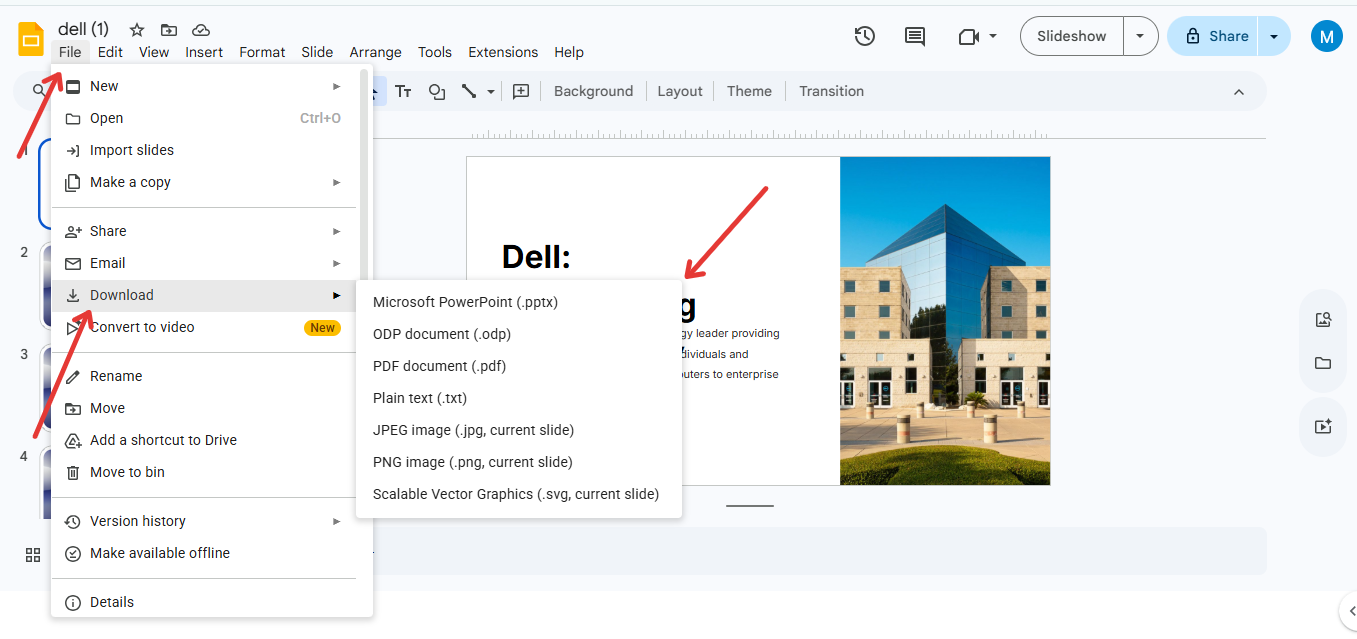
Yes you can learn how to download Google Slides with speaker notes. There is a thing most users miss. The usual way to download from Google Slides using File and then Download does not include speaker notes. Many people think you cannot download speaker notes because of this.
You can still download Google Slides with speaker notes. The standard option does not work. Google Slides download, without notes is what most get. This often confuses users who are already familiar with using speaker notes in PowerPoint, where exporting notes feels more straightforward.
You want to know about downloading with notes. It becomes even more important if you are switching between tools or trying to figure out how to see Canva Speaker Notes When Presenting, since every platform handles notes a bit differently.
In reality, Google Slides handles notes differently. Instead of treating them as part of the slide, it places them in a separate layout designed for printing. This means if you want a proper Google Slides speaker notes download, you need to use the print settings instead of the regular export option.
The correct method allows you to save Google Slides with notes as PDF where each slide appears with its notes clearly displayed below it. This format is ideal for presenting, rehearsing, or sharing detailed explanations with others.
How to Download Google Slides with Speaker Notes?
If you’re trying to figure out how to download Google Slides with speaker notes, this is the most reliable method. It may not be obvious at first, but once you follow these steps, you’ll be able to download Google Slides with notes in a clean, readable format every time.
Step 1. Open Your Google Slides Presentation
First, open Google Slides by navigating to Google Slides and select the presentation you wish to download. Ensure that your speaker notes are already added beneath the slides, as these will be included in the downloaded file.
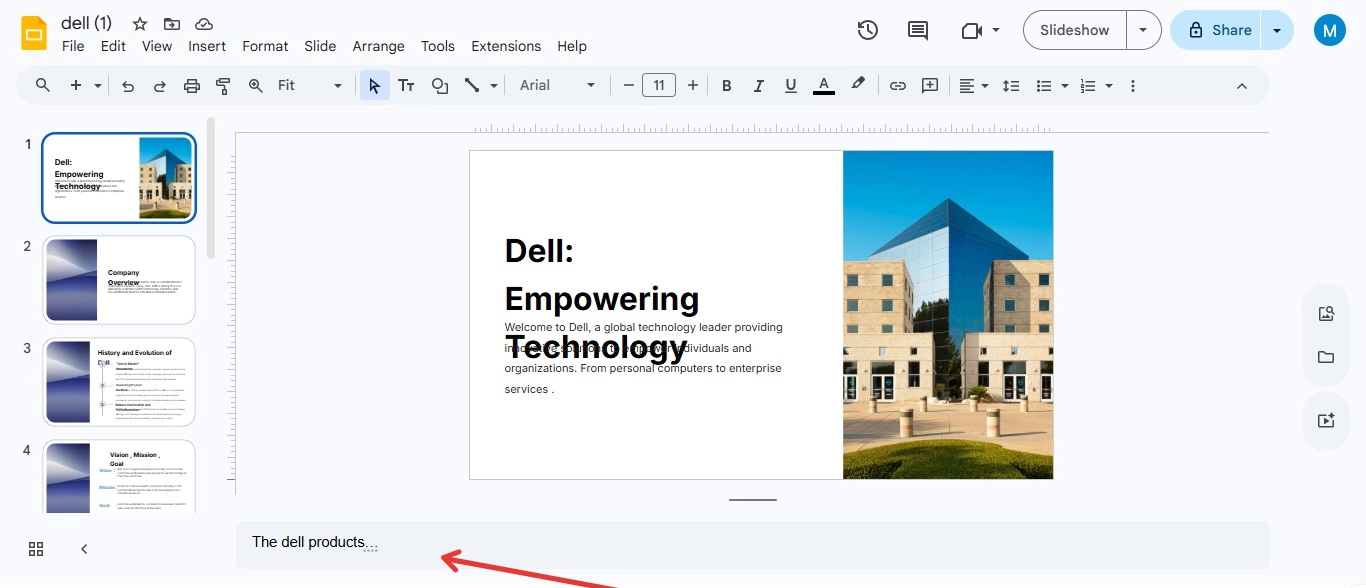
Step 2. Go to File Menu
Once your presentation is open, click on the “File” menu in the top-left corner of the screen. This will open a dropdown list of options for managing your document, including downloading it in different formats.
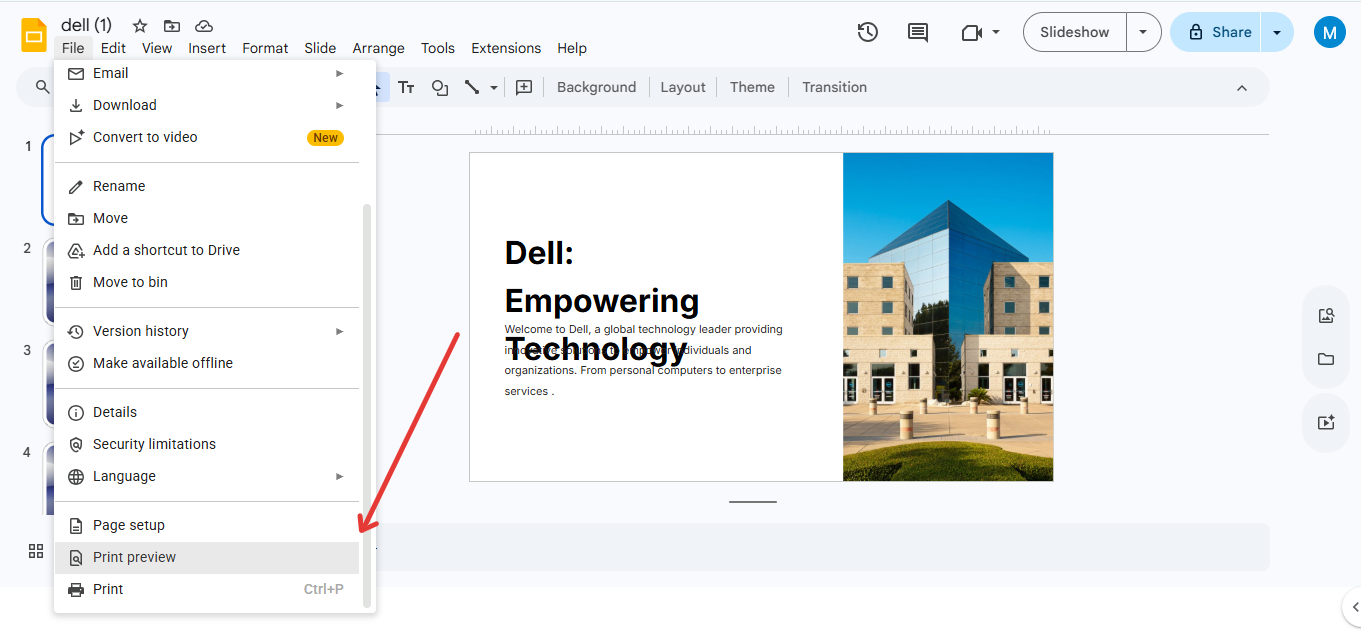
Step 3. Choose “Print Settings and Preview”
From the “File” menu, scroll down and select the option that says “Print settings and preview.”This will open a new window where you can adjust various printing options and settings for your slides, including whether to show speaker notes.
Step 4. Show Speaker Notes
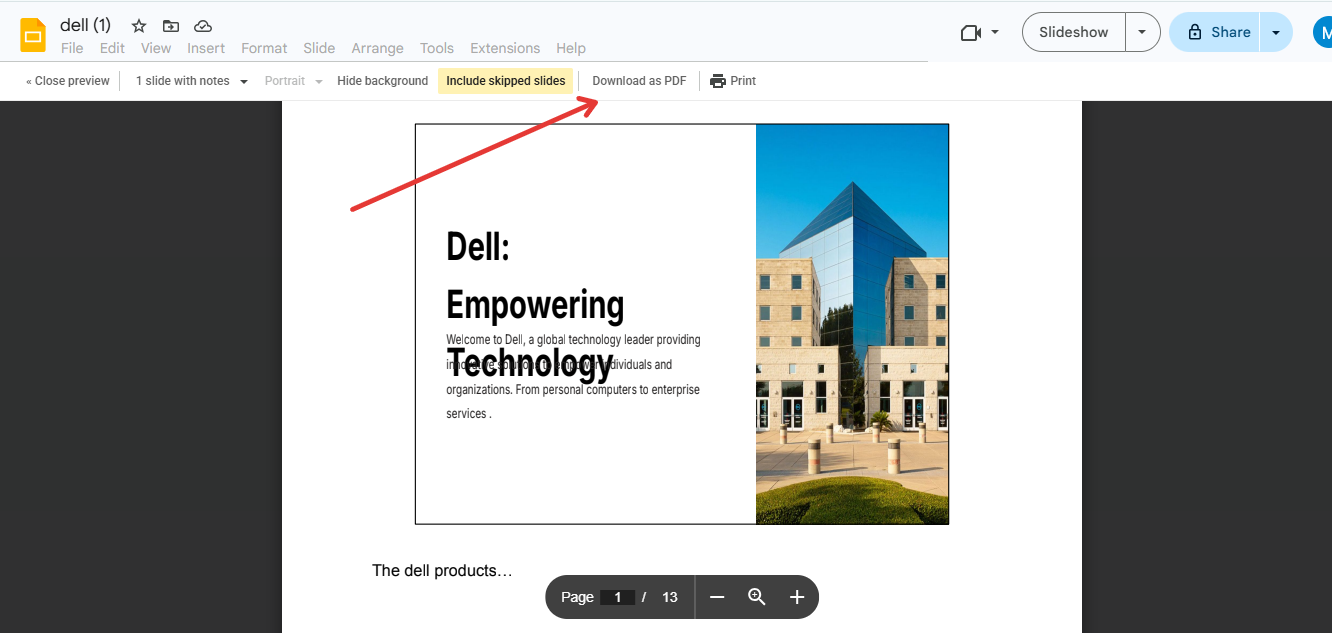
In the preview window, look for the option that says “1 slide with notes” in the toolbar. Clicking on this will display your slides along with the speaker notes below each one. This ensures that the speaker notes will be included in your download.
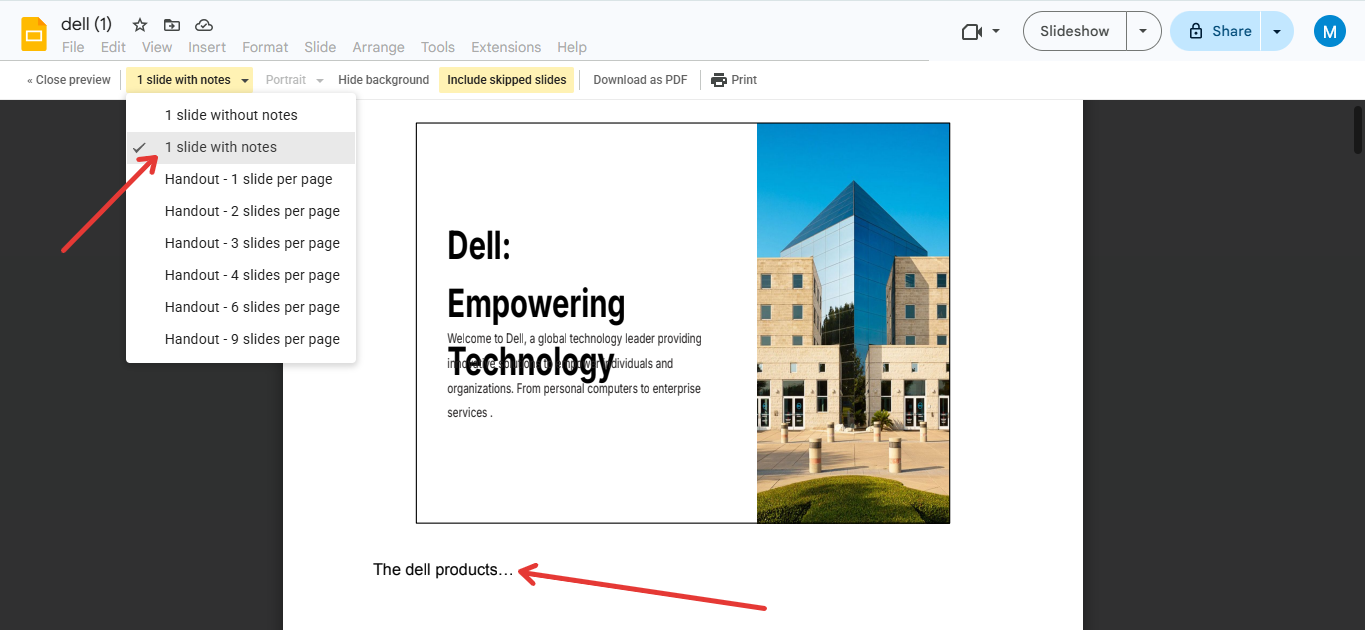
Step 5. Download as PDF
After selecting the speaker notes option, click on the “Download” button in the preview window. Choose “Download as PDF” from the options. The PDF file will be downloaded to your computer with your slides and speaker notes displayed as selected.
Tools to Enhance Your Google Slides Workflow
When you know how to download Google Slides with speaker notes the next thing to do is make your presentations better overall. Google Slides is a tool but it can be hard to make slides and write notes from the beginning.
Google Slides is great. Making slides and writing notes can take a long time. That is where MagicSlides AI presentation tool can help you.
This is a online tool that helps you make presentations quickly. You can use your ideas or documents to make a presentation.
You do not have to start with a slide. It gives you a draft that you can change and make your own. This way you can focus on your speaker notes of spending a lot of time making slides.
If you make presentations often using this tool can help you work faster. You can use the structure that MagicSlides makes and add your ideas. This makes it easier to download Google Slides with speaker notes when you are done.

Conclusion
Downloading your Google Slides presentation with speaker notes is a quick and easy process.
This ensures that you can share or print your presentation with the additional notes, providing extra context or guidance for your audience.
By following these steps, you’ll have your slides and notes ready to go in just a few clicks.
FAQs
Can I download Google Slides with speaker notes in formats other than PDF?
No, speaker notes are only included when you download the presentation as a PDF file. Other formats like PowerPoint or JPEG do not support speaker notes.
Will the speaker notes be editable after downloading?
No, once downloaded as a PDF, the speaker notes cannot be edited directly. You can only edit them in Google Slides.
Can I print my Google Slides with speaker notes?
Yes, after downloading the PDF with speaker notes, you can print it directly from your computer, with each slide and its notes displayed on the page.


