How to See Canva Speaker Notes When Presenting?


Learn how to see Canva speaker notes when presenting using Presenter View. Step-by-step guide, tips, and fixes for smooth presentations.
If you have ever felt stuck trying to remember what to say during a presentation Canva speaker notes can solve that problem for you.
Canva speaker notes are basically notes that you can attach to each slide. These notes are only visible to you, the presenter, when you are presenting. Your audience does not see them.
When you are working on your presentation in Canva you will find a notes section at the bottom of each slide. You can write down anything you want in this section, such as talking points, explanations of data or cues to help you tell a story.
A lot of people get confused about how to see Canva speaker notes when they are presenting. This usually happens because they do not know that the notes are not visible in the presentation mode. You need to use Presenter View to see them.
Think of Canva speaker notes as a guide that helps you behind the scenes. They help you stay focused, on what you’re saying without making your slides look cluttered. Once you figure out how to use Canva speaker notes presenting in Canva becomes a lot easier and less stressful. You will feel more natural and confident when you are presenting.
How to See Canva Speaker Notes When Presenting? Step-by-Step Guide
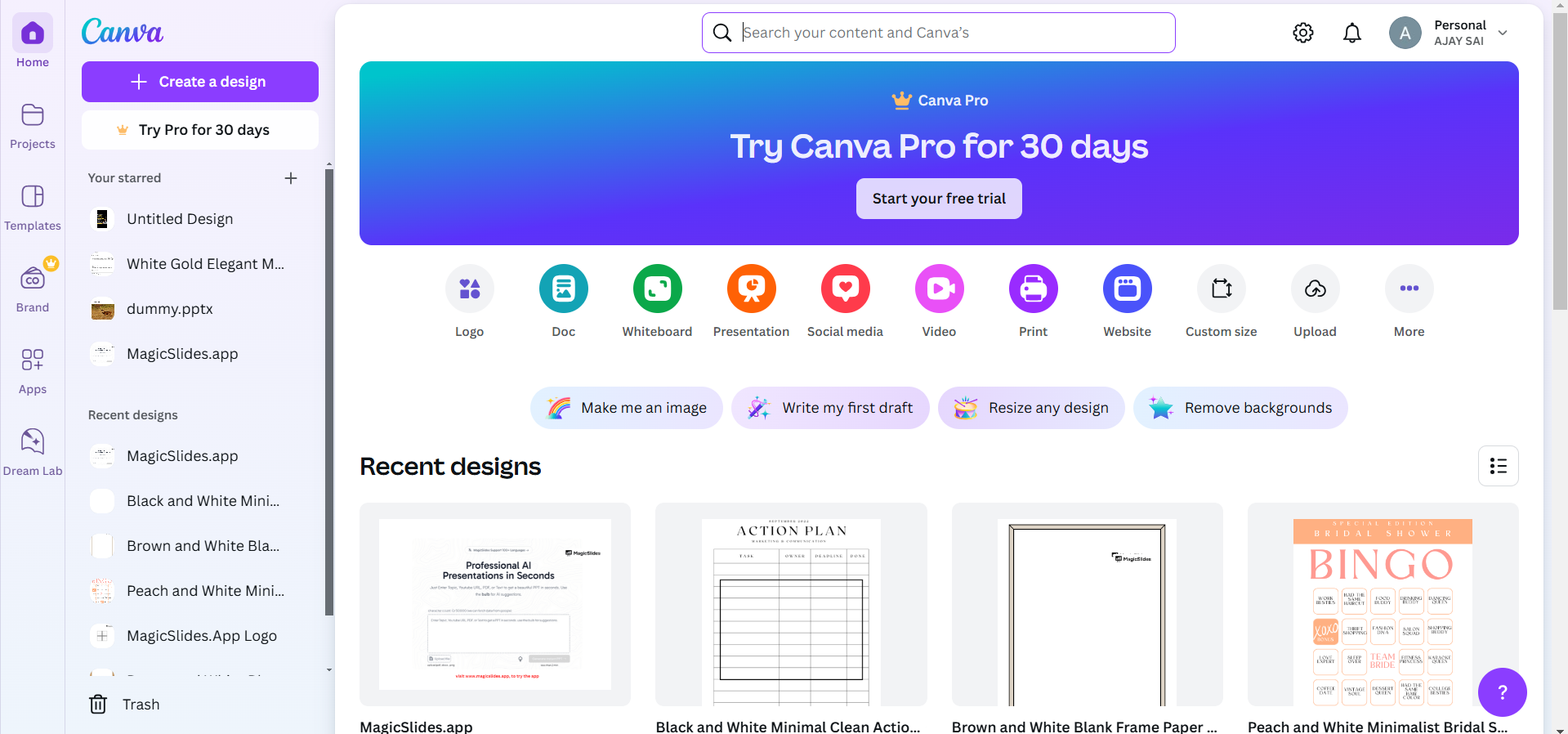
Step 1. Open Your Canva Presentation
Log in to your Canva account and locate your presentation project. Open the design by clicking on it to enter the editing interface.
Step 2. Add Speaker Notes to Your Slides
Select the slide where you want to add notes. At the bottom of the slide editor, click on the “Add notes” section.
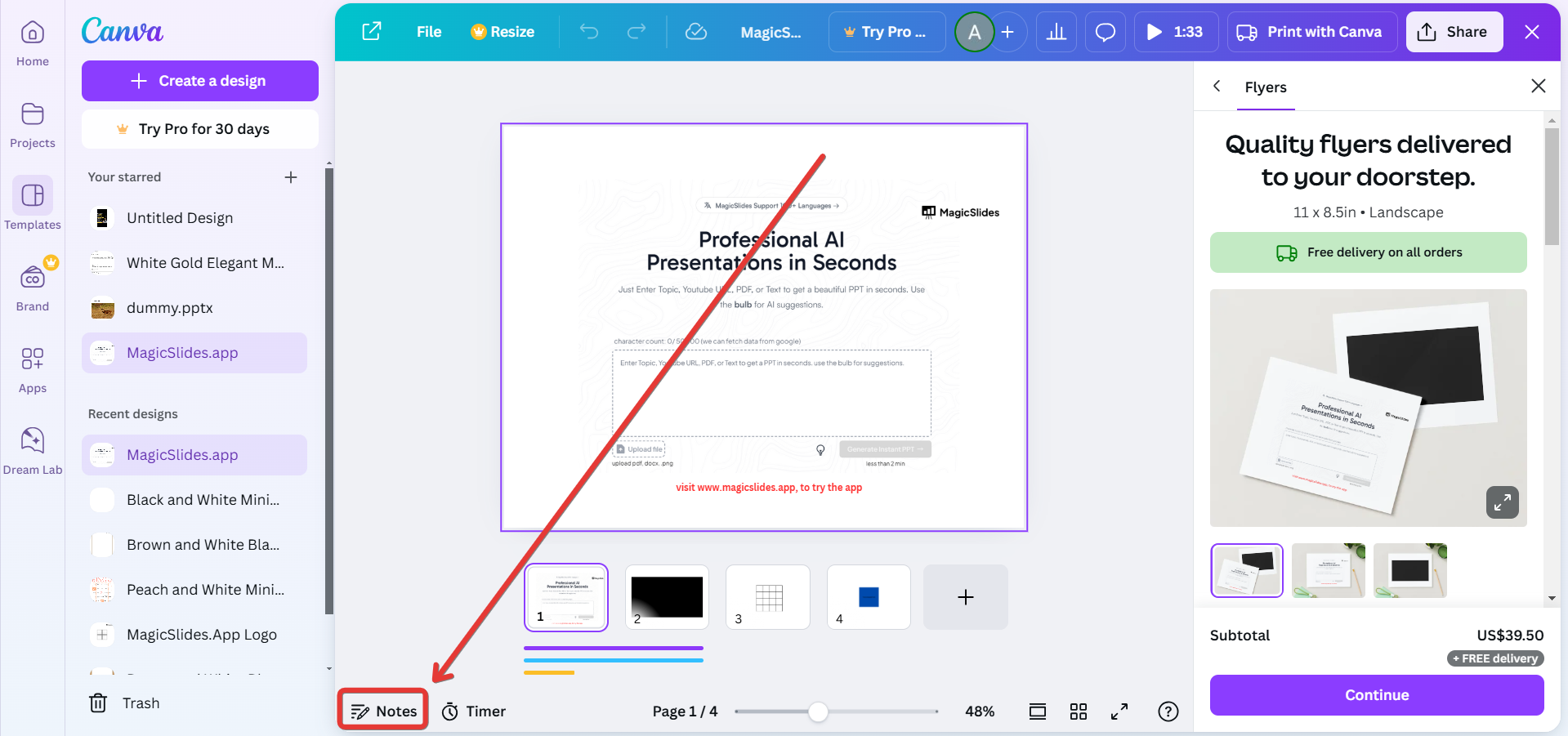
Type your notes for that specific slide. Repeat this process for each slide as needed.
Step 3. Enter Presenter View
Once your presentation is ready, click the “Present” button in the top-right corner of the screen.
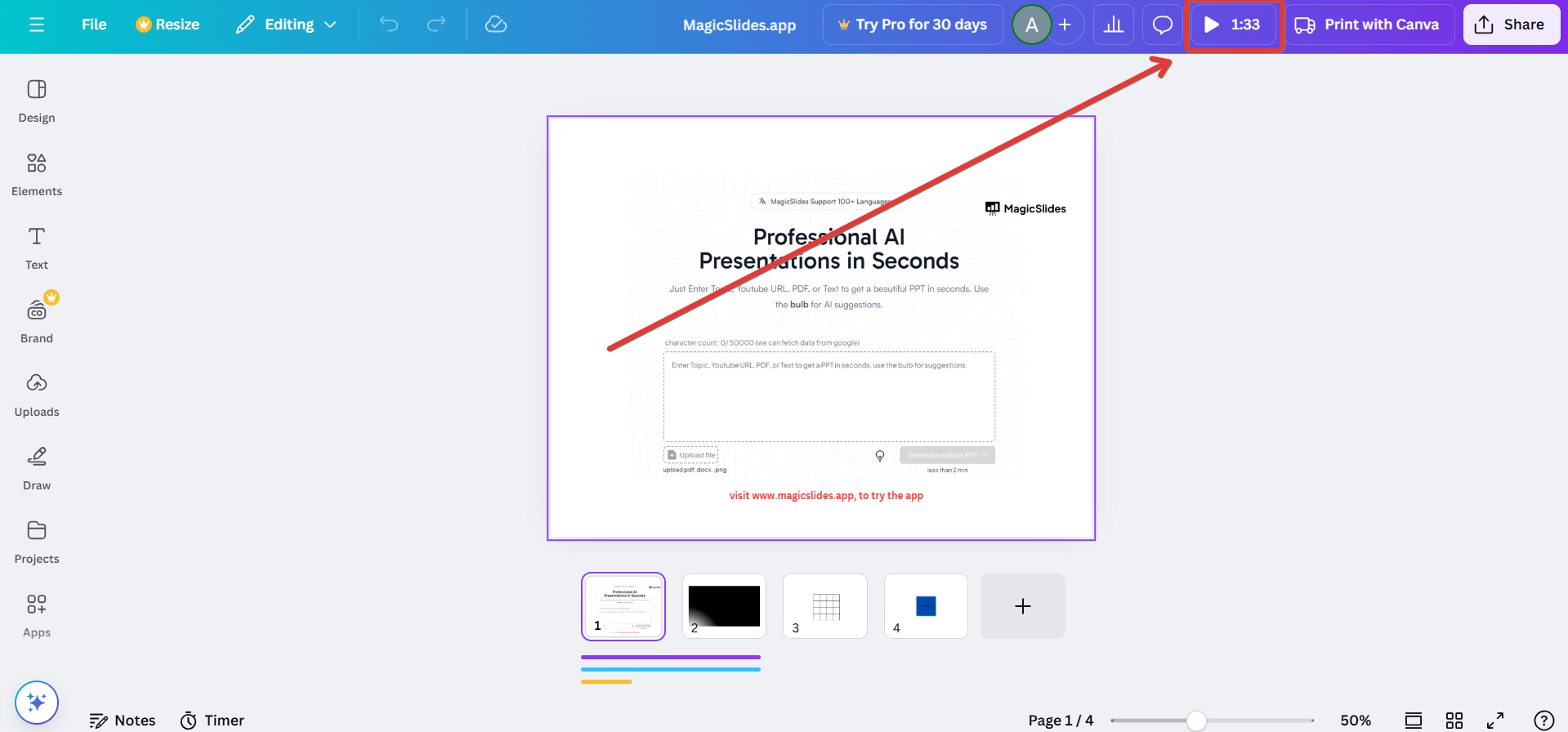
In the dropdown menu, choose “Presenter View.” This option activates a dual-screen mode.
Step 4. Use Dual-Screen Setup (Optional)
Connect your computer to an external monitor or projector.
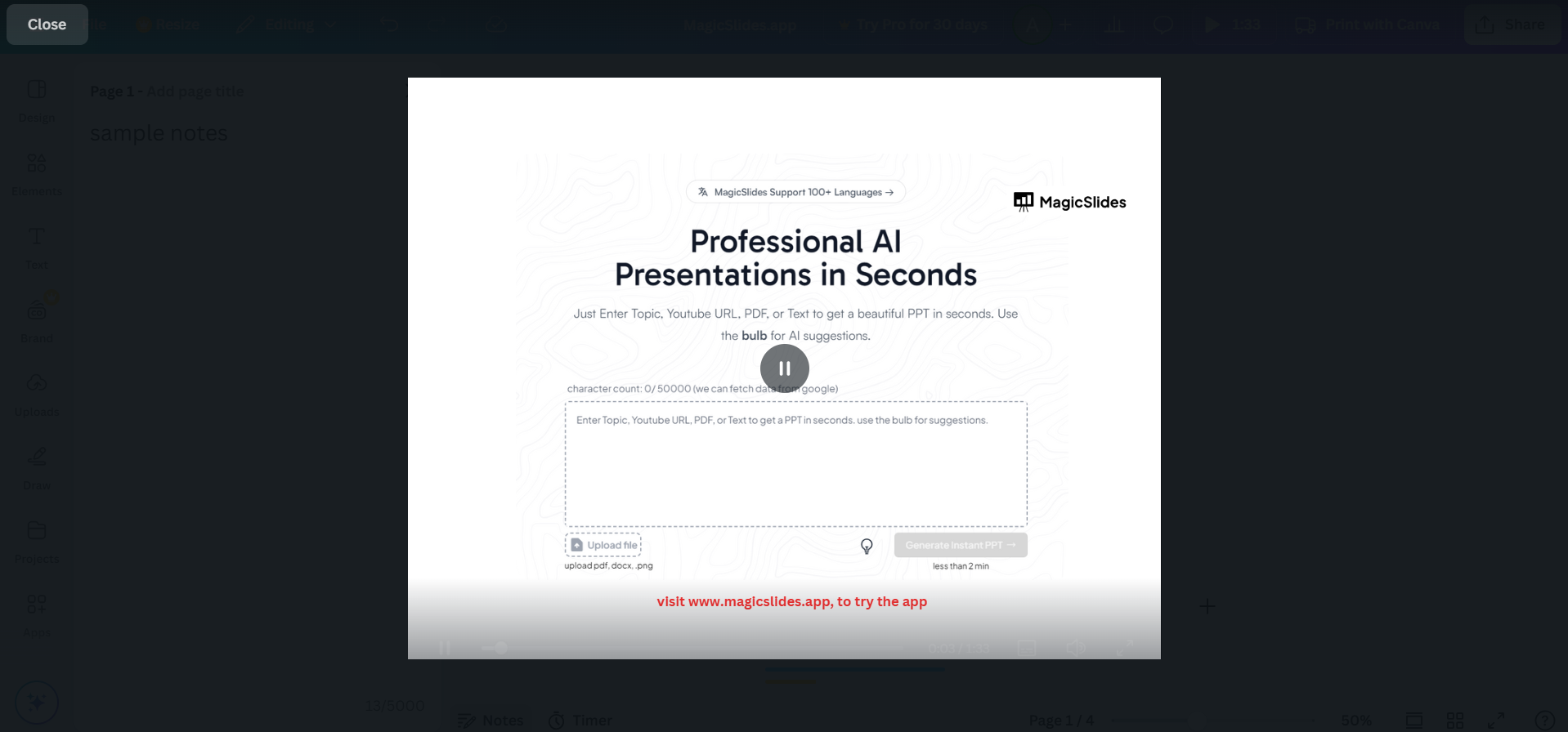
The presentation will display on the external screen, while your primary screen will show the speaker notes.
Step 5. Navigate Through Your Presentation
Use the navigation controls on your screen to move between slides.
Your speaker notes will remain visible on your primary screen, while the audience only sees the slides.
Step 6. Practice Before Presenting
Familiarize yourself with the Presenter View mode to ensure a smooth experience during the actual presentation.
Check the visibility of your notes and ensure all technology works as expected.
Once you’ve figured out how to view speaker notes in Canva presentations, check out how to print PowerPoint slides with notes multiple per page for enhanced usability.
How Presenter View in Canva Works?
Once you turn on Canva Presenter View your screen changes into a control panel that helps you present easily.
Here’s what you usually see:
- Current Slide: The slide your audience is looking at
- Speaker Notes Panel: Your notes for that slide
- Next Slide Preview: Helps you prepare for what’s coming
- Timer and Controls: Keeps track of your speed
This setup helps you stay organized without switching between tabs or looking away much.
Understanding how this works is important to mastering how to see Canva speaker notes when presenting. You are guided step-by-step through your content of relying on memory.
Another benefit is controlling the flow. You can change your pace based on time and how your audience reacts. This makes your delivery feel more natural and less like you’re reading from a script.
In short Presenter View is not just, about seeing notes. It’s about making your whole presentation better.
Common Problems When Trying to See Canva Speaker Notes When Presenting
When you are trying to figure out how to see Canva speaker notes when you are presenting you might still have some problems.
Notes Not Showing- This happens when you pick the wrong presentation mode. You have to choose the mode, which is Presenter View.
Presenter View Missing- Some devices do not work well with Presenter View. This is especially true for tablets. It is better to use a desktop.
Dual Screen Not Working- If your second screen is not showing your slides correctly you need to do a things.
- Check your display settings
- Make sure screen mirroring is turned off
- Pick the display mode
Notes Panel Empty- Sometimes people forget to add notes to their slides before they present. You should always check your slides to make sure you have notes.
These problems happen when you are trying to use Canva speaker notes when presenting.. If you fix them using Canva speaker notes when presenting will be a lot easier. You will have a better time using how to see Canva speaker notes when presenting.
Pro Tips to Use Canva Speaker Notes Like a Professional
Using Canva speaker notes when you are presenting is one thing. Using them in a good way is something else.
- To start make sure your notes are not too long. It is hard to read a lot of text when you are talking. It is better to use a few words or make a list with bullet points.
- Try practicing your talk with your notes before you present. This helps you get used to what you’re going to say and you do not have to read as much.
- Do not read your notes loud. Just look at them quickly. Then talk like you normally would. This makes you sound more real and helps you connect with the people who are listening.
- Make sure your screen is in a spot. If your notes are far away you will have to look away from the people you are talking to.
- It is also an idea to use your notes as reminders. Think of them as hints to help you remember what to say than a script that you have to follow.
These simple tips really help when you are using canva speaker notes when presenting. They make a difference, in how well you do. Using canva speaker notes when presenting is a skill that you can learn with a practice.
Create Better Presentations Faster with AI [Additional Suggestion]
When you figure out how to use Canva speaker notes the next thing you need to do is make presentations that’re good enough to show people. This is where tools like MagicSlides can really help.
Making a presentation, from the beginning, takes a lot of time. You have to find information, put your ideas in order, make the slides look good and then write down what you want to say. For a lot of people this is too much to handle, especially when they have to finish it
This AI PPT Maker makes all of this easier. Instead of starting with a blank page, you can make a whole presentation in just a few seconds using words, papers, or even just an idea. The way it puts everything together is not just random. It does it in a way that makes sense and is easy to follow when you are talking to people. This helps you make presentations that are actually worth presenting, and that is what makes it so useful.

Why is this software is the Need on an Hour?
Today, speed and clarity matter. Whether you are a student or a professional, you are often expected to create high-quality presentations. It is a tool that helps with this. It does things to make your life easier. It helps by:
- Reducing the amount of work you have to do by hand
- Helping you structure your slides in a way that makes sense
- Making it easier to add notes that’re easy to understand
- Saving you a lot of time and effort
When you use MagicSlides with tools, like Canva it is really helpful. You can see the speaker notes when you are presenting.
Also read: 200+ Heart Touching Birthday Wishes for Girlfriend?
Conclusion
Using Canva’s Presenter View feature, you can seamlessly access your speaker notes while presenting.
This ensures you stay organized, confident, and on message, resulting in a professional and engaging presentation.
By following these steps, you’ll make the most of Canva’s tools and deliver a memorable performance.
FAQs on Seeing Canva Speaker Notes When Presenting
Can I see speaker notes without an external screen?
Yes, you can still view notes on your screen while presenting. However, the audience will also see them if you don’t use dual-screen mode.
How do I edit speaker notes during a presentation?
You cannot edit speaker notes during a live presentation. Make edits before starting the presentation mode.
Does Presenter View work on mobile devices?
Presenter View is optimized for desktops and laptops. Mobile devices may not support dual-screen functionality effectively.
With these steps and tips, you’ll master using Canva speaker notes to deliver polished and impactful presentations.


