Canva vs Google Slides: Which Presentation Tool Is Better in 2026?


Compare Canva vs Google Slides based on features, pricing, AI tools, collaboration, templates, and ease of use to choose the best presentation software.
Creating presentations no longer means spending hours arranging text boxes or designing slides from scratch. Today, platforms like Canva and Google Slides make it easier than ever to create professional presentations, whether you’re a student, teacher, marketer, or business professional.
Although both tools help users build visually appealing presentations, they take very different approaches. Canva focuses on design-first presentation creation with thousands of templates and AI-powered creative tools, while Google Slides emphasizes collaboration, simplicity, and seamless integration with Google Workspace.
So, which one should you choose?
The answer depends on your priorities. If you value creative freedom and professionally designed templates, Canva may be the better fit. If real-time collaboration and productivity are more important, Google Slides remains one of the strongest options available.
This in-depth comparison explores their features, ease of use, collaboration capabilities, pricing, and ideal use cases to help you make an informed decision.
Canva vs Google Slides at a Glance
| Feature | Canva | Google Slides |
|---|---|---|
| Best For | Designers, marketers, content creators | Students, educators, teams |
| Ease of Use | ⭐⭐⭐⭐⭐ | ⭐⭐⭐⭐⭐ |
| Templates | 1M+ templates | Limited built-in templates |
| Collaboration | Excellent | Outstanding |
| AI Features | Extensive | Basic AI via Google Workspace |
| Offline Editing | Limited | Yes |
| Integrations | 100+ apps | Google Workspace ecosystem |
| Free Plan | Yes | Yes |
| Premium Plan | Canva Pro | Google Workspace |
| Learning Curve | Very Easy | Extremely Easy |
Understanding Canva and Google Slides
Although both platforms create presentations, they were built with different goals in mind.
What Is Canva?
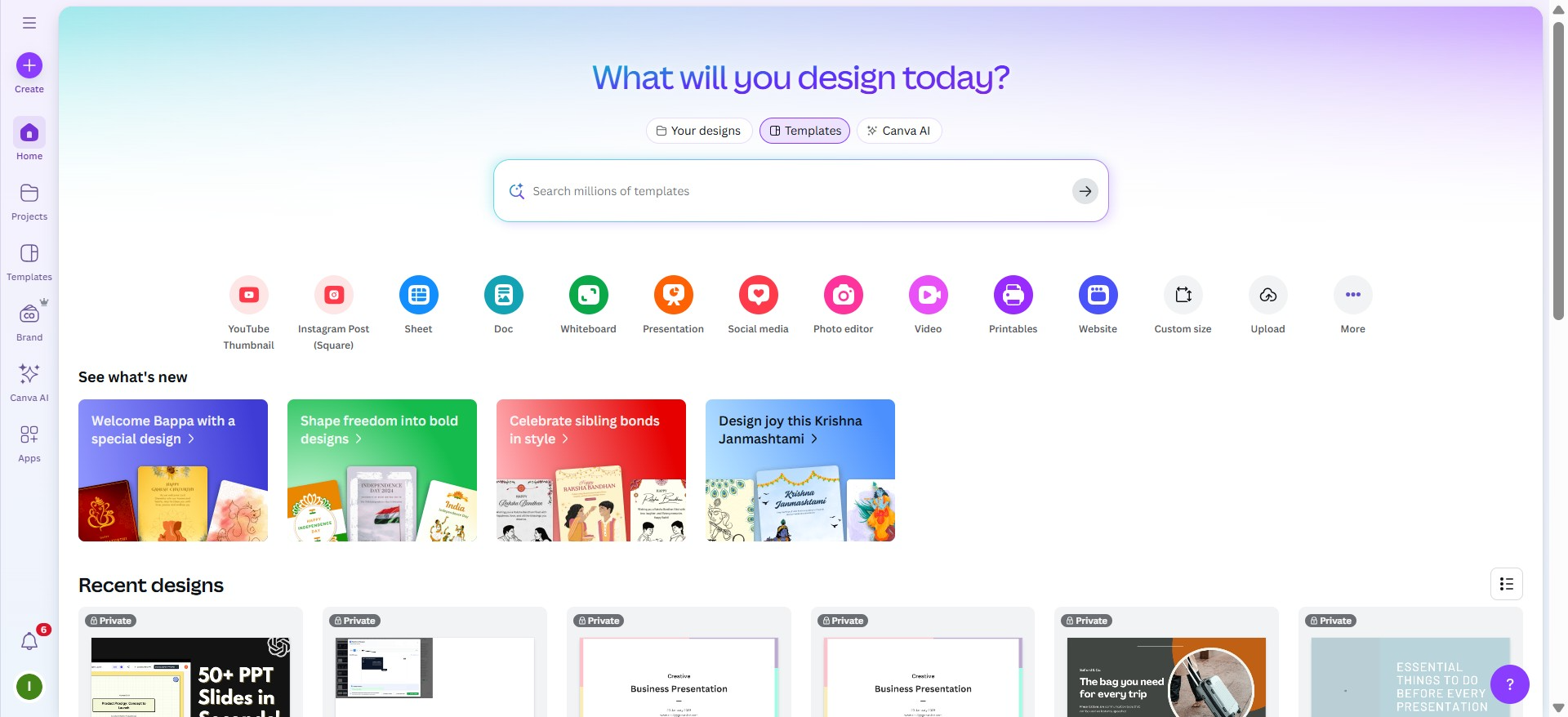
Canva is an online graphic design platform that allows users to create presentations, social media graphics, videos, documents, whiteboards, infographics, and more from a single interface.
Its biggest strength lies in visual design. Even users with no design experience can create polished presentations using professionally designed templates, drag-and-drop editing, stock media, icons, illustrations, and AI-powered tools.
Canva is particularly popular among:
- Marketing teams
- Small businesses
- Freelancers
- Content creators
- Social media managers
- Startup founders
- Key Highlights
- Thousands of presentation templates
- Built-in stock photos and videos
- Brand Kit for consistent branding
- AI-powered Magic Design tools
- Animation effects
- Video embedding
- Easy export options
What Is Google Slides?
Google Slides is Google’s cloud-based presentation software included with Google Workspace.
Instead of emphasizing design, Google Slides focuses on collaboration and productivity. Multiple people can work on the same presentation simultaneously, making it one of the best tools for classrooms, remote teams, and businesses.
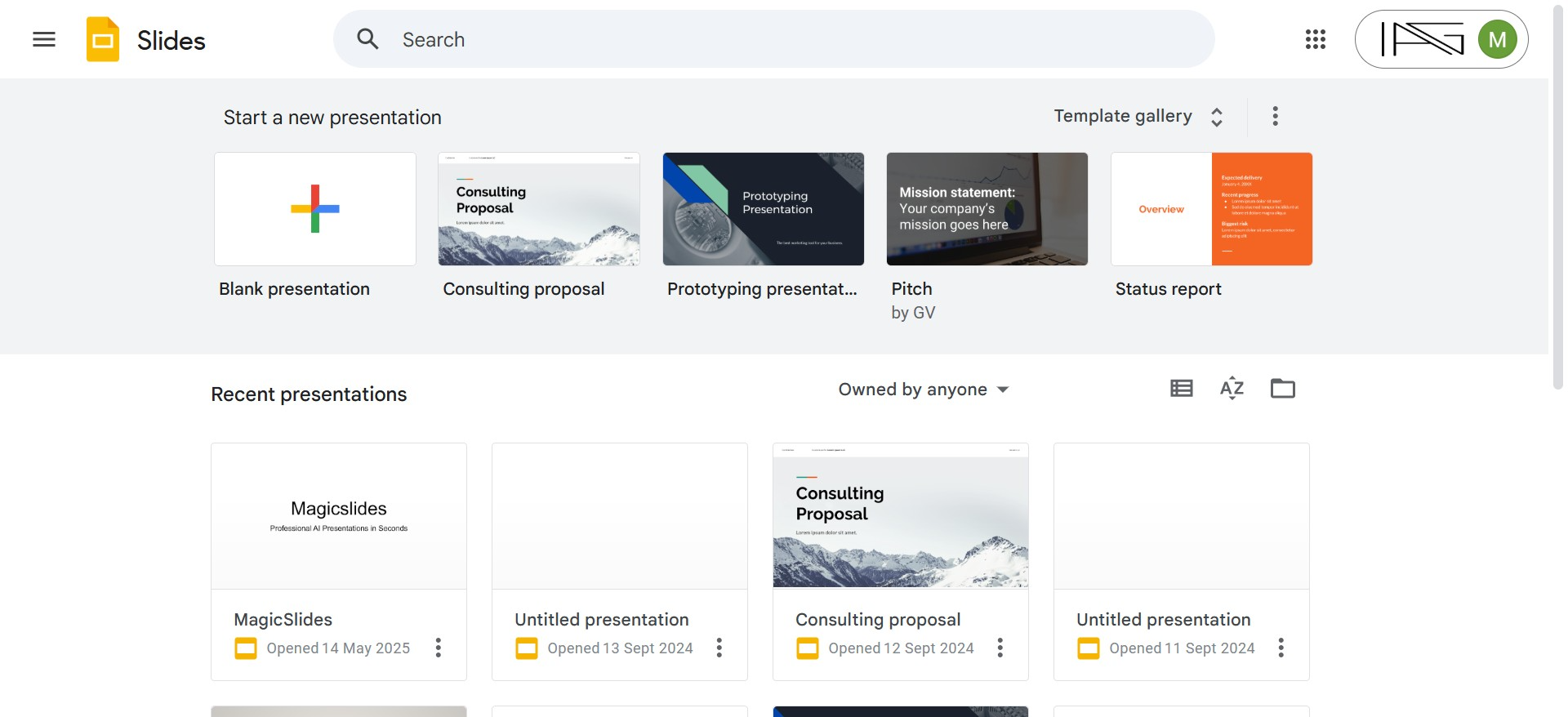
Since it operates entirely in the browser, users don’t need to install software or worry about file versions.
Key Highlights
- Real-time collaboration
- Automatic cloud saving
- Seamless Google Drive integration
- Version history
- Offline editing
- Easy sharing permissions
- Cross-platform compatibility
Canva vs Google Slides: Feature Comparison
Let’s compare the features that matter most when choosing presentation software.
1. User Interface and Ease of Use
Canva
Canva is designed for beginners. The interface resembles professional design software but remains intuitive enough for first-time users.
Everything is accessible from the left sidebar:
- Templates
- Photos
- Icons
- Videos
- Charts
- Elements
- Brand assets
Users can simply drag elements onto the canvas without worrying about formatting.
The editing experience feels creative rather than technical.
Advantages
- Drag-and-drop editing
- Visual asset library
- Instant template customization
- Beginner-friendly interface
- Fast learning curve
Google Slides
Google Slides has a familiar interface that resembles Microsoft PowerPoint.
Anyone who has used Microsoft Office can become comfortable within minutes.
Formatting tools are straightforward, and collaboration features are integrated directly into the toolbar.
The interface is intentionally minimal, reducing distractions during editing.
Advantages
- Clean workspace
- Familiar toolbar
- Easy formatting
- Minimal learning curve
- Excellent keyboard shortcuts
Winner: Tie
Canva offers a richer creative experience, while Google Slides excels in simplicity and efficiency. The better choice depends on whether your priority is design flexibility or streamlined productivity.
Templates and Design Quality
Templates often determine how quickly users can create presentations.
This is where Canva clearly distinguishes itself.
Canva Templates
Canva offers an extensive collection of professionally designed templates covering virtually every presentation type.
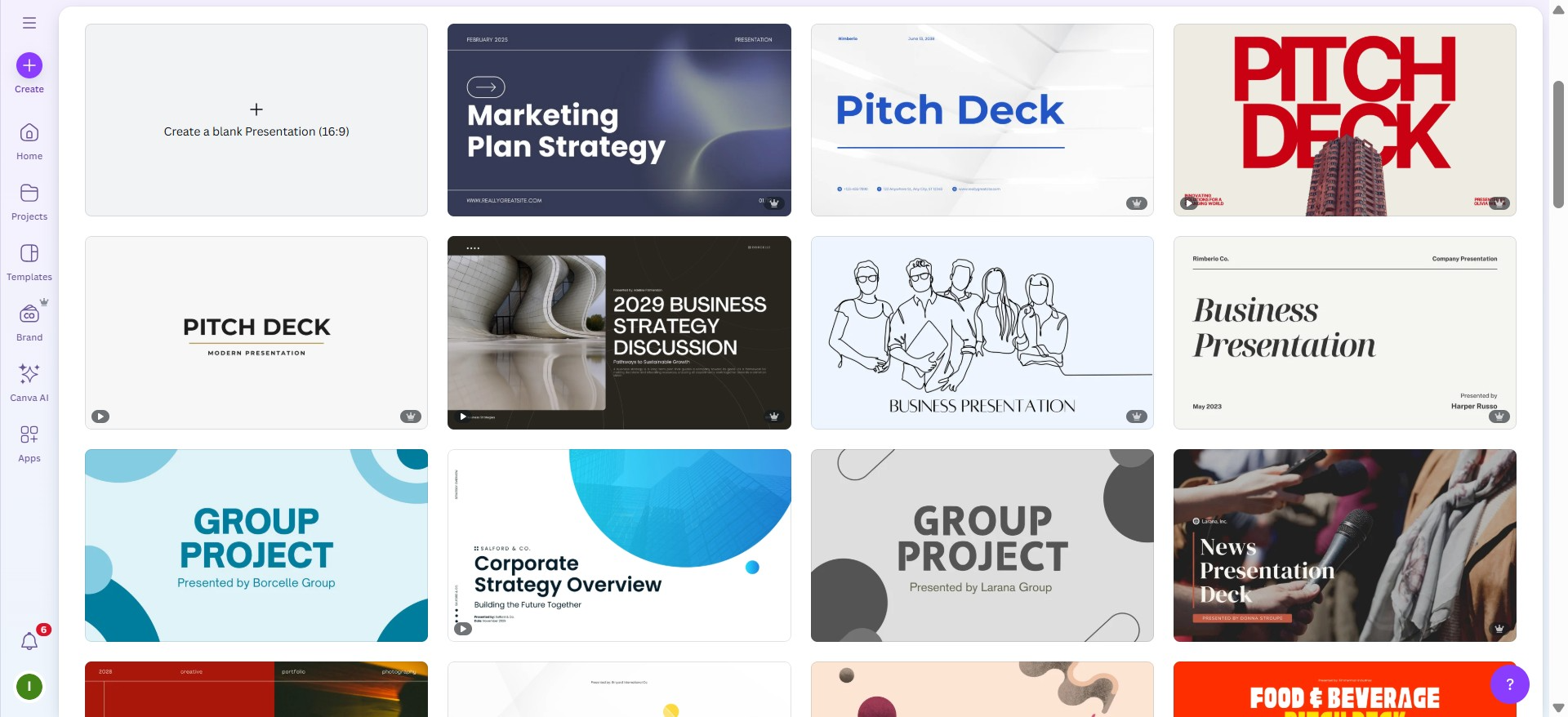
Examples include:
- Pitch decks
- Sales presentations
- Business proposals
- Marketing reports
- Educational lessons
- Webinars
- Portfolios
- Conference presentations
- Startup investor decks
- Company profiles
Users can completely customize colors, fonts, graphics, layouts, and animations without needing design expertise.
Canva Design Strengths
- Modern layouts
- Professional typography
- High-quality graphics
- Extensive icon library
- Stock photography
- Animated elements
- Brand customization
Google Slides Templates
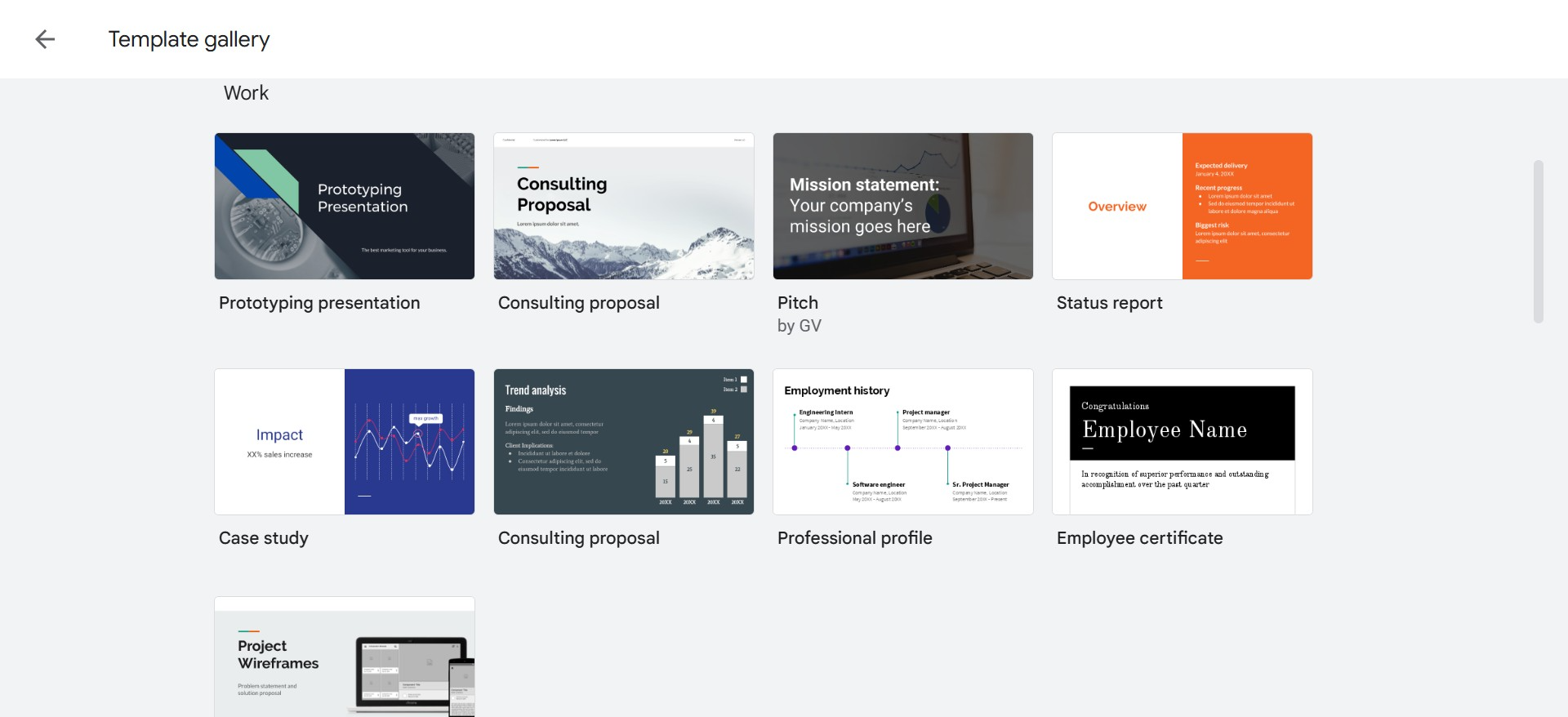
Google Slides includes a smaller selection of built-in themes.
While users can import third-party templates, the native design library is relatively limited compared to Canva.
However, its simplicity offers flexibility for users who prefer building presentations from scratch.
Google Slides Design Strengths
- Clean layouts
- Lightweight themes
- Easy customization
- Strong compatibility with PowerPoint
- Consistent formatting
Design Comparison
| Feature | Canva | Google Slides |
|---|---|---|
| Template Variety | ⭐⭐⭐⭐⭐ | ⭐⭐⭐ |
| Professional Designs | ⭐⭐⭐⭐⭐ | ⭐⭐⭐ |
| Stock Images | Included | Limited |
| Icons | Extensive | Basic |
| Animations | Advanced | Basic |
| Brand Customization | Excellent | Moderate |
Winner: Canva
For users who prioritize visually engaging presentations with minimal effort, Canva offers a significantly richer design ecosystem.
Collaboration Comparison
| Feature | Canva | Google Slides |
|---|---|---|
| Live Editing | Yes | Yes |
| Comments | Yes | Yes |
| Version History | Yes | Excellent |
| Team Workspaces | Excellent | Good |
| Sharing Controls | Good | Excellent |
| Google Workspace Integration | Limited | Native |
Winner: Google Slides
If your workflow depends on real-time collaboration, document sharing, and version control, Google Slides remains the stronger option thanks to its seamless integration with the Google Workspace ecosystem.
AI Features
AI tools can significantly speed up presentation creation, making them an important factor when choosing between Canva and Google Slides.
Canva
Canva includes AI-powered features through Magic Studio, such as:
- Magic Design
- Magic Write
- AI Image Generator
- Background Remover
- Magic Resize
These tools help users create professional presentations in minutes.
Google Slides
Google Slides offers AI features through Google Gemini (available with eligible Google Workspace plans), including:
- Content generation
- Image generation
- Writing assistance
- Slide summaries
Its AI focuses more on productivity than creative design.
Winner: Canva
Canva currently offers a more comprehensive AI experience for presentation creation.
Pricing
| Plan | Canva | Google Slides |
|---|---|---|
| Free Plan | ✔ | ✔ |
| Premium | Canva Pro | Google Workspace |
| Team Plans | ✔ | ✔ |
Winner: Tie
Canva delivers more creative features in its paid plans, while Google Slides is the better value for businesses already using Google Workspace.
MagicSlides: An AI-Powered Alternative
If you’re looking to create presentations even faster, MagicSlides is worth considering. Unlike Canva and Google Slides, which require you to design or edit slides manually, MagicSlides uses AI to generate complete presentations from a prompt, document, PDF, YouTube video, or URL.

This makes it a practical choice for professionals, educators, students, and marketers who need presentation drafts in minutes.
Key Features:
- AI presentation generation from text prompts
- Convert PDFs, Word documents, and URLs into slides
- Generate presentations from YouTube videos
- Ready-to-use presentation templates
- Customizable themes and layouts
- Export to PowerPoint and Google Slides
- Supports multiple languages
MagicSlides vs Canva vs Google Slides
| Feature | MagicSlides | Canva | Google Slides |
|---|---|---|---|
| AI Presentation Generation | ⭐⭐⭐⭐⭐ | ⭐⭐⭐⭐ | ⭐⭐⭐ |
| Ready-to-Use Templates | ✔ | ✔ | Limited |
| Collaboration | Excellent | Excellent | Excellent |
| Design Flexibility | Excellent | Excellent | Good |
| Best For | Fast AI presentations | Creative design | Team collaboration |
Final Verdict
Choosing between Canva and Google Slides depends on how you create presentations.
Choose Canva if you prioritize design, branding, and AI-powered creativity.
Choose Google Slides if collaboration, simplicity, and Google Workspace integration are more important.
For most users, Canva is the better all-around presentation tool thanks to its extensive template library, advanced design features, and growing AI capabilities. However, Google Slides remains the top choice for classrooms, remote teams, and organizations that value seamless collaboration.
Frequently Asked Questions
Is Canva better than Google Slides?
Canva is better for creating visually appealing presentations with professional templates and AI-powered design tools. Google Slides is better for real-time collaboration and team projects.
Can Canva replace Google Slides?
For most individual users and marketers, yes. However, teams that rely on Google Workspace may prefer Google Slides for its collaboration and sharing features.
Which is better for students?
Google Slides is ideal for students because it’s free, easy to use, and supports collaborative assignments. Canva is a great option for creative projects and visually engaging presentations.
Which tool offers better templates?
Canva offers a much larger collection of professionally designed templates than Google Slides, making it the better choice for users who want polished presentations quickly.
Can I import PowerPoint files?
Yes. Both Canva and Google Slides support importing and editing Microsoft PowerPoint (.PPTX) files, although complex animations or formatting may require adjustments.
Also read: How to Attach a Hyperlink in PowerPoint (Step-by-Step Guide)


