How to Build Interactive Forms Directly in Google Docs


Learn how to create interactive forms directly in Google Docs, including text fields, checkboxes, tables, and formatting tips for professional results.
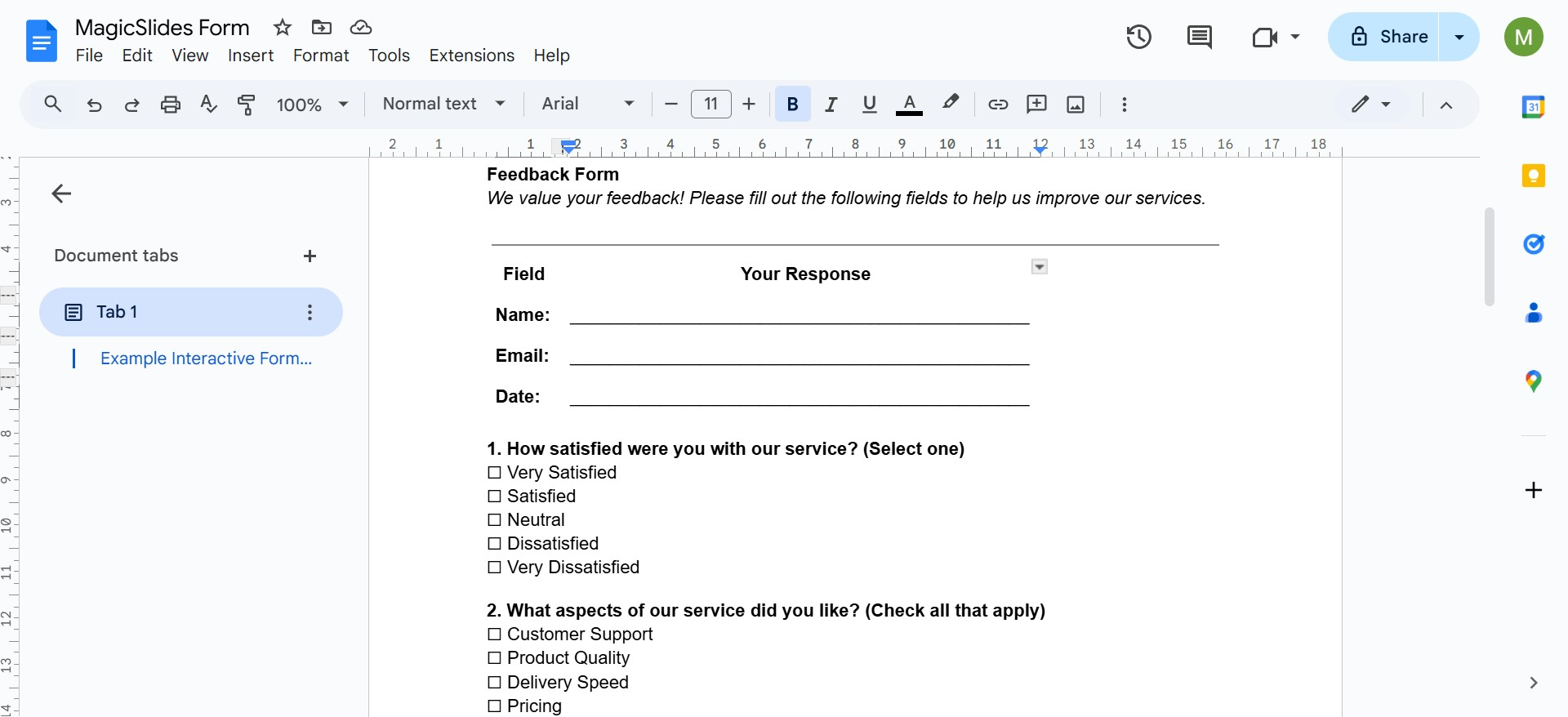
Interactive forms are an excellent way to collect data, gather feedback, or manage surveys, and you can build them directly in Google Docs!
While Google Forms is often the go-to for such tasks, Google Docs offers a more versatile option for creating forms that integrate seamlessly into other documents, such as contracts, applications, or questionnaires.
Here’s a step-by-step guide to building interactive forms in Google Docs to streamline your workflow.
Why Build Interactive Forms in Google Docs?
- Customizable Layouts: Google Docs gives you control over the structure and formatting of your form.
- Integrated Content: Combine the form with additional information, instructions, or other document elements.
- Collaborative Features: Collaborate in real time with others to create or edit the form.
- Simple Sharing: Share as a view-only file or export to different formats (PDF, Word) for printing or offline use.
Step-by-Step Guide to Creating Interactive Forms
1. Plan Your Form Structure
Before you start building, outline the structure of your form. Determine the types of input fields you need, such as:
- Multiple-choice questions
- Checkboxes
- Short answers
- Paragraph responses
- Dropdown selections
Organize these elements into logical sections to create a smooth flow for respondents.
2. Insert Interactive Fields
While Google Docs doesn’t have built-in form fields like Google Forms, you can create the illusion of interactivity using creative formatting techniques. Here’s how:
a) Add Text Input Lines
For questions requiring text responses, provide blank spaces or lines for users to fill in.
- Example: Name: __________________________
Alternatively, use a table for neatly aligned input fields:
- Click Insert > Table and choose a 1×2 or 2×2 grid.
- Use one column for the question and the other for the response field.
- Example:| Name | ______________________ | | Email | ______________________ |
b) Multiple-Choice Questions
Use bullet points or numbered lists to create multiple-choice questions:
- What is your preferred mode of contact?○ Email○ Phone○ Text Message
To make the form interactive for digital use, insert a checkbox symbol:
- Click Insert > Special characters.
- Search for "checkbox" and insert a box (☐).
- Example:☐ Email☐ Phone☐ Text Message
c) Dropdown Menus
While Docs doesn’t support interactive dropdowns directly, you can simulate them:
- Use a table or formatted text for users to select options manually.
- Example: "Select your country: (Write below)" with blank space for input.
d) Add Checkboxes for Multiple Responses
Insert checkboxes for answers that require selecting multiple options.
- Example: What services are you interested in?☐ Website Design☐ Digital Marketing☐ Content Writing☐ Social Media Management
3. Use Tables for Organization
Tables can enhance the appearance and functionality of your form:
- Use a table to organize rows and columns for structured input.
- Example for a registration form:
| Field | Input |
| Name | ____________________________ |
| ____________________________ | |
| Preferred Contact | ☐ Email ☐ Phone ☐ Text |
4. Add Instructions
Include clear instructions to guide users in filling out the form. For example:
- "Please fill out all fields below. Use the checkboxes to select options and provide answers where required."
Position the instructions prominently at the top of the form for better usability.
5. Make the Form Interactive for Collaborators
If you’re sharing the form for digital completion:
- Set the document to Edit mode for collaborators.
- Click Share in the top-right corner.
- Adjust permissions to Anyone with the link can edit (for collaborators) or View only (for respondents who will print and fill out the form).
- Encourage respondents to use highlighted text, comments, or checkboxes to fill in their answers.
6. Export the Form for Distribution
To distribute the form:
- Print-Friendly Format: Export the document as a PDF:
- Go to File > Download > PDF Document (.pdf).
- This ensures the form’s formatting stays intact for printing or offline use.
- Editable Document: Share the Google Doc link with View only or Comment access, allowing users to download or fill out their responses.
Example: Simple Interactive Form in Google Docs
| Question | Response |
| Name: | _____________________________ |
| Email: | _____________________________ |
| Preferred Mode of Contact: | ☐ Email ☐ Phone ☐ Text |
| Services Interested In: | ☐ Design ☐ Marketing ☐ Writing |
Tips for Better Interactive Forms
- Keep it Simple: Avoid overwhelming respondents with too many fields.
- Test the Form: Check the formatting and ensure all fields are easy to understand and fill out.
- Optimize for Printing: If the form will be printed, ensure there’s enough space for handwritten responses.
- Use Consistent Formatting: Align text, keep font sizes uniform, and use bold for labels to enhance readability.
Final Thoughts
Building interactive forms in Google Docs is a simple yet effective way to collect information directly within a document.
Whether for professional or personal use, these forms can be customized to suit any purpose.
While they might not have the full functionality of Google Forms, they excel when you need a form integrated with a larger document or prefer a traditional layout.
With this guide, you’re ready to create sleek, professional, and easy-to-use interactive forms in Google Docs.


