How to collaborate on PowerPoint


Collaborating on PowerPoint streamlines teamwork, allowing multiple users to edit and review presentations efficiently
Collaborating on PowerPoint allows multiple users to work on the same presentation simultaneously, making it easier to share ideas and complete projects more efficiently.
With cloud-based storage and real-time editing features, you can ensure that all team members can contribute without missing a beat.
In this guide, I’ll take you through the steps on how to collaborate on PowerPoint, whether you're working remotely or in the same office.
How to Collaborate on PowerPoint: A Step-by-Step Guide
Step 1: Open PowerPoint and Save Your Presentation to the Cloud
Start by opening the PowerPoint file you want to collaborate on.
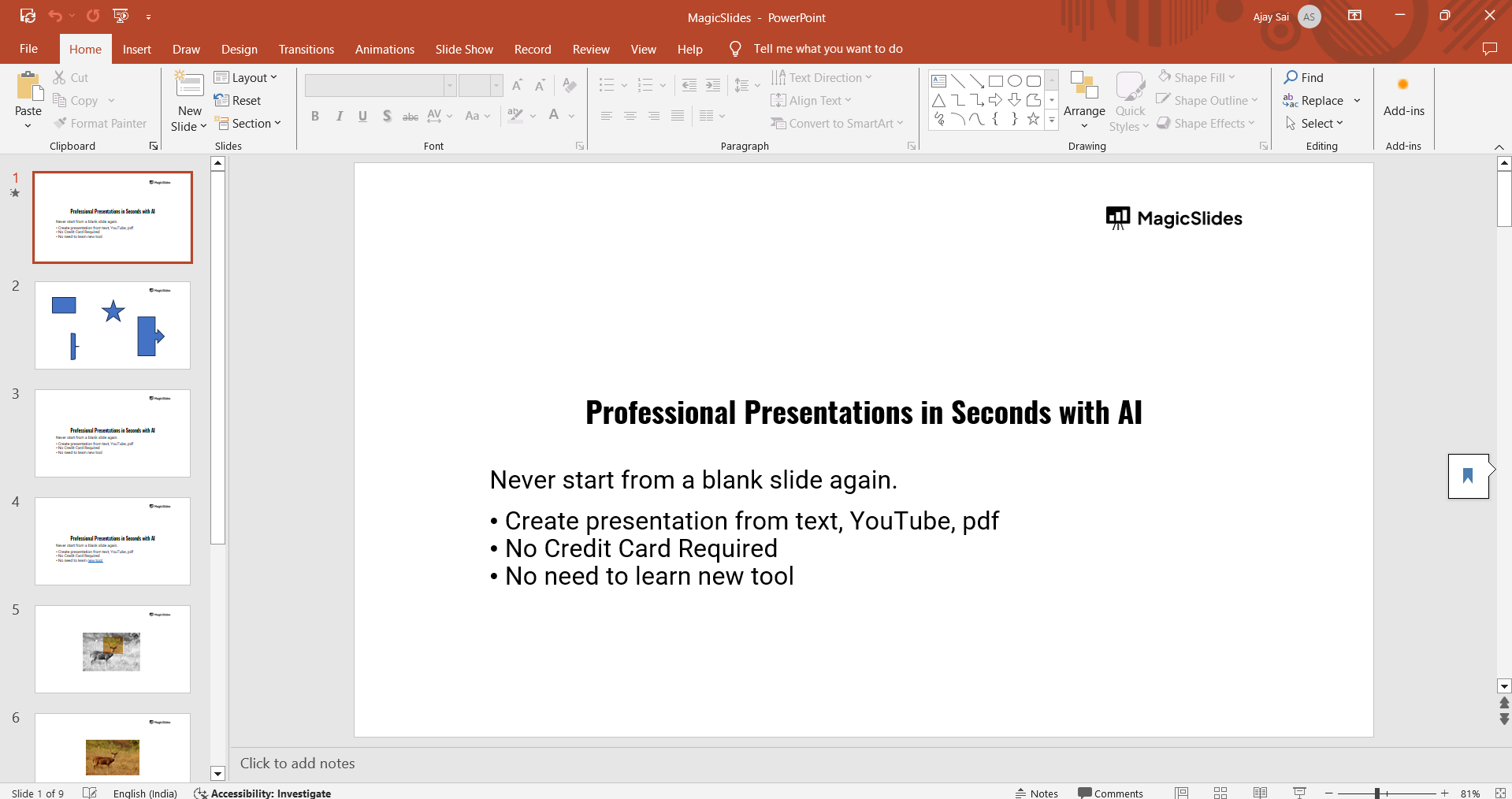
To enable real-time collaboration, save your presentation to a cloud-based storage service like OneDrive or SharePoint. Simply click "File," select "Save As," and choose OneDrive or SharePoint from the list of locations.
This step ensures that your file is accessible to everyone on the team.
Step 2: Share the Presentation with Others
After saving the presentation to the cloud, you need to share it with your team. Click the "Share" button in the top-right corner of the screen.

A pop-up window will appear, allowing you to enter the email addresses of the people you want to collaborate with.
You can also set their permission levels by selecting "Can Edit" or "Can View" before sending the invite.
Step 3: Set Editing Permissions
Once you’ve shared the file, make sure the permissions are set correctly. If you want collaborators to edit the presentation, ensure the "Can Edit" option is selected.

If they only need to review the slides, choose the "Can View" option. You can update these settings anytime by revisiting the "Share" window.
Step 4: Collaborate in Real Time
After sharing the file, your collaborators will be able to open the presentation and work on it simultaneously.
PowerPoint shows real-time edits by displaying who is working on which section of the slide deck.
You can see changes as they happen, with each collaborator’s name or icon shown next to the area they are editing.
Conclusion
Collaborating on PowerPoint is a straightforward process that allows teams to work efficiently on presentations, whether they’re in the same office or working remotely.
By following these simple steps, you can ensure a smooth and productive collaboration, making it easier for everyone to contribute and stay on the same page.
FAQs are here to help!
Can I collaborate on PowerPoint without saving to the cloud?
No, you must save your presentation to OneDrive or SharePoint to enable real-time collaboration.
How do I track changes made by collaborators?
Go to the "Review" tab and enable "Track Changes" to monitor edits from collaborators.
Can I collaborate on PowerPoint using a mobile device?
Yes, PowerPoint's mobile app supports collaboration, allowing you to work with others on the go.


