How to Create a QR Code for a PowerPoint Presentation


Generate a QR code for your PowerPoint presentation to easily share and access it with these steps.
In the modern digital landscape, QR codes have become an efficient way to share information quickly and seamlessly. Whether you’re presenting in a meeting, conducting a workshop, or sharing educational materials, a QR code can allow your audience to access your PowerPoint presentation effortlessly. In this guide, we will walk you through the steps of creating a QR code for your PowerPoint presentation using MagicSlides' free QR code generator.
This process is simple and user-friendly, ensuring that your audience can access your presentation with just a scan.
How to Create a QR Code for a PowerPoint Presentation
Step 1: Prepare Your PowerPoint Presentation
Before you generate a QR code, ensure your PowerPoint presentation is ready for sharing:
Finalize Content: Review your slides for any errors or updates needed.
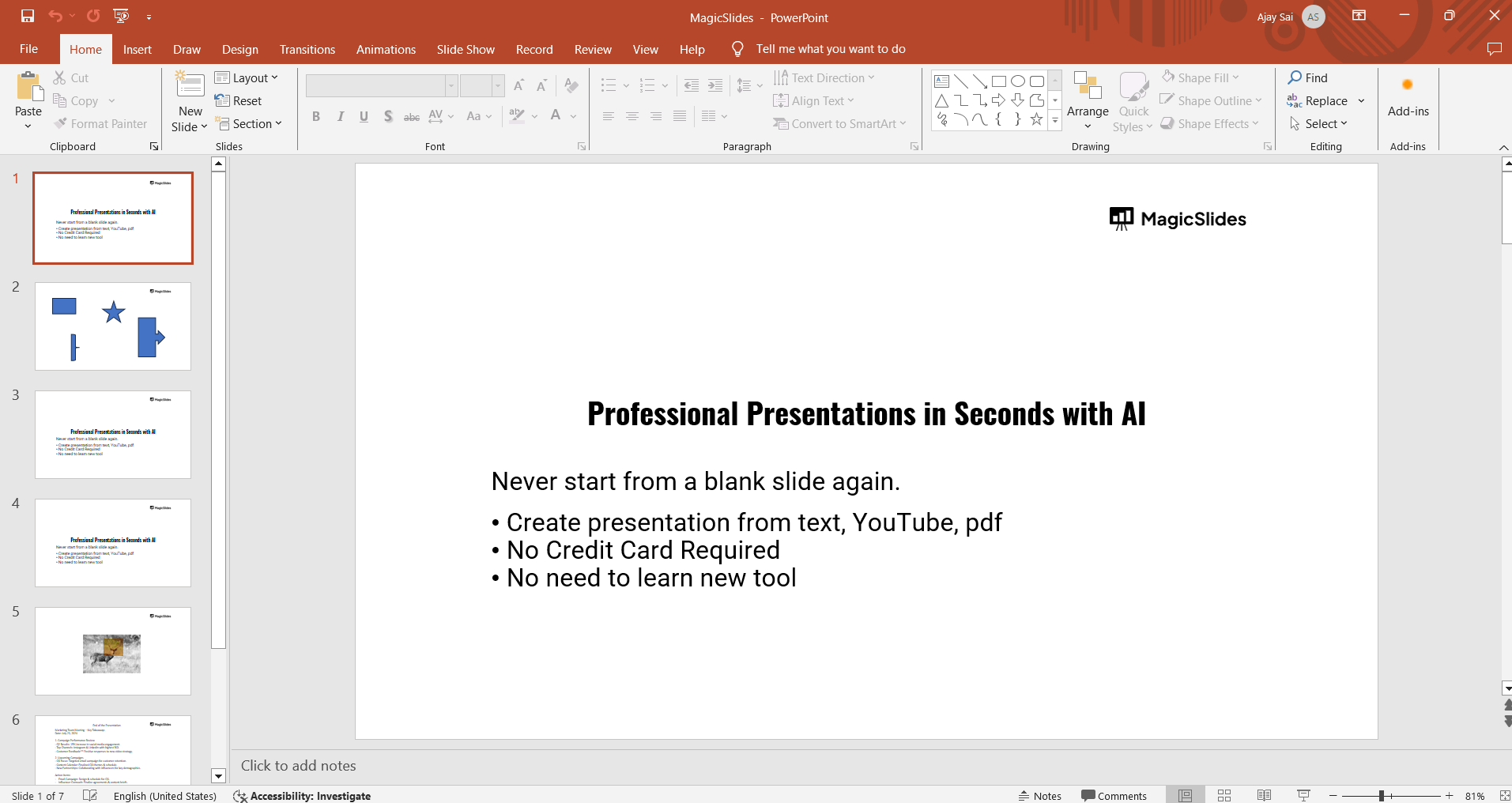
Save the File: Save your PowerPoint presentation as a .pptx file. Make sure the file is named appropriately for easy identification.
Step 2: Upload Your Presentation to a Cloud Storage Service
To create a QR code, your presentation needs to be accessible online:
Choose a Cloud Service: Select a cloud storage service like Google Drive, Dropbox, or OneDrive or tmpfiles.org
Upload the File: Log in to your chosen service and upload your PowerPoint file.

Generate a Shareable Link: Once uploaded, generate a shareable link for the file. Ensure the link settings allow anyone with the link to view or download the presentation.

Step 3: Access MagicSlides' Free QR Code Generator
Visit the MagicSlides QR code generator tool:
Go to the Website: Open your web browser and go to MagicSlides QR Code Generator.
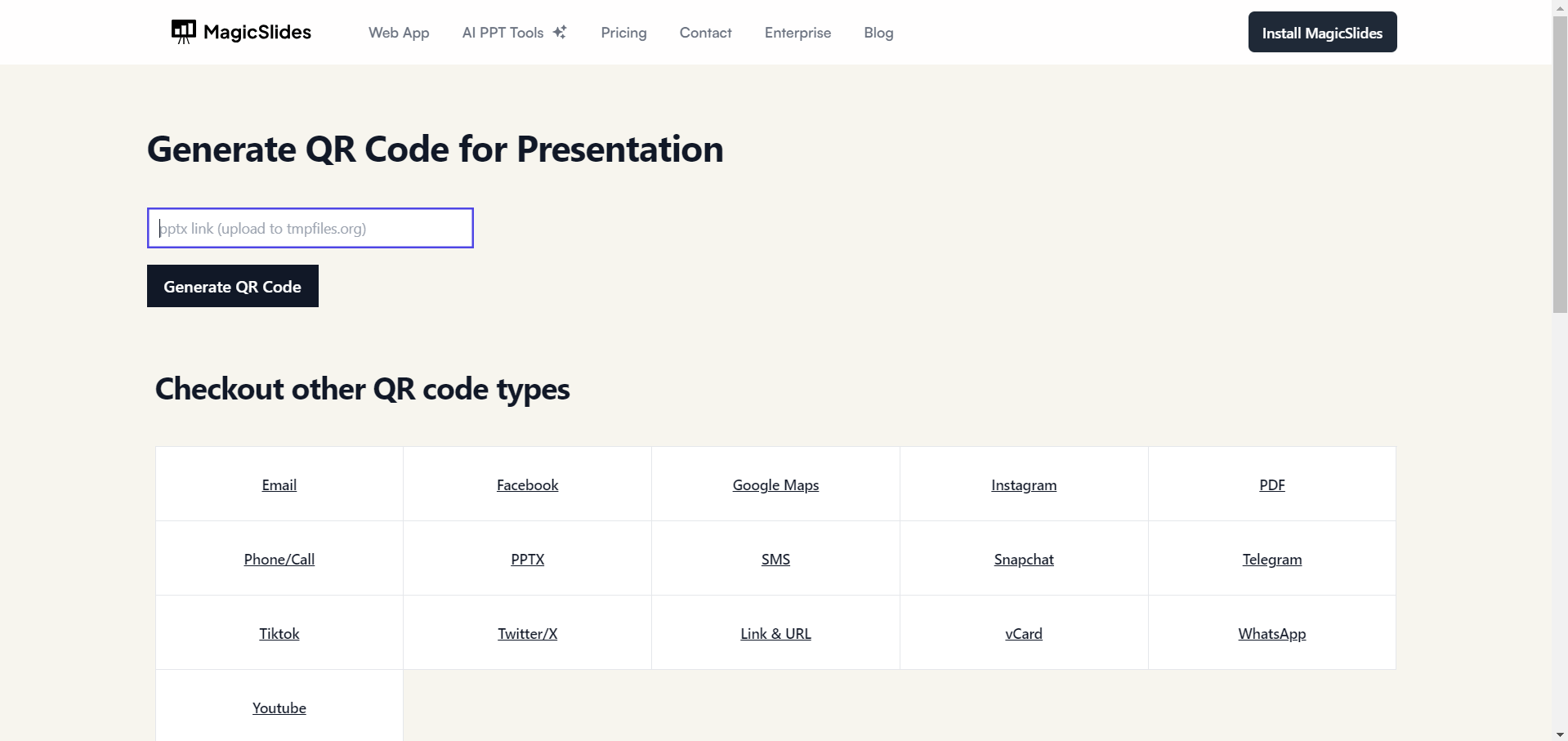
Step 4: Enter the Shareable Link
Now, you need to enter the link to your uploaded PowerPoint presentation:
Paste the Link: Copy the shareable link from your cloud storage service and paste it into the input field on the MagicSlides QR code generator page.

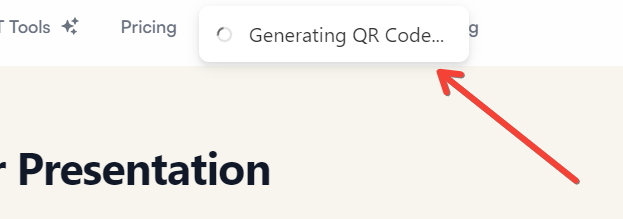
Step 5: Customize Your QR Code (Optional)
MagicSlides allows you to customize your QR code to suit your needs:
Design Options: Choose from various design options like colors, frames, and logo additions to make your QR code more appealing and brand-consistent.
Preview: Preview the QR code to see how it looks with your customizations.
Step 6: Generate and Download Your QR Code
Create the QR code for your presentation:
Generate the QR Code: Click on the “Generate QR Code” button.
Download: Once generated, download the QR code image file to your computer.
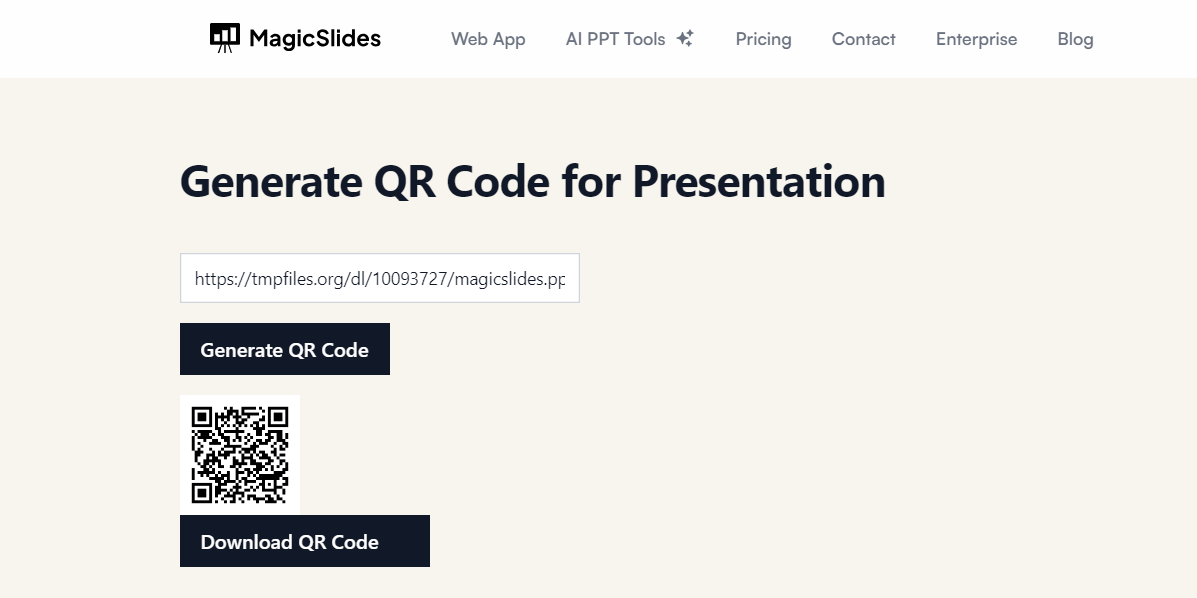
Step 7: Share Your QR Code
With your QR code ready, you can now share it with your audience:
Print or Display: Include the QR code in your printed materials, slides, or display it on a screen during your presentation.
Digital Sharing: Share the QR code image via email, social media, or your website, making it easy for your audience to access the presentation from anywhere.
Conclusion
Creating a QR code for your PowerPoint presentation using MagicSlides is a straightforward process that enhances the accessibility and convenience of sharing your content. By following these steps, you can ensure your audience can quickly access your presentation with just a scan, making your sessions more interactive and engaging.
Try it out for your next presentation and experience the ease and efficiency of QR code sharing. Happy presenting!
We hope you will delivered a stellar presentation, it is often a good practise to collect responses from the audience for feedback and improvement, know how to create a QR code or google forms to take individual feedback and sky rocket your learning!
FAQs that might help!
Why should I use a QR code for my PowerPoint presentation?
QR codes provide a quick and convenient way for your audience to access your presentation, eliminating the need for manual URL entry and enhancing engagement.
Is MagicSlides' QR code generator free to use?
Yes, MagicSlides offers a free QR code generator that you can use to create QR codes for your PowerPoint presentations.
What if my presentation link changes after generating the QR code?
If the link to your presentation changes, you will need to generate a new QR code using the updated link to ensure your audience can still access the presentation.


