How to Format Author Notes on PowerPoint Presentations


Learn how to format author notes in PowerPoint presentations and streamline slide creation with MagicSlides.app for professional, engaging results.
Author notes are an essential part of many presentations, especially in professional, academic, and collaborative settings. These notes serve as a brief introduction to the presenter, adding credibility and context to the content being shared. However, formatting author notes effectively in PowerPoint can sometimes feel tricky.
In this guide, we’ll walk you through the best practices for adding author notes and introduce you to a tool that makes creating presentations effortless: MagicSlides.app.
What Are Author Notes?

Author notes are typically short descriptions or introductions that include relevant details about the presenter. These notes may cover:
- Your name and professional title.
- Your credentials or expertise.
- The organization or institution you represent.
- A brief background relevant to the presentation topic.
For example:
Jane Doe, Ph.D.
Senior Data Scientist, Tech Solutions Inc.
Expert in machine learning and AI with over 10 years of experience in the field.
Where to Place Author Notes on PowerPoint Slides
Author notes are usually added to one of the following sections:
1. Title Slide
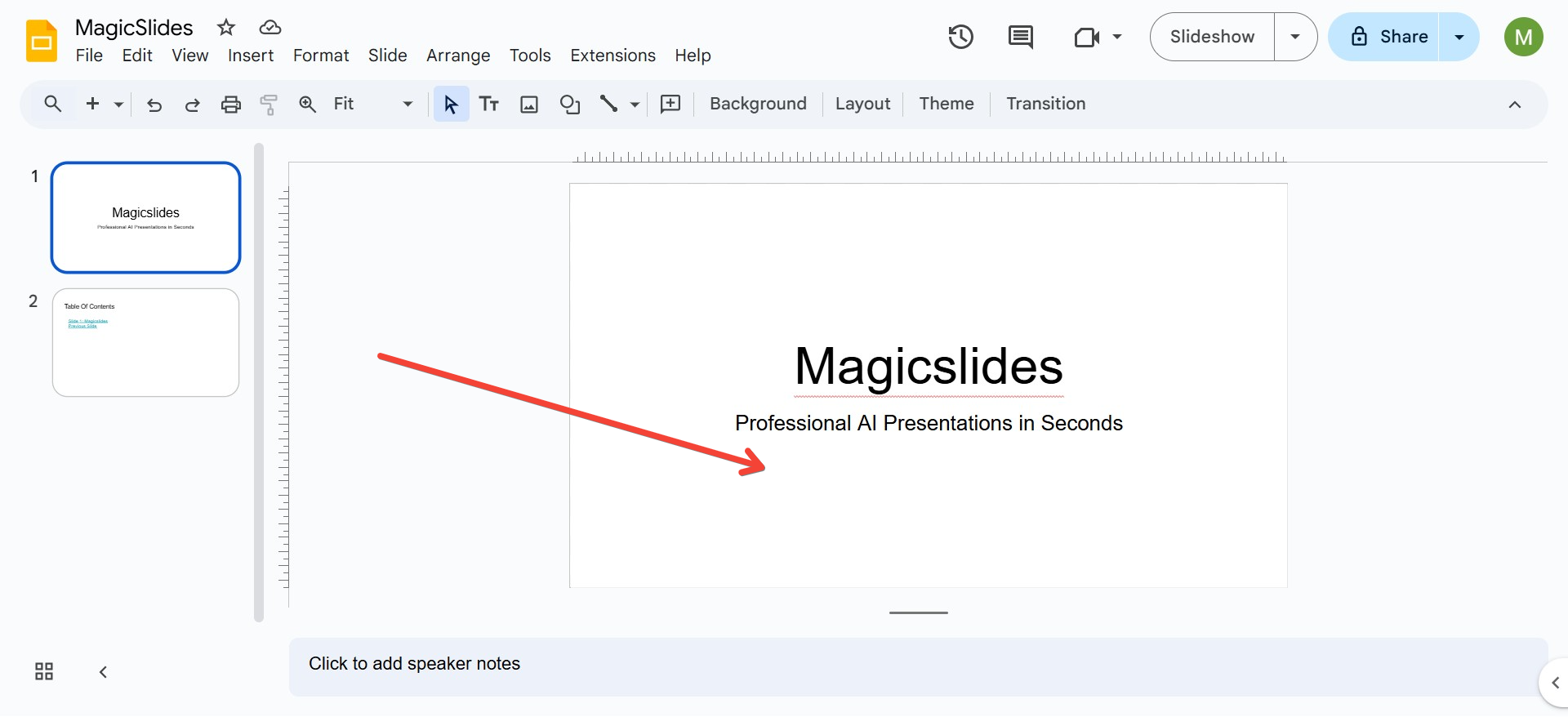
Include your author notes at the bottom or as part of a subtitle on the title slide. This ensures your audience knows who you are right from the start.
2. Dedicated Author Slide
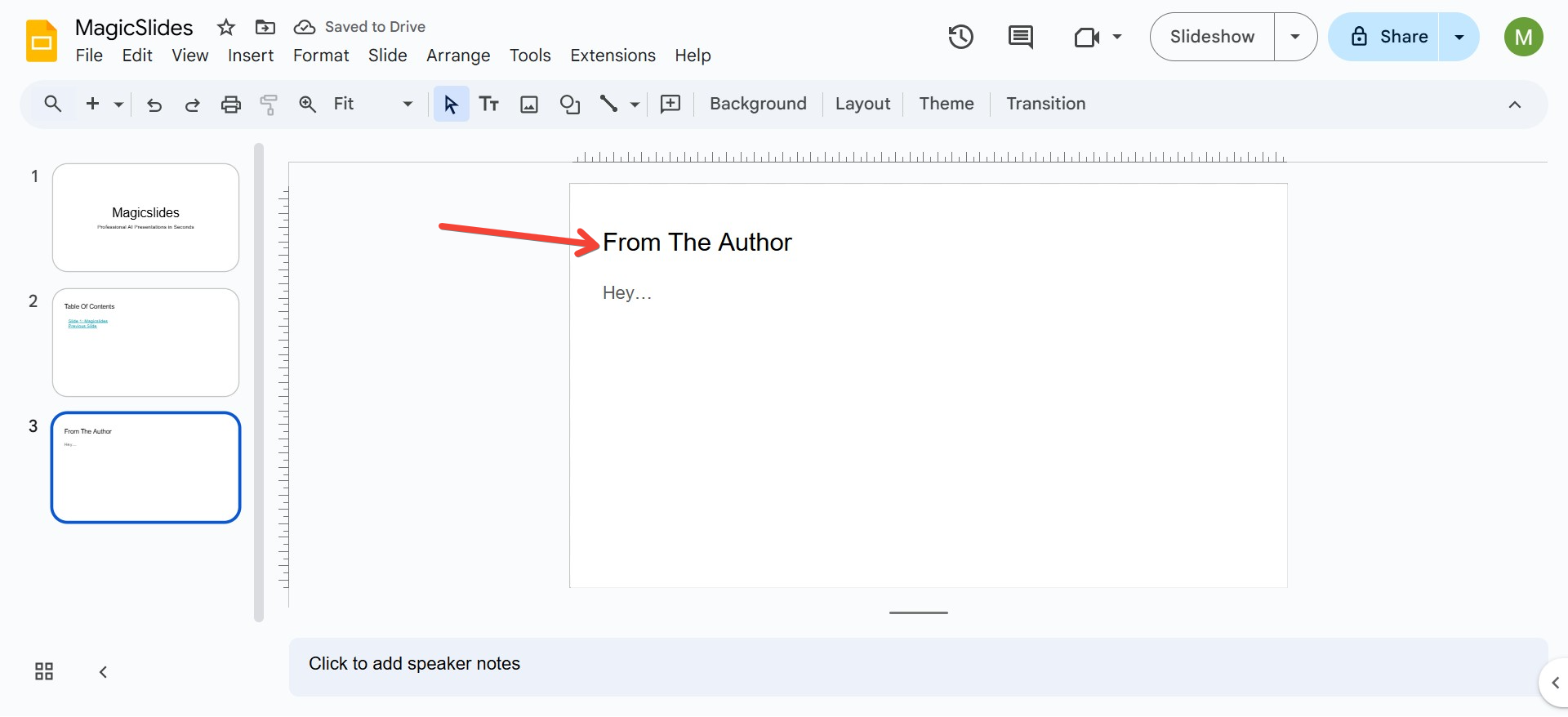
For longer or more formal presentations, dedicate an entire slide to introduce yourself. Use this slide to include your picture, professional background, and a brief overview of your achievements.
3. Slide Notes Section
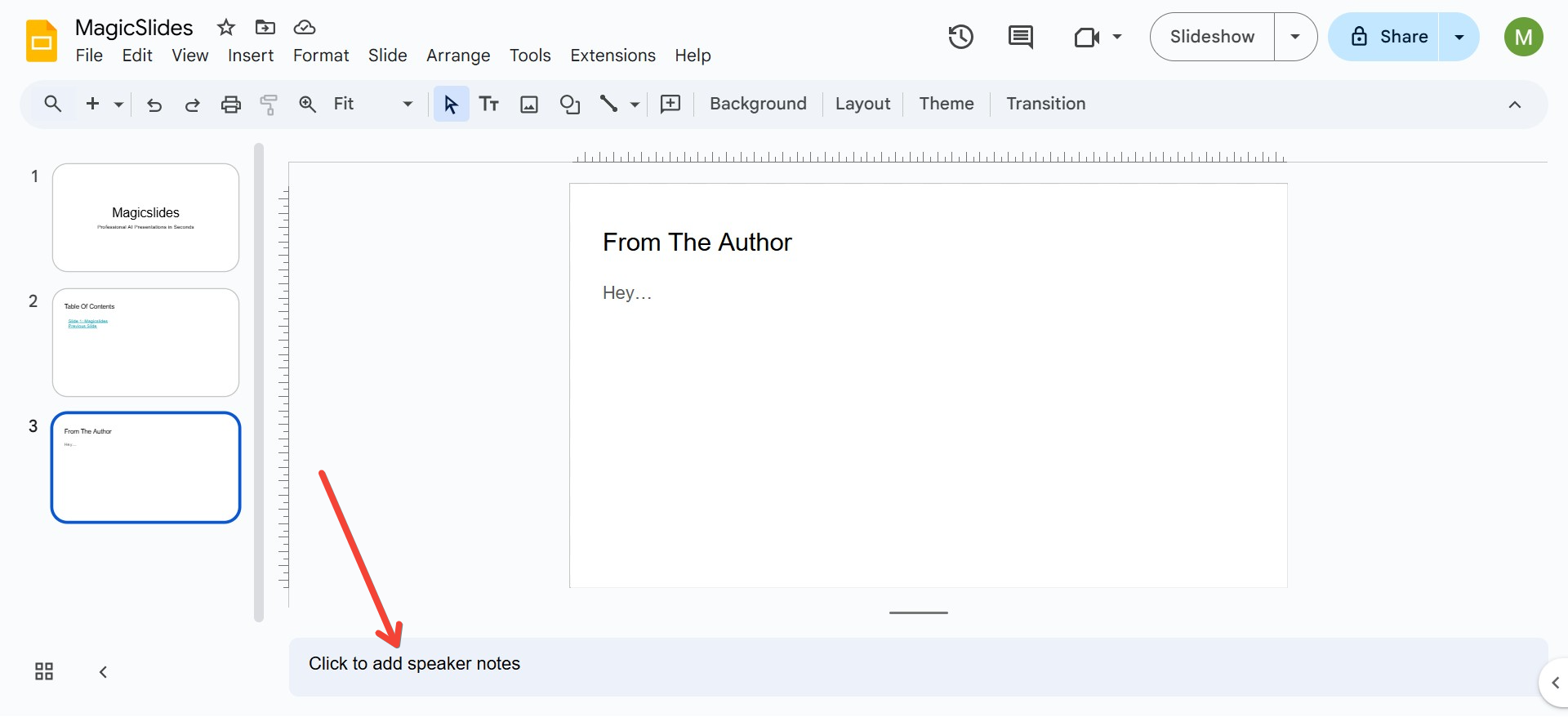
If you don’t want the author notes visible to your audience, add them in the Slide Notes section. This way, you can use them as a script or reminder during your presentation.
Tips for Formatting Author Notes
1. Keep It Concise
Avoid lengthy descriptions. A few sentences highlighting your qualifications and relevance to the topic are sufficient.
2. Use Professional Fonts
Stick to clean, professional fonts like Arial, Calibri, or Times New Roman for a polished look.
3. Incorporate Visuals
Consider adding a professional headshot alongside your notes. A picture helps build trust and connection with your audience.
4. Maintain Consistent Styling
Ensure your author notes match the overall design and theme of your presentation. Use the same color scheme, font size, and alignment.
Streamline Your Presentations with MagicSlides.app
If creating presentations feels time-consuming or daunting, MagicSlides.app is your solution! This AI-powered tool allows you to generate high-quality, professional PowerPoint presentations in minutes.
Steps to Use MagicSlides.app
- Visit MagicSlides.app
Open your browser and navigate to MagicSlides.app.
- Enter Your Topic
Input the main topic of your presentation. For example, "The Impact of Artificial Intelligence on Healthcare."
- Click Generate Instant PPT
Let the tool do its magic! MagicSlides will generate content ideas tailored to your topic.
- Select Slide Theme and Number of Slides
Choose from a variety of slide themes and determine how many slides you need for your presentation.
- Click Generate
In seconds, MagicSlides will create a polished presentation for you, complete with stunning designs and engaging content.
- Your PPT Is Ready
Download and customize your PowerPoint to include author notes or additional details.
Why Choose MagicSlides.app?
- Saves Time: No more spending hours designing slides from scratch.
- Professional Designs: Access to modern, visually appealing templates.
- AI-Powered Content: Generate slide content tailored to your topic.
- User-Friendly: A straightforward process that anyone can follow.
Final Thoughts
Formatting author notes in PowerPoint is a small but significant detail that adds professionalism and credibility to your presentation. By keeping them concise, visually appealing, and strategically placed, you can make a great impression on your audience.
And if you’re looking for an easy way to create stunning presentations, give MagicSlides.app a try. Whether you’re a seasoned presenter or just starting, this tool ensures your slides are polished, engaging, and ready in no time!


