How to Generate Quizlet from Canvas


Easily transform your Canvas course materials into Quizlet flashcards with this step-by-step guide
If you’re a student or educator using Canvas, you can easily generate Quizlet flashcards to study or share learning materials.
Quizlet offers an effective way to memorize key terms and concepts.
This step-by-step guide will show you how to export content from Canvas and create Quizlet flashcards to enhance your learning experience.
How to Generate Quizlet Flashcards from Canvas | Steps to Generate Quizlet Flashcards from Canvas
Step 1: Access Your Canvas Course
Log in to your Canvas account.
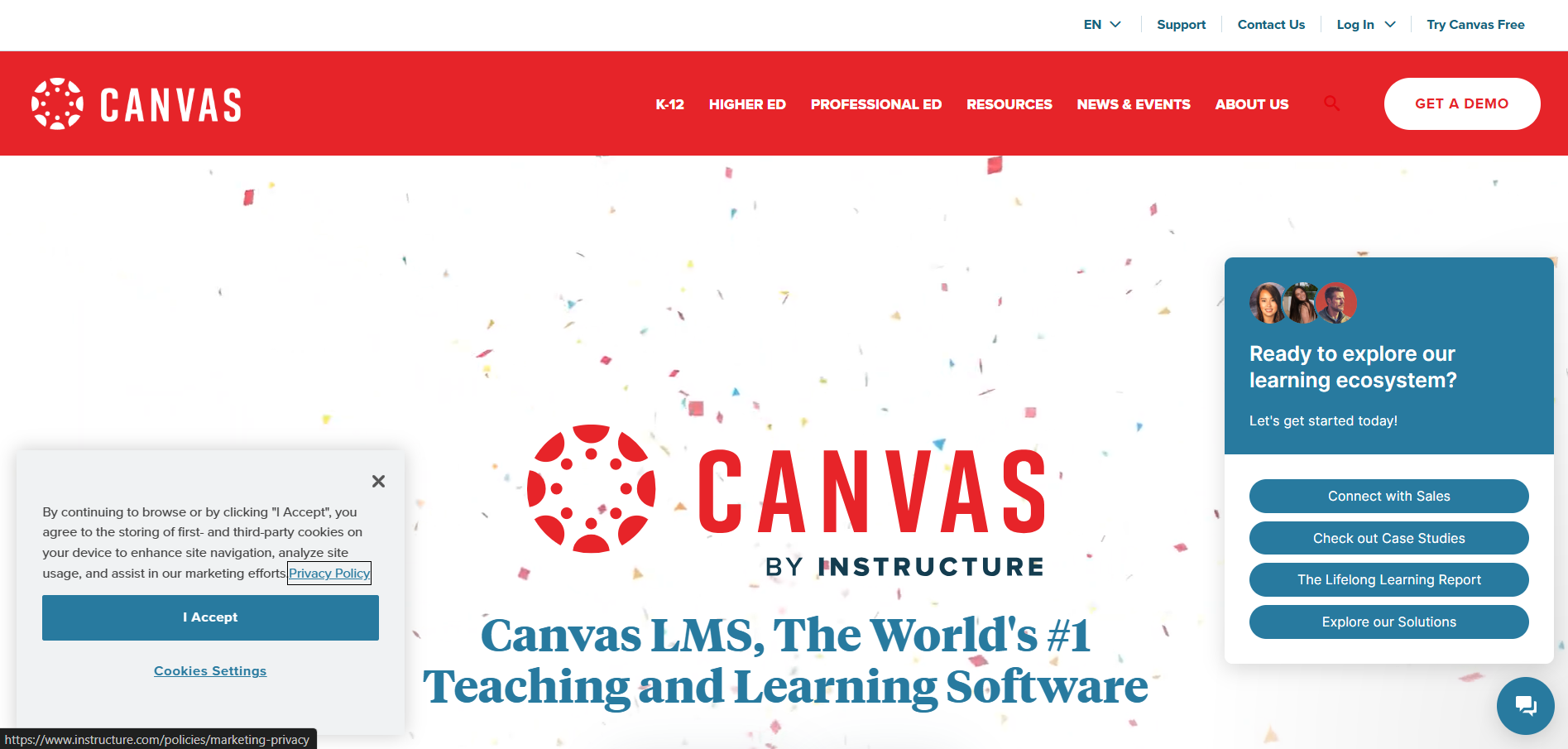
Open the course that contains the material you want to turn into Quizlet flashcards.
Step 2: Locate the Relevant Content
Navigate to the module, page, or assignment with the information you want to include.
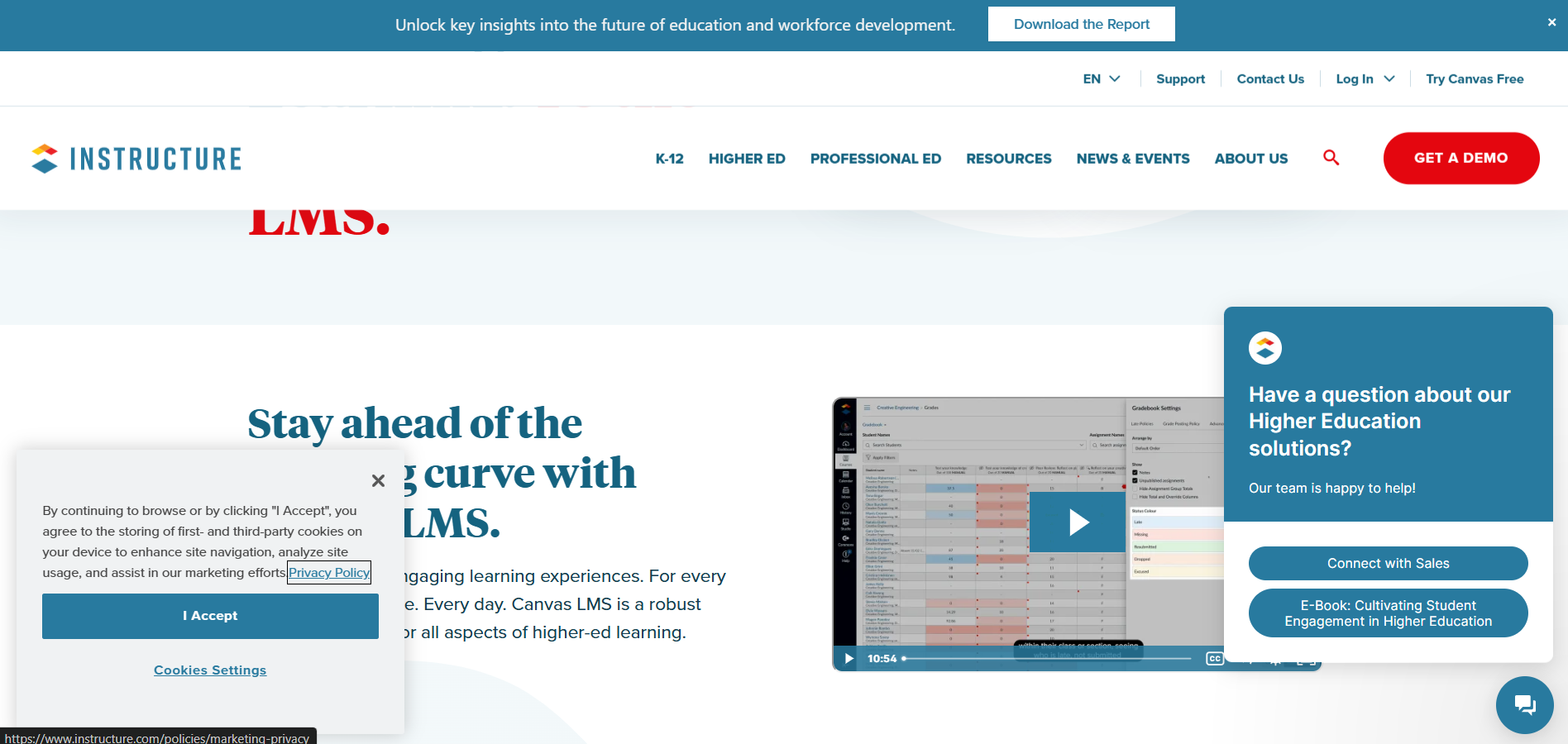
Copy the key terms and definitions, questions, or notes that you want for your Quizlet flashcards.
Step 3: Format the Data for Quizlet
Open a text editor or spreadsheet application (e.g., Google Sheets, Excel, or Notepad).
Organize the content into two columns: one for terms and the other for definitions.
- For example:
- Column 1: "Photosynthesis"
- Column 2: "The process by which plants make food using sunlight, carbon dioxide, and water."
Save the file in a .txt or .csv format if using a spreadsheet.
Step 4: Log in to Quizlet
Visit Quizlet.com and log in to your account. If you don’t have an account, sign up for free.
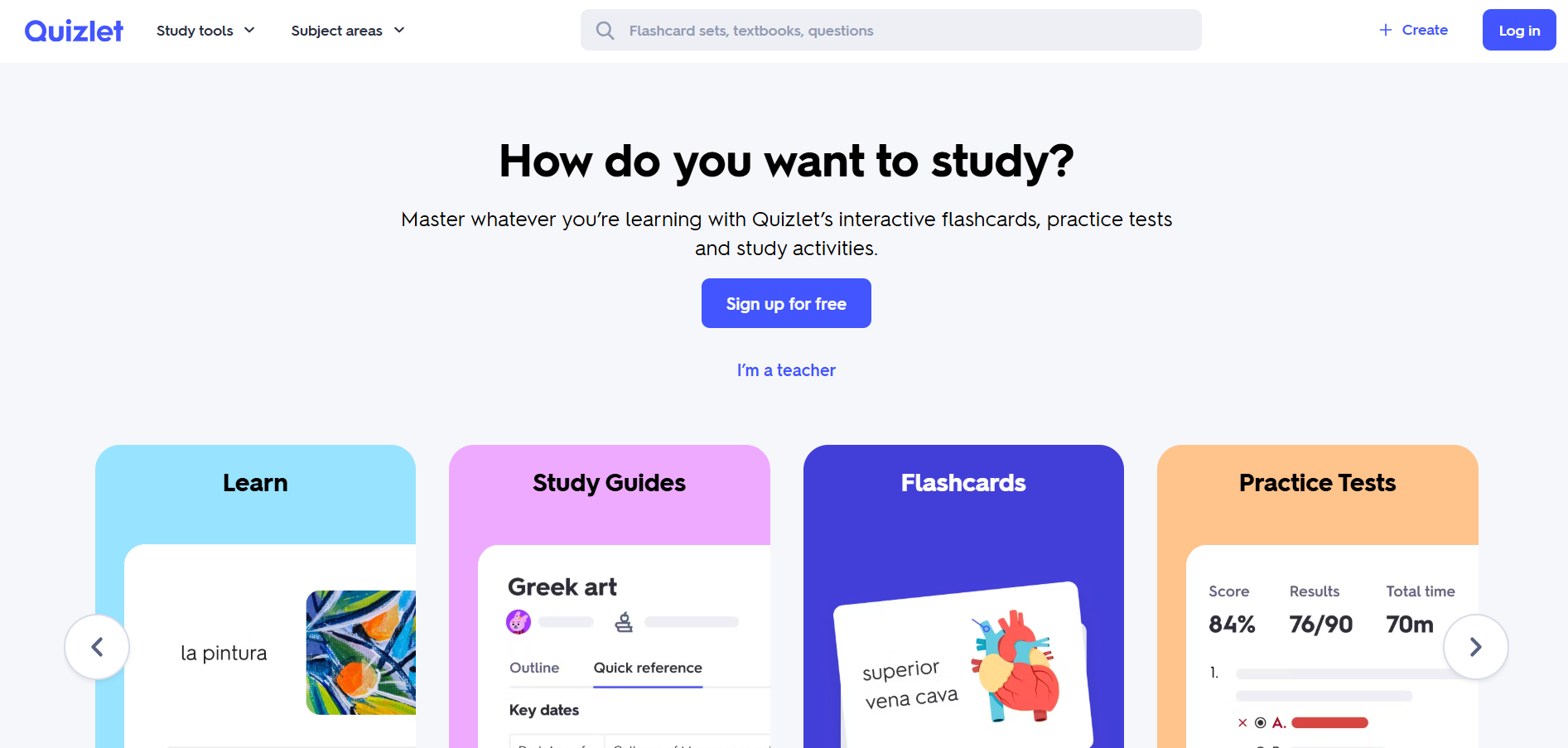
Step 5: Create a New Set
Click on the “Create” button at the top of the page. Enter a title for your flashcard set and optional description or tags to organize it.
Step 6: Import Content into Quizlet
Click the “Import from Word, Excel, Google Docs, etc.” link on the set creation page.
Paste your formatted data directly into the import box, or upload your .txt/.csv file.
Click “Import” to populate your flashcards with the terms and definitions.
Step 7: Customize and Save Your Flashcards
Review the flashcards to ensure all information is correct and properly formatted.
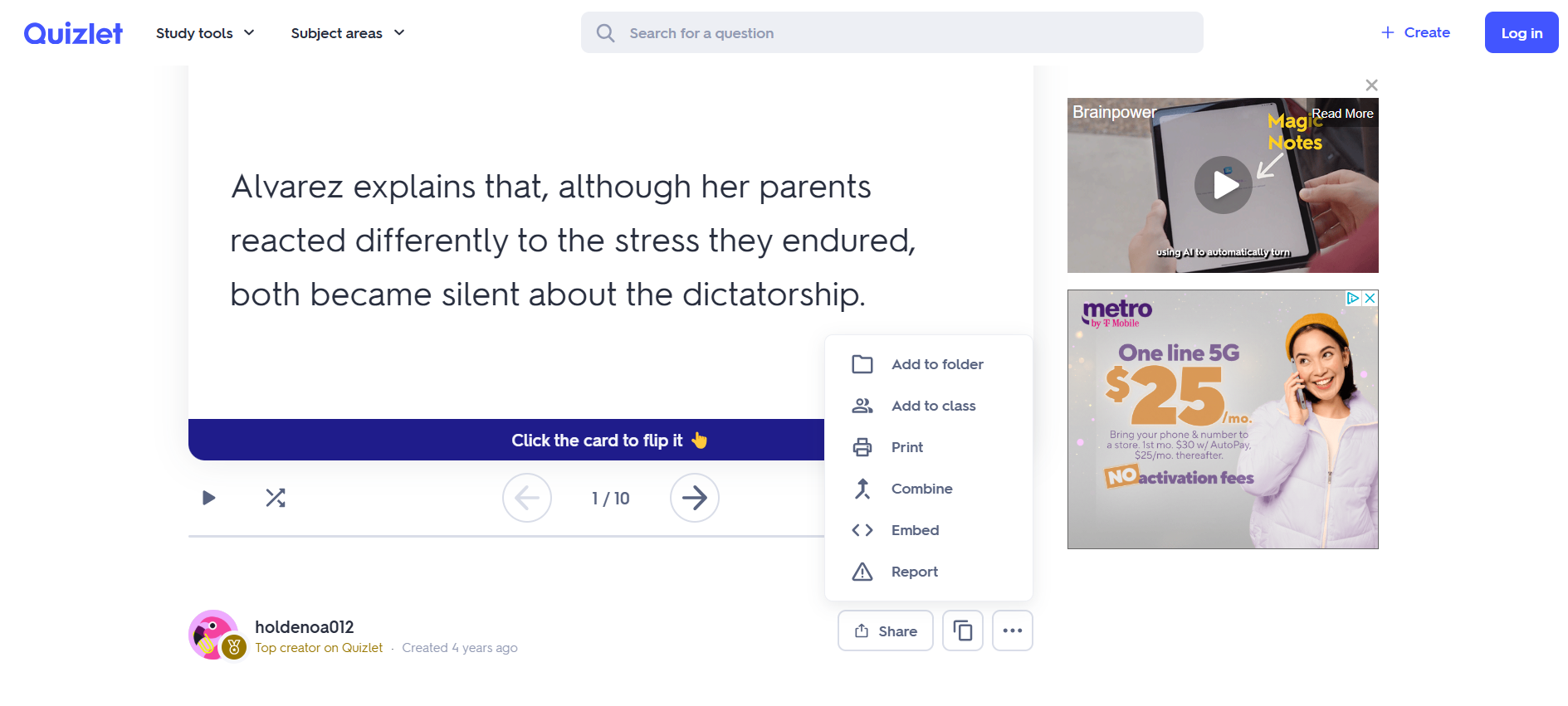
Add images or diagrams if necessary to enhance learning. Click “Create” to save your flashcard set.
Conclusion
Generating Quizlet flashcards from Canvas materials is a quick and effective way to enhance your study process.
By following these steps, you can easily convert key course content into interactive flashcards that make learning more engaging and efficient.
FAQs on Generating Quizlet Flashcards from Canvas
Can I directly export content from Canvas to Quizlet?
Currently, there’s no direct export option, but copying and pasting content works effectively.
How can I ensure my flashcards are formatted correctly?
Organize terms and definitions in a two-column format and review them before importing into Quizlet.
Are there any additional features on Quizlet to enhance flashcards?
Yes! Quizlet offers options like images, audio, and various study modes such as matching games and tests.
By leveraging Canvas and Quizlet together, you can streamline your study process and achieve better learning outcomes.


