How to Insert Superscript in PowerPoint


Easily insert superscripts in PowerPoint using font settings, keyboard shortcuts, or the equation tool
How to Insert Superscript in PowerPoint
Superscripts are small characters positioned slightly above the normal text line, commonly used for mathematical equations, footnotes, and scientific notations.
Microsoft PowerPoint provides multiple ways to insert superscripts, making it easy to format your presentation professionally.
This guide will walk you through different methods to add superscripts in PowerPoint step by step.
Steps to Insert Superscript in PowerPoint
Step 1: Open Your PowerPoint Presentation
Launch Microsoft PowerPoint on your computer.
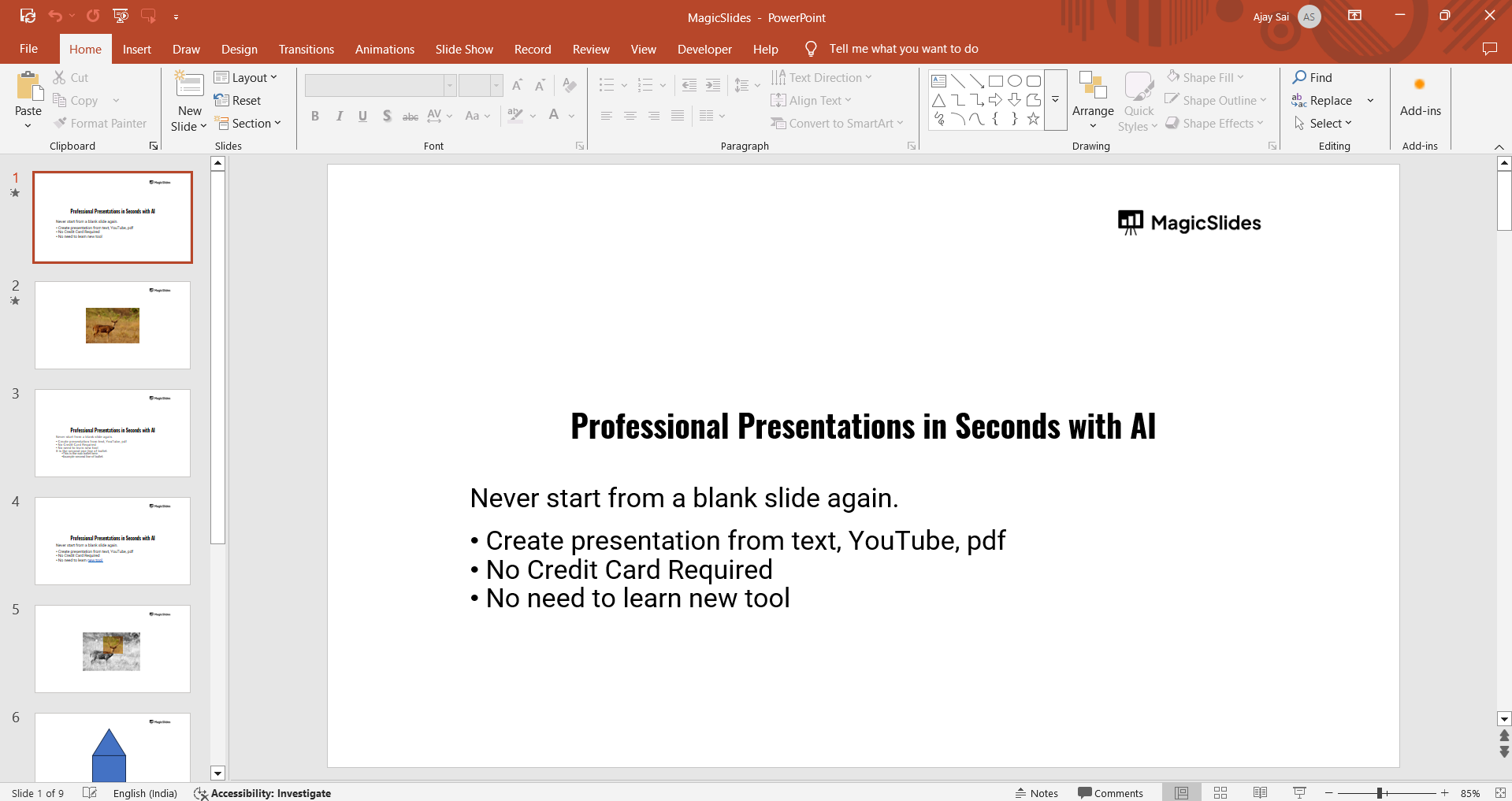
Open an existing presentation or create a new slide where you want to insert superscript text.
Step 2: Type the Text That Needs Superscript
Click inside a text box or create a new one by selecting Insert > Text Box.
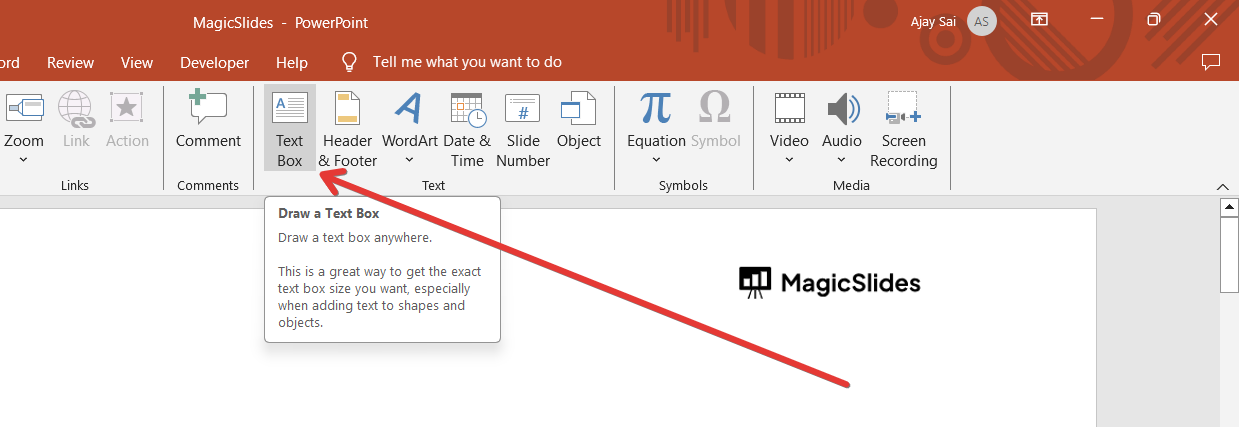
Type your text, including the character or number you want to make a superscript.
Step 3: Apply Superscript Using the Font Menu
Highlight the character or number you want to superscript. Click on the Home tab in the toolbar.
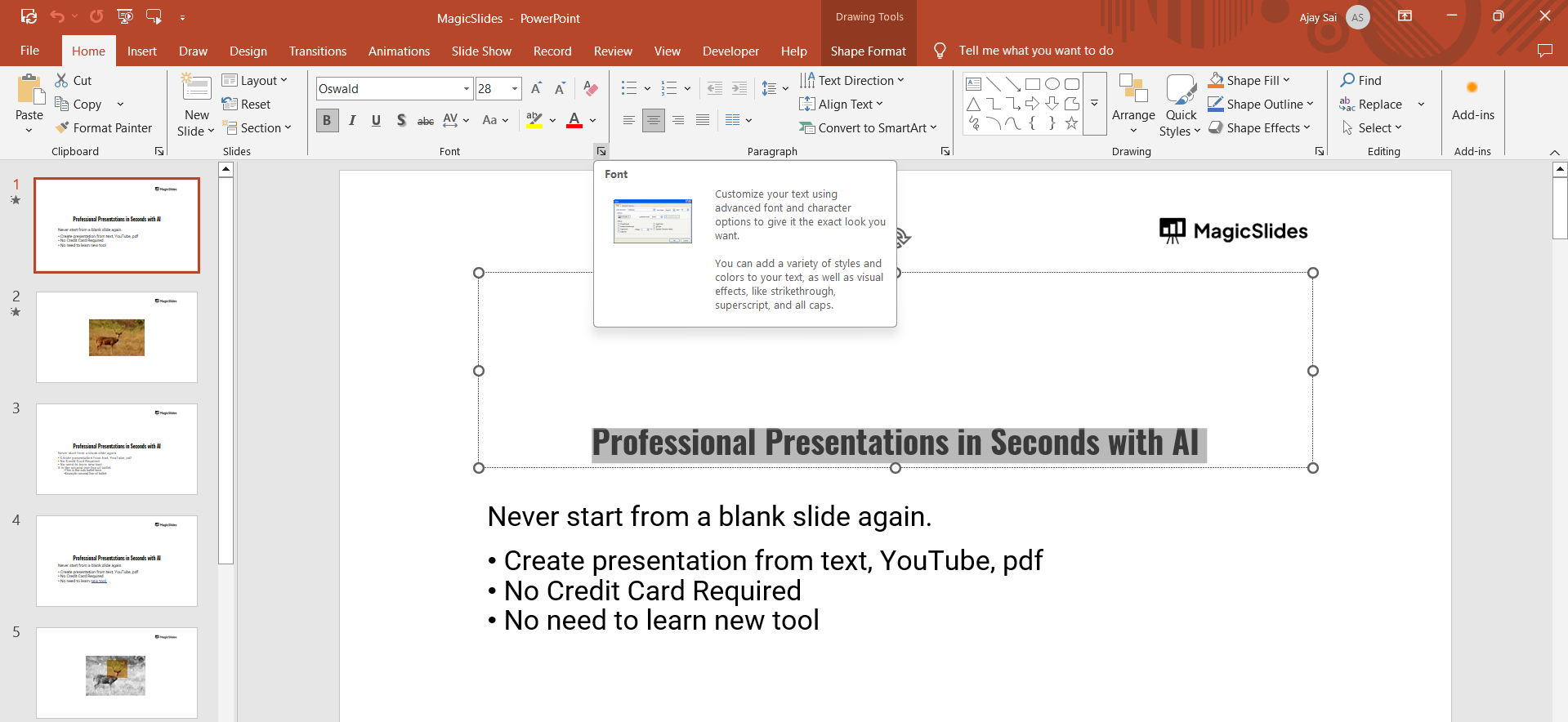
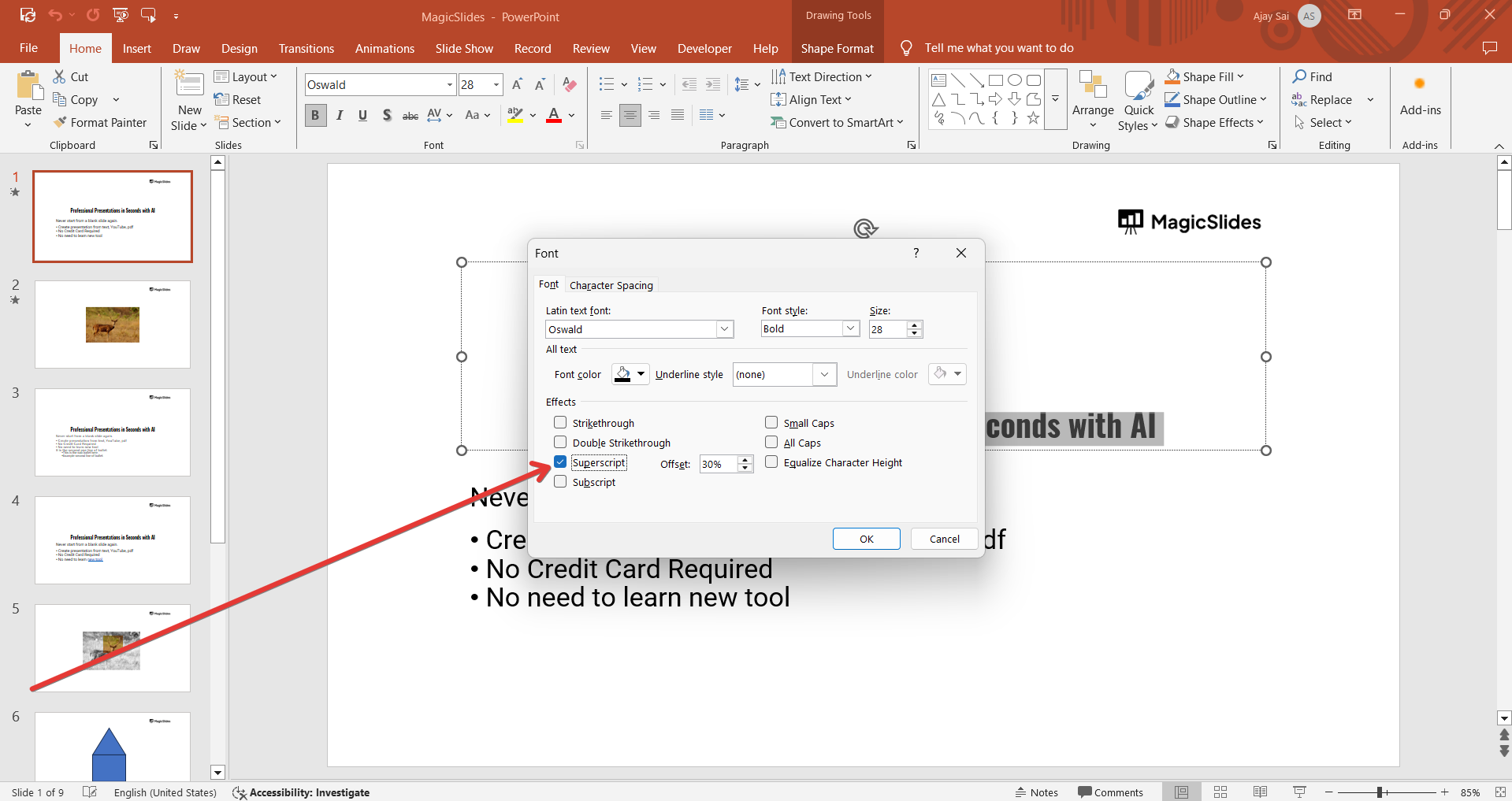
In the Font section, click the small arrow in the bottom-right corner to open the Font dialog box.
Check the Superscript option under the Effects section. Click OK to apply the superscript formatting.
Step 4: Use Keyboard Shortcut for Quick Superscript
PowerPoint provides a shortcut for adding superscripts:
- Select the character you want to superscript.
- Press Ctrl + Shift + + (plus sign) on Windows or Command + Shift + + on Mac.
Step 5: Insert Superscript Using PowerPoint’s Equation Tool (For Math & Science Notations)
If you need a superscript in an equation or scientific notation:
Click on the Insert tab. Select Equation from the Symbols group.
In the equation editor, type the expression, using the caret symbol (^) followed by the superscript number (e.g., x^2 for x²).
PowerPoint will automatically format it as a superscript in the equation box.
Step 6: Copy and Paste a Superscript from Another Source
If you’re struggling with formatting, you can copy a superscript character from another document:
Open Microsoft Word, Google Docs, or a Unicode superscript generator.
Type the text with the superscript formatting applied. Copy the superscript text and paste it into PowerPoint.
Now that you’ve learned how to insert superscripts in PowerPoint, take your presentations further with MagicSlides.app an AI-powered tool that instantly generates professional slides from text, PDFs, YouTube links, and more!
Conclusion
Adding superscripts in PowerPoint is easy using the Font menu, keyboard shortcuts, equation tool, or copy-paste method.
Whether for mathematical equations, footnotes, or scientific terms, these methods help format your presentation professionally.
FAQs About Superscripts in PowerPoint
Why is the superscript option in PowerPoint disabled?
Make sure you have selected a text box and highlighted the character before opening the Font dialog box.
Can I remove superscript formatting in PowerPoint?
Yes, highlight the superscripted text, go to the Font dialog box, and uncheck the Superscript option.
Does PowerPoint automatically superscript numbers like Word?
No, PowerPoint does not have an automatic superscript feature for numbers, so you need to apply it manually.
Now, you can easily insert superscripts in PowerPoint and enhance your presentation formatting! 🚀


