How to Recover Deleted Google Sheets: A Comprehensive Guide


Learn how to recover deleted Google Sheets with easy methods like restoring from Trash, using version history, and backup solutions.
Accidentally deleting a Google Sheets document can be a frustrating experience, especially if it contains important data or work.
Fortunately, Google provides several options for recovering deleted sheets, depending on the circumstances of the deletion.
In this guide, we will explore the various methods for recovering deleted Google Sheets, including recovery from the Trash, version history, and backup solutions.
Understanding Google Sheets Deletion
Before diving into recovery methods, it’s important to understand how Google Sheets handles deletion:
- Soft Deletion: When you delete a Google Sheet, it is moved to the Trash (or Bin), where it remains for 30 days. During this period, you can easily recover it.
- Permanent Deletion: After 30 days in the Trash, the file is permanently deleted and cannot be recovered through the Google interface. However, if you are using Google Workspace, your administrator may have additional recovery options.
Methods for Recovering Deleted Google Sheets
Here are the most effective ways to recover deleted Google Sheets:
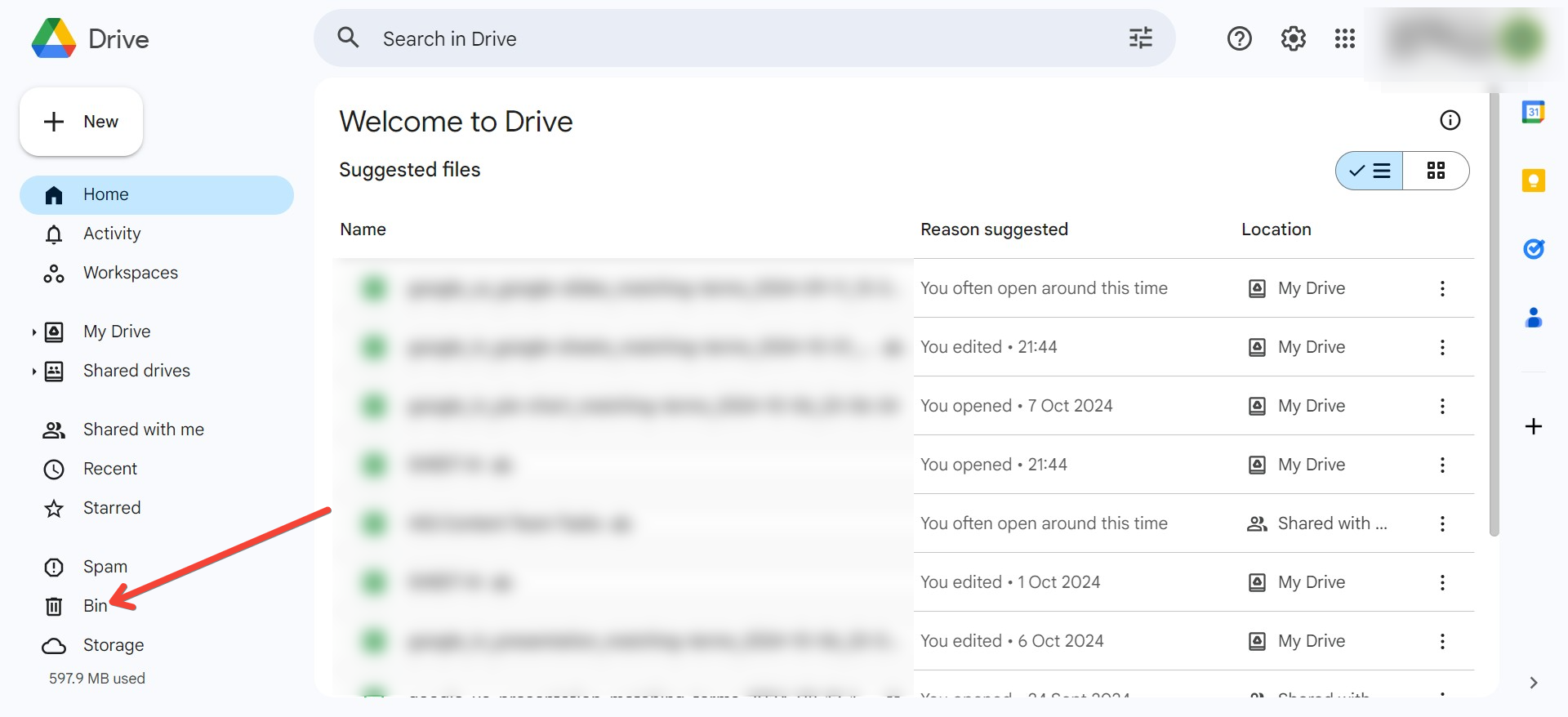
1. Recovering from Trash
If you’ve deleted a Google Sheet, it’s likely in your Trash. Here’s how to recover it:
- Step 1: Open Google Drive.
- Step 2: On the left sidebar, click on "Trash" (or "Bin").
- Step 3: Look for the deleted Google Sheets file. You can sort by date or name to make it easier.
- Step 4: Right-click on the file you want to recover.
- Step 5: Select “Restore” from the context menu.
Your file will be restored to its original location in Google Drive.
2. Using Version History
If you need to recover a previous version of a Google Sheet (even if you haven’t deleted it), you can use the version history feature. Here’s how:
- Step 1: Open the Google Sheets file.
- Step 2: Click on “File” in the menu bar.
- Step 3: Select “Version history” and then “See version history.”
- Step 4: A panel will open on the right side showing a timeline of edits. You can click on any version to see what the document looked like at that time.
- Step 5: If you find a version you’d like to restore, click the “Restore this version” button at the top of the panel.
Read our blog here to learn how to see version history in google sheets.
3. Checking Google Workspace Admin Console (for Admins)
If you are part of a Google Workspace (formerly G Suite) organization and the file is not found in the Trash, your administrator might have additional recovery options:
- Step 1: Admins can log in to the Google Admin Console.
- Step 2: Go to “Users” and find the user who deleted the file.
- Step 3: Click on the user’s name and select “Restore data.”
- Step 4: Choose the date range and specify the type of data (Google Sheets) you want to restore.
- Step 5: Click “Restore” to recover the files.
Note that admins can only restore data that was deleted within the last 25 days.
4. Google Drive Backup (if enabled)
If you have Google Drive Backup enabled, you might have an offline backup of your Google Sheets:
- Step 1: Check your Google Drive settings to see if Backup is enabled.
- Step 2: If Backup is enabled, visit the Backup and Sync app on your computer.
- Step 3: Navigate to the backup folder and see if your deleted Google Sheets file is there.
Preventing Future Loss
While recovering deleted files is possible, it’s always best to take preventive measures to avoid losing important data in the first place:
- Regularly Backup Your Data: Use Google Drive’s Backup and Sync feature or third-party backup solutions to keep copies of your important files.
- Share Files: Sharing your Google Sheets with collaborators can serve as an additional layer of protection, as they may have access to previous versions of the document.
- Enable Offline Access: By enabling offline access, you can work on your files even without internet access, reducing the risk of losing unsaved changes.
Conclusion
Recovering deleted Google Sheets is generally a straightforward process, especially if you act quickly. Understanding the features available in Google Drive, such as Trash and version history, can save you time and frustration when accidents happen. By following the steps outlined in this guide, you can effectively restore lost documents and implement strategies to prevent future data loss.
If you have any questions or need further assistance, feel free to reach out for help or consult Google’s official support pages for more in-depth information. Happy spreadsheeting!


