How to Use IMPORTRANGE in Google Sheets: A Comprehensive Guide


Learn how to use the IMPORTRANGE function in Google Sheets to import data from one spreadsheet to another with ease.
Google Sheets is a powerful tool for data management and analysis, and one of its most useful functions is IMPORTRANGE.
This function allows you to import data from one Google Sheets spreadsheet into another, making it easy to consolidate data from multiple sources.
In this blog post, we will explore how to use the IMPORTRANGE function effectively, along with examples and tips for optimizing its use.
What is IMPORTRANGE?
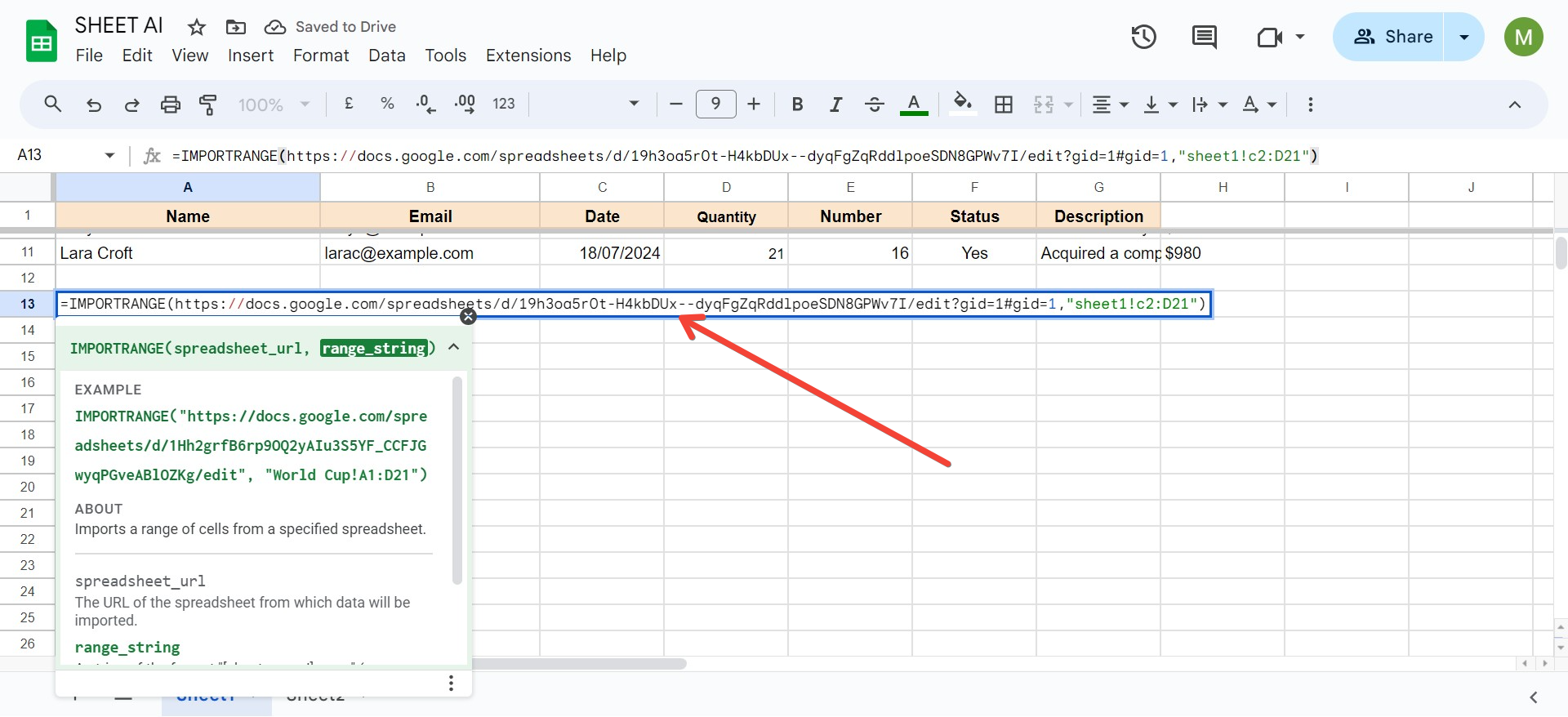
The IMPORTRANGE function in Google Sheets allows users to pull data from one spreadsheet into another. This can be particularly helpful for collaborative projects, data analysis, or when you need to aggregate information from various sources without manual data entry.
Syntax of IMPORTRANGE
The syntax for the IMPORTRANGE function is as follows:
IMPORTRANGE(spreadsheet_url, range_string)
- spreadsheet_url: The URL of the Google Sheets document from which you want to import data. It should be enclosed in quotation marks.
- range_string: A string that specifies the range of cells you want to import, which can include the sheet name and the cell range (e.g.,
"Sheet1!A1:B10").
Example of IMPORTRANGE
Suppose you have a spreadsheet with the following URL:
https://docs.google.com/spreadsheets/d/abc1234567890/edit#gid=0
To import data from cells A1 to B10 of the sheet named "Sales" in that spreadsheet, the formula would look like this:
=IMPORTRANGE("https://docs.google.com/spreadsheets/d/abc1234567890/edit#gid=0", "Sales!A1:B10")
How to Use IMPORTRANGE Step by Step
Here’s a detailed guide on how to use the IMPORTRANGE function in Google Sheets:
Step 1: Prepare Your Source Spreadsheet
- Open the source spreadsheet: This is the Google Sheets file from which you want to import data.
- Copy the URL: Go to the address bar of your browser and copy the entire URL of the spreadsheet.
Step 2: Open Your Destination Spreadsheet
- Open or create a new spreadsheet: This is where you want to import the data.
- Select the cell: Click on the cell where you want to display the imported data.
Step 3: Enter the IMPORTRANGE Formula
- Type the formula: In the selected cell, enter the
IMPORTRANGEformula, substituting the appropriate URL and range. For example:=IMPORTRANGE("https://docs.google.com/spreadsheets/d/abc1234567890/edit#gid=0", "Sales!A1:B10") - Press Enter: After typing the formula, press Enter.
Step 4: Grant Access
- The first time you use
IMPORTRANGEto connect two spreadsheets, you will see a#REF!error with a message stating that you need to connect the sheets. - Click on "Allow access": Click the "Allow access" button that appears to permit the destination spreadsheet to pull data from the source spreadsheet.
Step 5: View Imported Data
- Once access is granted, the data from the specified range in the source spreadsheet will appear in the destination spreadsheet.
Tips for Using IMPORTRANGE Effectively
- Use Named Ranges: If you frequently import data from the same range, consider using named ranges in your source spreadsheet. This allows you to reference the named range instead of a specific cell range, making your formulas cleaner and easier to understand.
=IMPORTRANGE("https://docs.google.com/spreadsheets/d/abc1234567890/edit#gid=0", "NamedRange") - Combine with Other Functions: You can combine
IMPORTRANGEwith other Google Sheets functions, such asFILTER,QUERY, orSORT, to manipulate the imported data further.For example, to filter imported data based on certain criteria:
=FILTER(IMPORTRANGE("https://docs.google.com/spreadsheets/d/abc1234567890/edit#gid=0", "Sales!A1:B10"), Col1 > 100) - Data Updates: Remember that
IMPORTRANGEcreates a live link between the two spreadsheets. Any changes made in the source spreadsheet will automatically reflect in the destination spreadsheet. - Performance Considerations: While
IMPORTRANGEis powerful, using it excessively or importing large ranges can slow down your spreadsheet. It’s best to import only the necessary data.
Common Errors and Troubleshooting
- #REF! Error: This error usually indicates that you need to allow access to the source spreadsheet. Make sure you click “Allow access” when prompted.
- #VALUE! Error: This may occur if the range string is not formatted correctly or if the specified range does not exist.
- #N/A Error: This error often signifies that the source spreadsheet is not accessible, perhaps due to permissions settings. Ensure that the sharing settings allow access to the source spreadsheet.
Conclusion
The IMPORTRANGE function in Google Sheets is a powerful tool for importing data across spreadsheets, streamlining collaboration and data management. By following the steps outlined in this guide and employing best practices, you can effectively use IMPORTRANGE to enhance your Google Sheets experience. Whether for personal projects, team collaborations, or business analysis, mastering this function can significantly boost your productivity and efficiency.
If you have any questions or need further assistance with using IMPORTRANGE, feel free to leave a comment or explore Google’s support resources for more in-depth information. Happy importing!


