What is a poster presentation?


Learn how to create a professional poster presentation in Google Slides with this step-by-step guide.
A poster presentation is a visual communication tool used to present research, projects, or information in a concise and engaging manner. It typically combines text, images, graphs, and other visual elements to convey key points and findings effectively. Poster presentations are commonly used in academic conferences, seminars, and exhibitions, providing an opportunity for interactive discussions with the audience.
In this blog post, we will guide you through the steps to create a professional poster presentation using Google Slides, a user-friendly and accessible platform.
Step-by-Step Guide to Creating a Poster Presentation in Google Slides
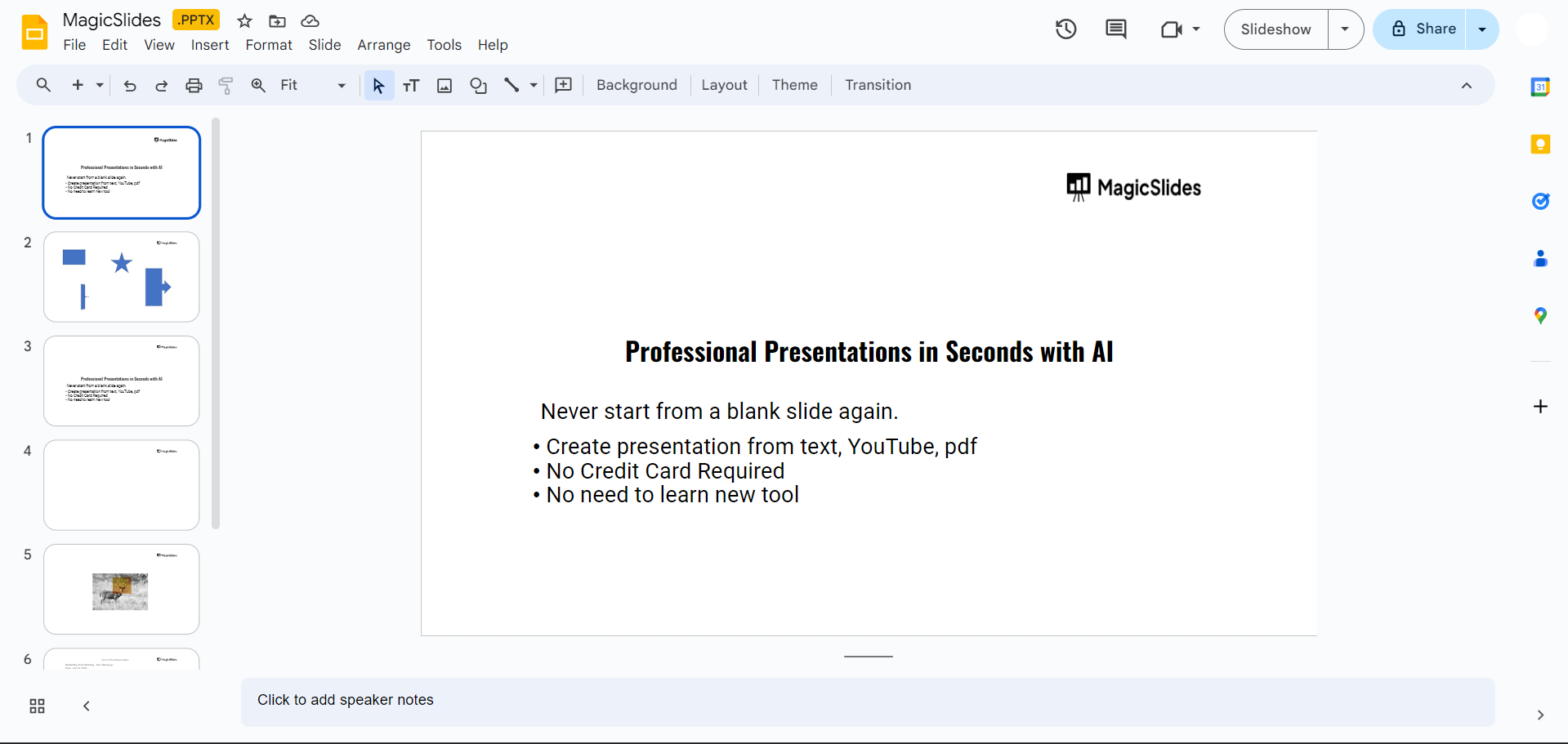
Step 1: Set Up Google Slides
First, open Google Slides by going to slides.google.com. If you don't have a Google account, you'll need to create one to use Google Slides.
Once you're logged in, click on the "+" icon to create a new presentation.
Step 2: Adjust Slide Dimensions
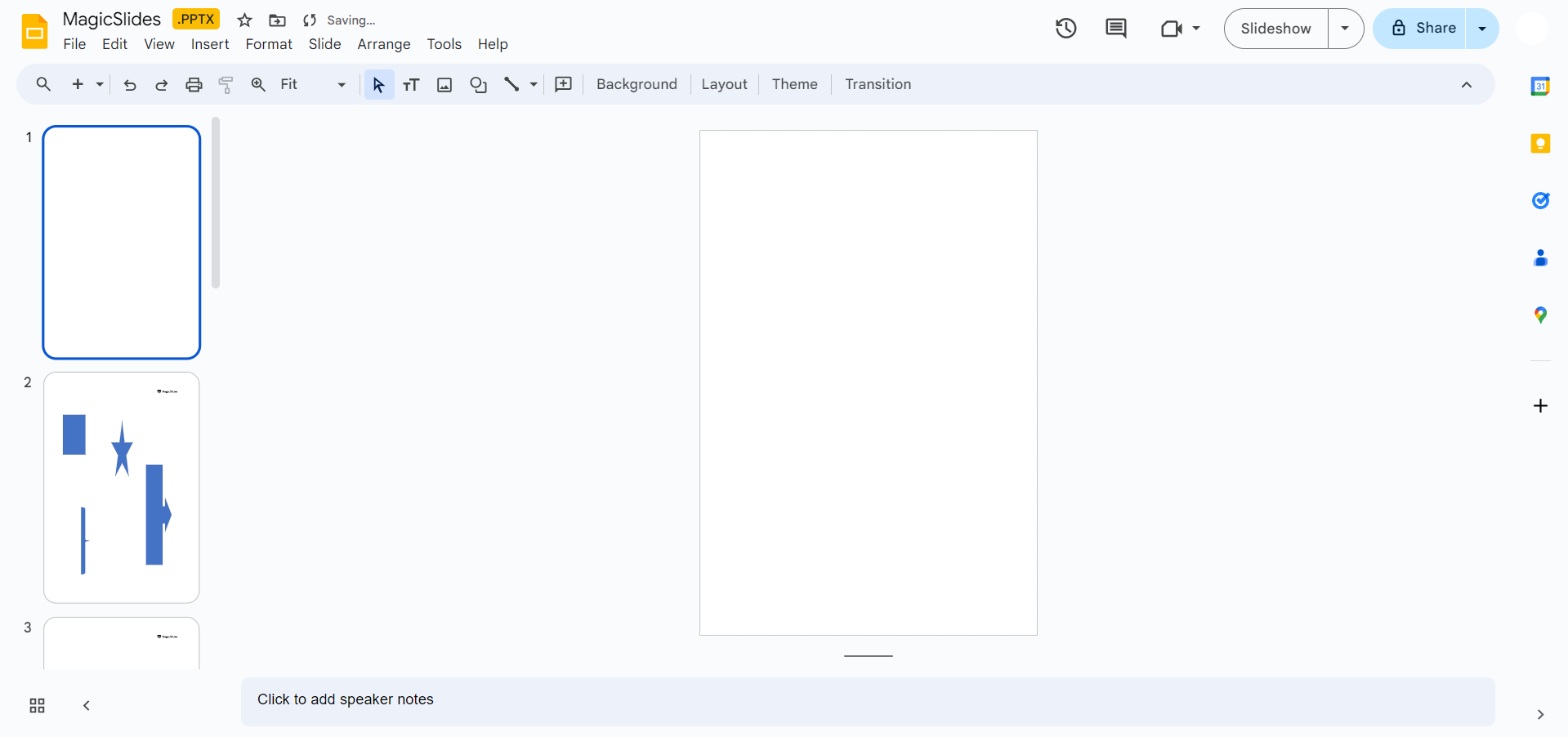
To create a poster, you need to adjust the slide dimensions to match standard poster sizes. Go to "File" > "Page setup" and select "Custom." Enter the desired dimensions for your poster.
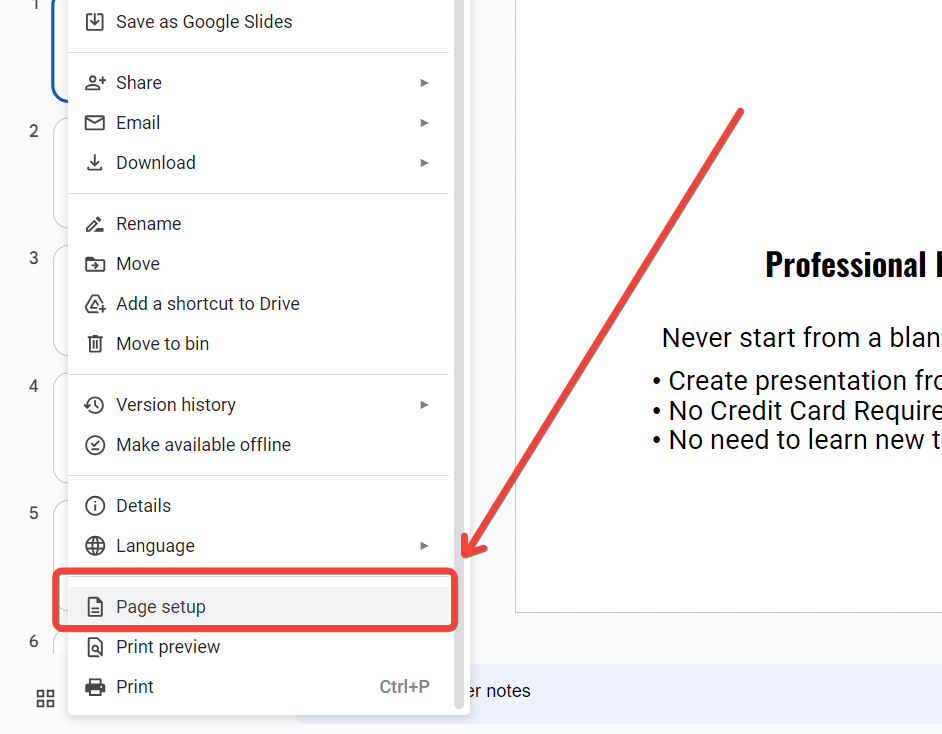
Common sizes are 24×36 inches or 36×48 inches. Click "Apply" to set the custom dimensions.
Step 3: Choose a Template or Design
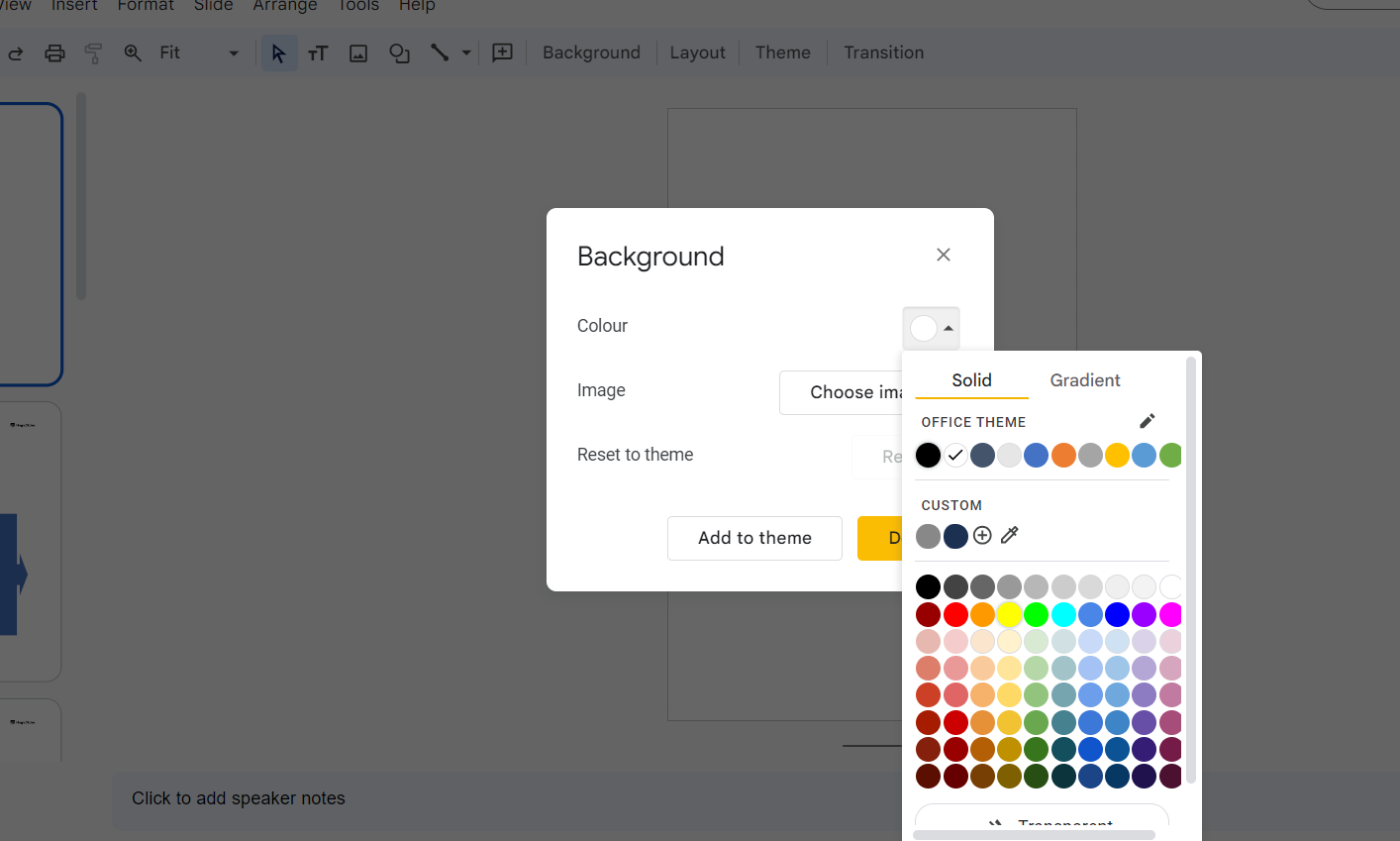
You can start with a blank slide or choose a template that fits your presentation style. Google Slides offers a variety of templates that you can customize to suit your needs.
To access templates, click on "Theme" in the toolbar and browse through the available options.
Step 4: Add a Title and Section Headings
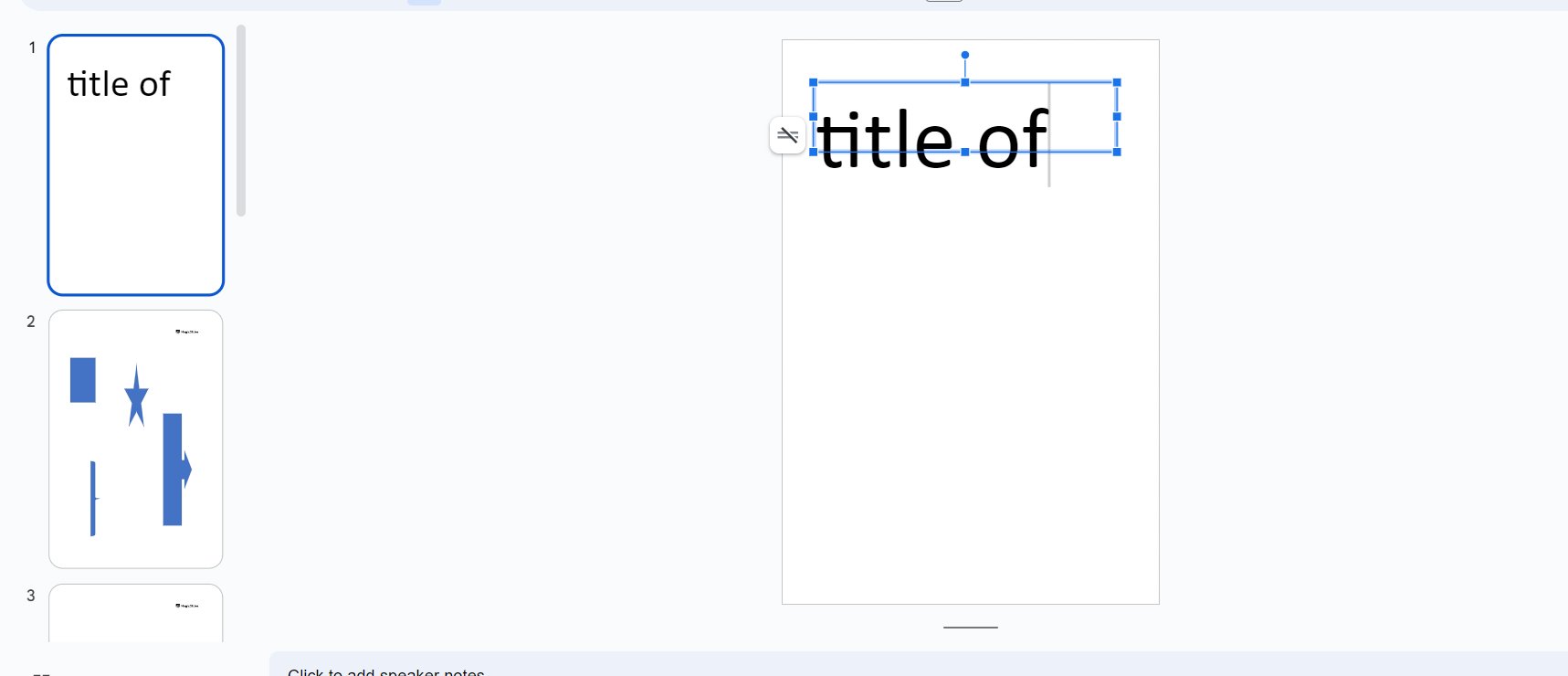
Begin by adding a title to your poster. Click on the text box icon in the toolbar and draw a text box at the top of the slide. Enter your title and format it using the text formatting options.
Next, add section headings for different parts of your poster, such as Introduction, Methods, Results, and Conclusion. Use a consistent font style and size for all headings.
Step 5: Insert Content
Add the main content to your poster by creating text boxes for each section. Summarize key points and use bullet points for clarity. Make sure the text is concise and easy to read from a distance.
To add images, charts, or graphs, click on the "Insert" menu and select the appropriate option. You can upload images from your computer or use Google Images to find relevant visuals.
Step 6: Review and Finalize
Review your poster thoroughly to check for any errors or inconsistencies. Make sure all text is legible and all images are clear. Ask a peer or mentor to review your poster and provide feedback.
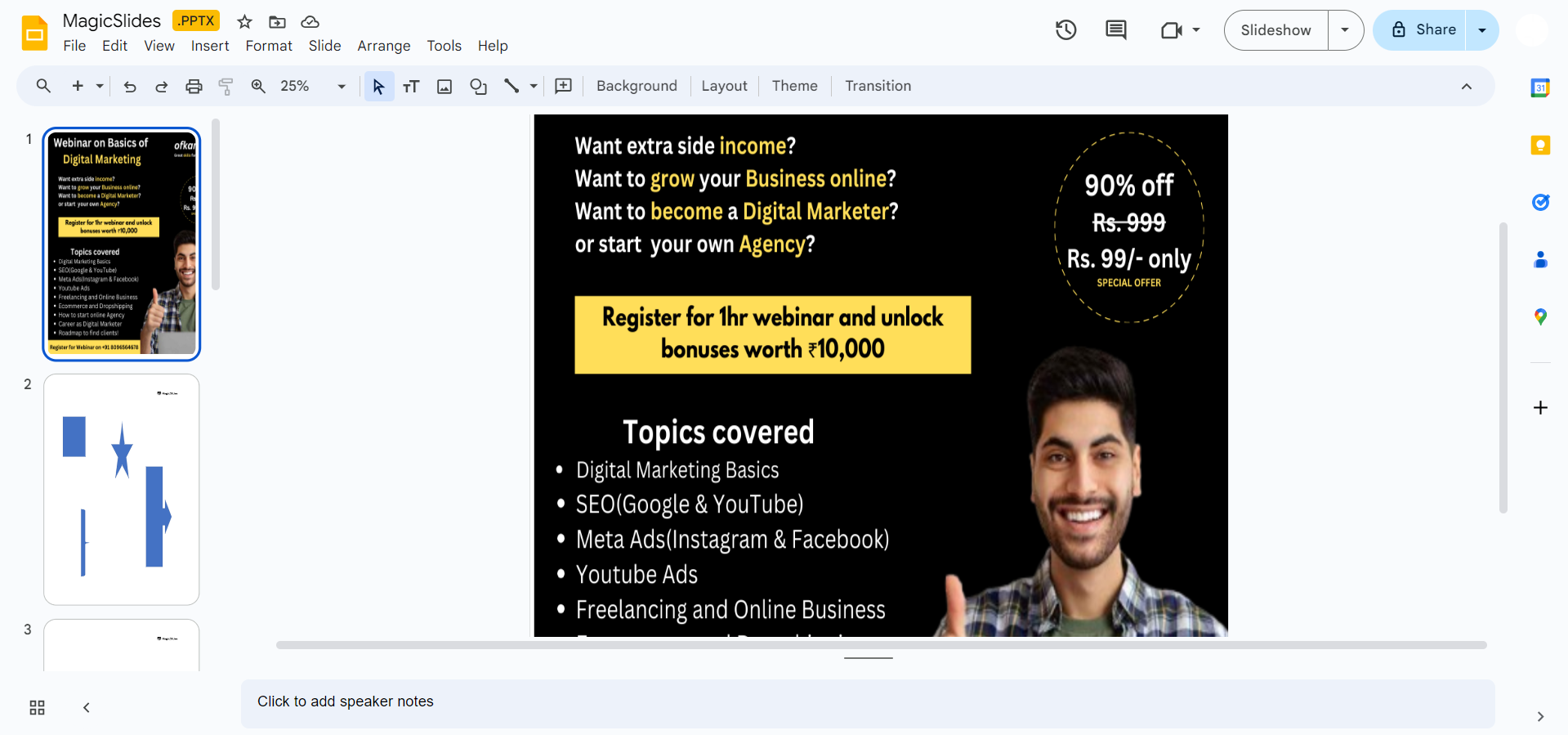
Once you're satisfied with the design and content, save your poster by clicking on "File" > "Download" and choosing the desired format (PDF is recommended for printing).
Conclusion
Creating a poster presentation in Google Slides is a straightforward process that allows you to effectively communicate your research or project visually. By following these steps, you can design a professional and engaging poster that captures the attention of your audience and conveys your key messages clearly.
Whether you're presenting at a conference or sharing your work in a classroom setting, a well-designed poster can make a significant impact.
FAQ’s for your help!
What size should my poster presentation be in Google Slides?
The size of your poster presentation can vary depending on the requirements of the event or venue where you will be presenting. Common sizes include 24×36 inches or 36×48 inches.
You can set custom dimensions in Google Slides by going to "File" > "Page setup" and selecting "Custom" to enter the desired dimensions.
How can I ensure my poster is readable from a distance?
To ensure your poster is readable from a distance, use large and legible fonts for titles and headings (at least 36-48 points) and a slightly smaller font for body text (24-28 points). Choose contrasting colors for text and background to enhance readability.
Additionally, organize content in a clear, logical layout with sufficient white space between sections.
Can I print my poster directly from Google Slides?
Yes, you can print your poster directly from Google Slides. It's recommended to download your poster as a PDF for the best print quality. Go to "File" > "Download" > "PDF Document."
Once downloaded, you can print the PDF file using a large format printer or a professional printing service that can handle the size of your poster.


