How to Apply and Save All Changes to a Presentation in PowerPoint


Learn to quickly apply and save all changes in PowerPoint. Enhance your presentations with ease!
Microsoft PowerPoint is a versatile tool used extensively for creating engaging presentations. Whether you're a student, professional, or educator, mastering PowerPoint can significantly enhance your presentation skills. In this detailed guide, we’ll explore the steps to apply and save all changes in PowerPoint, ensuring your hard work is preserved and presented exactly as intended.
Table of Contents
- Understanding the PowerPoint Interface
- Applying Changes to Slides
- Using Master Slides and Themes
- Inserting and Modifying Content
- Applying Transitions and Animations
- Saving Your PowerPoint Presentation
- AutoSave Feature
- Saving Manually
- Saving in Different Formats
- Best Practices for Saving and Managing Presentations
- Troubleshooting Common Saving Issues
- Conclusion
Understanding the PowerPoint Interface
Before diving into the specifics, familiarize yourself with the PowerPoint interface. The interface includes the ribbon, status bar, slides pane, and the main workspace. Knowing where tools are located and how they function is essential for efficient presentation editing.
Applying Changes to Slides
To apply changes effectively:
- Select the Slide: Click on the slide you wish to modify in the slide pane.
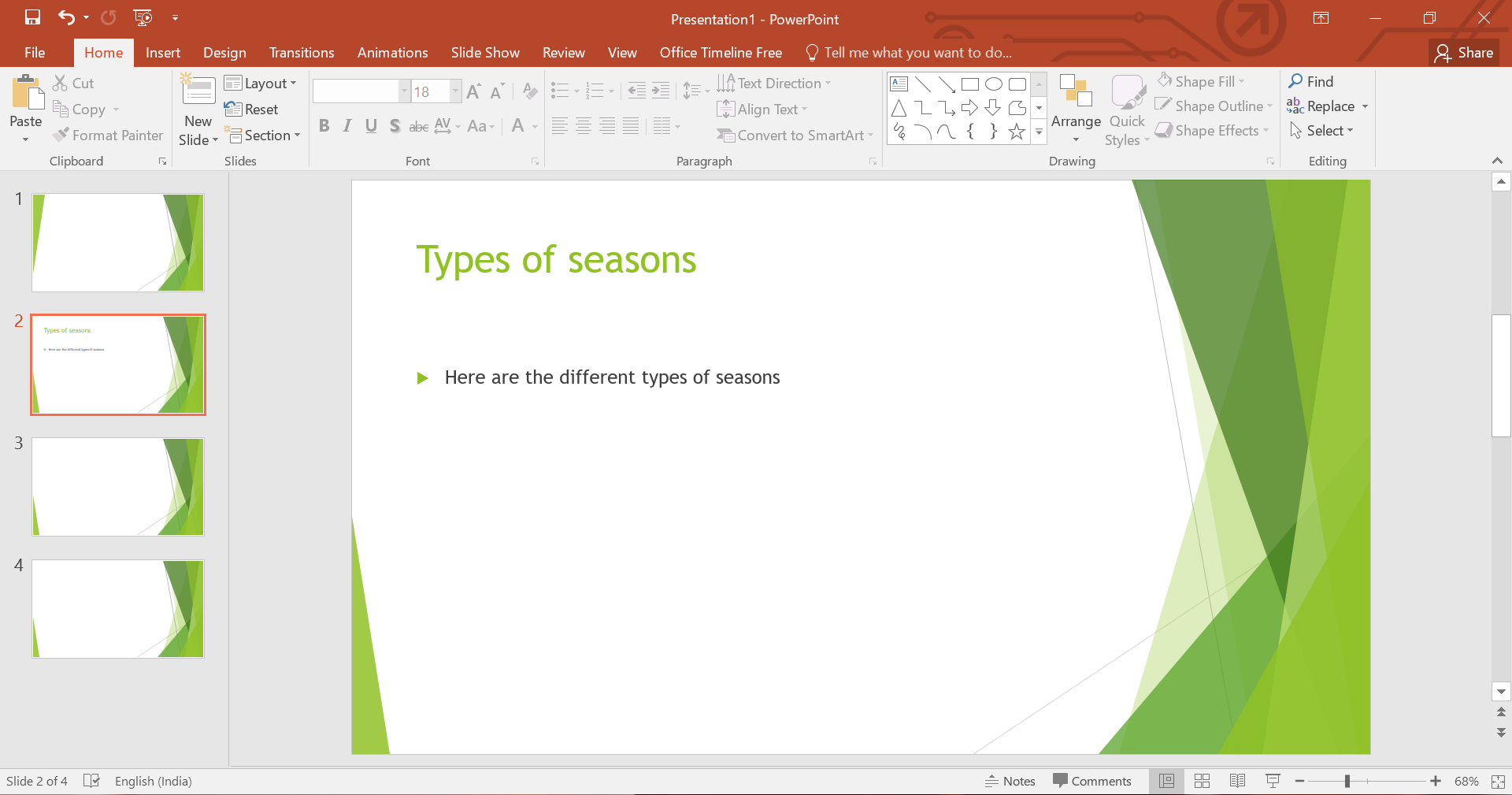
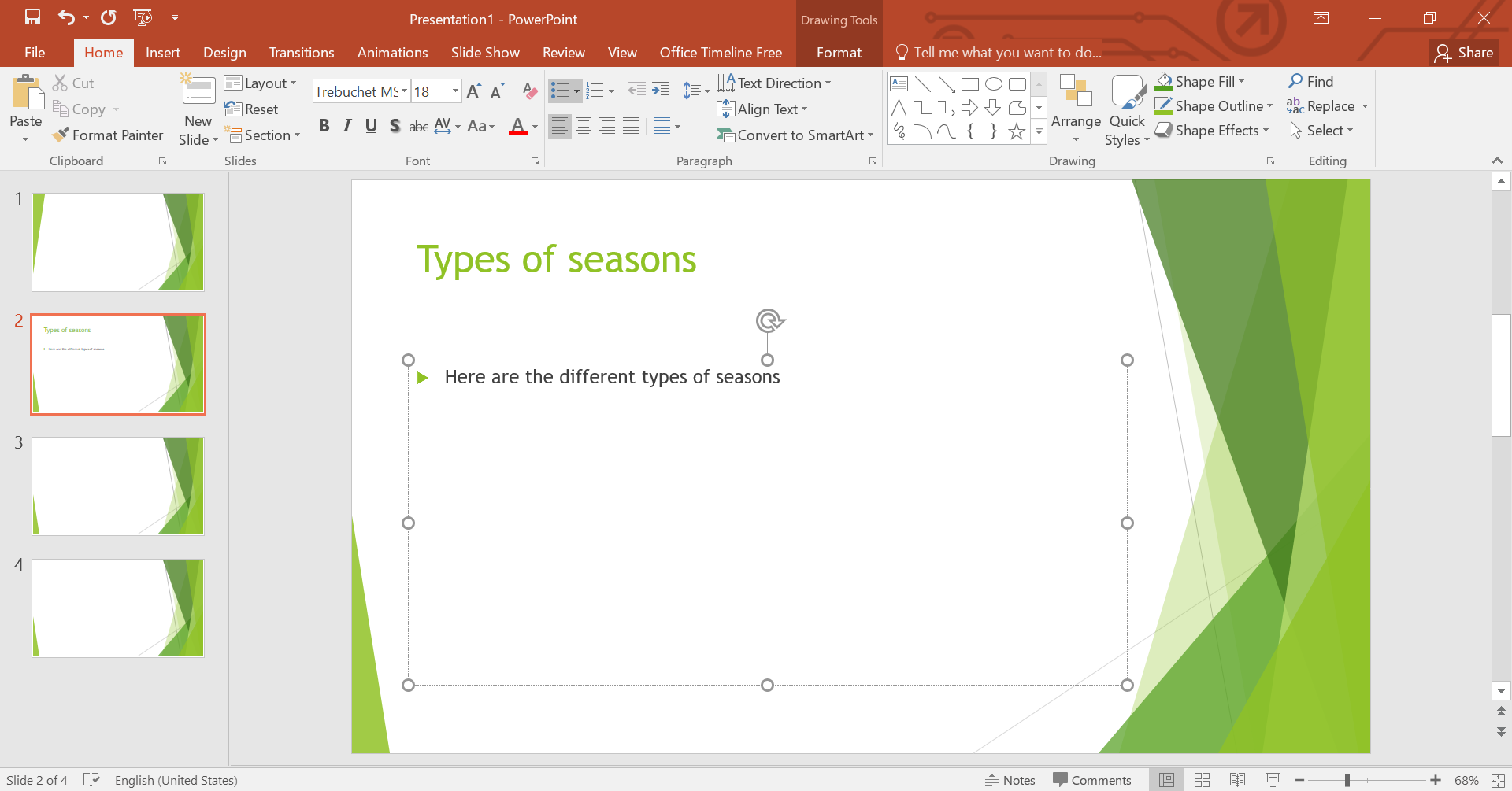
- Edit Text: Click on any text box to add or edit text. Use the formatting options in the ribbon to adjust font size, style, and color.
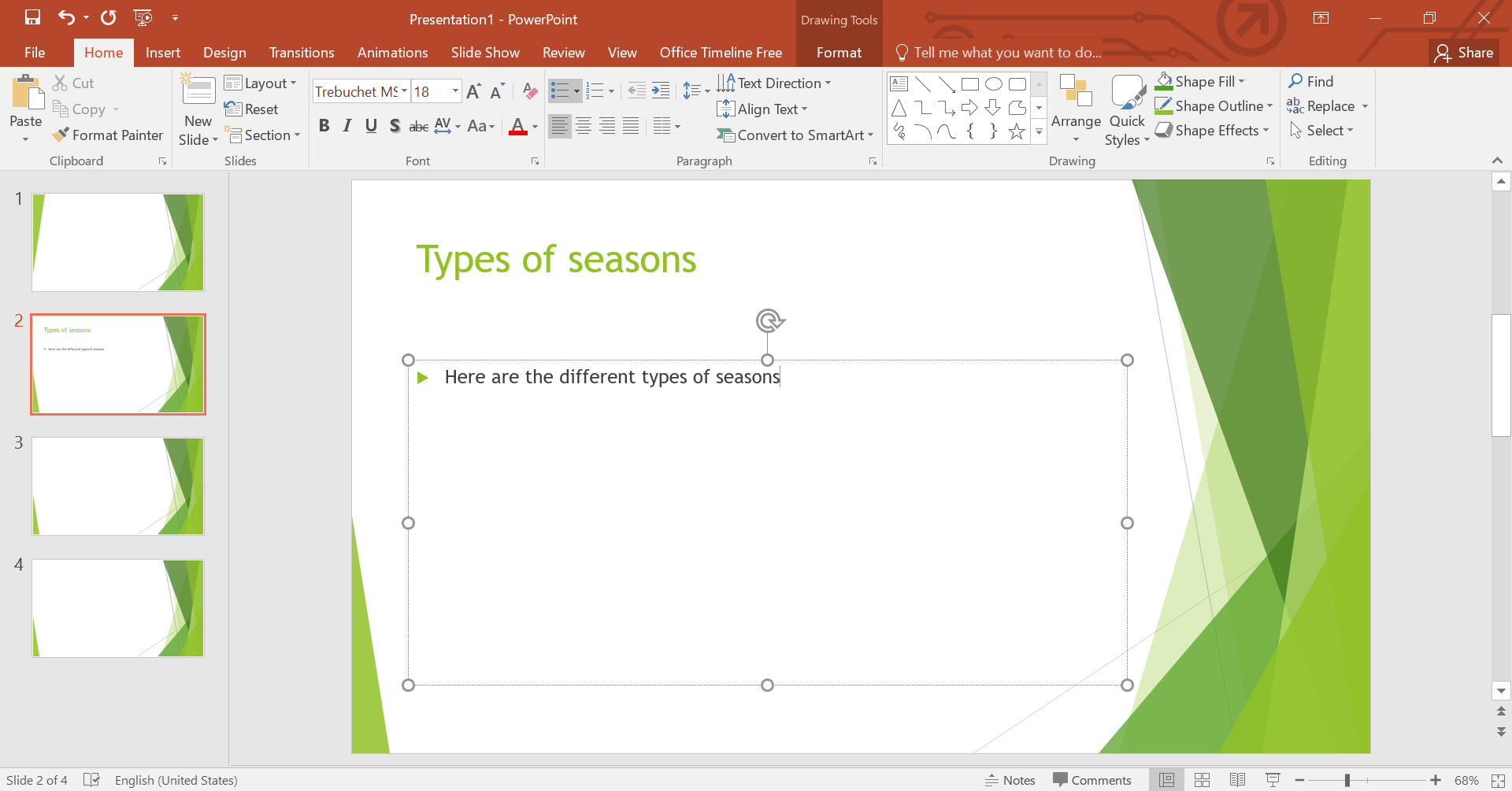
- Add New Elements: Use the 'Insert' tab to add pictures, shapes, charts, and other elements to your slide.
Using Master Slides and Themes
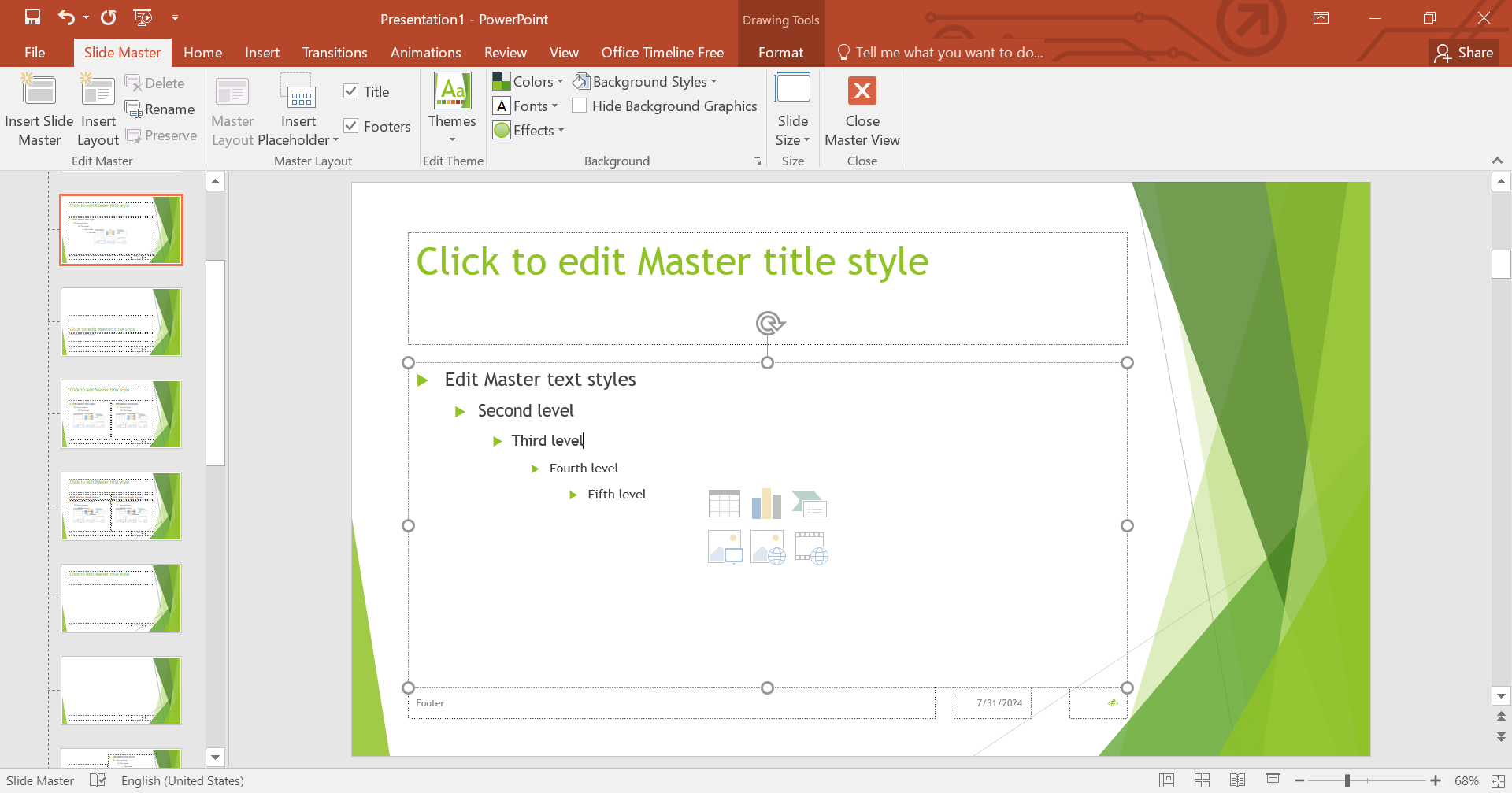
Master slides are powerful tools in PowerPoint that allow you to apply changes consistently across multiple slides.
- Access Master Slide View: Go to the ‘View’ tab and select ‘Slide Master’.
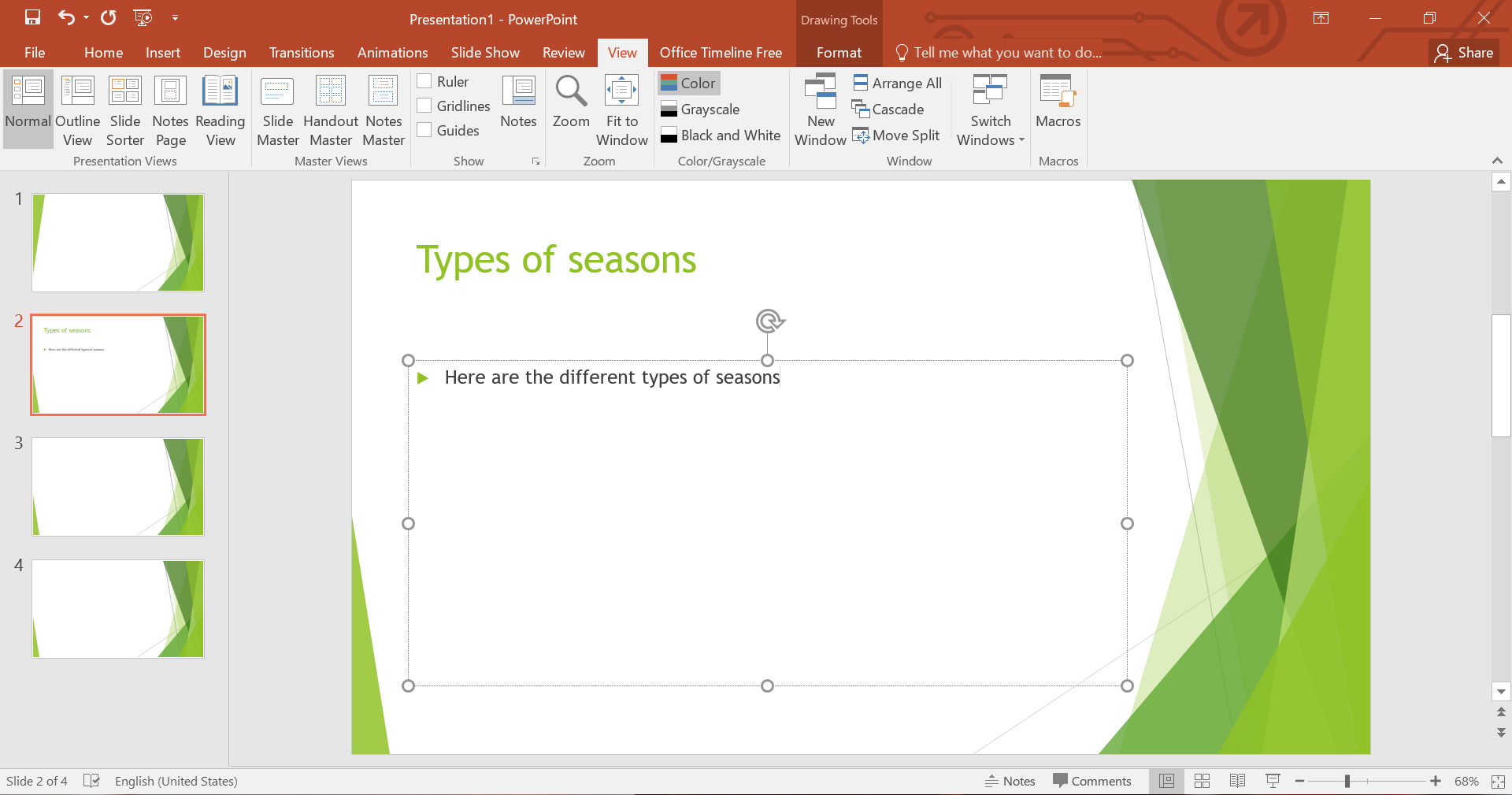
- Modify the Master Slide: Changes here affect all slides using this master slide, such as background color, fonts, and layouts.
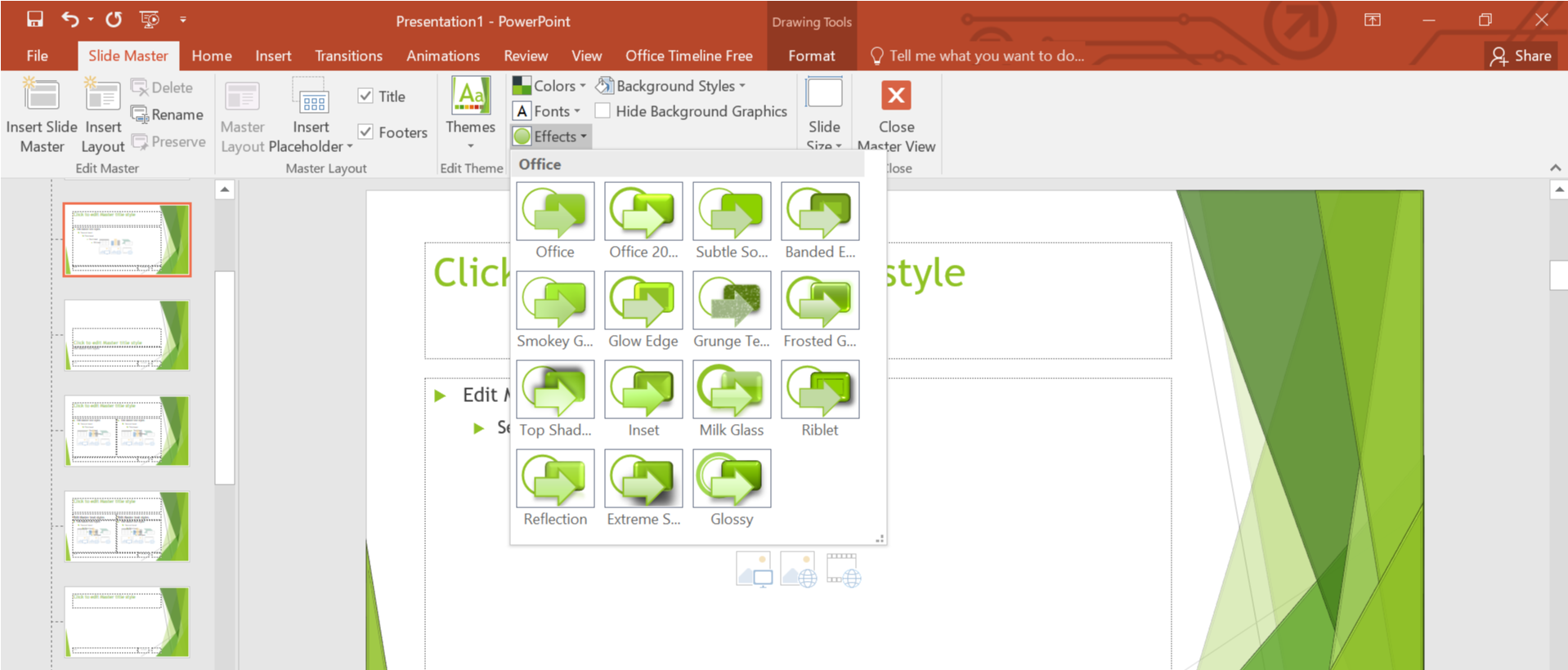
- Apply a Theme: Go to the ‘Design’ tab and choose from various themes to give your presentation a professional look.
Inserting and Modifying Content
PowerPoint supports a wide range of content types:
- Inserting Images and Videos: Use the ‘Insert’ tab to add multimedia elements that make your presentation more engaging.
- Embedding Excel charts: You can insert live Excel charts that update automatically with source data changes.
- Hyperlinks and Actions: Add links to external websites or create navigational actions within your presentation.
Applying Transitions and Animations
To make your presentation dynamic:
- Adding Transitions: These are effects that occur when you move from one slide to another. Find these under the ‘Transitions’ tab.
- Animations: Apply animations to text or images from the ‘Animations’ tab to catch the viewer's attention.
Saving Your PowerPoint Presentation
AutoSave Feature
Enable AutoSave by clicking on the top left corner of the PowerPoint window. This saves your work automatically to OneDrive or SharePoint.
Saving Manually
Click on ‘File’ > ‘Save As’ to choose where to save your presentation. Always save your presentation periodically to avoid losing changes.
Saving in Different Formats
PowerPoint allows you to save your presentation in various formats like PPTX, PDF, and even video formats.
Best Practices for Saving and Managing Presentations
- Regular Backups: Regularly backup your files to avoid data loss.
- Version Control: Keep versions of your presentation if you need to revert to an earlier version.
Troubleshooting Common Saving Issues
If you encounter issues while saving, check your file path, ensure you have adequate permissions, and verify that your storage is not full.
Conclusion
Mastering how to apply and save changes in PowerPoint ensures that your presentations are always ready to impress. By understanding the interface, utilizing master slides, and embracing best saving practices, you can make the most out of this powerful tool.
This comprehensive guide should serve as a solid foundation for both new and seasoned PowerPoint users, enabling them to create, modify, and save presentations efficiently and effectively.


