How to Create a Custom Theme in PowerPoint (Full Tutorial)


How to create a custom theme in PowerPoint quickly and easily with this complete beginner-friendly guide. Learn to design and save professional PPT themes.
How to Create a Custom Theme in PowerPoint – Beginner to Advanced
Creating a custom theme in PowerPoint is a simple way to design professional presentations. I use custom themes, so I don’t have to format each slide again and again. Today, in this discussion, I’ll show you how I do so. So, let’s start with a quick overview of the custom theme.
What is a Custom Theme in PowerPoint?
A custom theme in PowerPoint is a combination of:
- Colors
- Fonts
- Background styles
- Layout settings
These you can apply to all slides in a presentation. Instead of formatting each slide manually, you build a theme once and reuse it across multiple presentations.
Next, let me explain the reasons why making a custom theme is the best thing is MS PowerPoint.
Also read: Convert Canva Presentations to PowerPoint
Why Make a Custom Theme in PPT
Users create custom themes for several practical reasons:
- Maintain brand consistency with company colors and fonts
- Reduce repetitive formatting work
- Make slides look professional
- Ensure uniform layouts across presentations
Custom themes are especially useful when you’re working on business decks or marketing presentations.
How to Create a Custom Theme in PowerPoint?
Below are the step-by-step instructions I follow to make a custom theme in PPT:
#Step 1. Open a New Presentation
- Open Microsoft PowerPoint
- Click on Blank Presentation
- Make sure I’m on the Home tab
#Step 2. Open Slide Master View
Now, use the Slide Master.
- Go to the View tab
- Click Slide Master
#Step 3. Customize Theme Colors
Here’s how to set custom colors:
- Select the top master slide
- Click Colors from the Slide Master toolbar
- Choose Customize Colors
- Set colors for:
- Text/Background
- Accent colors
- Hyperlink colors
- Click Save
#Step 4. Set Custom Fonts
To change the fonts:
- Click on Fonts
- Select Customize Fonts
- Choose:
- One font for Headings
- One font for Body text
- Save the font set with a custom name
#Step 5. Design Background Styles
Now customize the background:
- Right-click the master slide
- Select Format Background
- Choose:
- Solid fill
- Gradient fill
- Picture or texture
- Adjust transparency and effects
#Step 6. Customize Slide Layouts
- Click each layout under the Slide Master
- Adjust placeholder positions
- Resize title and content boxes
- Add logos or watermarks
#Step 7. Save the Custom Theme
Once you finish the design:
- Click Themes
- Choose Save Current Theme
- Give your theme a name
- Click Save
PowerPoint stores the theme and lets you reuse it in future presentations.
Related guide: How to Add a YouTube Video to PowerPoint
How to Apply the Custom Theme to a Presentation?→
After learning how to create a custom theme in PowerPoint, it’s time to learn how to apply it:
- Open a new or existing PowerPoint file
- Go to the Design tab
- Click Browse for Themes
- Select your saved theme
Now, your entire presentation updates instantly with the custom design.
How to Create a Custom Theme in PowerPoint Using a Cutting-edge Solution→
If you’re looking for an automated solution that can create a theme and apply it automatically, you can try MagicSlides AI Presentation Maker for free. This AI-based tool helps me generate ready-made slides from simple text prompts.
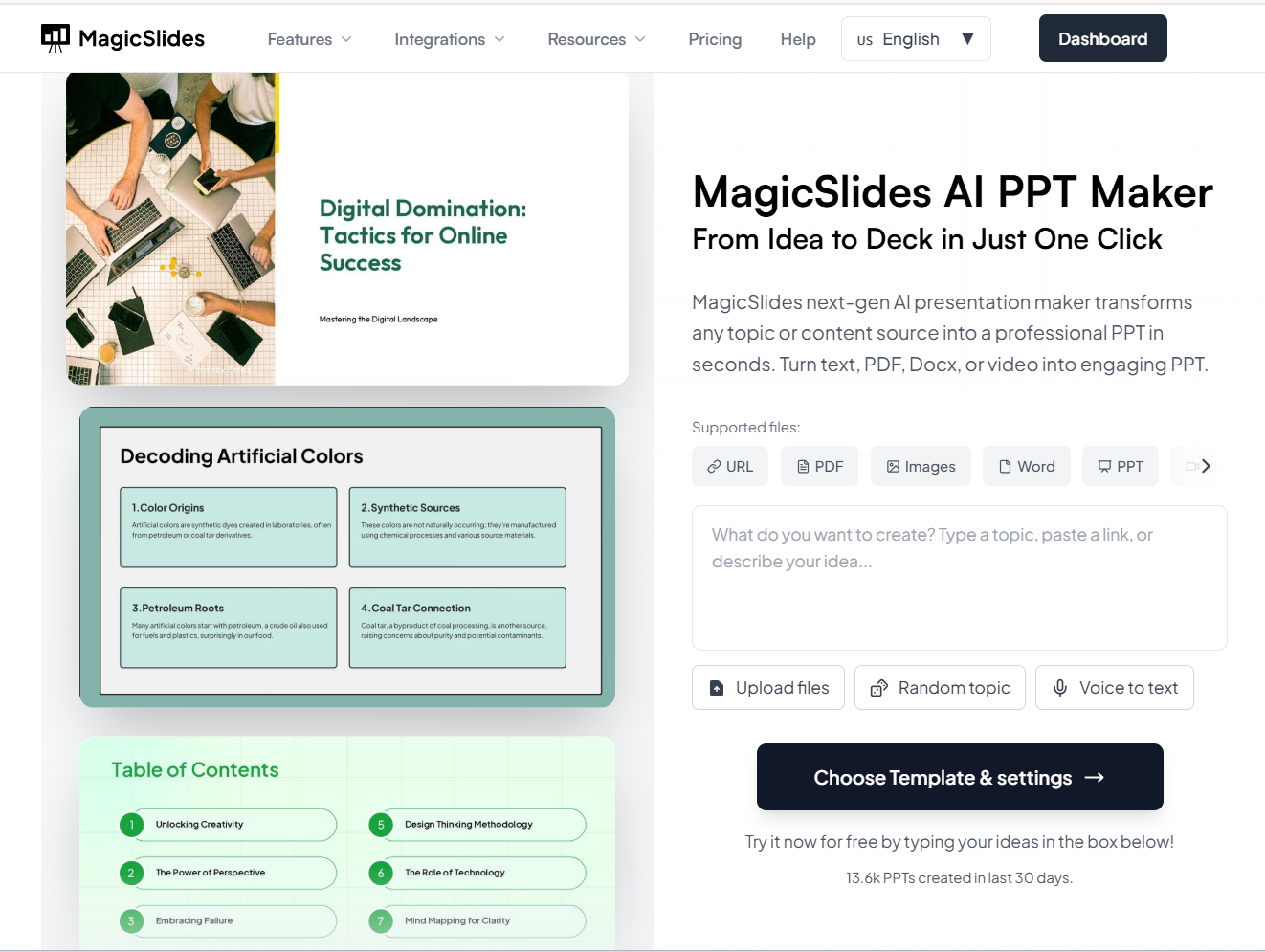
With this, you can:
- Instantly create slides from topics or documents
- Apply modern slide layouts automatically
- Numerous customizable options, i.e., colors, fonts, and themes
- Offers several template options for professional or educational use
- Export the presentation directly to PowerPoint format
It reduces the effort of designing slides from scratch. So, sign in now for free, and follow the steps to create a customized PPT:
- Enter a topic or paste content in the prompt box.
- Choose a theme or style according to your presentation’s purpose.
- Generate the slides, and the tool will create a complete deck within seconds.
- Download the PPT file and open it in PowerPoint.
Done! Your PPT is created within seconds with your customizable templates and designs.
Best Practices to Follow While Creating Custom PowerPoint Themes→
When designing a custom theme, always keep these points in mind for an effortless process:
- Avoid using too many bright colors
- Use readable font sizes
- Keep enough white space
- Maintain a strong contrast between text and background
These small practices help you to create an engaging presentation.
Additional resource: How to use AI to generate images?→
Author’s Verdict
I always recommend learning how to create a custom theme in PowerPoint because it saves time and improves presentation quality. A well-designed custom theme makes presentations more professional and impactful.
I personally recommend opting for MagicSlides AI to make a customizable presentation without any manual intervention within seconds.
People Also Ask
Q1. Can I use my custom theme on another computer?
Yes. Copy the .thmx theme file and upload it to another system.
Q2. Can I edit a saved custom theme?
Yes. Open the theme, go back to the Slide Master, make changes, and save it again.
Q3. Is creating a custom theme difficult?
No, it’s easy once you understand how the Slide Master works.


