How to Insert a YouTube Video into PowerPoint in 2 Mins


How to add a YouTube video to PowerPoint is explained clearly. Embed or link videos directly to slides and make your presentations more engaging.
How to Add a YouTube Video to PowerPoint (2025 Step-by-Step Guide)
Adding a YouTube video to PowerPoint presentation is one of the quickest ways to make your slides more engaging. With this, you can explain a concept or add a visual example. PowerPoint makes it easy to embed or link YouTube videos directly into your slides. Today, I’ll explain how to insert YouTube video into PowerPoint step by step using the latest 2025 methods.
Why Insert YouTube video into PowerPoint?
First, let me quickly explain why embedding videos from YouTube can be so effective:
- A short YouTube clip can explain something quickly.
- When explaining a complex topic, embedding a relevant YouTube video makes it easier to understand.
- Presentations that include videos flow more naturally. They break the monotony and keep the audience focused.
- Instead of creating custom visuals or animations, use a YouTube video that already delivers the message perfectly.
- YouTube has millions of educational and professional videos that can instantly enhance any slide deck.
Due to these reasons, most users search for how to add a video from YouTube to PowerPoint. In the next section, I’ll break your curiosity and explain to you how to do so.
How to Add a YouTube Video to PowerPoint?
#Method 1. Using PowerPoint’s Online Video Feature
This is the most straightforward method to insert YouTube video into PPT. Here’s how:
- Open YouTube in a browser.
- Open the video to add.
- Copy the video’s URL from the address bar.
- Now, open the PowerPoint presentation.
- Go to the slide where to embed the video.
- Click Insert > Video > Online Video.
- In the dialogue box, paste the copied YouTube link.
- Click Insert.
Once done, PowerPoint will embed the video directly on your slide. When you present, click Play to stream the YouTube video directly from the slide.
Note: This method requires an active internet connection, since the video isn’t downloaded.
#Method 2. Using the Developer Tab
If you’re using an older version of PowerPoint, like 2016 or 2013, then use the Developer tab to embed the video using an embed code. The steps are as follows:
- Go to File > Options > Customise Ribbon.
- Now, check Developer and click OK.
- On YouTube, click Share under the video.
- Choose Embed.
- Copy the HTML code shown.
- Afterwards, in PowerPoint, go to the Developer tab.
- Click More Controls.
- Choose Shockwave Flash Object and click OK.
- Draw a rectangle on the slide where the video will appear.
- Right-click the box > Properties.
- In the Movie field, paste the YouTube embed code.
This method is a bit technical, but it’s helpful if the above option, i.e., Online video, isn’t working properly.
#Method 3. Insert YouTube Video as a Clickable Link in PPT
Sometimes users prefer to link a video instead of embedding it, especially when needed to access without internet access:
- Insert a Thumbnail or Text, or add a screenshot of the YouTube video.
- Now, select the image or text.
- Click Insert > Link.
- Paste the YouTube URL and hit OK.
Now, whenever you click the link, it opens the YouTube video in a browser.
#Method 4. Download and Insert a YouTube Video in PPT
Downloading and then inserting a YouTube video into PowerPoint is another option to add YouTube video to PPT. However, there is no direct option for saving the YouTube video. Therefore, you have to use a third-party solution to get the video in MP4 format.
When you saved the video locally, follow these instructions for further procedure:
- Now, within PowerPoint, click Insert > Video > This Device.
- Browse and select the MP4 video file.
- Click Insert.
When I Need More Than Just an Embedded Video?→
Sometimes, I want to turn YouTube video key points into a complete presentation. Doing that manually takes time with a long video.
In that case, I opt for MagicSlides YouTube to PPT Converter, which automatically converts YouTube videos into PowerPoint or Google Slides presentations in seconds.
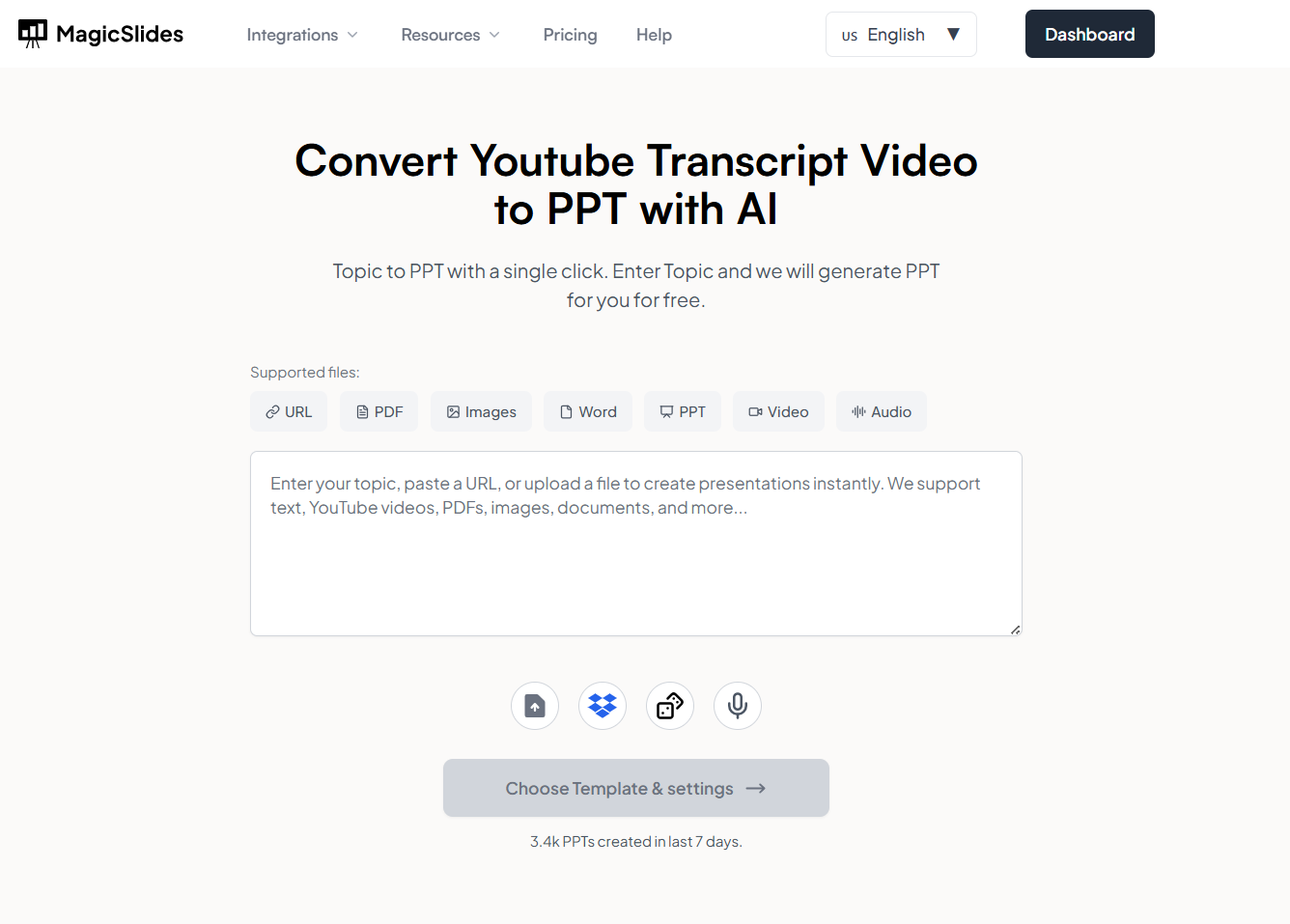
Instead of watching the entire video and then designing slides manually, it does most of that for me automatically. Additionally, it analyses the YouTube video and builds a complete PowerPoint or Google Slides deck that can be downloaded and customised.
Here’s how to use it:
- Open the solution.
- Paste the YouTube video link.
- Let it generate a presentation from the video’s content.
- Download the PowerPoint file and tweak it if needed.
So, within four steps, you easily added YouTube video to PPT. I highly recommend trying this solution for free now to save you hours and effort.
Also read: How can ChatGPT Make a PowerPoint? Step-by-Step
Best Practices for Smooth Playback→
To insert YouTube video into PPT hassle-free, always remember this checklist:
- Always test the video before presenting
- Check sound settings on both your PC and PowerPoint
- Keep a backup of the video offline
- Reinsert the video or update PowerPoint if the player doesn’t load
Author’s Verdict→
Hence, how to add a YouTube video to PowerPoint is resolved. Adding a YouTube video to PowerPoint isn’t complicated once you know the right steps. Personally, I prefer using:
- The Online Video feature for its simple.
- When I’m unsure about the internet connection, I opt for the offline method.
Also read: How to Insert Google Drawing Into Slides?
People Also Ask→
Q1. Can I play a YouTube video in PowerPoint without the internet?
No, if you embed the video using a link, an internet connection is required. For offline use, download and insert the video file.
Q2. Why isn’t my embedded video playing?
It could be due to:
- Blocked URL.
- An Outdated PowerPoint version.
- Poor internet connection.
Q3. Which PowerPoint versions support YouTube embedding?
PowerPoint 2013 and later, including Microsoft 365, support embedding online videos from YouTube.


