How To Add Border To Google Docs?


Learn how to easily add borders to your Google Docs documents with step-by-step instructions for a polished and professional look.
Google Docs is a powerful tool for creating documents, and adding a border can enhance the visual appeal of your document. Whether you're creating a report, flyer, or any other type of document, adding a border can help draw attention to important information. Follow these simple steps to add a border in Google Docs.
How To Add Border To Google Docs?
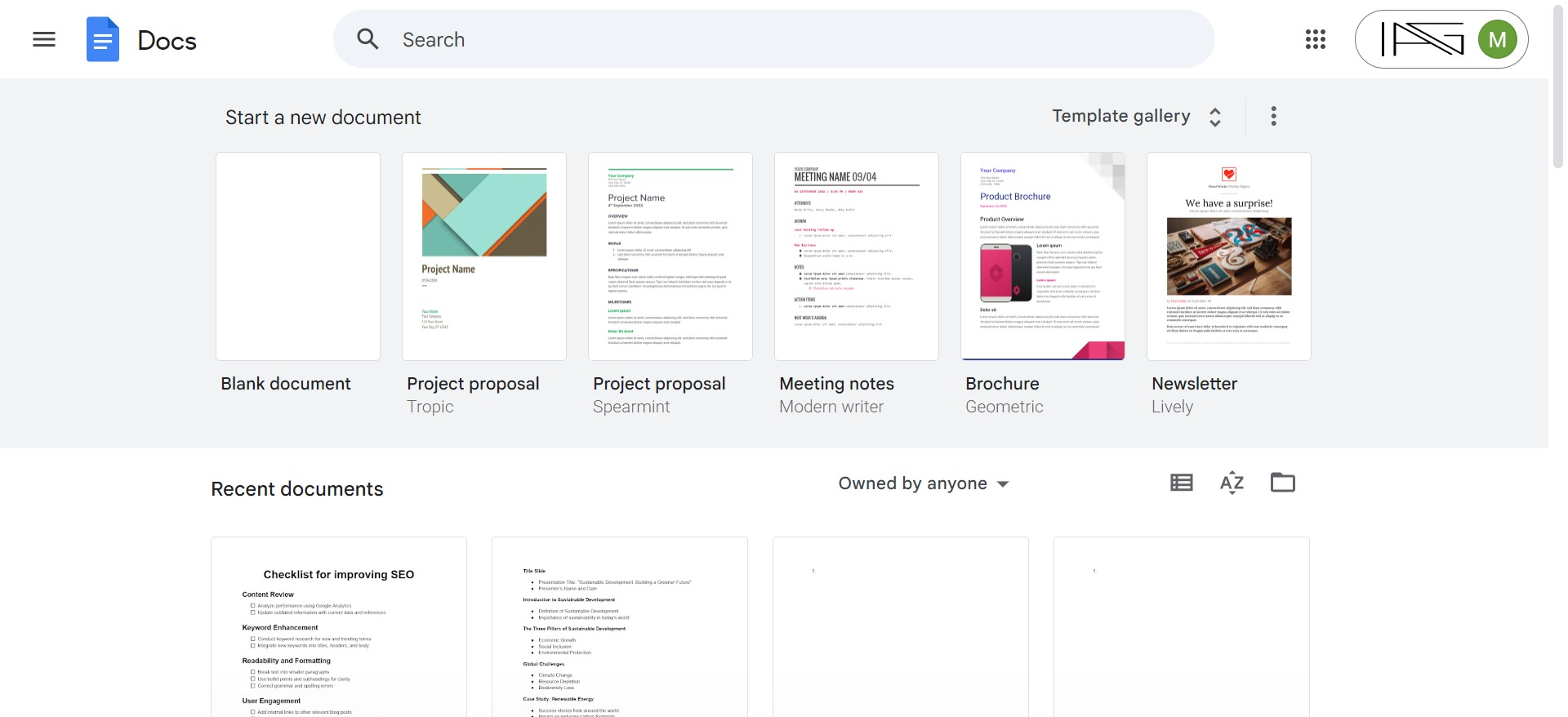
Step 1: Sign in to Google Docs
First, sign in to your Google account and open Google Docs in your web browser.
Step 2: Access the Insert Tab
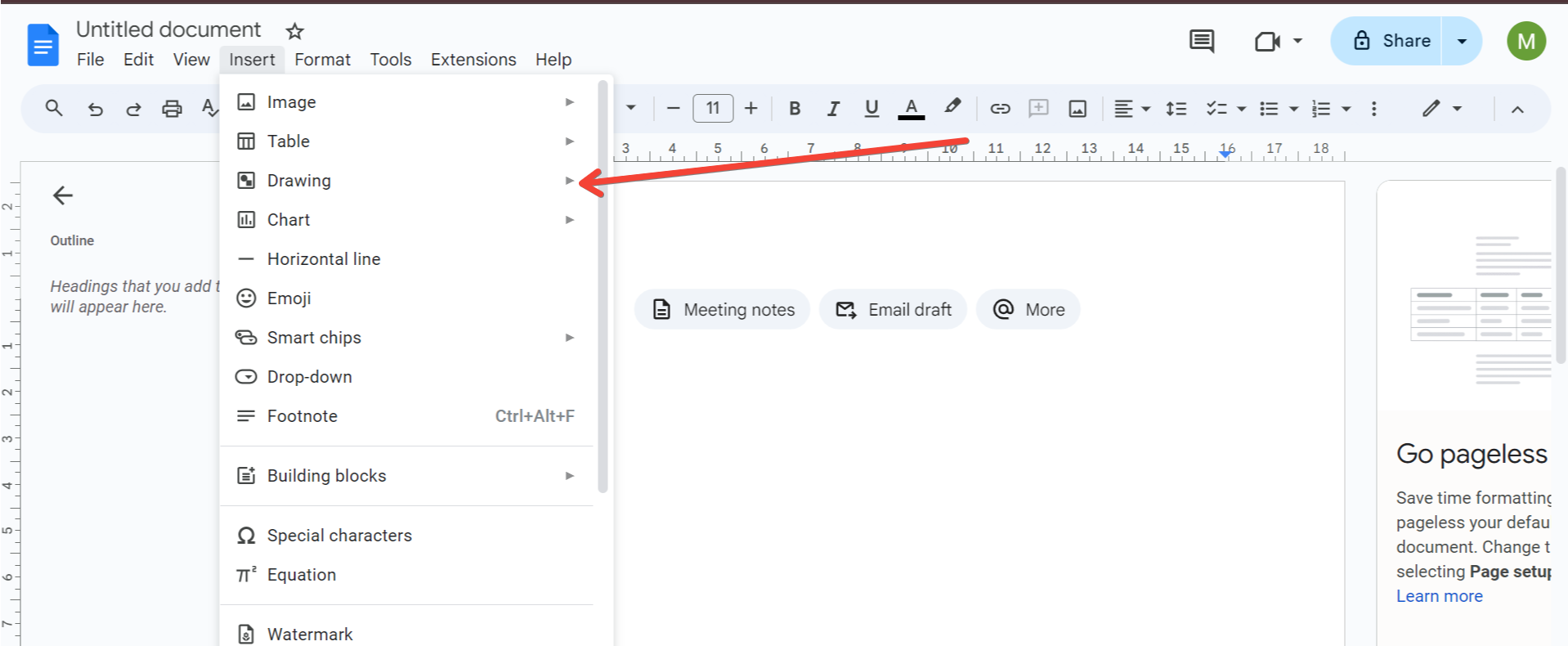
Once you're in Google Docs, locate and click on the "Insert" tab at the top of the screen.
Step 3: Insert a Drawing
In the dropdown menu that appears, click on "Drawing" and then select "New" from the submenu. This will open a new drawing canvas.
Step 4: Create a Rectangle
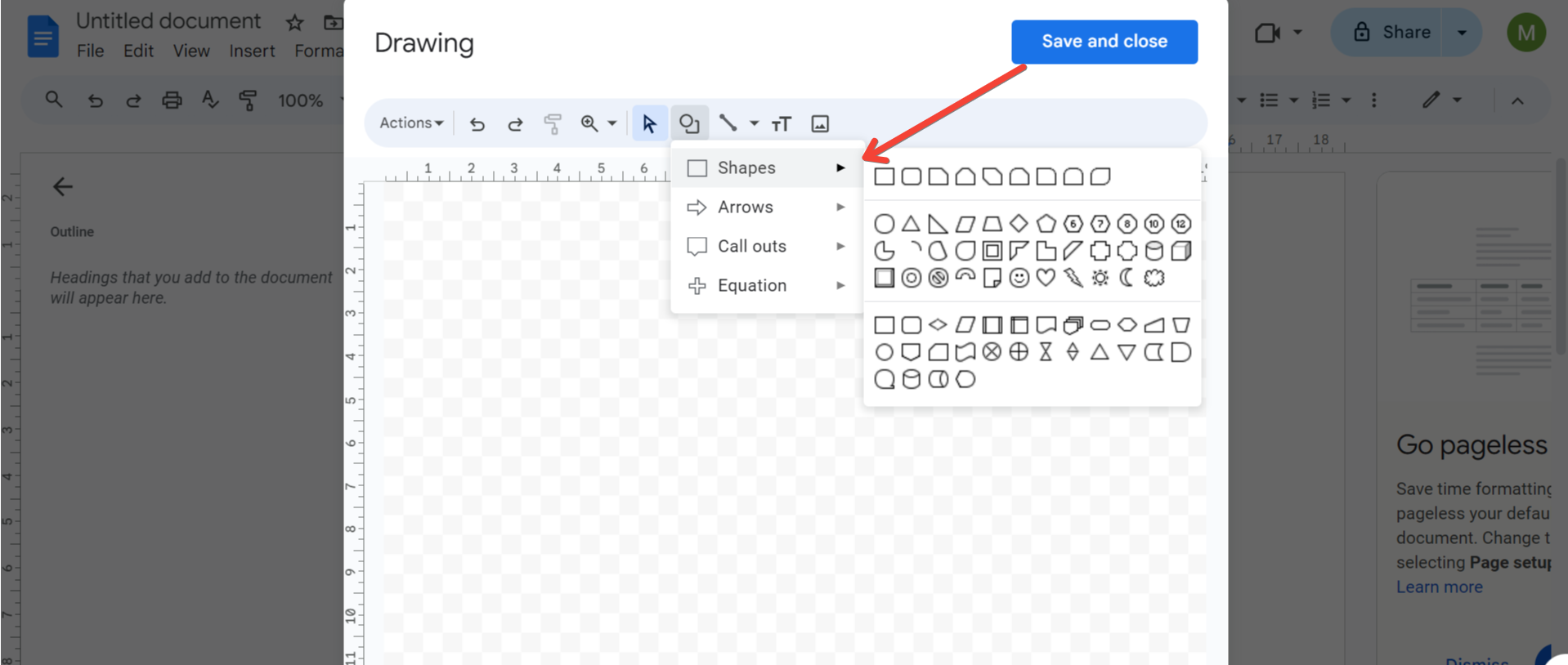
On the drawing canvas, you'll see a toolbar at the top. Click on the shape icon, then choose "Rectangle" from the dropdown menu. Use your cursor to draw a rectangle on the canvas.
Step 5: Make the Rectangle Transparent
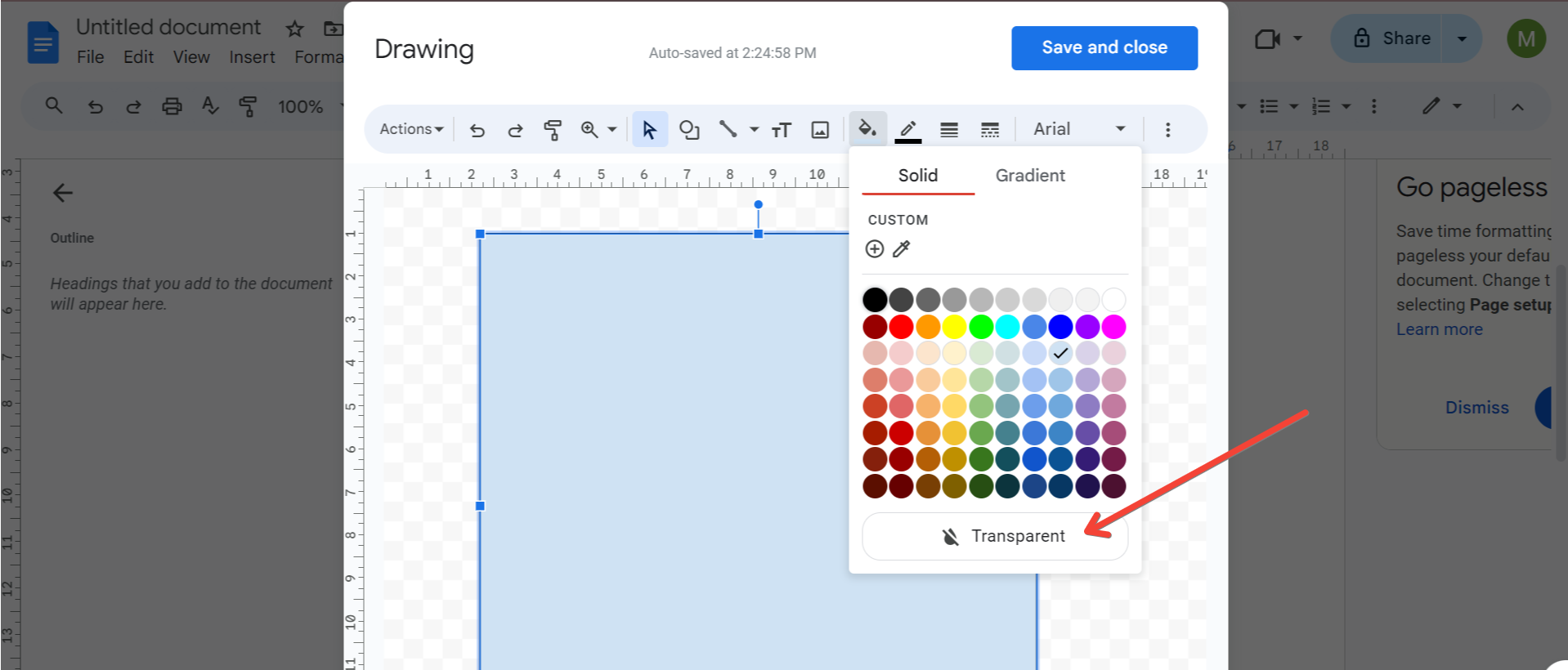
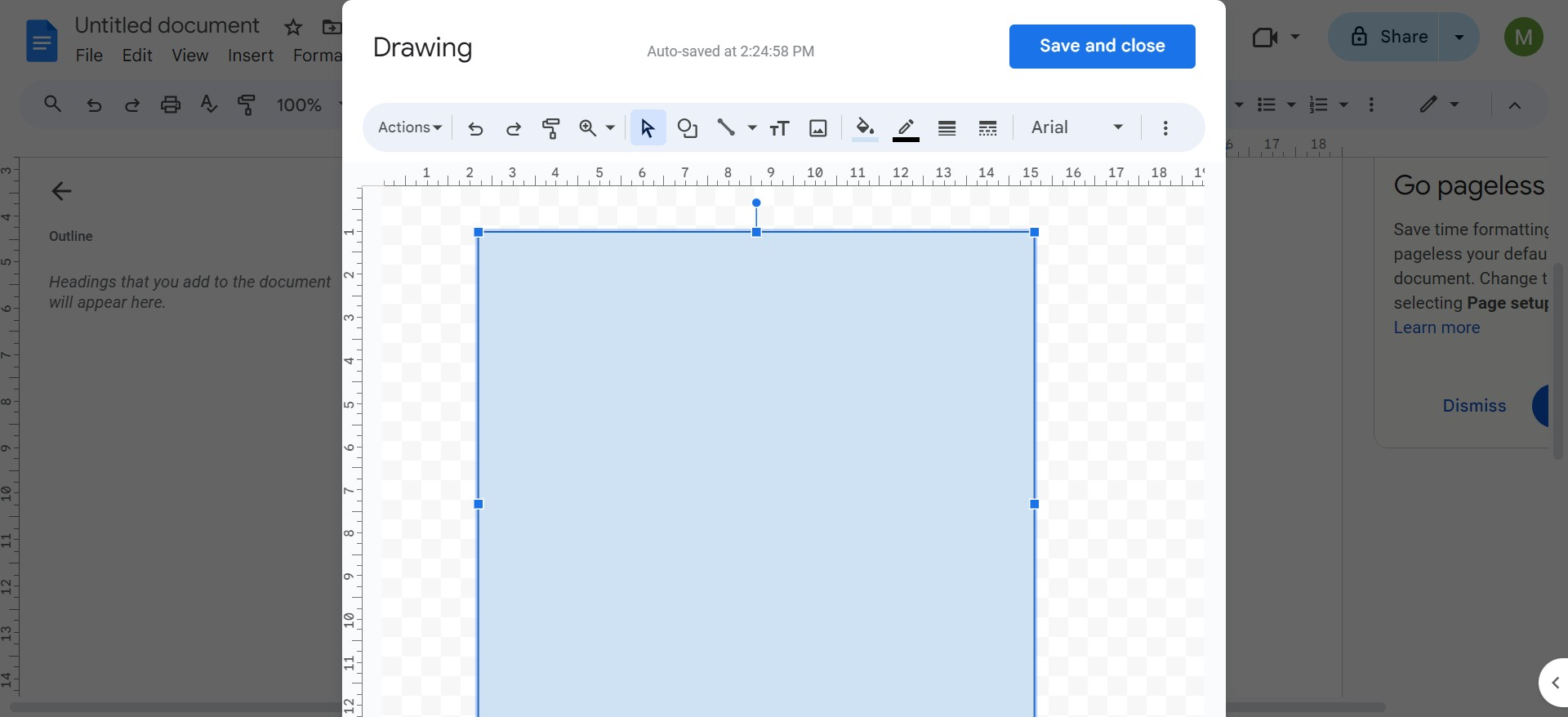
With the rectangle selected, click on the "Fill color" option in the toolbar. Choose "Transparent" from the color options. This will make the rectangle transparent, leaving only the border visible.
Step 6: Add Text
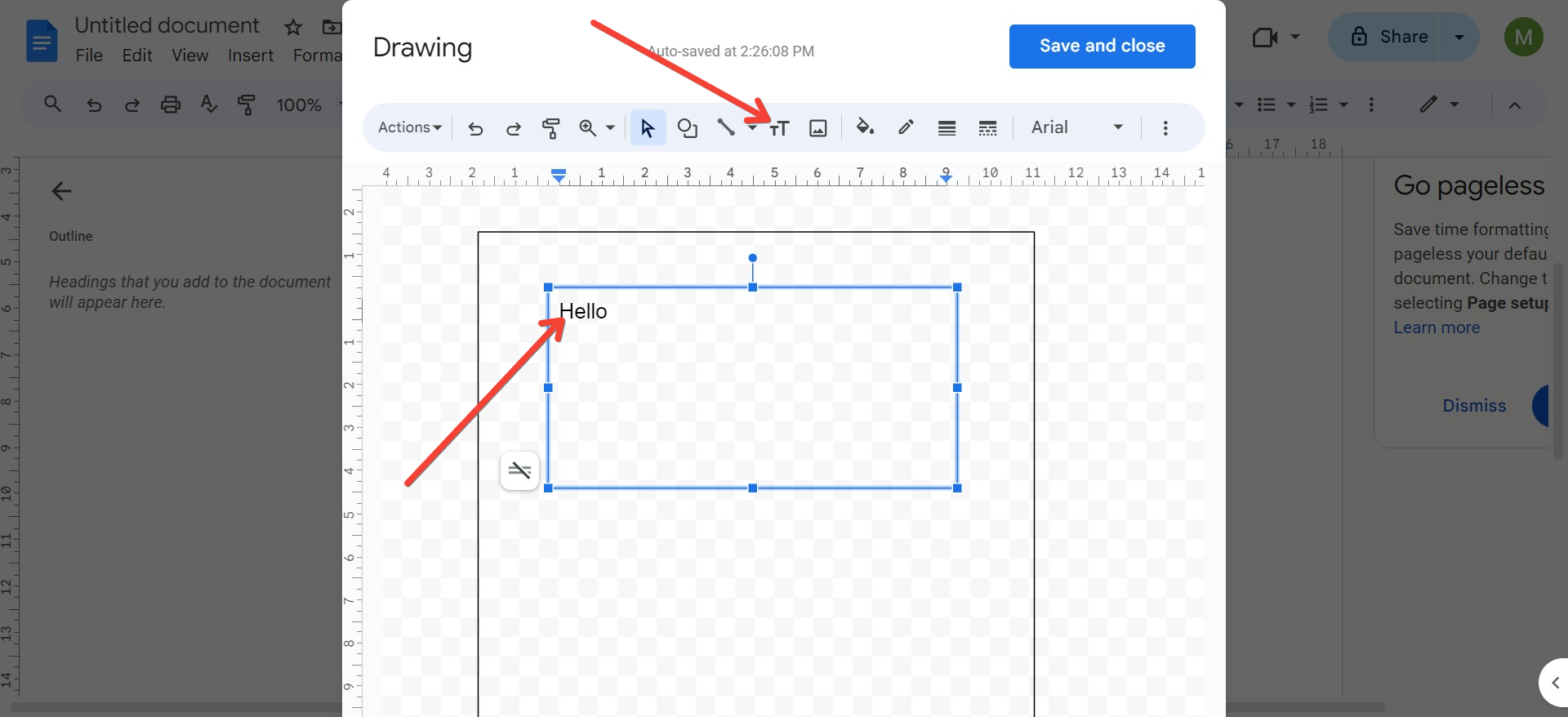
Click on the "Text" icon in the toolbar and then click anywhere inside the rectangle to add text. Type your desired text and use the formatting options to customize the font, size, and alignment as needed.
Step 7: Save and Close
Once you're satisfied with the border and text, click on the "Save and close" button in the top right corner of the drawing canvas. This will insert the border into your Google Docs document.
Step 8: View the Border in Google Docs
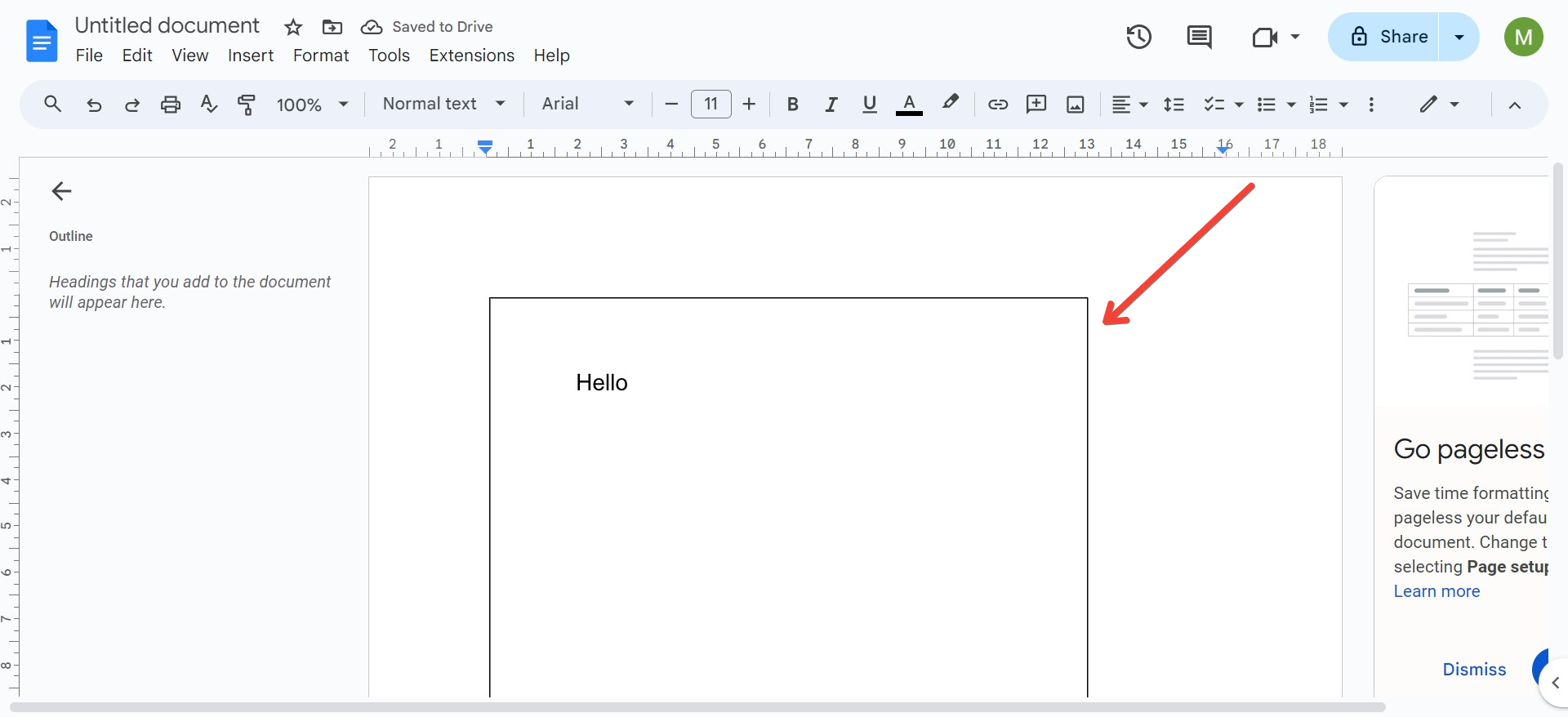
You'll now see the border and text added to your Google Docs document. You can resize or move the border as needed by clicking and dragging it.
Conclusion
Adding a border in Google Docs is a simple way to enhance the appearance of your documents and draw attention to important information. By following these easy steps, you can create professional-looking documents with ease.
Frequently Asked Questions
Can I change the color of the border?
Yes, you can customize the color of the border by selecting a different fill color when creating the rectangle in the drawing canvas.
Can I resize the border after adding it to my document?
Yes, you can resize the border by clicking and dragging the corners or edges of the rectangle in the drawing canvas.
Can I add multiple borders to a single document?
Yes, you can add multiple borders to a single document by repeating the steps outlined above for each border you want to add.
Can I add borders to specific sections of my document?
Yes, you can add borders to specific sections of your document by placing the drawing canvas in the desired location and following the steps to create a border within that canvas.
Can I add borders to tables in Google Docs?
While Google Docs does not have a built-in feature for adding borders to tables, you can use the drawing canvas method described above to create borders around tables or specific cells within a table.


