Adding narration to your Google Slides presentation can make it more engaging and effective, especially for remote or asynchronous presentations.
While Google Slides doesn’t have a built-in narration feature, you can easily add audio files to each slide to simulate narration.
Follow this guide to learn how to record, upload, and add narration to your Google Slides.
How to Add Narration to Google Slides: A Step-by-Step Guide
Step 1: Record Your Narration
Start by recording the narration for your presentation.
You can use any audio recording tool, such as Audacity, Voice Memos (on iOS), or Voice Recorder (on Windows).
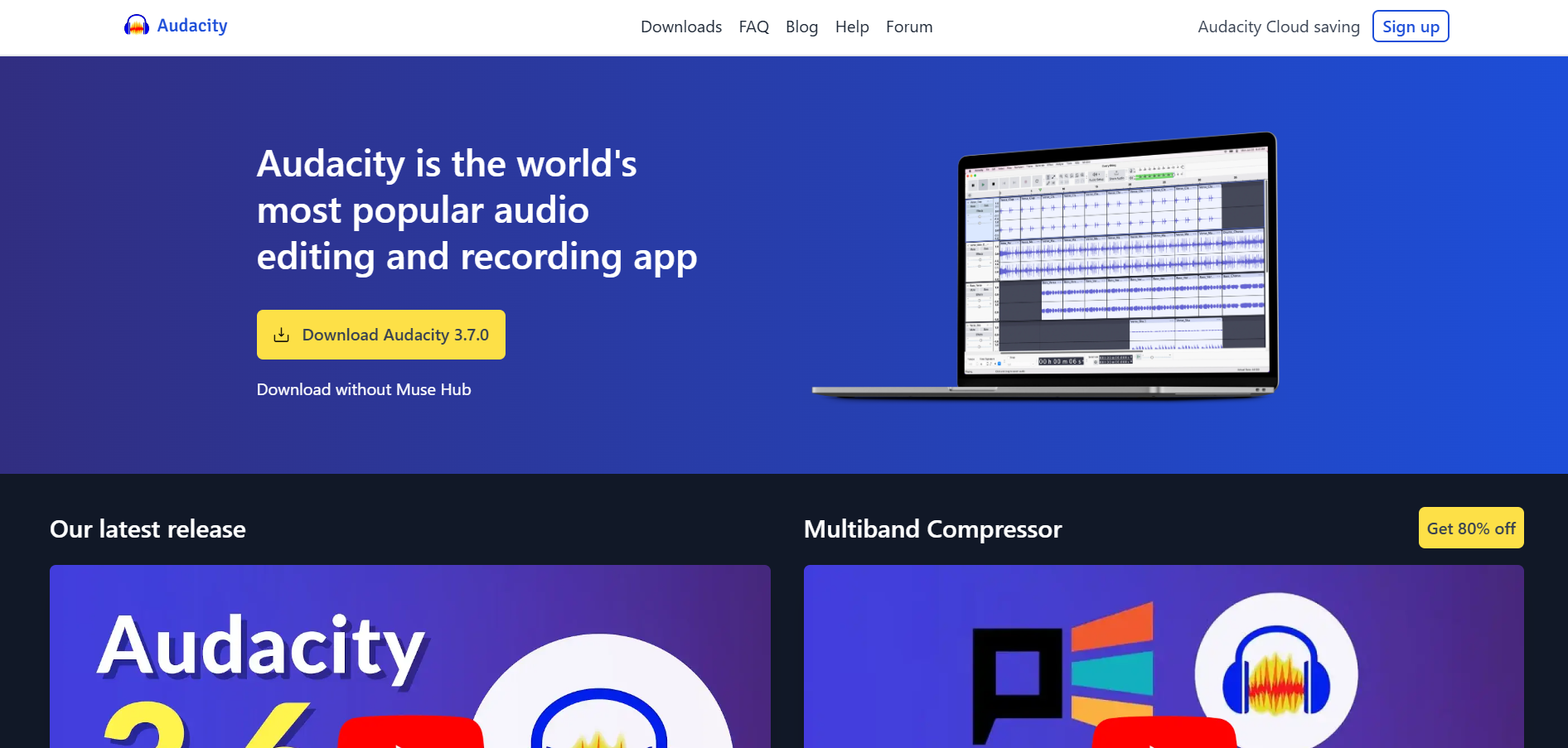
Make sure to save each audio file in a compatible format, like MP3 or WAV, and name them by slide number for easy organization.
Step 2: Upload Audio Files to Google Drive
Once you’ve recorded your audio files, upload them to Google Drive.
Open Google Drive, click “New,” select “File upload,” and then upload each audio file.
Organizing your files into a specific folder for your presentation can help you keep track of them easily.
Step 3: Insert Audio into Google Slides
Go to your Google Slides presentation, navigate to the slide where you want to add narration, and select “Insert” from the menu bar.
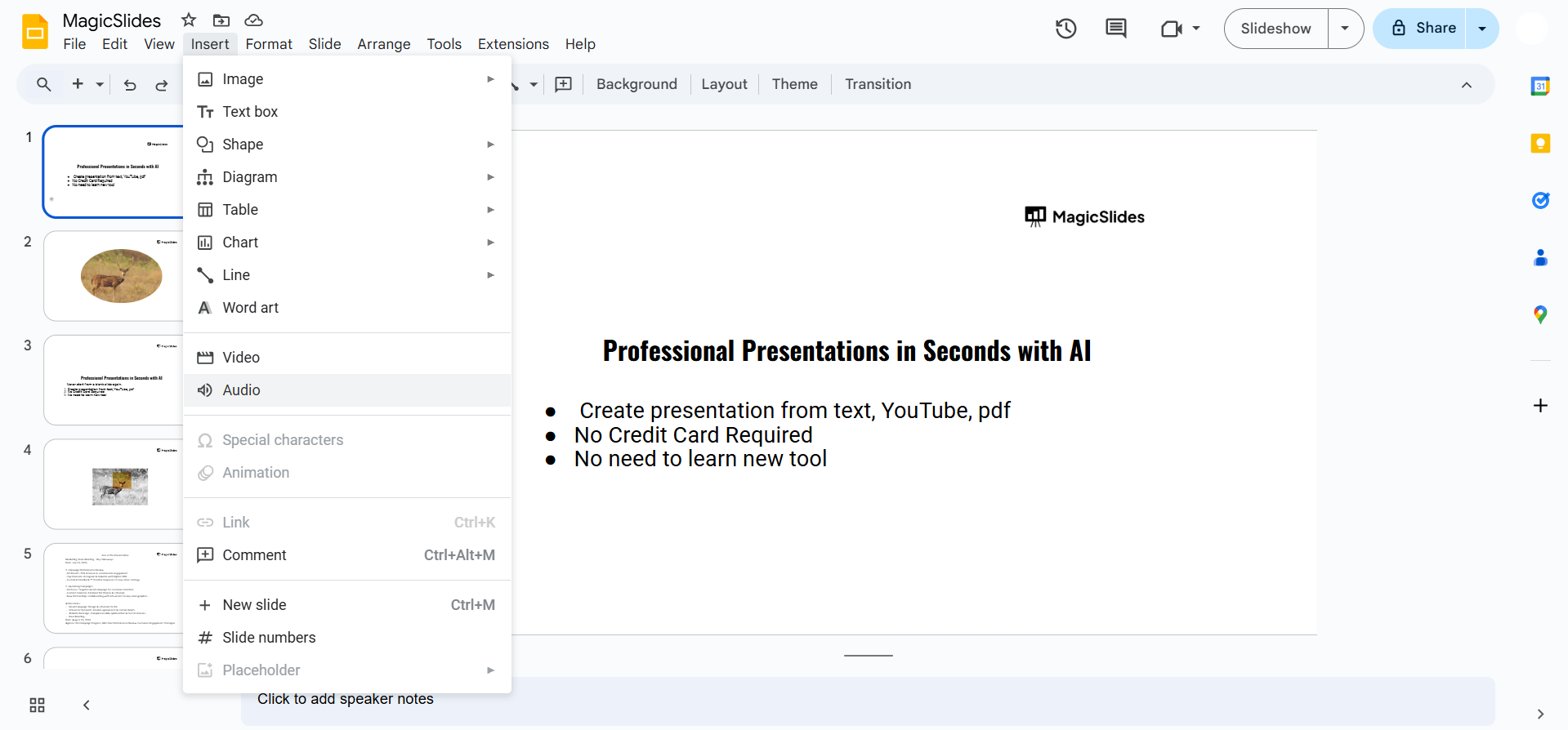
Choose “Audio,” and a menu will appear with your audio files from Google Drive. Select the relevant audio file for the slide, then click “Select” to add it.
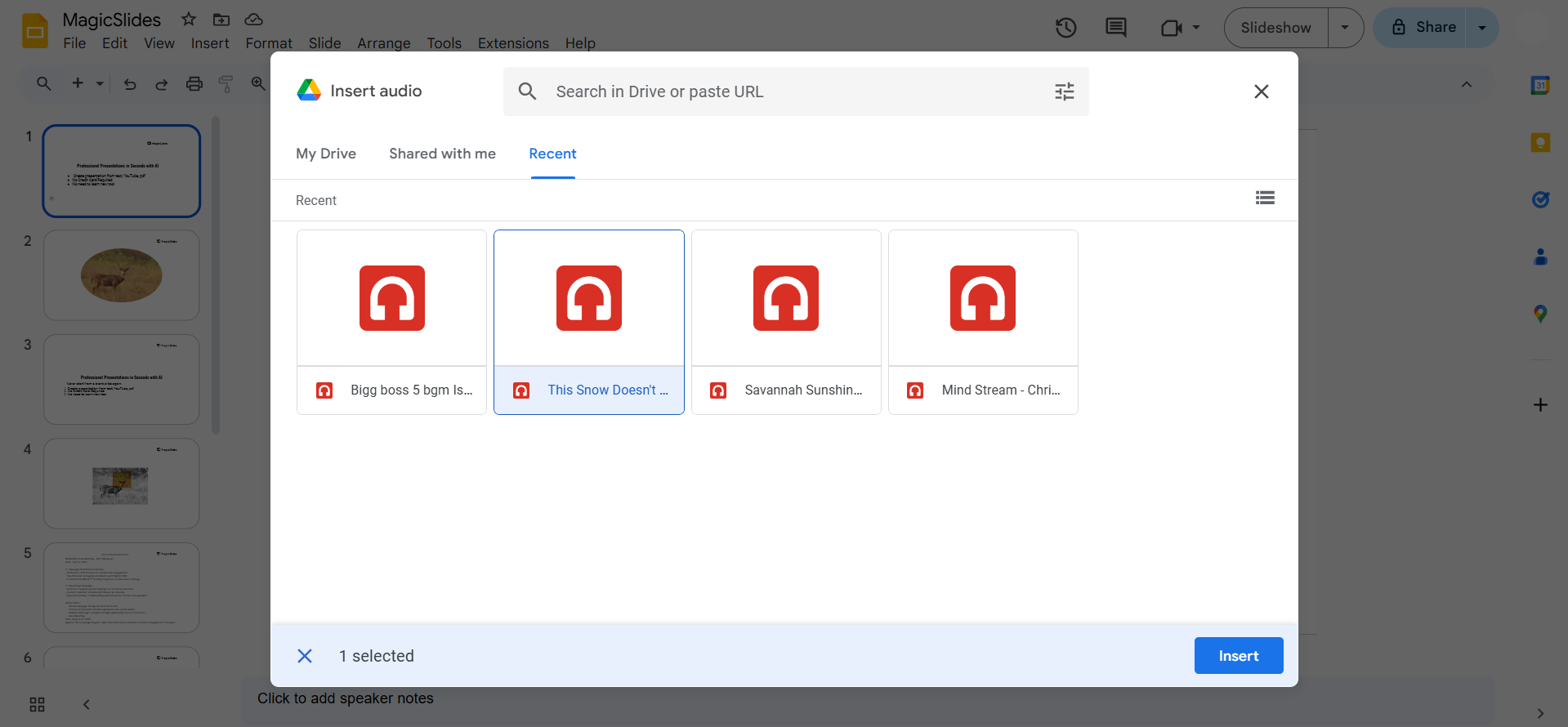
Step 4: Adjust Audio Settings
After adding the audio, an icon will appear on the slide. Click on it, and then open the “Format options” pane to adjust settings.
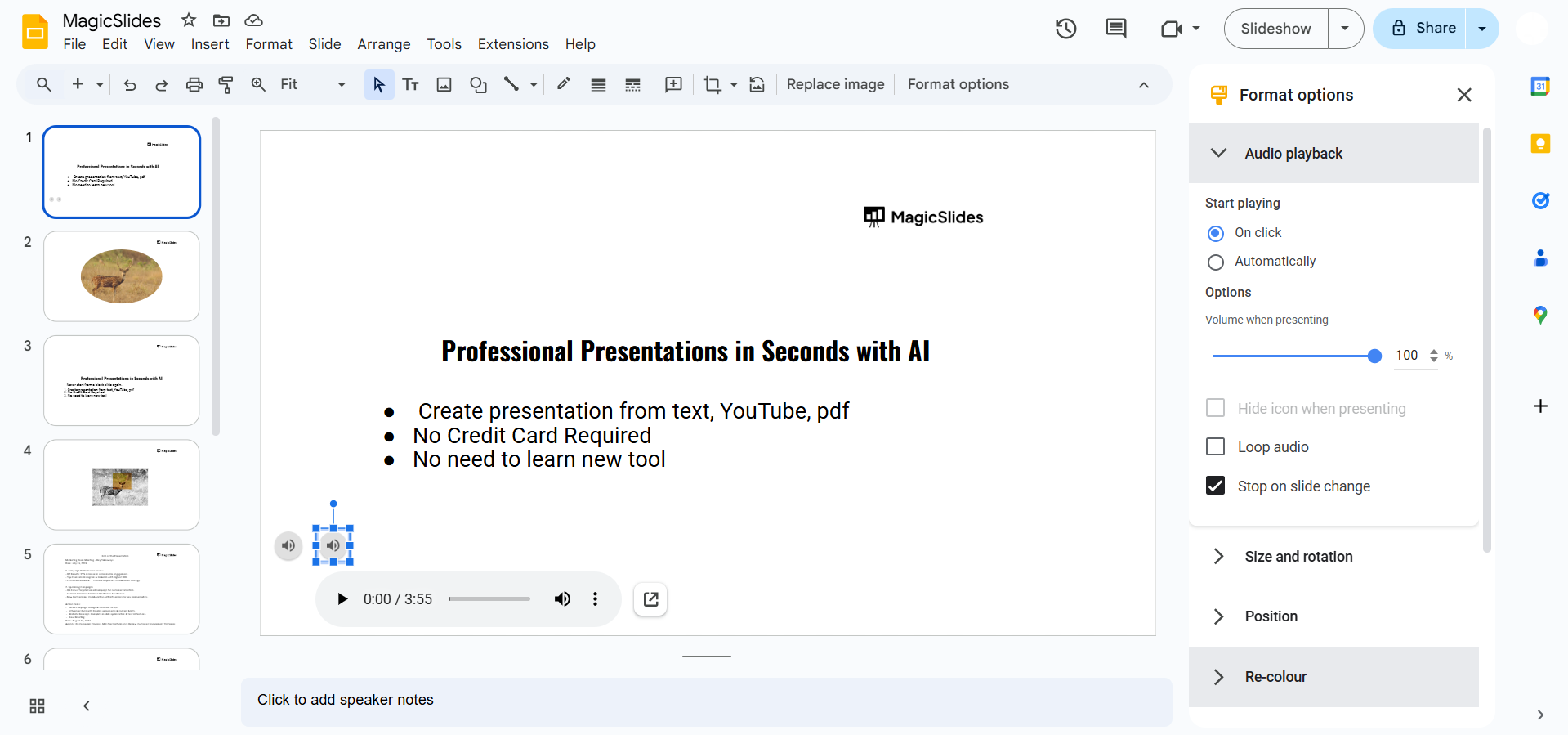
You can choose to play the audio automatically or on click, and set the volume level.
You may also hide the audio icon if you don’t want it visible during the presentation.
Step 5: Repeat for Each Slide
Repeat the process for each slide you want narrated. Insert the appropriate audio file, adjust settings, and ensure all files are correctly placed.
This will help create a seamless narration experience for viewers.
Once you've added narration to your Google Slides, take your presentations up a notch by learning how to record a Google Slides presentation with audio and video for a fully immersive experience
Conclusion
Adding narration to Google Slides can make your presentations more dynamic and accessible, whether for students, clients, or remote audiences.
By following these steps, you can incorporate audio narration into your slides, making your content more engaging and informative.
FAQs are here to guide!
Can I edit or change my narration after inserting it?
Yes, you can re-record any narration, upload the new file to Google Drive, and replace the old audio file on the relevant slide.
Will the audio play automatically when I share the presentation?
You can set the audio to play automatically, but note that Google Slides requires users to click on the slide to start audio playback in some cases, depending on viewer permissions.
Is it possible to add background music along with narration in Google Slides?
Yes, you can add background music to the first slide and set it to loop, then insert narration separately on each slide.
However, be cautious to balance volumes so the narration is still clear.
Share on socials
More from the blog
How to Insert Bitmoji into Google Slides? Complete Guide
19 March 2026
How to Open a Google Slides Presentation in 4 Steps
19 March 2026
How to Convert PPT to Google Slides - Complete 2026 Guide
19 March 2026
Top 12 PowerPoint Alternatives Compared – Find the Best Presentation Tool
17 March 2026
Genetics Topics for Presentation: 100+ Comprehensive Ideas
17 March 2026
Interesting Biology Topics for Presentations: 100+ Captivating Ideas
17 March 2026
How to add morph Transition in PowerPoint
15 March 2026
How to animate google slides
10 March 2026
50+ Funny Presentation Topic Ideas to Get You Started
5 March 2026
