How to Add Voice Memos to Google Slides in 60 Seconds


How to add voice memos to Google Slides quickly? Go through this article find five quick and easy steps to add voice memo in Google Slides.
In today’s digital age, presentations have evolved beyond static slideshows. Adding voice memos to your Google Slides can bring a dynamic and engaging element to your presentations, allowing you to convey information with a personal touch. Whether you’re an educator, a business professional, or a student, integrating voice memos can elevate your presentations to a whole new level. In this step-by-step guide, we’ll walk you through the process of seamlessly incorporating voice memos into your Google Slides.
Why Add Voice Memos to Google Slides?
- Makes presentations more interactive
- Helps with remote learning and training
- Improves accessibility
- Saves time during presentations
- Useful for asynchronous presentations
Add Voice Memos to Google Slides in Less Than 5 Steps
Follow along the steps below to insert voice memos in Google Slides.
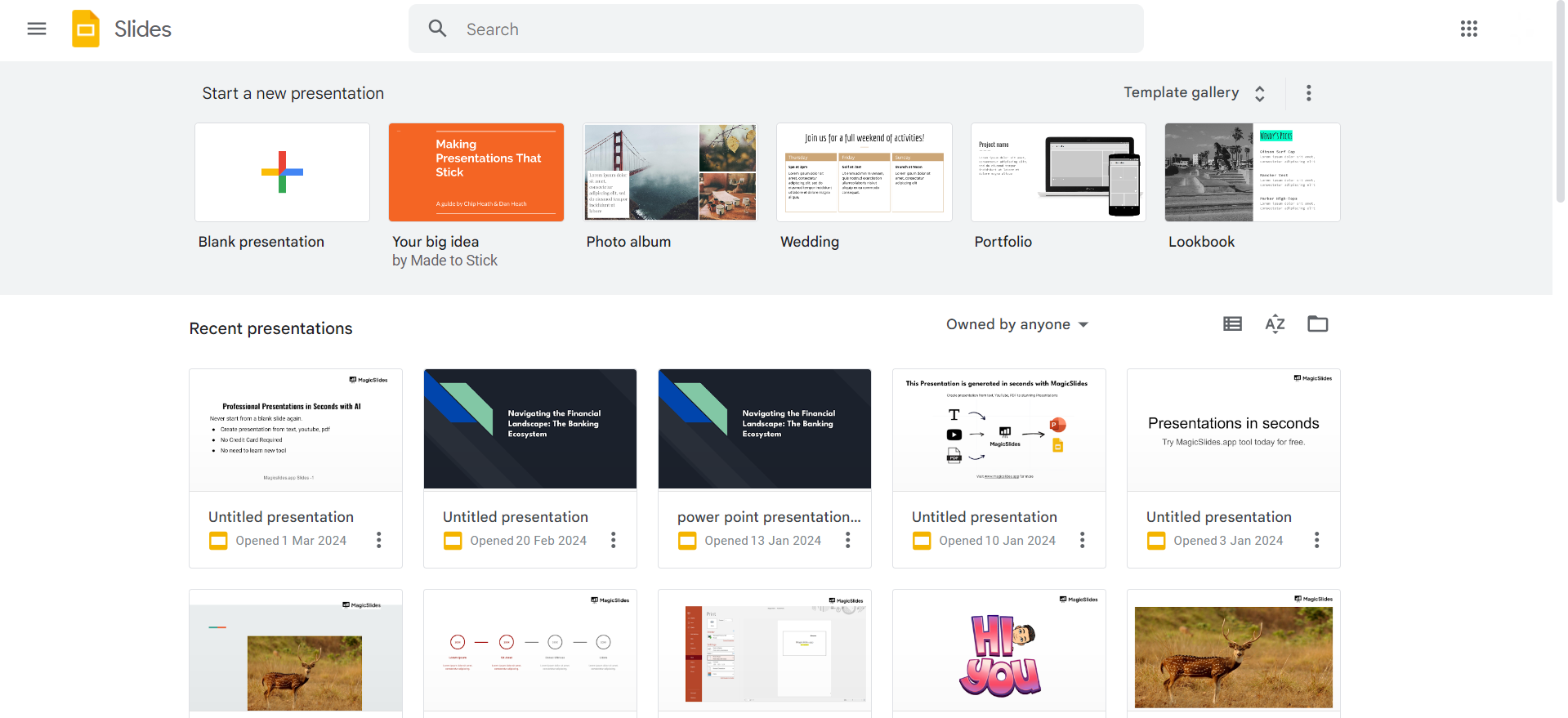
Step 1. Open Your Google Slides Presentation
Begin by opening the Google Slides presentation where you want to add voice memos. If you haven’t started a presentation yet, create a new one by navigating to your Google Drive and selecting “New” > “Google Slides.”
Step 2. Select the Slide
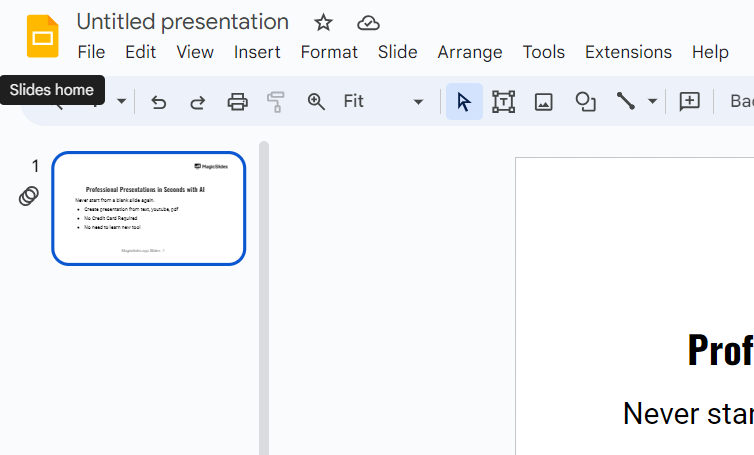
Choose the slide to which you want to add a voice memo. Click on the slide in the left sidebar to ensure that it is the active slide.
Step 3. Insert Audio
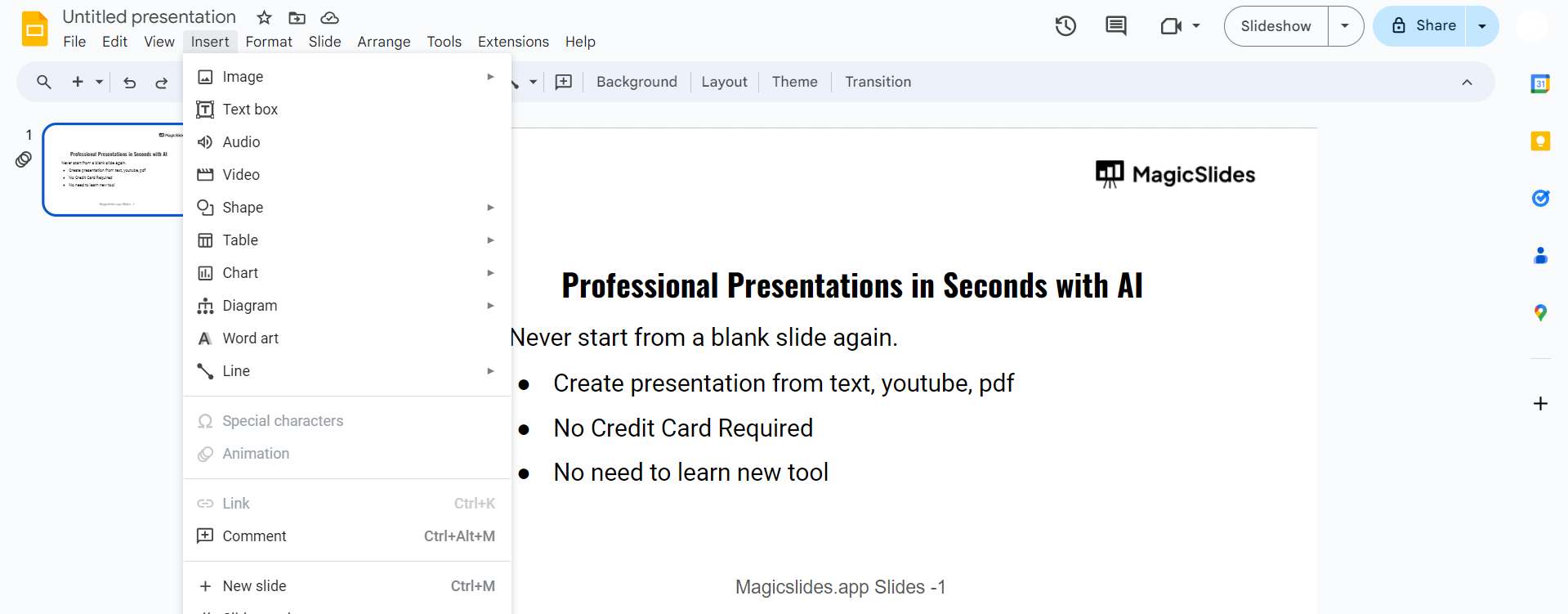
In the top menu, click on “Insert” and then select “Audio.” A dropdown menu will appear – choose “Voice recording.”
Step 4. Record Your Voice Memo
A recording window will pop up. Click the red “Record” button to start recording your voice memo. Begin speaking clearly into your microphone. Click the “Stop” button when you’re done.
Step 5. Inserting the Voice Memo
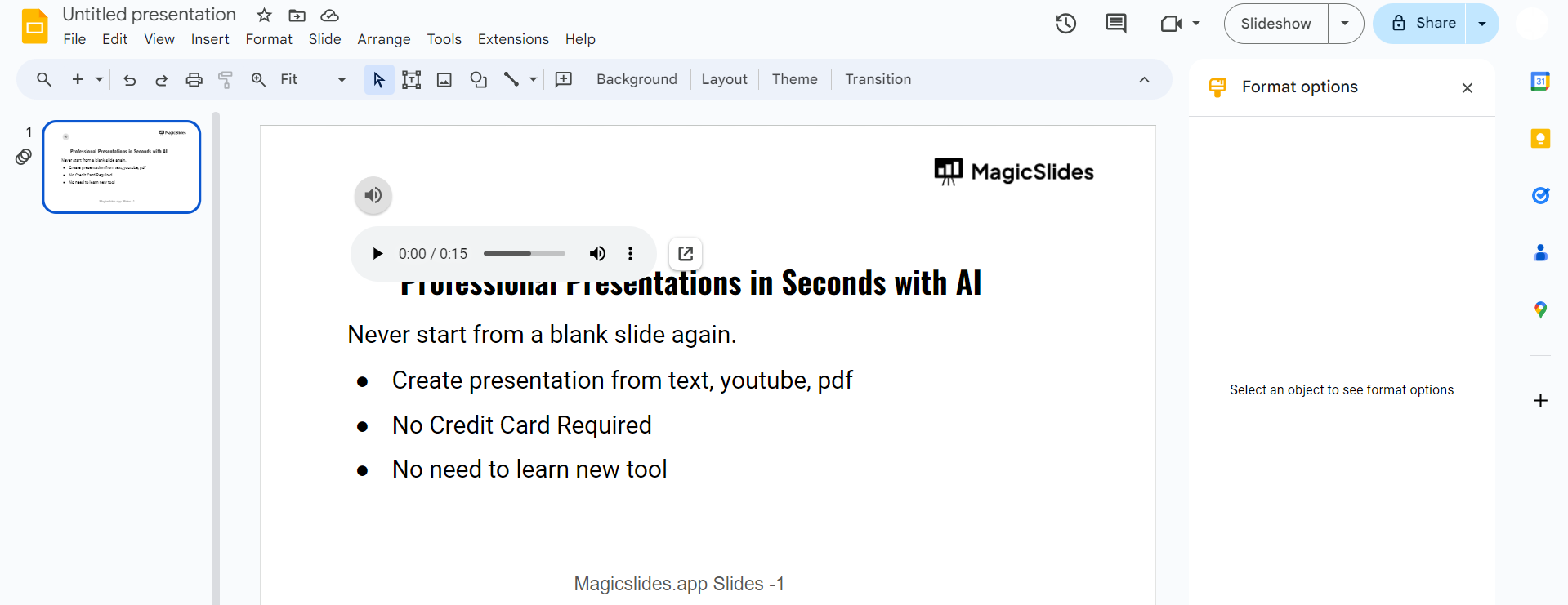
After recording, a small audio icon will appear on the slide. You can drag and resize this icon to position it where you want on the slide. Click the icon to reveal playback options.
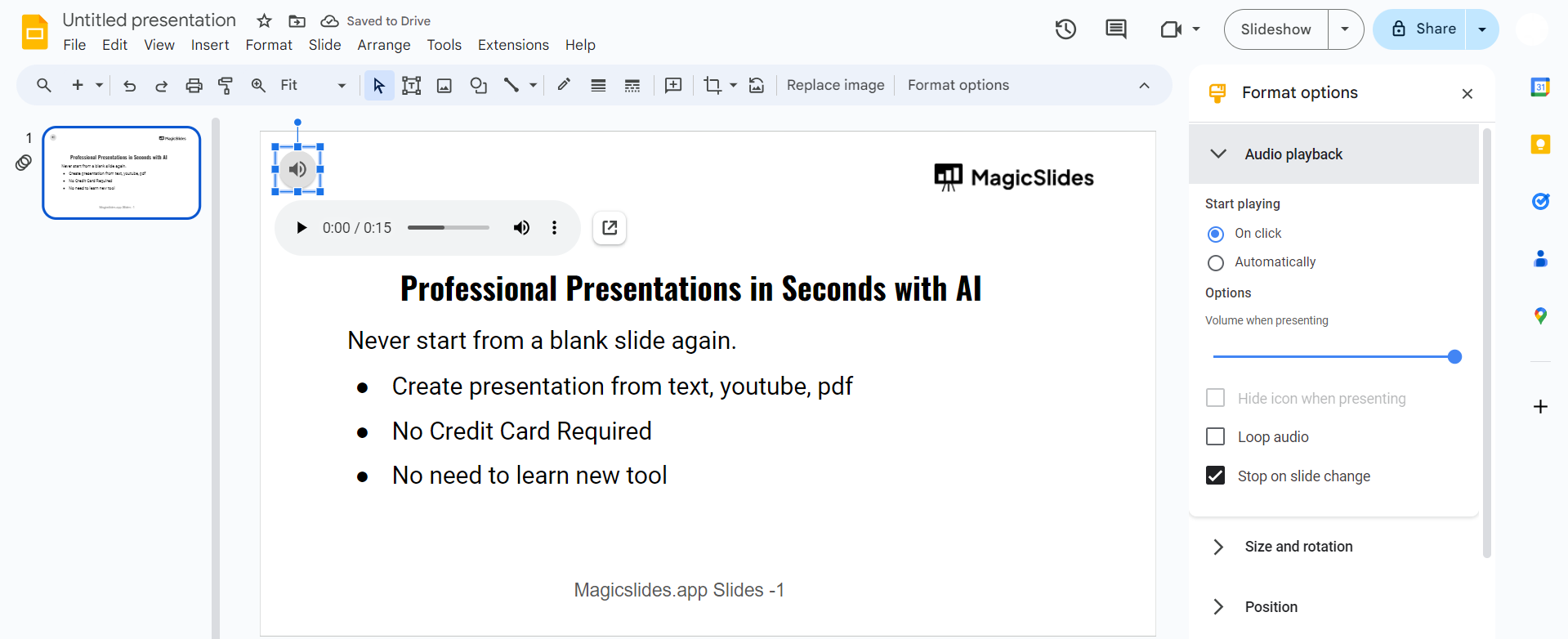
Step 6. Adjust Playback Settings
Click on the audio icon and navigate to the toolbar that appears above it. Here, you can adjust settings such as playback volume, autoplay options, and whether the audio should start automatically when the slide is displayed.
Alternative Method to Add Voice Memos in Google Slides Via Google Drive
- Record audio using a phone or recorder
- Save as MP3/WAV
- Upload to Google Drive
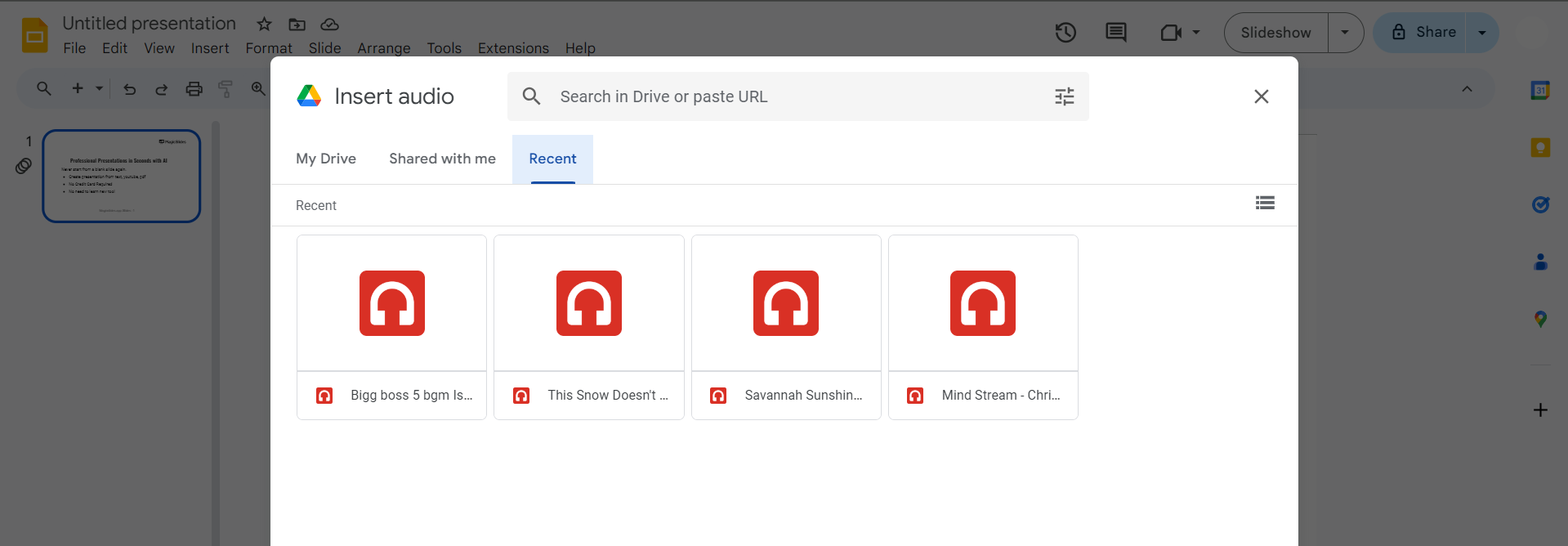
- Insert → Audio → Select File
Create AI-Powered Presentations Faster with MagicSlides AI
Creating presentations manually can take hours, especially when you need professional designs, structured content, and engaging visuals. If you want to speed up the process, MagicSlides AI can help you generate high-quality presentations in minutes.
MagicSlides AI is an AI-powered Presentation Tool that works seamlessly with Google Slides and helps users create complete presentations from:
Conclusion
By incorporating your voice, you’ve added a personal and engaging touch that can captivate your audience. Whether you’re conveying complex information, sharing a story, or presenting in a language other than the slide text, voice memos bring a new dimension to your presentations. Experiment with this feature to enhance your communication and create a more immersive experience for your audience. Elevate your presentations and let your voice be heard!
Frequently Asked Questions:
Q1. Can I add voice memos to all types of slides in Google Slides?
Yes, you can add voice memos to any slide within your Google Slides presentation, enhancing versatility.
Q2. Are there limitations on the length of voice memos in Google Slides?
As of now, Google Slides allows voice memos of up to 50 MB, providing ample recording time.
Q3. Can I edit or trim my recorded voice memos within Google Slides?
Unfortunately, Google Slides doesn’t offer built-in audio editing features; consider editing before uploading.
Q4. How do recipients access voice-enabled slides in presentations?
To access voice memos, recipients must view the presentation in “Present” mode on Google Slides.


