How to Flip an Image in PowerPoint in 2026


Learn how to flip an image in PowerPoint step by step. Bring a fresh perspective to your PowerPoint visuals by mastering image mirroring.
Step-by-Step Guide to Flip an Image in PowerPoint
Are you ready to add a unique twist to your PowerPoint presentation? Mirroring images can bring a dynamic touch to your slides. Follow this comprehensive guide to effortlessly flip images in PowerPoint and elevate your visual storytelling.
Step 1: Launch PowerPoint and Insert Your Image
Open PowerPoint and start a new or existing presentation where you want to add the mirrored image. Click on the slide where the transformation will take place and go to the Insert tab. Select 'Pictures' to upload the image you intend to mirror.
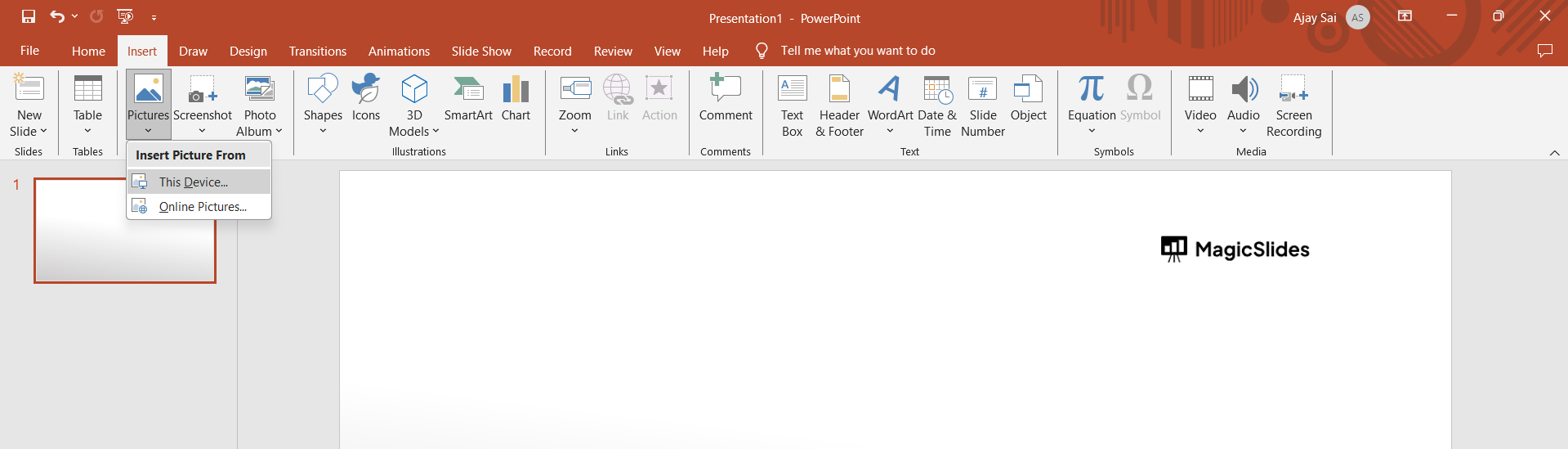
Step 2: Select and Prepare Your Image
Once your image is inserted, click on it to select it. Ensure you've chosen the right image for the desired impact. A well-selected image sets the stage for an engaging visual experience.
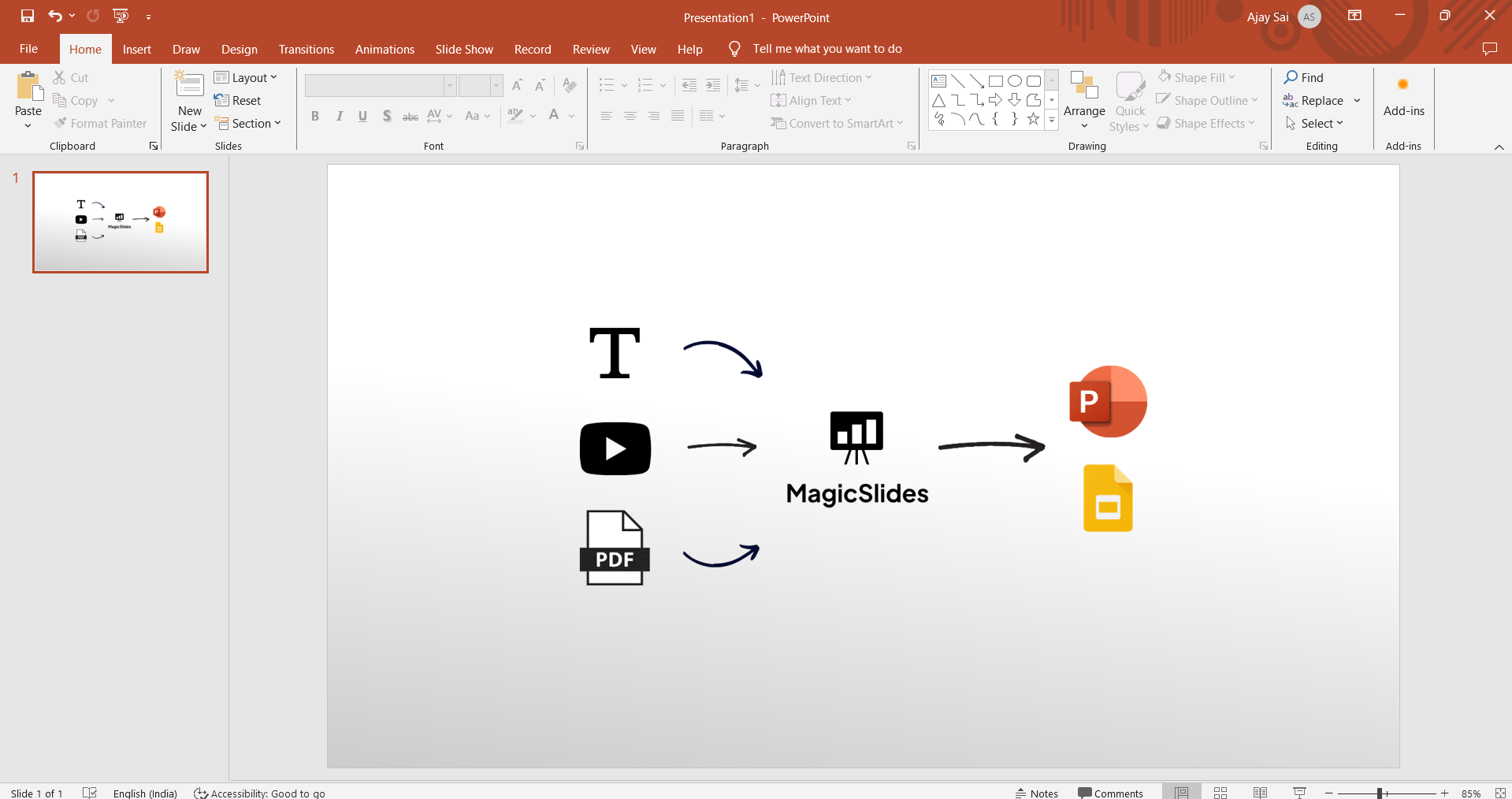
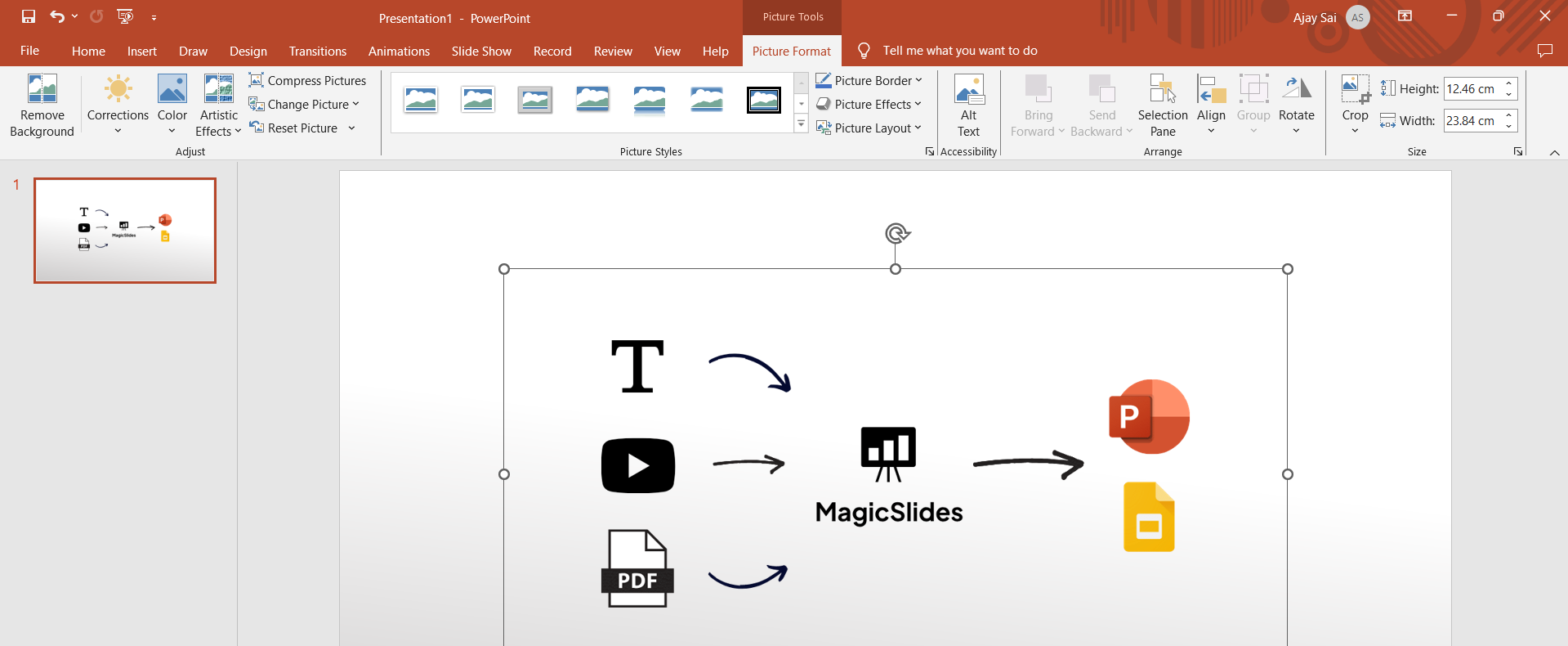
Step 3: Access the Picture Format Tab
Navigate to the Picture Format tab located on the ribbon. This tab houses various formatting options to enhance your images. Click on it to unveil the tools needed for the mirroring process.
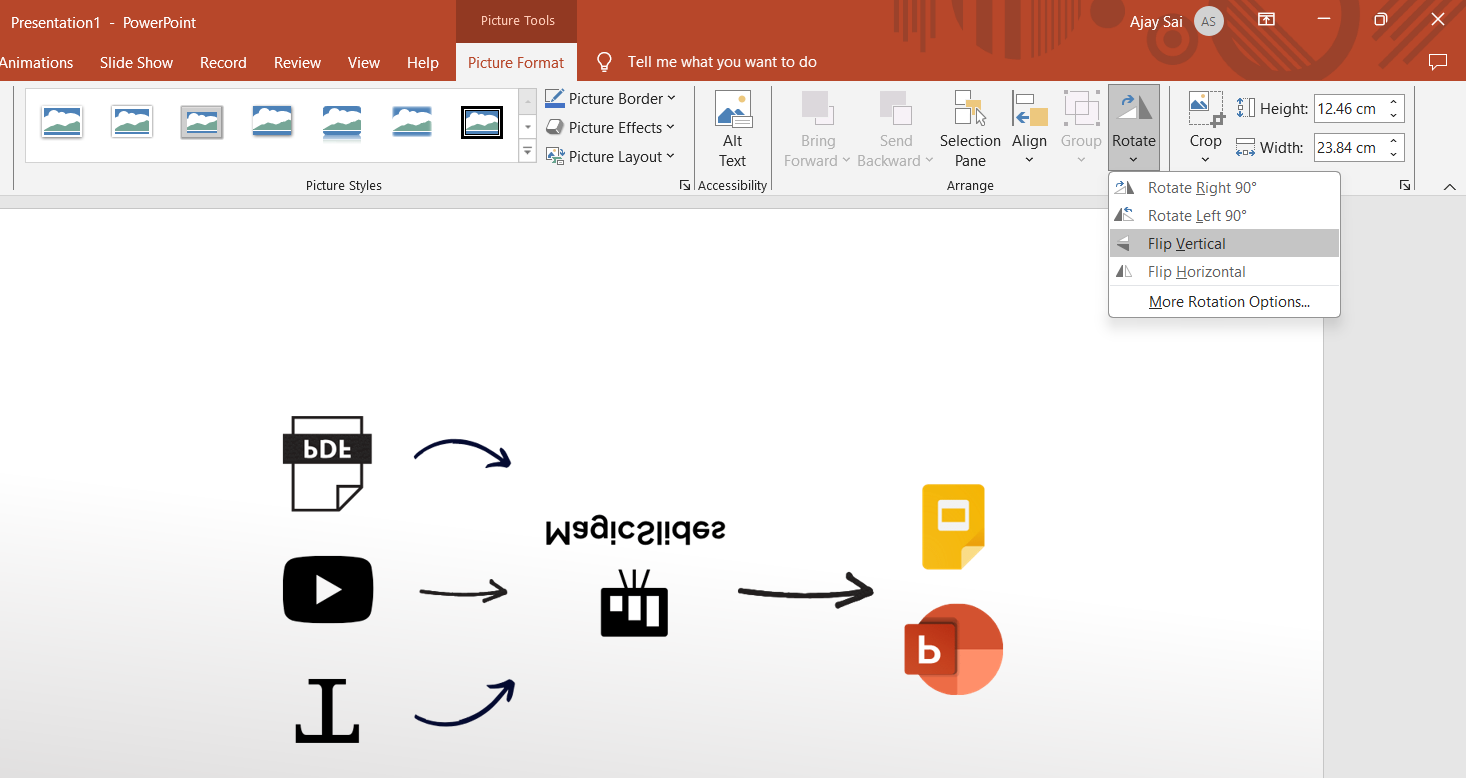
Step 4: Explore the Rotate Dropdown Menu
Within the Picture Format tab, locate the 'Rotate' dropdown menu. This menu is your gateway to diverse image manipulation options. Click on it to reveal a range of choices, including flipping the image horizontally or vertically.
Step 5: Flip Your Image as per the need
Select either 'Flip Horizontal' or 'Flip Vertical' based on your creative vision. 'Flip Horizontal' creates a mirrored effect from left to right, while 'Flip Vertical' mirrors the image from top to bottom. Experiment with both to see which aligns best with your presentation goals.
Create Smarter Presentations with AI
If you’re looking to speed up your PowerPoint workflow even more, consider using MagicSlides, an AI-powered PPT maker that can instantly turn your ideas, text, documents, or even YouTube videos into polished slides in seconds.

Whether you’re creating tutorials like this one or full presentations from scratch, MagicSlides helps you generate professional decks quickly so you can focus on your content, not formatting.
Conclusion:
That’s it! Now you have flipped an image in PowerPoint, which adds a touch of flair to your slides. Explore this technique to captivate your audience and make your presentation visually memorable. Unlock the power of creativity in your PowerPoint journey by flipping images as you want with this trick.
Frequently Asked Questions (FAQs):
Q1. Why should I consider flipping images in my PowerPoint presentation?
Flipping images adds a creative element to your slides, making them visually engaging and memorable. It's an effective technique to capture your audience's attention and convey a unique message.
Q2. Can I flip only specific parts of an image, or does it apply to the entire image?
The mirroring process in PowerPoint applies to the entire image. However, you can use image editing software to create custom reflections or mirror specific sections before inserting them into your presentation.
Q3. Are there any recommended scenarios where mirroring images works exceptionally well?
Mirroring images is particularly effective when emphasizing contrasts, showcasing before-and-after scenarios, or creating artistic and visually striking slides. Consider using this technique when aiming for a dynamic and captivating presentation.
Q4. How does mirroring images contribute to storytelling in a presentation?
Mirroring images can help reinforce storytelling by introducing a symbolic or metaphorical element. It adds a layer of creativity and intrigue, allowing your audience to interpret visual cues and enhance their overall understanding of your narrative.


