Addon google slides iconPPT with AISlide TemplatesPPT TemplatesPricingBlog
    PPT with AISlide TemplatesPPT TemplatesPricingBlog
    1. Home
    2. Blog
    3. How to cite pictures in powerpoint


    How to cite pictures in powerpoint

    magicslides app

    Published By

    magicslides app
    Sanskar Tiwari

    Approved By

    Sanskar Tiwari

    Published On

    January 13th, 2025

    Reading Time

    2 min read

    Navigate the ethical landscape: Learn how to seamlessly cite pictures in PowerPoint presentations with precision.

    In the visually-driven world of presentations, incorporating images is a powerful tool. However, ethical use requires proper attribution. This guide will walk you through the essential steps of citing pictures in PowerPoint, ensuring not only a visually compelling presentation but also adherence to ethical and legal standards in image usage.

    How to Cite Pictures in PowerPoint:

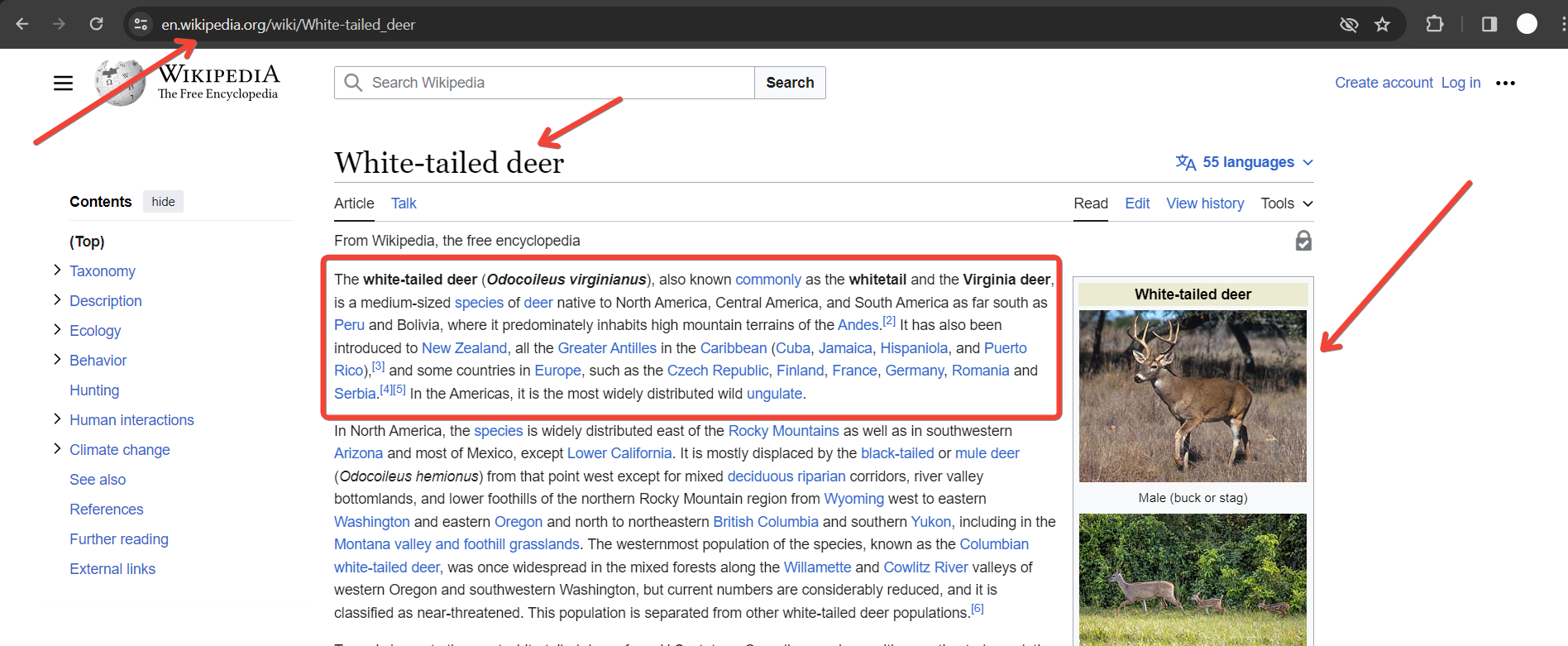
    Find the Source Information:

    Before adding an image to your PowerPoint, gather essential source information, including the creator, title, website, and publication date.
    notion image

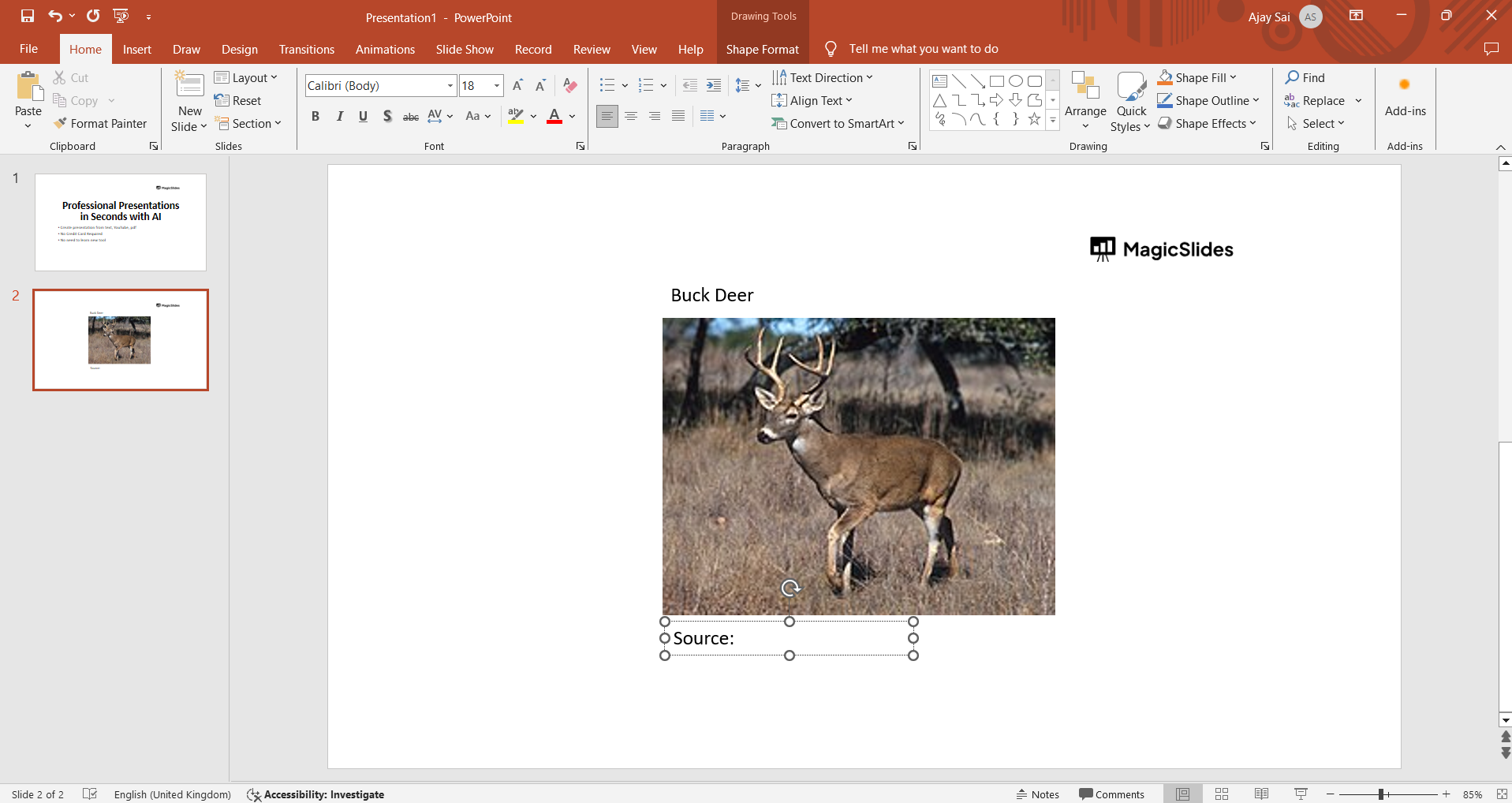
    Create a Citation Slide:

    Reserve a slide at the end of your presentation to compile all your image citations. Label it as "Image Credits" or "Sources."
    notion image

    Place Citations Near the Image:

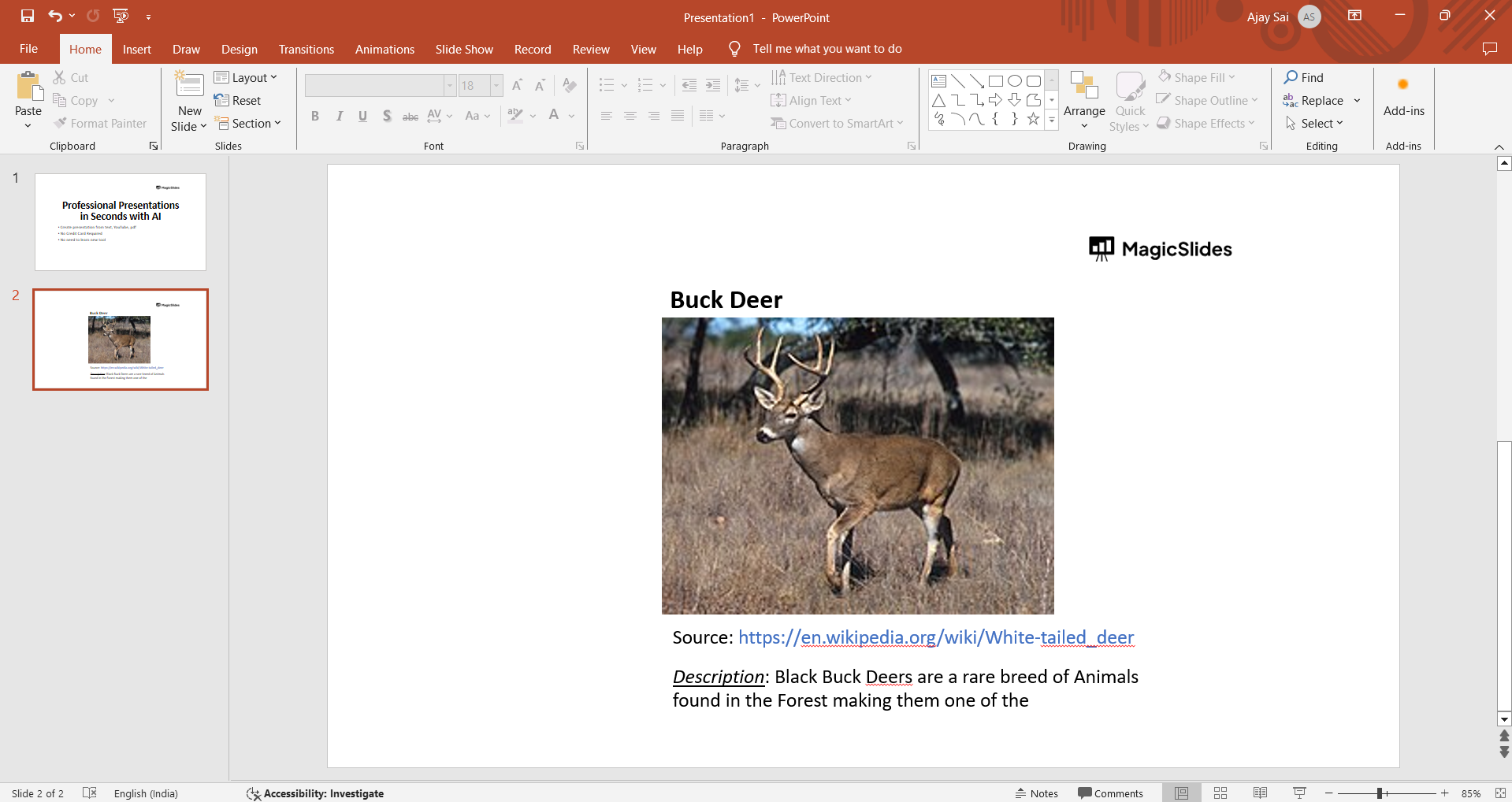
    Alternatively, you can place a brief citation directly near the image on the slide where it appears. Ensure it doesn't distract from the visual content.

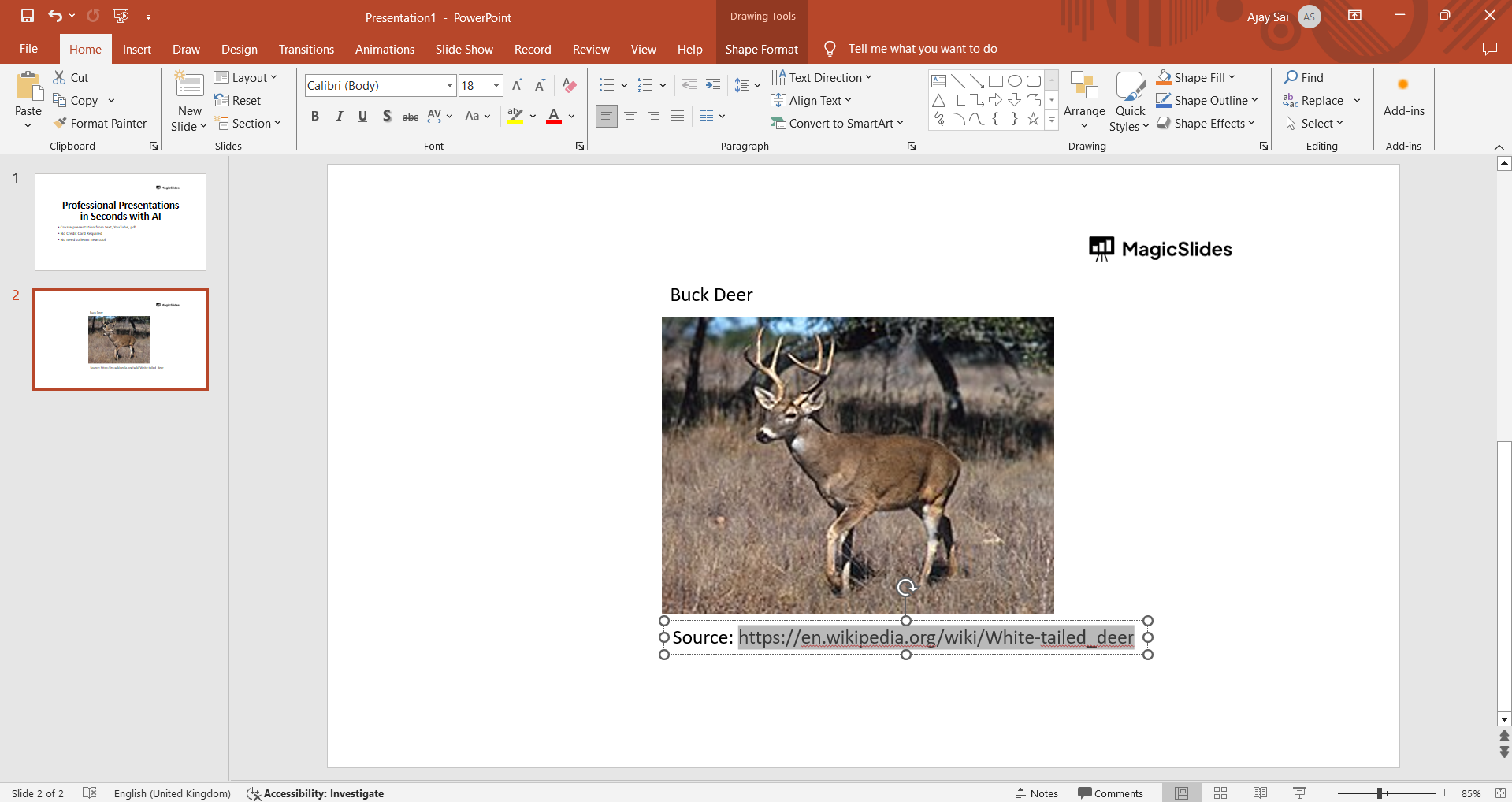
    Hyperlink to Original Source (Optional):

    If possible, hyperlink the citation to the original source. This allows your audience to access the image's context directly.
    notion image

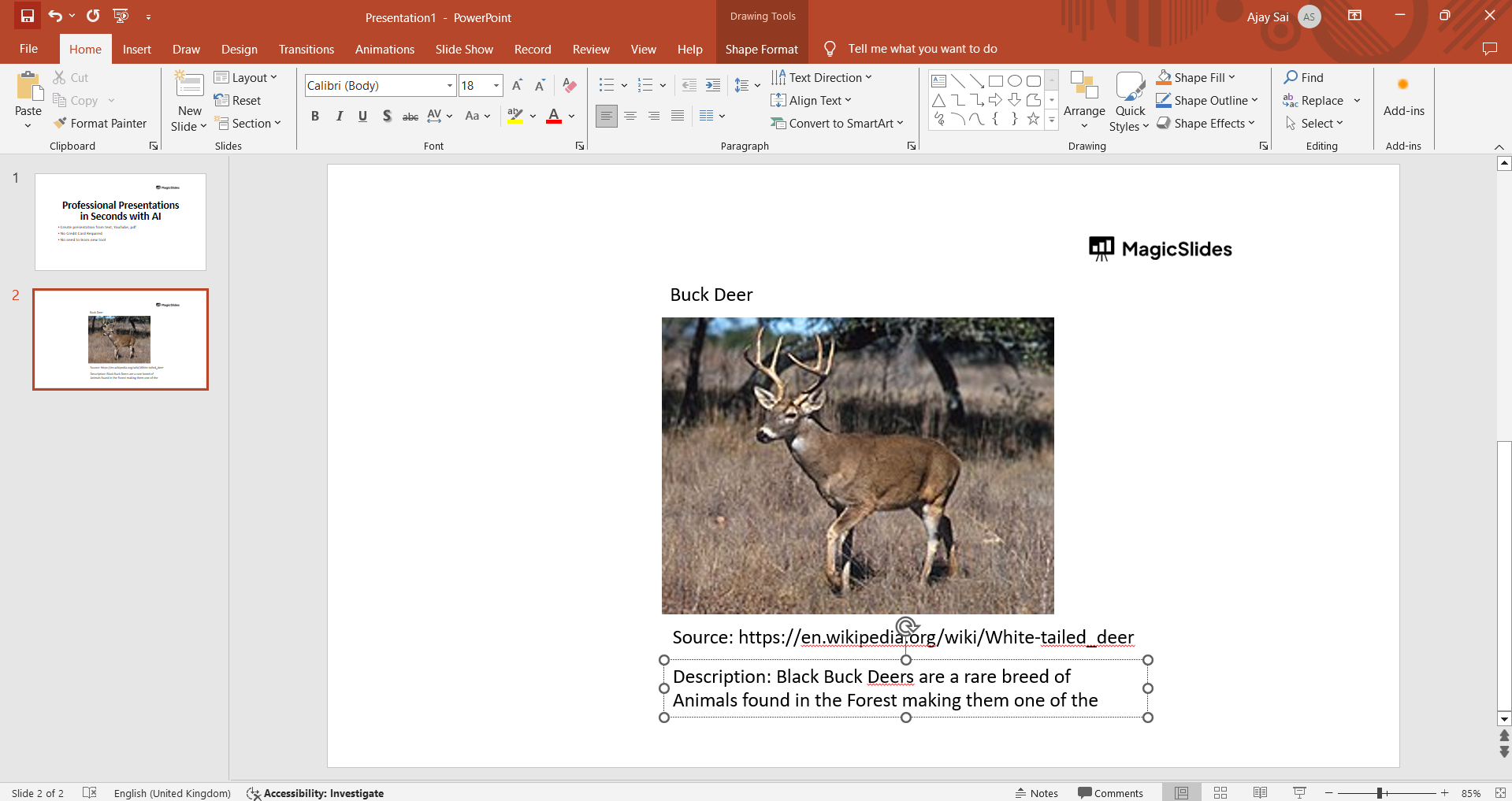
    Utilize a Caption:

    Incorporate a caption below or beside the image, briefly acknowledging the source. This is especially useful for brief, informative citations.
    notion image

    Review and Update:

    Regularly review and update your citation slide as you add or change images. This maintains accuracy and accountability.
    notion image

    Conclusion:

    Citing pictures in PowerPoint goes beyond legal and ethical obligations—it also showcases respect for creators' work. Integrating these steps not only ensures compliance with copyright laws but also contributes to transparent communication. As you embark on creating visually impactful presentations, remember that each image tells a story, and acknowledging its source adds depth and authenticity to your narrative. Follow these steps to seamlessly incorporate citations into your PowerPoint, striking a balance between creativity and responsibility.

    Frequently Asked Questions:

    Do I need to cite images in my PowerPoint presentations?

    Yes, citing images is essential to respect copyright and intellectual property, ensuring ethical use.

    What information should be included in an image citation?

    Include the creator's name, image title, website, and publication date, maintaining consistency throughout.

    Can I use a general image credit slide for multiple sources?

    While it's convenient, it's best to provide specific citations for each image to maintain accuracy.

    How do I hyperlink an image citation to the original source?

    In PowerPoint, select the text of the citation, right-click, choose "Link," and enter the source URL.

    Share on socials

    About the author

    Mehjabi Khan profile photo
    Mehjabi Khan— Writer

    Mehjabi Khan is one of our talented writers with a background in creating content for major companies like Mahindra and Suzuki. She has a knack for explaining complex ideas in a way that’s easy to understand and enjoyable to read. When she's not writing, Mehjabi loves to cook, bringing the same creativity to her recipes as she does to her articles.

    More from Mehjabi

    More from the blog

      50+ Best AI Topics for Presentation

      6 February 2026

      How to Flip an Image in PowerPoint in 2026

      5 February 2026

      How to Make Text to Presentation Using AI in Few Minutes

      4 February 2026

      100+ Best Seminar Topics for Students in 2026

      3 February 2026

      Best Presentation AI Tool of 2026 (with Real Use Cases + Comparisons)

      2 February 2026

      250+ Good Morning Messages for Her (Romantic, Deep, Cute & Sweet)

      30 January 2026

      200+ Heart Touching Birthday Wishes for Sister (Short, Funny and More)

      29 January 2026

      50+ History Presentation Topics For 2026

      28 January 2026

      How to Add Music to Your Canva Presentation: A Step-by-Step Guide

      27 January 2026

    Table of Contents

    Create Presentations in Seconds

    Transform your ideas into professional presentations with AI. No design skills needed.

    Try MagicSlides Free

    Create Stunning Presentations with AI in Seconds ✨

    Transform any topic, text, YouTube video, PDF or URL into beautiful presentations instantly with MagicSlides AI.

    Try MagicSlides AI Presentation Maker
    MagicSlides AI Presentation

    Footer

    Solutions

    • MagicSlides App
    • Google Slides Add-on
    • MagicSlides in Chrome
    • MagicSlides in Figma
    • MagicSlides in ChatGPT
    • MagicSlides in Telegram
    • MagicSlides in Zapier
    • MagicSlides in Figma Slides

    Tools

    • AI PPT Tools
    • QR Code Generator
    • Design Tools
    • PPT Templates
    • Slide Templates
    • PDF Tools

    Examples

    • AI Presentations
    • PPT by MagicSlides
    • Quizzes
    • Charts
    • Coloring Pages

    Resources

    • Changelog
    • Documentation
    • API Docs

    Top Blogs

    • How to Create Presentation Using ChatGPT
    • 100+ Best Seminar Topics for Students in 2025

    Company

    • Help
    • MCP
    • Blog
    • Pricing
    • Affiliate Program
    • Manage Subscription
    • Privacy Policy
    • Contact Us
    • Terms & Conditions
    • Refund & Cancellation Policy

    We also built

    • SheetAI - GPT For Sheets
    • MagicForm - GPT For Google Forms
    • SecondBrain.fyi
    • BlogBee - Free Blogging Platform

    © 2026 IndianAppGuy Tech Pvt Ltd. All rights reserved.