How to Convert Text Guidelines into Interactive PowerPoint Workshops


Transform static text guidelines into engaging PowerPoint workshops with our step-by-step guide. Make learning interactive and impactful effortlessly.
In the ever-evolving world of presentations, turning static text guidelines into dynamic and interactive PowerPoint workshops has become a game-changer. With the assistance of innovative tools like MagicSlides GPT, this process is not only efficient but also remarkably user-friendly. Let's embark on a step-by-step journey to transform your textual content into engaging PowerPoint workshops.
How to Convert Text Guidelines into Interactive PowerPoint Workshops
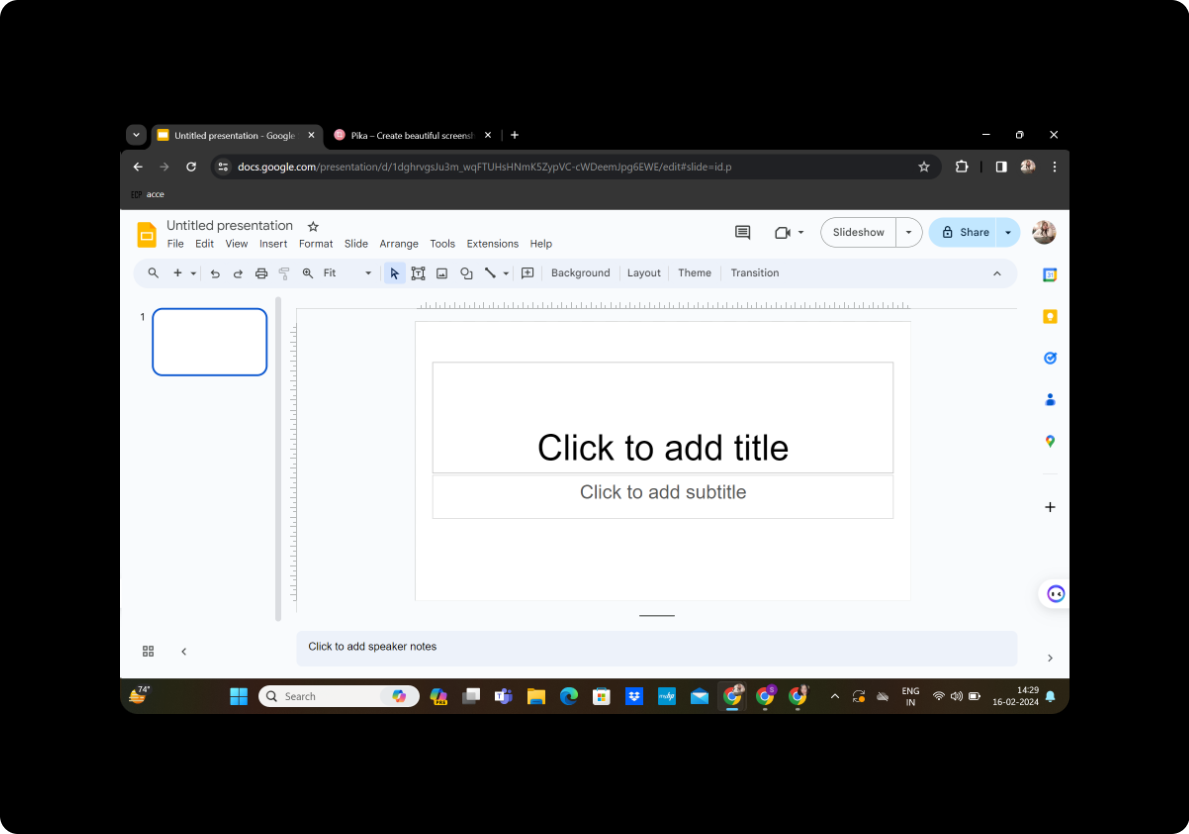
Step 1: Open Google Slides and a Blank Presentation
Begin by launching Google Slides and creating a new, blank presentation. If you don't have a Google account, sign up for one to unlock the full potential of Google Slides.
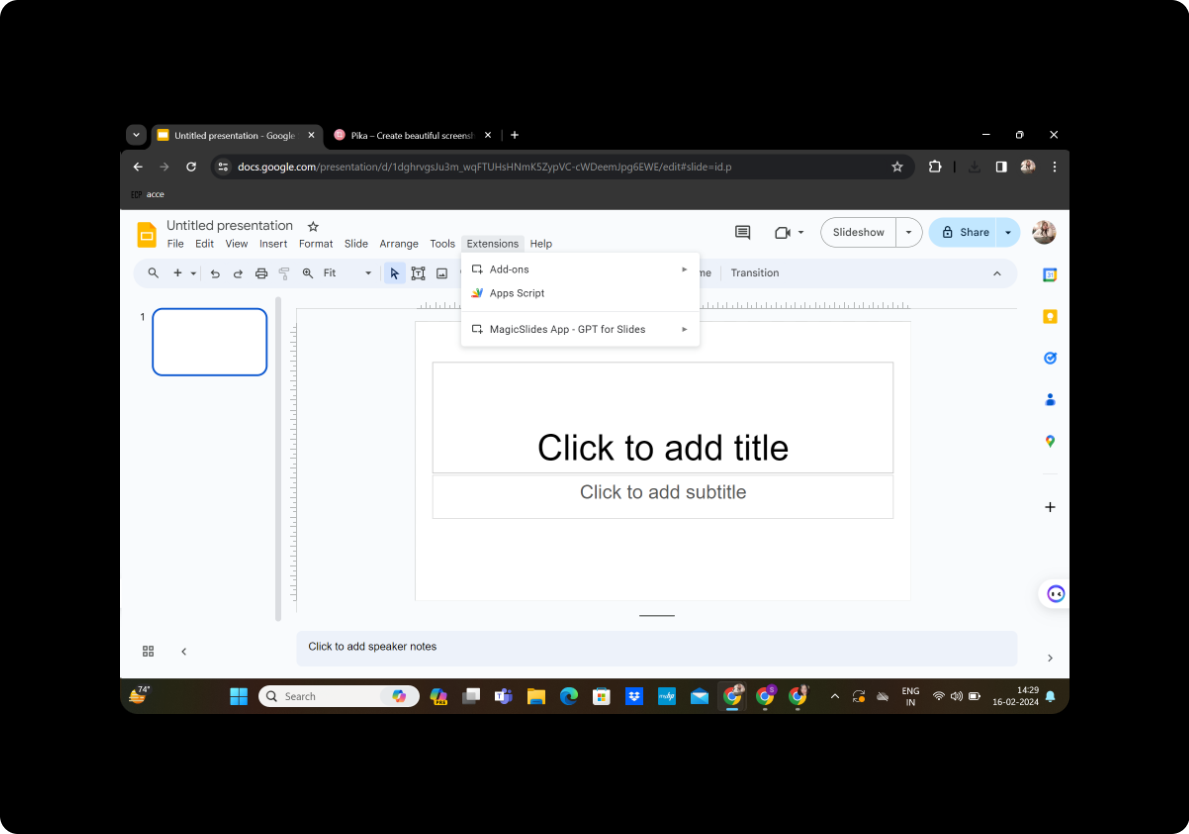
Step 2: Click on Extensions and MagicSlides GPT
Navigate to the extensions menu within Google Slides. Locate and click on "MagicSlides GPT" to activate this powerful tool seamlessly integrated into the Google Slides interface.
Step 3: Click on 'Generate PPT'
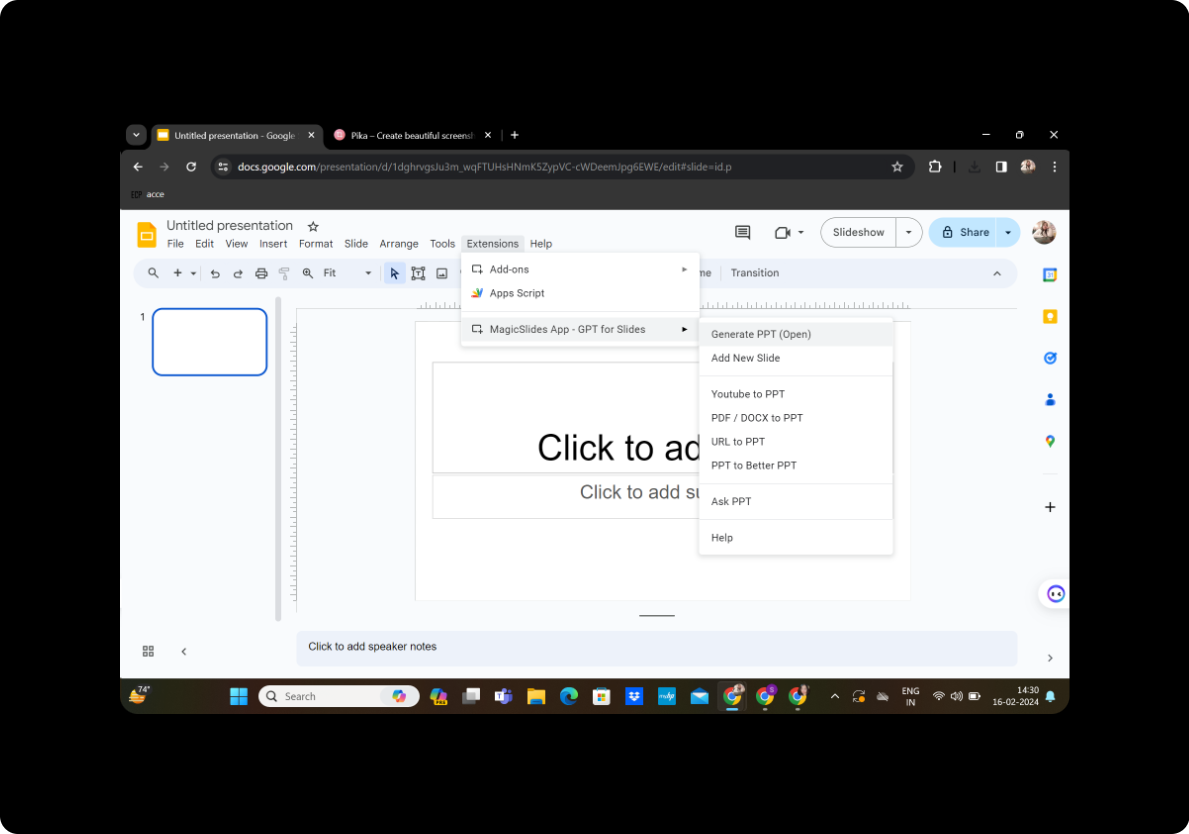
Once MagicSlides GPT is activated, click on the 'Generate PPT' option. This action triggers the tool to analyze and understand the content you're working with.
Step 4: Enter the Title and Text Content in the Given Space
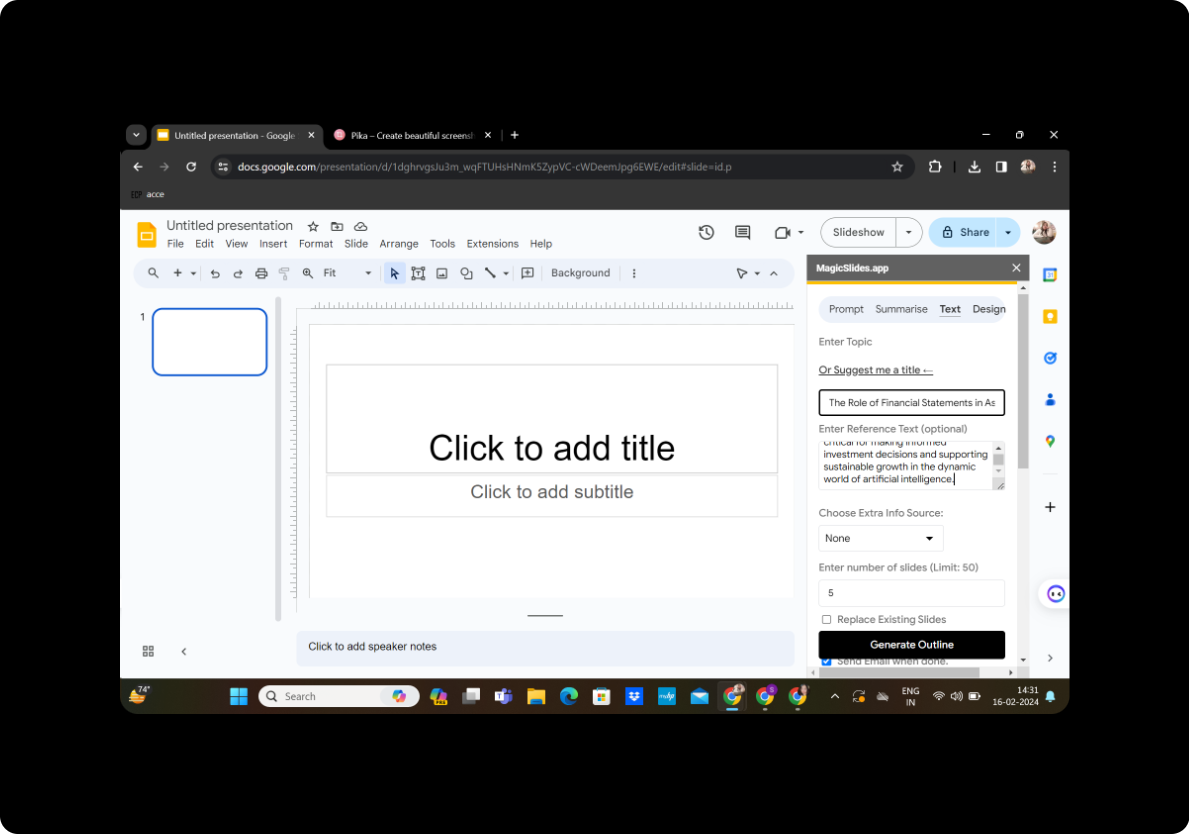
Provide a title for your presentation and input the text content into the designated space.
This is where you infuse your guidelines or textual information.
Step 5: Select the Number of Slides
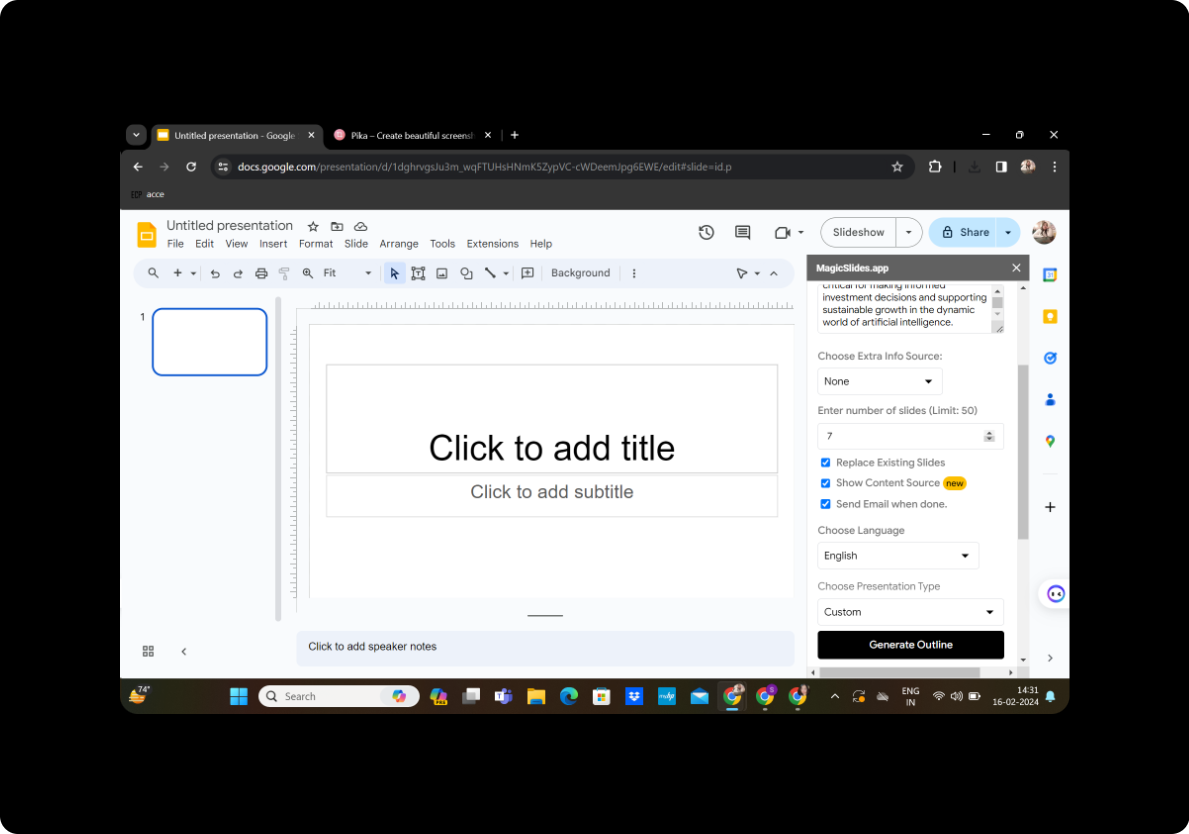
Review the generated outline and decide on the number of slides you want for your workshop. Tailor it to suit the flow and depth of your content.
Step 6: Click on 'Generate Outline'
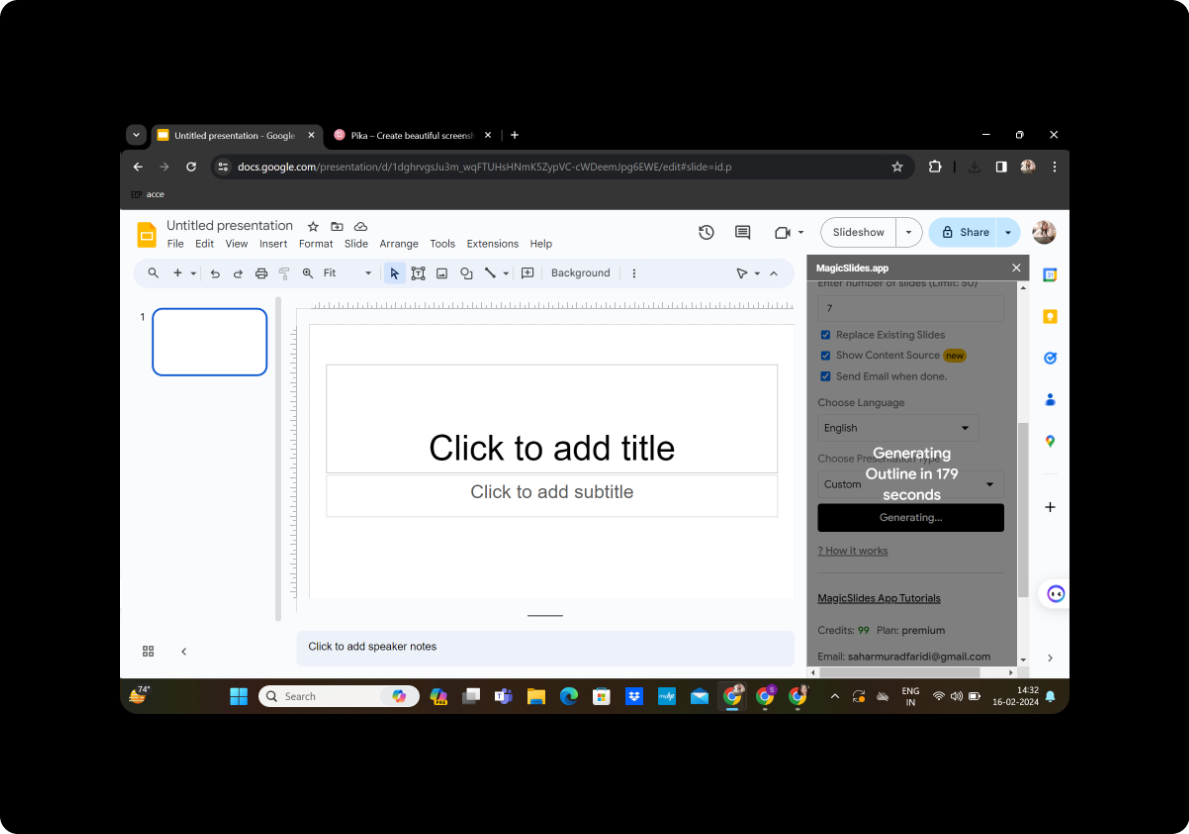
After entering your content, click on 'Generate Outline.' MagicSlides GPT processes the information and crafts an initial outline for your PowerPoint presentation.
Step 7: Click on 'Generate Presentation'
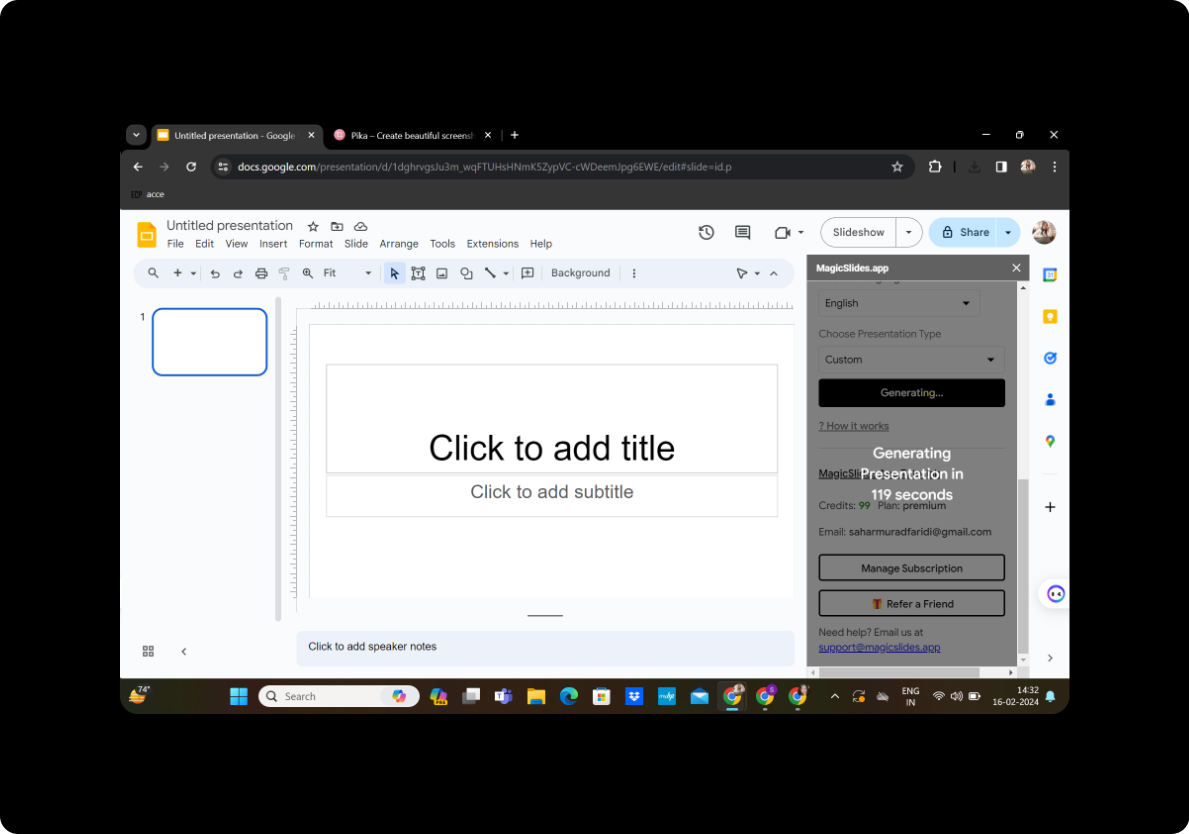
Once satisfied with the outline and slide count, click on 'Generate Presentation.' MagicSlides GPT transforms your text guidelines into a visually engaging PowerPoint workshop.
Step 8: Your Presentation is Ready
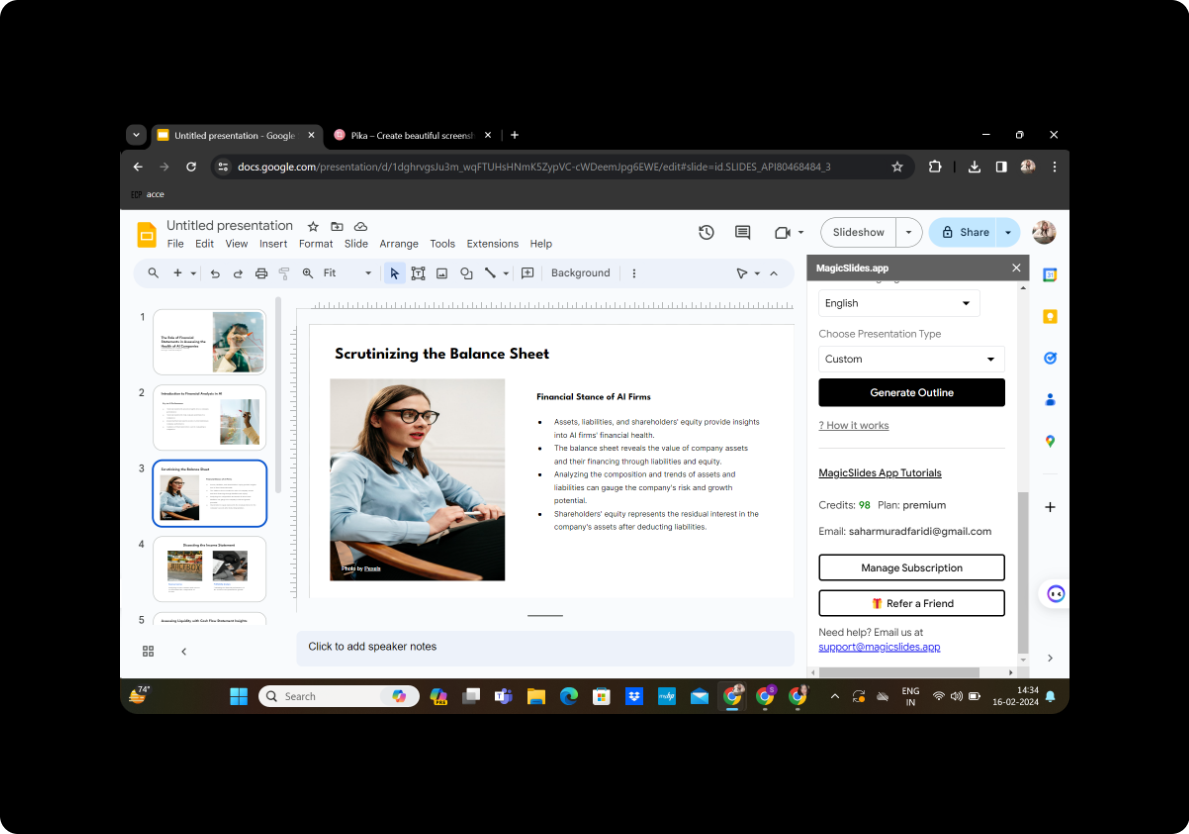
Your interactive PowerPoint workshop is now ready for exploration and customization. MagicSlides GPT simplifies the conversion process, saving you time and effort.
Conclusion
In conclusion, turning text guidelines into interactive PowerPoint workshops has never been more accessible. MagicSlides GPT seamlessly integrates with Google Slides, allowing you to transform static content into dynamic presentations effortlessly. Enhance your workshops, captivate your audience, and simplify your content creation process with this powerful tool.
Frequently Asked Questions
How do I access MagicSlides GPT? MagicSlides GPT can be accessed through the extensions menu in Google Slides. Simply click on the extension to activate it.
Can I customize the generated slides? Absolutely! After generating the presentation, review and edit the slides as needed to align with your preferences.
Is a Google account necessary? Yes, a Google account is required to use Google Slides and leverage the MagicSlides GPT integration.
Can I share the interactive workshop with others? Certainly! Save your presentation and share it with your audience, colleagues, or students seamlessly.
Are there any limitations on the text length? While there might be some limitations, MagicSlides GPT is designed to handle substantial amounts of text, providing flexibility for various content types.


