How to create an order form in Google forms


Enhance your business efficiency with a user-friendly order form on Google Forms. Follow these steps!
Efficiently collecting orders is essential for any business, and Google Forms provides a user-friendly platform to create seamless order forms.
In this comprehensive guide, we'll take you through each step to help you design a functional and organized order form.
By the end, you'll be ready to streamline your ordering process and enhance customer satisfaction.
How to create an order form in Google forms
Step 1: Access Google Forms and Start a New Form
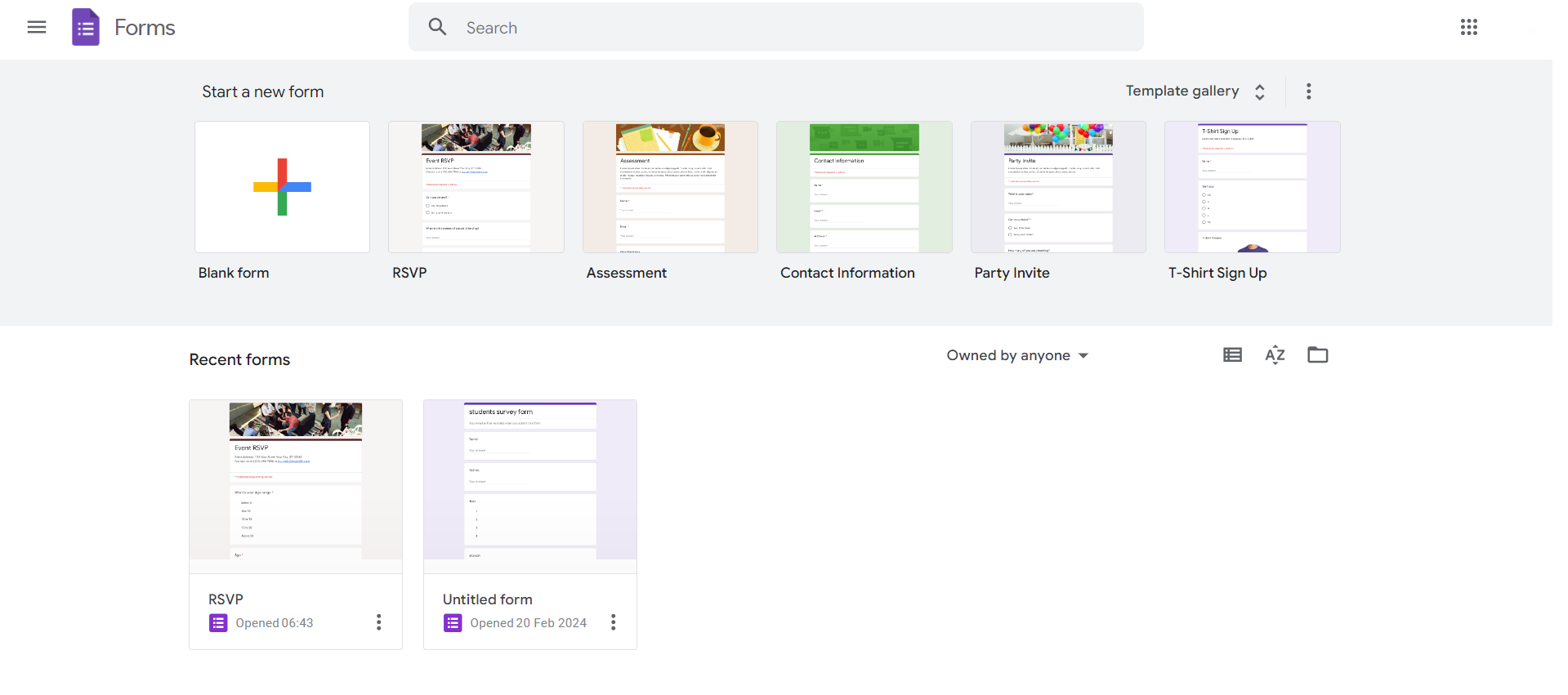
Visit Google Forms (forms.google.com) and either create a new form or select an existing one. Click on the "+ Blank" button to initiate a new order form.
Step 2: Add Order Details Questions
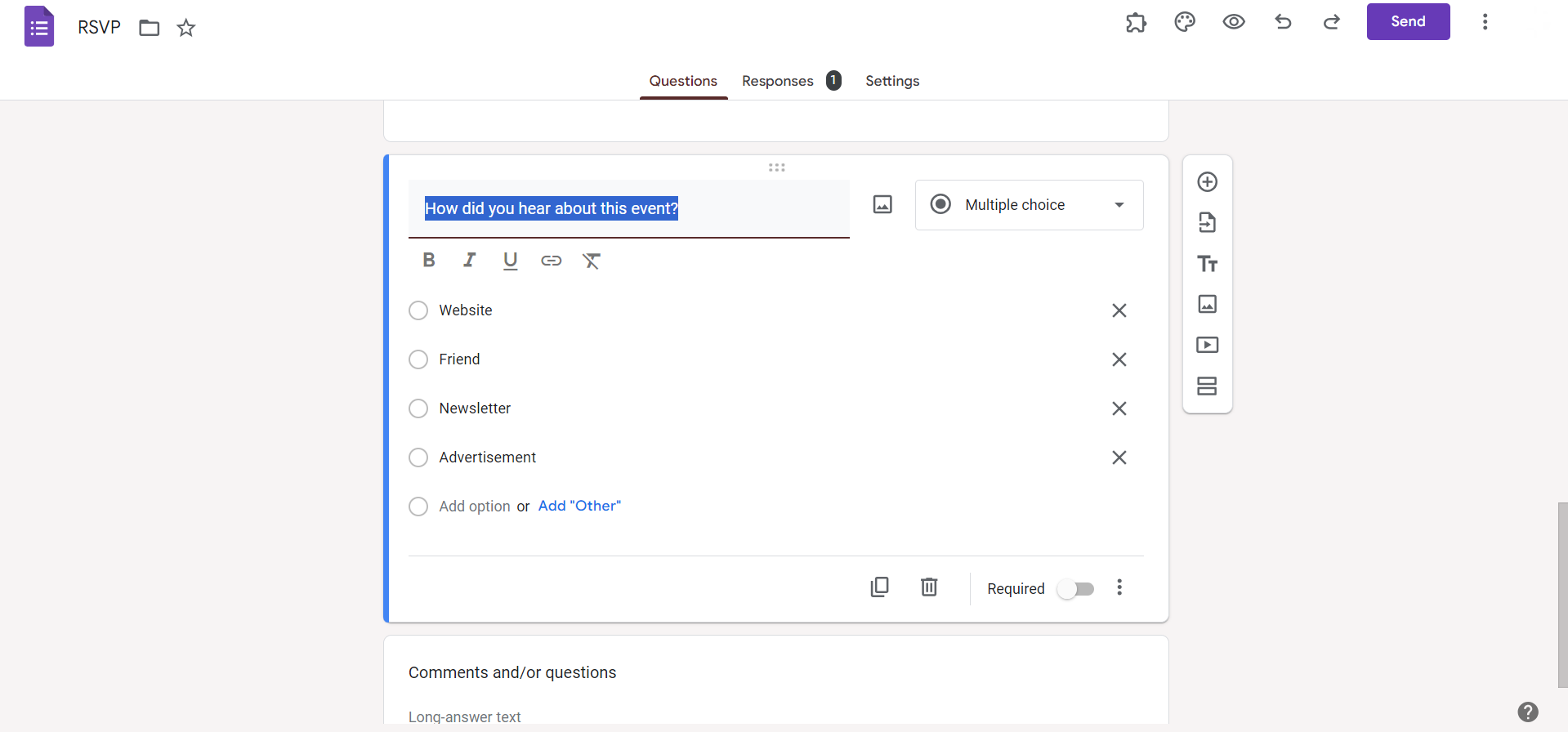
Include questions for order details, such as product/service name, quantity, and any other relevant information.
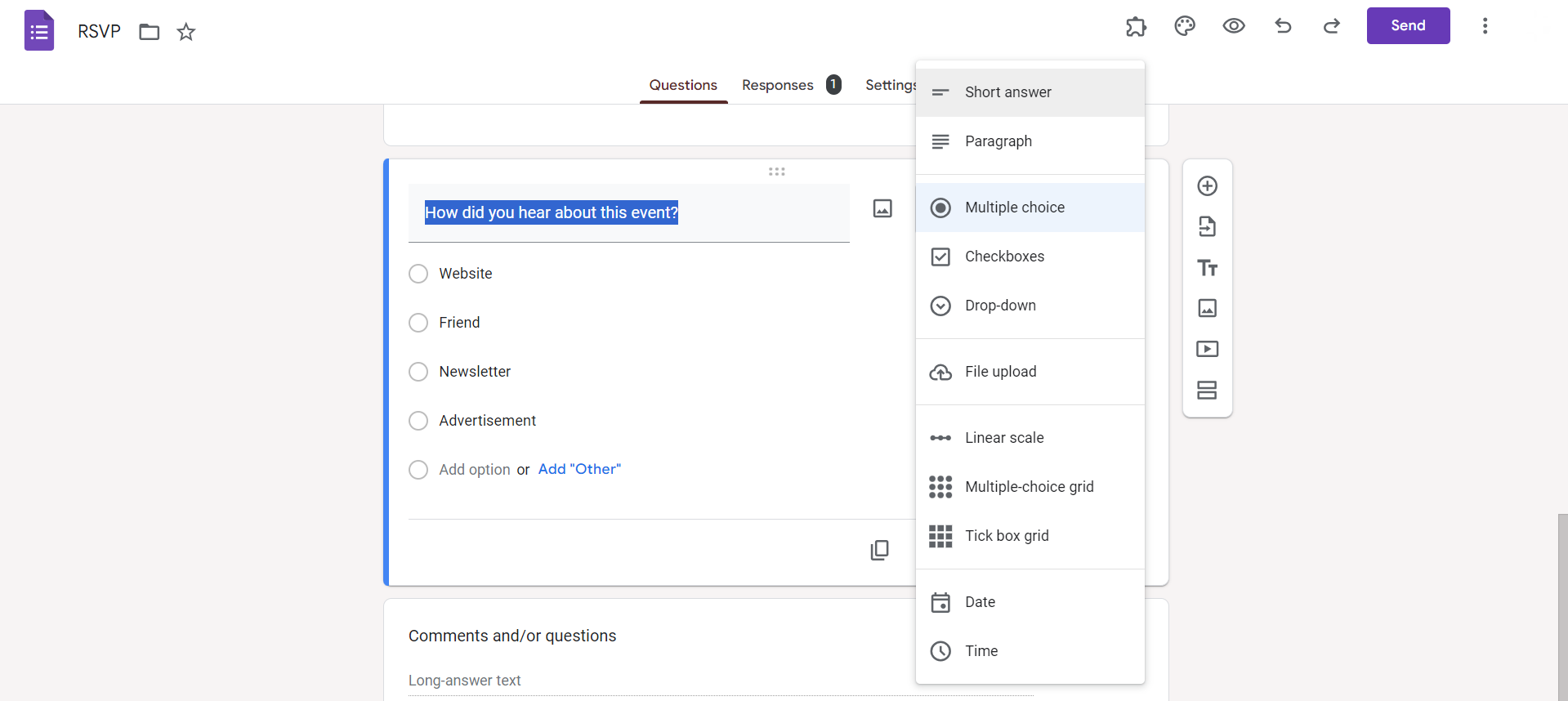
Use various question types like multiple-choice, short answer, or dropdowns.
Step 3: Incorporate Pricing Information
Integrate questions that capture pricing details.
Utilize the "Short Answer" or "Paragraph" question types for customers to input quantities or additional instructions.
Step 4: Include Contact and Delivery Information
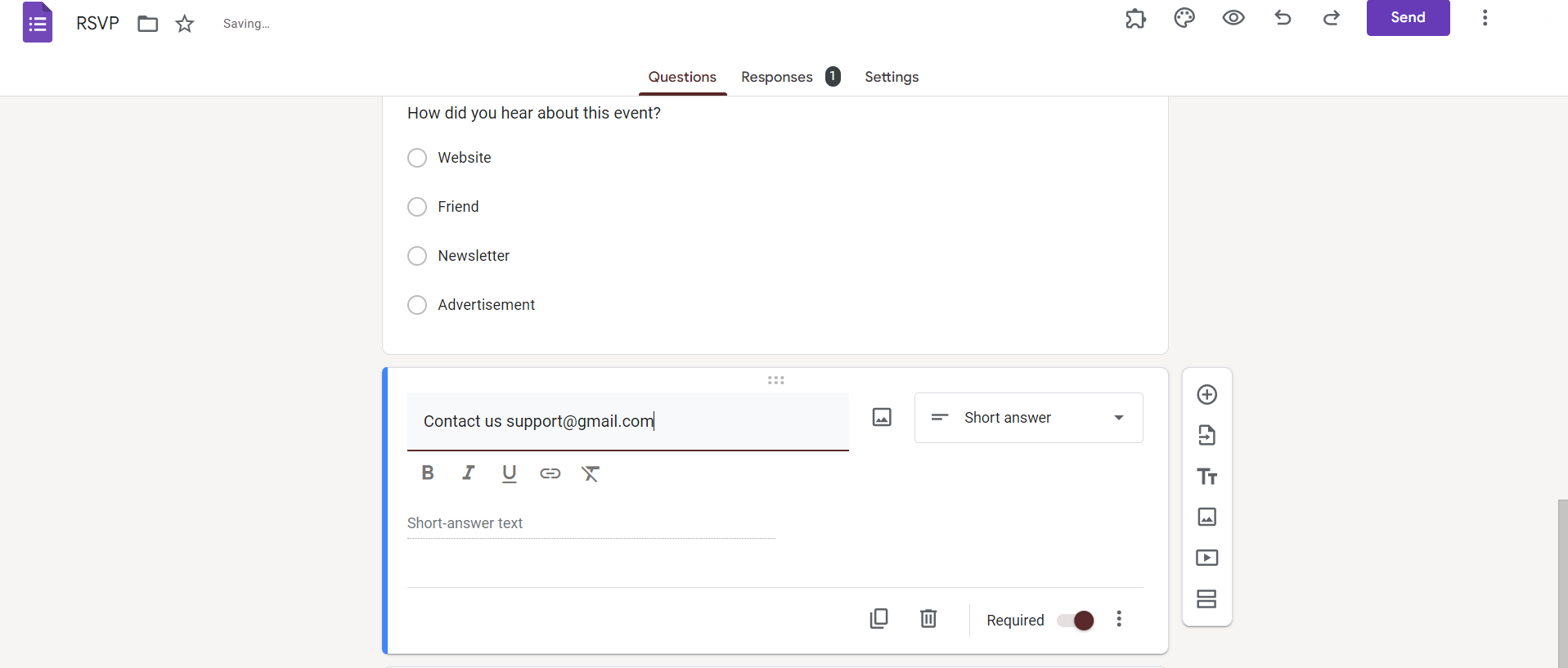
Ensure seamless communication by adding questions for customer contact details and delivery information.
Use fields like "Short Answer" or "Multiple Choice" for this purpose.
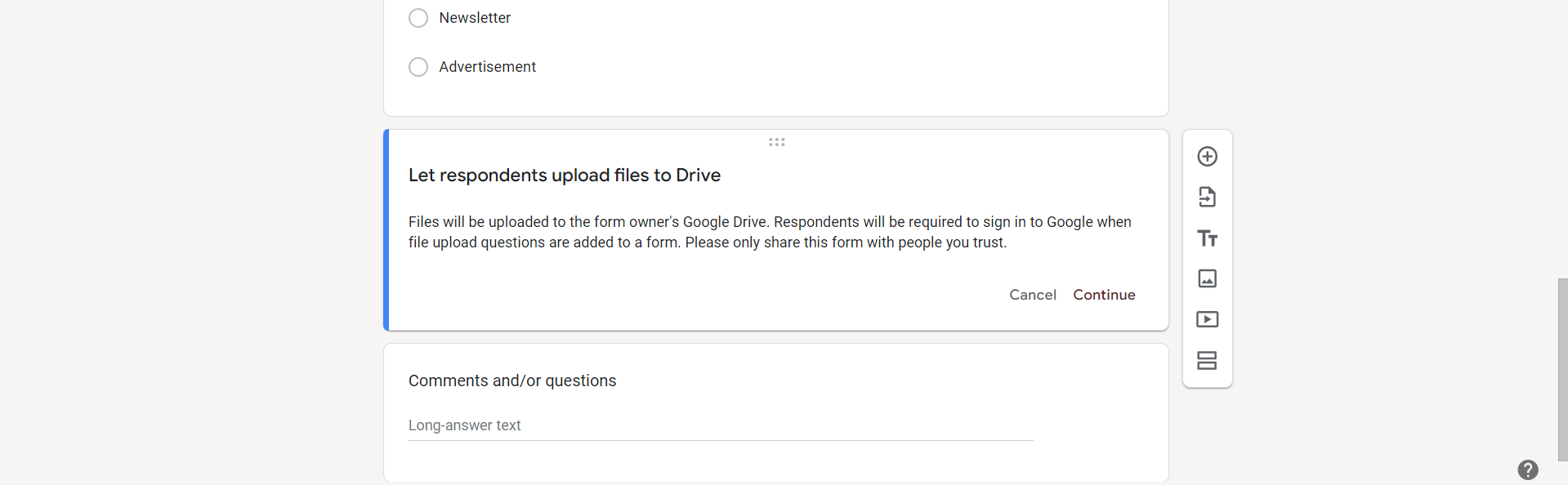
Step 5: Utilize File Upload for Customization
If applicable, use the "File Upload" question type to allow customers to attach files or images for custom orders or specific requirements.
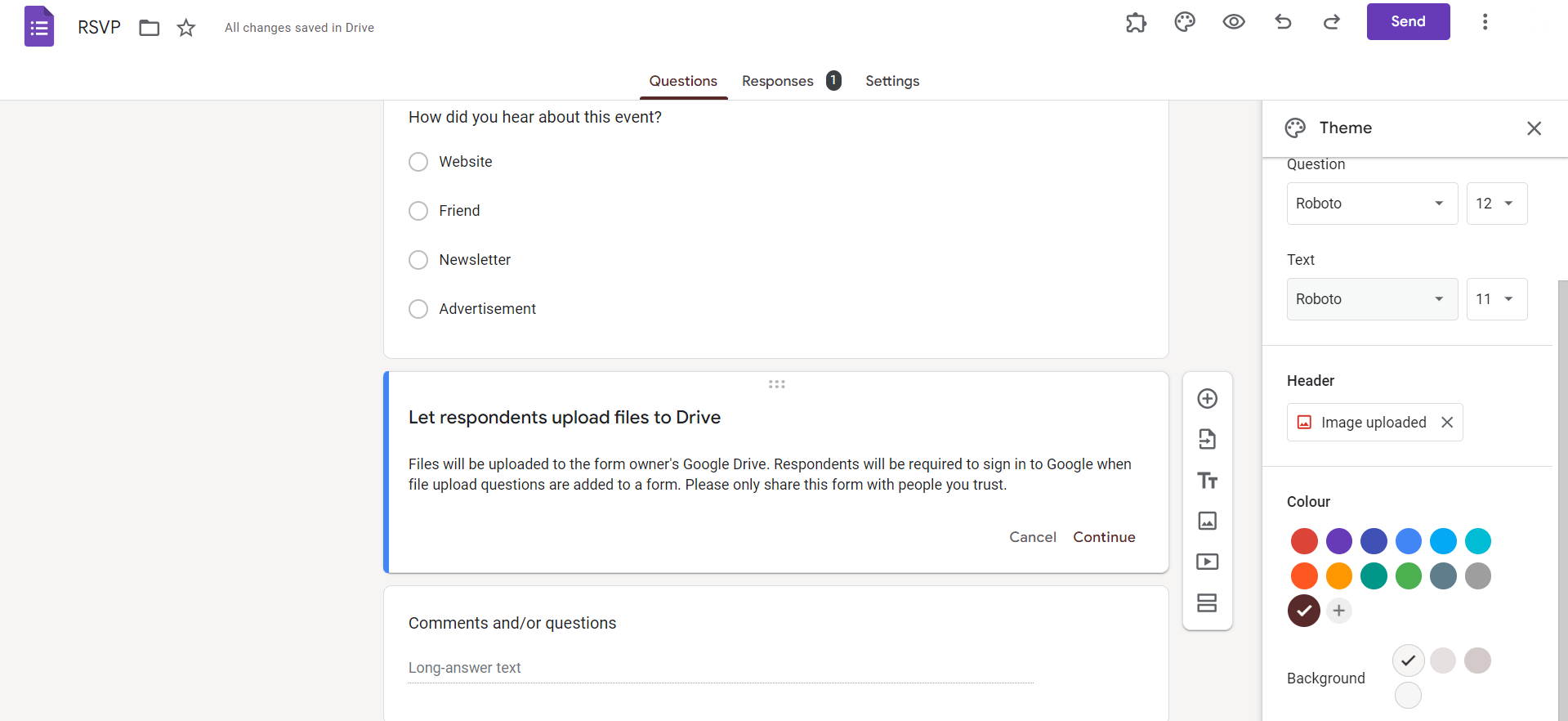
Step 6: Apply Themes and Branding
Enhance the form's aesthetics and align it with your brand by applying themes and customizing colors.
This creates a professional and cohesive look for your order form.
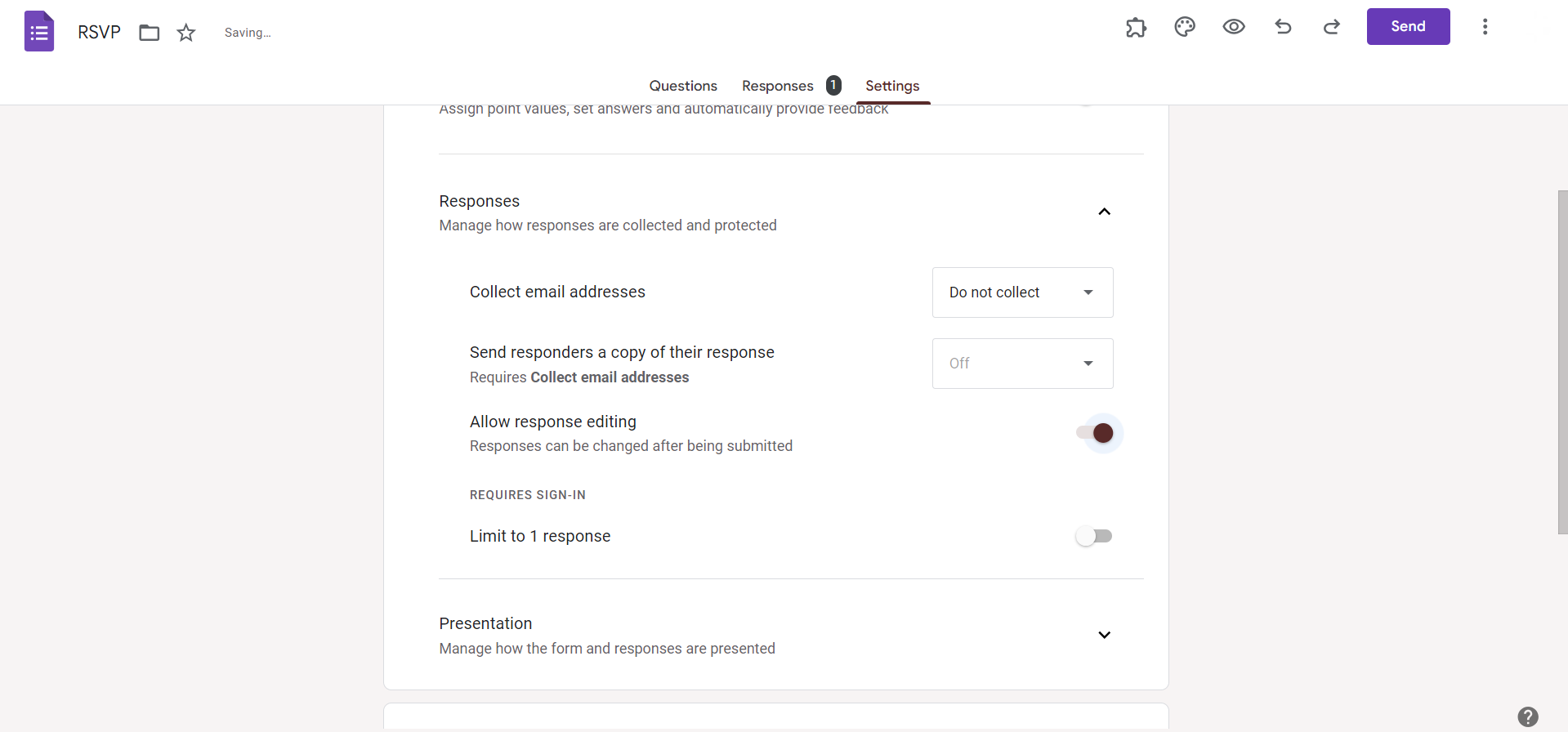
Step 7: Configure Settings and Notifications
Adjust form settings, such as limiting responses or sending confirmation emails upon form submission.
Notifications can keep you informed of new orders in real-time.
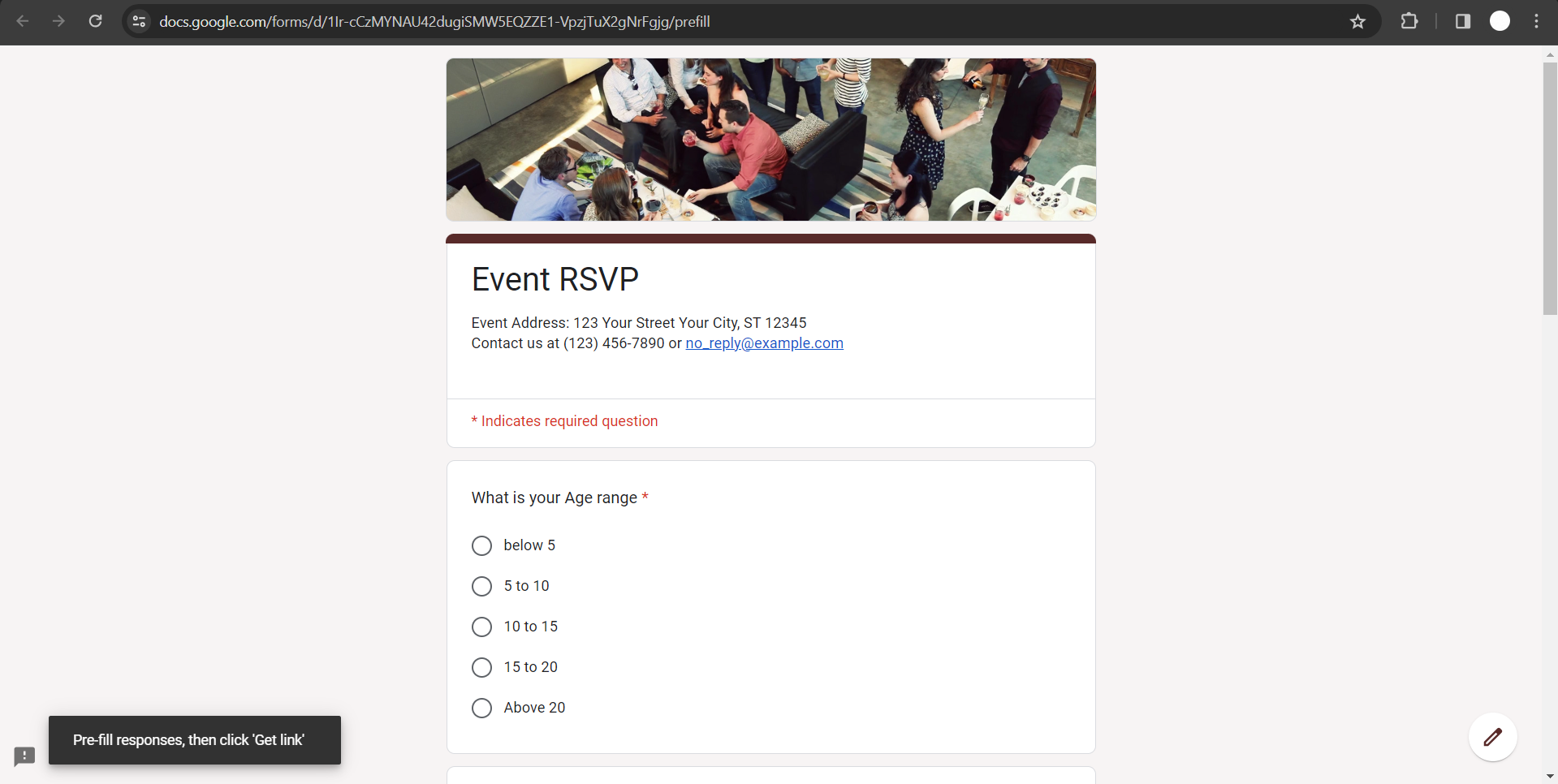
Step 8: Preview and Test Your Form
Before sharing the form, preview and test it to ensure a smooth and user-friendly experience.
Confirm that all questions are clear, and the form captures the necessary information.
Know the simplest way on how to create an order form once done editing your form to start accepting orders and sky rocket your business!
Conclusion:
Creating an order form in Google Forms doesn't have to be a complex task. By following these step-by-step instructions, you can build a user-friendly, customized order form tailored to your business needs.
This not only streamlines the ordering process but also enhances customer satisfaction by providing a hassle-free way for them to place orders.
Now, with your professionally designed order form, you're ready to elevate your business's efficiency and customer service.
Tired of maing presentations? what if we tell you you can make presentation with just a prompt, convert YouTube videos to PPTs, convert website content to PPTs? Yes! checkout magicslides.app that does all and enjoy the free credits to make presentations in seconds.
Frequently Asked Questions:
Can I customize the appearance of my order form on Google Forms?
Absolutely! Google Forms allows you to apply themes, colors, and branding to create a personalized look.
How do I receive notifications for new orders submitted through the form?
Configure form settings to receive email notifications upon each submission, ensuring prompt awareness of new orders.
Can customers attach files or provide specific instructions on the order form?
Yes, utilize the "File Upload" question type to allow customers to attach files for custom orders or special requests.
Is it possible to limit the number of responses for my order form?
Yes, you can set response limits in form settings to manage the number of orders received.


