How to Download Google Docs Files to Multiple Formats Easily


Learn how to easily download Google Docs files to various formats like PDF, Word, and plain text with this step-by-step guide.
Google Docs is a powerful cloud-based tool for creating and editing documents, but sharing or using those documents often requires converting them into different formats.
Whether you’re sending a report as a PDF, sharing a Word document, or exporting plain text for further editing, Google Docs makes it easy to export files in multiple formats.
Here’s a step-by-step guide to downloading Google Docs files to various formats quickly and efficiently.
Why Export Google Docs Files?
Exporting your files in specific formats ensures compatibility and accessibility for your audience. For example:
- PDF: Preserves formatting and is ideal for sharing read-only documents.
- Microsoft Word (.docx): Enables collaboration with users outside Google Docs.
- Plain Text (.txt): Simplifies the document for further editing or integration.
- Other Formats: For specialized needs like publishing or archiving.
Step-by-Step Guide to Export Files in Google Docs
1. Export a Single File
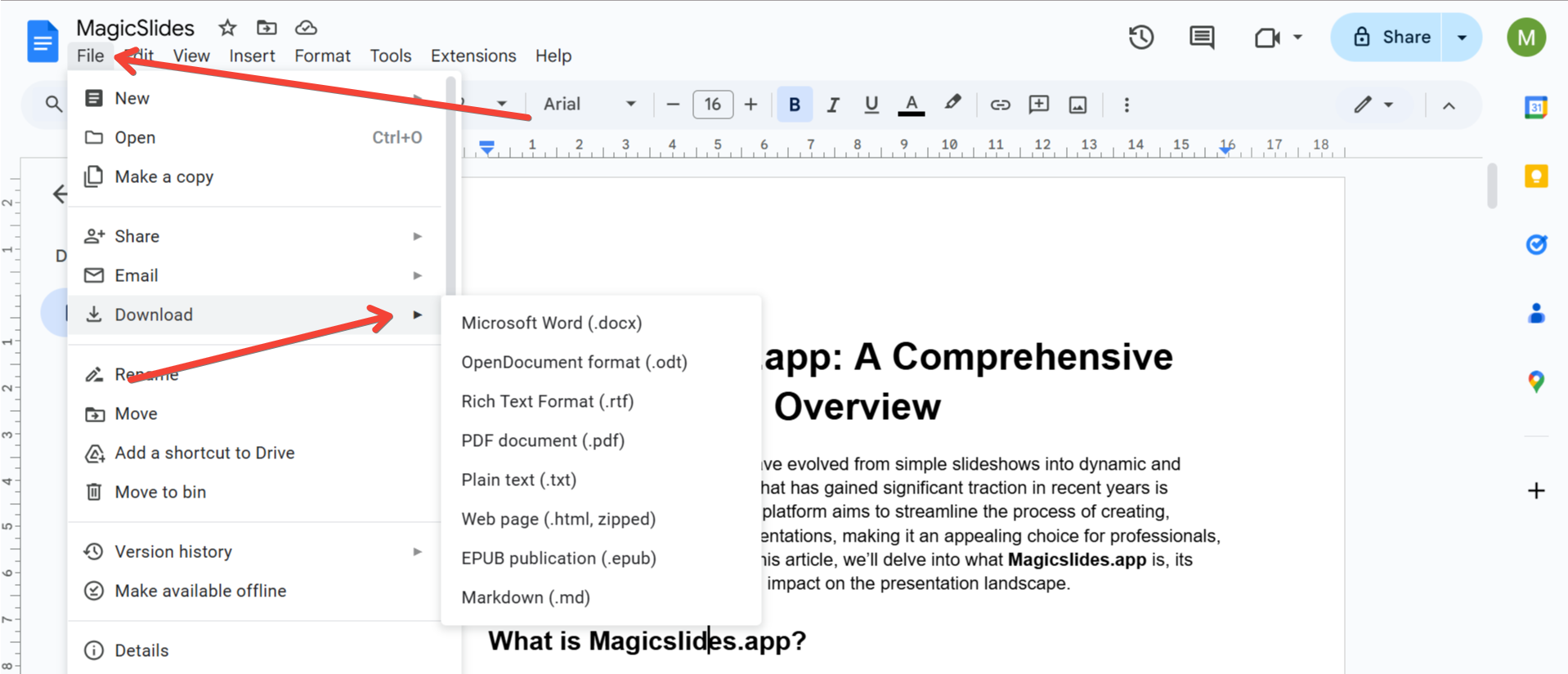
Exporting a single file is straightforward in Google Docs. Here’s how to do it:
- Open the Google Docs file you want to export.
- Click File in the top menu.
- Hover over Download in the dropdown menu.
- Select your desired format from the options:
- Microsoft Word (.docx)
- PDF Document (.pdf)
- Plain Text (.txt)
- Rich Text Format (.rtf)
- Web Page (.html, zipped)
- OpenDocument Format (.odt)
The file will download to your computer in the chosen format.
2. Export Multiple Files at Once
If you need to download several files in one go, use Google Drive to batch export:
- Go to your Google Drive.
- Select multiple files by holding the Ctrl (Cmd on Mac) key and clicking the files.
- Right-click on the selected files.
- Click Download.
- Google Drive will compress the files into a ZIP folder, and all files will be exported as their default formats (usually .docx for Google Docs).
3. Convert Files to PDF
PDFs are one of the most common export formats for professional use. To export as PDF:
- Open your Google Docs file.
- Click File > Download > PDF Document (.pdf).
- The file will download with the same formatting as your Google Docs file.
4. Export to Microsoft Word (.docx)
Microsoft Word is widely used in professional environments. To export:
- Open your document.
- Click File > Download > Microsoft Word (.docx).
- The downloaded file will retain most formatting, making it easy to continue editing in Word.
5. Save as Plain Text (.txt)
For code, raw data, or stripped-down content, exporting as plain text is useful:
- Go to File > Download > Plain Text (.txt).
- The file will download as a .txt file, removing all formatting but retaining the content.
6. Export as a Web Page (.html, zipped)
If you want to turn your Google Docs file into a web page:
- Click File > Download > Web Page (.html, zipped).
- A ZIP file containing the HTML file and supporting assets (like images) will be downloaded.
7. Export Using Google Drive Add-Ons or Extensions
If you need advanced exporting options or integration with other tools:
- Use third-party Google Workspace add-ons available in the Google Workspace Marketplace.
- Examples include extensions for exporting to Markdown, EPUB, or other custom formats.
Tips for a Smooth Export
- Check Formatting: Some formatting may shift when exporting, especially to Word or HTML. Always review the exported file before sharing.
- Use the Right Format: Consider the audience and purpose of the file to determine the most appropriate export format.
- Automate Exports: If you frequently export files to specific formats, explore automation tools like Google Apps Script or third-party integrations.
Final Thoughts
Exporting files from Google Docs to multiple formats is simple and ensures compatibility for diverse needs. Whether you're sharing a polished PDF, collaborating on a Word document, or creating a stripped-down plain text file, Google Docs provides the tools to export efficiently. By mastering these steps, you can easily adapt your documents to suit any audience or platform.


