How to Enter an Emoji in Google Slides


Add personality and flair to your presentations by learning how to insert emojis in Google Slides effortlessly
Emojis are a fun and effective way to add personality and expression to your presentations.
They can help emphasize ideas, engage your audience, and make your slides visually appealing.
In this guide, you’ll learn step-by-step how to insert emojis into Google Slides, no matter your device.
How to Enter an Emoji in Google Slides | Steps to Enter an Emoji in Google Slides
Step 1: Open Google Slides
Log in to your Google account and navigate to Google Slides. Open an existing presentation or start a new one.
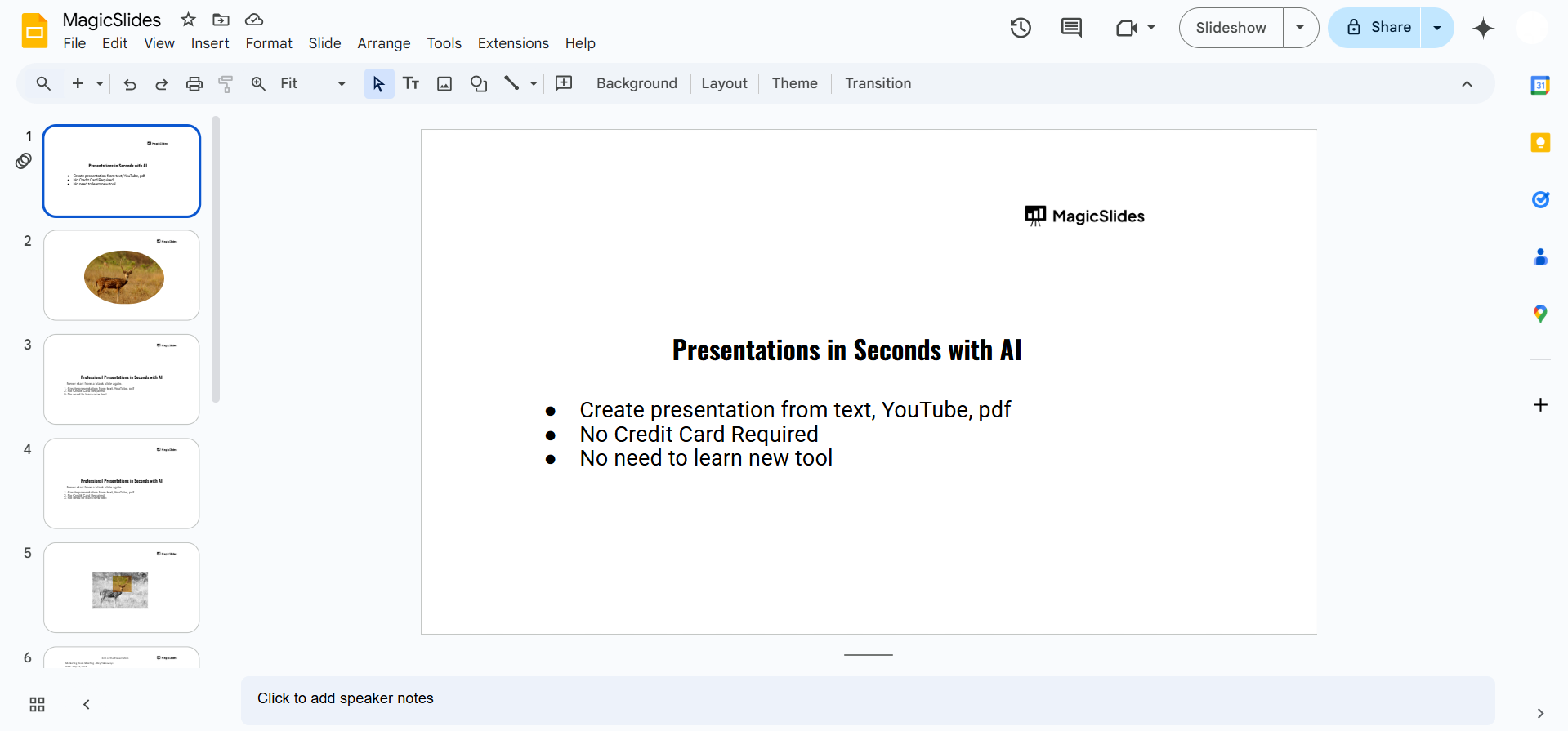
Step 2: Position Your Cursor
Select the text box or area where you want to insert the emoji. Place your cursor in the desired position.
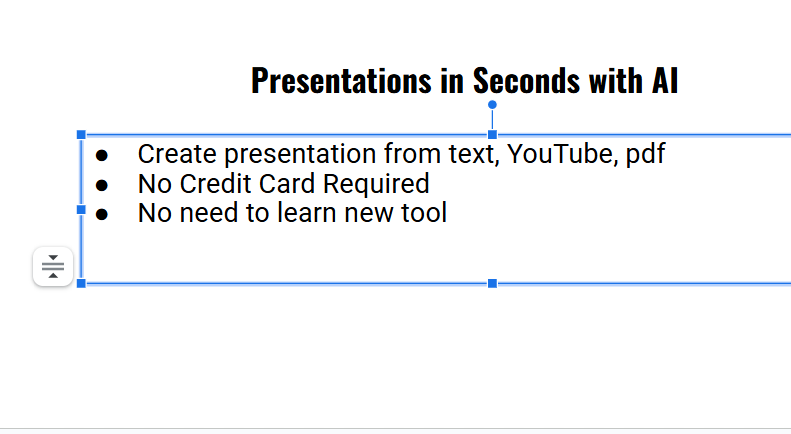
Step 3: Open the Emoji Keyboard (For Windows)
Press Windows Key + . (Period) or Windows Key + ; (Semicolon) on your keyboard.
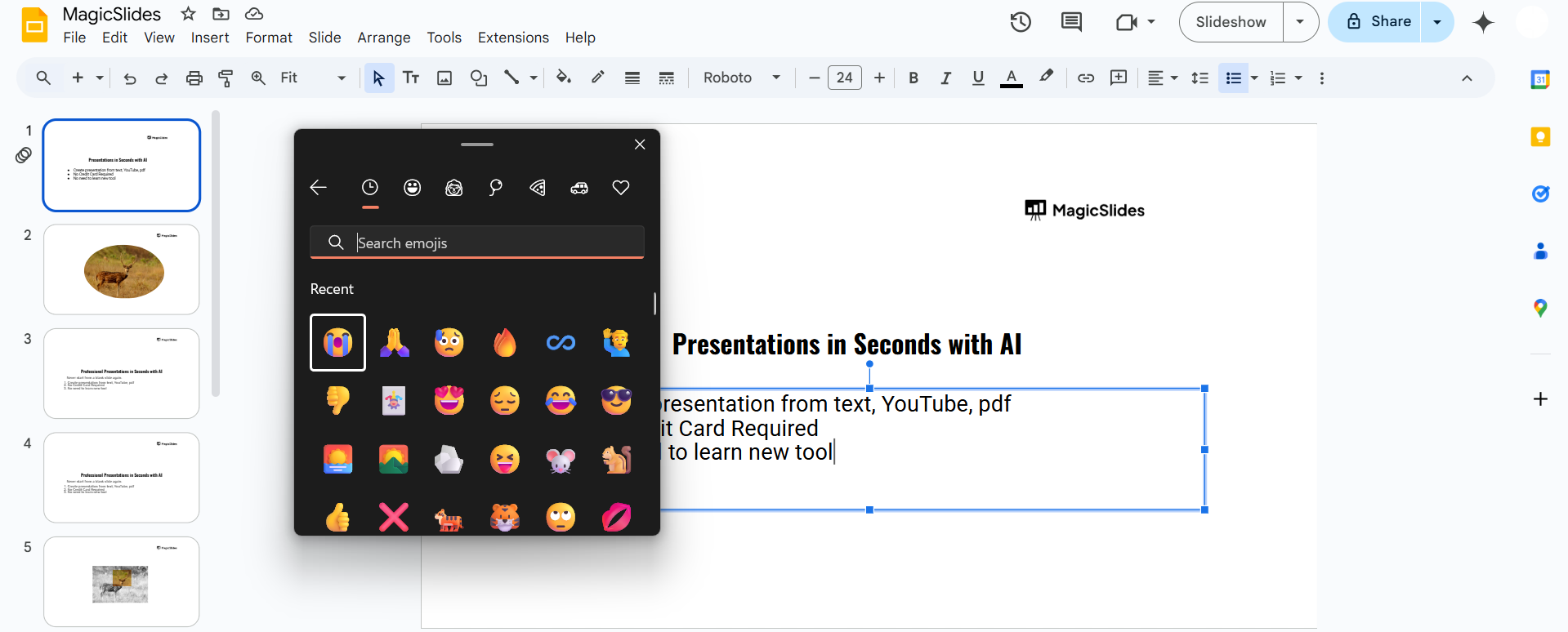
The emoji panel will appear. Browse or search for the emoji you want, then click it to insert it into your slide.
Step 4: Open the Emoji Keyboard (For Mac)
Press Control + Command + Spacebar on your keyboard.
The emoji viewer will appear. Search for or browse through emojis, then click to insert one into your slide.
Step 5: Use Emojis from the Mobile App
Open the Google Slides app on your mobile device.
Tap on the text box where you want the emoji. Use your device’s built-in emoji keyboard to add the emoji.
Step 6: Copy and Paste Emojis from Online Sources (Optional)
Search for emojis online using sites like Emojipedia.org or Google search.
Copy the emoji by highlighting it and pressing Ctrl + C (Windows) or Command + C (Mac).
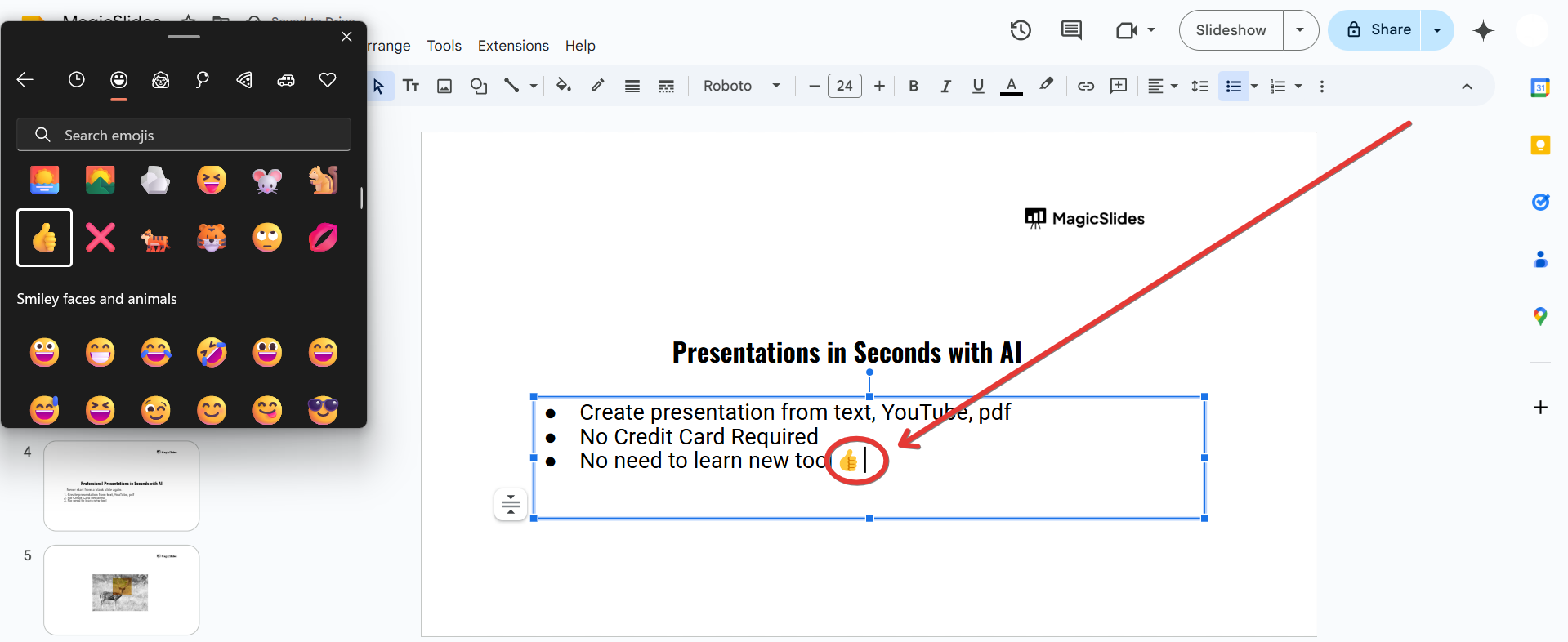
Paste it into your slide using Ctrl + V (Windows) or Command + V (Mac).
Step 7: Style the Emoji (Optional)
Resize the emoji to fit your slide design by dragging its corners.
Adjust its position, alignment, or add effects like shadows for enhanced visual appeal.
Conclusion
Adding emojis to Google Slides is a quick and easy way to inject creativity into your presentation.
Whether you’re using a desktop or mobile device, these methods ensure your slides are more engaging and relatable.
FAQs on Entering Emojis in Google Slides
Can I change the color of an emoji in Google Slides?
No, the default emoji colors cannot be changed, but you can layer emojis with other design elements for customization.
Do emojis display consistently across devices?
Most emojis will display correctly, but some may vary depending on the operating system or browser.
Are there alternatives to inserting emojis directly in Google Slides?
Yes, you can use stickers, images, or third-party extensions to add similar visual elements.
By following this guide, you can easily include emojis in your Google Slides and elevate your presentation game!


