How To Insert A Timer Into Google Slides


Enhance your Google Slides presentations with precision by adding timers for seamless transitions and engagement.
Engaging presentations often benefit from well-timed transitions and pacing. Google Slides offers a variety of features to enhance your presentations, and one such feature is the ability to insert a timer. Incorporating a timer can help you stay on track during your presentation and keep your audience engaged. In this step-by-step guide, we'll walk you through the process of adding a timer to your Google Slides presentation.
How to insert a timer into Google Slides
Step 1: Open Your Google Slides Presentation
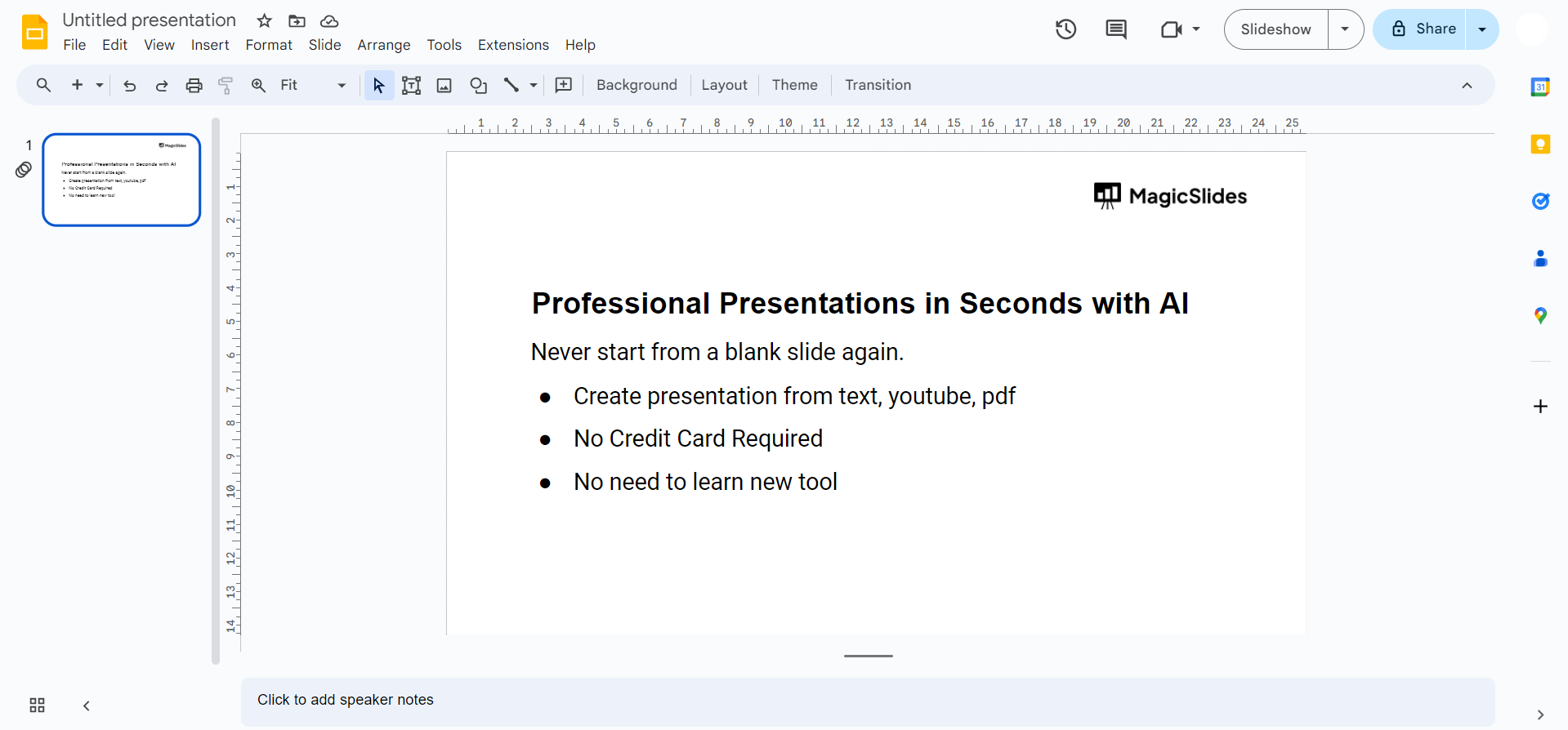
Begin by opening the Google Slides presentation to which you want to add a timer. If you haven't created one yet, go ahead and create a new presentation.
Step 2: Navigate to the Slide Where You Want the Timer
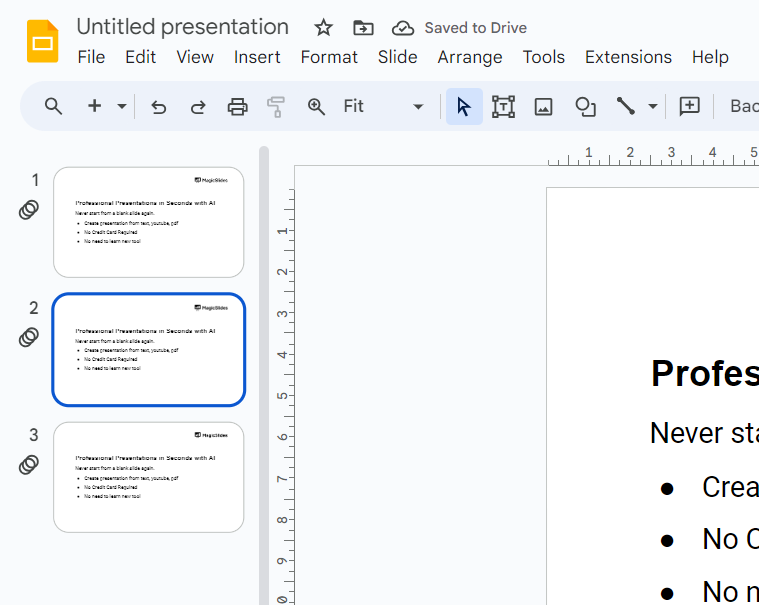
Locate the specific slide where you want to insert the timer. You may want to add the timer to the title slide, a specific content slide, or the concluding slide, depending on your presentation style.
Step 3: Access the Slide Menu
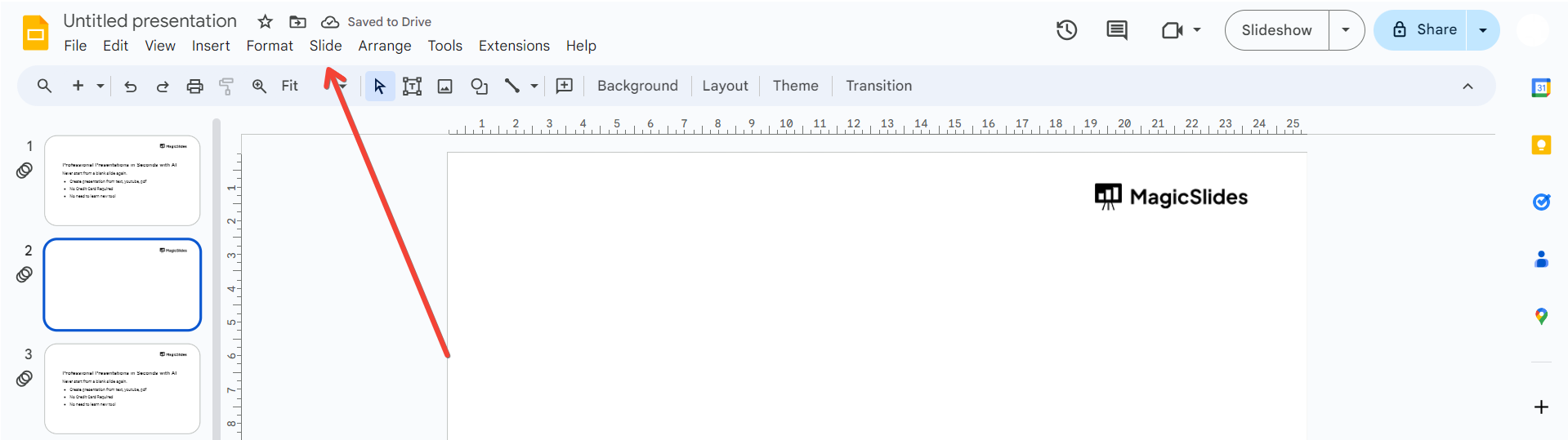
Click on the slide where you want the timer, and then navigate to the "Slide" menu at the top of the screen.
Step 4: Choose "Transition"
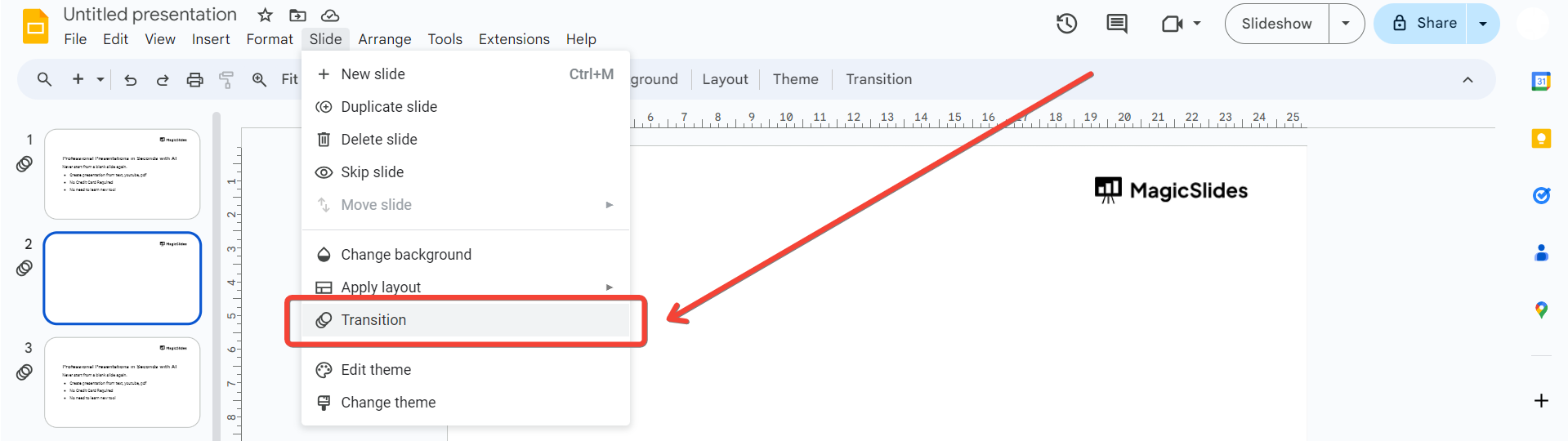
From the drop-down menu, select "Transition." This option will allow you to set the duration for each slide, effectively creating a timer for your presentation.
Step 5: Set the Slide Duration
On the right side of the screen, you'll see the "Transition" pane. Under the "Transition" section, you can set the duration for each slide. Enter the desired time in seconds; for example, if you want each slide to display for 30 seconds, enter "30."
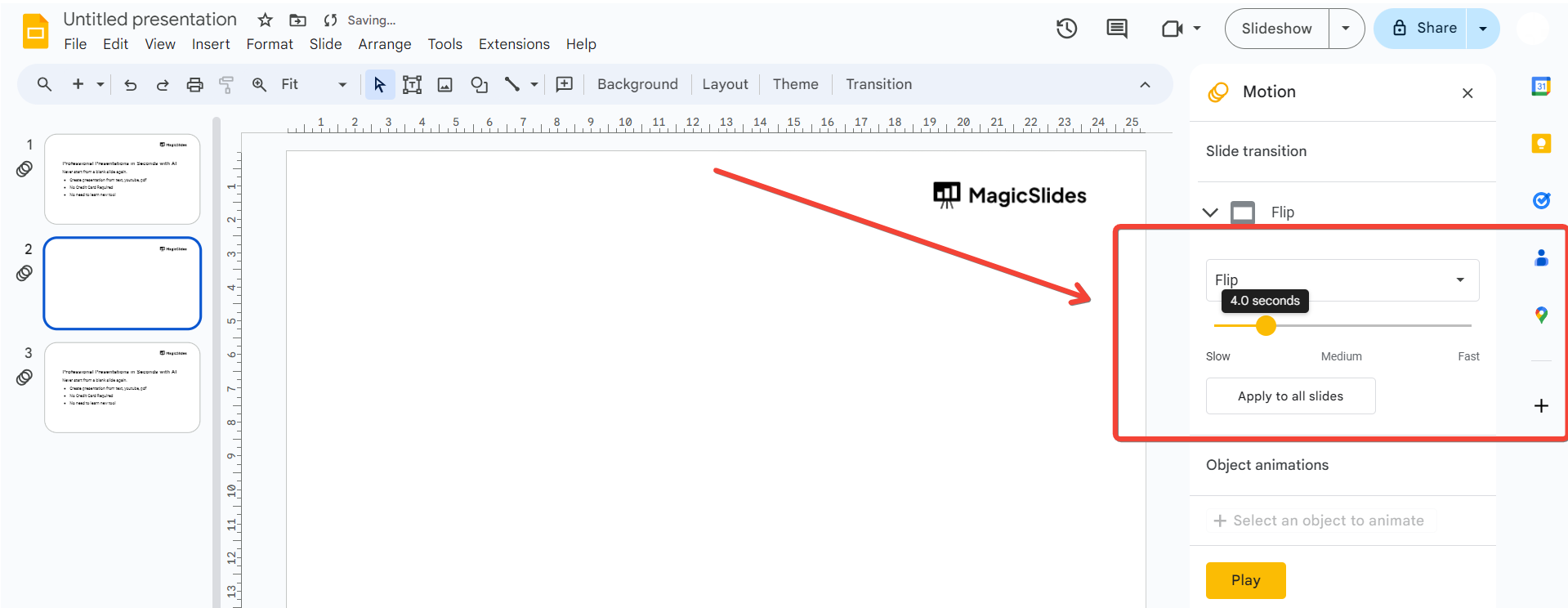
Step 6: Customize the Transition
Explore additional transition options to customize the timer. You can choose different transition styles and speeds to add a dynamic touch to your presentation.
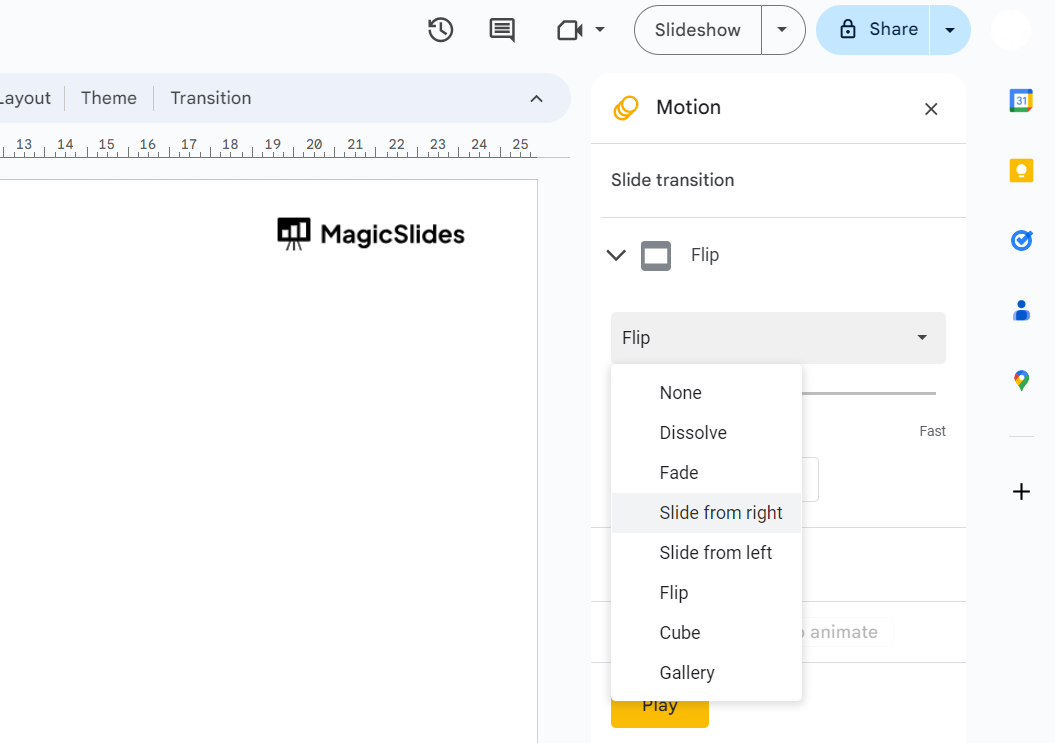
Step 7: Repeat for Each Slide (Optional)
If you want a consistent timer for the entire presentation, repeat the process for each slide. If you prefer different timings for specific slides, customize accordingly.
Conclusion:
Incorporating a timer into your Google Slides presentation is a simple yet effective way to enhance your delivery and keep your audience engaged. Whether you're delivering a pitch, a training session, or an educational presentation, the timed transitions can help you maintain a smooth flow and stay within your allotted time. Experiment with different durations and transition styles to find what works best for your content and presentation style. With these easy steps, you'll be able to elevate your Google Slides presentations and captivate your audience with well-timed precision.
Frequently Asked Questions:
Can I set different timers for each slide in Google Slides?
Yes, you can customize timers individually to suit the pacing of each slide in your presentation.
Is the timer feature available in the mobile version of Google Slides?
As of my last knowledge update in January 2022, Google Slides on mobile may not have this feature. Check for updates or use a desktop for timing precision.
Can I use the timer feature during a Google Slides live presentation?
Unfortunately, the timer feature doesn't work during live presentations. Consider using external tools for live events.
Are there creative ways to use timers in Google Slides beyond simple slide transitions?
Absolutely! Experiment with timed animations, reveal content gradually, or use timers for interactive elements to enhance engagement.


