How to Insert PowerPoint into Word


Learn how to seamlessly insert PowerPoint slides into Word documents for organized, visually engaging reports
Inserting a PowerPoint presentation into a Word document can be useful for creating comprehensive reports, handouts, or documentation that combine text and slides.
Microsoft Word offers multiple methods to insert slides from PowerPoint, whether you want them as static images or editable content.
This guide will walk you through each step to seamlessly embed PowerPoint slides into Word.
How to Insert a PowerPoint Presentation into Word: A Step-by-Step Guide
Step 1: Open Both PowerPoint and Word
Begin by opening both the PowerPoint presentation you want to insert and the Word document.
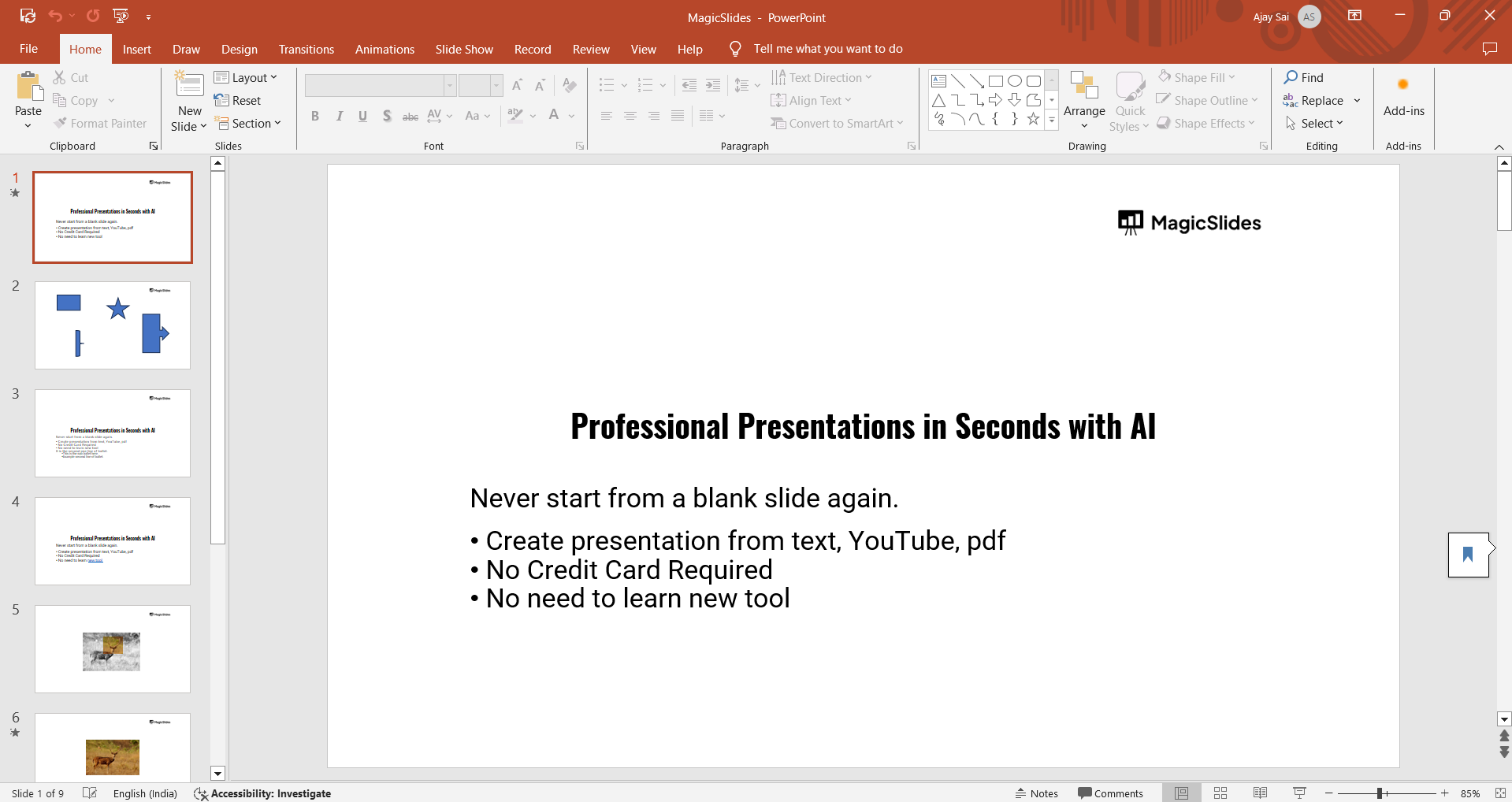
Having both files open will make it easier to switch between them as you insert content.

Step 2: Go to PowerPoint and Copy Your Slides
In PowerPoint, select the slide or slides you want to add to Word.
You can select multiple slides by holding down the "Ctrl" key as you click on each slide.
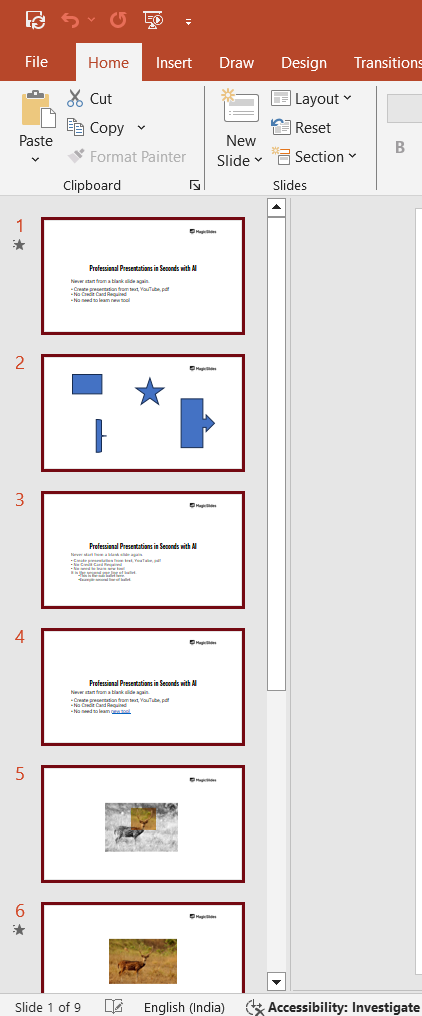
Once selected, right-click and choose “Copy” or press "Ctrl + C" on your keyboard to copy the slides.
Step 3: Paste the Slides in Word
Switch to your Word document and place the cursor where you want to insert the PowerPoint content. Right-click and choose “Paste” from the dropdown menu, or press "Ctrl + V."
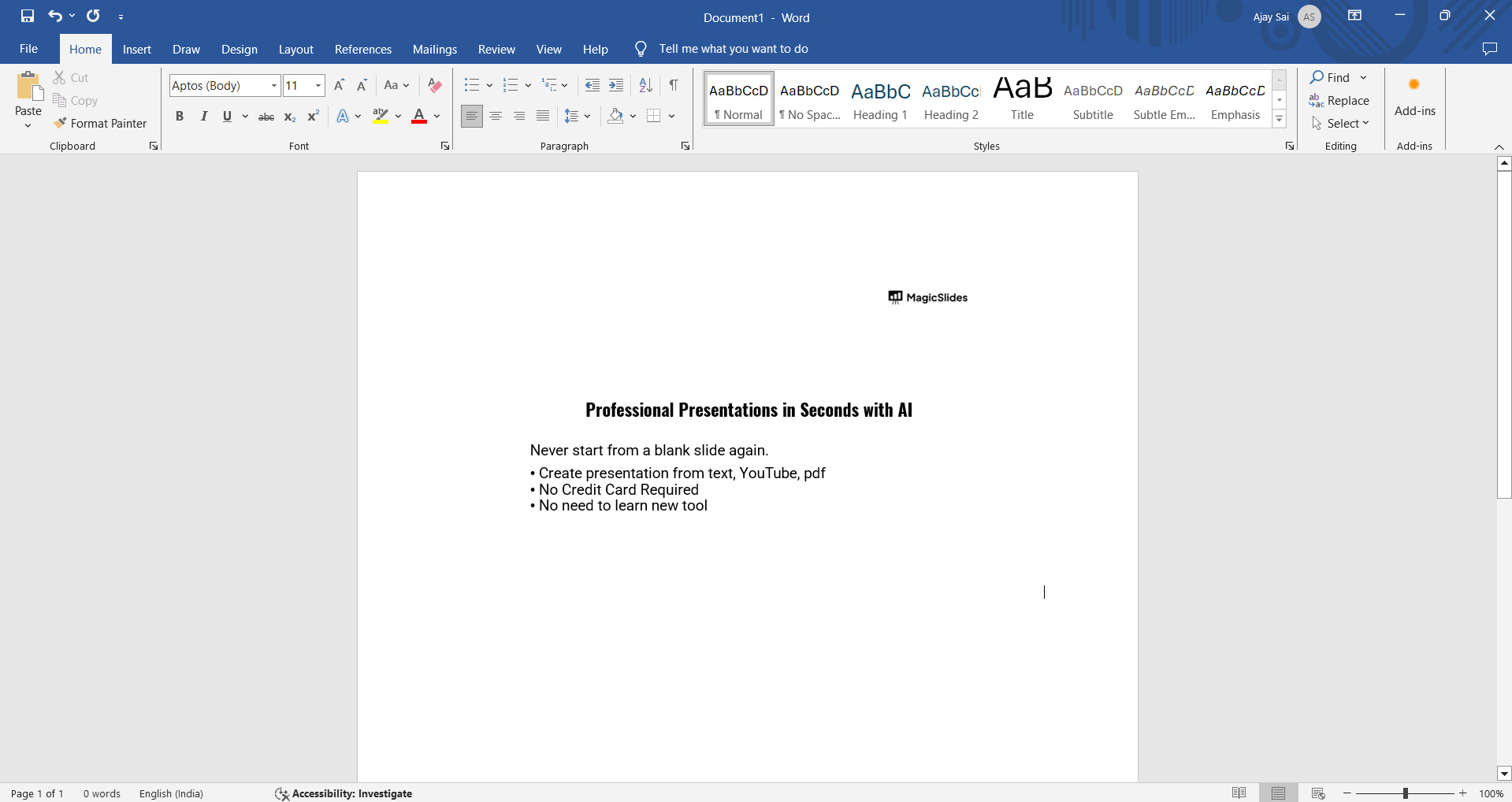
After pasting, you’ll see options to keep the original PowerPoint formatting, merge it with the Word document’s style, or paste it as a picture.
Step 4: Use the "Insert Object" Method (Optional)
For an alternative method, go to the “Insert” tab in Word, select “Object,” and then choose “Create from File.”
Click “Browse” to find your PowerPoint file, then select it and click “Insert.”
This will embed the entire PowerPoint presentation as an object, allowing you to double-click it to open and view the slides within Word.
Step 5: Adjust the Layout (Optional)
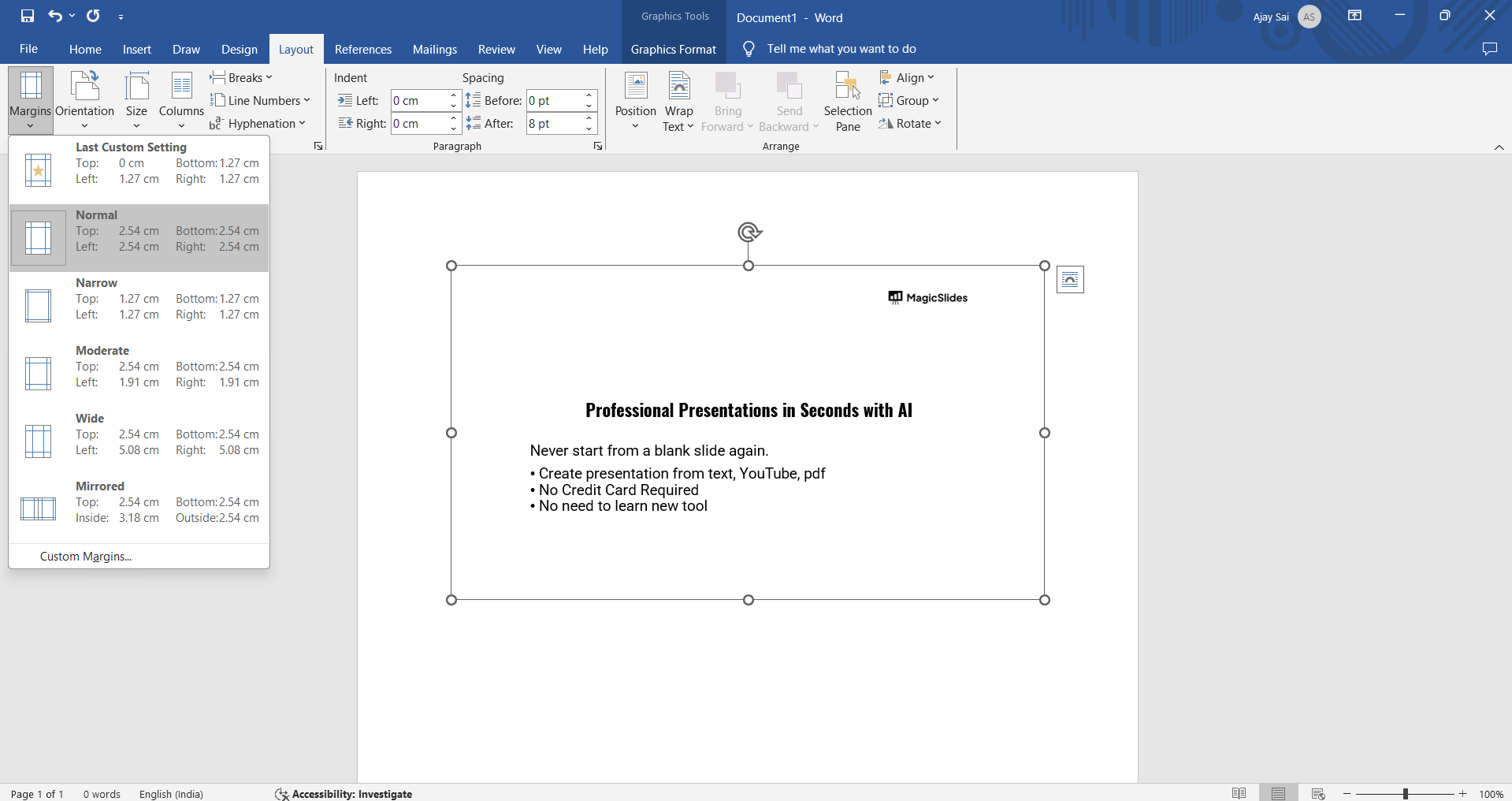
After inserting the slides, you may need to adjust the layout for better formatting.
You can resize slides by clicking on them and dragging the corner handles, or arrange them by aligning or wrapping text around the slides as needed.
After learning to insert PowerPoint into Word, consider adding clickable links in your Canva PDFs, which allows you to create interactive resources across various formats.
Conclusion
Embedding PowerPoint slides into Word is a straightforward process that can enhance your document with visual content, making it more engaging and informative.
By following these steps, you can integrate slides easily and adjust them to fit the layout of your document.
Try out these methods to find the one that best suits your needs!
FAQs can take you forward!
Can I edit PowerPoint slides after pasting them in Word?
If you paste slides as images, they are not editable. To edit slides within Word, use the "Insert Object" method and double-click the embedded PowerPoint object.
How can I link the PowerPoint file to update automatically in Word?
When inserting through the “Insert Object” method, check the box labeled “Link to file.” This will link the PowerPoint, updating any changes made to the slides in the Word document automatically.
Can I insert only specific slides from PowerPoint into Word?
Yes, simply select the specific slides you need in PowerPoint, copy them, and then paste them into Word. Alternatively, save selected slides as images in PowerPoint and then insert those images into Word.


