How To Make Interactive Google Slides


Revolutionize your presentations with this guide on crafting interactive Google Slides, captivating your audience effortlessly.
Captivating your audience goes beyond static content. With Google Slides, you can transform your presentations into interactive experiences that keep your audience engaged and involved. In this guide, we'll take you through each step, unveiling the secrets to making your Google Slides presentations dynamic and interactive. From clickable elements to embedded multimedia, discover how to create presentations that leave a lasting impact.
How to make interactive Google Slides
Step 1: Open Google Slides
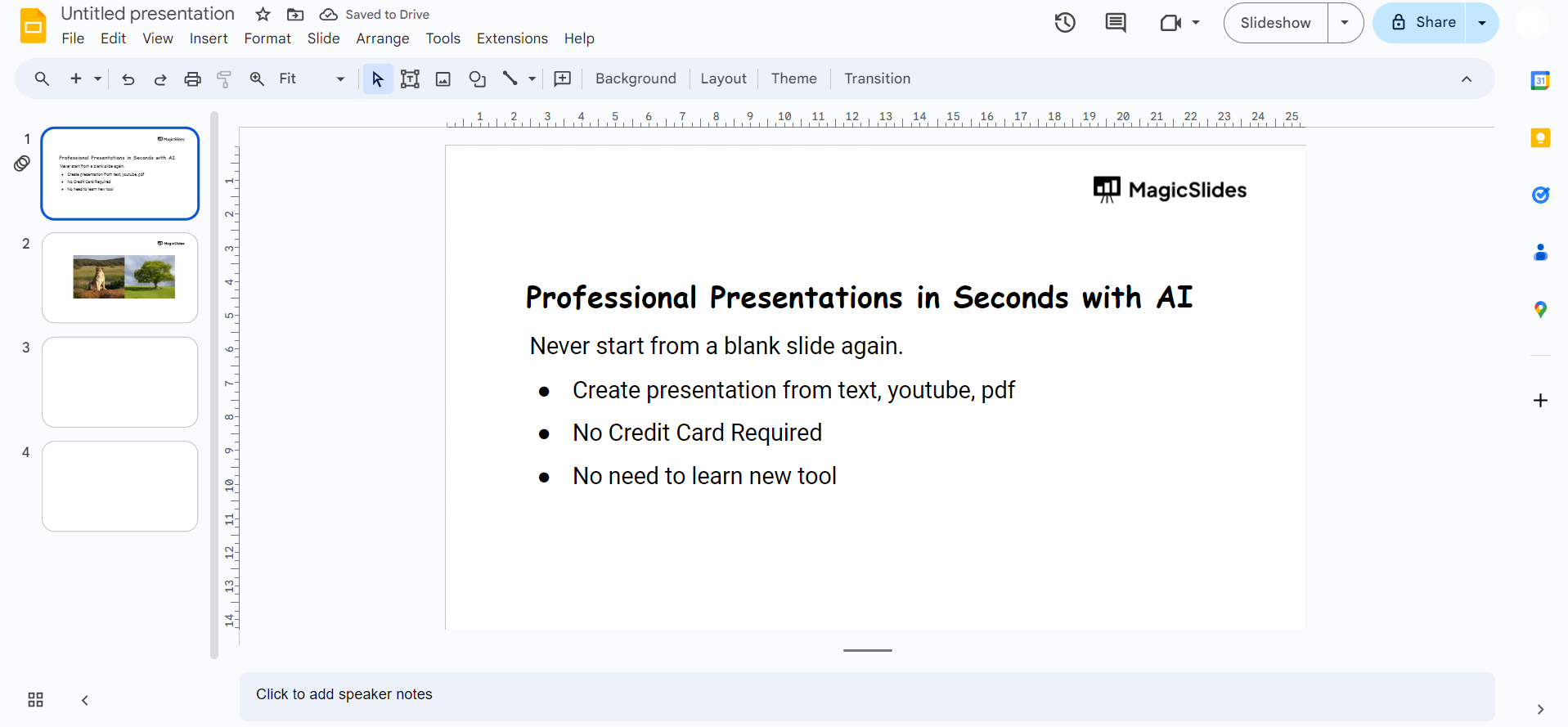
Begin by opening the Google Slides presentation you want to make interactive. If you're starting a new one, create your slides with your content.
Step 2: Insert Hyperlinks
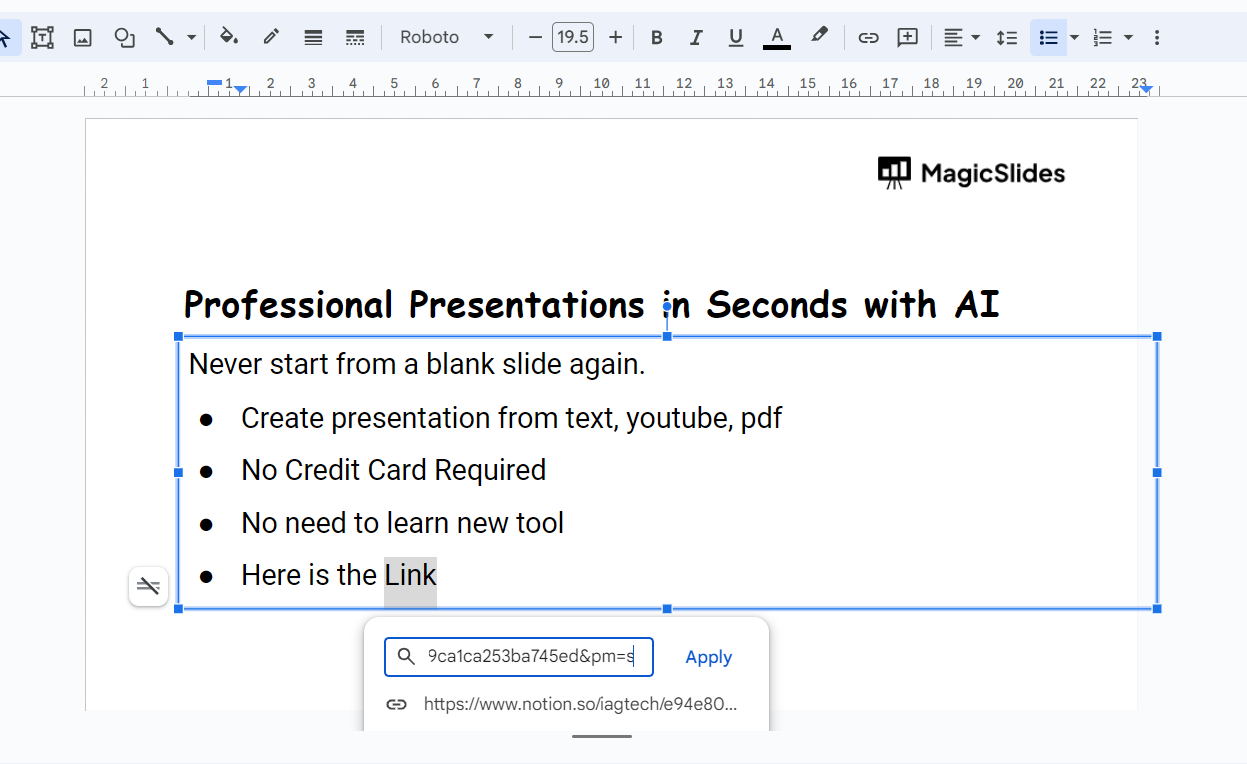
Select the text, image, or shape you want to make clickable. Right-click and choose "Link" or use the toolbar to insert a hyperlink. Direct it to a slide, website, or another location.
Step 3: Add Actionable Buttons/ images/ videos
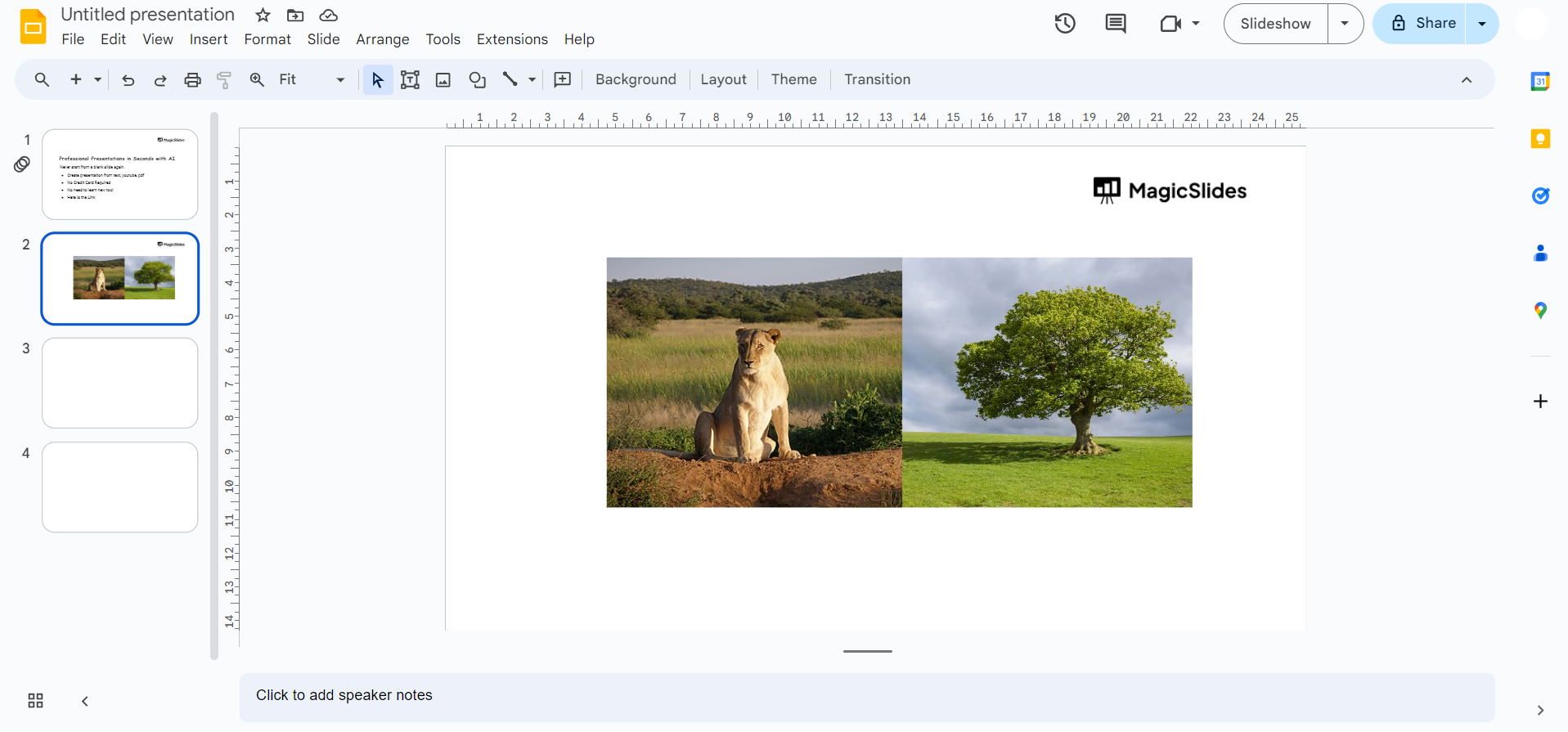
Incorporate buttons using shapes or images. Add text or icons to make them clear. Link these buttons to relevant slides or external content to guide user interaction.
Step 4: Embed Multimedia/ Google forms
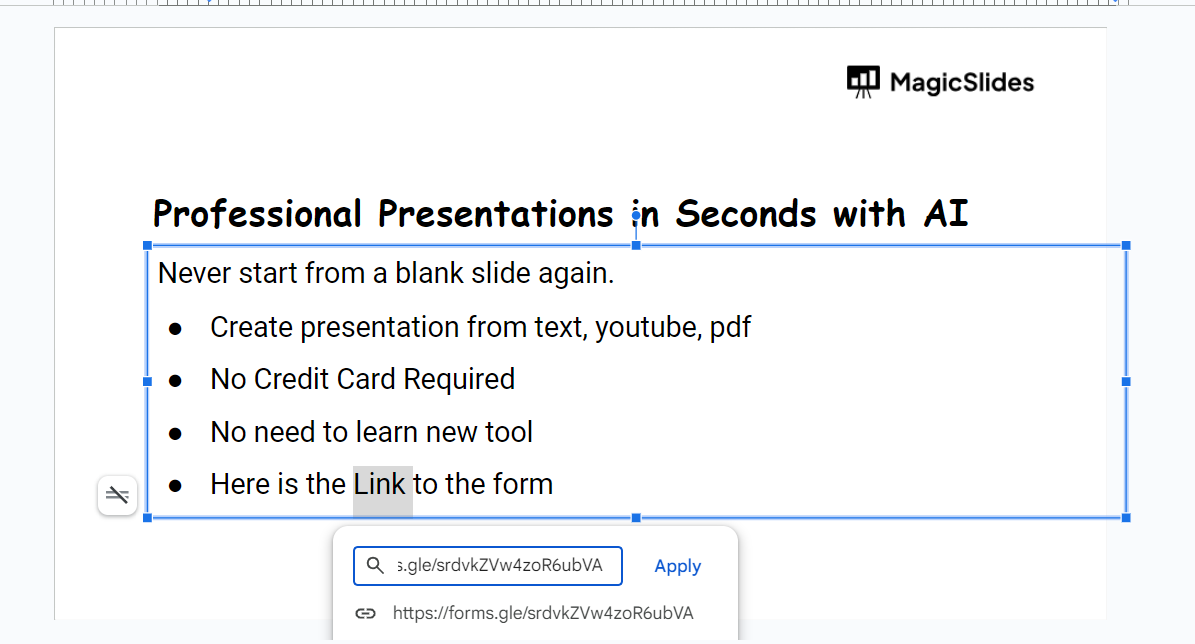
Enhance interactivity by embedding videos, audio, or Google Forms directly into your slides. Use the "Insert" menu to access these multimedia elements.
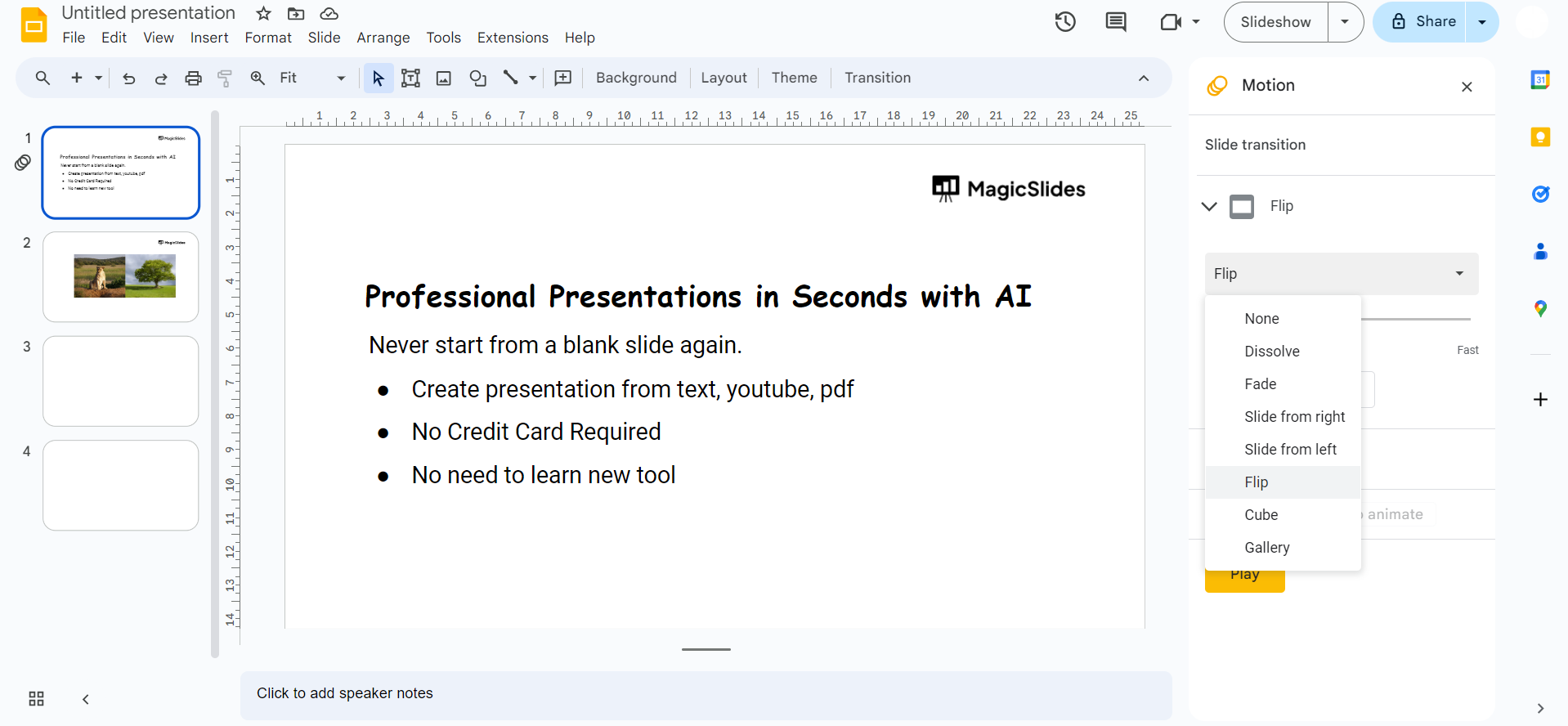
Step 5: Utilize Transitions
Make your slides more engaging with transitions. Choose between slide-to-slide transitions or apply animations to specific elements, making your content visually dynamic.
Step 6: Incorporate Interactive Quizzes
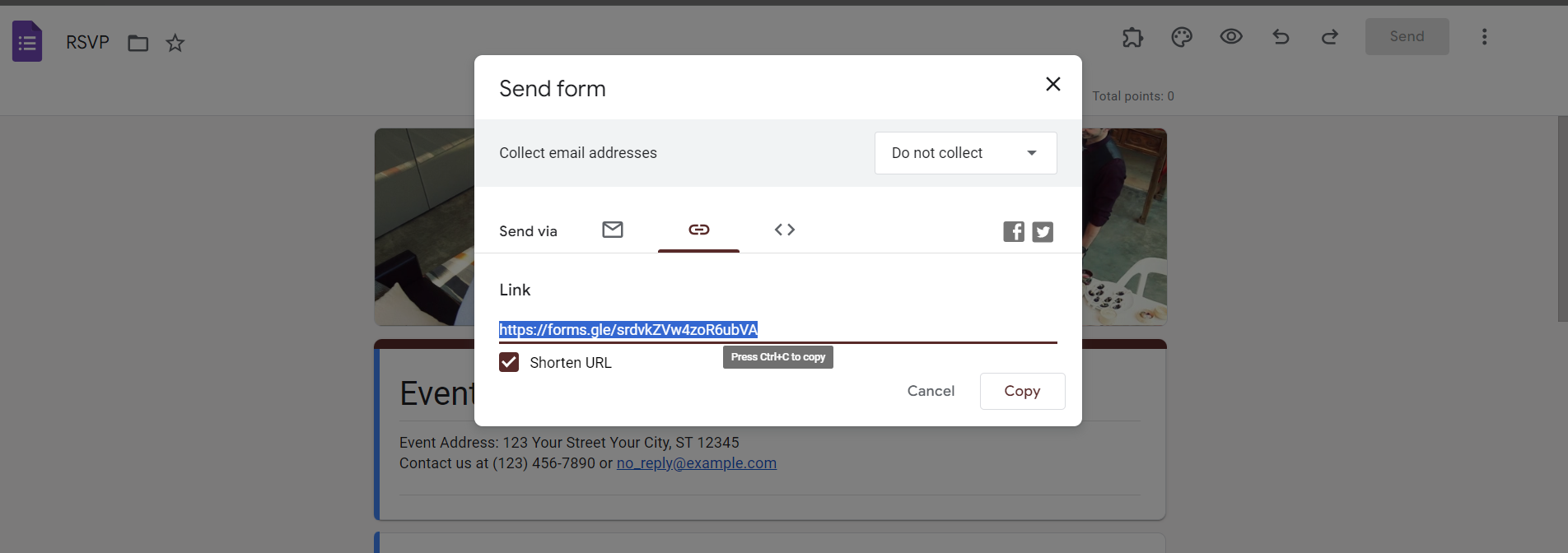
Integrate Google Forms quizzes or surveys directly into your slides. Use the "Insert" menu to embed the form, allowing your audience to interact with questions seamlessly.
Step 7: Create Navigation Slides
Design dedicated navigation slides that serve as hubs to various sections. Link these slides to corresponding content, providing an interactive roadmap for your audience.
Step 8: Test Interactivity
Before presenting, thoroughly test your interactive elements. Click through hyperlinks, buttons, and multimedia to ensure a smooth and engaging user experience.
Step 9: Save and Share
Once satisfied with your interactive Google Slides presentation, save your work and share it with your audience. Whether in a meeting, classroom, or virtual setting, captivate your audience with an immersive presentation.
Conclusion:
Transforming your Google Slides into interactive experiences opens up a world of possibilities for engaging your audience. From clickable buttons to embedded quizzes, this step-by-step guide empowers you to create dynamic presentations that go beyond traditional slideshows. Elevate your content, capture attention, and leave a lasting impression with interactive Google Slides that stand out in any setting. Engage, inspire, and present with impact by incorporating these interactive elements into your next presentation.
Frequently Asked Questions:
Can I add interactive elements to Google Slides on mobile devices, or is it limited to desktop?
Yes, you can add interactive elements like hyperlinks and multimedia on both desktop and mobile.
Can I track user interaction or responses to interactive elements within Google Slides?
Google Slides itself doesn't offer native tracking features; consider using Google Analytics or other tracking tools.
Are there limitations to the types of multimedia I can embed in Google Slides?
Google Slides supports embedding YouTube videos, Google Drive files, and audio files stored in Drive.
Can I collaborate with others on interactive Google Slides presentations, or is it a solo endeavor?
Yes, Google Slides allows for real-time collaboration, making it easy to work on presentations with others.


