How to publish Google slides


Expand your audience reach by learning how to effortlessly publish and share your Google Slides presentation.
Sharing your Google Slides presentation with others is a key aspect of effective communication and collaboration. Google Slides provides a straightforward process for publishing your presentation, allowing you to share it with a wider audience. In this step-by-step guide, we'll explore how to publish Google Slides, making your content accessible to viewers beyond the realm of your editing space.
How to publish Google slides
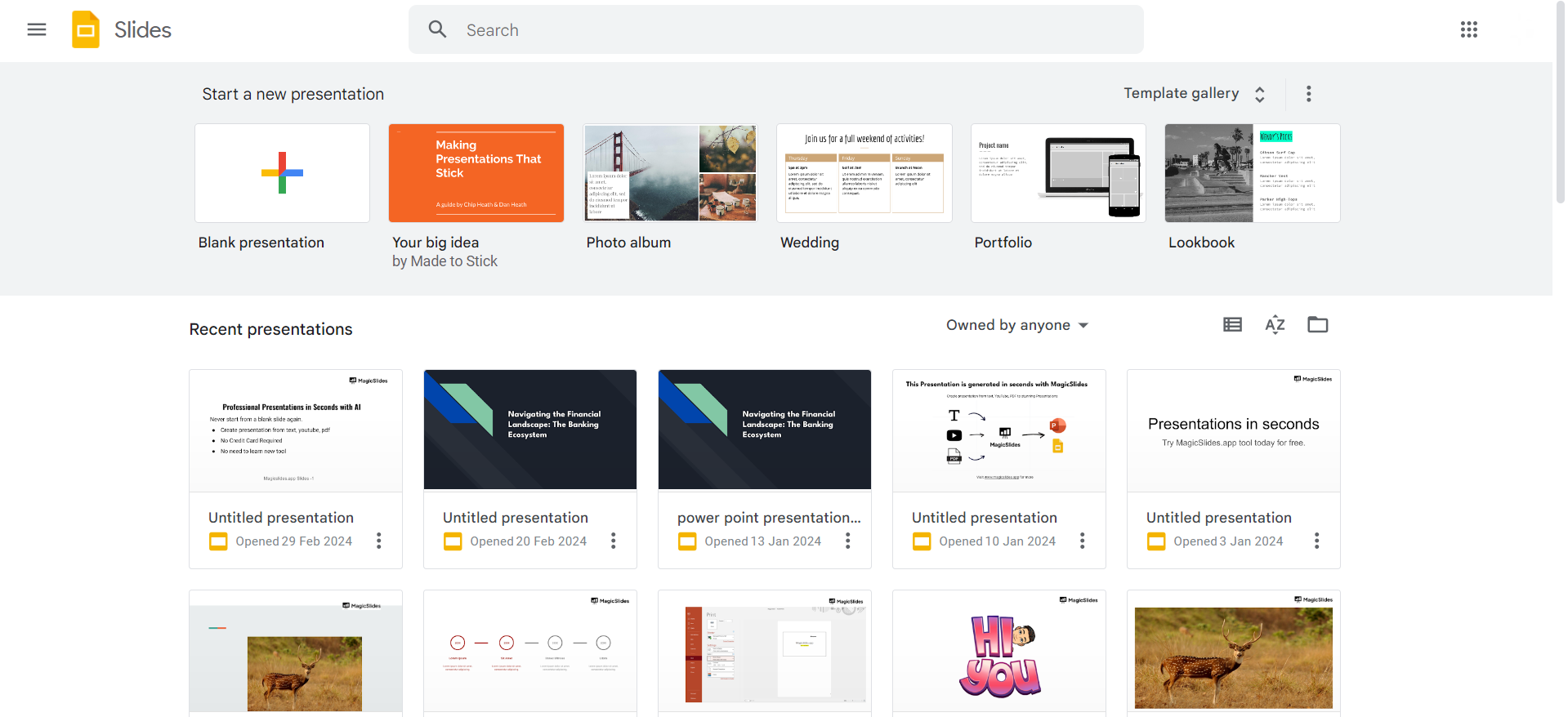
Step 1: Open Your Google Slides Presentation
Start by opening the Google Slides presentation you wish to publish. If it's a new presentation, create one and add your content.
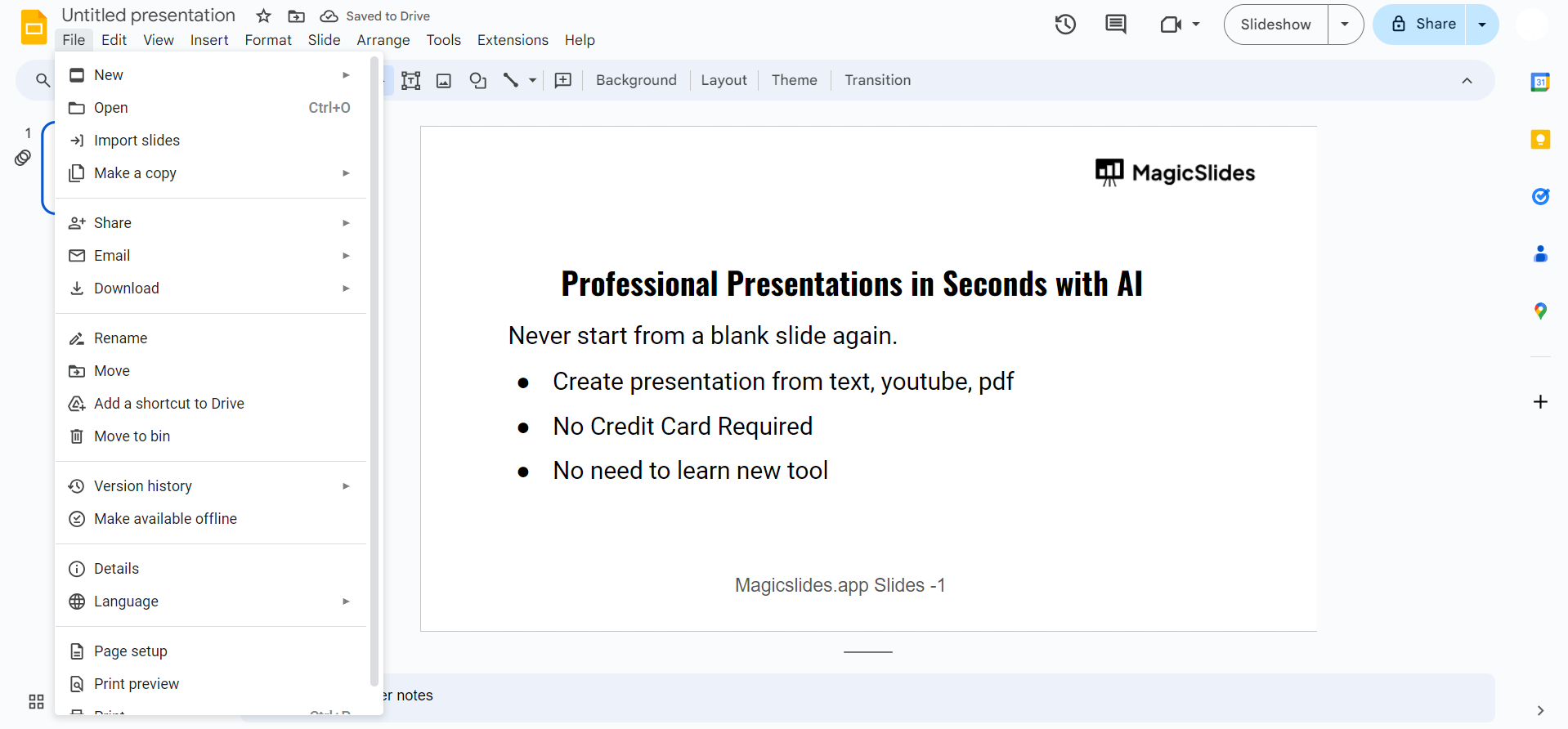
Step 2: Click on "File" in the Menu
Navigate to the top-left corner of the screen and click on "File" in the menu bar. A drop-down menu will appear.
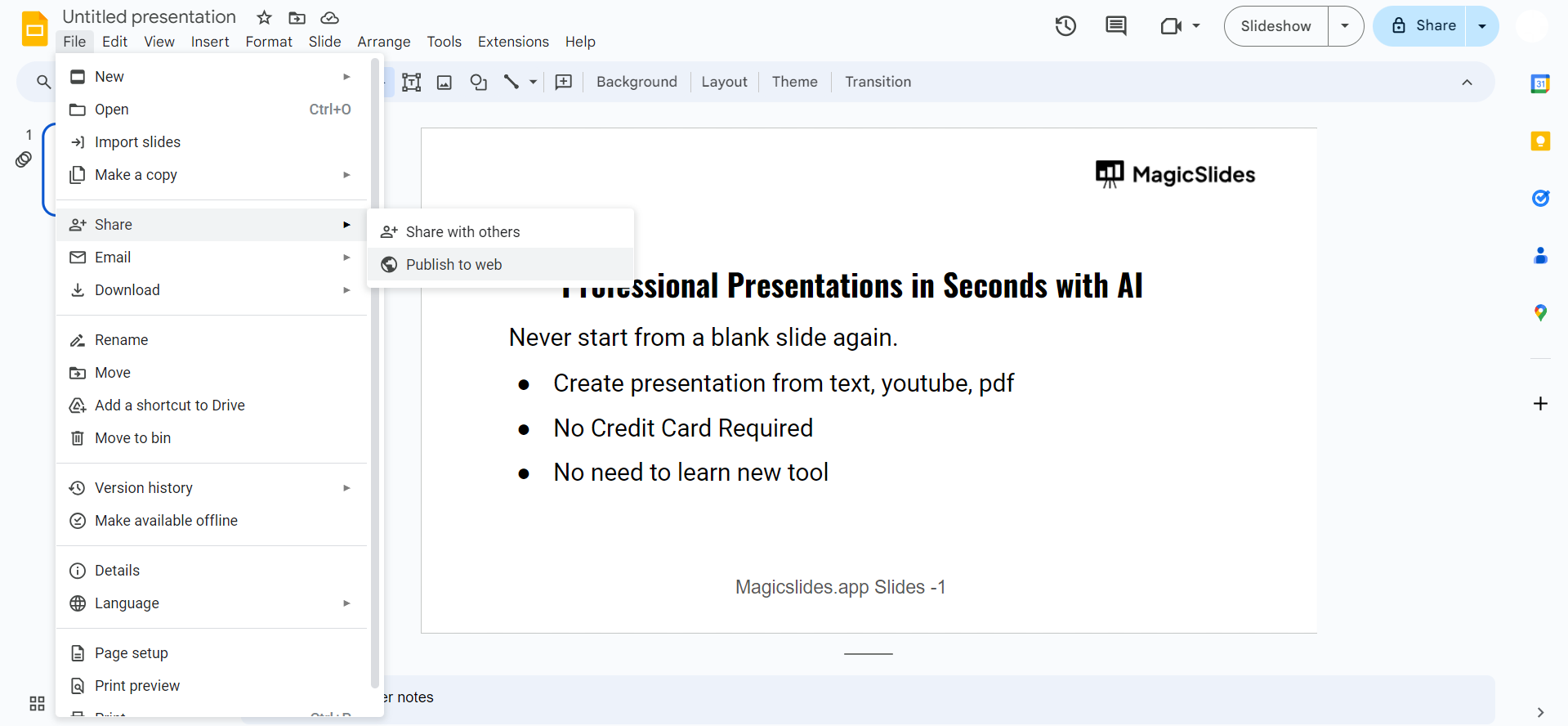
Step 3: Select "Publish to the Web"
From the "File" menu, choose the "Publish to the web" option. This opens a dialog box with publishing settings.
Step 4: Choose Publishing Options
In the dialog box, select your desired publishing options. You can decide whether to publish the entire presentation or just a specific slide. Set the auto-advance options if needed.
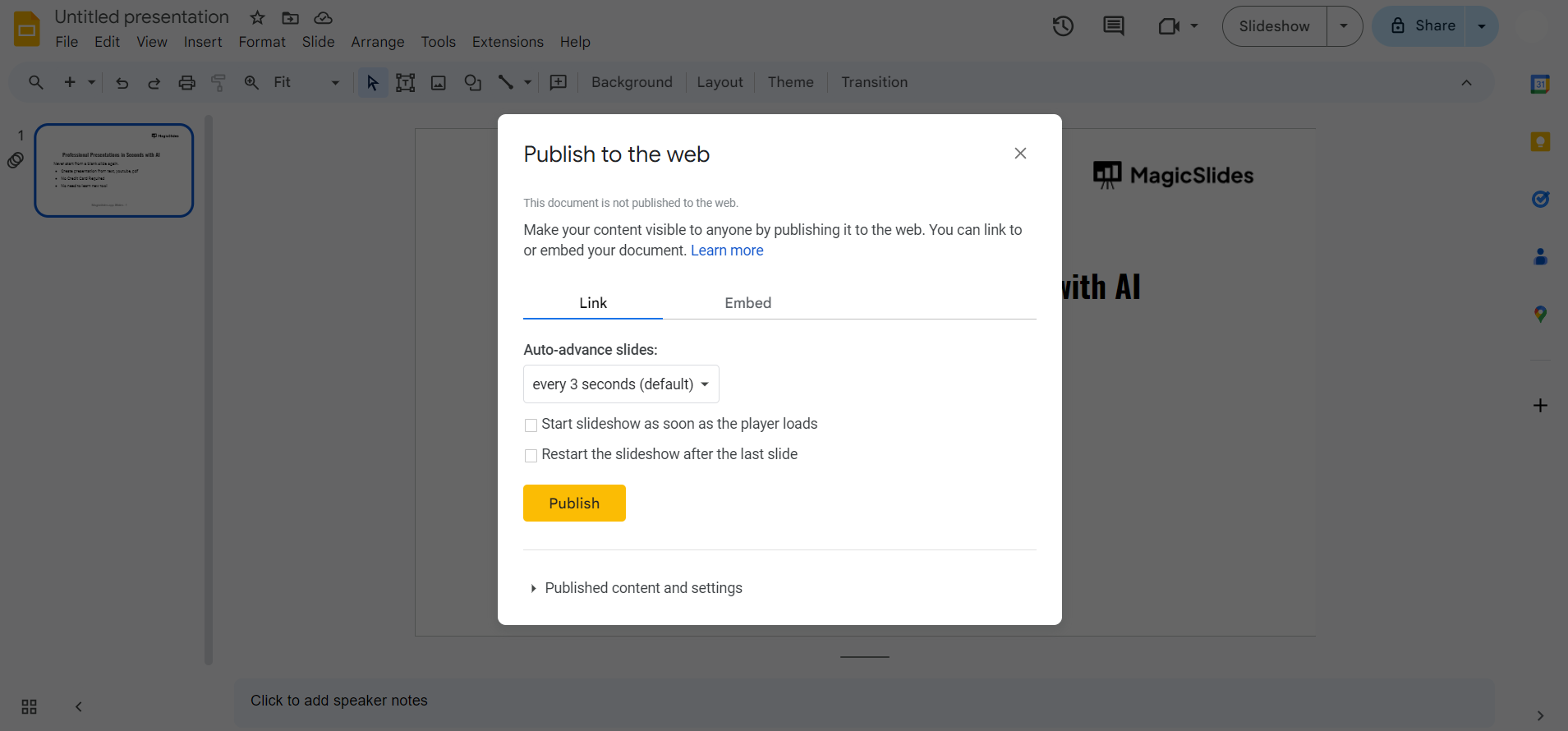
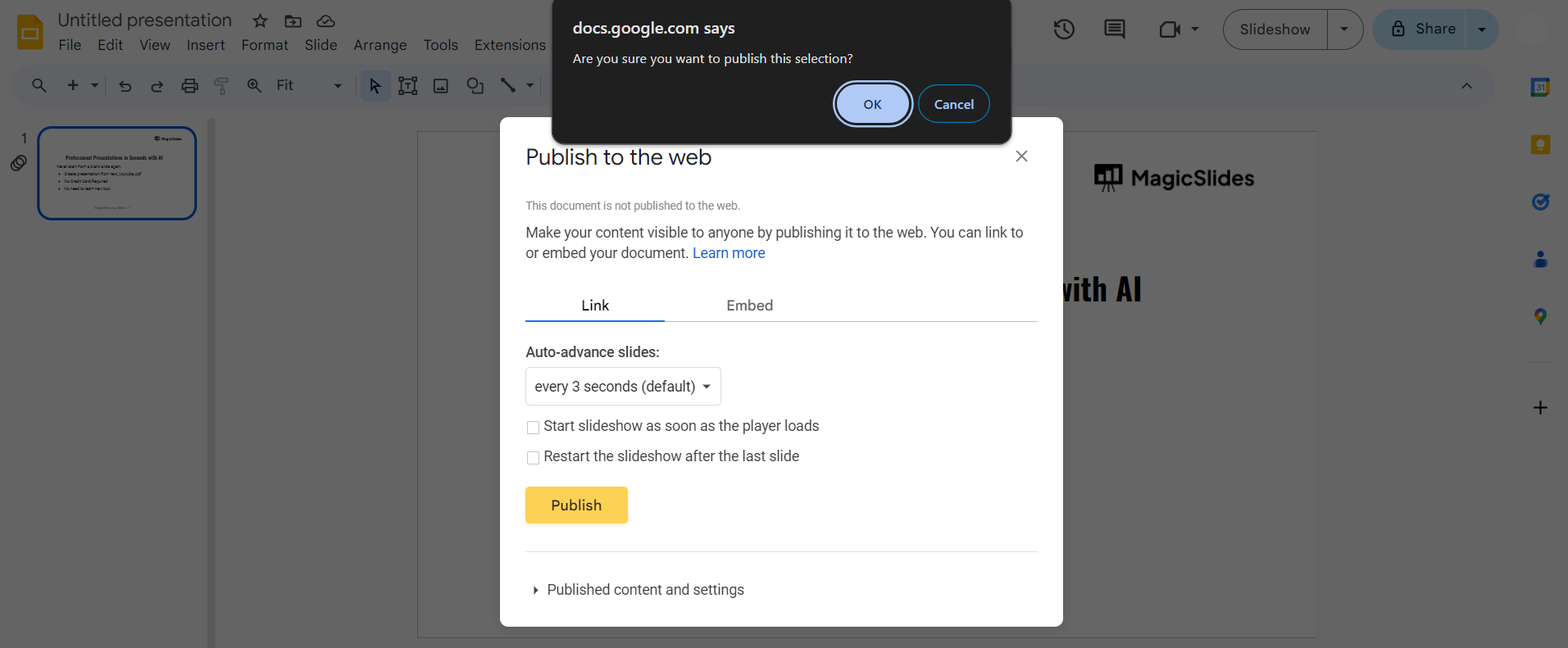
Step 5: Click on "Publish"
Once you've adjusted the settings, click on the "Publish" button. Confirm your choice in the subsequent dialog box that appears.
Step 6: Copy the Published Link
After confirming, you'll be provided with a unique link. Copy this link, and you can now share it with others. You can also embed the presentation if needed.
Conclusion:
By following these straightforward steps, you'll unlock the full potential of Google Slides as a dynamic tool for communication and collaboration. Share your insights, engage your audience, and make your presentations accessible to everyone. Publishing your Google Slides presentation opens the door to seamless sharing and collaboration. Whether you're sharing your work with colleagues, students, or clients, this process ensures that your audience can easily access and view your presentation without requiring a Google account.
Frequently Asked Questions:
Can viewers edit or make changes to my published Google Slides presentation?
No, when you publish to the web, viewers can only view the presentation; editing is restricted.
How often can I update a published Google Slides presentation with new content?
You can update and republish your Google Slides presentation as frequently as needed for real-time changes.
Are there privacy concerns when publishing Google Slides presentations?
Ensure sensitive information is excluded; however, published slides are viewable by anyone with the link.
Can I control who views my published Google Slides, or is it open to the public?
While not completely private, the link is needed for access, providing a level of control.


