How to Share Presentation: A Complete Guide


Learn how to share your presentation effortlessly with MagicSlides. Download as PPT, PDF, or JPG, share links, QR codes, or post online.
Creating a presentation is only half the battle—sharing it effectively is what makes it impactful. Whether you’re presenting at school, in the workplace, or online, having multiple sharing options ensures your presentation reaches the right audience in the most convenient way.
MagicSlides.app makes sharing your presentations effortless by offering various ways to distribute your slides, from downloadable formats to social media sharing. Here’s how you can share your presentations efficiently using MagicSlides.
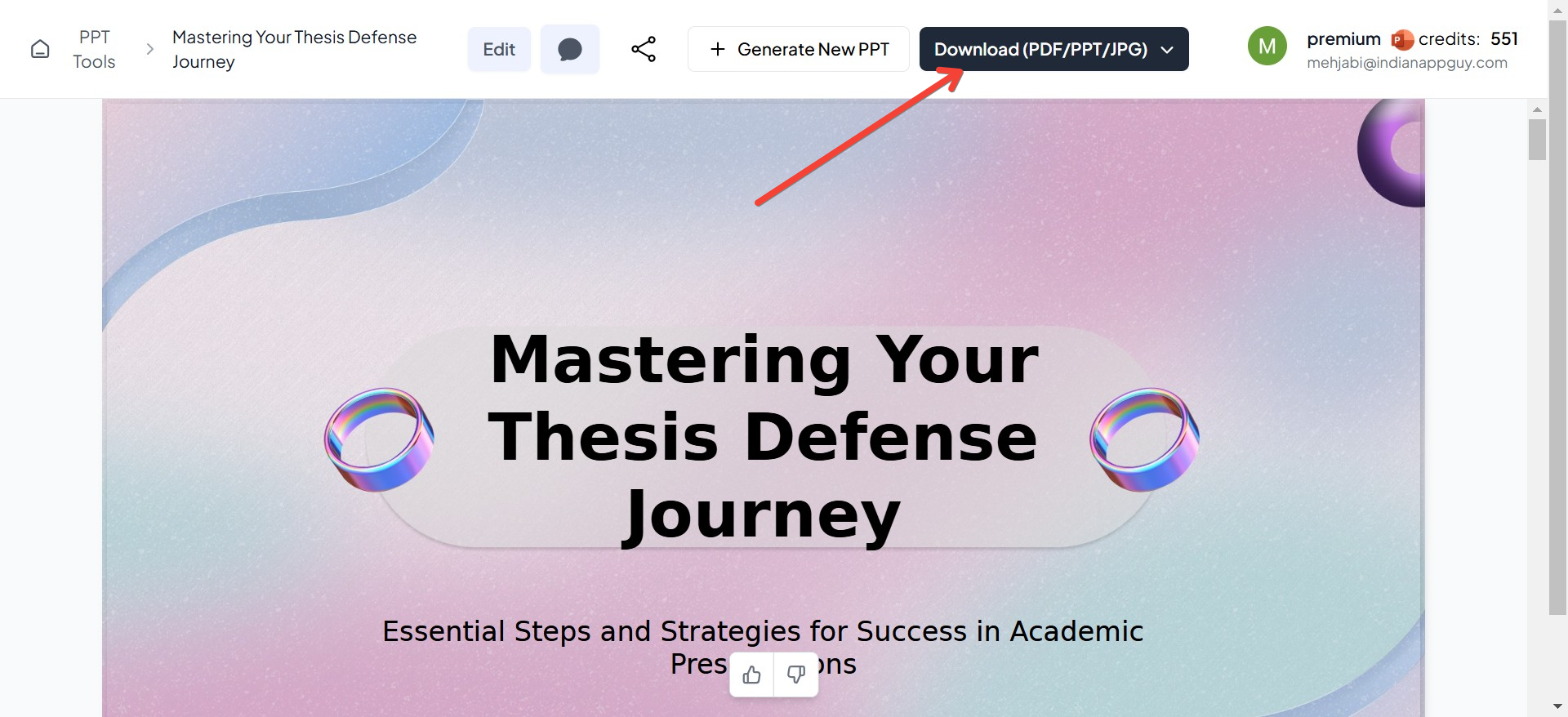
1. Download Your Presentation in Multiple Formats
MagicSlides allows you to download your presentation in several formats, making it versatile for any use case:
- PPT (PowerPoint): Ideal for editing further or presenting in live sessions.
- PDF: Perfect for sending as a read-only document for clients or team members.
- JPG: Useful for sharing individual slides as images on social media or embedding in other documents.
How to Download:
- Once your presentation is ready, click the Download button.
- Choose your preferred format (PPT, PDF, or JPG).
- Save the file to your device and share it via email, cloud storage, or any preferred method.
When to Use: Use the PPT format for interactive presentations, PDFs for formal document sharing, and JPGs for quick visual communication.
2. Copy Link and Share
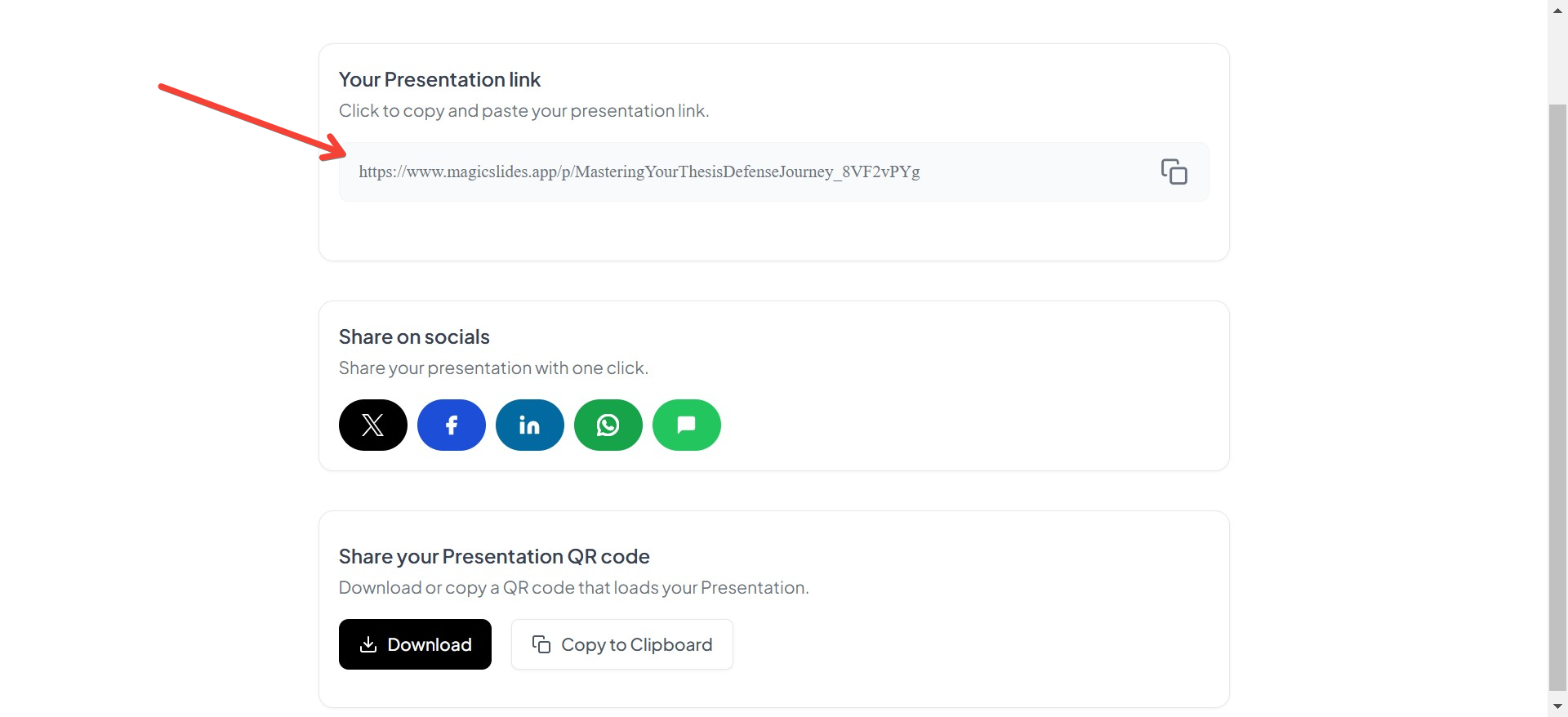
MagicSlides generates a shareable link for your presentation, allowing others to view it directly online without needing to download any files.
How to Share via Link:
- After generating your presentation, select the Copy Link option.
- Share the link via email, messaging apps, or directly with your audience.
- The recipient can view the presentation online without needing an account or special software.
Why It’s Convenient:
- No file size restrictions, making it easy to share large presentations.
- Great for virtual meetings or remote collaborations.
3. Download a QR Code for Easy Access
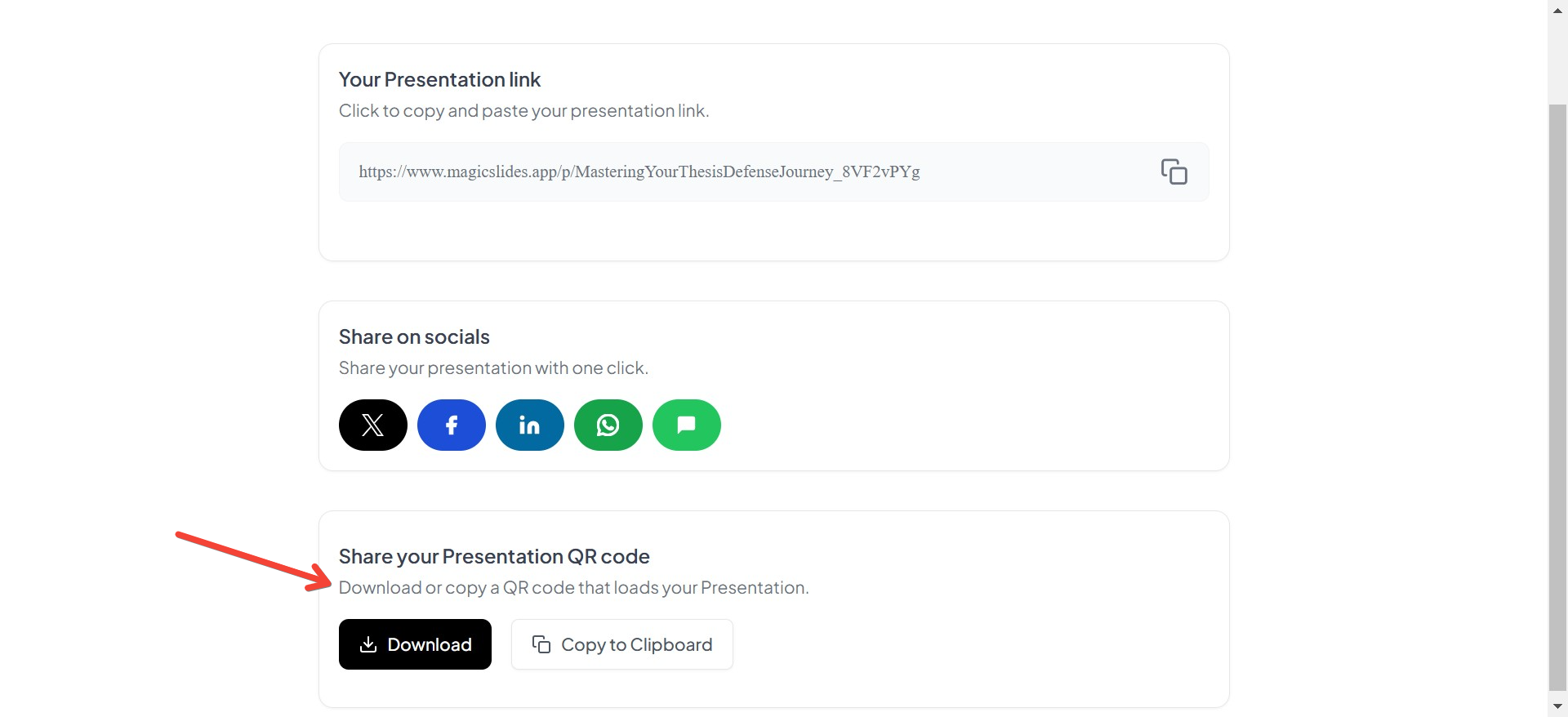
For in-person events like conferences, classrooms, or meetings, MagicSlides lets you download a QR code linked to your presentation.
How to Use a QR Code:
- Select the Download QR Code option.
- Display the QR code on a slide or print it on handouts.
- Attendees can scan the code with their smartphones to access the presentation instantly.
When to Use:
- Perfect for live events where attendees need quick access to materials.
- Eliminates the hassle of sharing links manually.
4. Share Directly on Social Media
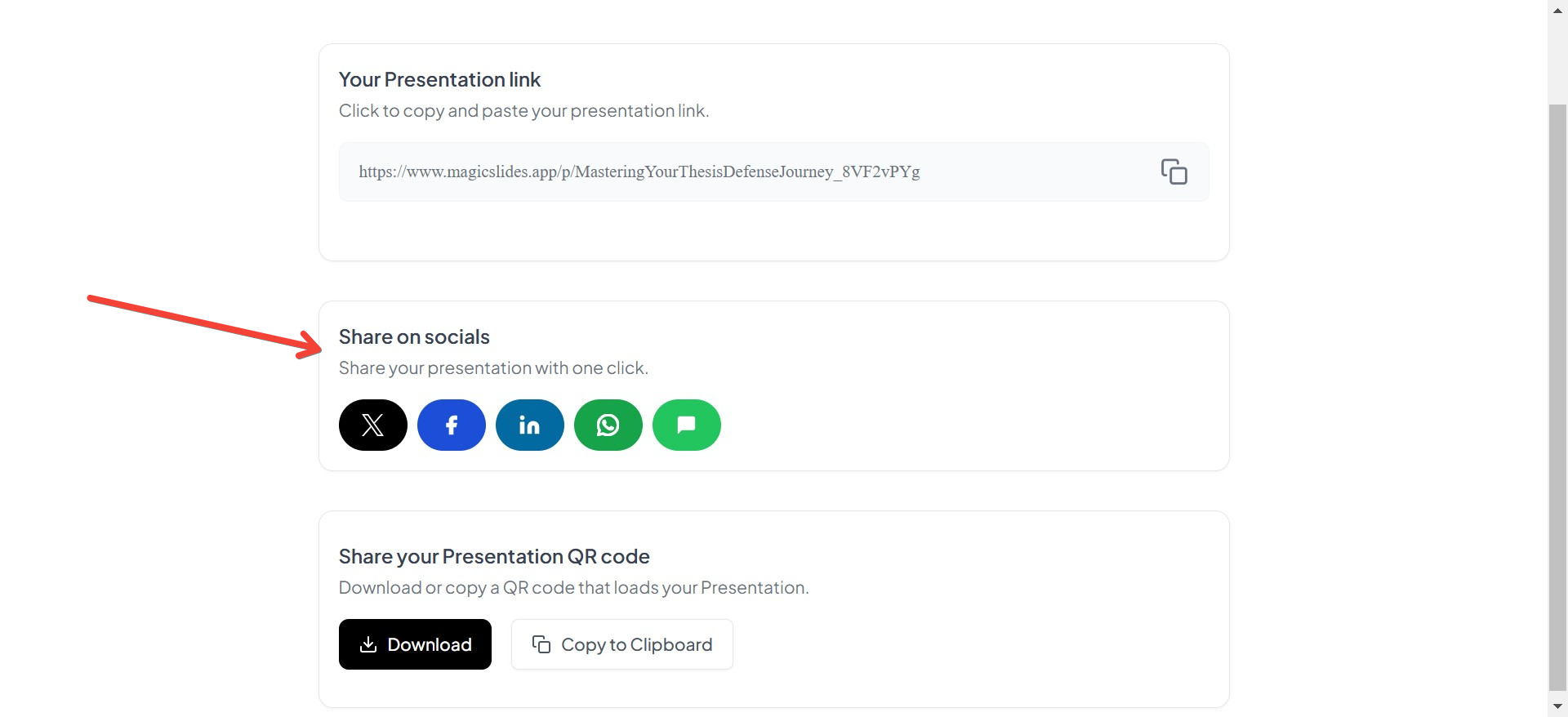
MagicSlides integrates social sharing, allowing you to post your presentation directly to platforms like LinkedIn, Twitter, or Facebook.
How to Share on Socials:
- Click the Share on Social Media option after finalizing your presentation.
- Choose your desired platform.
- Add a caption or description, then publish your post.
Why It’s Useful:
- Ideal for professionals and educators sharing their work with a wider audience.
- Boosts engagement by showcasing visually appealing slides.
Tips for Choosing the Right Sharing Method
- Formal Settings: Use PDF downloads or QR codes for professional or academic presentations.
- Collaborative Teams: Share links for easy access and live feedback.
- Public Sharing: Post on social media to reach larger audiences or engage followers.
- Event Presentations: Use QR codes to provide attendees with instant access during live sessions.
Why MagicSlides Makes Sharing Easy
MagicSlides isn’t just a tool for creating presentations—it’s designed to make sharing seamless and effective. By offering multiple options like downloads, links, QR codes, and social sharing, it adapts to your specific needs and ensures your presentations leave a lasting impression.
Final Thoughts
Sharing your presentation should be as easy as creating it. With MagicSlides, you have a variety of tools at your fingertips to distribute your work in the way that suits your audience best. From downloadable formats to QR codes and social media sharing, you can ensure your presentation reaches its full potential.
Start using MagicSlides today to create and share presentations effortlessly, no matter the occasion or platform!


