How to Make Project Retrospective Slides from Meeting Notes Using AI


Learn how to turn project retrospective meeting notes into presentation slides using AI. Save time and present feedback clearly with MagicSlides.
Project retrospectives are essential for teams to reflect, learn, and improve after a sprint, milestone, or full project cycle. But turning retrospective meeting notes into clean, insightful slides can be tedious, especially when you're short on time.
In this guide, you’ll learn how to turn messy retrospective meeting notes into polished presentation slides using AI tools like MagicSlides.
Why Turn Retrospective Notes into Slides?
Retrospective notes usually contain key feedback and ideas from your team. Transforming them into slides allows you to:
- Summarize insights clearly for stakeholders
- Highlight wins, challenges, and action items
- Keep a documented record of team growth
- Drive better discussions in future retros
Yet manually creating these slides takes time, especially when notes are unstructured or lengthy.
Enter AI: Automate the Process with MagicSlides
Instead of rewriting and formatting slides yourself, use MagicSlides to instantly generate professional presentations from your raw meeting notes.
It works with any kind of retrospective format, including:
- Start / Stop / Continue
- What Went Well / What Didn’t / What Can Be Improved
- Mad / Sad / Glad
- Custom formats your team uses
Step-by-Step: Turn Retrospective Notes into Slides with MagicSlides
Step 1: Prepare Your Retrospective Notes
Export your meeting notes from tools like Notion, Google Docs, Confluence, or Miro.
Keep the structure intact. For example:
What Went Well:
- Finished ahead of schedule
- Great collaboration between design and dev
What Didn’t Go Well:
- QA started too late
- Communication gaps during sprint planning
Action Items:
- Start QA earlier
- Add cross-functional syncs mid-sprint
No need to polish it, MagicSlides understands structured and semi-structured text.
Step 2: Visit MagicSlides
Head to www.magicslides.app.
You’ll be greeted with a clean text input interface.
Step 3: Paste the Meeting Notes
Paste your retrospective notes directly into the input box.
For best results, separate sections with headers like:
- ✅ What Went Well
- ❌ What Didn’t Go Well
- 🔁 Action Items
This helps MagicSlides structure your presentation properly.
Step 4: Customize Presentation Style
MagicSlides lets you pick:
- Tone: Choose Professional or Collaborative for retros
- Design Theme: Go with a clean and simple format
- Detail Level: Choose Medium for key takeaways or Detailed for full notes
Step 5: Click ‘Generate Slides’
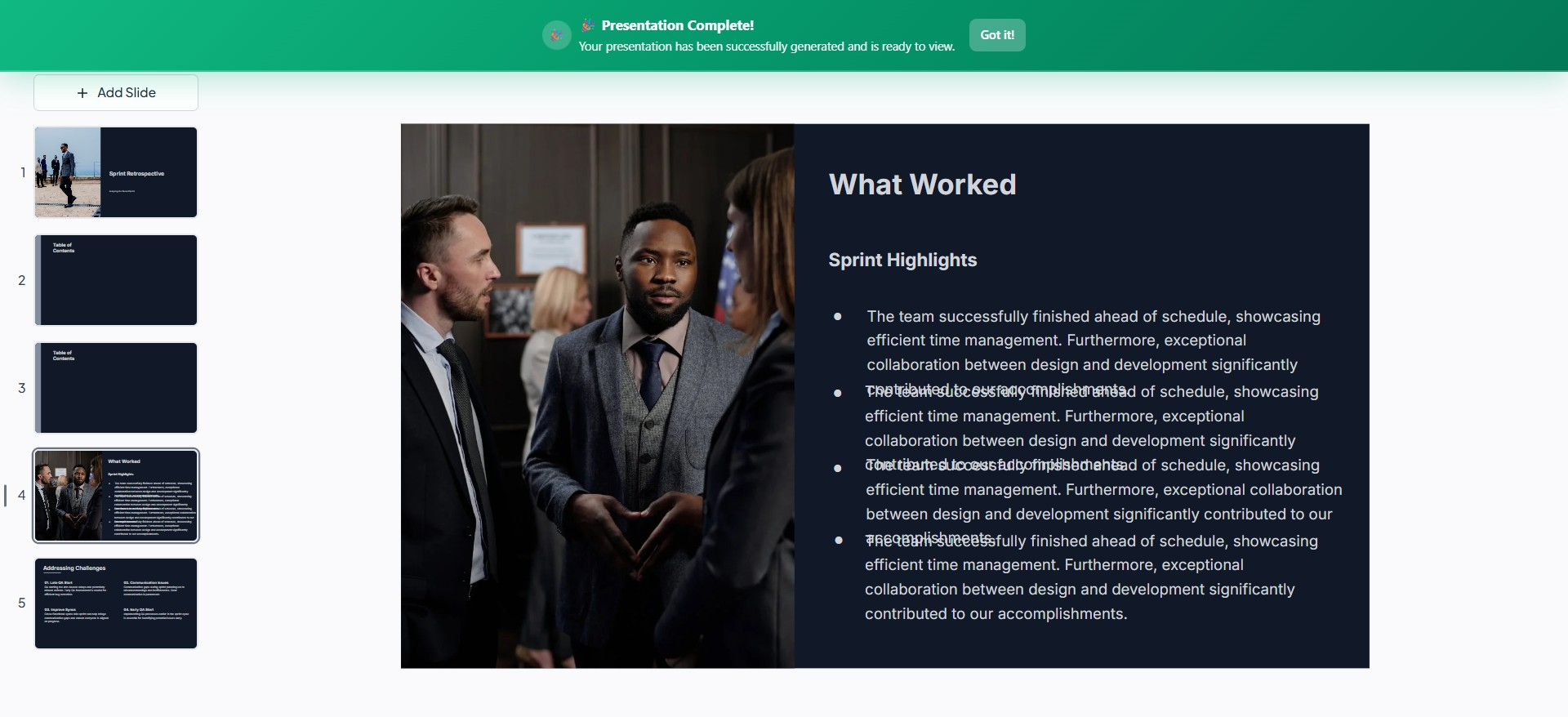
Within seconds, MagicSlides will convert your text into a structured deck, including:
- Section headers
- Bullet points
- Highlights of wins, issues, and next steps
- Clean formatting ready for meetings or follow-ups
You can preview, edit, and export the deck in Google Slides or PowerPoint.
Extra Tip: Add Charts or Metrics
If your retrospective includes data (velocity, bugs, sprint completion rate), consider adding a slide manually after generation to include:
- A bar or pie chart
- Sprint burndown
- Key metrics from Jira or ClickUp
This makes your retrospective more actionable and data-driven.
Benefits of Using MagicSlides for Retrospectives
🕒 Saves hours, no manual formatting
📈 Better structure, clear sections and summaries
📤 Ready to share, export directly to your team
🧠 Focus on insights, not formatting
💼 Professional design that’s presentation-ready
Final Thoughts
Retrospectives are meant to improve your process, not create more work. With MagicSlides, you can take raw team feedback and turn it into presentation-ready slides in under a minute.
It helps your team stay aligned, track progress over time, and keep everyone focused on continuous improvement.
Try it now → MagicSlides.app


