What is a Pie Chart? How to Make one? A 2024 Guide!


Learn all about pie charts, their uses, and how to create them effortlessly with AI-powered tools like MagicSlides. Step-by-step guide included.
Pie charts are one of the most commonly used data visualization tools, known for their simplicity and effectiveness in representing data.
They offer a visual breakdown of proportions within a dataset, making it easier to comprehend relative sizes or parts of a whole at a glance.
In this post, we'll dive deep into what pie charts are, how to create them, when to use them, and even show you how to generate one using AI tools like MagicSlides.
What is a Pie Chart?
A pie chart is a circular graph divided into segments, where each segment represents a proportion of the total. The entire chart represents 100%, and the individual segments, also known as "slices," represent percentages of that whole. These slices vary in size depending on the proportion of the value they represent.
Pie charts are excellent tools for comparing parts of a whole, making them widely used in fields like business, marketing, finance, and statistics. They can display categories like sales distribution, market share, budget allocation, or survey results in a way that’s visually intuitive.
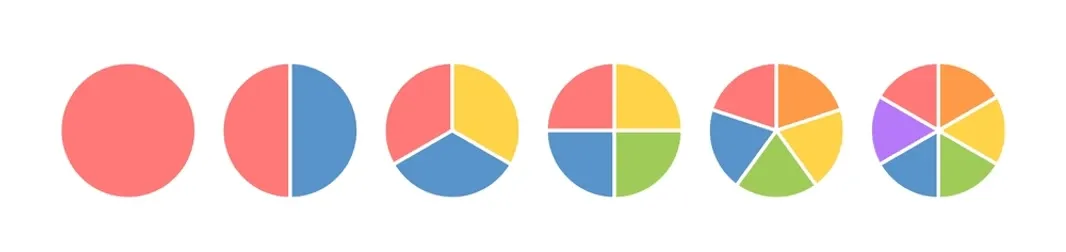
Key Characteristics of a Pie Chart
- Circular Shape: The defining feature of a pie chart is its circular form, where all data segments fit within the circle to represent 100% of a dataset.
- Segments (Slices): Each slice represents a category's portion relative to the total, with the angle and area corresponding to the percentage it occupies.
- Labels/Legend: Labels or a legend are usually provided to identify what each segment or color represents in the dataset.
When to Use a Pie Chart?
While pie charts are incredibly useful, they aren't appropriate for every situation. Here are ideal situations where pie charts work best:
- Showing Proportions: Pie charts shine when you need to display the contribution of parts to a whole, such as market share percentages.
- Small Number of Categories: They're best suited for datasets with fewer categories (4-6 is optimal) to avoid a cluttered appearance.
- Highlighting One Dominant Category: If one category is significantly larger than the others, a pie chart can visually emphasize that fact.
However, pie charts may not be the best choice if:
- You have too many categories.
- Precise comparisons between the slices are needed (in which case, bar charts are usually better).
How to Make a Pie Chart
A Step-by-Step Guide to Make a Pie Chart
Creating a pie chart doesn't need to be a manual, time-consuming task. Thanks to AI-powered tools like MagicSlides, you can effortlessly generate pie charts for your presentations. Here’s how to do it:
- Visit MagicSlides.app: Open your browser and go to MagicSlides.
- Go to Slide with AI: On the homepage, navigate to the option "Slide with AI." This feature helps you auto-generate slides using artificial intelligence.
- Click on Create Pie Chart Slide: Once inside, choose the "Create Pie Chart Slide" option. This is where the magic happens.
- Enter Your Stats for the Pie Chart: In the provided box, input your data points that you want represented in your pie chart. Make sure your data sums to 100% for accurate chart representation.
- Example: Let's say you want to display the percentage breakdown of a company's revenue from different regions:
- North America: 45%
- Europe: 25%
- Asia-Pacific: 20%
- Rest of the World: 10%
- Example: Let's say you want to display the percentage breakdown of a company's revenue from different regions:
- Click Generate Pie Chart Slide with AI: Once you’ve entered your statistics, click on the button to let AI generate the pie chart for you.
- Your Slide is Ready!: Within moments, MagicSlides will produce a fully formatted slide with the pie chart you requested, including labels and design elements.
By using tools like MagicSlides, you can save a lot of time and energy, especially when creating professional-looking pie charts for reports, meetings, or presentations.
Facts About Pie Charts
- First Usage: The pie chart was first introduced by Scottish engineer William Playfair in 1801 in his book Statistical Breviary. Playfair is also credited with the invention of line and bar charts.
- Sector Sizes: Each slice's size in a pie chart is proportional to the percentage it represents. For example, a slice representing 50% of the data would take up half of the pie chart.
- 3D Pie Charts: Although visually appealing, 3D pie charts can distort the visual perception of the slices, making it harder to accurately compare values.
- Exploded Pie Charts: In some pie charts, a slice may be “exploded” or pulled out slightly from the pie to draw attention to a specific data point.
Pie Charts vs. Other Charts
Sometimes, other charts can be better suited than pie charts depending on the type of data:
- Bar Chart: If you have more than five categories or want to show trends over time, bar charts are often more effective because they allow for easier comparison between values.
- Donut Chart: A variation of a pie chart, the donut chart, has a hole in the center, which is sometimes used to display additional information.
- Stacked Bar Chart: Useful when comparing proportions across multiple groups. Stacked bar charts allow for better comparison when there are many categories involved.
Tips for Effective Pie Charts
- Limit Categories: Avoid using too many slices. A pie chart is most effective with fewer than six categories.
- Use Contrasting Colors: Each slice should have a distinct color to ensure clarity.
- Label Clearly: Always label the slices, either with actual values or percentages, so that viewers can easily understand the data.
- Avoid 3D Effects: Keep the design simple to avoid misrepresenting data.
Final Thoughts
Pie charts are a fantastic tool for visualizing parts of a whole in a clear and accessible way. Whether you're working on a business report, school project, or marketing presentation, a pie chart can provide instant insight into your data.
With tools like MagicSlides, creating a pie chart is now simpler than ever, making it easy for anyone to integrate this effective visualization into their presentations.
By following the steps mentioned above, you'll not only know how to create pie charts but also when to use them and how to make them impactful. So next time you're preparing a presentation or report, consider adding a pie chart to highlight the proportions in your data!


