how to duplicate a power point


Empower your PowerPoint prowess! Learn the hassle-free art of duplicating presentations for efficient editing and reuse.
Streamline your workflow and save time with the art of duplicating PowerPoint presentations. In this guide, we'll walk you through a simple step-by-step process to efficiently replicate your slides for seamless editing or reuse.
how to duplicate a power point
how to duplicate a power point
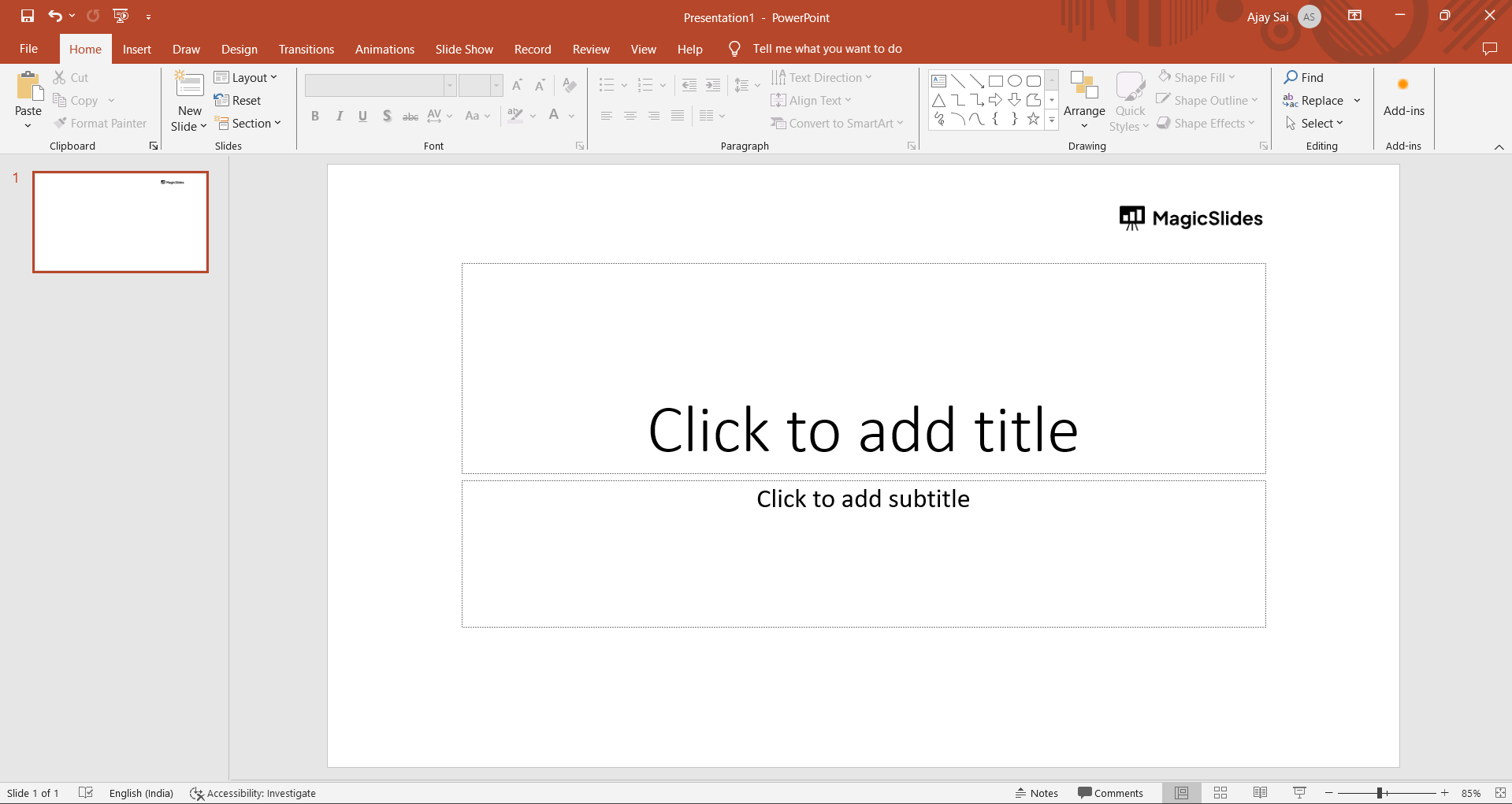
1. Launch the Old PowerPoint Presentation:
- Open the existing PowerPoint file, click on the "View" tab, and select "Slide Sorter" for a comprehensive view of your slides.
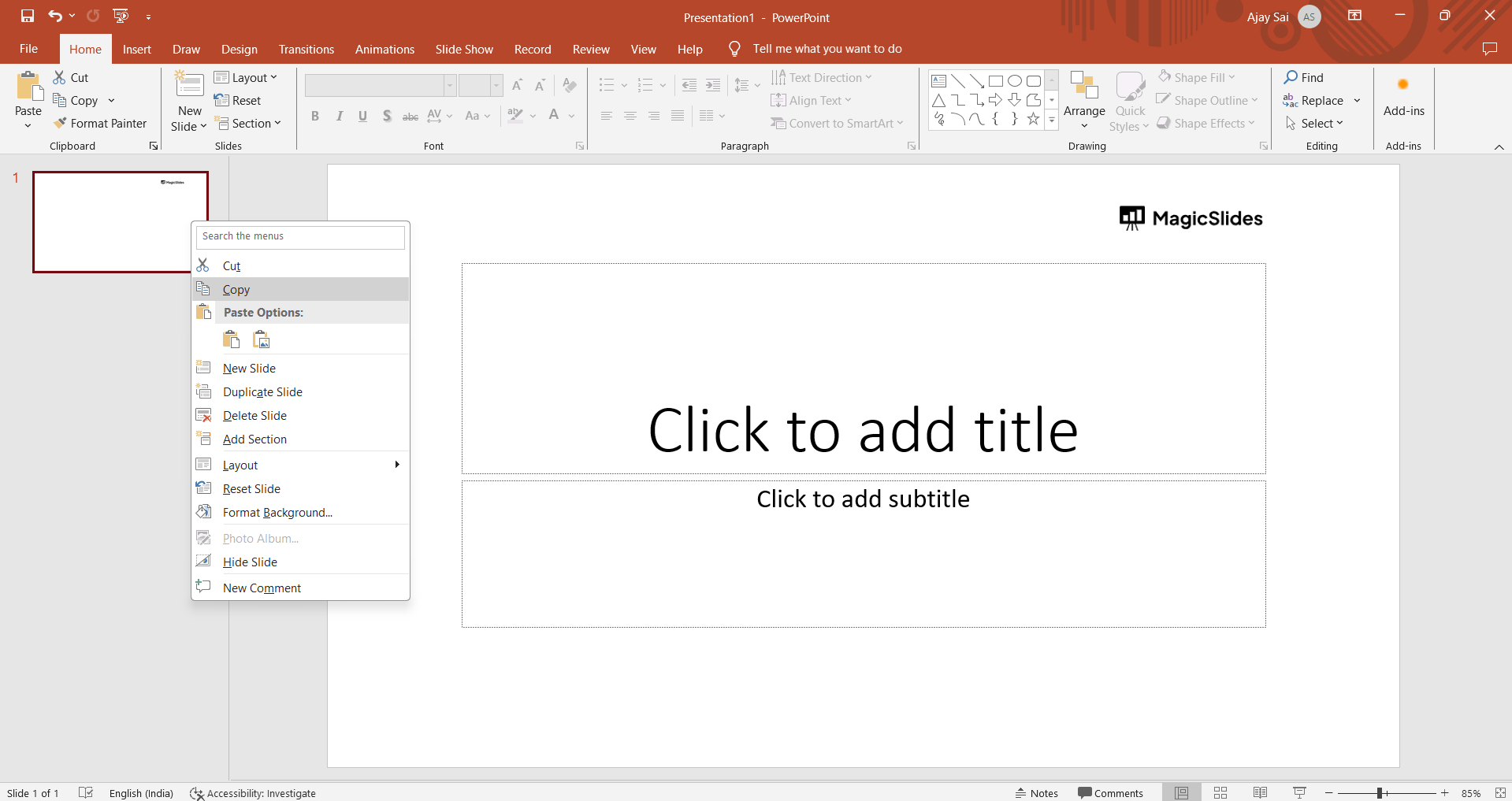
2. Select and Copy Slides:
- Click on the first slide you want to duplicate, hold "Shift," and click on the last slide. Press "Ctrl-C" to copy the selected slides.
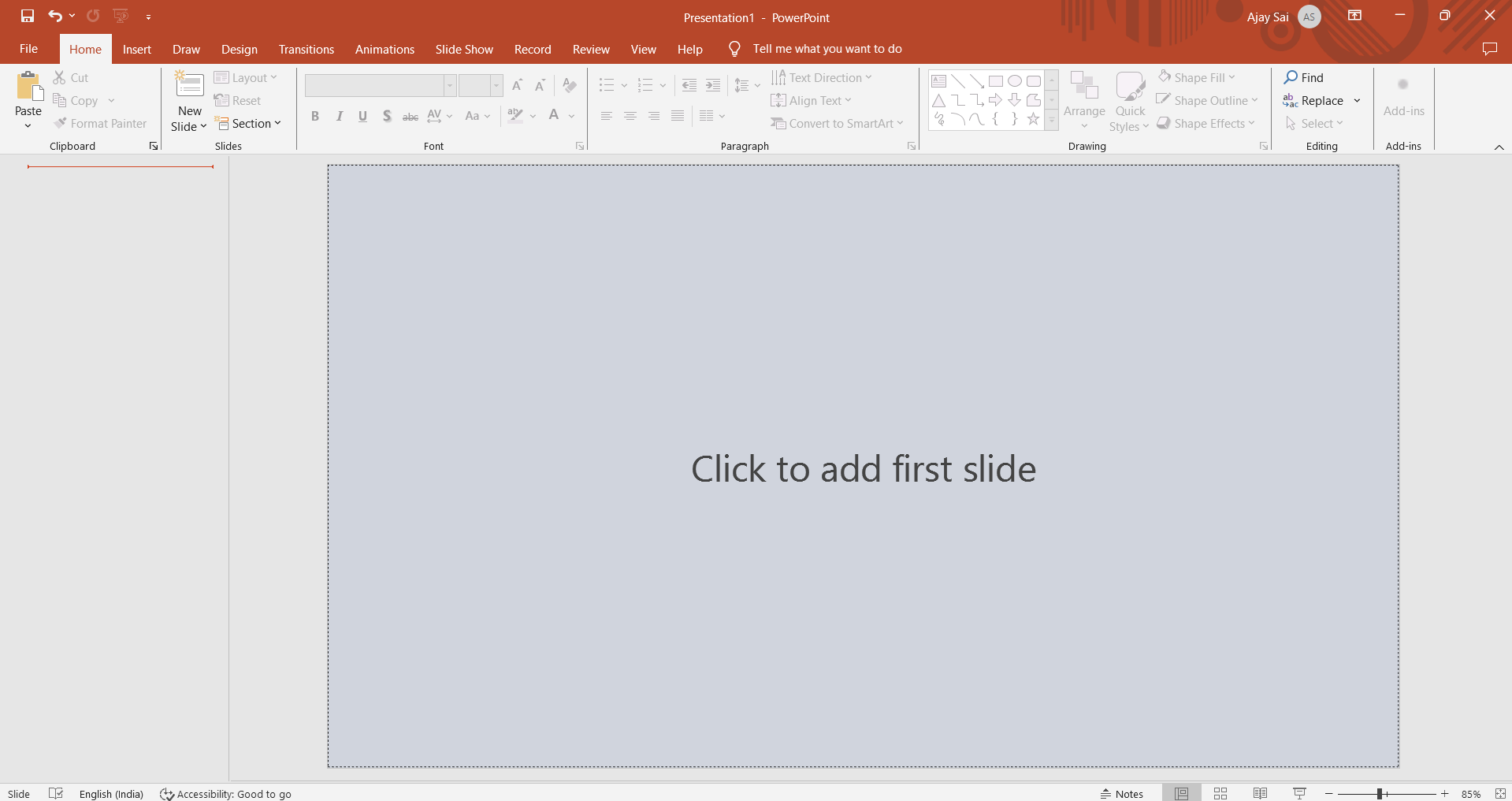
3. Create a New Presentation:
- Navigate to the "File" menu, choose "New," and double-click on "Blank Presentation" to initiate a new PowerPoint file.
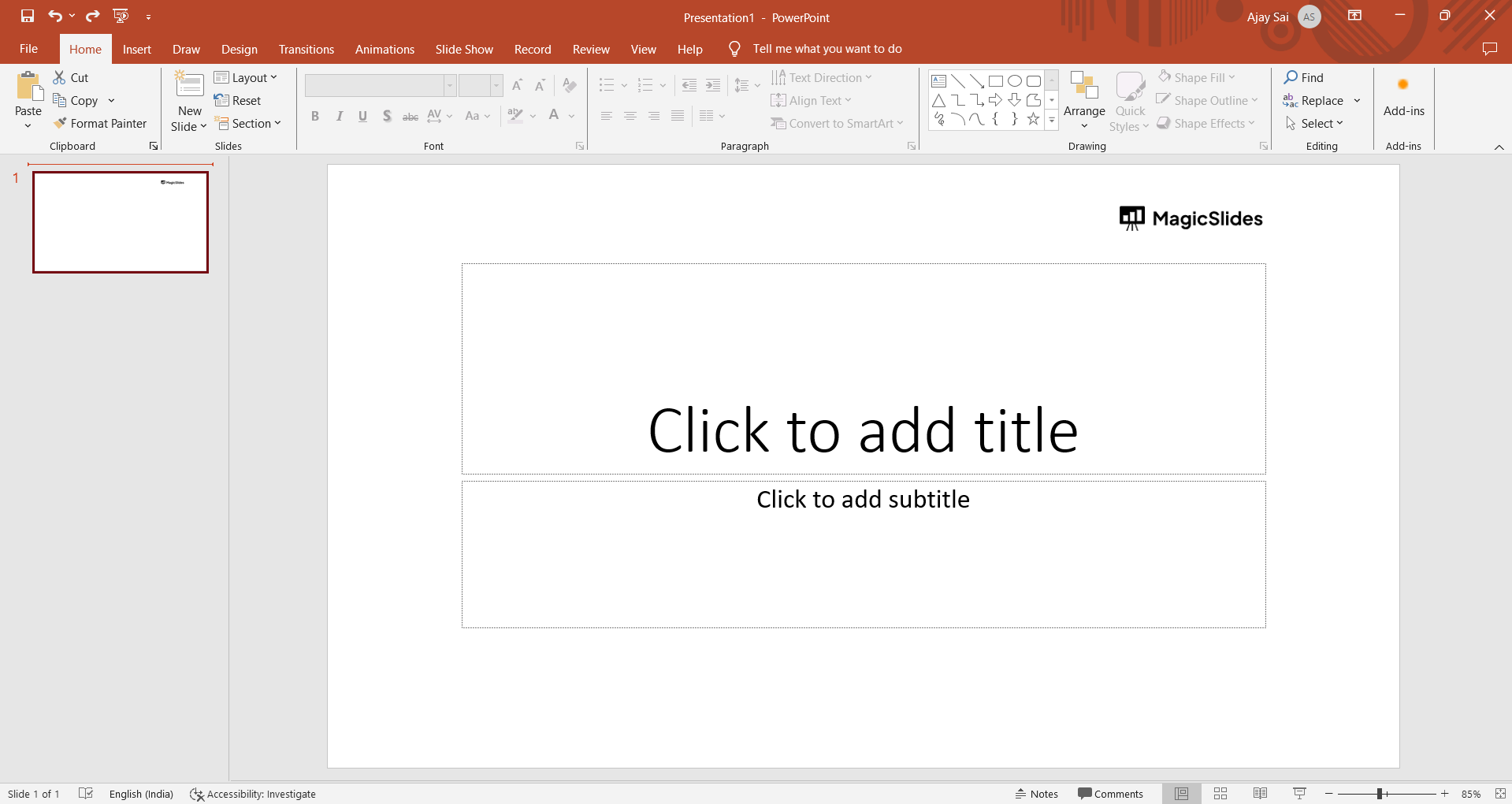
4. Paste Slides into New Presentation:
- Switch to Slide Sorter view in the new presentation and press "Ctrl-V" to paste the copied slides. Locate the Paste Options button to the bottom right of the last slide pasted.
Conclusion:
Effortlessly duplicate PowerPoint presentations and enhance your editing capabilities. Whether you're refining content or repurposing slides, this process ensures a smooth and time-saving experience. Elevate your efficiency and make PowerPoint work smarter for you!
Frequently Asked Questions:
Q: Can I duplicate only specific slides from my old PowerPoint presentation?
A: Yes In Slide Sorter view, click the first slide, hold "Shift," and click the last slide you want to copy. Press "Ctrl-C" to copy only the selected slides.
Q: What is the purpose of the "Paste Options" button when duplicating slides into a new presentation?
A: The "Paste Options" button, located to the bottom right of the last pasted slide, allows you to choose how the slides will be integrated. Select "Use Destination Theme" for a new theme or "Keep Source Formatting" to retain the original theme.


