How to Make PPT Attractive: A Step-by-Step Guide


How to make PPT attractive by using minimal text, high-quality images, and strong visual hierarchy. This guide explains the same methods I use for my PPTs.
How to Make PPT Attractive: A Complete Walkthrough
If a PowerPoint presentation is not engaging, does not have visuals, or relevant content, then it negatively affects the audience's experience and attention. That’s why I personally take care of all these things, and I’m 100% sure that my presentation is engaging and up to the mark.
Today, I’ll share with you all my tricks and tips for creating an effective PPT. So, don’t skip any part of this guide, as all the points are crucial to know. Without wasting any time, let me explain how to make PPT attractive.
How to Make Attractive PPT Presentation?
Here are the step-by-step instructions to create an engaging PPT hassle-free:
#1. Start With a Clean Theme
When making a professional presentation, always choose a clean theme. A messy template instantly reduces attention and engagement of the users. For the same:
- Use not more than 2–3 primary colors.
- Use the same font family across all slides, like Calibri.
- Maintain consistent layout.
- Avoid overusing background textures.
#2. Use High-Quality Visuals With Purpose
For creating an attractive slide, the key elements are visuals. But add them only if they are relevant to the content, which helps you to:
- Break monotony
- Improve comprehension
- Add storytelling elements
Related guide: Convert Canva Presentations to PowerPoint
#3. Keep Text Minimal
How to make PPT attractive? Instead of paragraphs, use crisp bullet points and short phrases, because no one is interested in reading long stories. Always remember this rule:
- No more than 6 lines per slide
- No more than 6–8 words per line
This makes the PPT cleaner and more attractive.
#4. Add White Space
Most of the users tried to fill every corner of their slide with elements or graphics. But, this looks congested, and sometimes the user can’t even read what is written. So, leave white space, as:
- It reduces cognitive load
- Makes the message clearer
- Gives the PPT a premium look
#5. Use Clean Transitions and Animations
Animations can make a PPT impressive if used wisely. For the same,
- Use basic transitions like Fade or Wipe.
- Don’t use flashy transitions like Bounce or Split.
- Animate only when it helps explain something.
Don’t use animations if not needed, as they can distract the audience from the main topic.
#6. Apply Visual Hierarchy
To make slides visually attractive, structure information so that the most important elements stand out naturally. Use can consider these tricks, i.e.
- Larger font for Headings or key points
- Use bold color to highlight primary messages
- Use contrast like light background + dark text or vice versa
Also read: How to add border in PPT
#7. Use Charts and Data Visualizations
Don’t show large lists of numbers. Turn them into easy visuals so people understand quickly. You can use:
- Bar charts
- Pie charts
- Line graphs
- Infographics
A clean data slide immediately increases the attractiveness and professionalism of the PPT.
#8. Choose Font Combinations
How to make PPT attractive? Typography is important in a PPT. I don’t use fancy fonts because they are hard to read. For the same, this is just a suggestion, you can use it if your PPT intent or layout matches:
- Headings: Montserrat, Segoe UI Bold
- Body text: Calibri, Lata
- Use 2 fonts max
- Ensure a minimum of 18–20pt for body text
- Keep the title and body text different
#9. Maintain Brand Consistency
If you’re designing PPTs for clients or for your own brand, ensure every slide reflects the brand identity. To do so, you can include:
- Brand colors
- Logo
- Consistent tone
- Branded icons
This helps you to enhance credibility and trust.
#10. Leverage Slide Master
One secret to attractive PPTs is using the Slide Master. I use it to format:
- Headers
- Footers
- Fonts
- Colors
- Backgrounds
- Placeholder positions
This keeps all slides consistent without doing the same formatting again and again.
Additional resource: how to insert timer in PowerPoint
#11. Add a Strong Opening and Closing Slide
An attractive PPT is also about structure. E.g., structure you can consider:
Opening slide
- Title
- Subtitle or tagline
- Presenter name
- Clean image or simple pattern background
Closing slide
- Thank you
- Contact details
- Call-to-action
#12. Use Visual Storytelling
Don’t make random slides; build PPT like a visual story. Here’s how you can do it:
- Start with a problem
- Show the impact
- Present solutions
- Highlight benefits
- End with actionable steps
#13. Keep a Consistent Color Palette
How to make PPT attractive? A big mistake many people make is mixing too many colors, which looks unprofessional. So, always stick to:
- 1 primary color
- 1–2 accent colors
- 1 neutral color, i.e. white, grey, black
You can use these by:
- 60% neutral
- 30% main brand color
- 10% accent
So, with these 13 steps, one can make a most impressive, attractive, and professional PowerPoint Presentation without any external help.
Make PPT Attractive Automatically
If you’re in urgent, or don’t want to follow the above 13 steps, then you can consider an automated solution that will do everything for you. For the same, I personally used MagicalSlides AI Presentation Generator for over 5+ years. You can also try this for free.
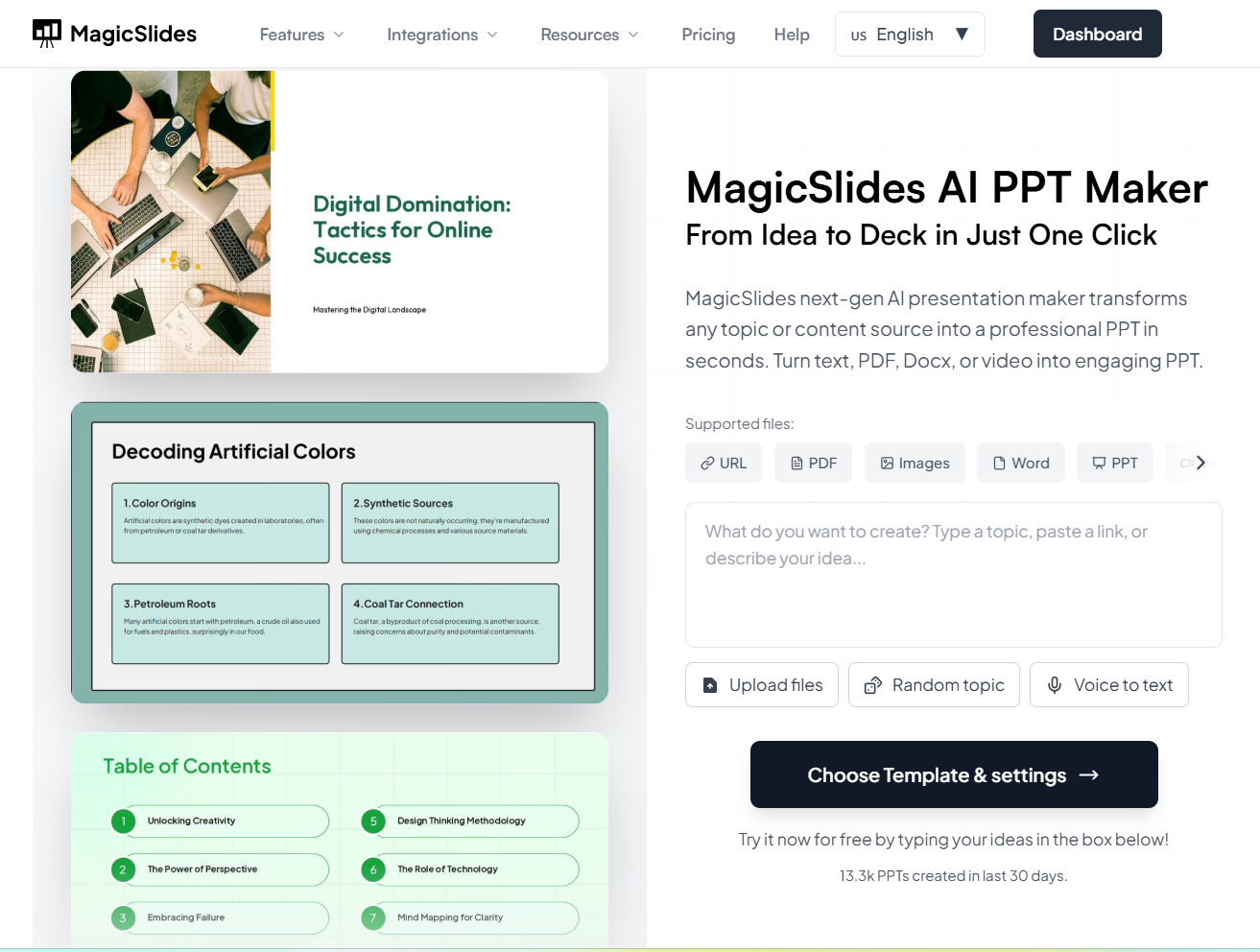
With this, instead of building everything from scratch, just enter your topic, and it creates a clean presentation for you within 2 minutes.
Why am I suggesting this?
- Get clean designs without doing any manual formatting.
- Automatically chooses relevant fonts, colors, and layouts.
- Adds visuals like icons, images, and charts.
- You don’t need design skills; the tool handles everything.
- It helps turn your ideas into a smooth presentation.
So, if you’re wondering for an automated utility for creating a professional PPT, then this will be your go-to solution. Download now!
Author’s Verdict
Now, let’s have a quick recap on how to make PPT attractive by ensuring:
- Clean visuals
- Consistent formatting
- Storytelling
- Simplicity
By following these practices consistently, you’ll be able to design PPTs that keep the audience engaged from start to finish. If you don’t want to follow all the steps or minimize the time and effort, then always opt for the specified AI solution, which quickly makes a stunning PPT for you in seconds.


