How to Merge two PowerPoint Presentations? Complete Guide


Step-by-step guide on how to merge two PowerPoint presentations. Learn to combine slides, maintain formatting, and create professional PPTs fast.
How to merge two PowerPoint presentations is one of those tasks that sounds simple. It is so until you actually try it and end up with broken layouts, mismatched fonts, and messy slides. If you’ve ever struggled to combine PowerPoint presentations for a team project, client pitch, or academic submission, you’re not alone.
In this complete guide, you’ll learn how to merge two PowerPoint presentations step by step, using multiple methods that actually work. We’ll cover everything from the easiest copy-paste trick to advanced techniques. You’ll also discover how to fix formatting issues, maintain design consistency, and merge PPT files like a pro.
Whether you're a student rushing to meet a deadline or a professional preparing a polished deck, this guide will help you combine PowerPoint presentations efficiently without losing quality.
How to Merge Two PowerPoint Presentations: A Step-by-Step Guide
Knowing how to merge two PowerPoint presentations can save you hours of manual work and frustration. Instead of recreating slides, you can quickly select all slides in PowerPoint and combine multiple PPT files into one cohesive presentation.
Let’s explore the best methods to merge PowerPoint presentations smoothly.
Step 1: Open Your Primary PowerPoint Presentation
Start by opening the PowerPoint presentation that you want to use as the main deck.
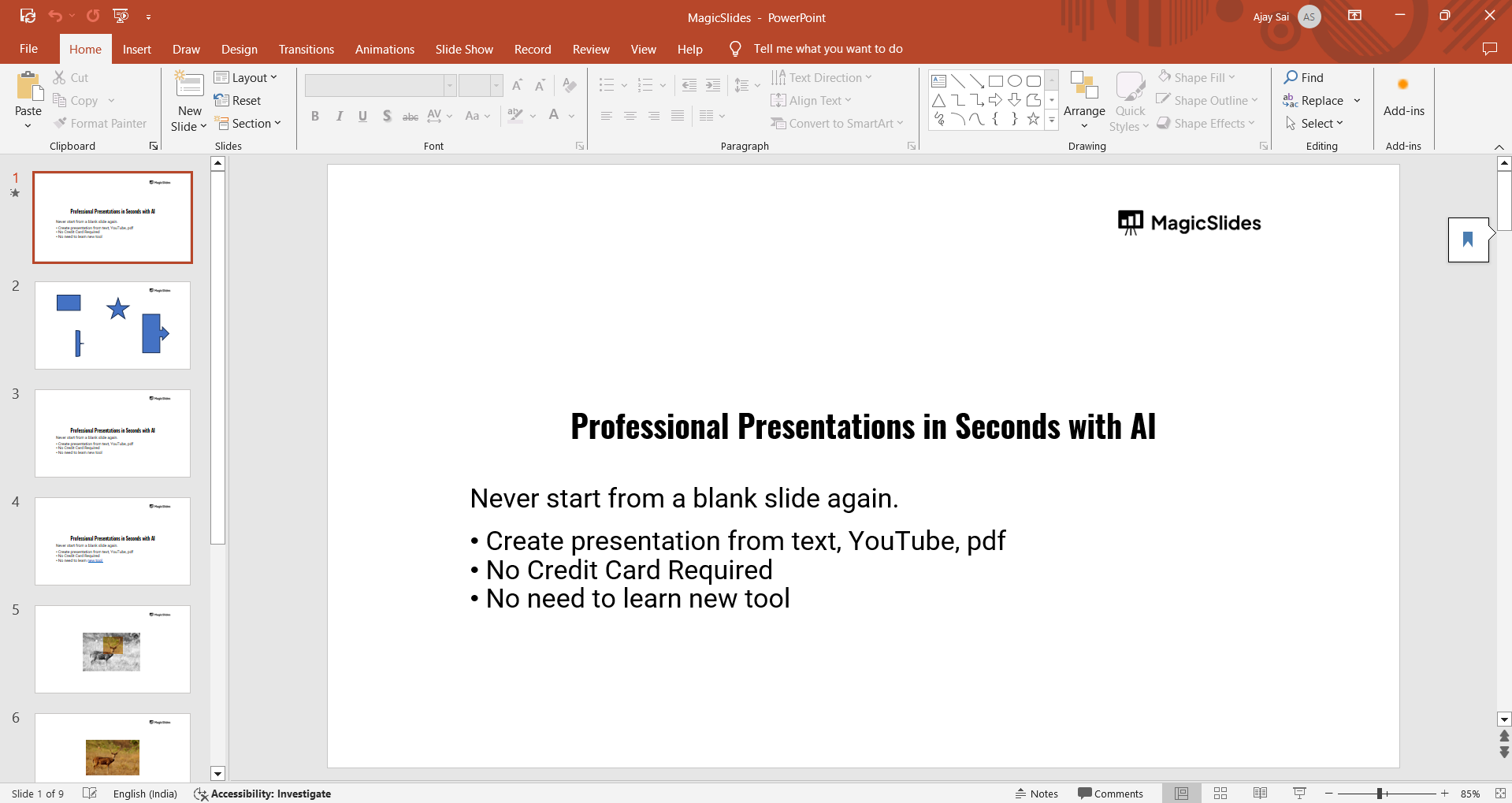
This is the file where you’ll be importing the slides from the other presentation.
Make sure it’s open and ready before proceeding to the next step.
Step 2: Go to the "Insert" Tab and Choose "Reuse Slides"
In the open PowerPoint presentation, click on the "Insert" tab in the top toolbar.
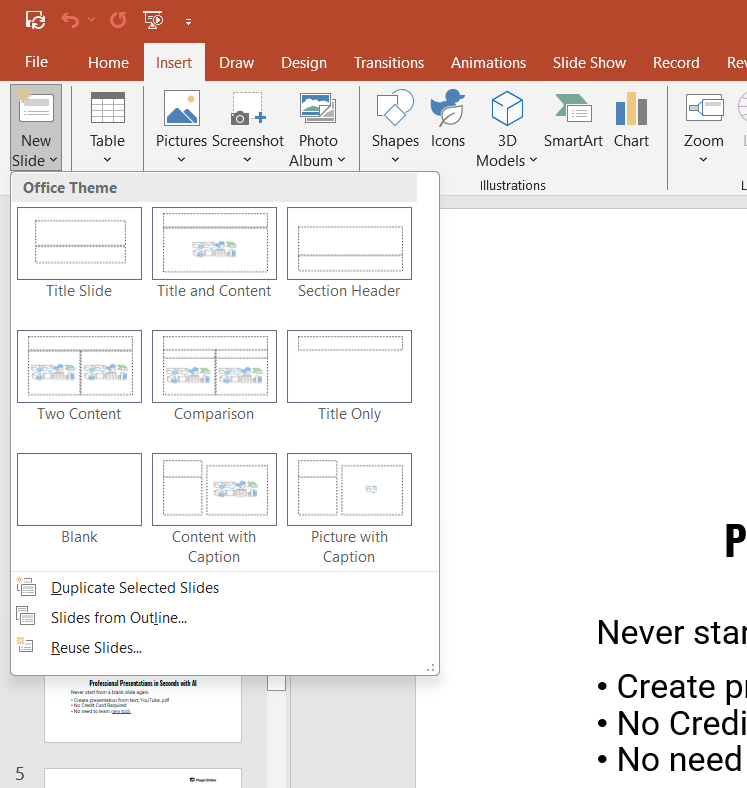
Next, find and click on the "Reuse Slides" button, usually located in the "Slides" group.
This feature allows you to browse and import slides from another presentation without copying and pasting them manually.
Step 3: Select the Presentation to Merge
A panel will appear on the right side of the screen. Click on "Browse" and then select "Browse File."
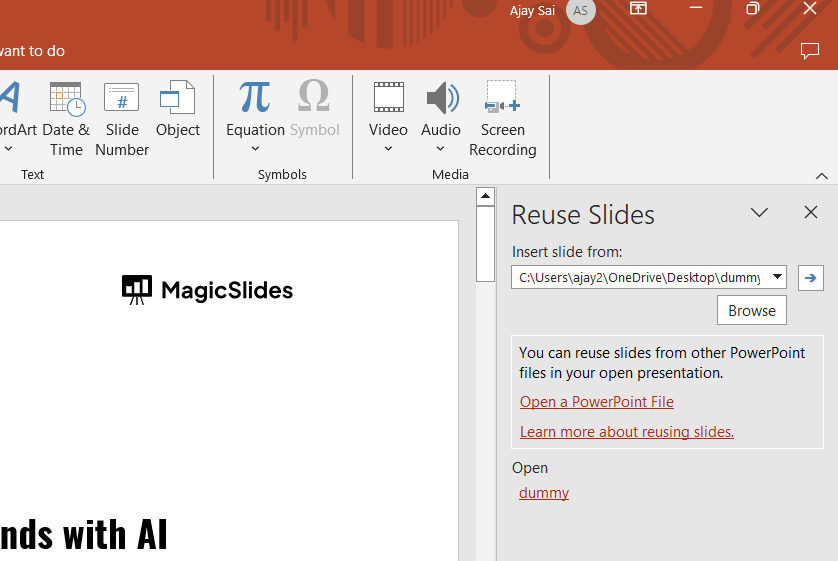
Navigate to the PowerPoint file that you want to merge with the current presentation, and click "Open."
This will load the slides from the second presentation into the panel for easy selection.
Step 4: Save Your Merged Presentation
After organizing and reviewing your slides, save the newly merged presentation by clicking "File" and then "Save As."
Give your file a new name to preserve the original presentations, and choose your preferred location to save the merged deck.
Once you've merged presentations, learn how to move slides in PowerPoint to achieve your ideal slide order and flow.
Merge PowerPoint Presentations Faster with AI
If you’re working with large files, multiple decks, or tight deadlines, the manual method may start to feel slow and repetitive. This is where MagicSlides advanced AI presentation tool come in.
It is an AI-powered PPT generator that doesn’t just help you create presentations. It can also simplify how you merge PowerPoint presentations automatically.
How It Helps in Real Scenarios
Imagine you have 5 team members submitting different presentations. Instead of manually fixing fonts, layouts, and alignment:
- Upload content or slides
- Let AI organize and generate a unified deck
- Make final edits in minutes
This is especially useful for business presentations, marketing decks, and client pitches where consistency matters.
Conclusion
Merging two PowerPoint presentations is a simple yet powerful feature that allows you to combine multiple slide decks efficiently.
In performing certain few clicks, you can insert, organize, and adjust slides to create a cohesive presentation without losing important formatting.
This method is especially helpful for collaborative projects or compiling information from different sources into one professional presentation.
FAQs are here to help!
Will merging presentations affect the formatting of my slides?
PowerPoint gives you the option to keep the original formatting of the slides or apply the formatting from the primary presentation.
You can select your preference when importing slides.
Can I merge more than two PowerPoint presentations?
Yes, you can repeat the steps to merge as many presentations as needed into a single file by using the "Reuse Slides" feature multiple times.
Can I remove or rearrange slides after merging?
Absolutely. After merging, you can easily rearrange, delete, or modify any of the slides to fit the flow and structure of your final presentation.


