Addon google slides iconPPT with AISlide TemplatesPPT TemplatesPricingBlog
    PPT with AISlide TemplatesPPT TemplatesPricingBlog
    1. Home
    2. Blog
    3. How to move Slides in PowerPoint


    How to move Slides in PowerPoint

    Ajay Sai

    Published By

    Ajay Sai

    Approved By

    Admin

    Published On

    November 12th, 2025

    Reading Time

    3 min read

    Moving slides in PowerPoint helps organize your presentation flow for a clearer and engaging delivery

    Organizing your slides effectively is essential for creating a smooth and cohesive presentation.
    PowerPoint makes it easy to rearrange slides as needed to ensure your content flows logically and engages your audience.
    In this step-by-step guide, I’ll show you how to move slides within your PowerPoint presentation quickly and efficiently.

    How to Move Slides in PowerPoint: A Step-by-Step Guide

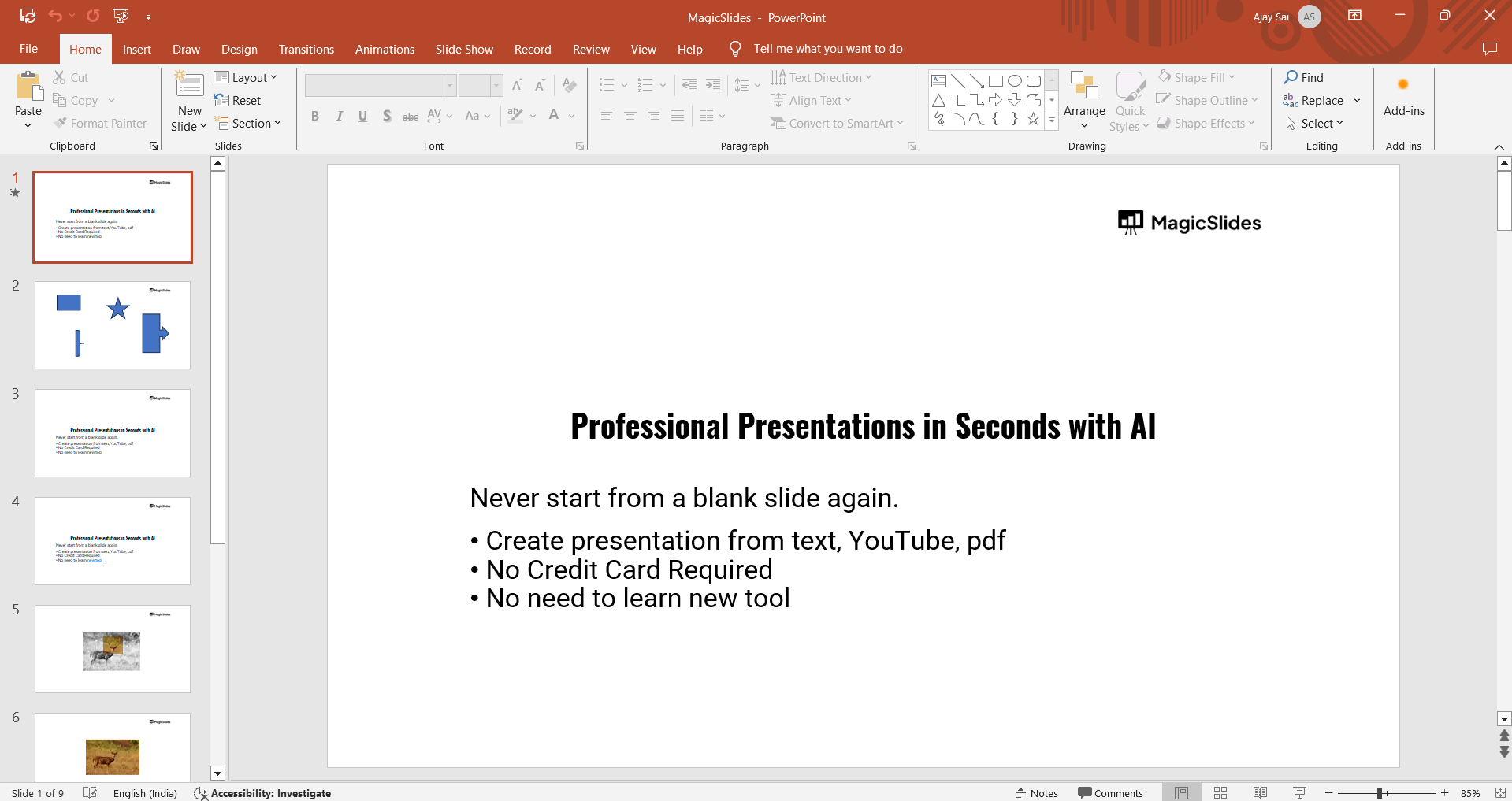
    Step 1: Open Your PowerPoint Presentation

    First, open the PowerPoint presentation you want to edit. You can either create a new presentation or select an existing one from your saved files.
    notion image

    Step 2: Switch to Slide Sorter View

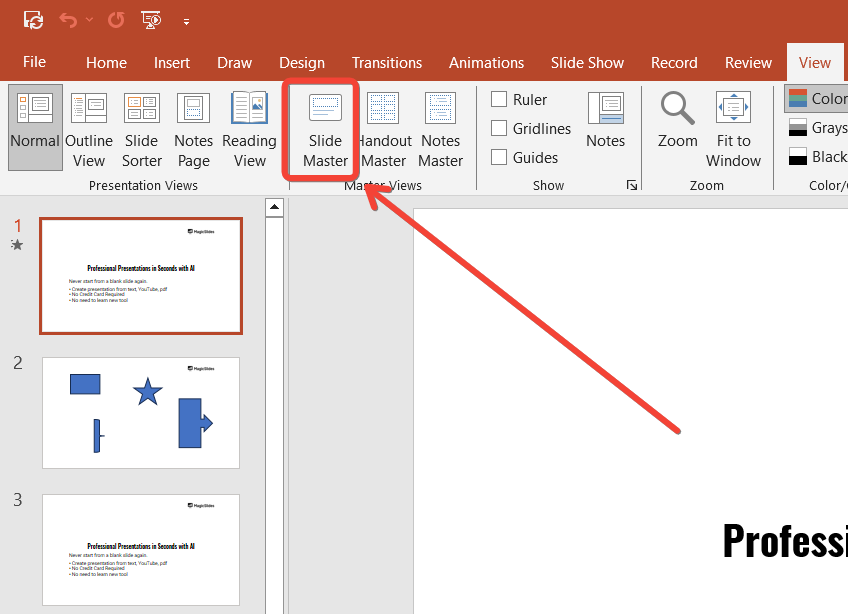
    To make it easier to move multiple slides around, switch to "Slide Sorter View."
    notion image
    Click on the "View" tab in the toolbar, then select "Slide Sorter." This view displays all your slides in thumbnail format, making them easier to manage.

    Step 3: Select the Slide You Want to Move

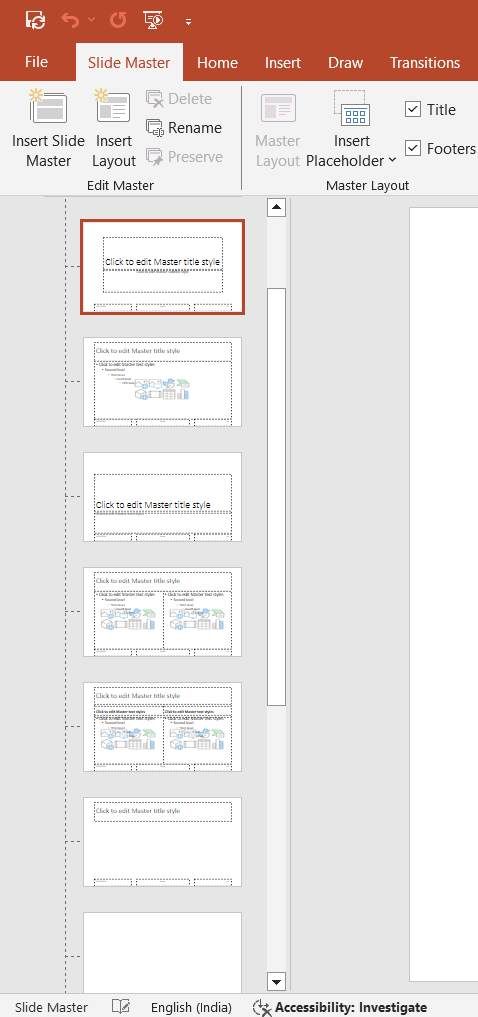
    In Slide Sorter View or Normal View, locate the slide you want to move. Click on the slide to select it.
    notion image
    If you need to move multiple slides, hold down the "Ctrl" key (Command key on Mac) and click on each slide you want to move.

    Step 4: Drag and Drop the Slide

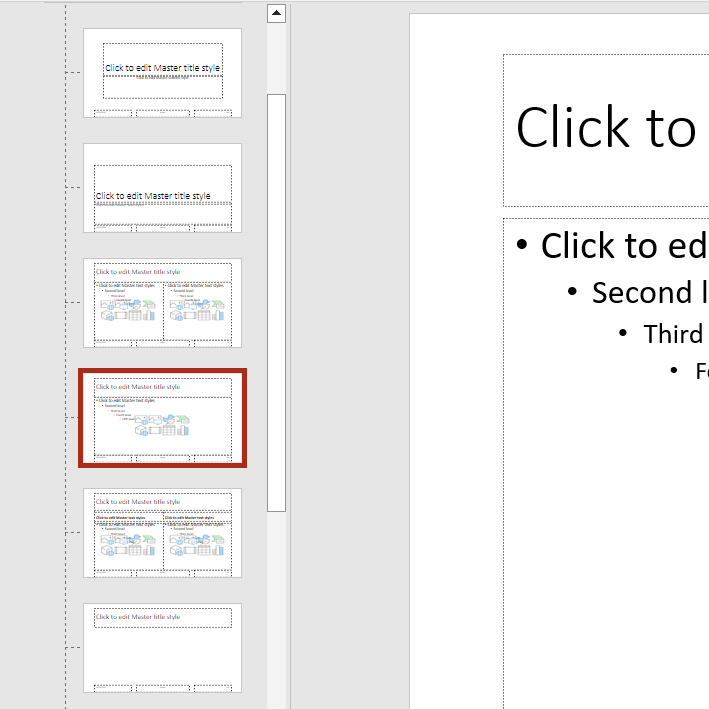
    After selecting the slide or slides, click and hold the left mouse button, then drag the slide(s) to the desired location.
    notion image
    As you drag, PowerPoint will display a line to indicate where the slide will be placed. Release the mouse button when you’ve moved the slide to the correct position.

    Step 5: Verify the New Slide Order

    Once you’ve moved the slide, review the new order to ensure it matches your desired flow.
    You can preview the slide show by clicking the "Slide Show" tab and selecting "From Beginning" to see how the new order affects your presentation.
    Once you're comfortable rearranging slides, consider exploring how to use Designer in PowerPoint to make your slides more visually compelling with minimal effort.

    Conclusion

    Rearranging slides in PowerPoint is a simple process that can significantly improve the flow and impact of your presentation.
    By following these steps, you can easily move your slides to ensure your content is presented in the most effective way possible.

    FAQs can come handy!

    Can I move multiple slides at once in PowerPoint?

    Yes, you can select multiple slides by holding down the "Ctrl" key (or Command on Mac) and clicking on each slide before moving them.

    Will moving slides affect my animations or transitions?

    No, moving slides won’t affect any animations or transitions applied to the slides. They will stay intact even after reordering.

    Can I move slides between different presentations?

    Yes, you can copy and paste slides between different PowerPoint presentations. Just select the slide, copy it (Ctrl + C), and paste it into the other presentation (Ctrl + V).

    Share on socials

    About the author

    Ajay Sai profile photo
    Ajay Sai— writer at MagicSlides.app

    Ajay have been a techincal writer for more than 2+ years. from coding tutorials to using day to day apps he have helped 100k+ visitors with their various queries

    More from Ajay

    More from the blog

      100+ Best Seminar Topics for Students in 2026

      3 February 2026

      Best Presentation AI Tool of 2026 (with Real Use Cases + Comparisons)

      2 February 2026

      250+ Good Morning Messages for Her (Romantic, Deep, Cute & Sweet)

      30 January 2026

      200+ Heart Touching Birthday Wishes for Sister (Short, Funny and More)

      29 January 2026

      50+ History Presentation Topics For 2026

      28 January 2026

      How to Add Music to Your Canva Presentation: A Step-by-Step Guide

      27 January 2026

      15 Quick Tips To Use ChatGpt At Work

      22 January 2026

      11 Best AI Tools for Business in 2025

      22 January 2026

      How to Create an Infographic That Clearly Communicates Your Message

      20 January 2026

    Table of Contents

    Create Presentations in Seconds

    Transform your ideas into professional presentations with AI. No design skills needed.

    Try MagicSlides Free

    Create Stunning Presentations with AI in Seconds ✨

    Transform any topic, text, YouTube video, PDF or URL into beautiful presentations instantly with MagicSlides AI.

    Try MagicSlides AI Presentation Maker
    MagicSlides AI Presentation

    Footer

    Solutions

    • MagicSlides App
    • Google Slides Add-on
    • MagicSlides in Chrome
    • MagicSlides in Figma
    • MagicSlides in ChatGPT
    • MagicSlides in Telegram
    • MagicSlides in Zapier
    • MagicSlides in Figma Slides

    Tools

    • AI PPT Tools
    • QR Code Generator
    • Design Tools
    • PPT Templates
    • Slide Templates
    • PDF Tools

    Examples

    • AI Presentations
    • PPT by MagicSlides
    • Quizzes
    • Charts
    • Coloring Pages

    Resources

    • Changelog
    • Documentation
    • API Docs

    Top Blogs

    • How to Create Presentation Using ChatGPT
    • 100+ Best Seminar Topics for Students in 2025

    Company

    • Help
    • MCP
    • Blog
    • Pricing
    • Affiliate Program
    • Manage Subscription
    • Privacy Policy
    • Contact Us
    • Terms & Conditions
    • Refund & Cancellation Policy

    We also built

    • SheetAI - GPT For Sheets
    • MagicForm - GPT For Google Forms
    • SecondBrain.fyi
    • BlogBee - Free Blogging Platform

    © 2026 IndianAppGuy Tech Pvt Ltd. All rights reserved.