What is Sorry PowerPoint Can’t Read Mean? Explained


Learn how to fix the “Sorry, PowerPoint can’t read” error using file repair, recovery, updates, and backup methods to restore presentations fast.
When opening a PowerPoint file, you might encounter the error message: “Sorry, PowerPoint can’t read [file name]”.
This error indicates that PowerPoint is unable to process the file due to issues like corruption, unsupported file formats, or compatibility problems.
In this guide, we’ll walk you through steps to diagnose and fix this issue to regain access to your presentation.
What Does “Sorry, PowerPoint Can’t Read” Mean?
Step 1: Check the File Format
Verify that the file has a supported extension, such as .pptx or .ppt. If the file has an unusual format (e.g., .odp or .key), convert it to .pptx using online tools or software like Google Slides.
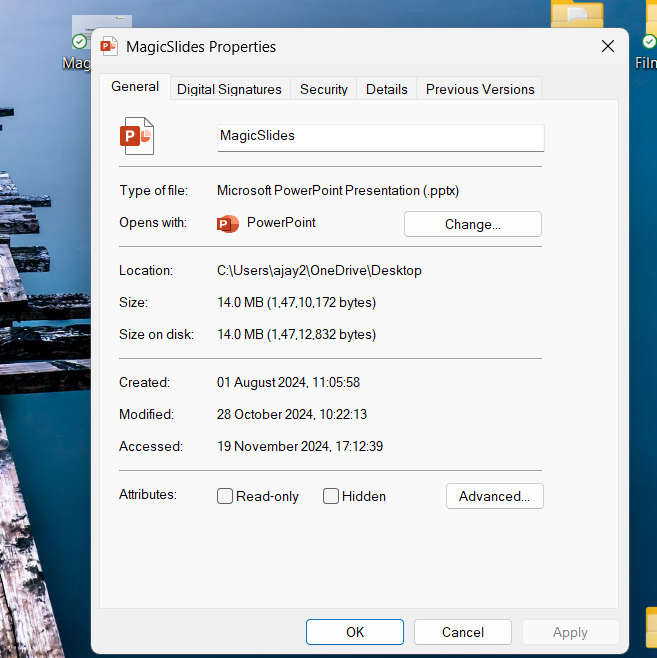
Rename the file to ensure it doesn’t have special characters or extra extensions (e.g., .pptx.ppt).
Step 2: Try Opening the File on Another Device
Transfer the file to another computer with PowerPoint installed.
If the file opens successfully on another device, the problem might be related to your PowerPoint installation.
Step 3: Repair the PowerPoint File
Open PowerPoint and create a blank presentation. Go to File > Open, and browse to the problematic file.
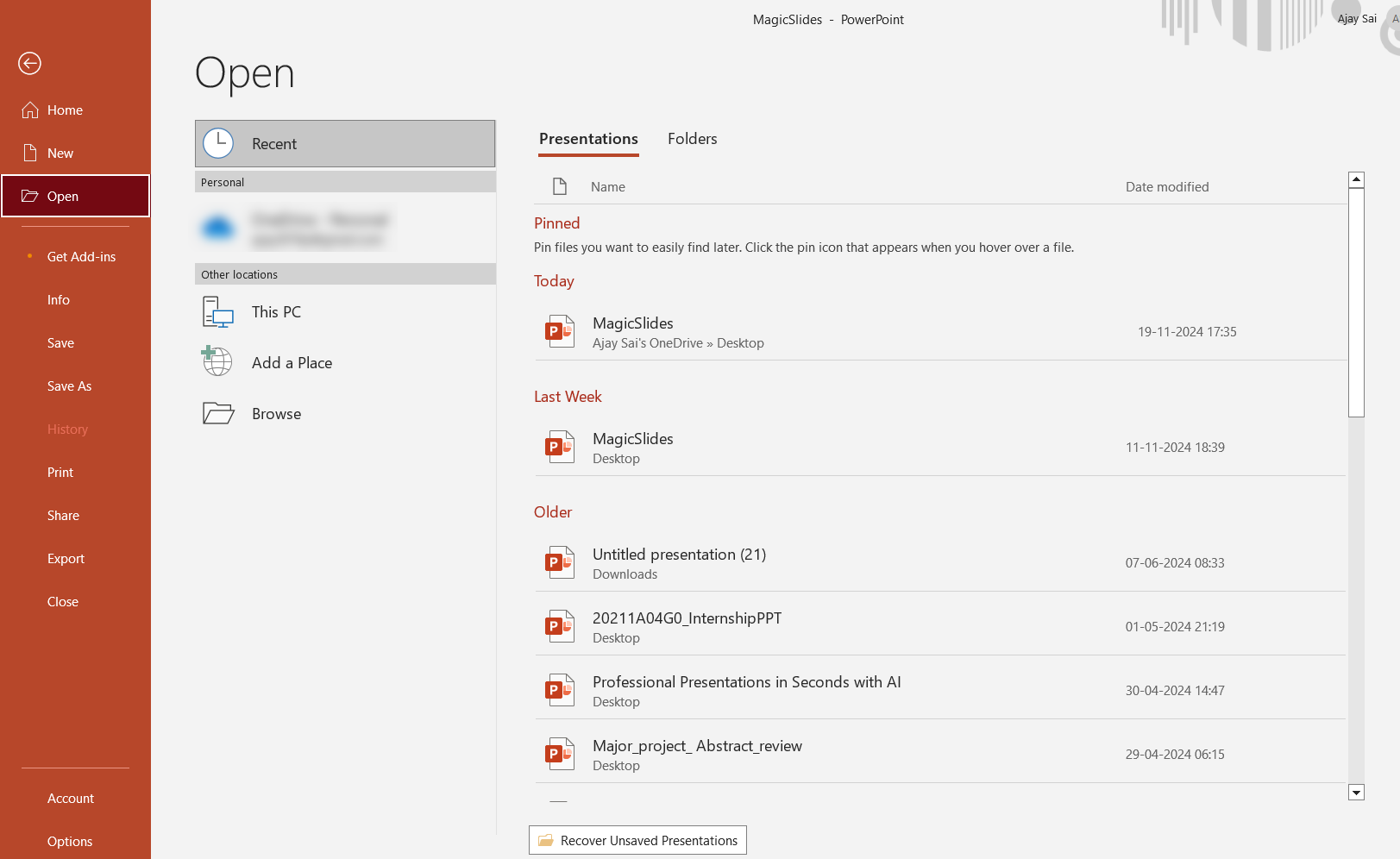
Click the dropdown arrow next to the “Open” button and select “Open and Repair.”
If successful, PowerPoint will repair and open the file. Save it immediately with a new name.
Step 4: Update or Reinstall PowerPoint
Ensure your version of PowerPoint is up to date. Go to File > Account > Update Options > Update Now.
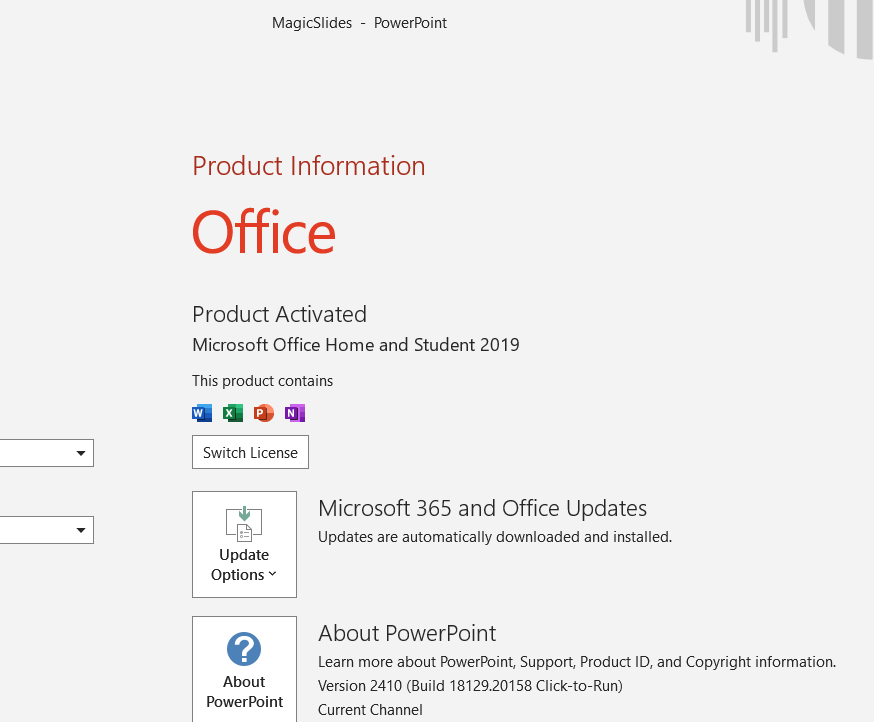
If the problem persists, uninstall and reinstall PowerPoint to fix any corrupted program files.
Step 5: Recover from a Backup or AutoSave
If the file cannot be repaired, check if you have a backup copy of the presentation stored on your device, cloud service, or external drive.
Look for AutoSave files by navigating to:
- Windows:
C:\\Users\\[Your Username]\\AppData\\Roaming\\Microsoft\\PowerPoint - Mac:
/Users/[Your Username]/Library/Containers/com.microsoft.PowerPoint/Data/Library/Preferences/AutoRecovery
Open the backup file and save it with a new name.
Step 6: Use Third-Party Recovery Tools
If all else fails, use reliable third-party file recovery tools like Stellar Repair for PowerPoint or Kernel for PowerPoint Repair.
Follow the software instructions to repair and retrieve your presentation.
Conclusion
The “Sorry, PowerPoint can’t read” error can be frustrating, but it’s often fixable with a systematic approach.
By checking file formats, repairing the file, or recovering backups, you can regain access to your presentation and prevent future issues.
Always save multiple backups of important files to avoid data loss.
FAQs on “Sorry, PowerPoint Can’t Read” Error
What causes the “Sorry, PowerPoint can’t read” error?
This error is caused by file corruption, unsupported formats, version mismatches, or missing program updates.
How can I avoid losing PowerPoint presentations?
Apart from keeping backups and using cloud storage, you can also use tools like MagicSlides AI Presenation tool to quickly recreate presentations from existing content such as text, documents, or web pages if a file becomes unreadable.
Can I fix this error if the file is severely corrupted?
Yes, you can try PowerPoint’s “Open and Repair” feature or third-party recovery tools designed for damaged files.
How can I prevent this error in the future?
Save your work frequently, avoid force-closing PowerPoint, and always use supported file formats. Regularly back up important presentations to cloud storage or external devices.


