How to make notes in powerpoint presentation


Transform your PowerPoint into detailed notes effortlessly with these step-by-step instructions for effective presentation preparation.
Creating concise and effective notes from your PowerPoint presentation can be a game-changer, aiding both presenters and audience members. Here's a step-by-step guide to seamlessly turn your PowerPoint into valuable notes.
How to make notes in powerpoint presentation
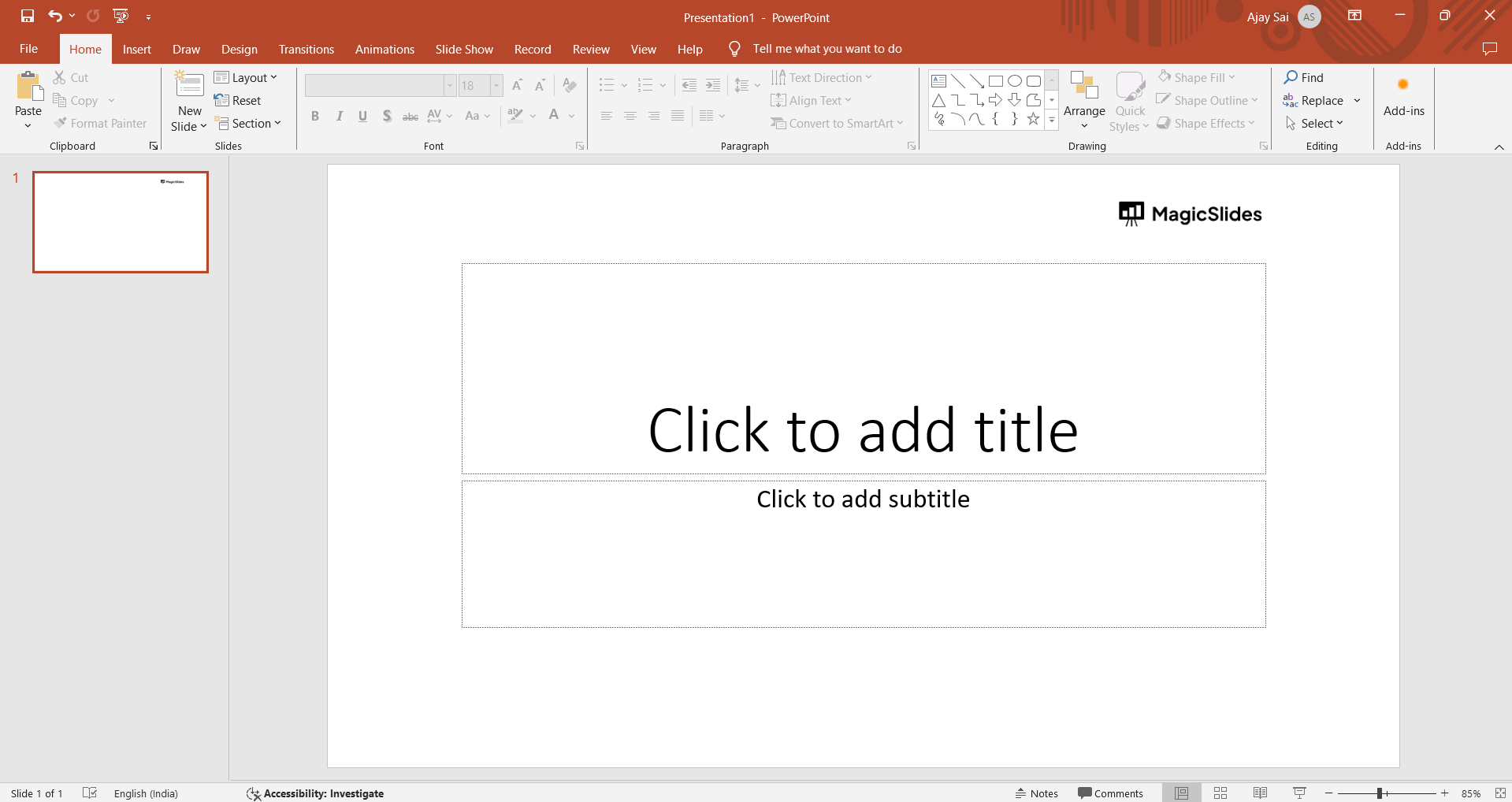
Step 1: Open Your PowerPoint Presentation
Begin by opening the PowerPoint file you want to convert into notes. Ensure that your slides are well-organized and contain all the necessary information.
Step 2: Access the Notes Page
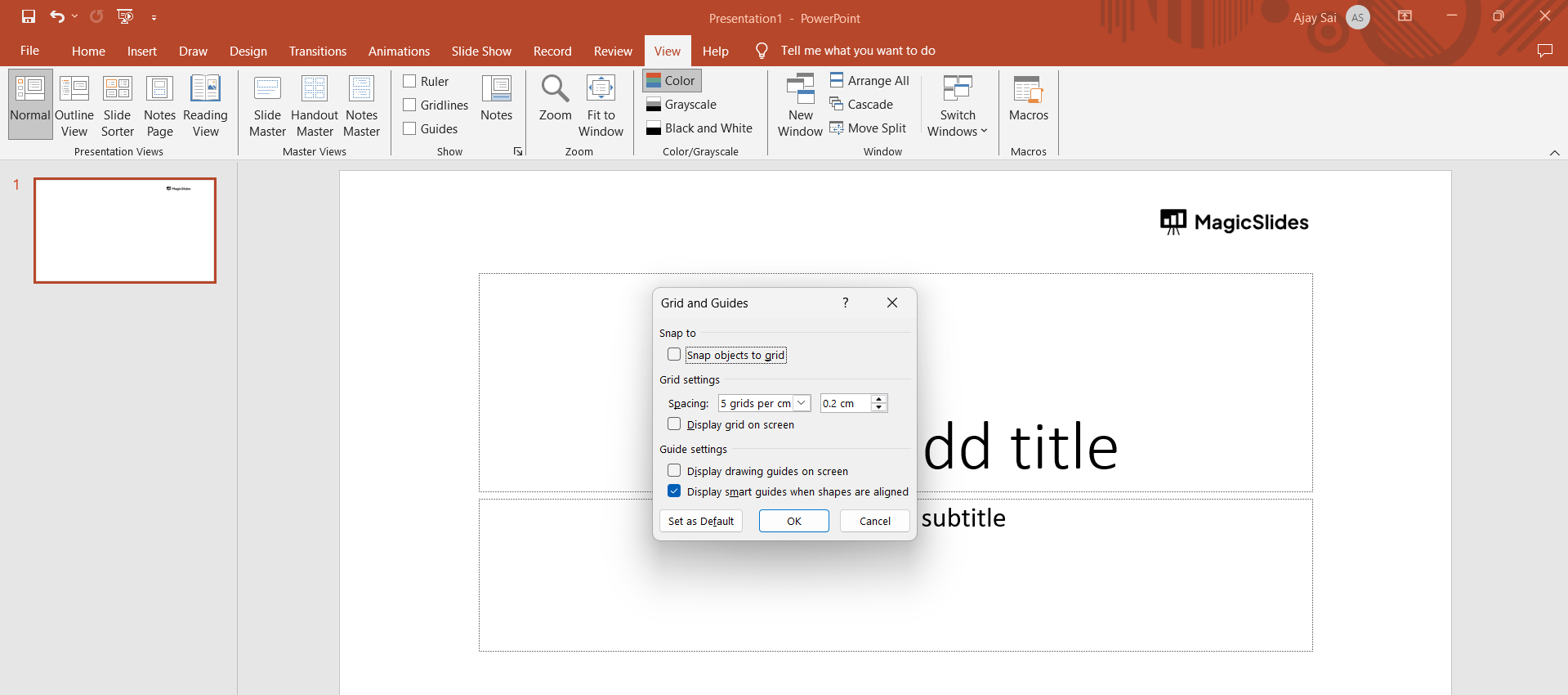
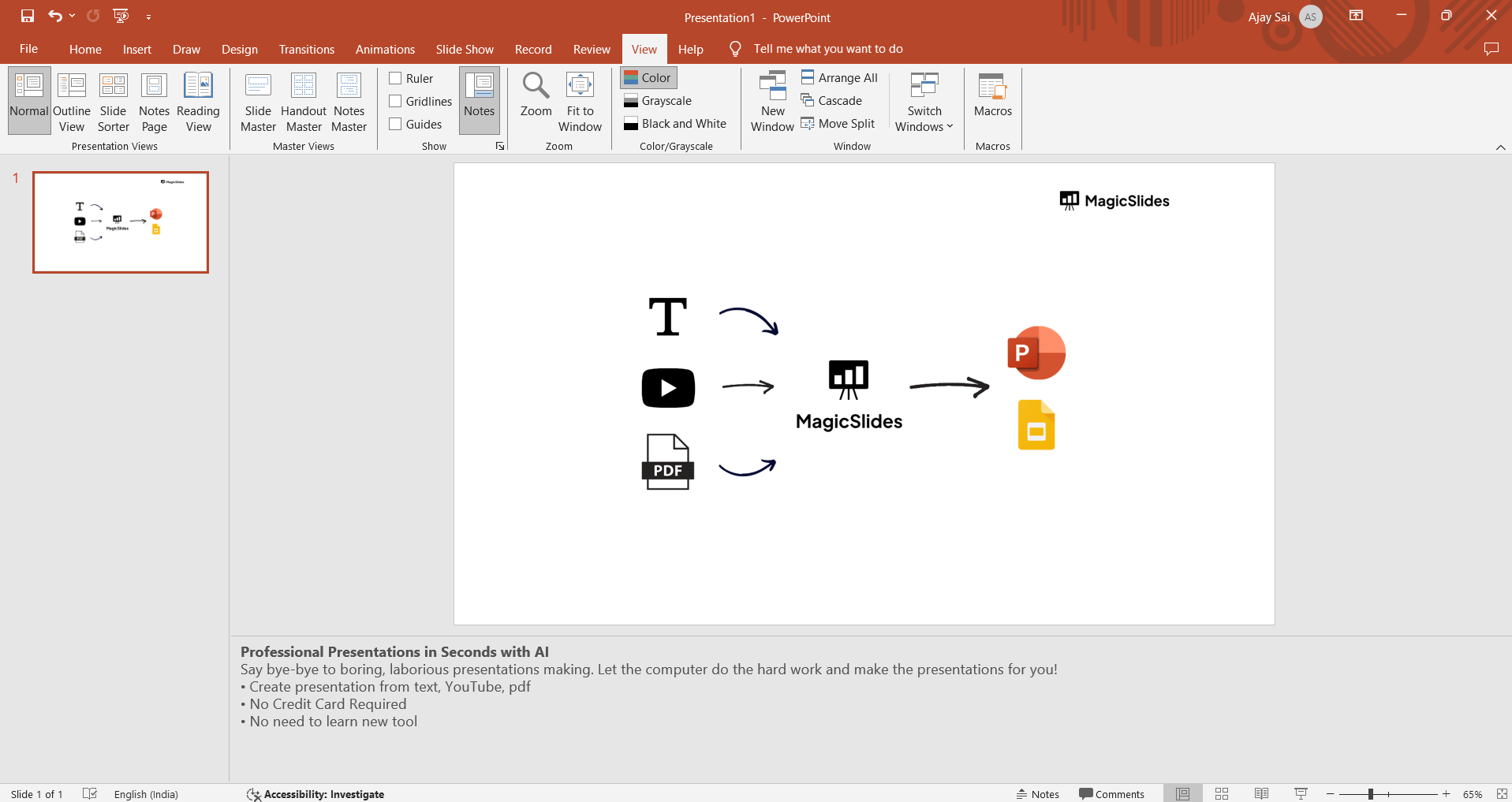
In PowerPoint, there's a feature specifically designed for creating speaker notes. Navigate to the "View" tab on the ribbon and select "Notes Page." This will open a section below each slide where you can input additional information.
Step 3: Craft Your Speaker Notes
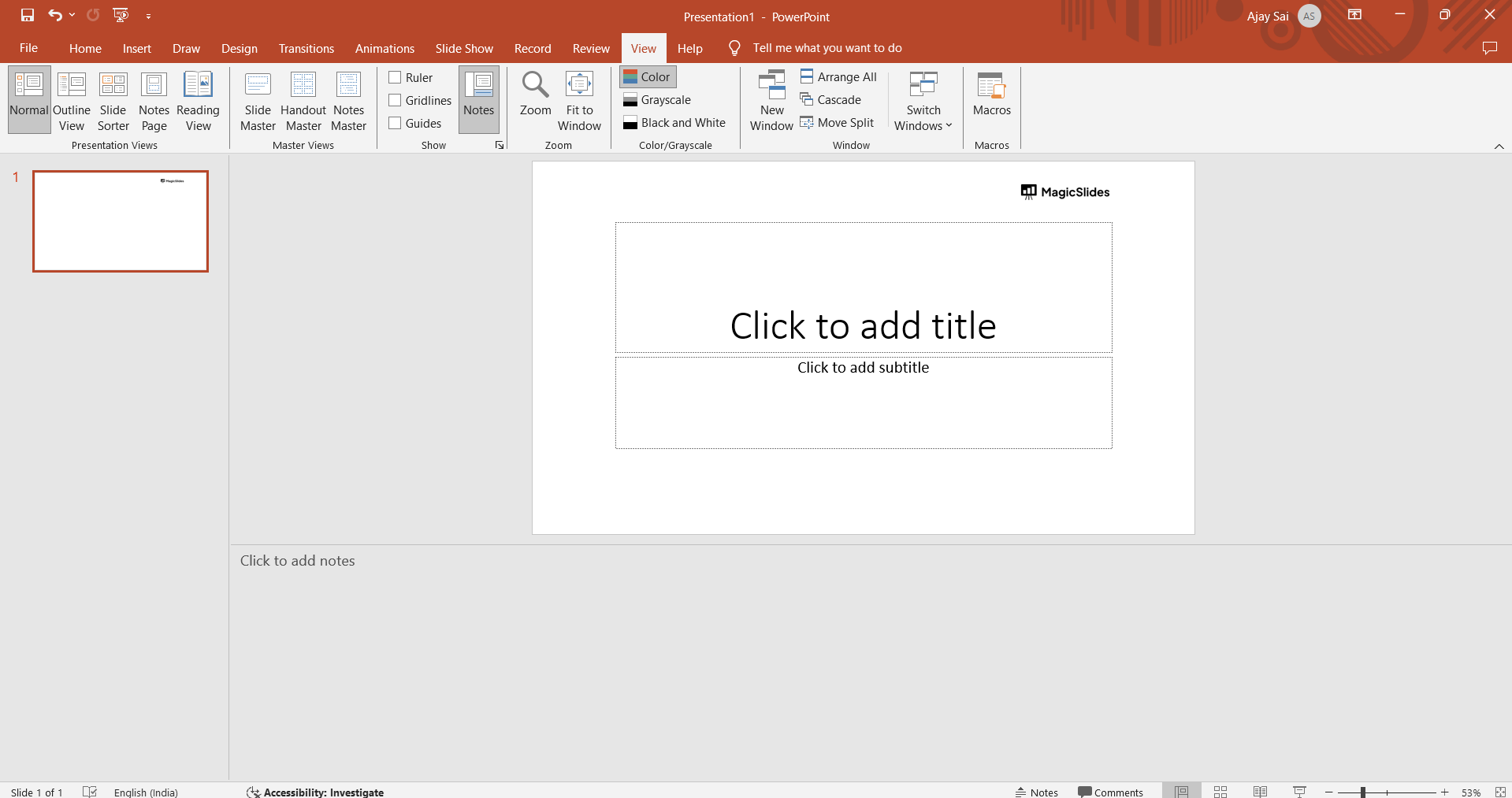
In the Notes Page view, you'll see the current slide at the top and a space below for notes. Here, you can type detailed speaker notes, key points, or reminders related to each slide. Be concise yet informative.
Step 4: Use Bullet Points and Formatting
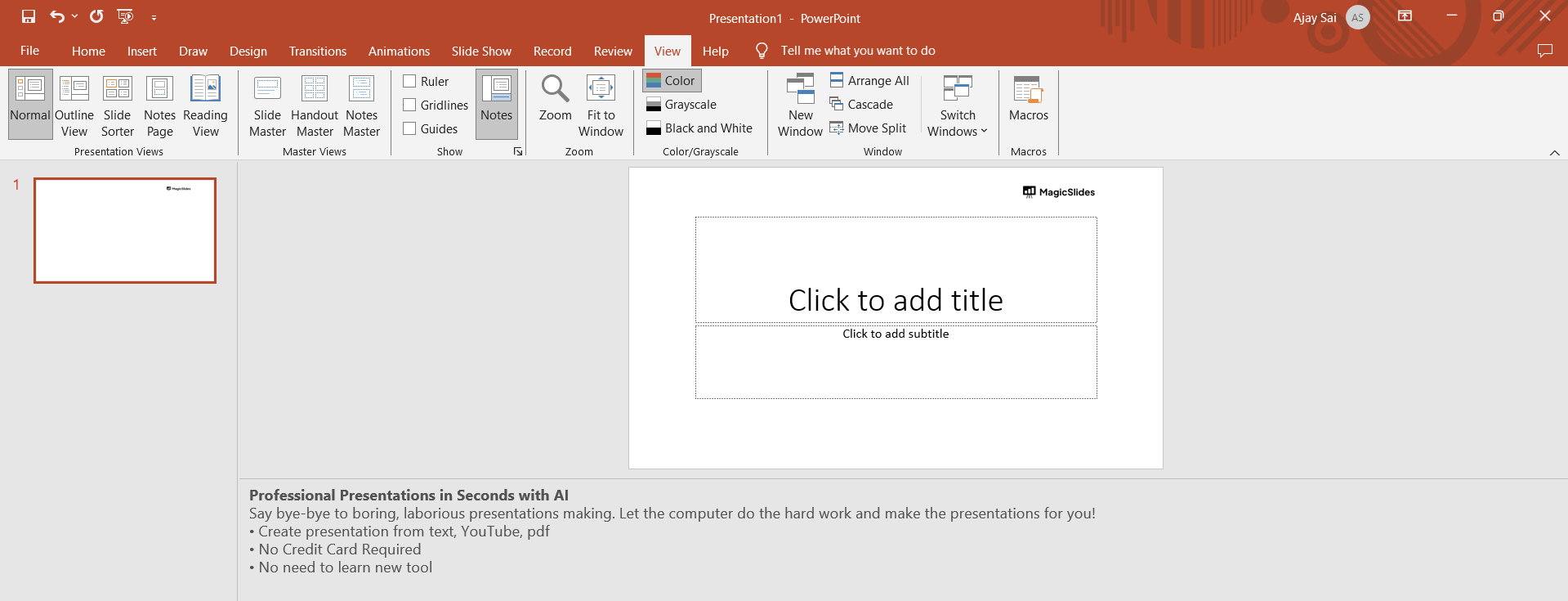
Make your notes reader-friendly by using bullet points and formatting options. Break down complex information into digestible chunks, ensuring that it's easy to follow during your presentation.
Step 5: Customize for Clarity
Tailor your notes to suit your presentation style. Add cues for pauses, emphasis, or interactions with the audience. Customize the notes to provide guidance on your tone, expressions, or specific delivery instructions.
Step 6: Save Your Notes
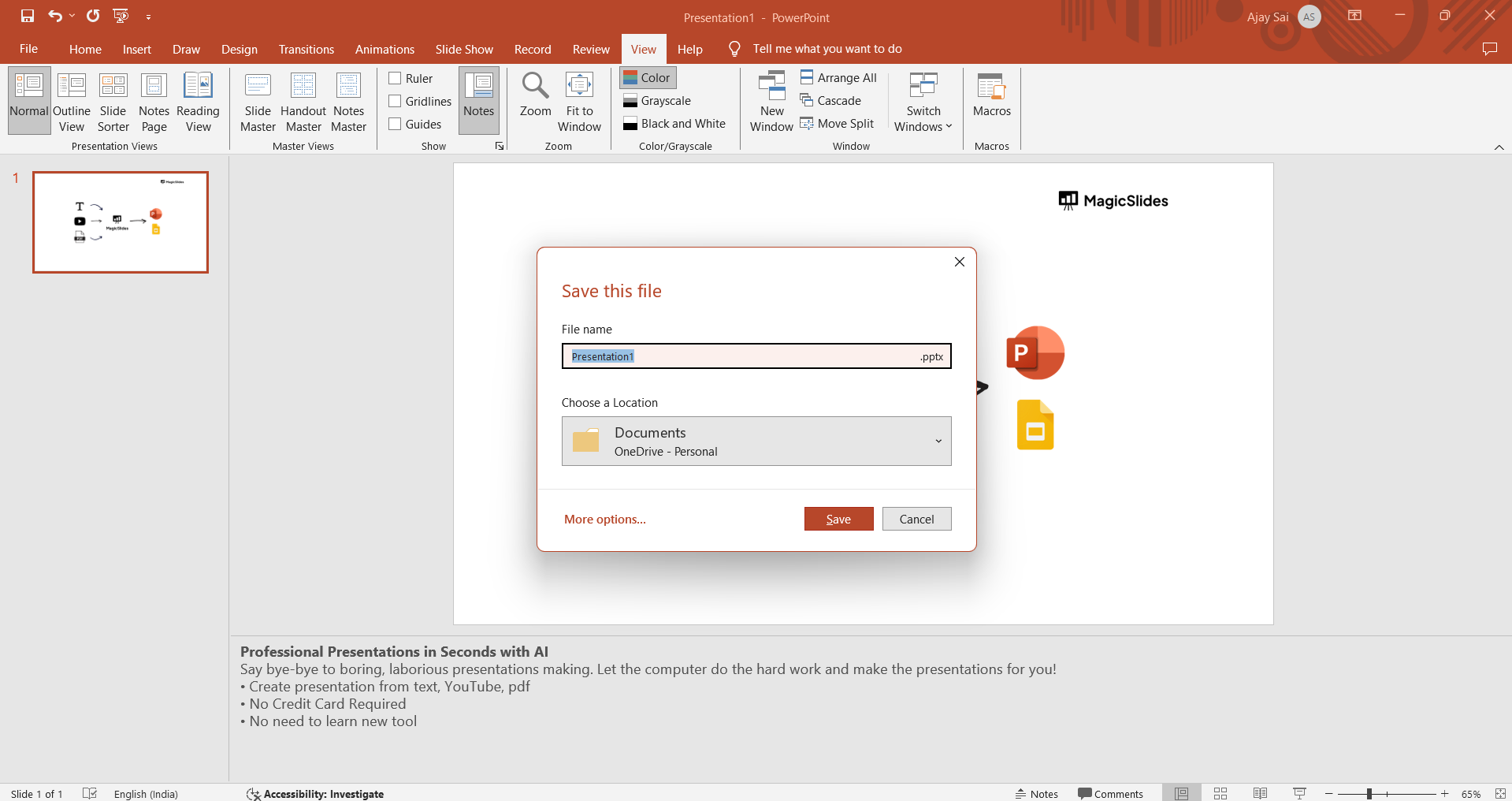
Once you've created comprehensive speaker notes, save your PowerPoint file. This ensures that your notes are accessible whenever you need them, whether you're presenting in-person or virtually.
Conclusion:
By following these simple steps and tips, you can effortlessly transform your PowerPoint into a valuable set of speaker notes, enhancing your presentation skills and ensuring a memorable experience for your audience.
Tips for Effective Speaker Notes:
- Conciseness is Key: Keep your notes concise, focusing on key points to avoid information overload.
- Visual Cues: Incorporate visual cues or reminders to enhance your delivery.
- Practice with Notes: Familiarize yourself with the notes during rehearsals to ensure a smooth and confident presentation.
- Engage Your Audience: Use your notes as a guide to engage with your audience effectively.
Frequently Asked Questions (FAQs)
Q1: Why would I want to turn my PowerPoint into notes? A1: Converting your PowerPoint into notes is beneficial for speakers who want a comprehensive guide during presentations. It ensures you don't miss key points and helps maintain a smooth flow.
Q2: Can I customize the speaker notes for each slide? A2: Absolutely. The Notes Page feature in PowerPoint allows you to customize notes for each slide. Tailor the content to match the specifics of each part of your presentation.
Q3: How do I access the Notes Page view in PowerPoint? A3: To access the Notes Page, go to the "View" tab on the ribbon, and select "Notes Page." This will open a dedicated area for adding detailed notes beneath each slide.
Q4: Can I include visual cues in my speaker notes? A4: Yes, you can enhance your notes with visual cues, such as reminders for gestures, pauses, or specific interactions with the audience. Visual cues can significantly improve your presentation delivery.
Have a look @these tutorial blogs by us:
- How To Flip An Image In Powerpoint In 2024: https://www.magicslides.app/blog/How-to-mirror-an-image-in-powerpoint
- How To Add A Background In Powerpoint: https://www.magicslides.app/blog/How-to-add-a-background-in-powerpoint
- How To Add Mp4 Audio To Google Slides: https://www.magicslides.app/blog/How-to-add-mp4-audio-to-google-slides
- How To Automatically Play Your Google Slides: https://www.magicslides.app/blog/How-to-automatically-play-google-slides


