How to add a background in powerpoint


Transform your PowerPoint slides with flair discover how to effortlessly add captivating backgrounds for dynamic presentations.
Captivating backgrounds breathe life into your PowerPoint presentation, transforming it from ordinary to extraordinary. Learn the art of adding backgrounds and infuse a new dimension of visual appeal into your slides.
Steps to Add a Background in PowerPoint:
Step 1: Open Your Presentation
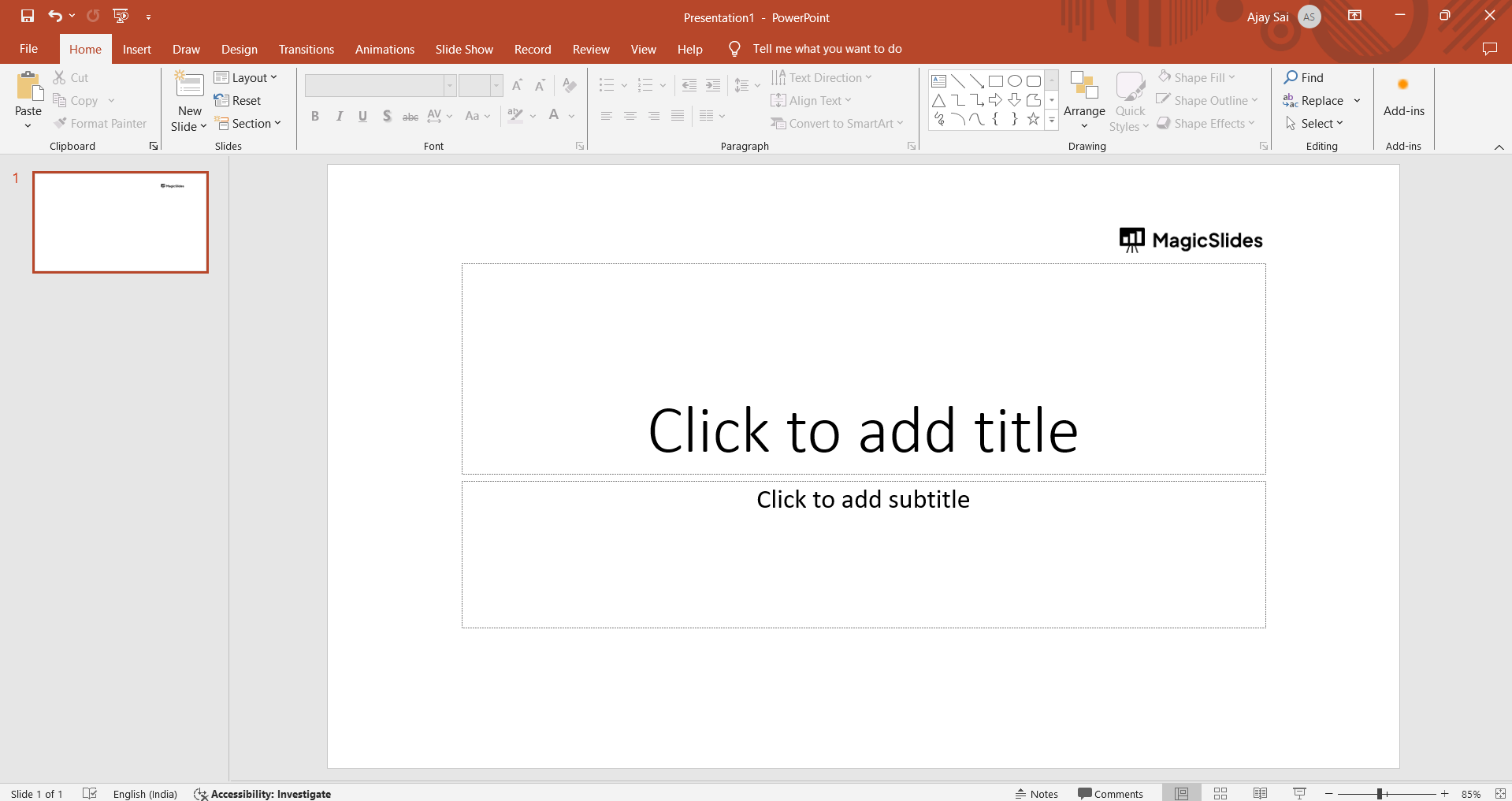
Launch PowerPoint and open the presentation where you want to incorporate a background. Ensure you're in the slide that requires the aesthetic lift.
Step 2: Access the Design Tab
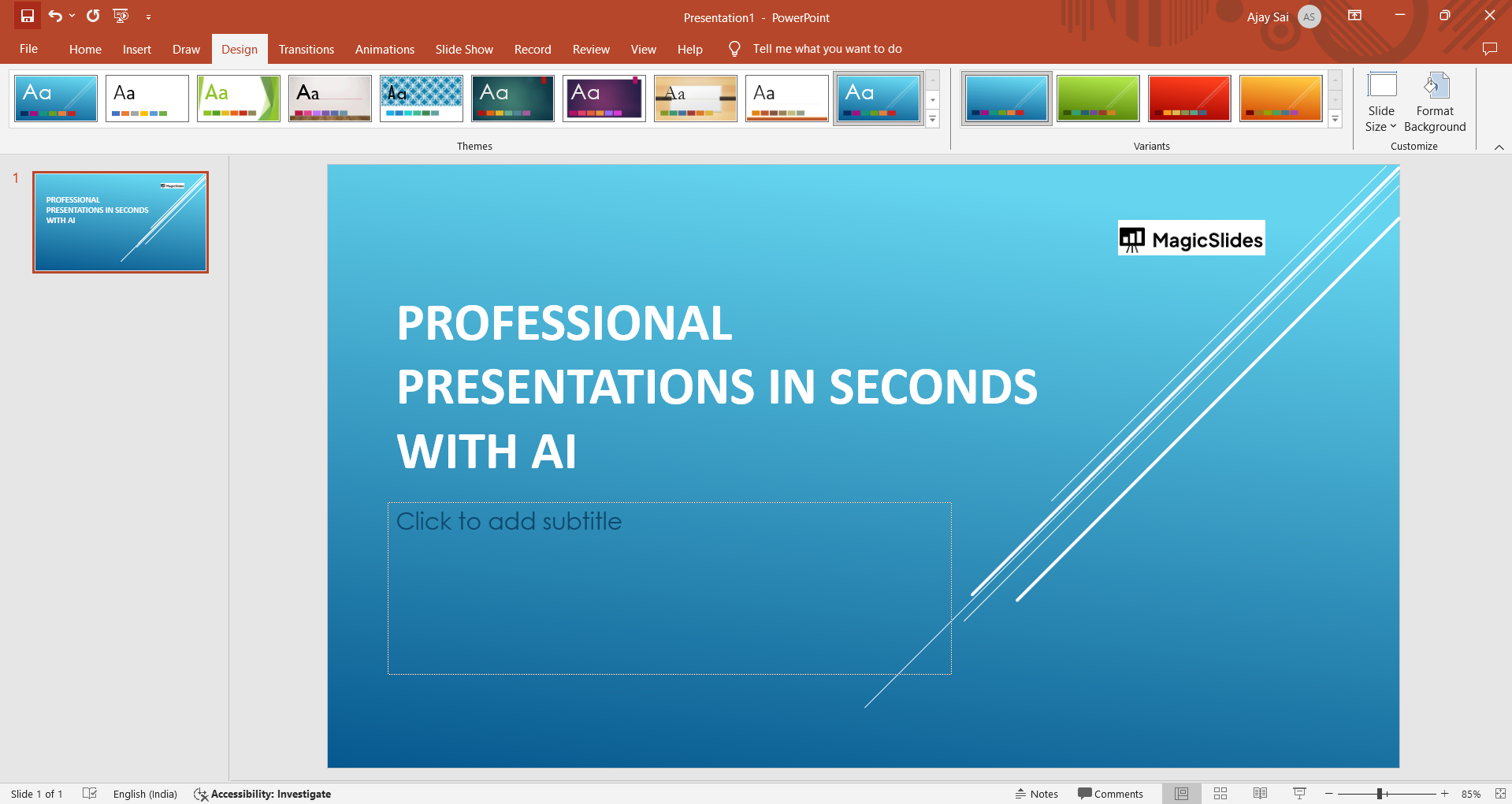
Navigate to the Design tab on the PowerPoint ribbon. Here, you'll discover a plethora of design options to enhance the overall look of your slides.

Step 3: Choose a Background Style
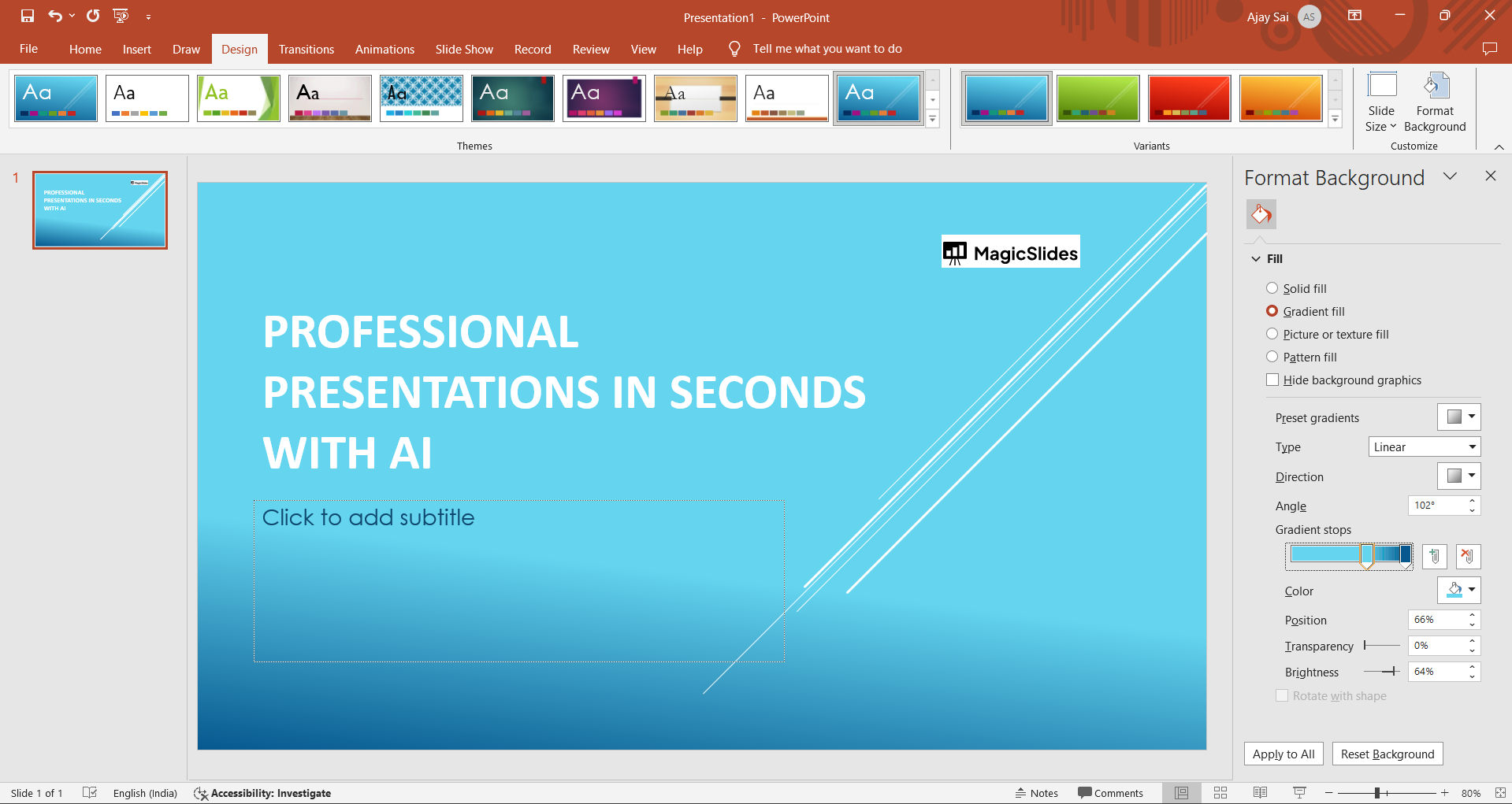
Click on the 'Format Background' option within the Design tab. A sidebar will appear, allowing you to pick a background style. Explore various built-in styles or opt for a solid fill, gradient, pattern, or picture.
Step 4: Customize Your Background
Once you've selected your preferred background style, dive into customization. Tweak colors, adjust transparency, or insert a captivating image. Tailor the background to complement your content and resonate with your audience.
Step 5: Apply to All or Specific Slides
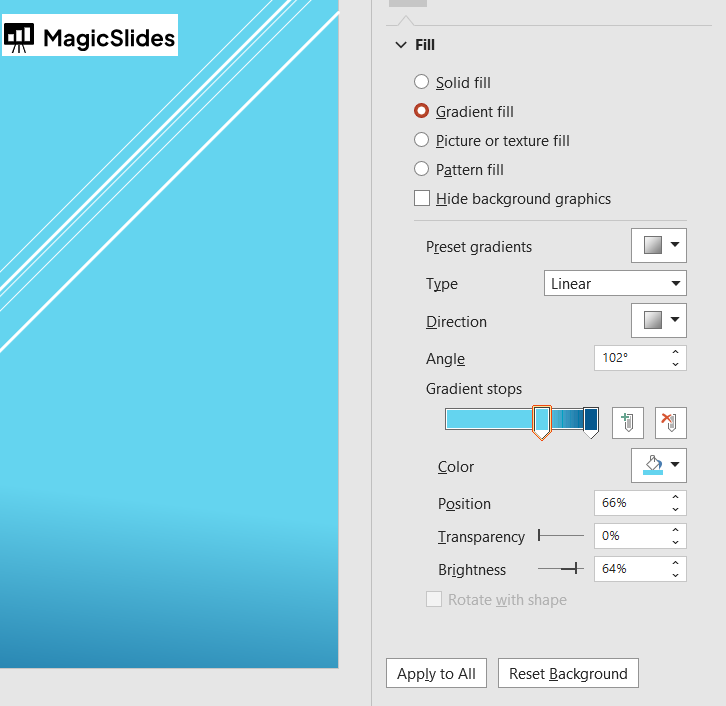
Decide whether your background should grace a single slide or the entire presentation. Utilize the 'Apply to All' or 'Apply' option, depending on your preference.
Conclusion:
Incorporating backgrounds in PowerPoint is a game-changer, injecting vibrancy and coherence into your slides. Experiment with different styles, unleash your creativity, and captivate your audience with visually stunning presentations. Let your background tell a story that enhances your narrative and leaves a lasting impression. Elevate your presentation aesthetics effortlessly with the magic of backgrounds in PowerPoint.
Frequently Asked Questions (FAQs):
Q1: Can I change the background on just one slide?
Absolutely! After selecting your desired background style in the Design tab, navigate to the specific slide. Right-click on the slide, choose 'Format Background,' and customize it to your liking. Your creativity knows no bounds!
Q2: What if I want a custom image as my background?
Embrace the customization! In the 'Format Background' sidebar, opt for 'Picture or Texture Fill,' then click 'File' to upload your image. Ensure it aligns with your content and resonates with your audience.
Q3: Can I apply different backgrounds to different slides?
Certainly! Each slide is a canvas awaiting your creative touch. Select individual slides, access the 'Format Background' option, and tailor the backgrounds according to the unique narrative of each slide.
Q4: Will the background distract from my content?
Not at all! A well-chosen background enhances your content, creating a harmonious visual experience. Balance is key – ensure the background complements your message rather than overpowering it.
Have a look @these tutorial blogs by us:
- How To Add Bullet Points In Powerpoint: https://www.magicslides.app/blog/How-to-add-bullet-points-in-powerpoint
- How To Crop Images In Google Slides: https://www.magicslides.app/blog/How-to-crop-images-in-google-slides
- How To Insert A Drawing In Google Slides: https://www.magicslides.app/blog/How-to-insert-a-drawing-in-google-slides
- How To Remove Background In Powerpoint: https://www.magicslides.app/blog/how-to-remove-background-in-powerpoint


